Usage of Navigation tool , Timeliner and Clash Detection test using Naviswork
Ans1. Aim-Use the Architecture/ Structure Project file developed by you in Week 6 to 8. Export the Revit architecture and structure model to Navisworks Cache file following the export settings discussed in class
1. just open your revit software we have allready drawn a plan of Architecture/ Structure then go to file then click export the click IFC
file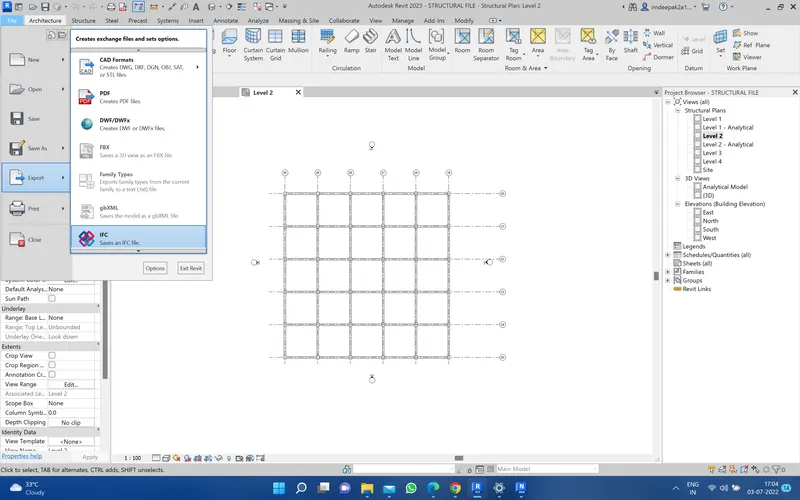
and chooes the distnation folder of your local computer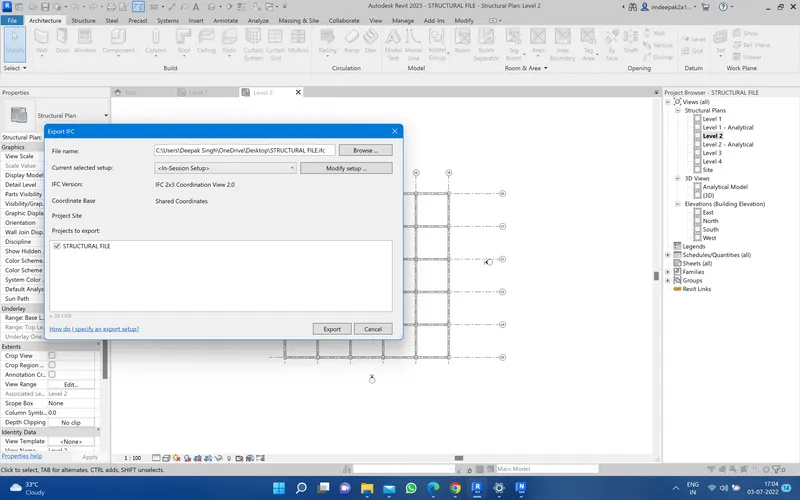
and click on export
Ans2. Aim-Use Navigate Tool to walk around the model and walk through the rooms created and record your moving as animation in your Navisworks file
for that just open your navisworks and open the filr and
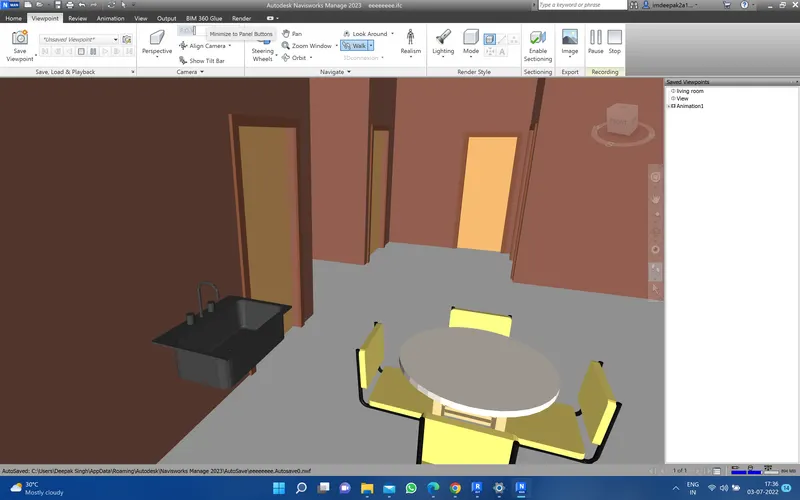
just go to the view point option then we have option called walk then select the walk then if you want to recorded your walk just drop down the and click on the record
just click save point option the rename hallroom and enter then start recording and using your crossair just walk inside the model and using the keybord arrow botton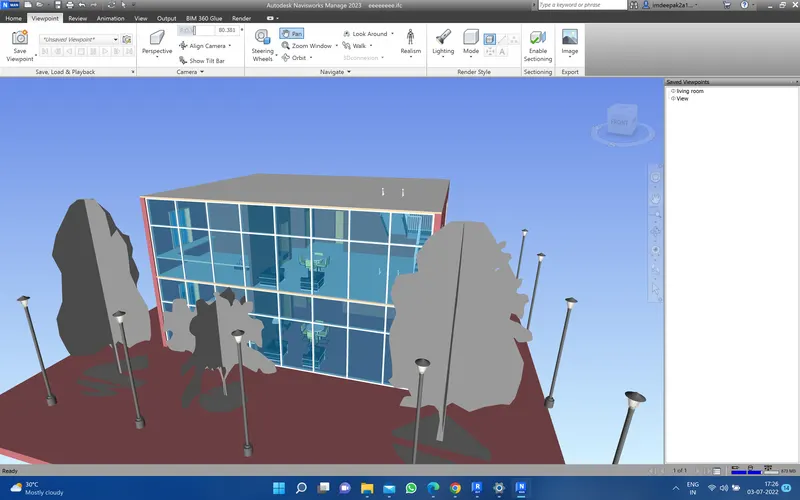
Ans3. Aim- Use Navigate tool to use Realism feature to walk through the model and record your moving as animation in Navisworks file
just open Naviswork software we have all rady inported file here
For Realism feature
just go to view point option then you have arealism option
before that just go inside of the room
Now just dropdown the realism feture then click third person option click it
so just click save option then rename the realism then click walk option
then using cross arrow walk inside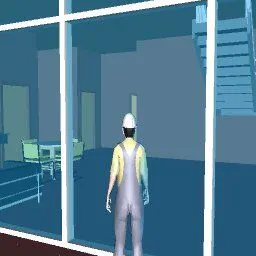
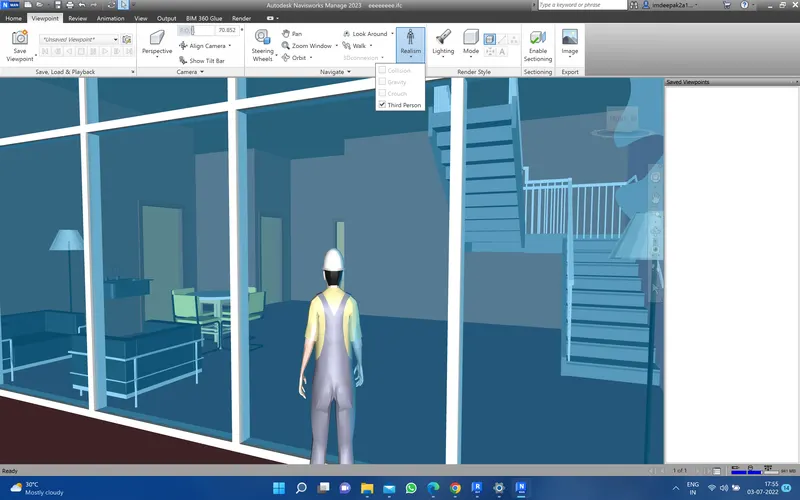
Ans4. Aim-Embed both architecture and structure *.nwc file to your Navisworks file. Create a clash detection test between the two models
frist yo need to insert architecture and structure file in nevisworks
then we have a option called clash detective then click on add then chooes the file from section A architecture and section B structure then click run test then immediately shows the clash number you can change the status as required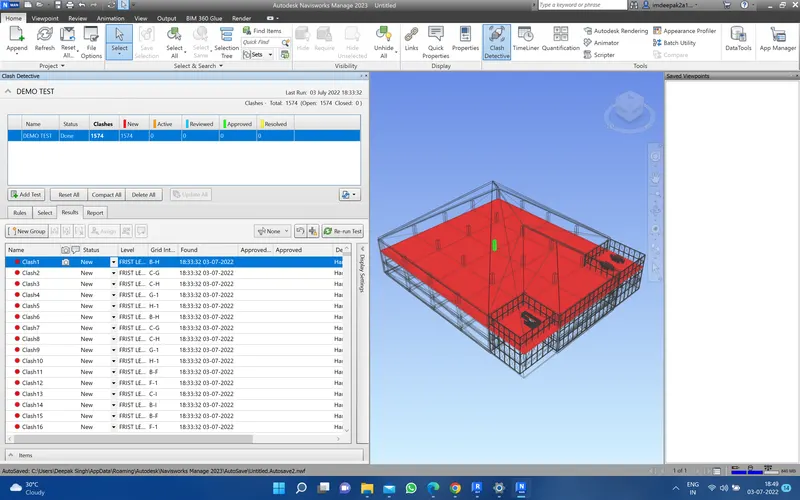
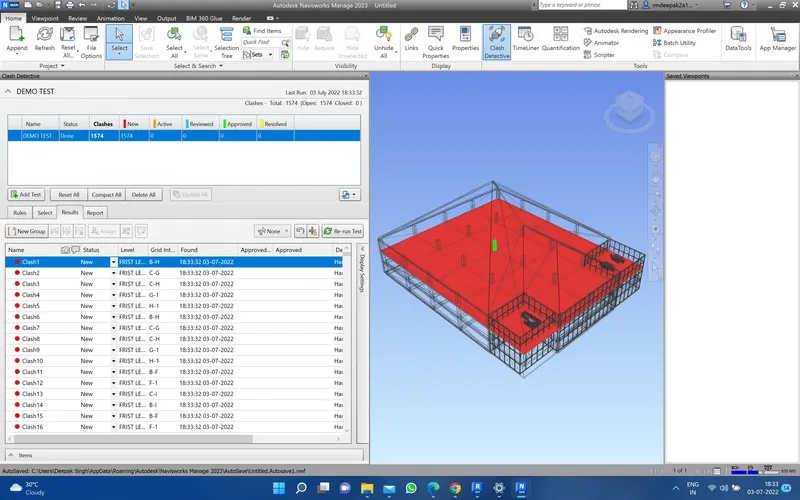
Ans5. Aim-Using the Timeliner feature in Navisworks prepare a schedule for the project developed in week 6 to 8 by adding reasonable assumptions for task start date and end date and simulate the task completion as a visual simulation. Record it and save the timeline simulation to Navisworks file
just open your navisworks then i have allrady architecture file
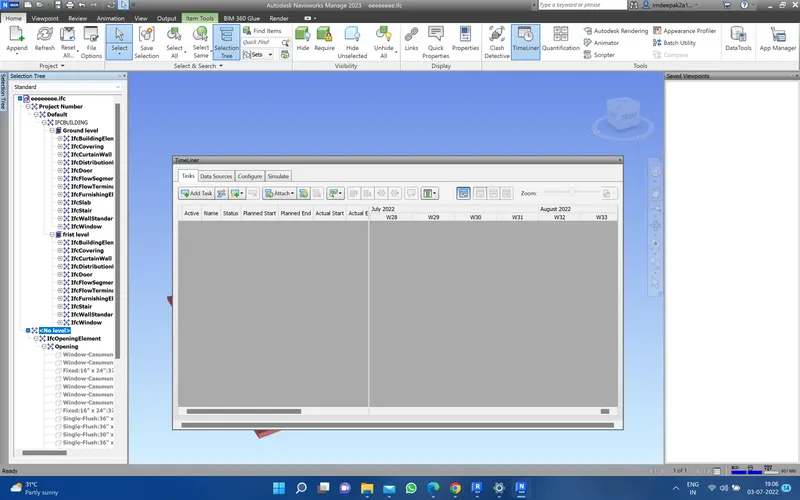
for making schedule option we have a time liner tab under the home tab just click the time liner then is shows the time liner tool
then just enable the section tree option
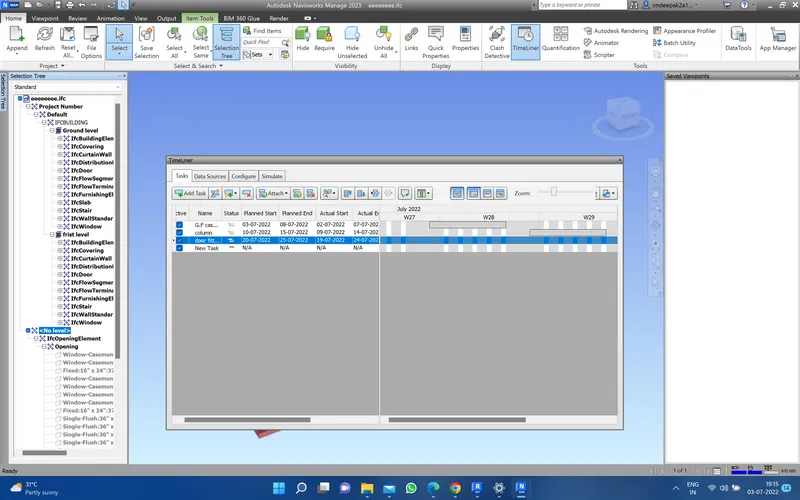
then add the all task then select the column from the selection tree then droop down the attch option and click attch current selection similarly add same more task according to the selection trees just add the all the task and we need to provied the planed start date planed end date and actual start date and actual end date
then what is the task type
then we need to attch the current selection from the selection tree
si iut want to animated video off your model as per the schdule
just click simulat button then you have a option called play just click play then it show the animated video as per you schedule