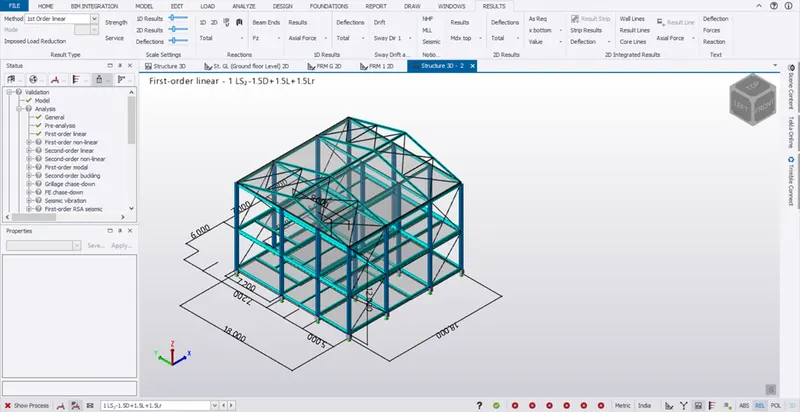
To calculate wind load for industrial steel structures and to apply it by using TSD
1.Aim:
To generate manual wind loading in the design report based IS code as per the following input
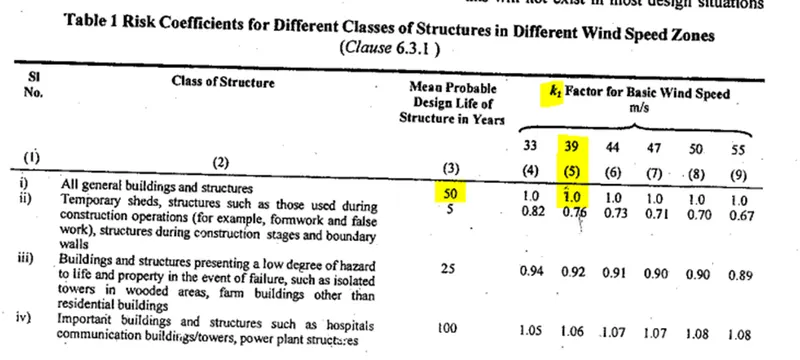
- Basic wind speed = 39m/s
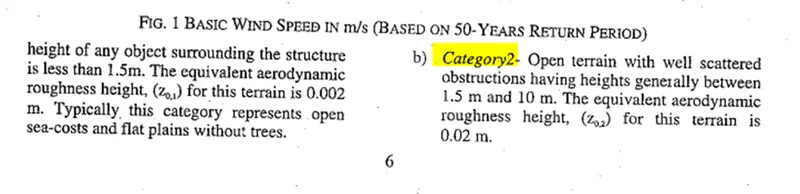
- Terrain category 2
Procedure:
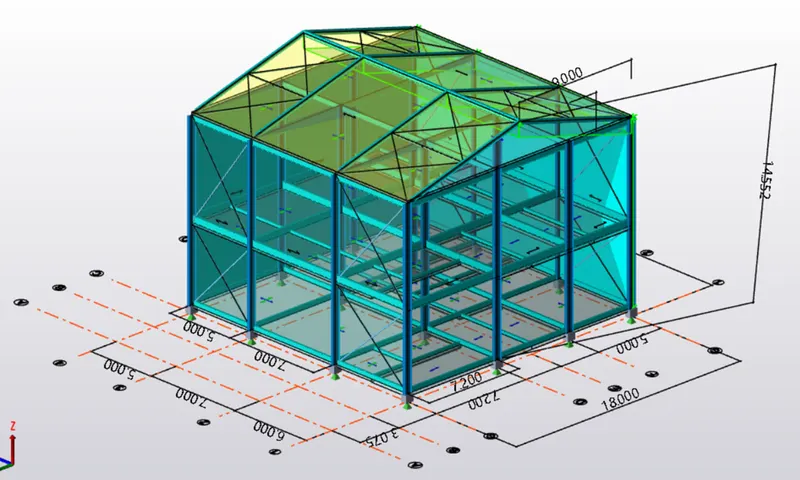
- Open Excel sheet for calculation and open TSD file which created early to check dimension of the building.
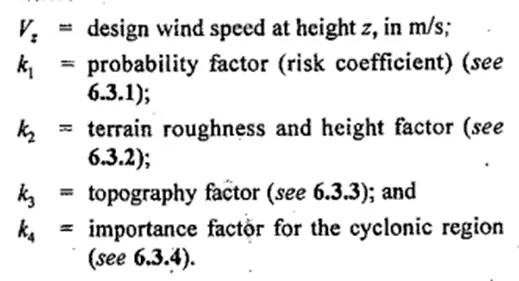
- Refer code IS 875 Part-3 2015 for,
- For K1,
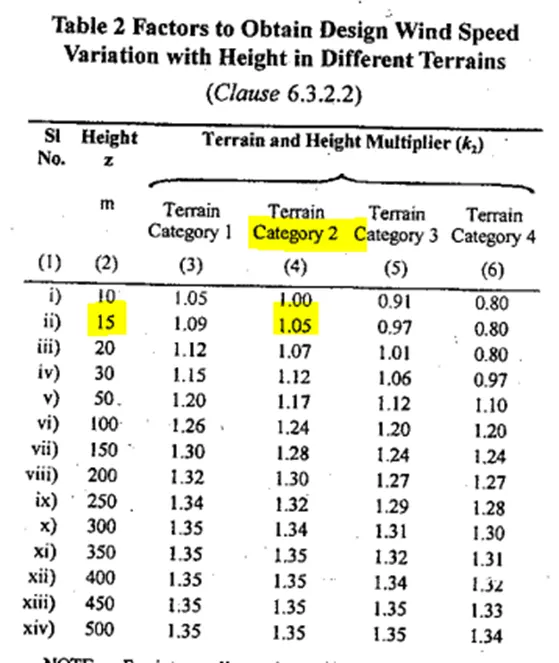
- For k2,
- K2 factor is,
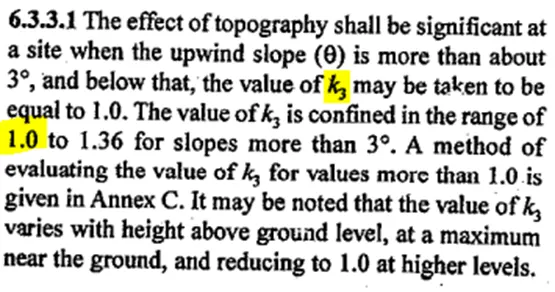
- For k3,
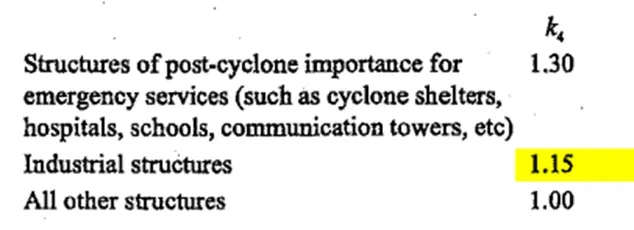
- For k4,
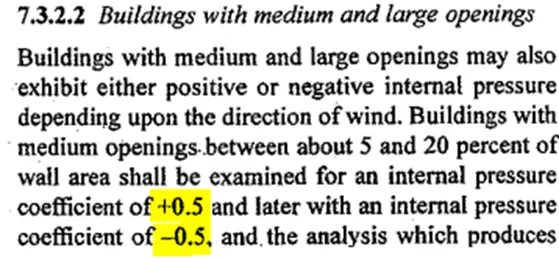
- Internal pressure coefficient- 7.3.2.2
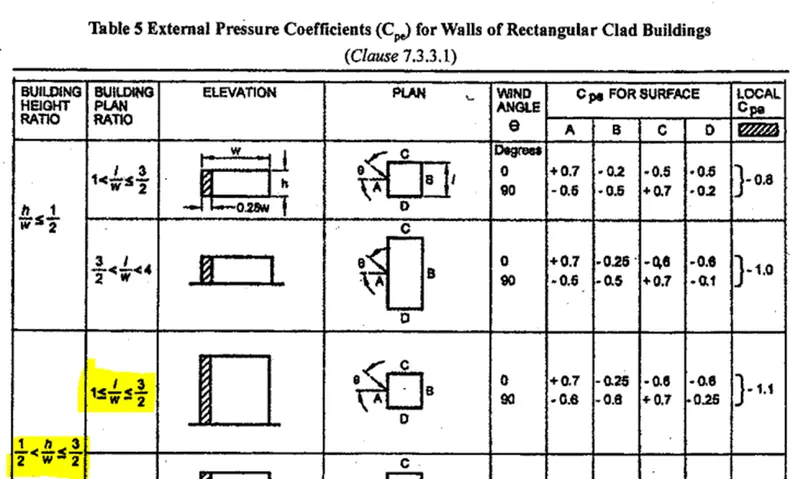
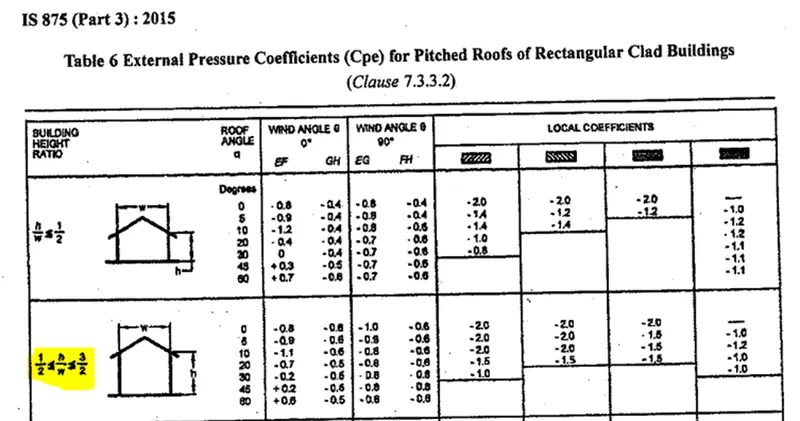
- For external co-efficient, Refer Table 5
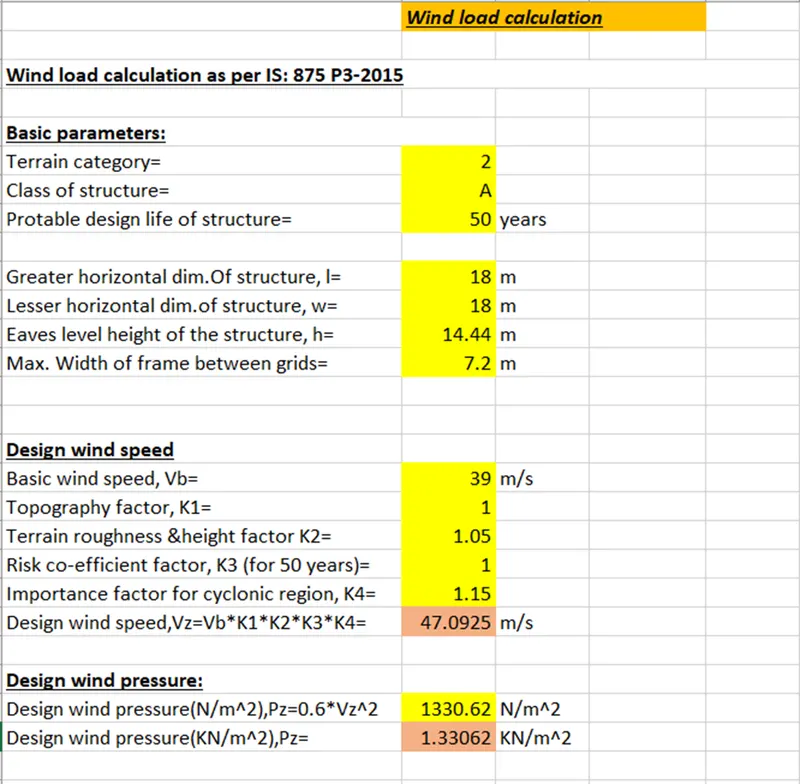
- With the above reference, Enter the value in excel for calculation.
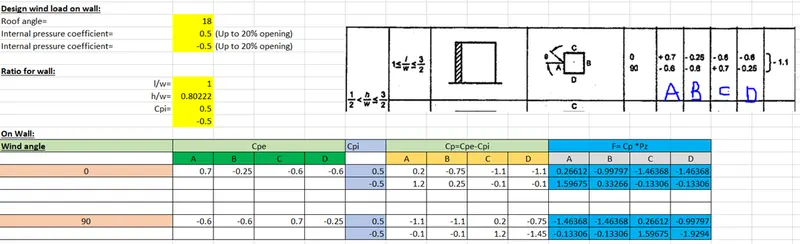
- Wall loading calculation:
- Roof loading calculation:
- Refer code IS 875 part 3
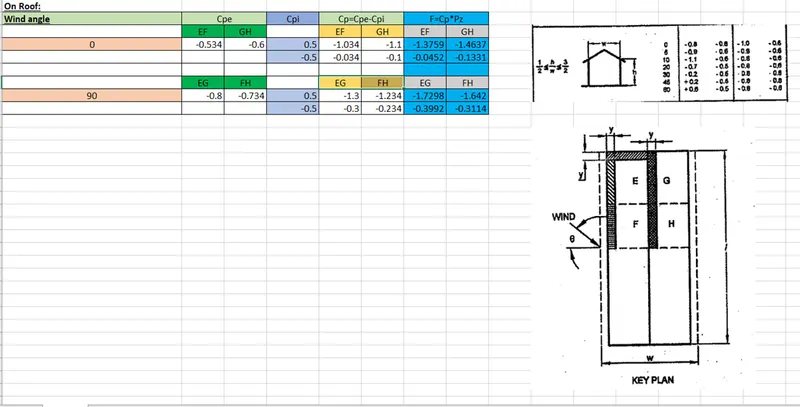
Result:
Hence, the calculation is done by refering IS 875-2015 Part-3.
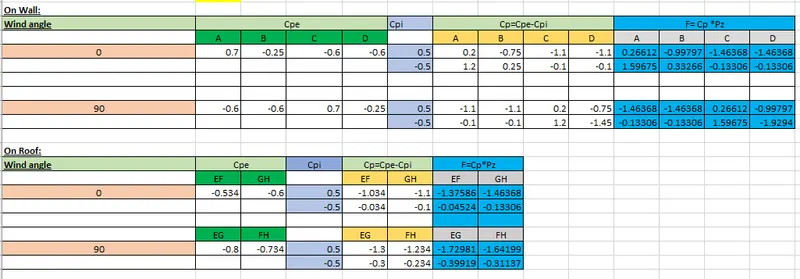
2.Aim:
To apply the loadings on the mode from the above calculation
Procedure:
- For applying wind load,
- In TSD file, go to Load -> Load cases -> add to add the main load cases
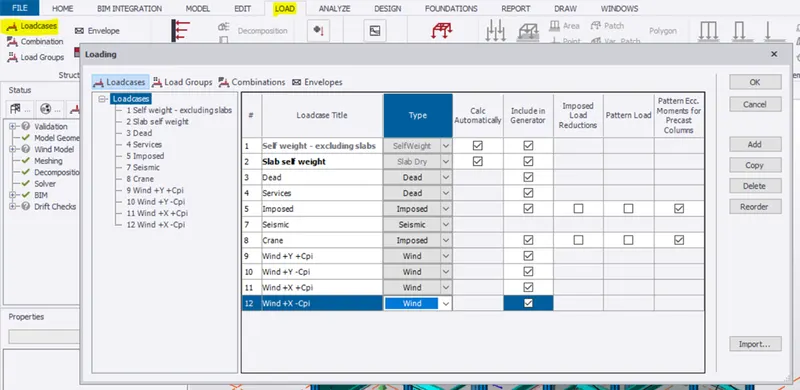
- Click ok
- Y- direction:
- Select the load case, Wind +Y +Cpi in status bar and go to 3D view.
- Go to load -> Area load and select below property in property window and select the wall panel in face A.
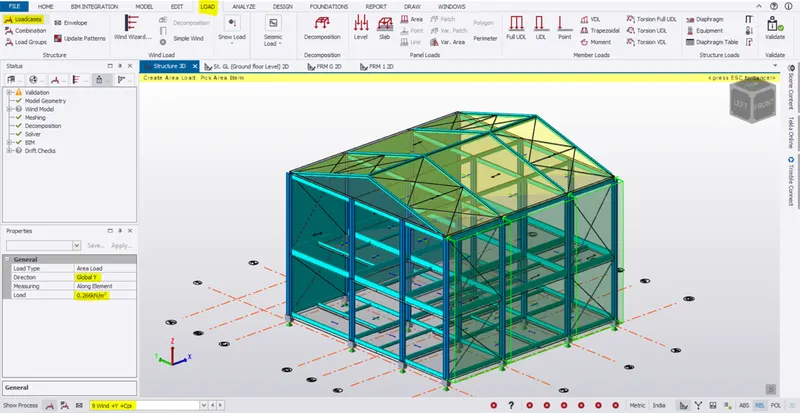
- Go to face B and apply load as mentioned in the table.
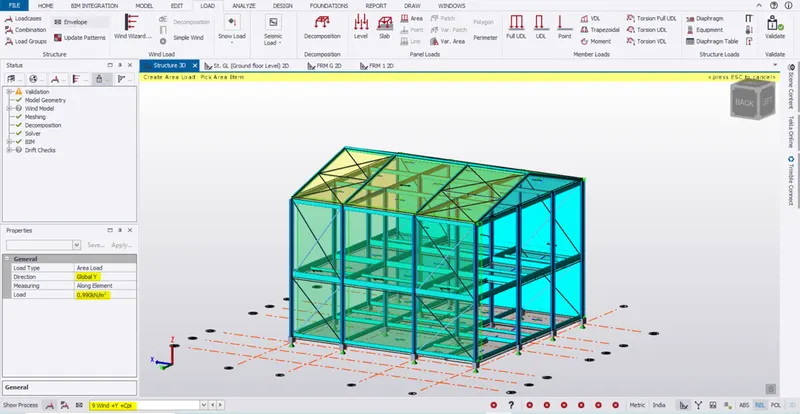
- Go to face c and D and model wall panel as shown below.
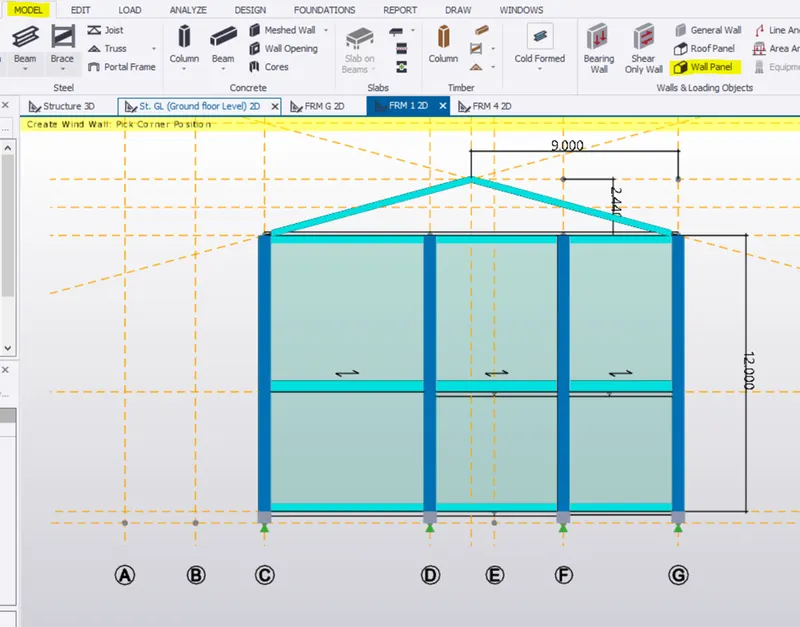
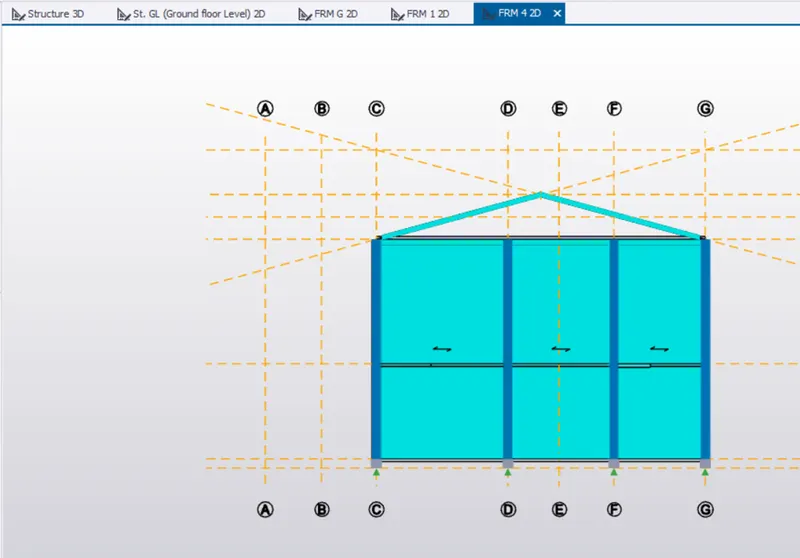
- Go to face C and apply load as mentioned in the table
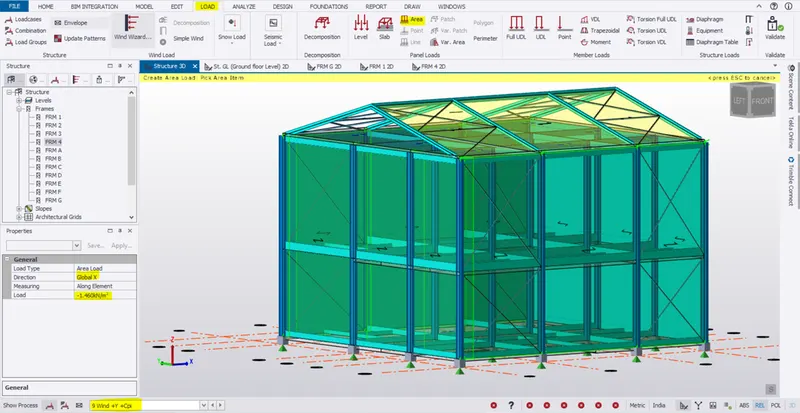
- Go to face D and apply load as mentioned in the table
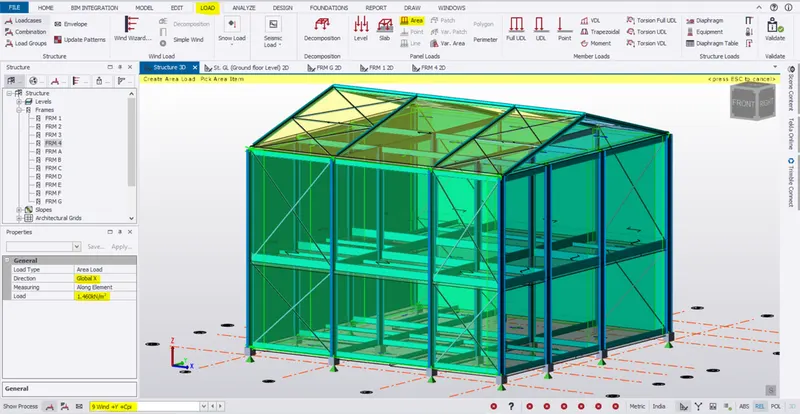
- Change the load case to +Y -Cpi and follow the same procedure.
- Face A:
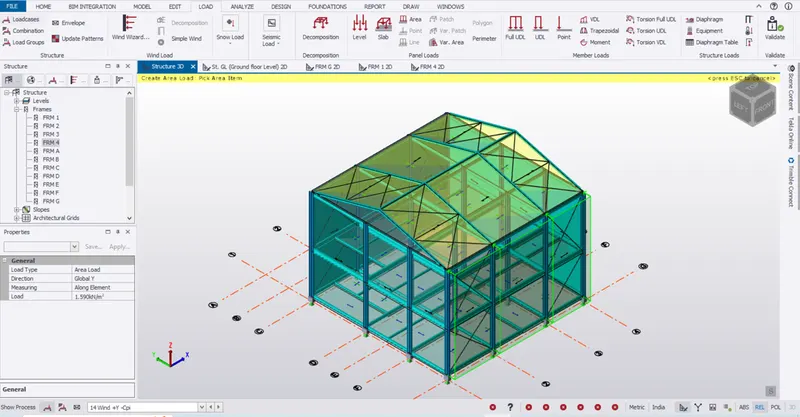
- Face B:
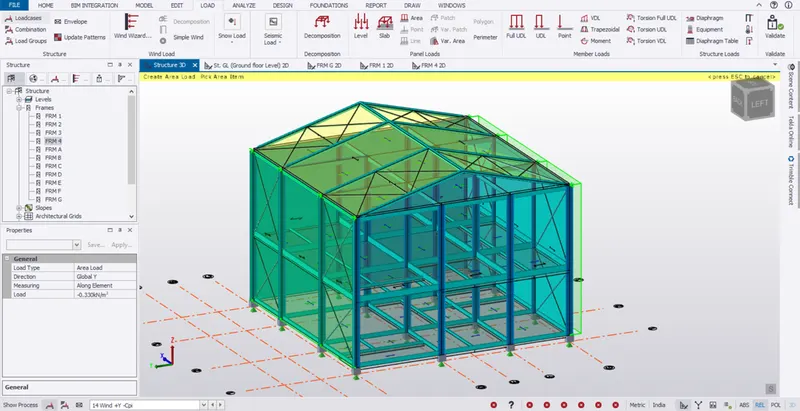
- Face C:
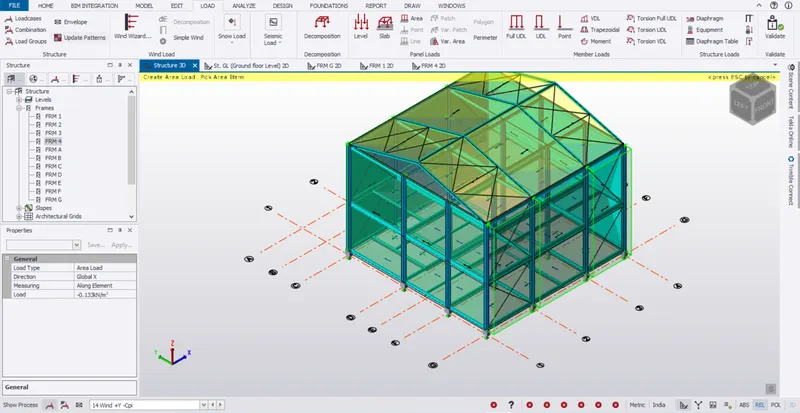
- Face D:
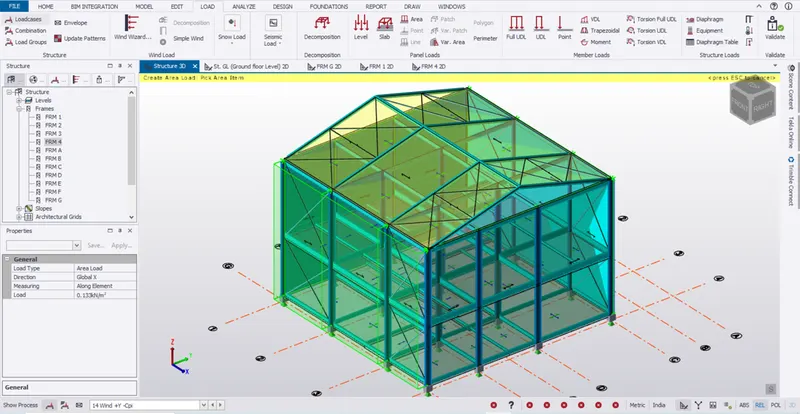
- X-direction:
- Take X direction front side as face A and apply load as applied before.
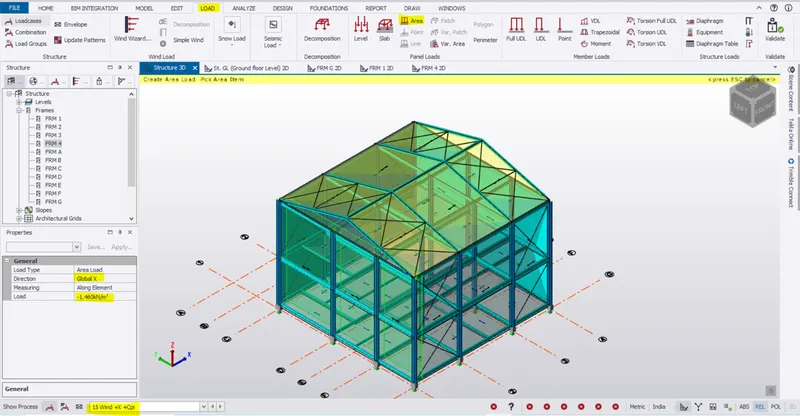
- Face B:
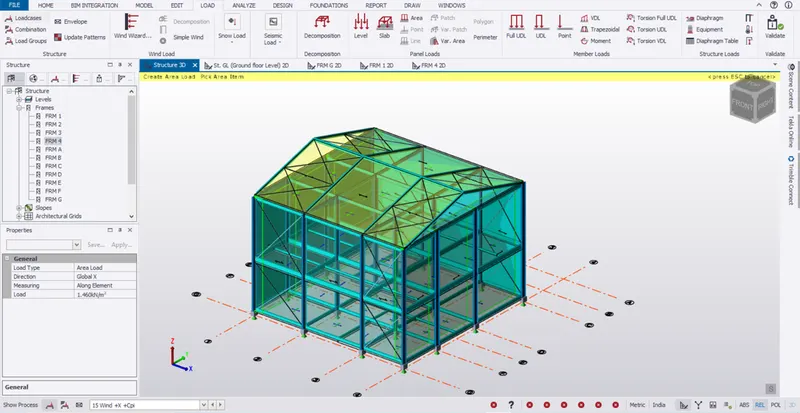
- Face c:
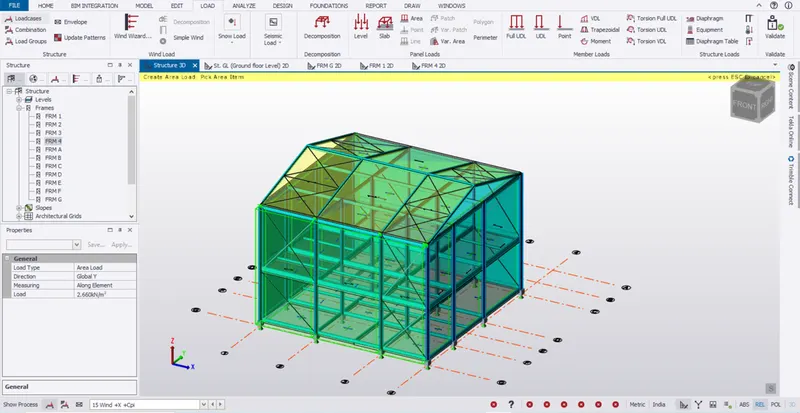
- Face D:
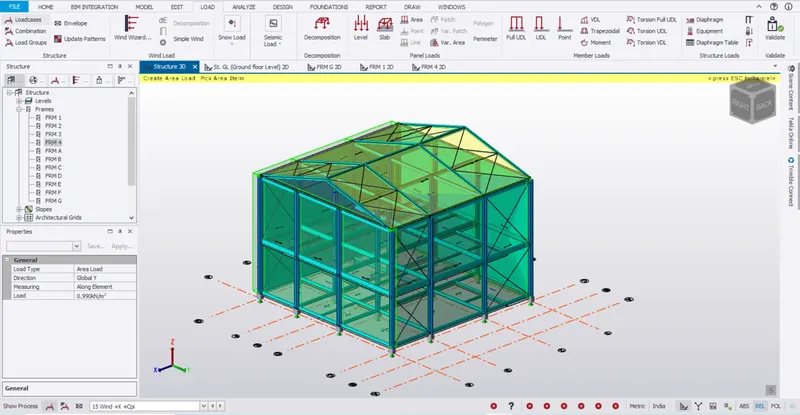
- Go to +X -Cpi and apply the load by following the same procedure
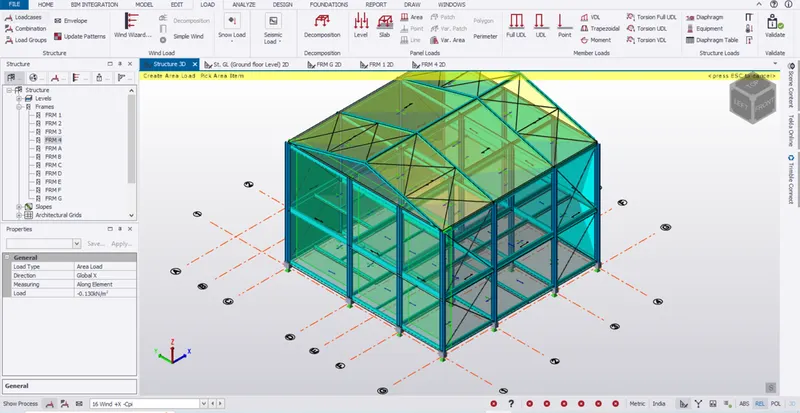
- Face B:
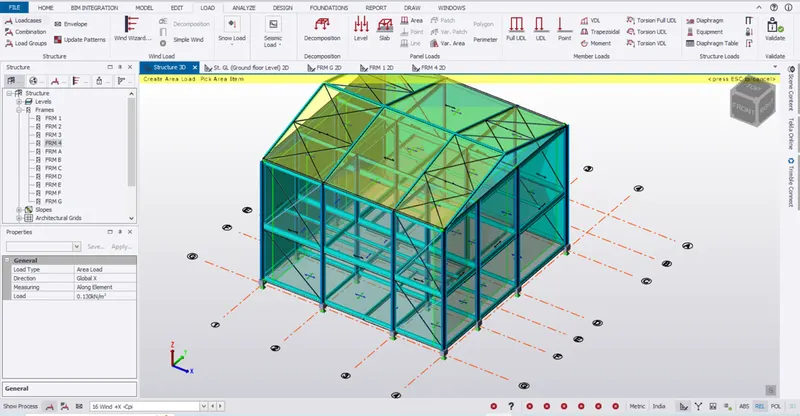
- Face c:
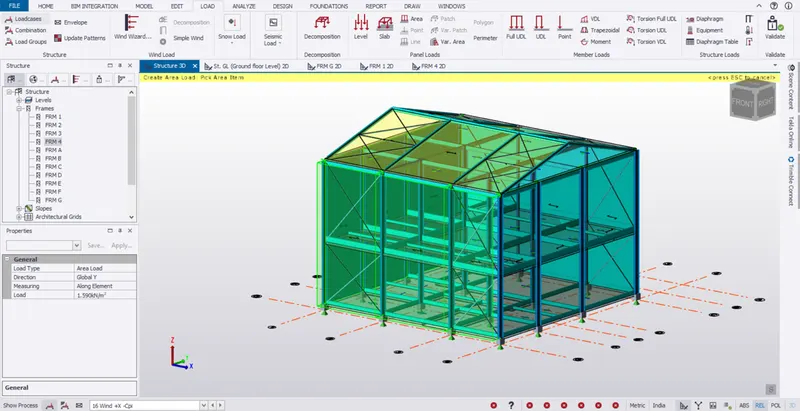
- Face D:
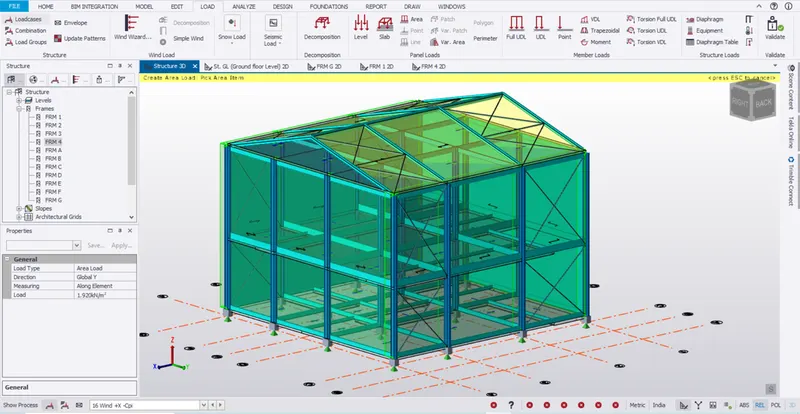
- Roof loading:
- Go to 3D view
- Face EF:
- Select load as +Y +Cpi and give the loading on roof as shown below
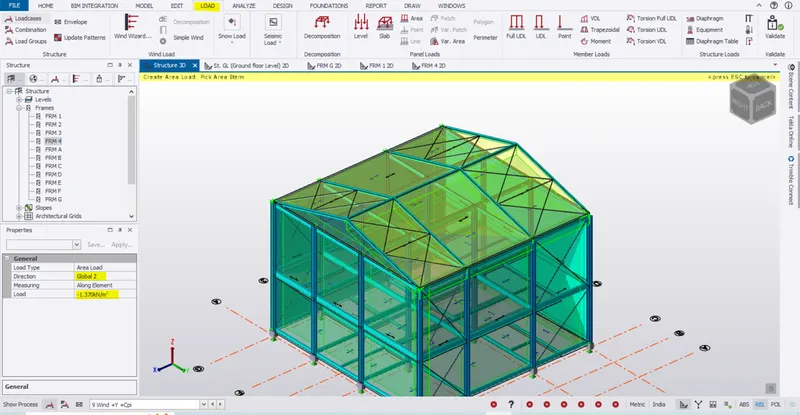
- Face GH:
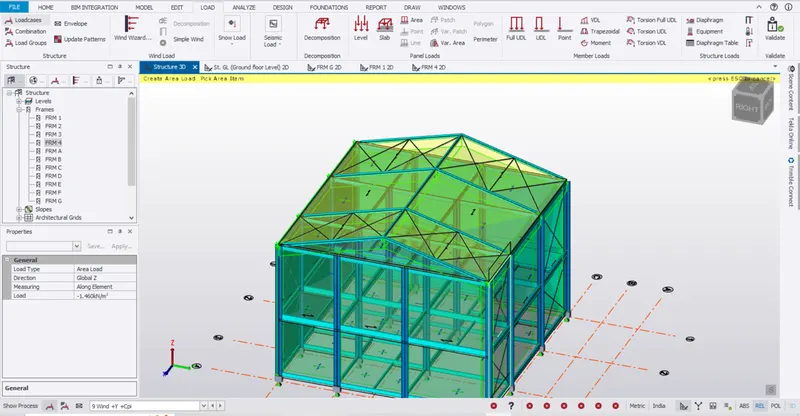
- Select load as +Y -Cpi and give the loading as shown below
- Face EF:
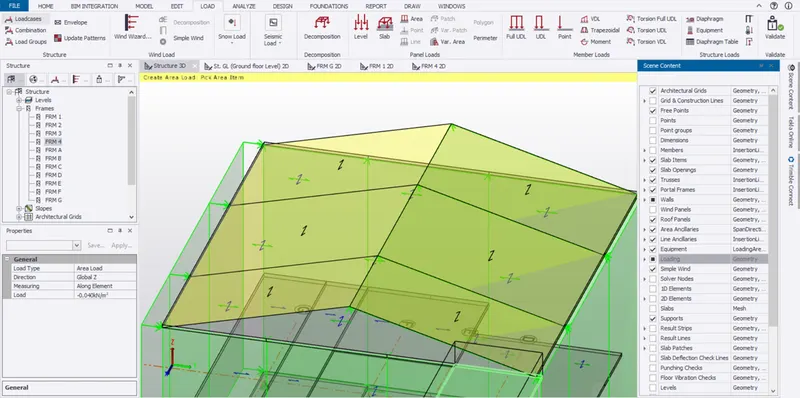
- Face GH:
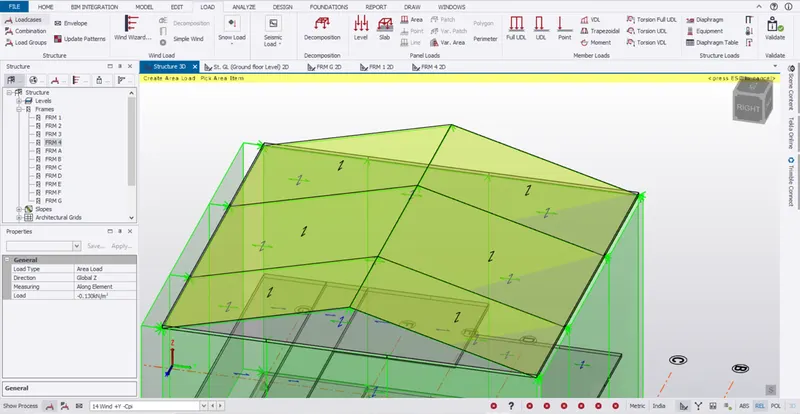
- Select load as +X +Cpi and give the loading as shown below
- Face EG:
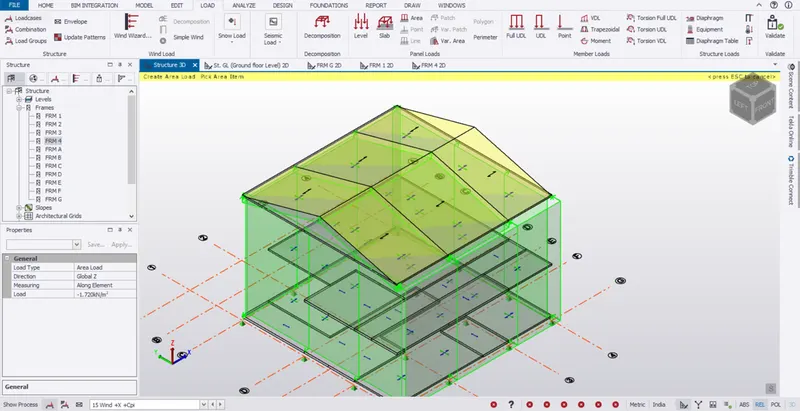
- Face FH:
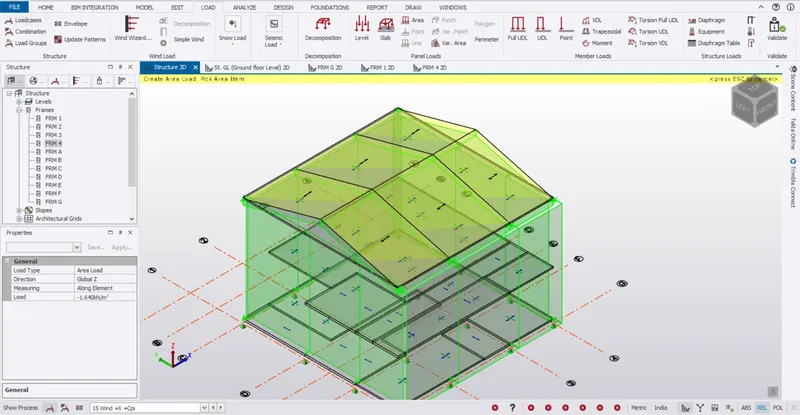
- Select load as +X -Cpi and give the loading as shown below
- Face EG:
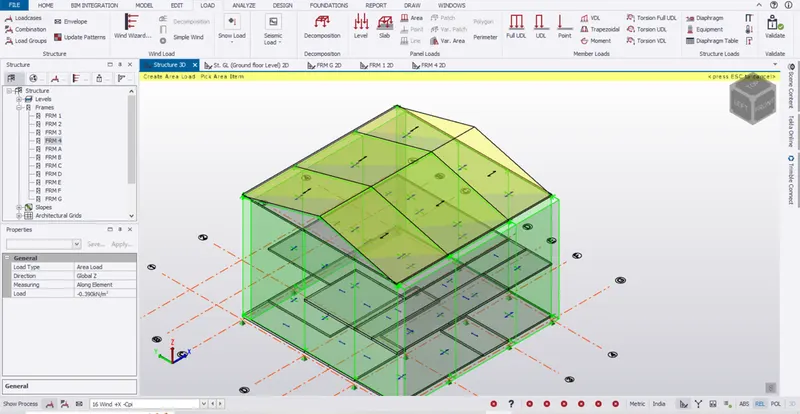
- Face FH:
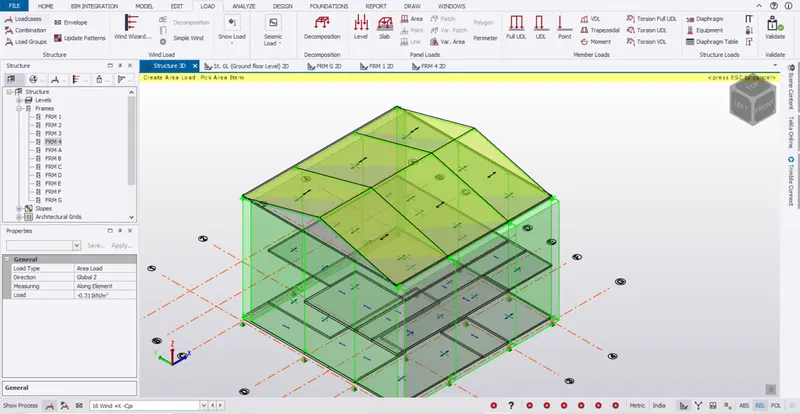
- Result:
- Click validate to validate the model.
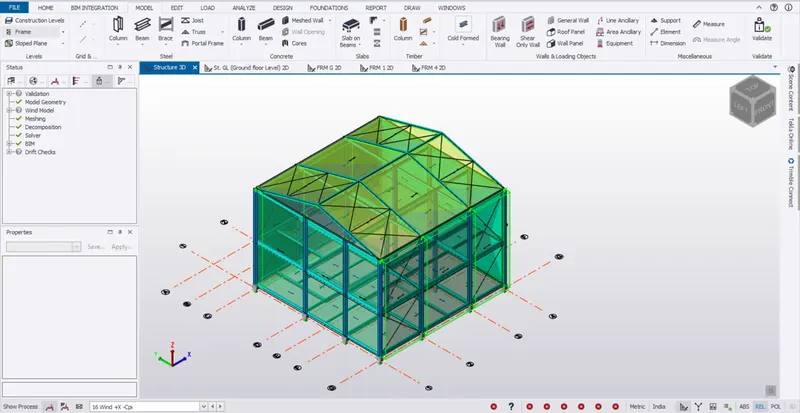
- Hence the loading is applied to the wind panel and roof panel by the above steps.
- Aim:
To generate wind loading using wind wizard on a separate model.
Procedure:
- Open the TSD file for steel building and save as in different folder for wind wizard analysis
- Select Load -> Wind wizard and select the following option and click next
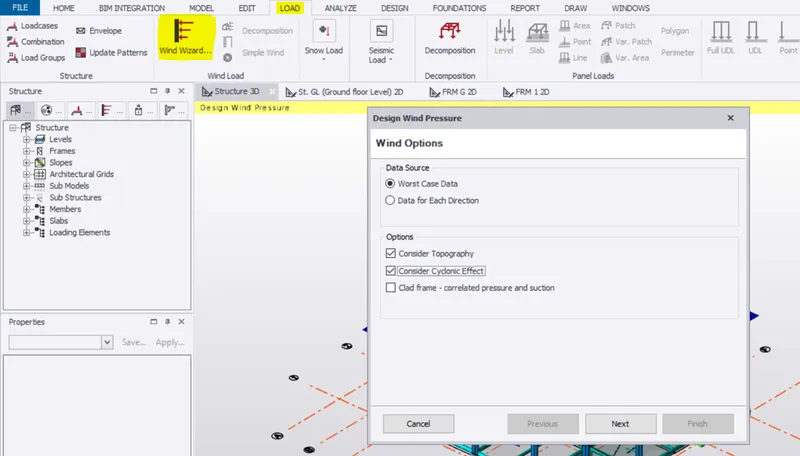
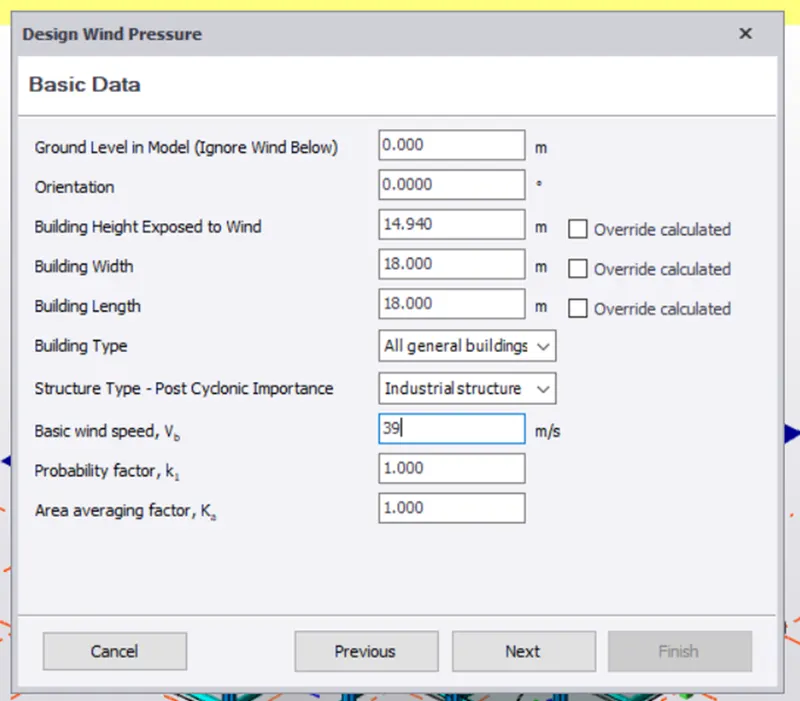
- Click next and select the below setting.
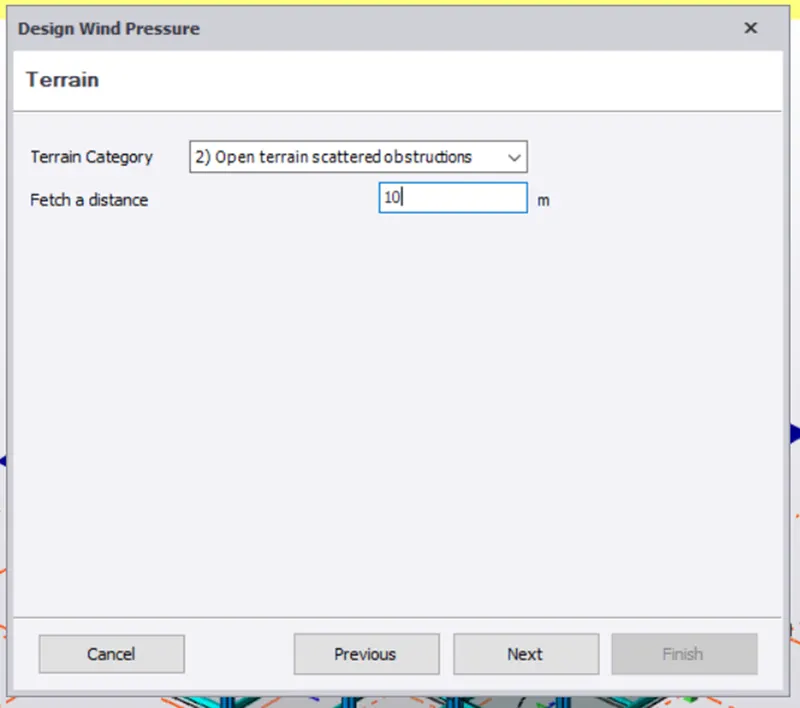
- Click next which will show the Design wind pressure.
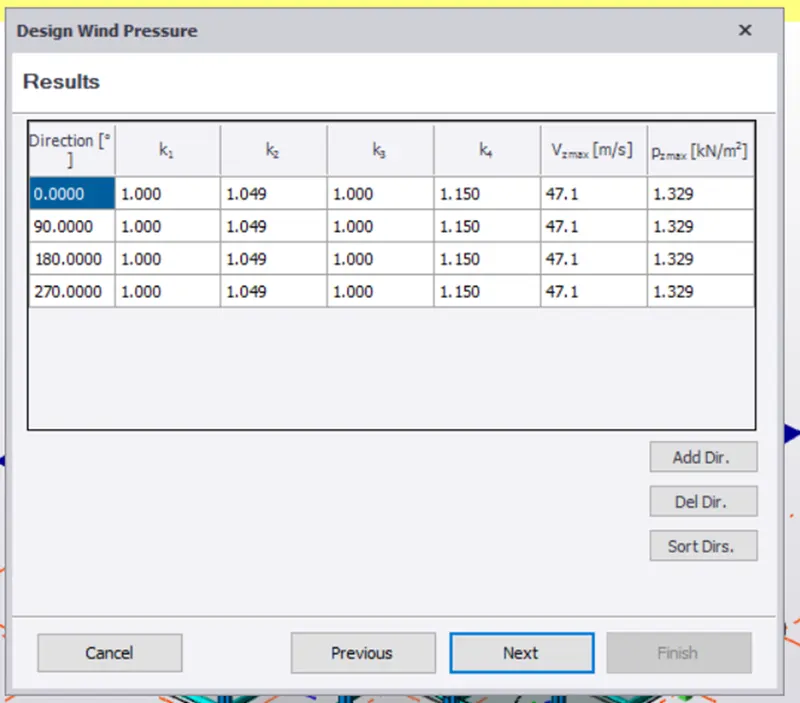
- It shows Wind pressure as per the degree
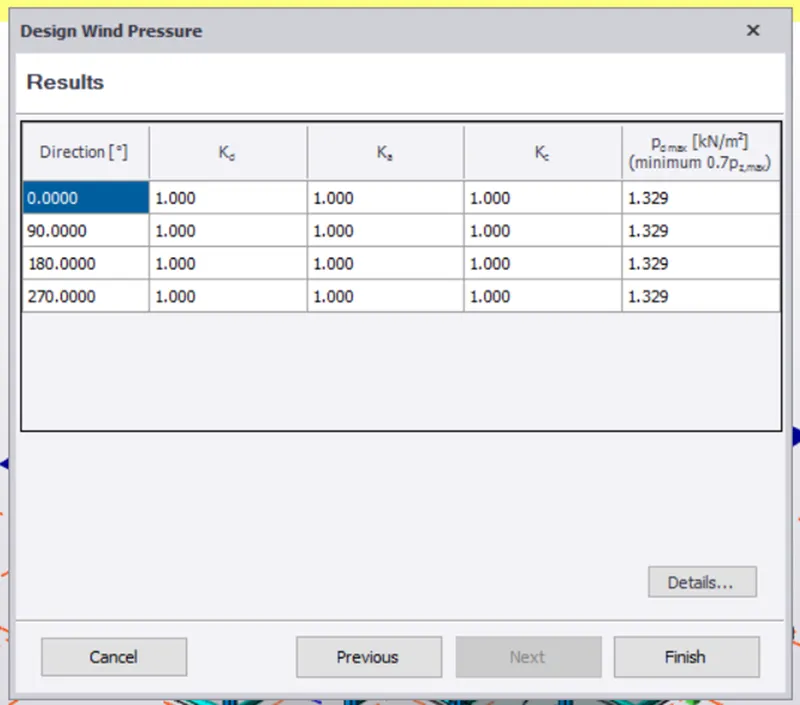
- Click finish.
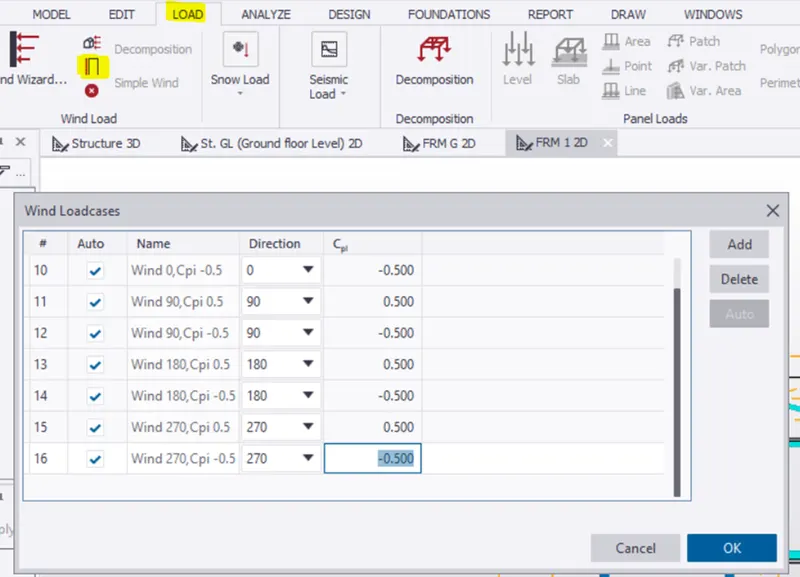
- Select load -> load cases and enter the cases.
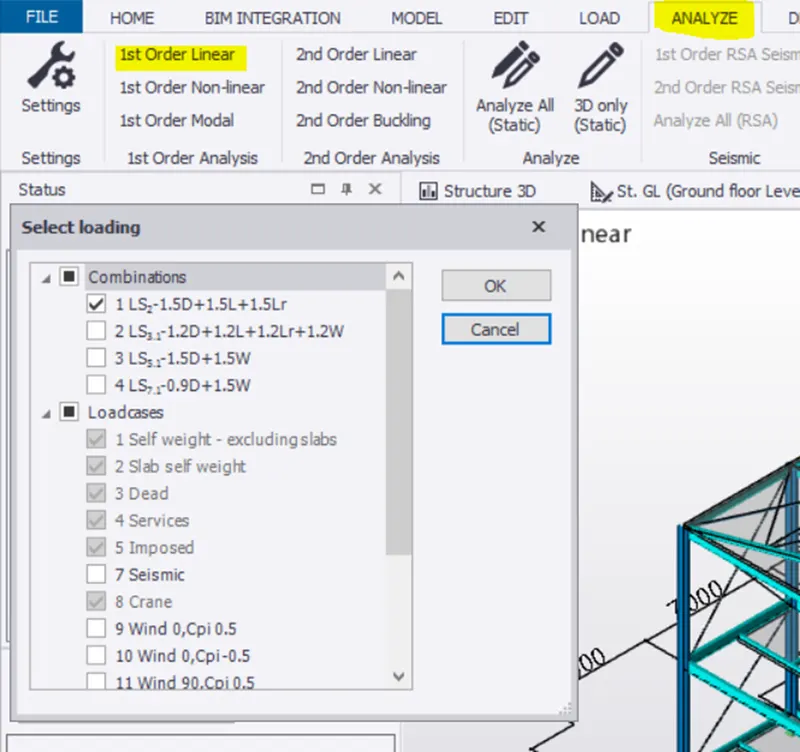
- Click analyze-> first order -> combination -> ok
- Results:
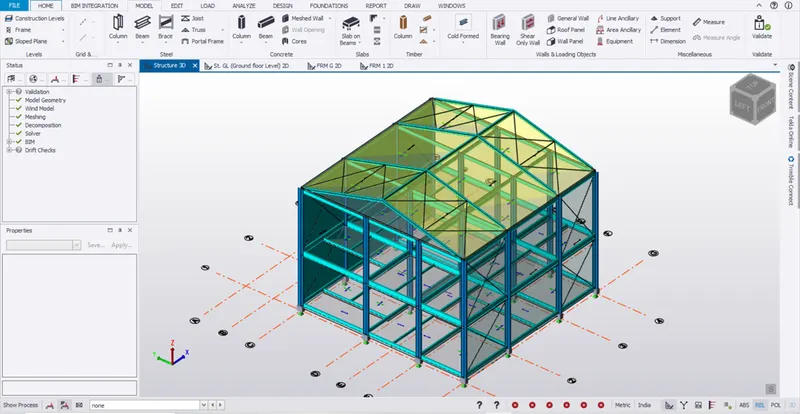
- Click validate to check the model.
- Select the load combination in the status and click the review view.
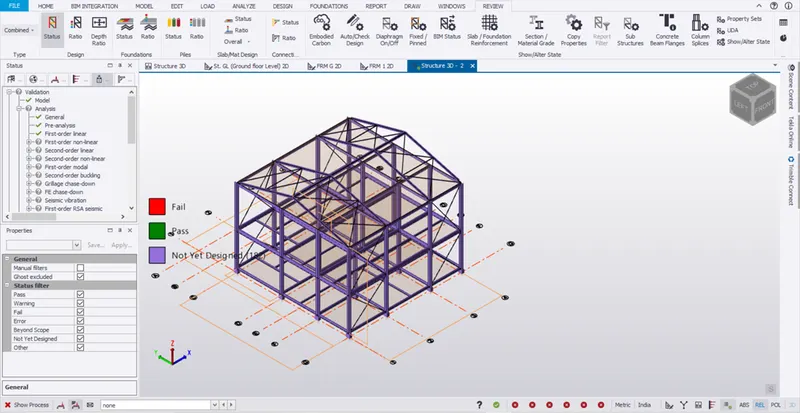
- Select the result view in the status below to see the results.