REVIT_Usage of Collabrate tool_Week 6
1ans
AIM : To open an architectural tab and set project base point and project shared cocordinates using manage tab for the project.
TOOLS USED :
Collaborate.
Architectural.
Grids.
Manage.
PROCEDURE :
1. Open revit and select architectural template.
2. Select architectural tab and select grids tool.
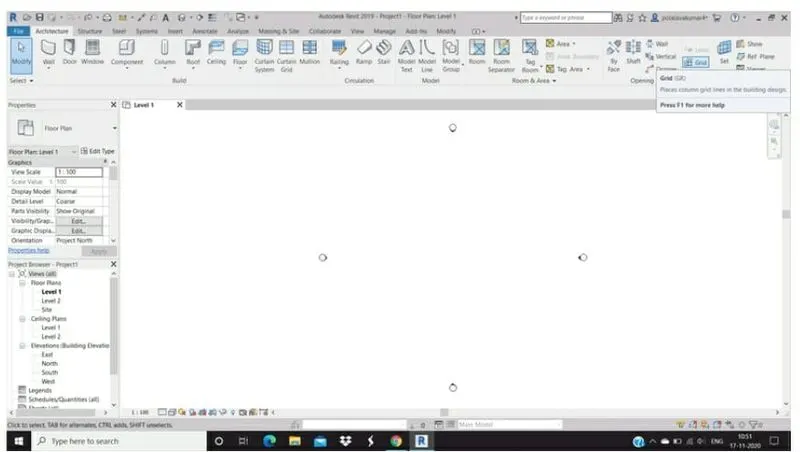
3. Rename the grids.
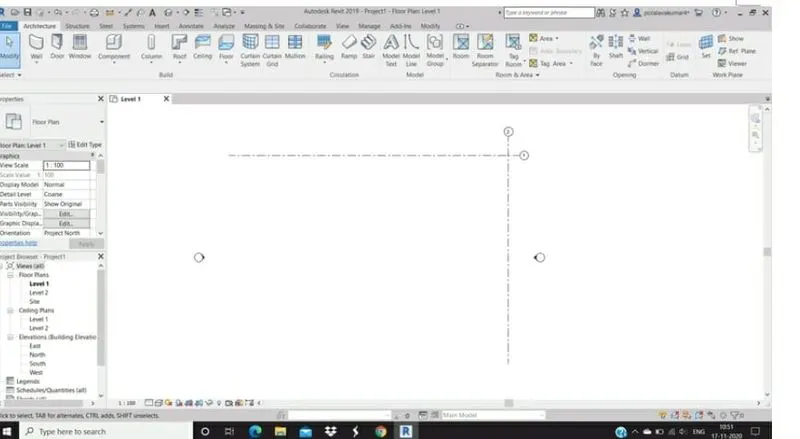
4. Select the manage tab and then select select specific coordinate option and then select the horizontal grid and set it to 0'-0".
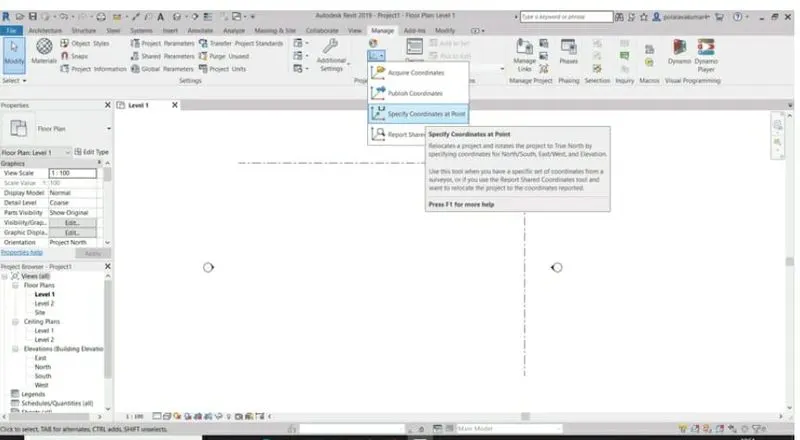
5. Repeat the same process by selecting a vertical grid line and set it to 0'-0".
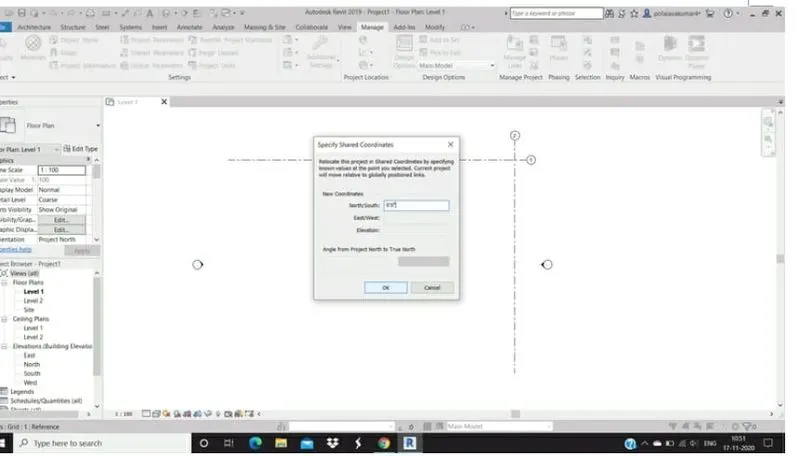
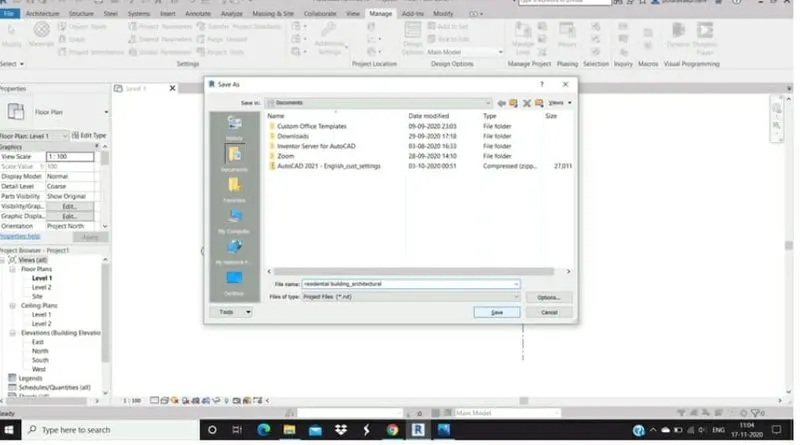
6. Save the project as residential building_architecture.
RESULT :
We can set the project base point and project shared coordinates for the project using manage tab in the architecture tab.
2ans
AIM : Open another structural template and set the project parameters as we did in the architectural model. Copy the parameters from architectural to structural model.
TOOLS USED :
Structural.
Grids.
Manage.
Specify coordinate at point.
Collaborate.
PROCEDURE :
1. Open a new revit file and select structural template.
2. Select architectural tab and select grids tools.
3. Draw horizontal and vertical grid lines and rename them.
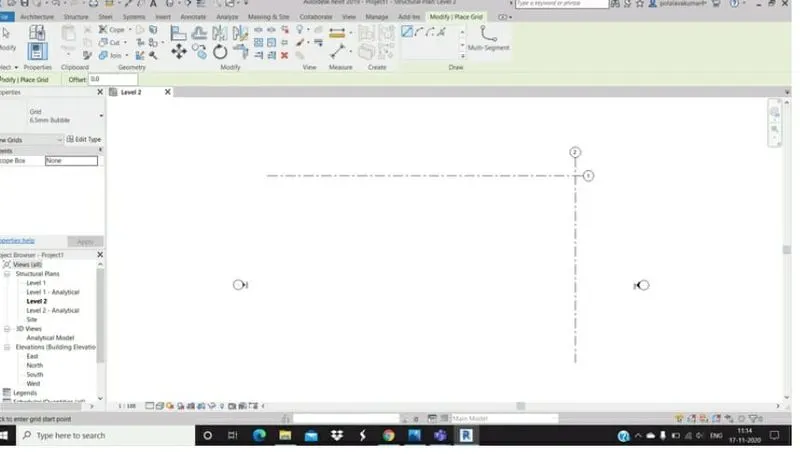
4. Go to modify tab and select specify coordinate at point tools.
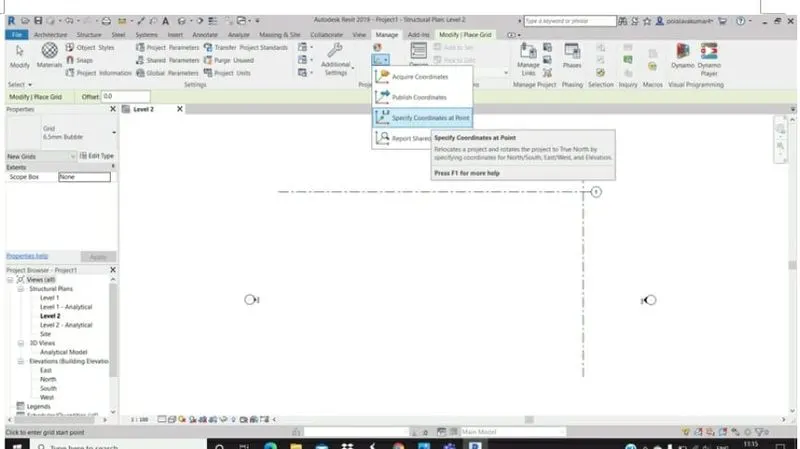
5. Select both the grid lines and set their specify coordinate as 0'-0".
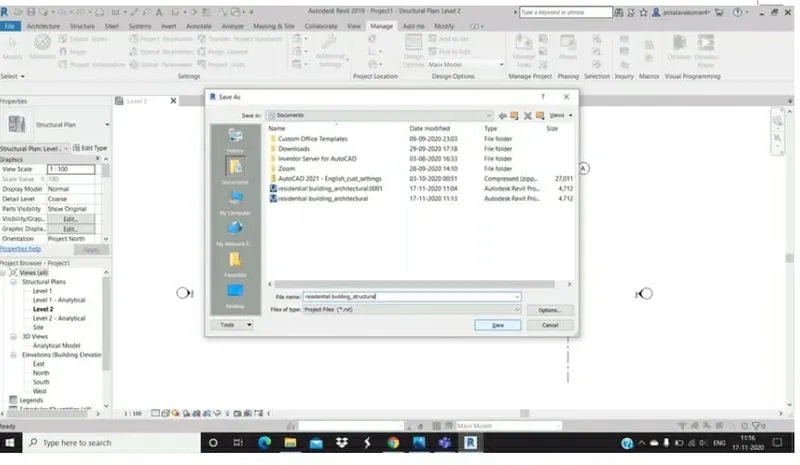
6. Save the file as residential building_structural.
RESULT :
Now we create a structural template and set the coordinates of the grid lines drawn and save them with appropriate name.
3ans
AIM : Re open the architectural model and using the tools under collaborate tab to make the architecturalmodel a central model.
TOOLS USED :
File.
Open.
Collaborate.
Within your network.
PROCEDURE :
1. Open the architecture template which was created before.
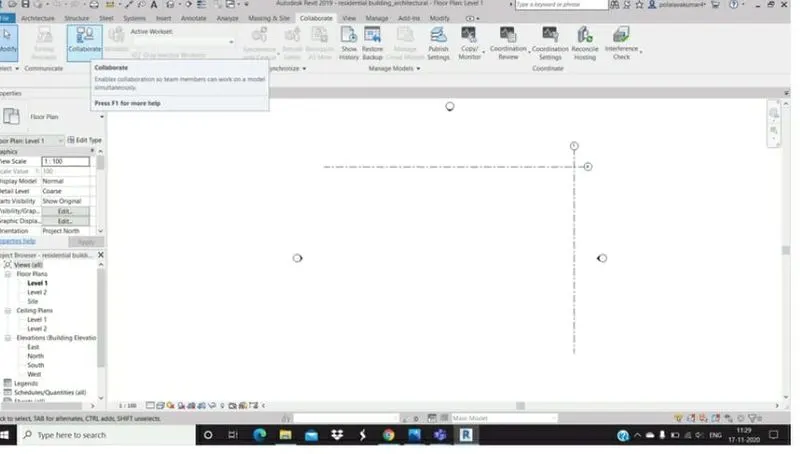
2. Select collaborate tab and click on collaborate tool.
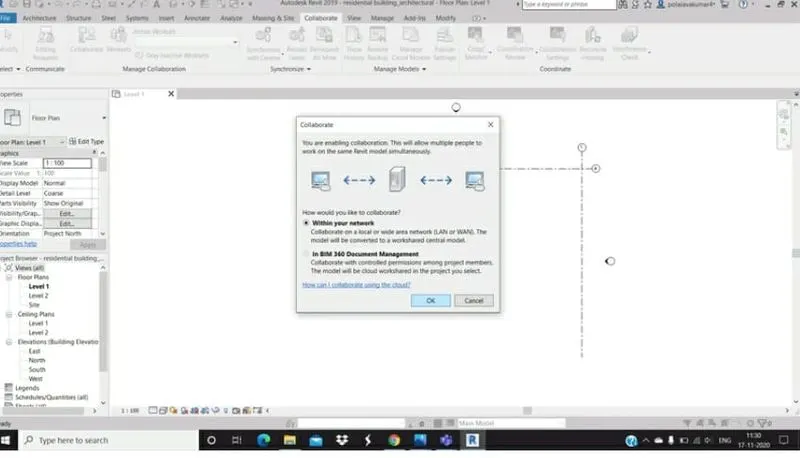
3. Collaborate dialog box appears.
4. Select within your network and click on ok option.
RESULT :
With the above steps we can collaborate to make the arcitectural model as central model.
5ans
AIM : To synchronize the changes from the local copy to the central file of the architectural model.
TOOLS USED :
Manage.
Synchronize.
PROCEDURE :
1. Open the revit file.
2. From collaborate tab select synchronize with central option.
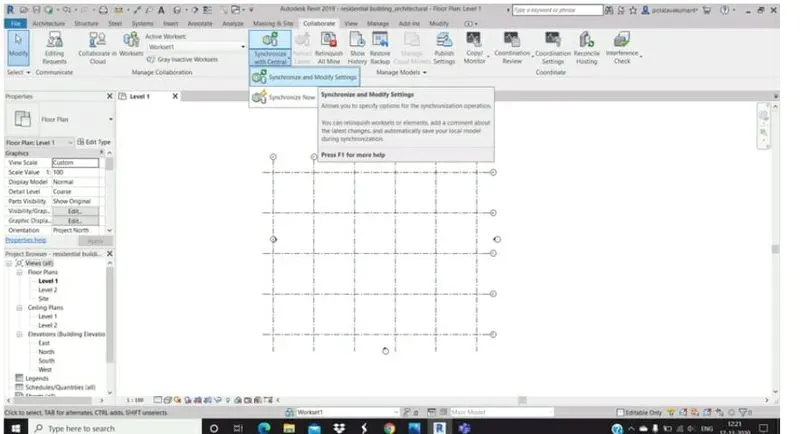
3. Then select synchronize and modift settings option.
4. Then synchronize with central dialog box appears and click on ok option.
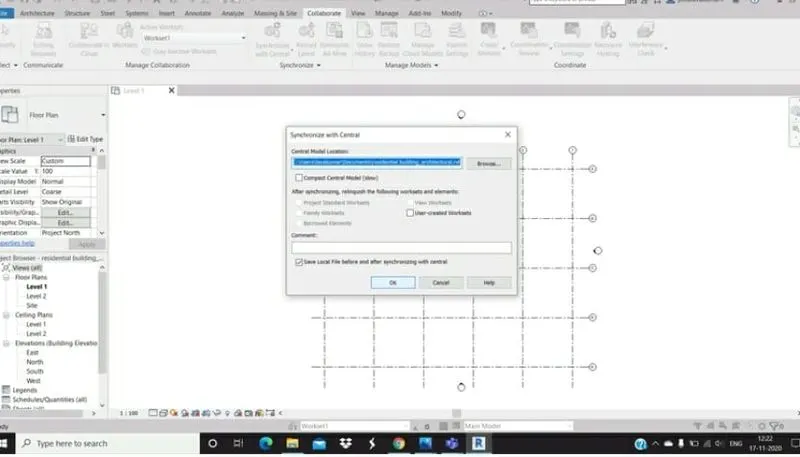
5. The drawing will get synced with the central file.
RESULT :
With the above steps we can synchronize the changes from the local copy to the central file of the architecture model.
6ans
AIM : To open the structural model and using the collaborate tools to save the model as a central file.
TOOLS USED :
Collaborate.
Within your network.
File.
Save.
PROCEDURE :
1. Open the structural template which we have saved previously.
2. Go to collaborate tab and select collaborate option.3. Then a collaborate dialog box appears.
4. Select within your network option and click on ok.5. Save your project.
RESULT :
By following these steps we can open the structural model crated previously and save the model to central file using collaborate tools.
7ans
AIM : Under the collaborate tab, select the grids from the architectural model and copy them to the structural model using copy monitor.
TOOLS USED :
Collaborate.
Copy monitor.
Select link.
Copy.
Paste.
Paste from clipboard.
PROCEDURE :
1. First open the architectural tab and the select collaborate tab and click on copy monitor option under that.
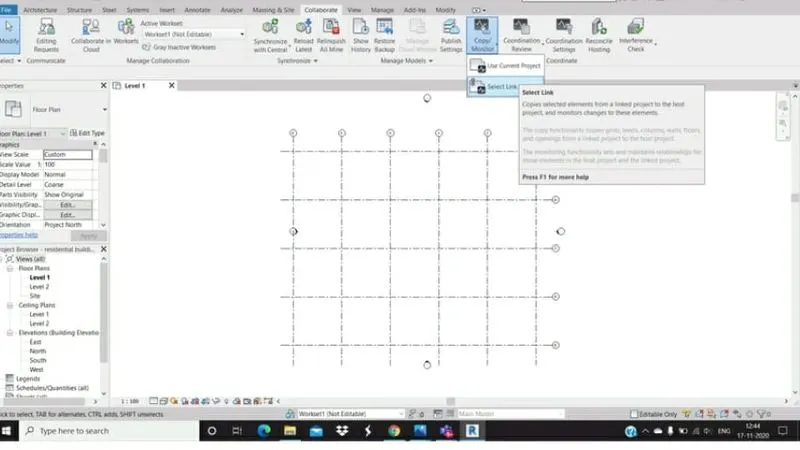
2. Select the link so that the structural drawing is linked.
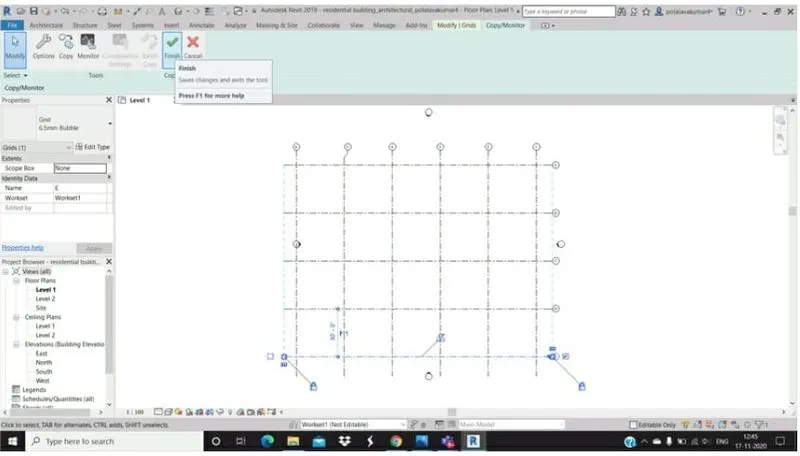
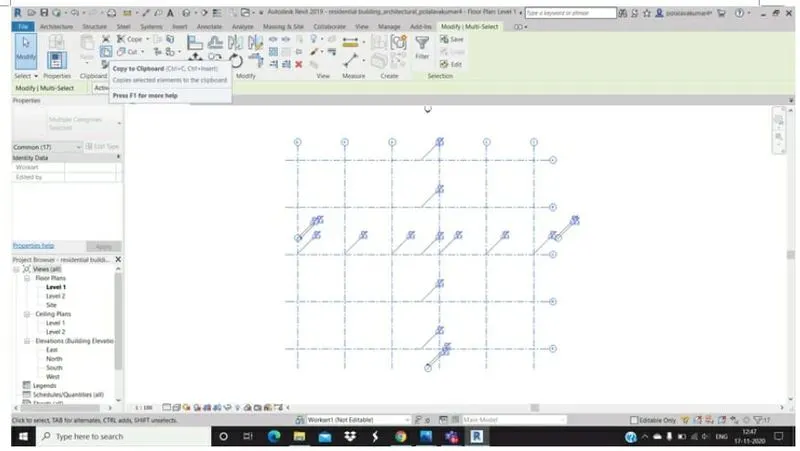
3. Select the grids and levels and select multiple and then click copy.
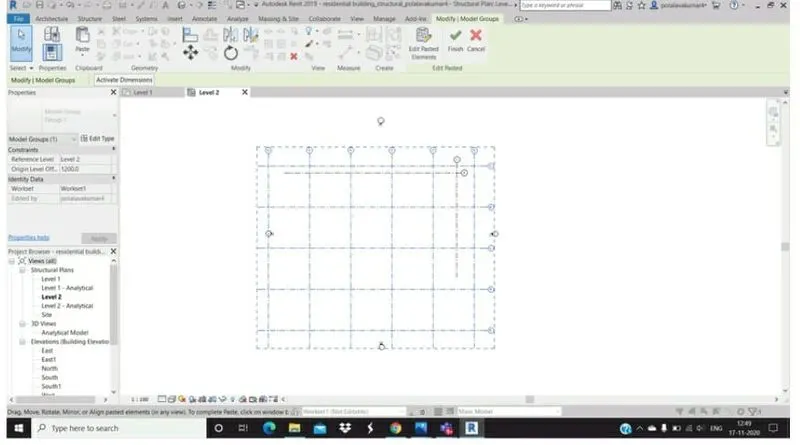
4. Click on finish command.
5. Open the structural template, there we can see the grids and columns in structural template.
RESULT :
With the above steps we can copy the grids and levels from the architecture model to structural model using the copy monitor option under collaborate tab.
10 ans