Project - A project on design of road from a given topographic data
Questions:-
1.Point creation and grouping them with the help of description.
2.Preparation of surface and importance of breaklines.
3.Horizontal alignment design and adding super elevation.
4.Vertical profile design.
5.Cross section template creation based on proposed conditions.
6.Corridor modelling and extraction of finished surfaces.
7.Cross sections production based on corridor modeling.
8.Earthwork quantities and material quantities takeoff.
Answers:-
1.Point creation and grouping them with the help of description.
→ Point creation
- If we have Template, For that click on File Then select New & setect templete ,click on ok.
- New File will be open then save the same file in Project Folder.
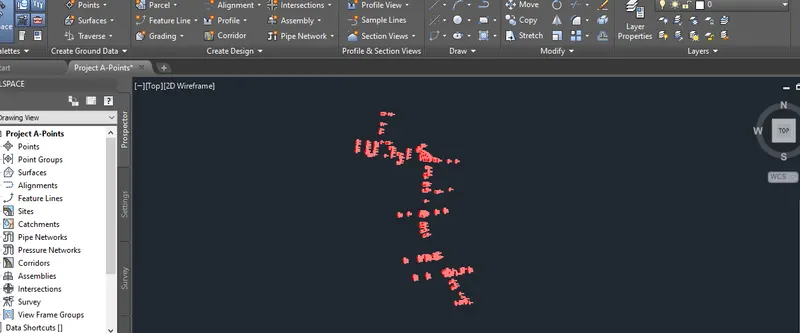
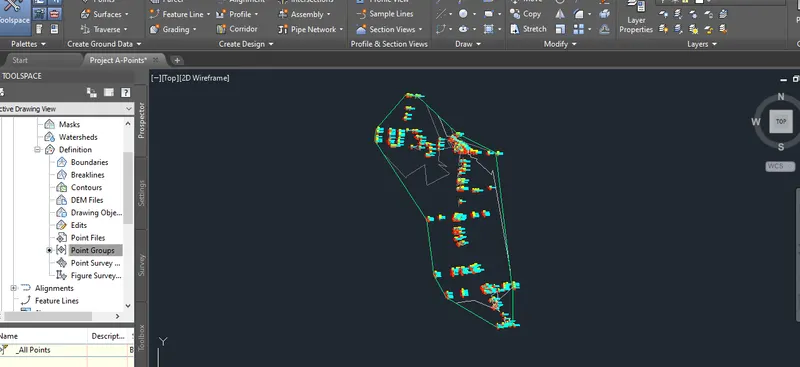
- Firstly we need to establish points from the given data the points should be imported.
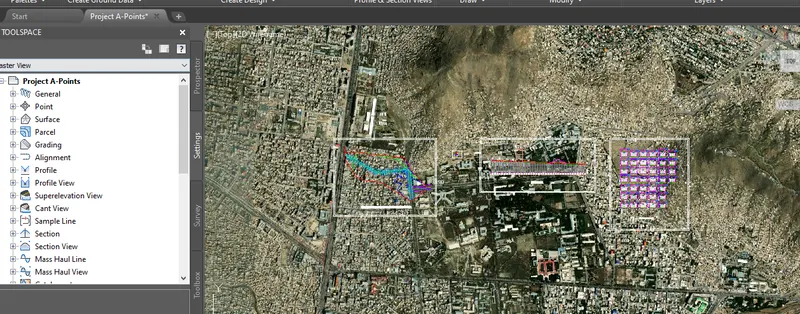
- To set geolocation we need to set co-ordinate system & units setting then we can on map hybrid for alignment design Because we need to draw alignment as per the geolocation.
- The points we need then convert it into cogo by grouping as per there description.
2.Preparation of surface and importance of breaklines.
→ Preparation of surface
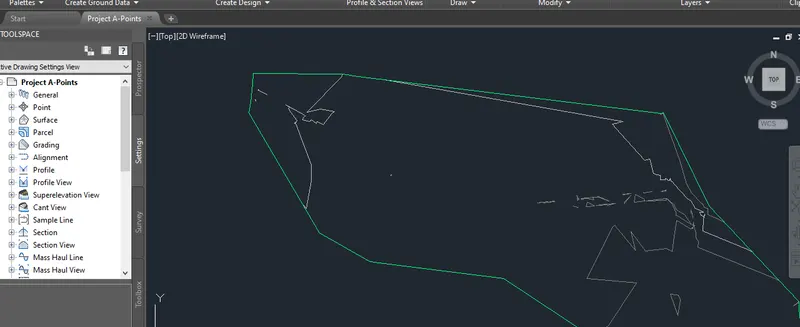
- So after that imported points we have cogo points from which we have to create surface by clicking on to create surface .
- Then surface is created.and after surface creation we can adjust the style and borders we want to display.
- breaklines important in giving slopes in highway design and there shouldnt be TIN(Triangulated irregular network) line passing through a breakline.
3.Horizontal alignment design and adding super elevation.
→ Horizontal alignment design
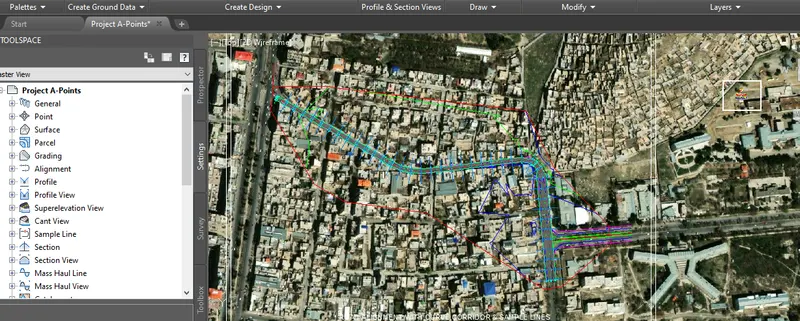
- After surface creation we need to create an alignment for which we need to on geolocation for this we have to set co-ordinate system & units setting then we can on map hybrid for alignment design.
- Then they will be placed on exact location on map.
- We need see the given requirement for design.
- Then click on alignment present on to create it by layout.
- Then window opens we need to assign name and other description given.
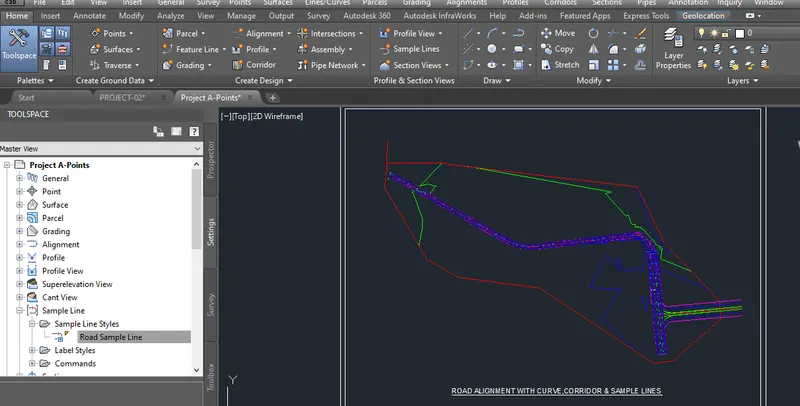
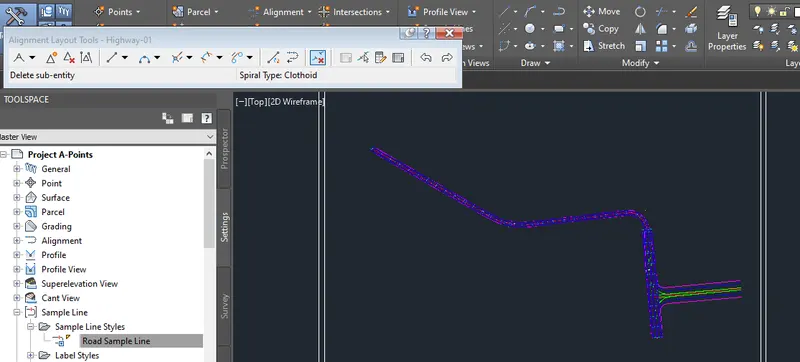
- Then alignment layout tool is open after which we have to fix straight line and add the horizontal curve and add transition length as per the requirement.
- Try it for different radius till it satisfy it.
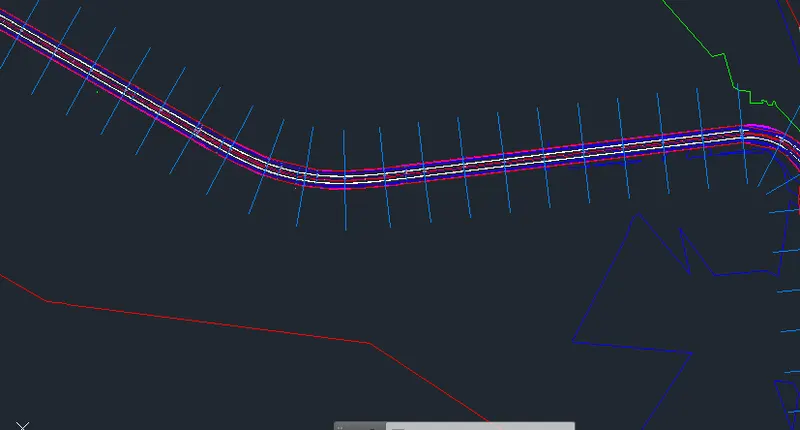
- Then we have to create offset alignment again we need give it respect to centreline.
- After giving the second curve the width of road was more as compared previous alignment so there we can provide median and widht of carriageway can be increased.
- Then we assign different layers for different lines in alignment like median, centerline, footpath etc.
4.Vertical profile design.
→ Vertical profile design
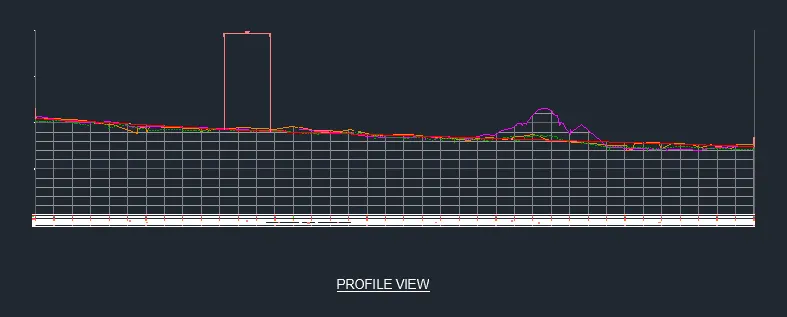
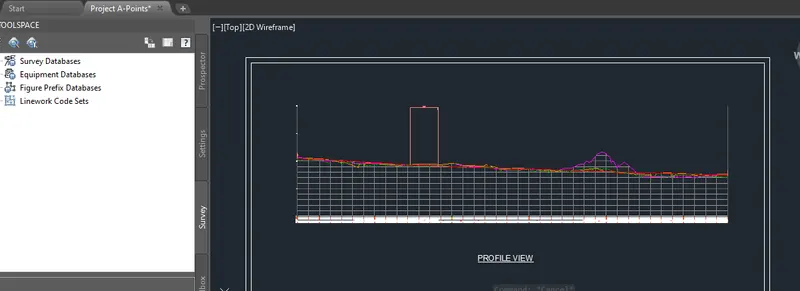
- After creating the alignment we need to propose profile for vertical section.
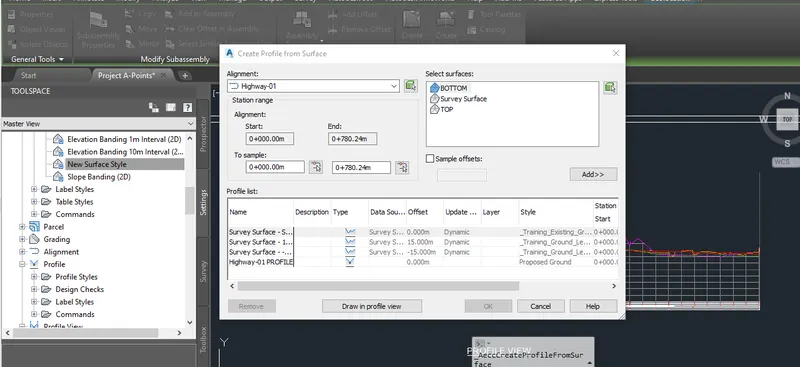
- Click on create profile then select the surface and put style then next a new window opens after which we need to select alignment and style click on next chainage range etc and its selected .
- Then select the band and some addition details are given as per required and then create a profile.
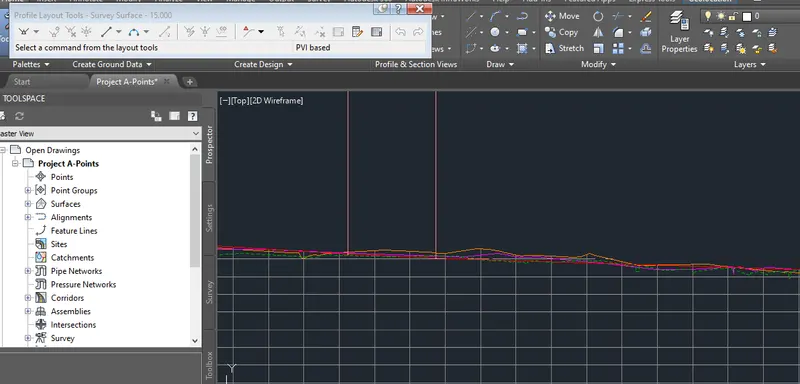
- Again click on create profile by layout for design profile and give the details present in popup window.
- Then we need to adjust using the edit tool so that some amount of cut fill can be equal.
- Then we need to give vertical curve and assign on design profile we need to change the properties of profile give the changes required and to be shown on the profile data then radius is adjusted as ‘k’ value required.
5.Cross section template creation based on proposed conditions.
→ Cross section based on proposed conditions
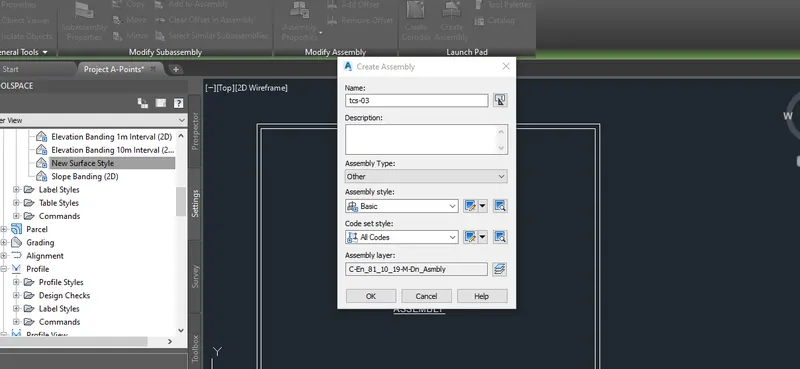
- Click on corridor and then click on create assembly after name it and details style etc and click ok.
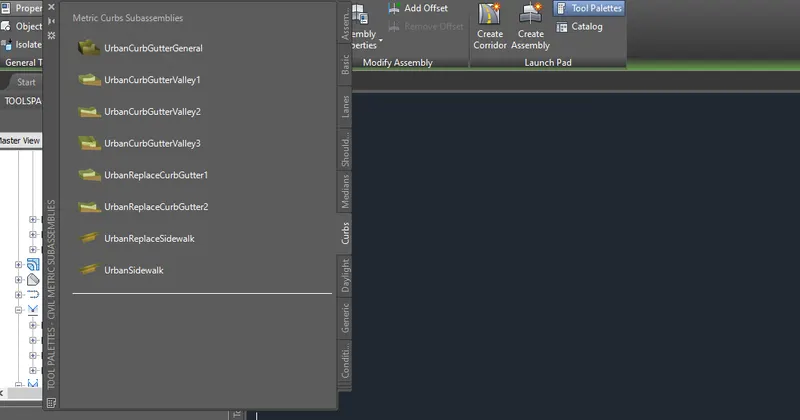
- Then we have create it on window and then we need to add subassemblies for tool pallet is going to be activated and then click on it.
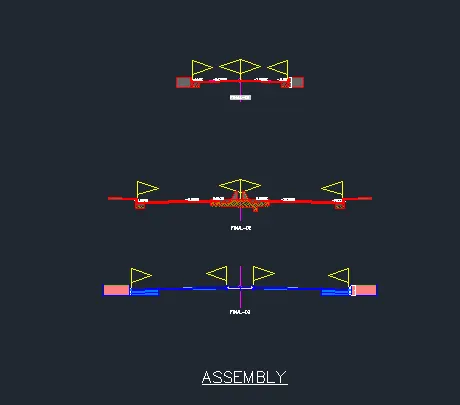
- We can now add the lanes, medain, shoulder,curbs,drain and other parameters are added with the data provided and assuming the other data like thickness of pavement etc.
- Then we need assign the condition for road and for that we need to add from assembly then form junction then copy and paste on the shoulder side edit the slope as per requirement.
6.Corridor modelling and extraction of finished surfaces.
→ Corridor modelling
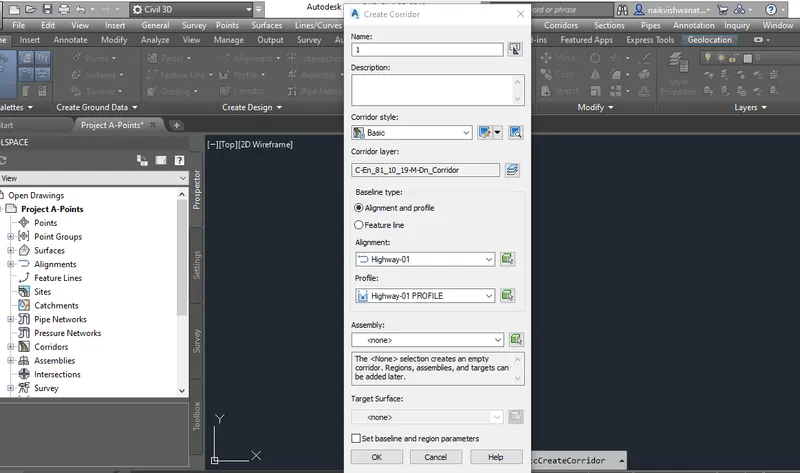
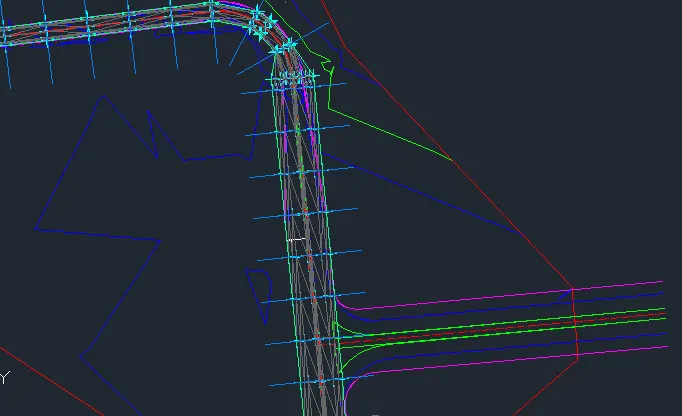
- Click on corridor on user interface to create it then name add the details required then we need to create it on surface after add the parameters and frequency to apply assembly as per required.
- Then corridor surface is created for earthwork quantity by giving properties to it and add parameters and surfaces for top and bottom.
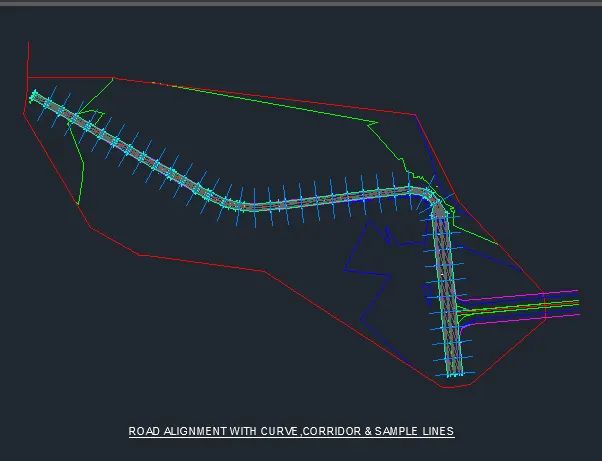
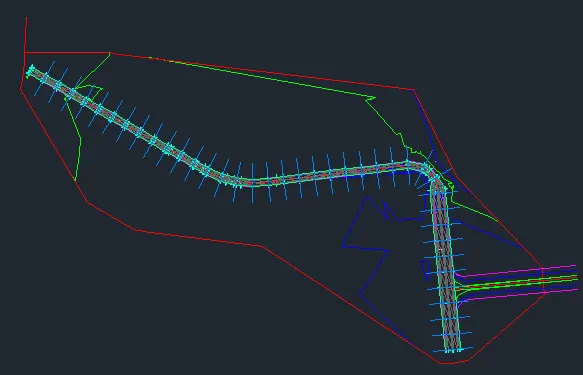
- For Cross-section we need create sample lines after we need to select alignment then create sample line group.
7.Cross sections production based on corridor modeling.
→ Cross sections based on corridor modeling
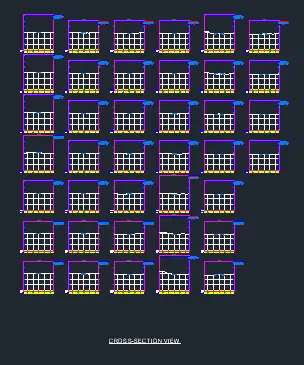
- For Cross-section we need create sample lines after we need to select alignment then create sample line group.
- Then using sample tool by taking range of its chainage then we need to give width on both side of chainage.
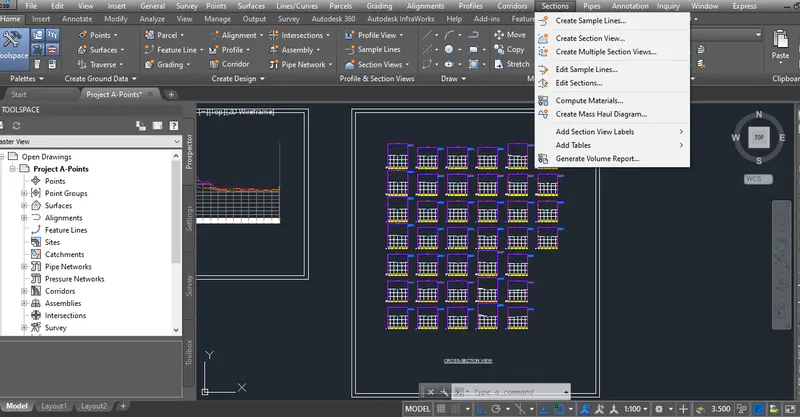
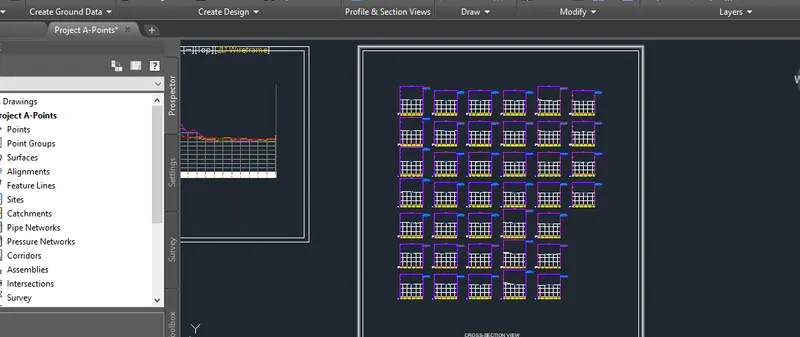
- Then for multiple section we need click on section select alignment, chainage etc is added then next other details are added and we have to create a section views.
8.Earthwork quantities and material quantities takeoff.
→ Earthwork quantities and material quantities takeoff
- Then to compute quantities we have compute material then we need add quantity take off criteria name the criteria.
- Again we approach compute material then materials list displayed then apply it click ok.
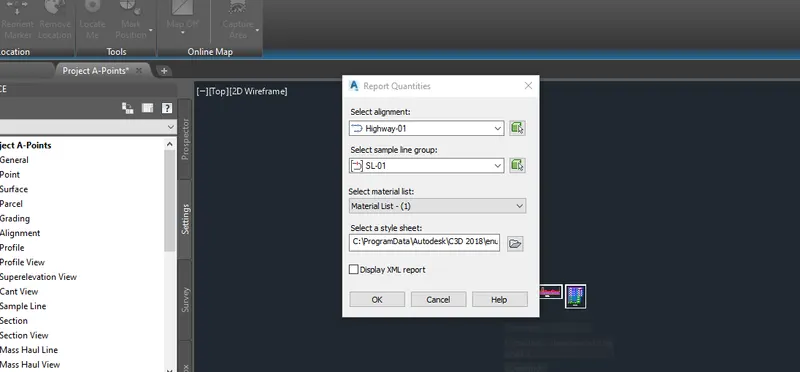
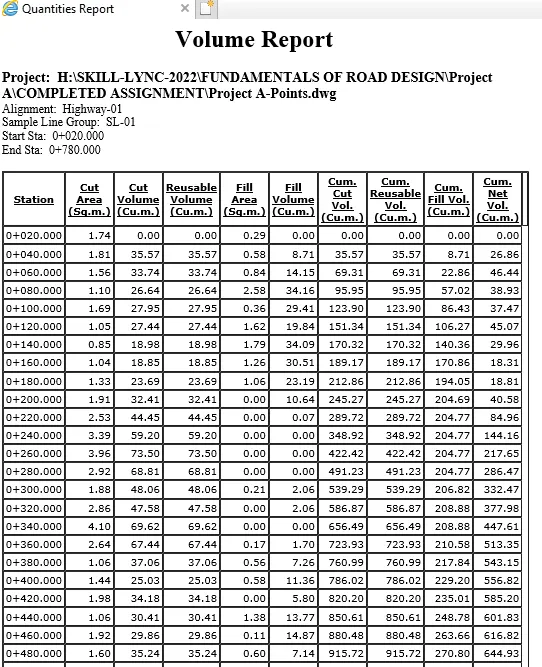
- Then we need to generate a report of cut fill volume for that click ok and put in excel.
- For quantity takeoff go to setting then quantity takeoff then click on nmaterial list .
- After which edit it add the material to be used in construction in different layers the apply and ok.
- Then select any one sample line then click on compute material then select and open it,
- And import criteria then edit it as given and click on generate volume report for quantity takeoff.