Project 2 - V&V SW Analysis II
- Perform Static Code Review Analysis for “C:\**\LDRA_workarea\Examples\C_Testbed_examples\Testrain\Testrain.c” Generate Code review report and upload them.
STEPS TO GENERATE CODE REVIEW REPORT:
First Open the LDRA Tool
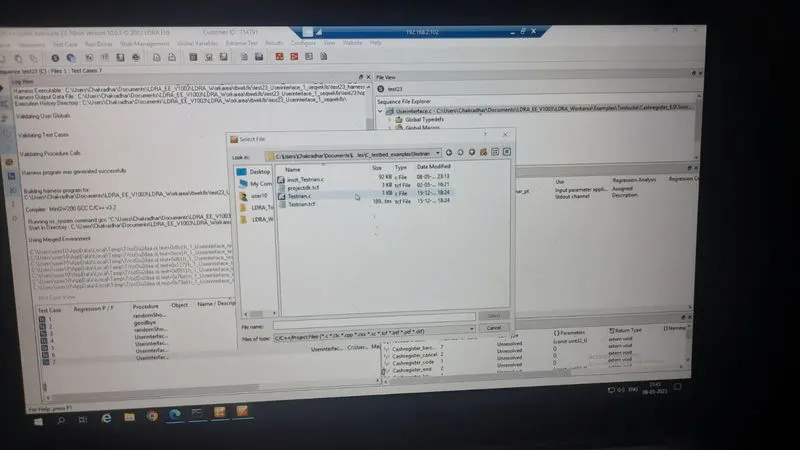
Go to LRDA_Workarea \Examples\C_Testbed_examples\Testrain\Testrain.c”
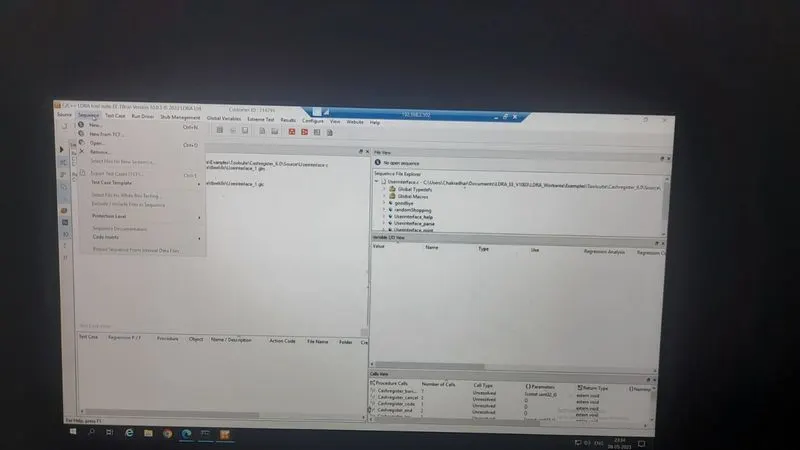
Go to Sequence ==> Click New
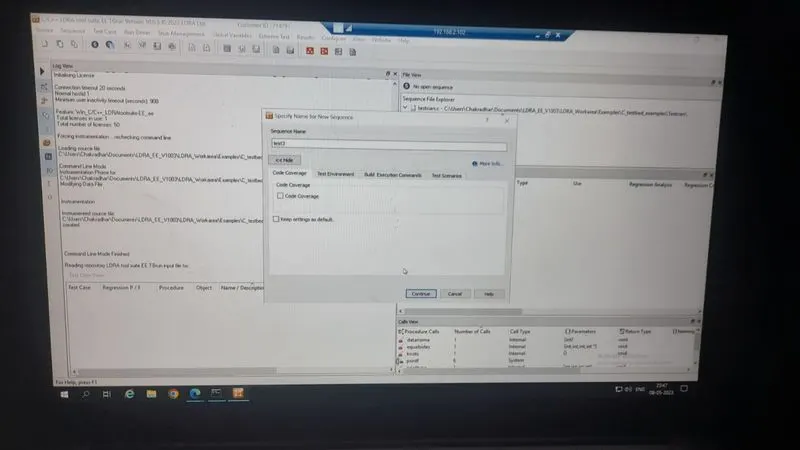
Enter a Sequence Name ==> Click Code Coverage ==> Click Continue
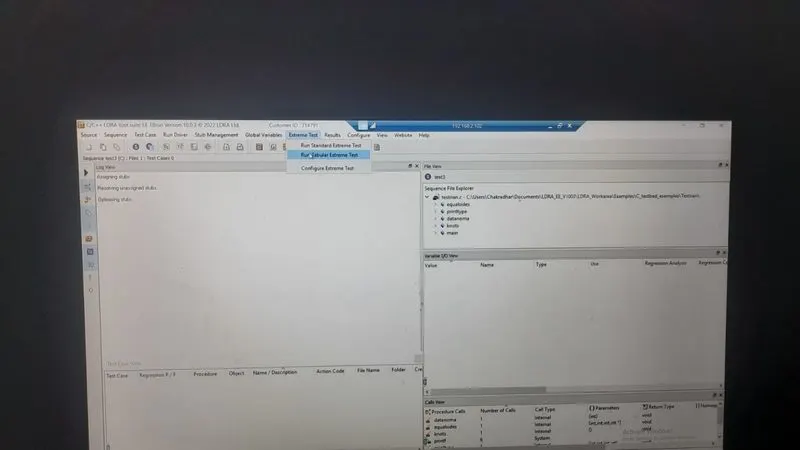
Go to Extereme Test ==> Click Run Tabular Extreme Test.
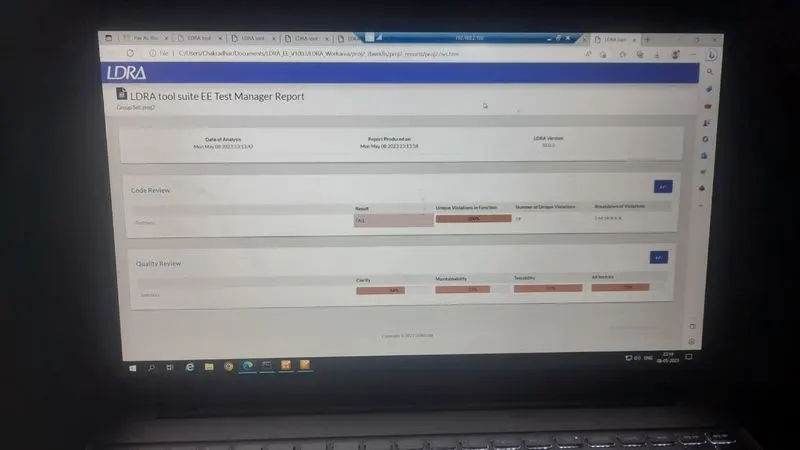
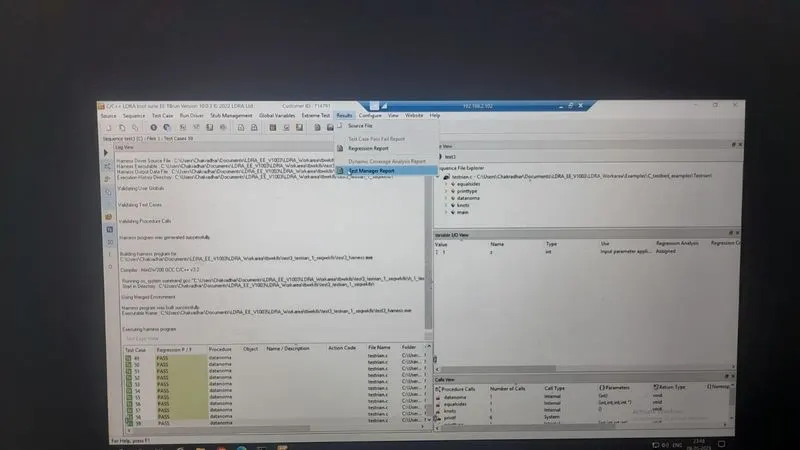
Go to Results ==> Click Test Manager Report
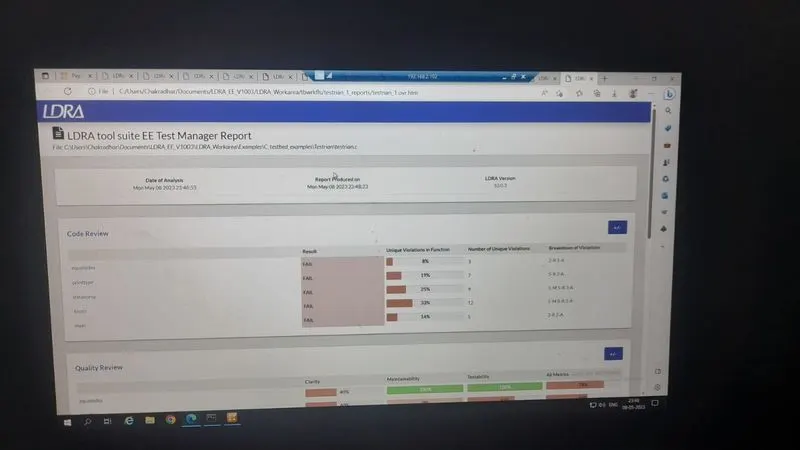
Code Review Report is Generated Using LDRA tool suite
2. Perform Integration testing by including all the .C files available in the folder location C:\**\LDRA_workarea\Examples\Toolsuite\Cashregister_6.0\ ** A)Create the test cases manually as well as automatically using TBExtreme and upload the reports. B)store the test cases as .tcf file. Upload the location image where the .tcf file is stored.
C:\**\LDRA_workarea\Examples\Toolsuite\Cashregister_6.0\ **
A)Create the test cases manually as well as automatically using TBExtreme and upload the reports.
AUTOMATIC TESTING:
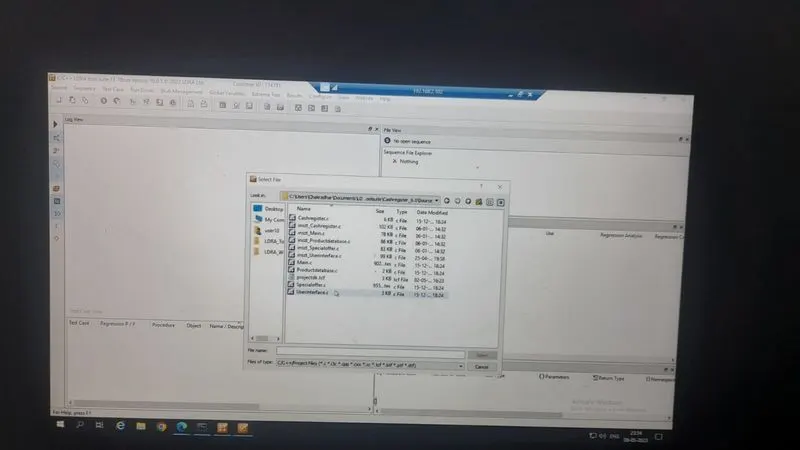
1. Go to Source => Click Single File
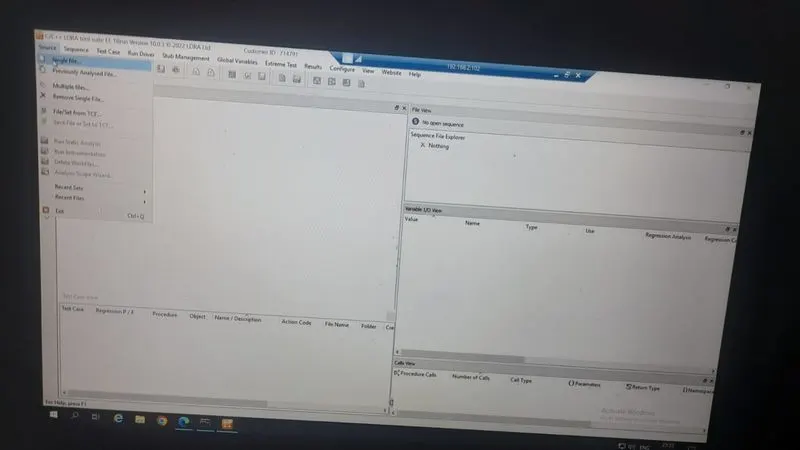
2. Click Examples
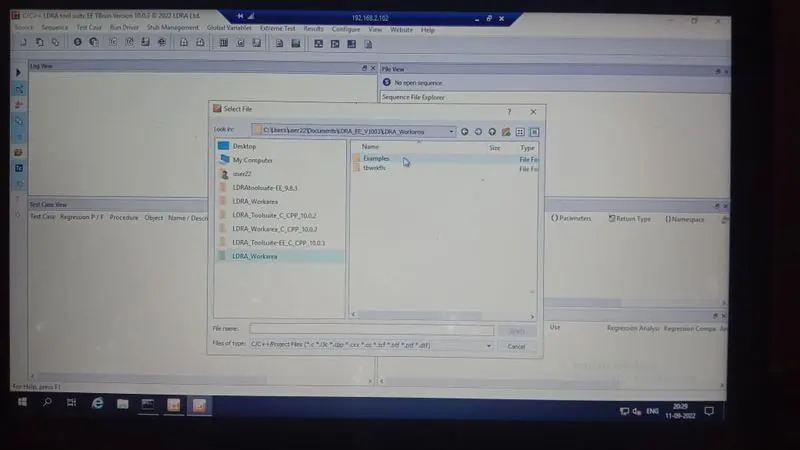
3. Click ToolSuite
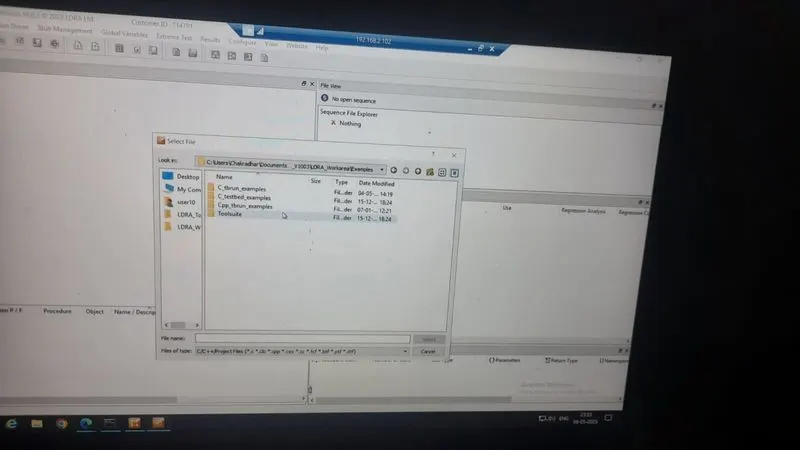
4. Click Cashregister_6.0
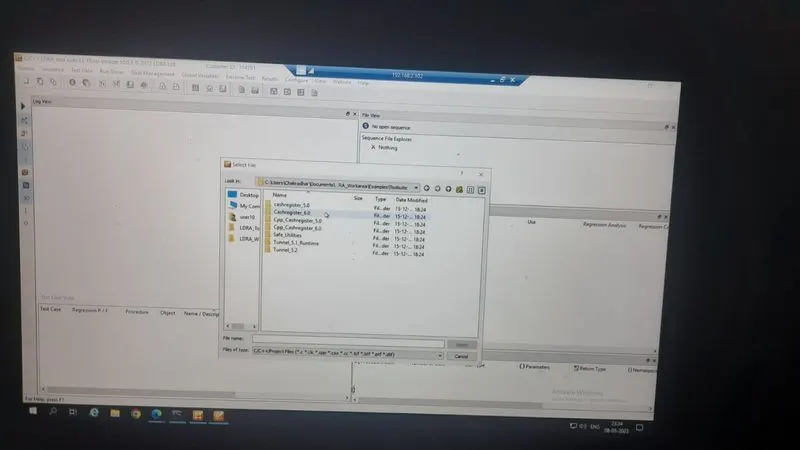
5.Click Source
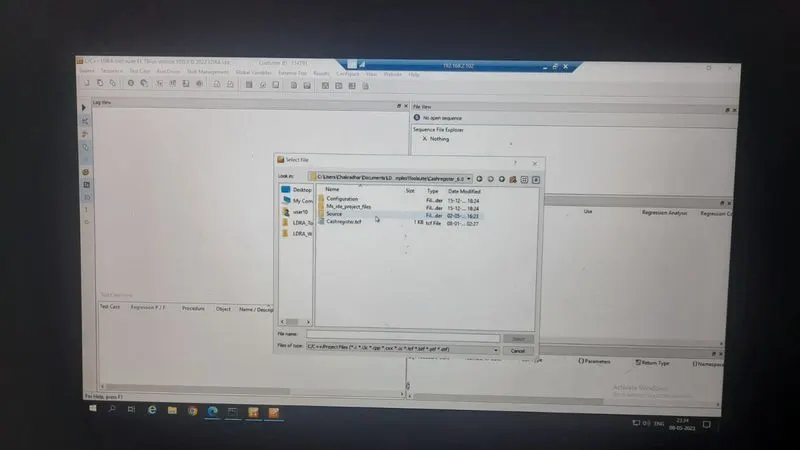
6.Click Userinterface
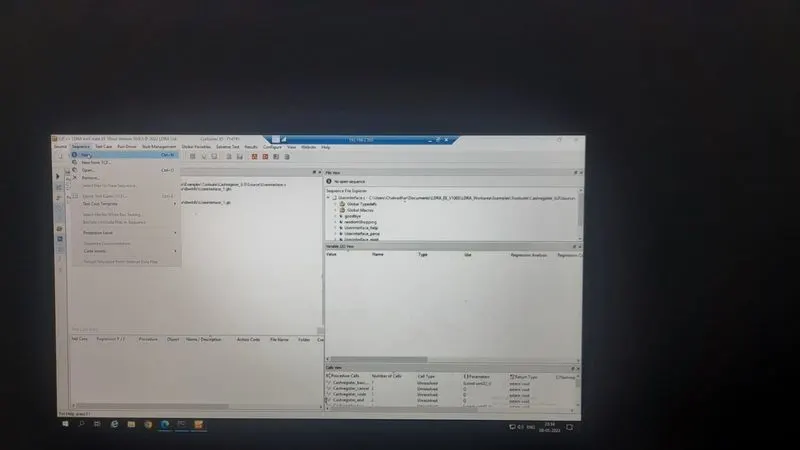
7. Go to Sequence=> Click New
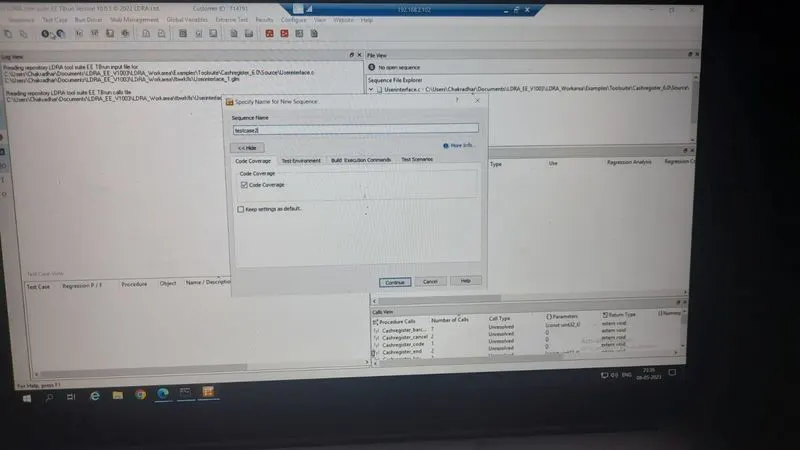
8. Enter a Sequence Name => Click Code Coverage => Continue
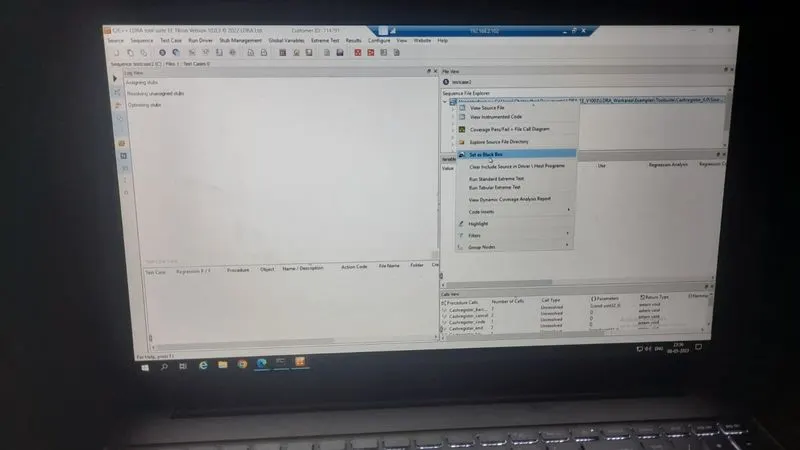
9. In File View=> Right Click a File => Set as Black Box
10. Go to Extereme Test => Click Run Tabular Extereme Text
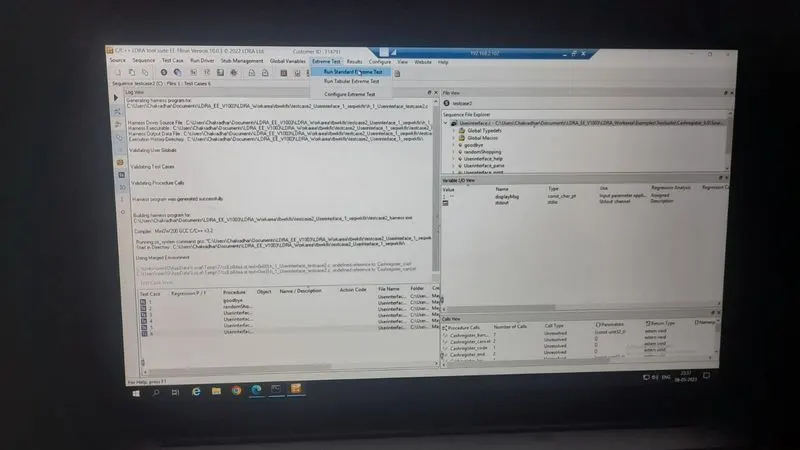
11. Go to Result => Click Test Manager Report
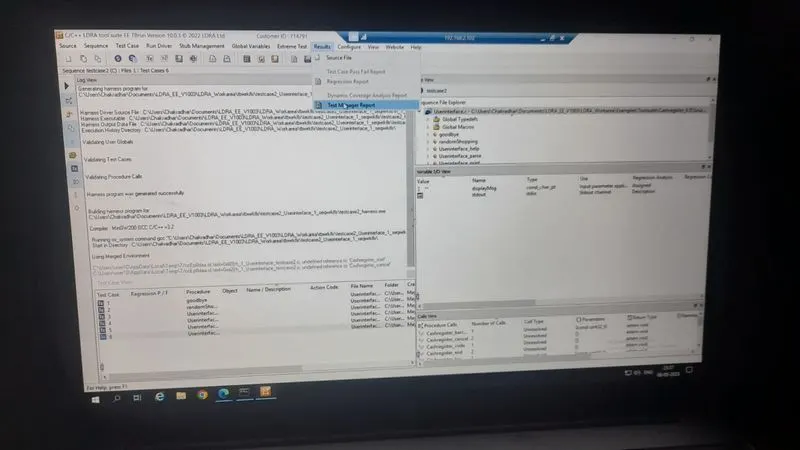
12. Test Manager Report is Generated
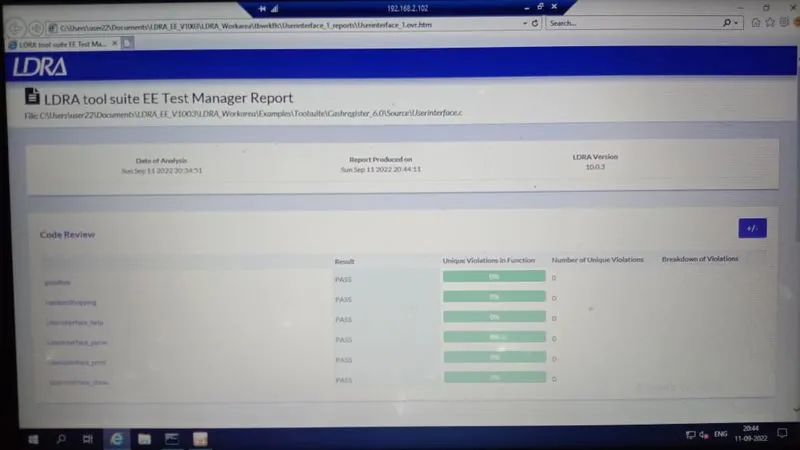
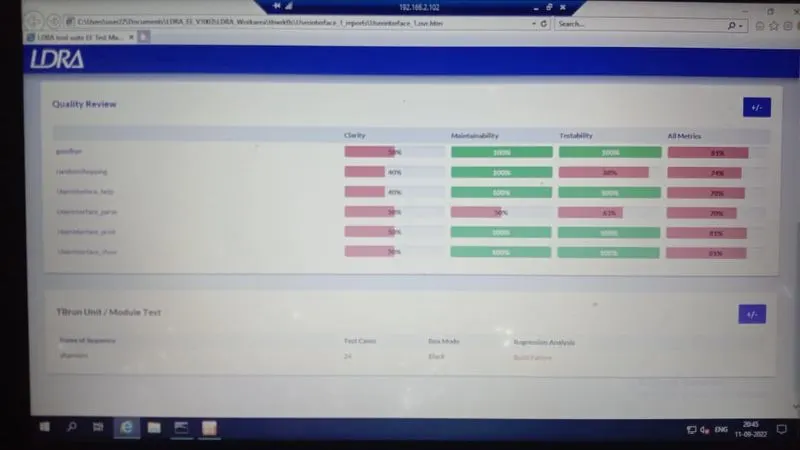
MANUAL WHITE BOX TESTING:
1. Go to Source => Single File
2. Select Userinterface .c File
3. Go to Sequence => Click New
4. Enter Sequence Name => Click Code Coverage => Continue
5. In File View and Right Click then Set As White Box Testing
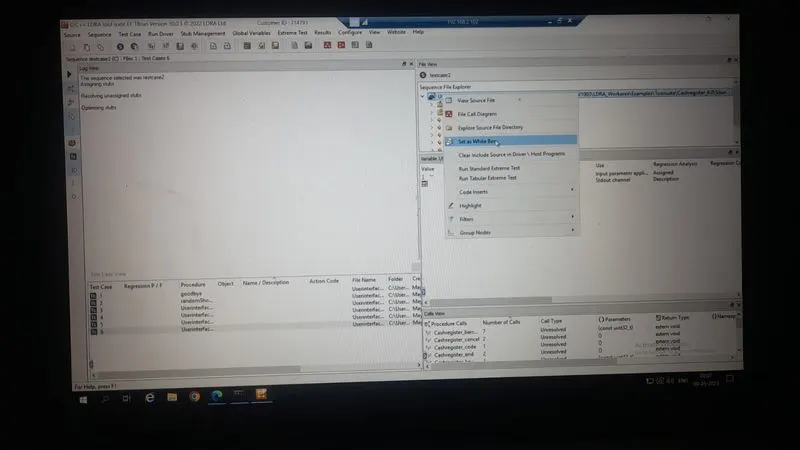
6. Double click on one of the functions of a C file => Create new test cases
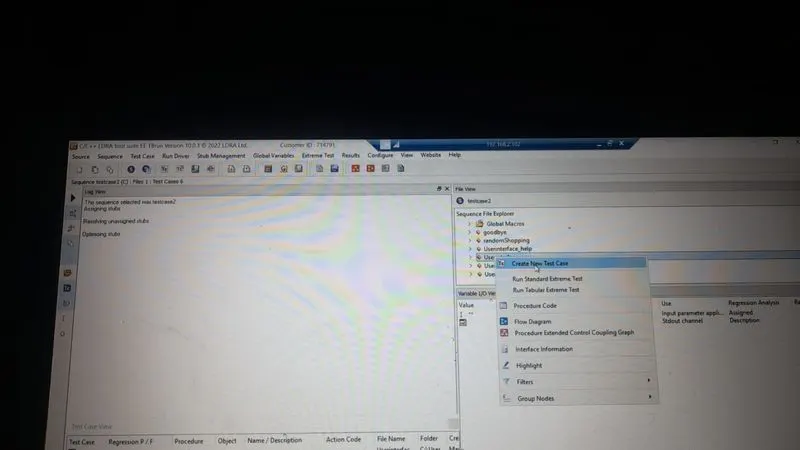
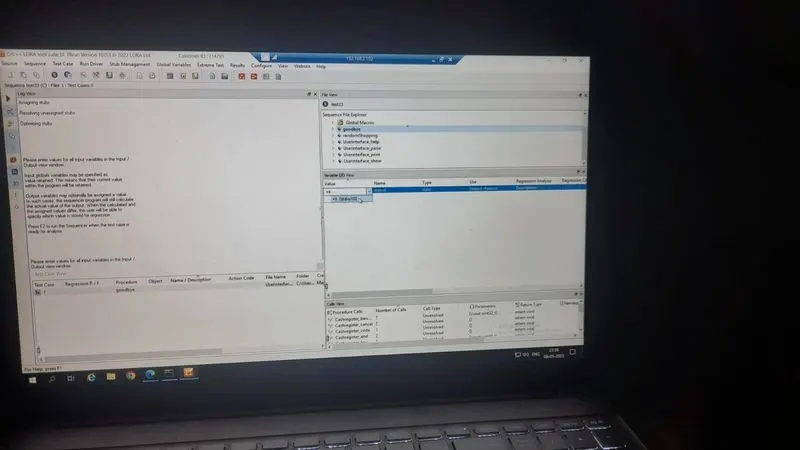
7. Give the values to the variable in IO view
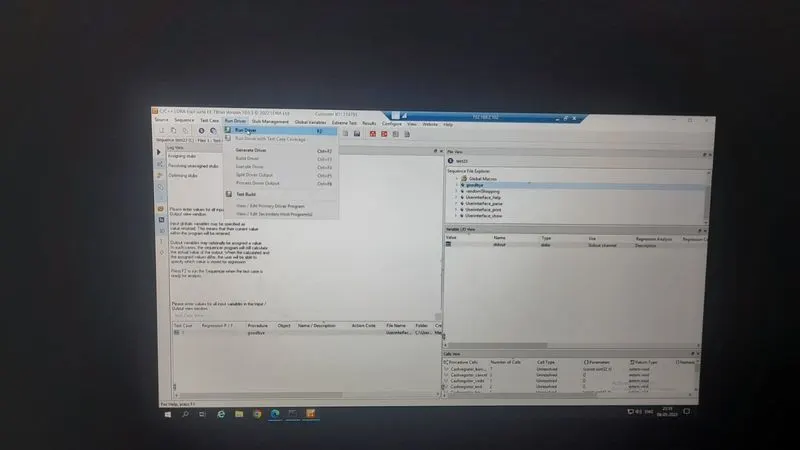
8.click the rundriver
9.Goto result ->selct test mange report
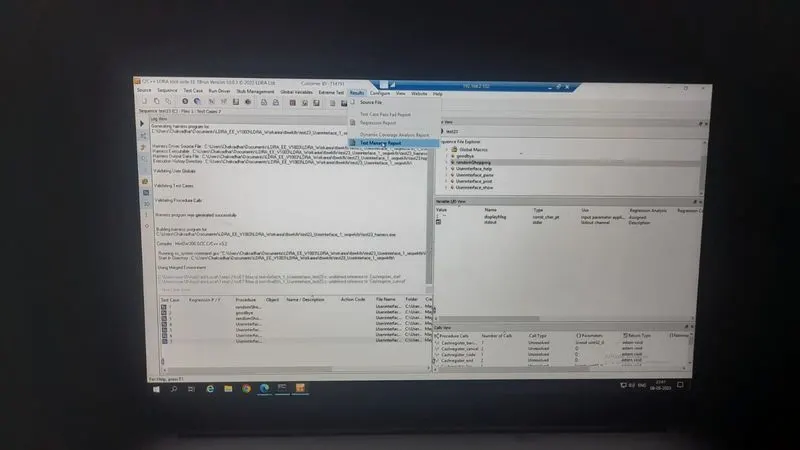
10.White Box Test Report is Generated
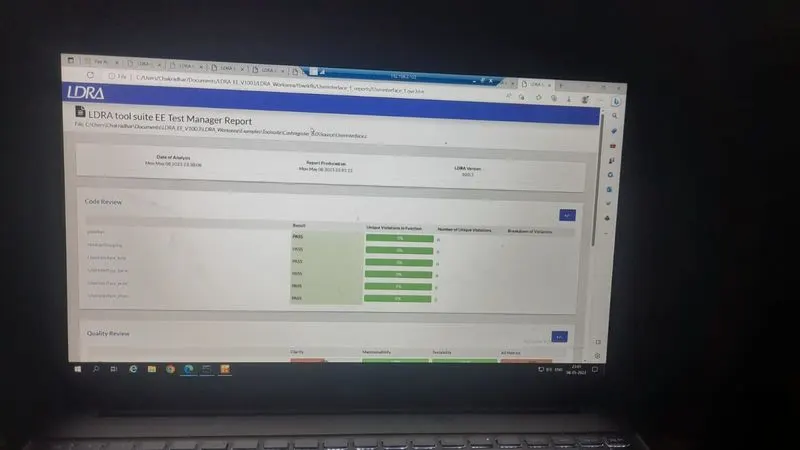
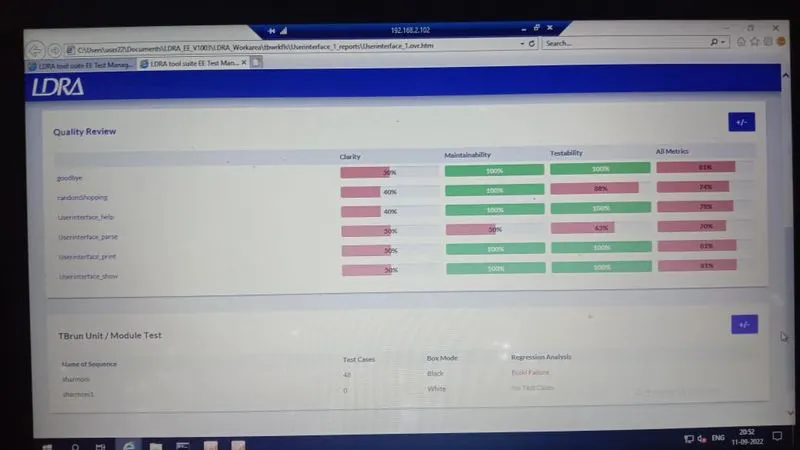
B)store the test cases as .tcf file. Upload the location image where the .tcf file is stored.
STEPS TO FOLLOW TO STORE THE TEST CASES AS .tcf file
1.Tbrun
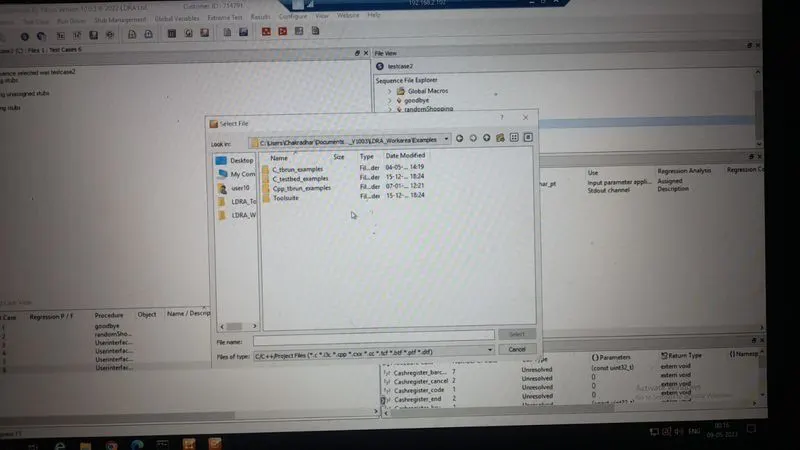
2.Source..multiple file
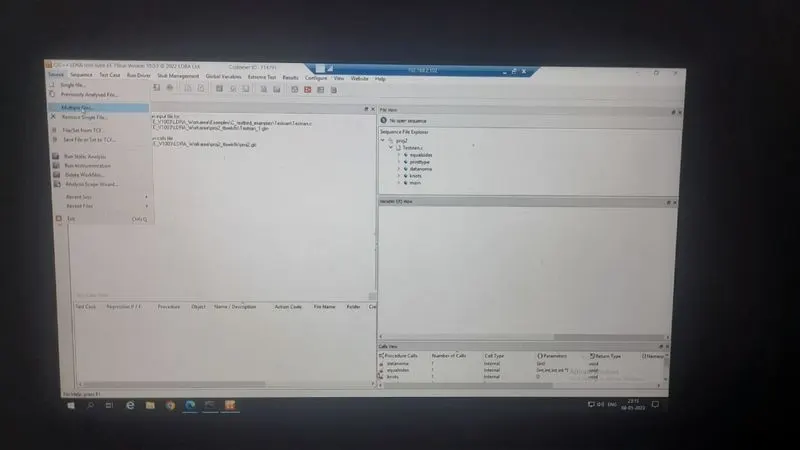
3.create…proj2(name)
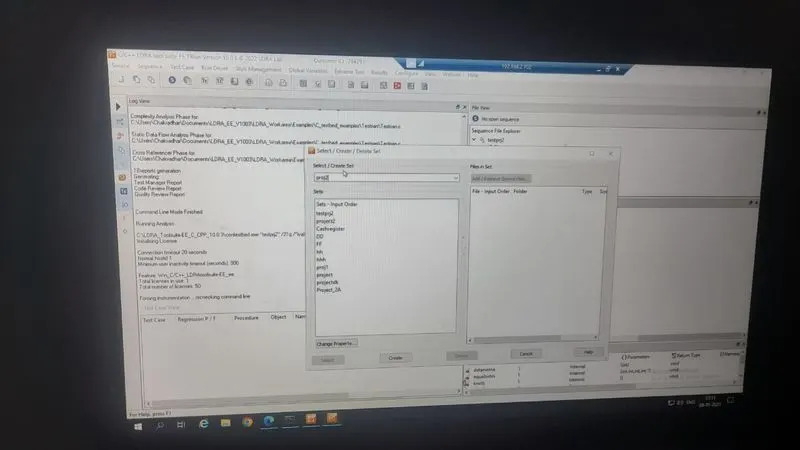
4.Group..independent
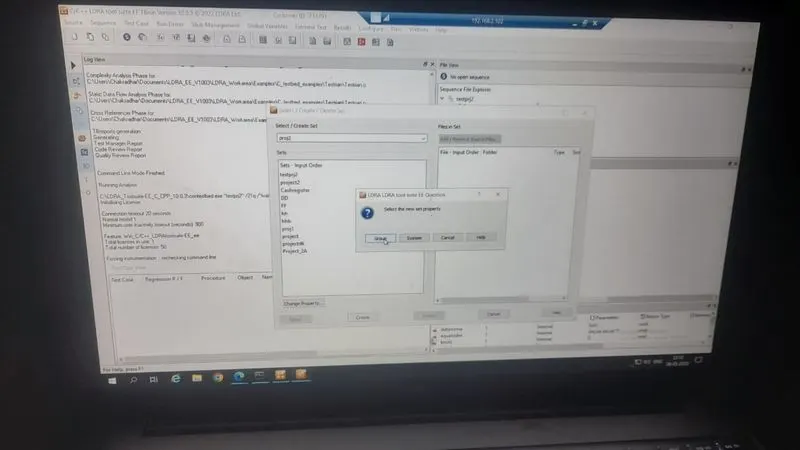
5.System..dependencies in files(preferred)
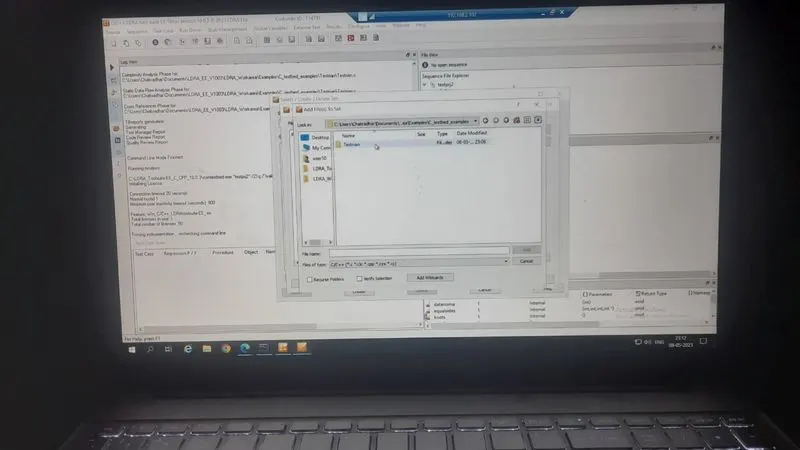
6.Choose the .c file
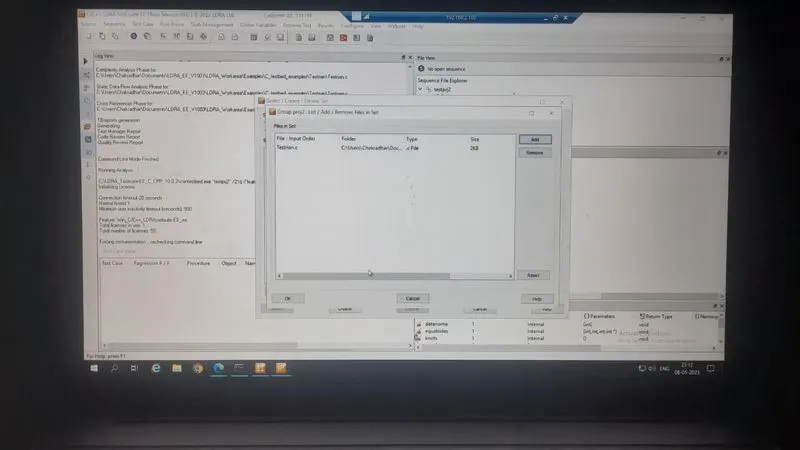
7.Ldra test bed..no
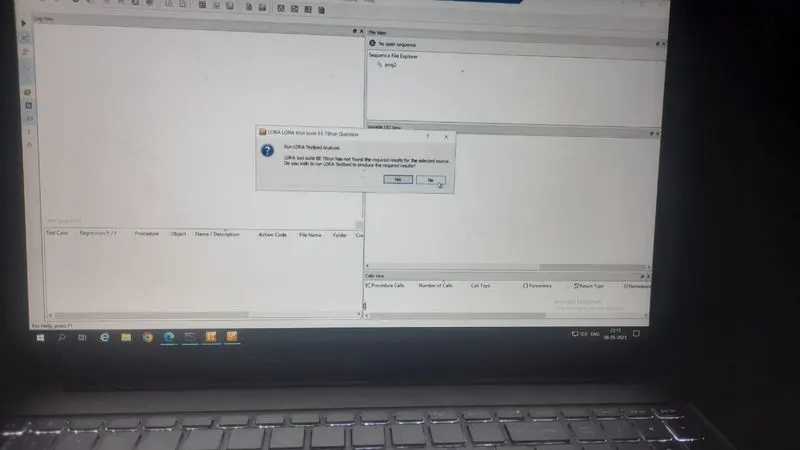
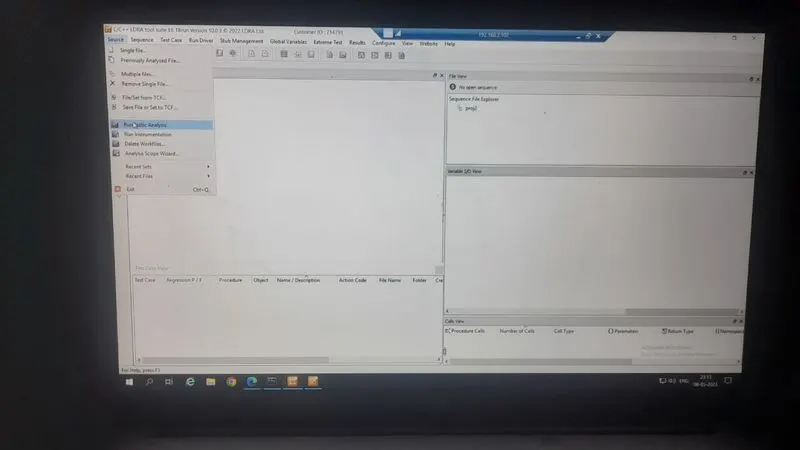
8. In source,select Static analysis
9.Goto Result and Generate Test manager Report
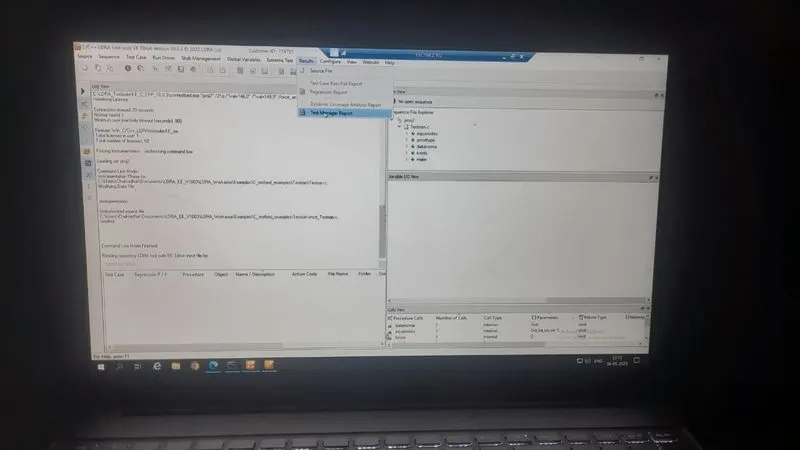
10.Generated Test Report