Project 2 - Development of TFT Cluster Speedometer Software Component
Project 2
Aim
Develop the Simulink model based on the given requirements and also create SLDD file and link the same to the model.
Perform the complete V and V workflow for the obtained model
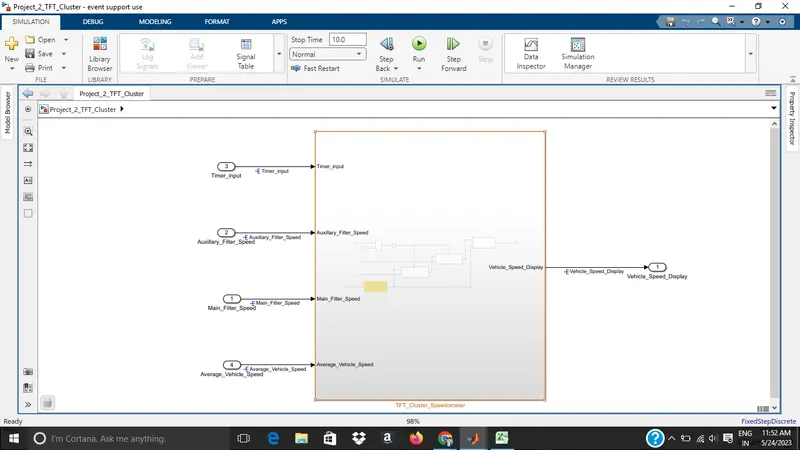
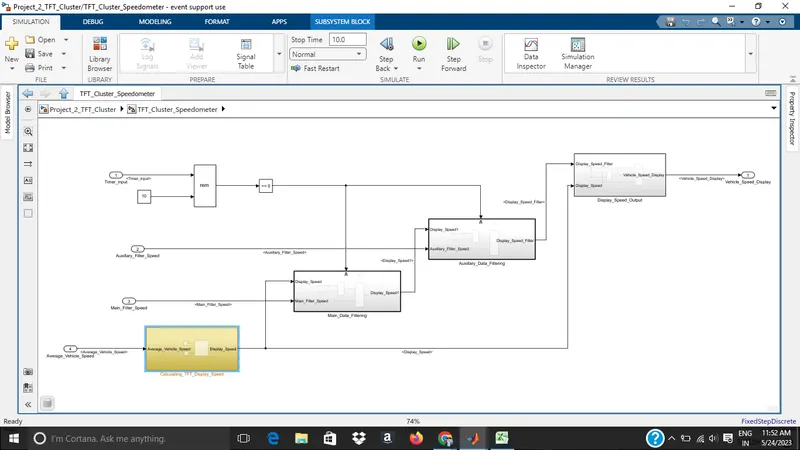
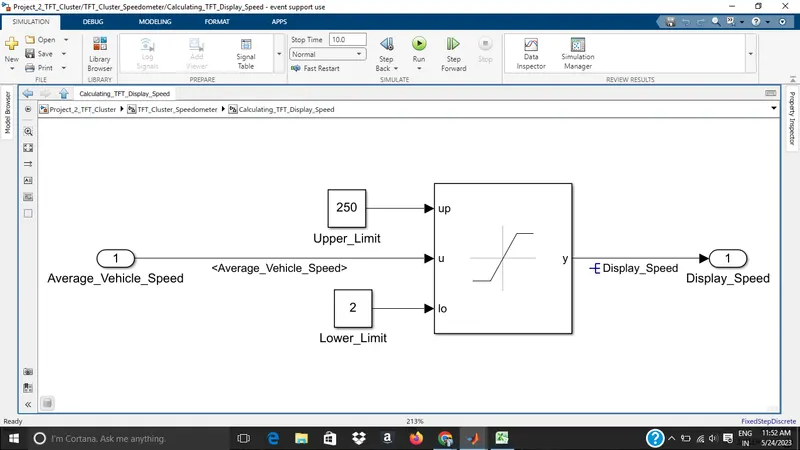
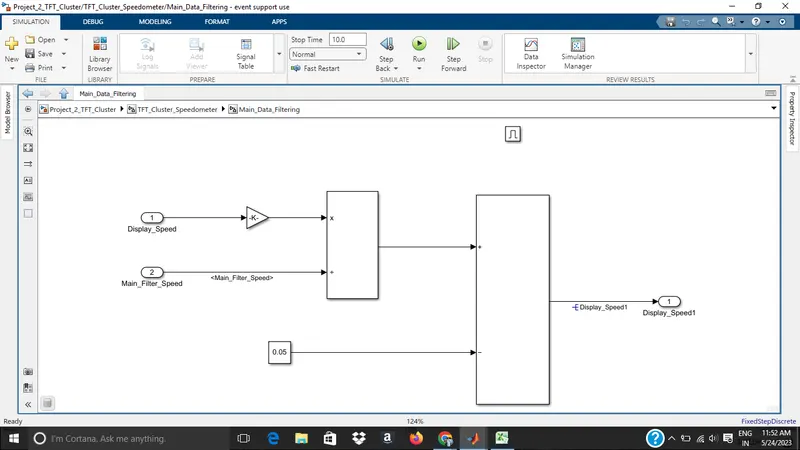
1)Simulink model file
The file is attached and screenshot is given below
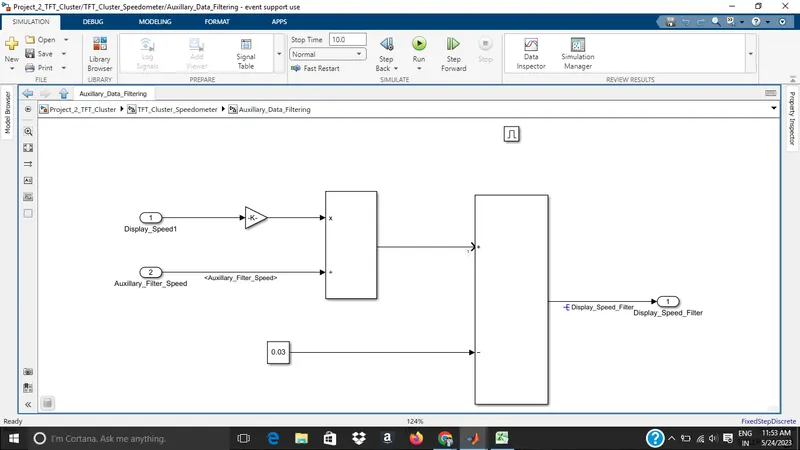
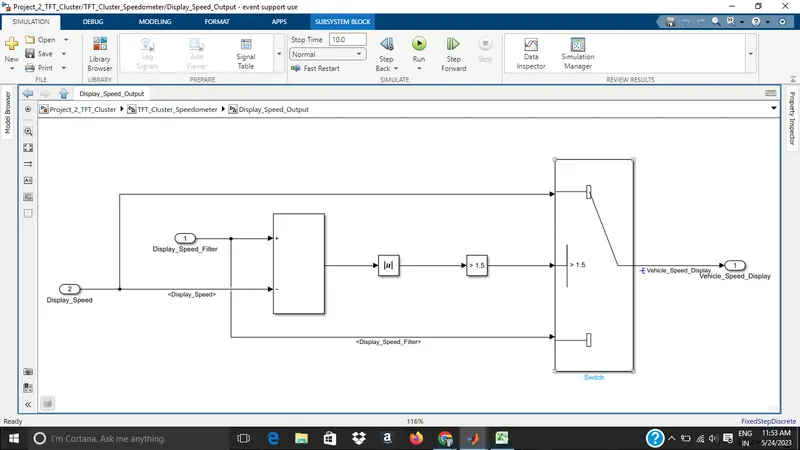
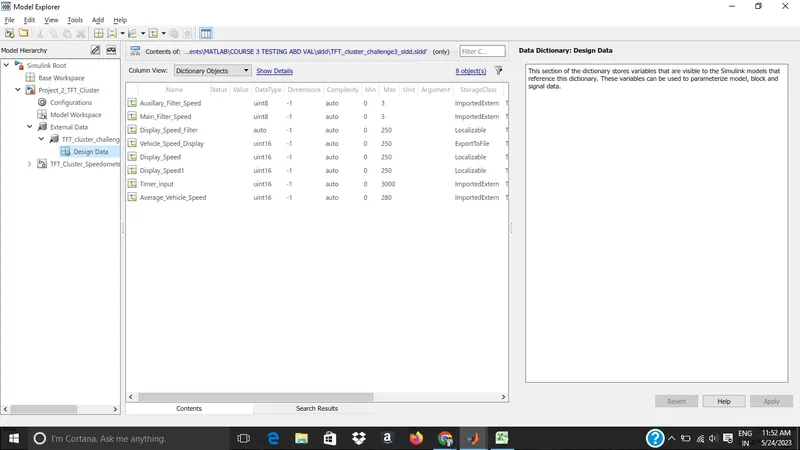
2)SLDD file
the file is attched and screenshot is given below..the file name is TFT_cluster_challenge3_sldd
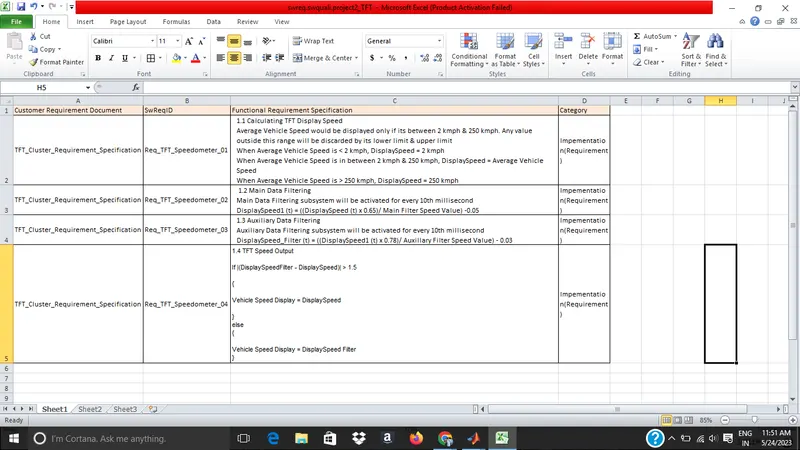
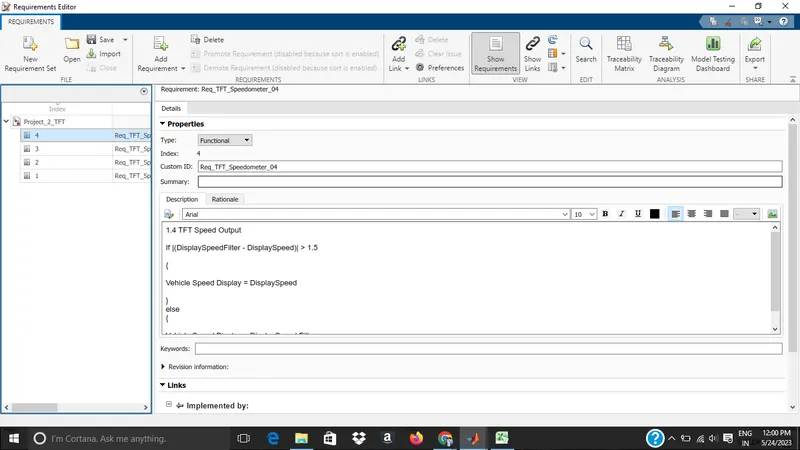
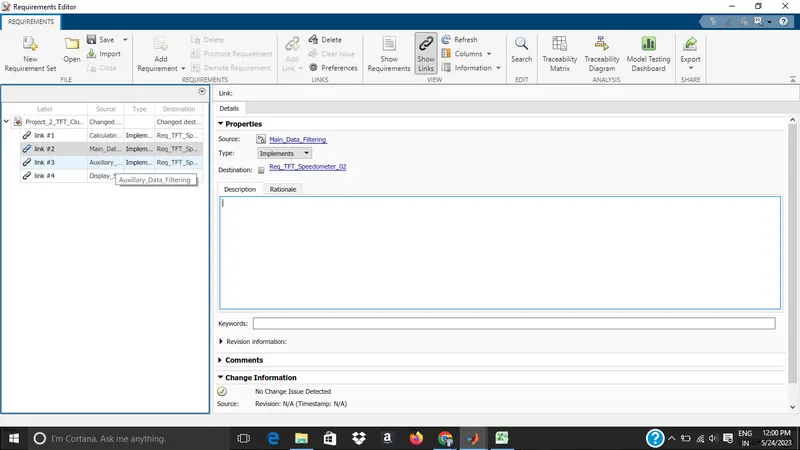
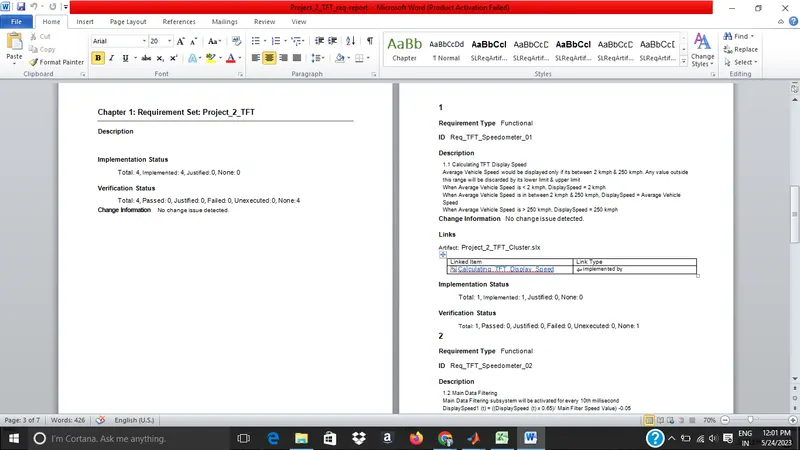
3)Requiremnet tagging
The .slreq file and report and excel is attached as files
the screenshots are given below
4)Fixed point tool
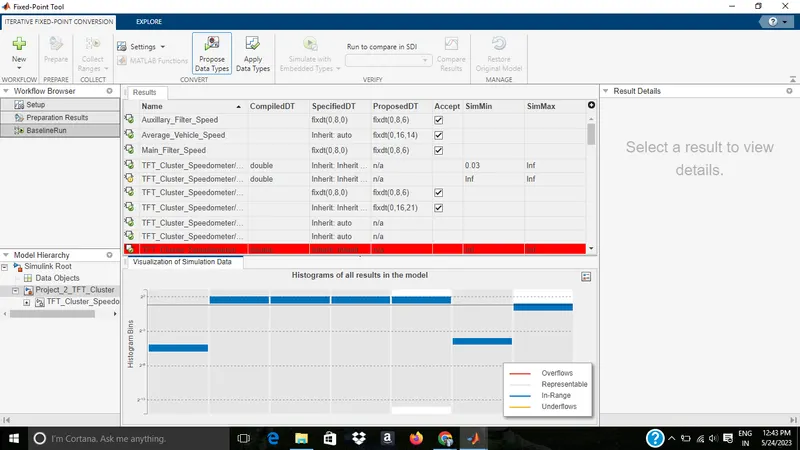
Before fixed point
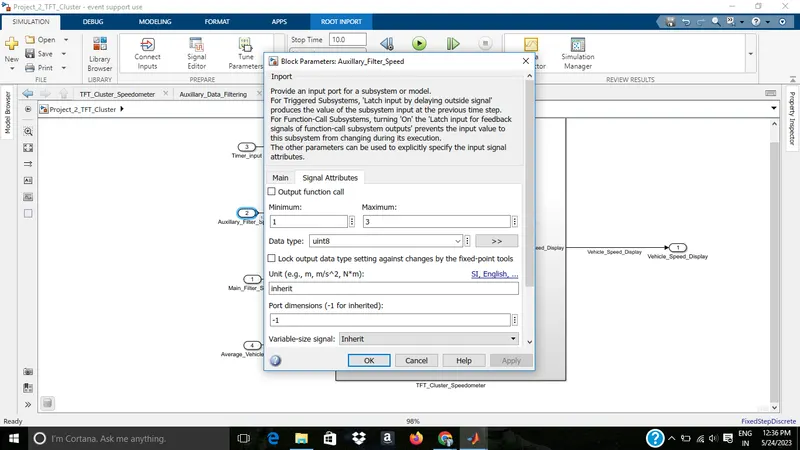
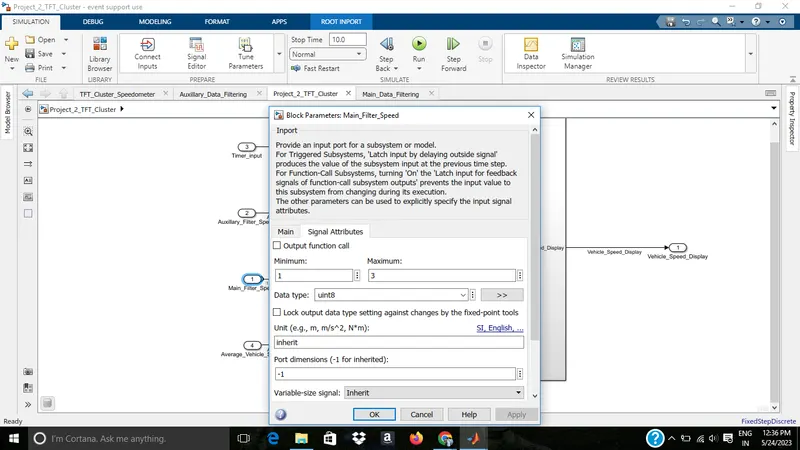
After
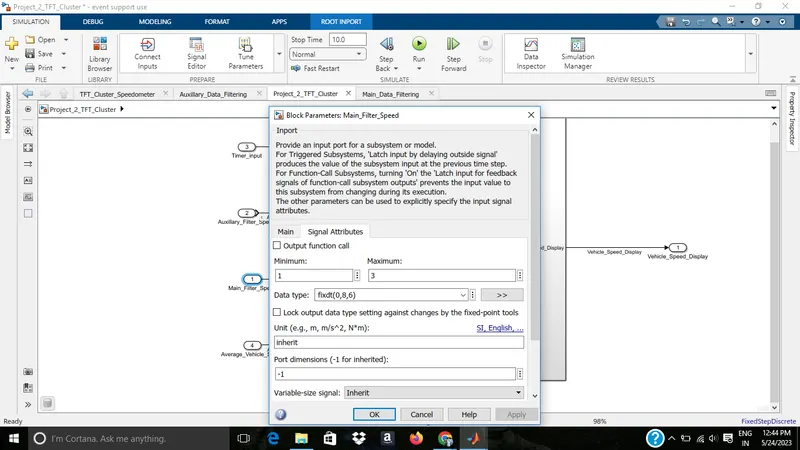
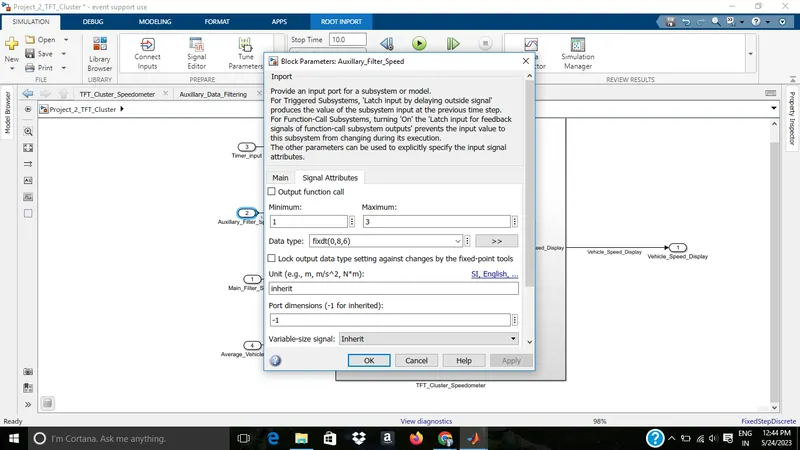
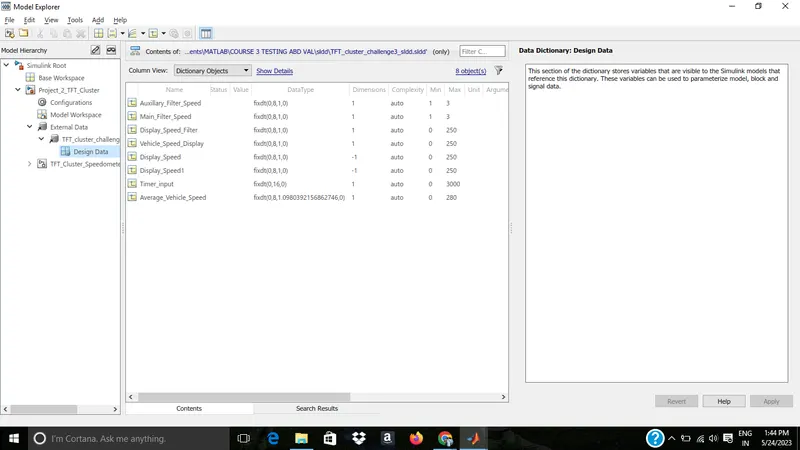
sldd
5)J MAAB
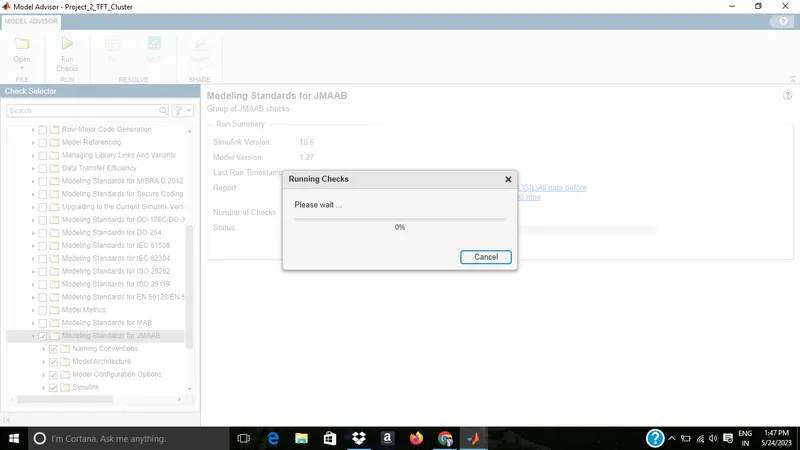
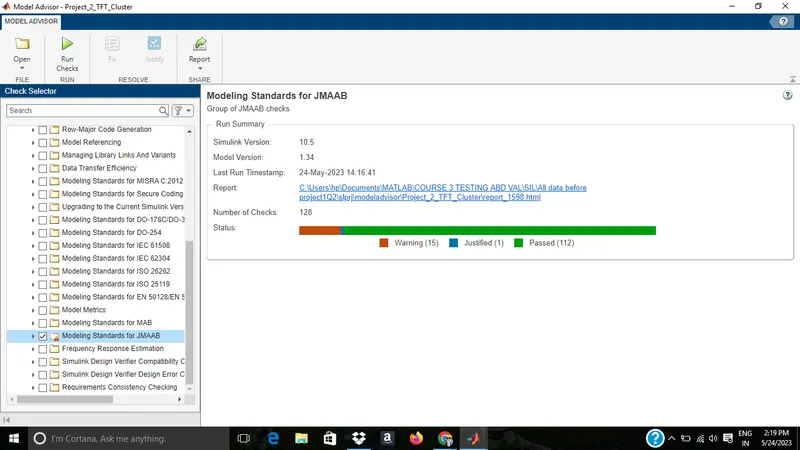
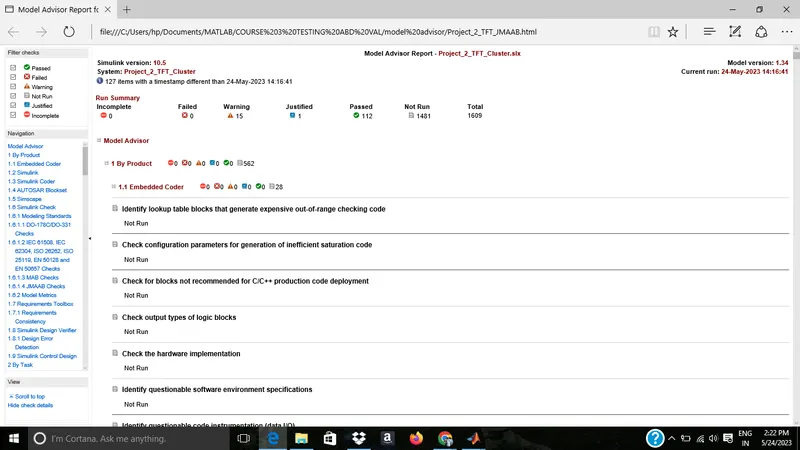
file is attached and screenshot is given below.all jmaab test has been completed
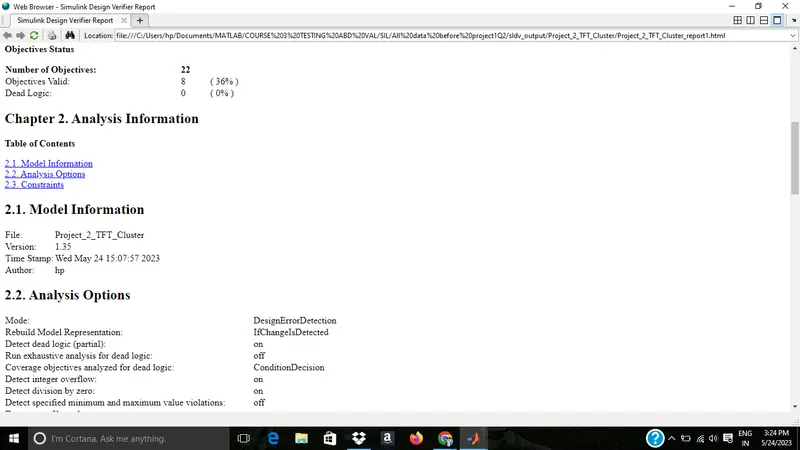
6)SLDV Error detection
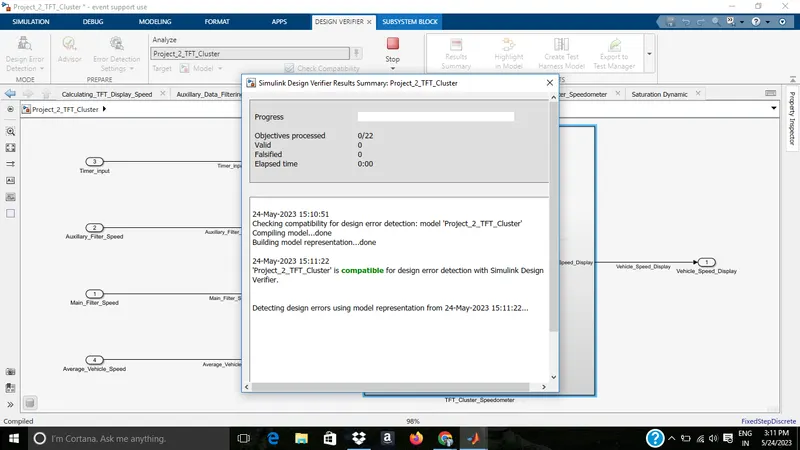
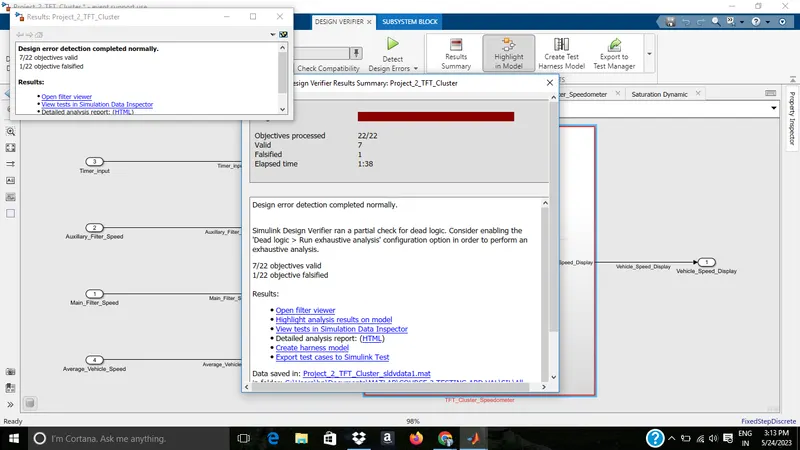
After clearing error
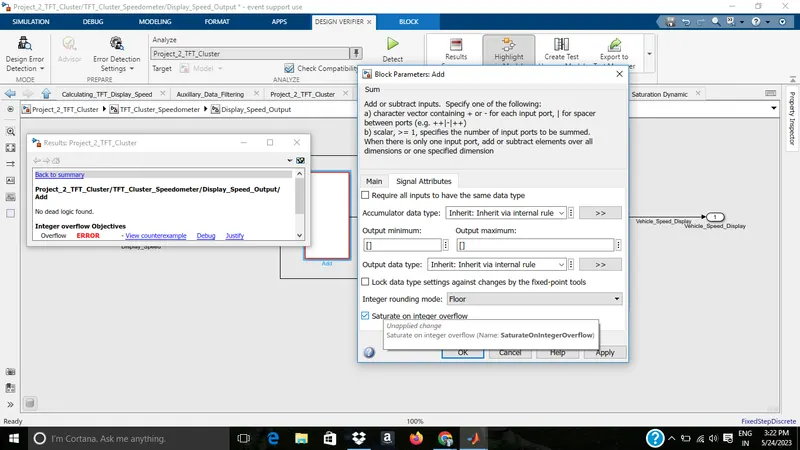
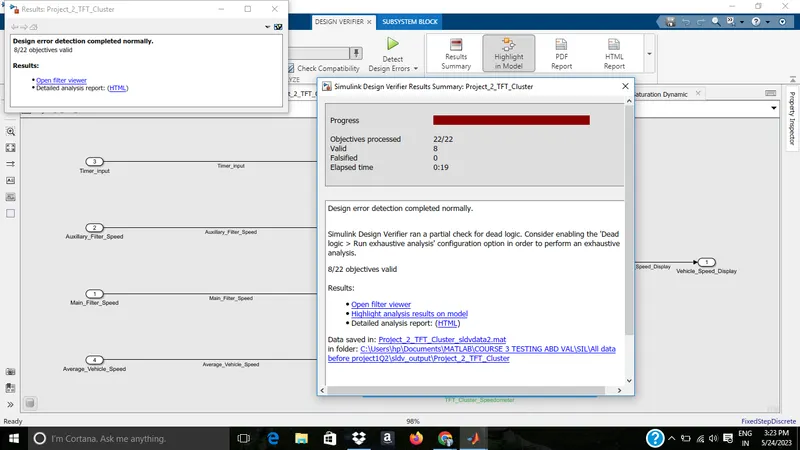
no falsified condition
report is attached as file and screensot is given below
7)MIL/SIL/COVERAGE
MIL
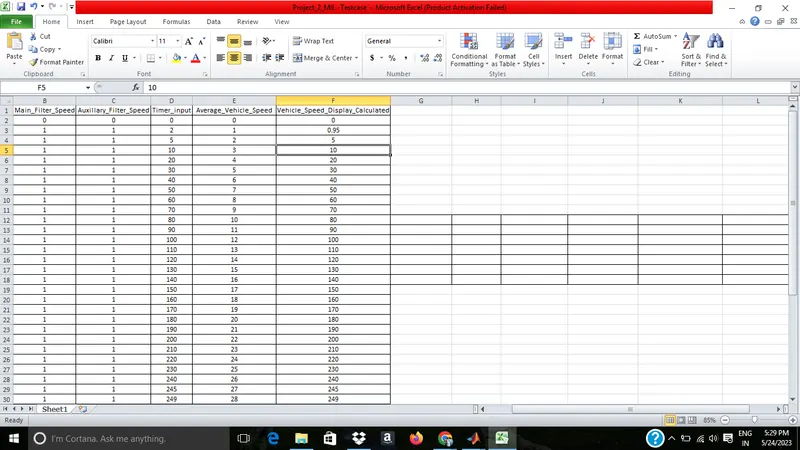
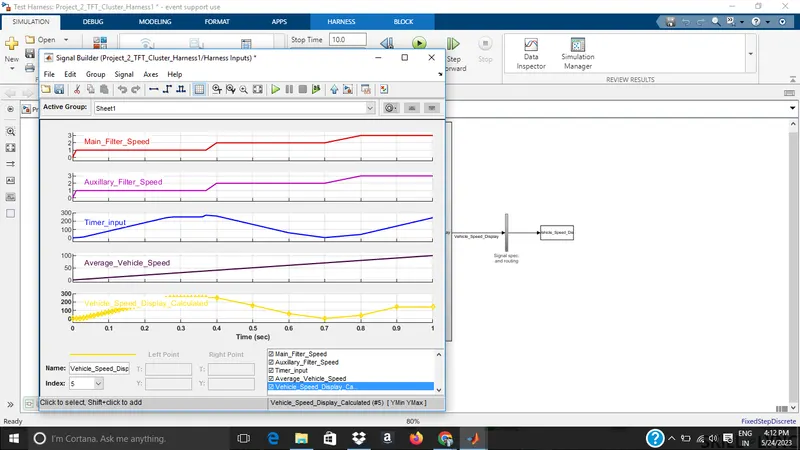
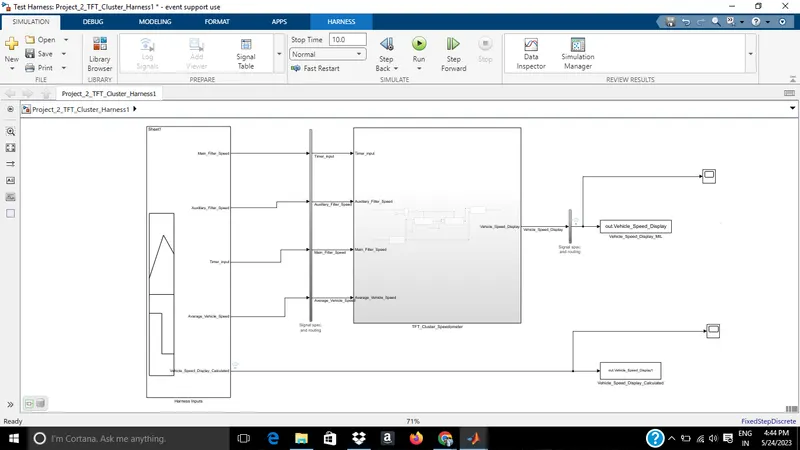
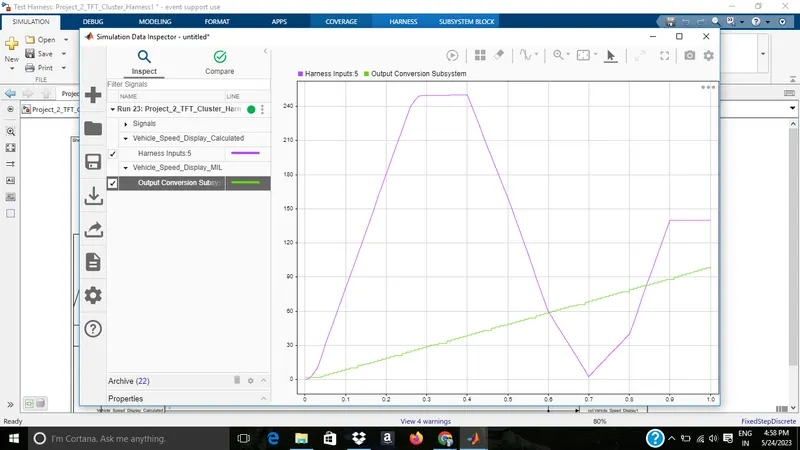
Both calculated and MIL results are showing deviations
MIL Coverage not showing 100% for switch block
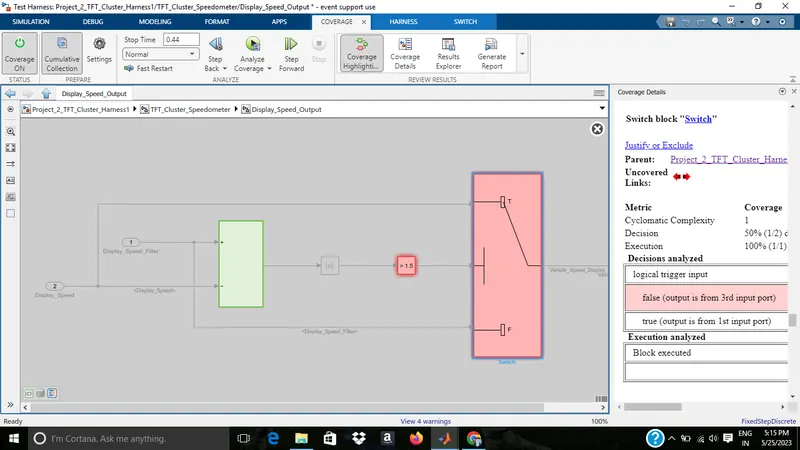
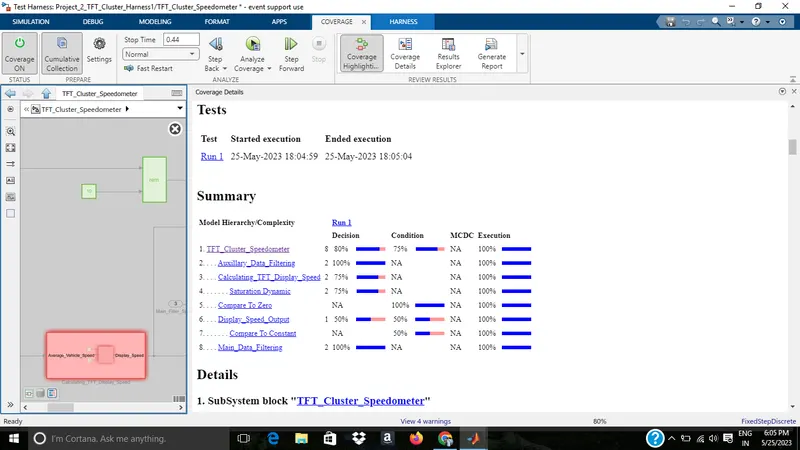
The MIL Coverage report is also attached as file
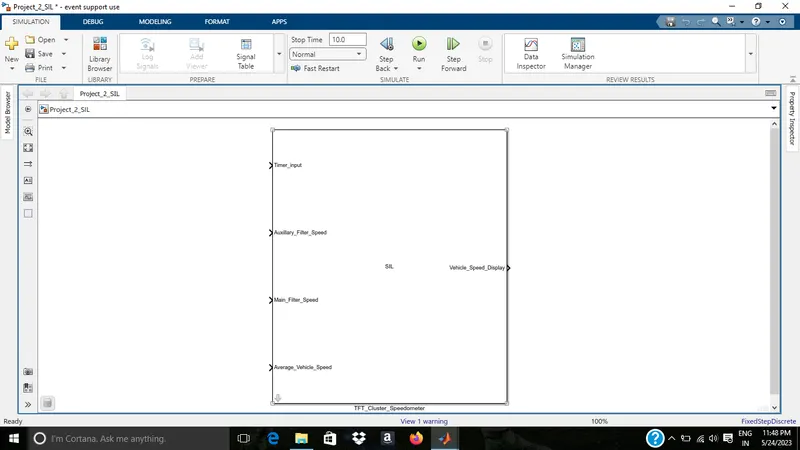
SIL
SIL test cases
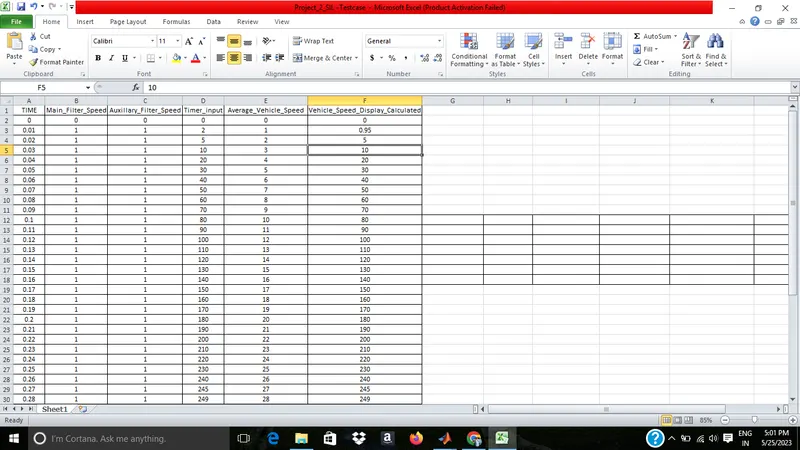
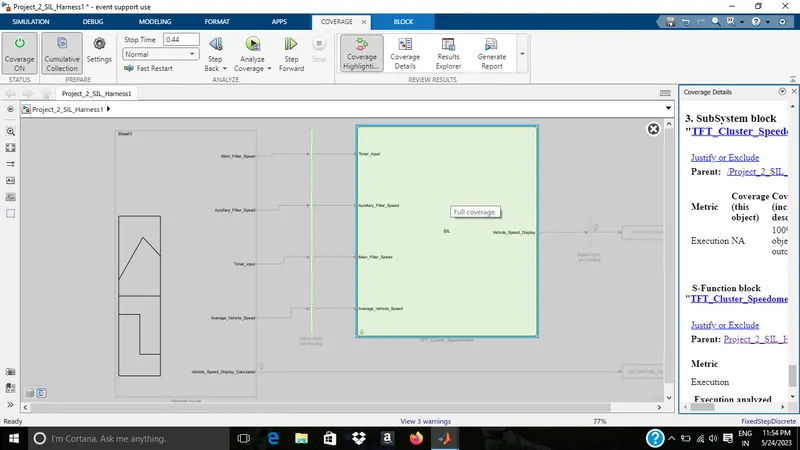
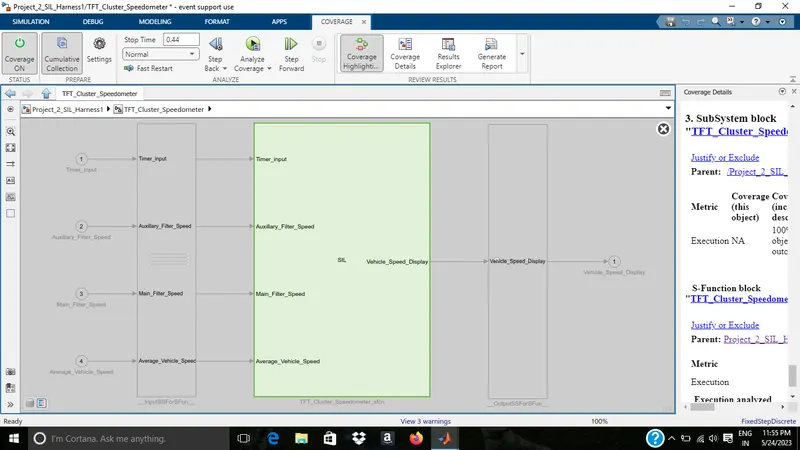
SIL Harness
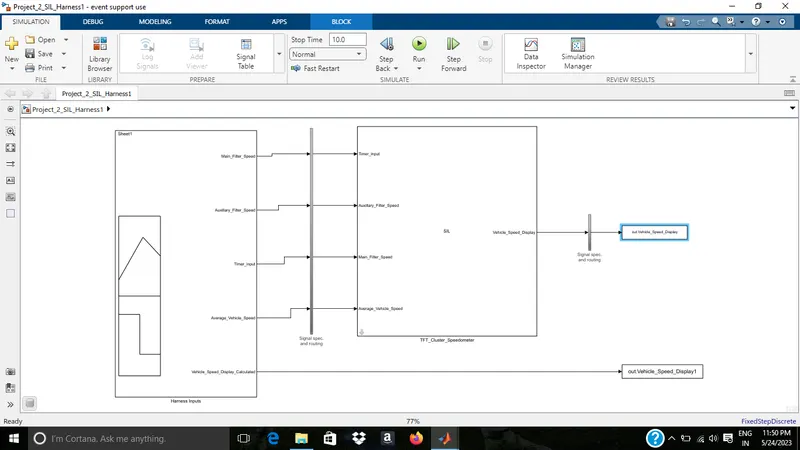
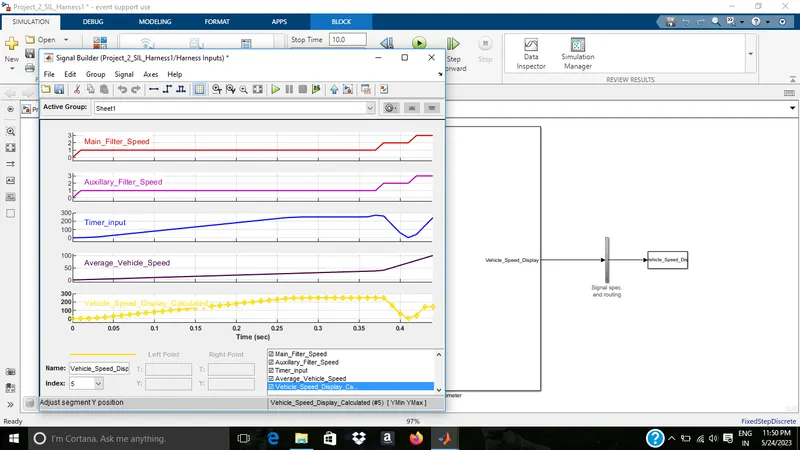
SIL output
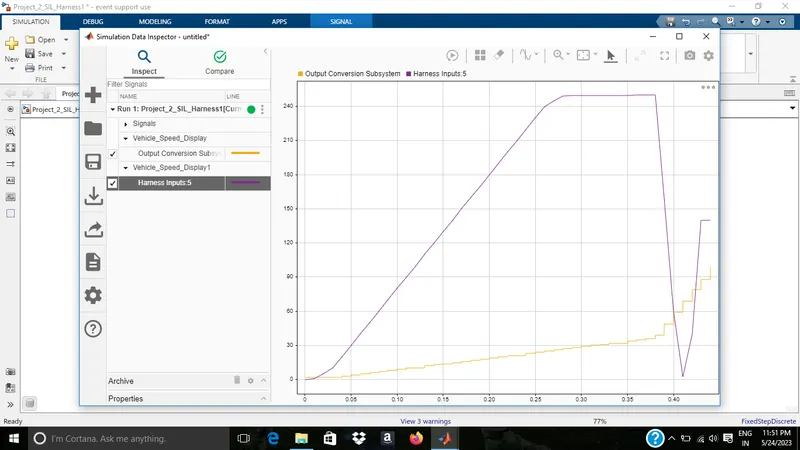
Both calculated and SIL results are showing deviations
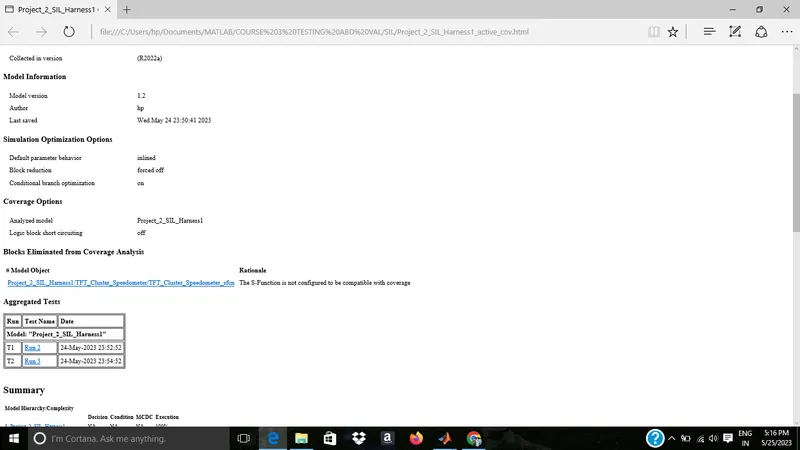
SIL coverage
getting 100% coverage and Coverage report is also attached
8)SLDV Test Generation
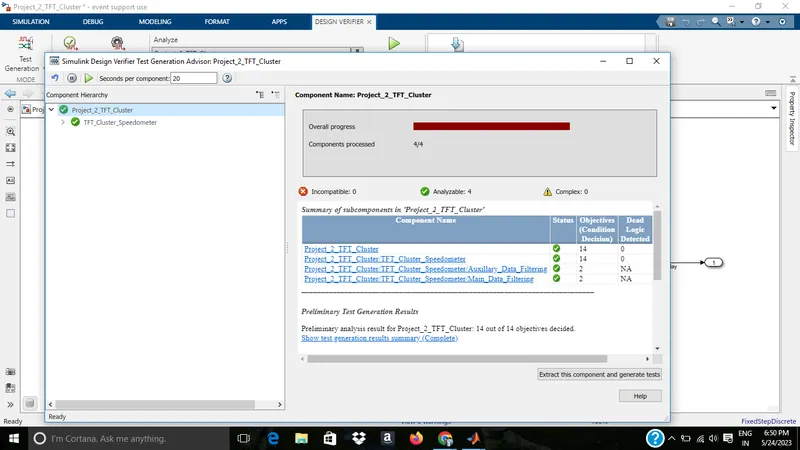
The s/m is compatiable and all objects are satisfied
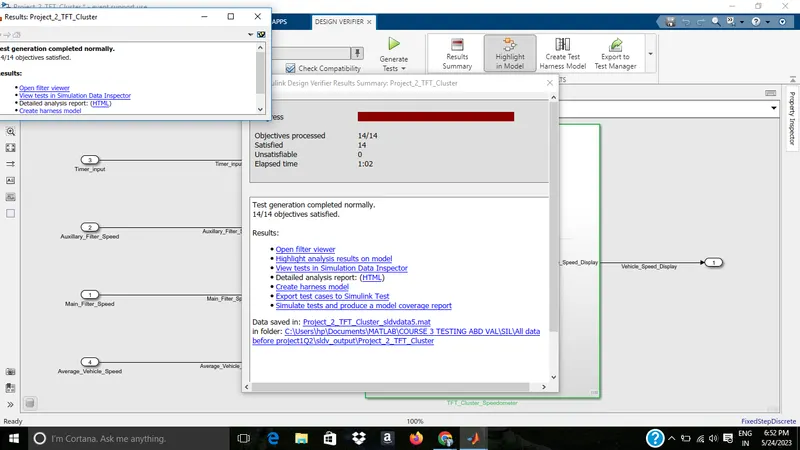
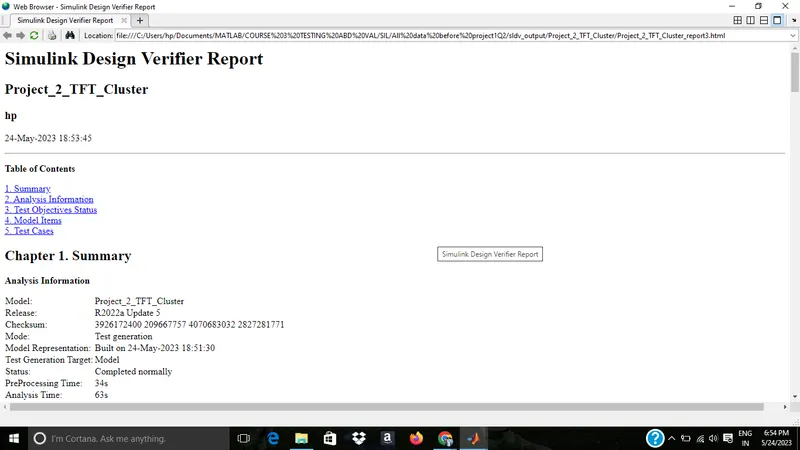
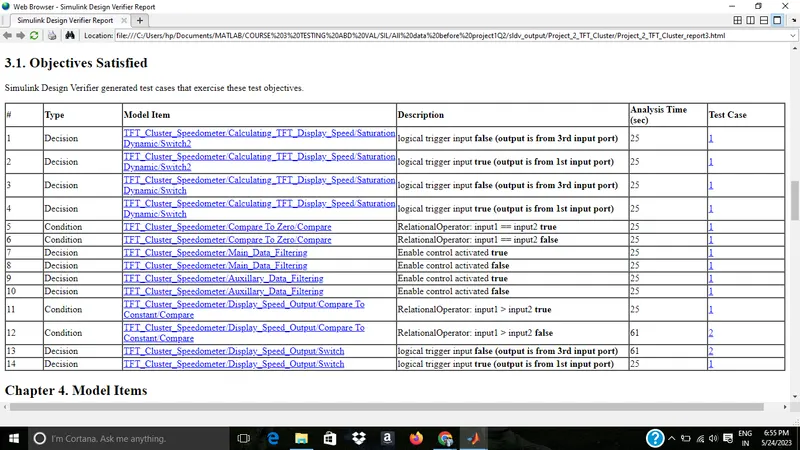
The test generation report is attached as file also
The coverage reports of SLDV test genertion are
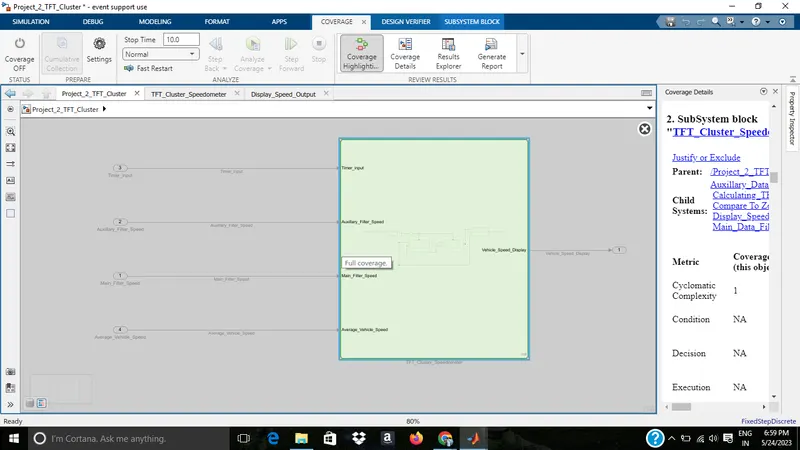
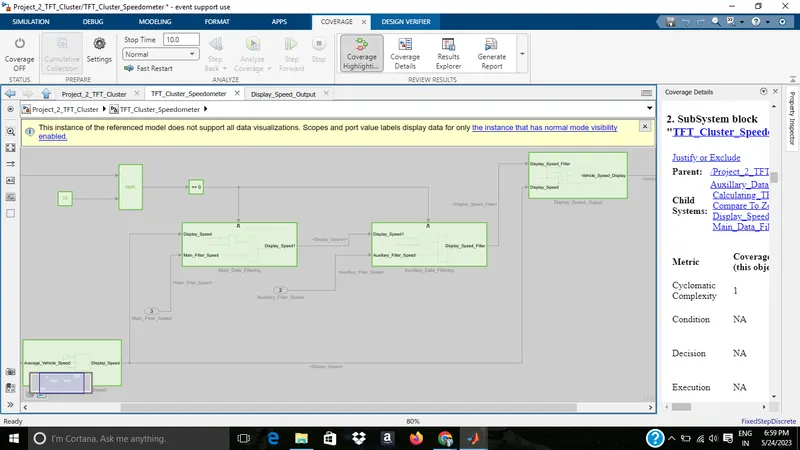
Coverage report of test harness by SLDV
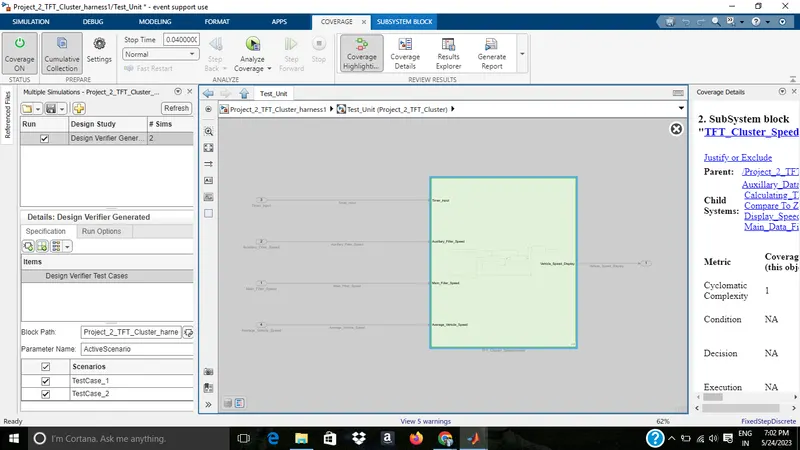
Harness by SLDV
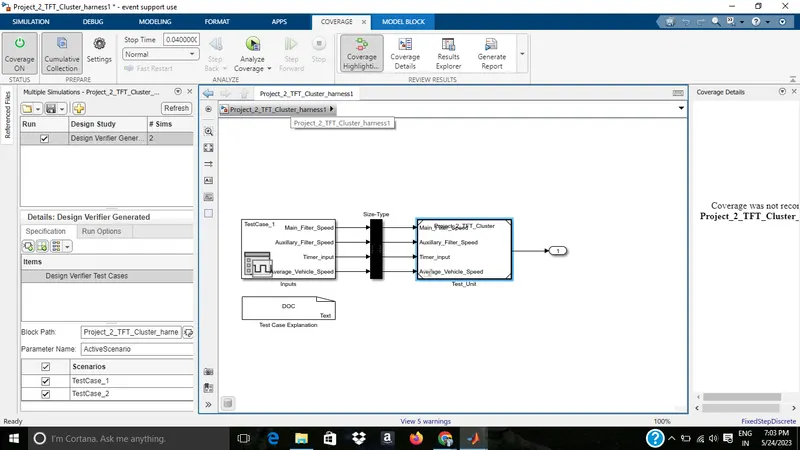
The coverage report for harness is also attached as file
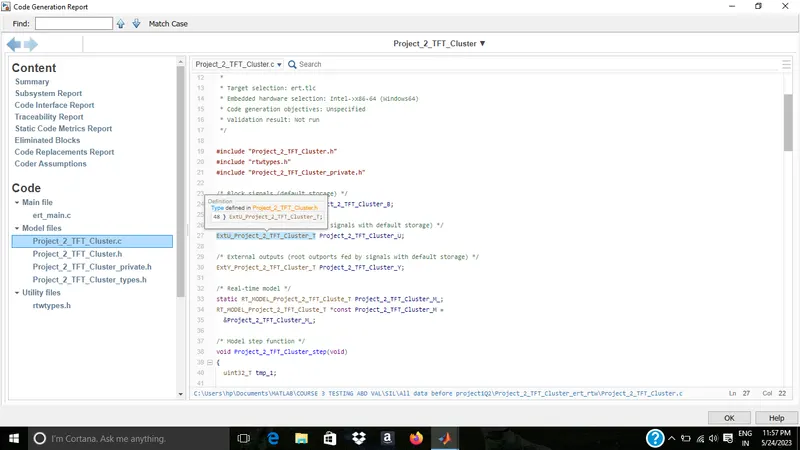
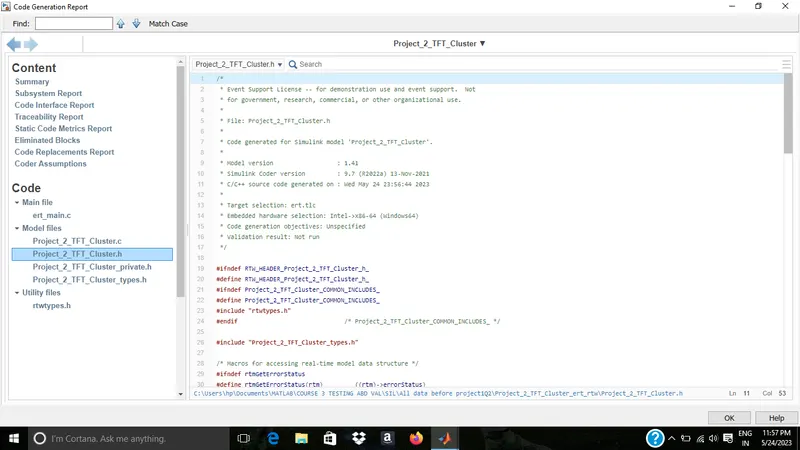
9)Auto code Generation
The settings changed as embedded coder
then chosen the build option
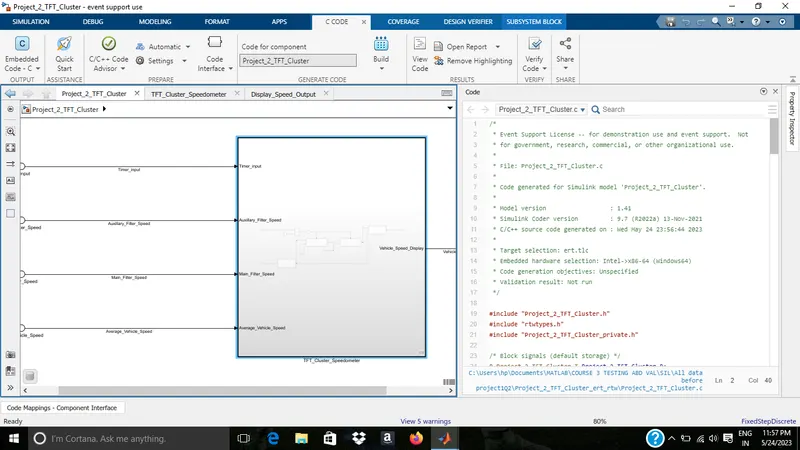
The .C and .h screenshots are attached below
the .c and .h files are also attached as Project_2_TFT_Cluster.c & Project_2_TFT_Cluster.h
10)Polyspace analysis
For Polyspace Bug finder
1)First need to generate the code
2)Goto model configuration settings and change the code generation settings to embedded coder.
3)click on APPS and select emedded coder.
4)Do the code generation by clicking generate code.
5)Open the polyspace tool
6)start a new project
7)Give the project name
8)project files get added to project browser.
9)Do the configuration settings for compiler and processor
10)Change the settings for coding standards and metrices if needed
11)Keep the default settings for bug finder analysis
12)Mark the generate report
13)Save the settings
14)Click on run on bug finder
15)From the result analyse the code
For Polyspace Code Prover
1)First generate the C code
2)Goto model configuration settings and change the code generation settings to embedded coder.
3)click on APPS and select emedded coder.
4)Do the code generation by clicking generate code.
5)Open the polyspace tool
6)start a new project
7)Give the project name
8)project files get added to project browser.
9)Under code prover verification, change the settings for, verification, check behaviour, precision
10)Do the configuration settings for compiler and processor
11)Change the settings for coding standards and metrices if needed
12)Save the settings
13)Mark the generate report
14)Click on run on code prover
15)From the result analyse the code
11)Test generation report
Baseline Testing
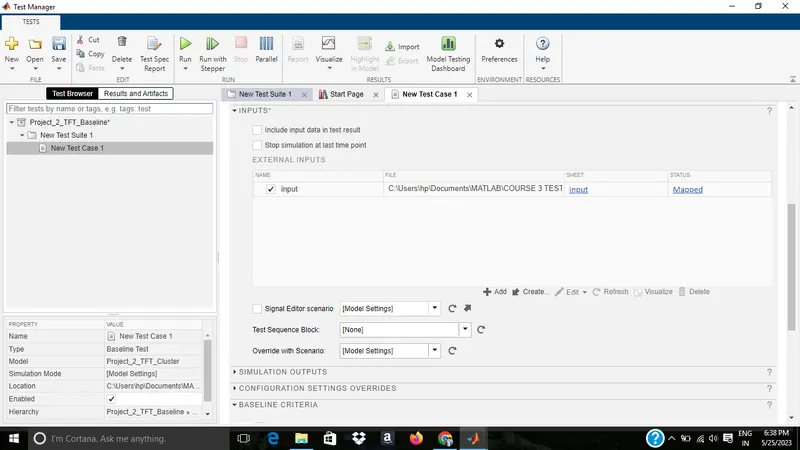
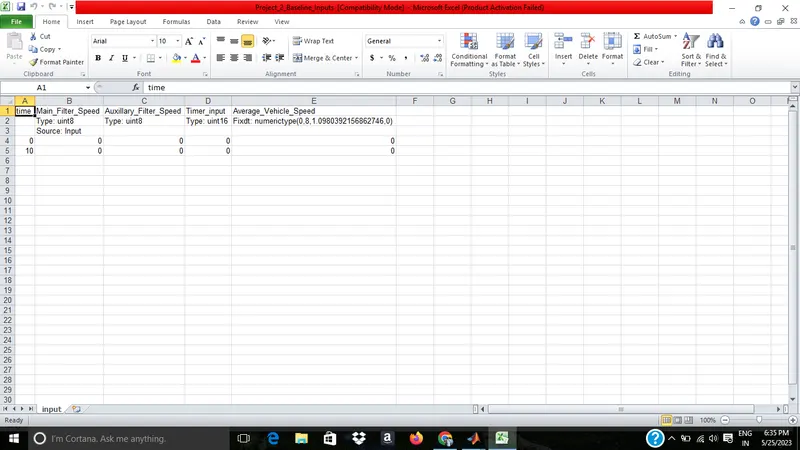
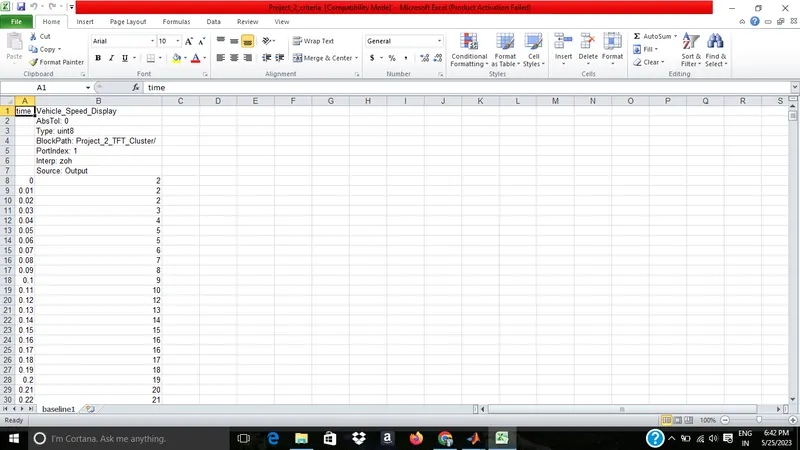
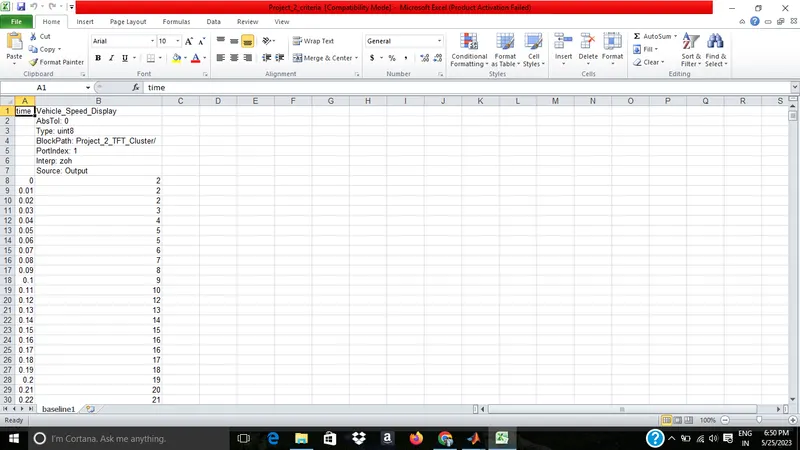
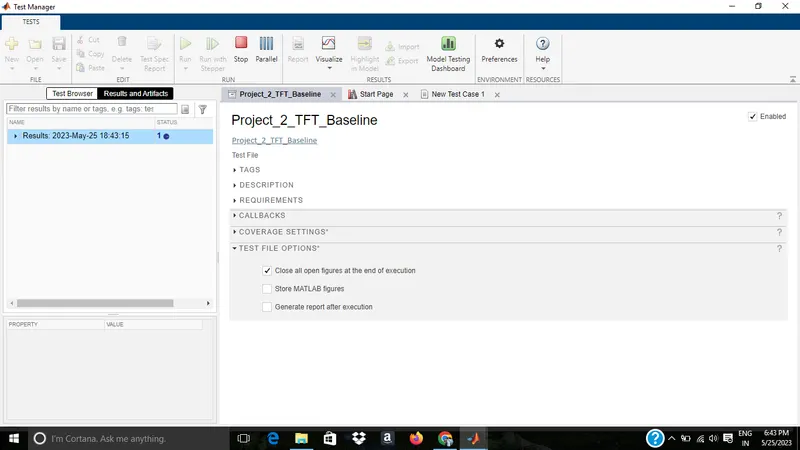
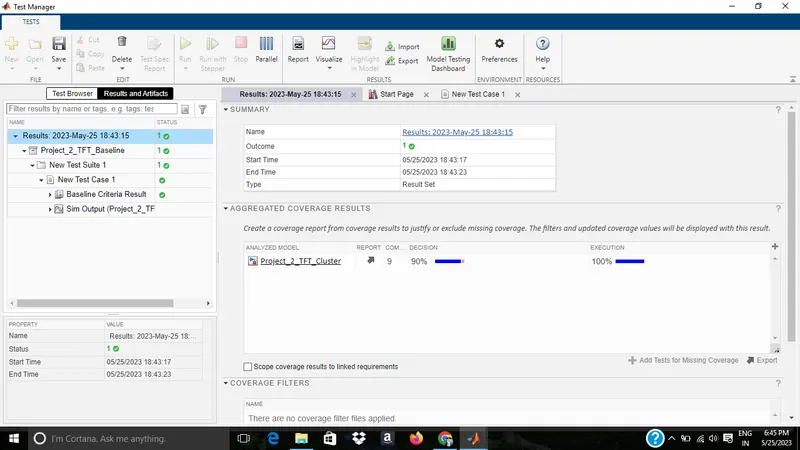
In the baseline report the differnece between simulation output and Basline is zero line is showing zero
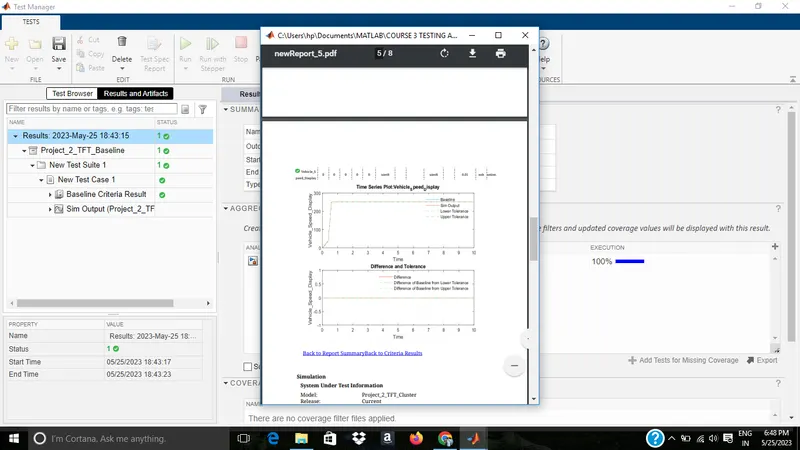
The baseline test report file is attached as Project_2_TFT_BAseline_Report
Back to back testing
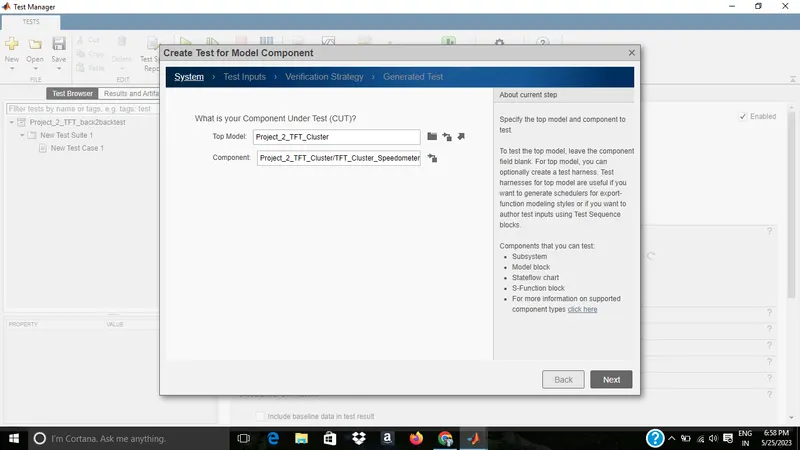
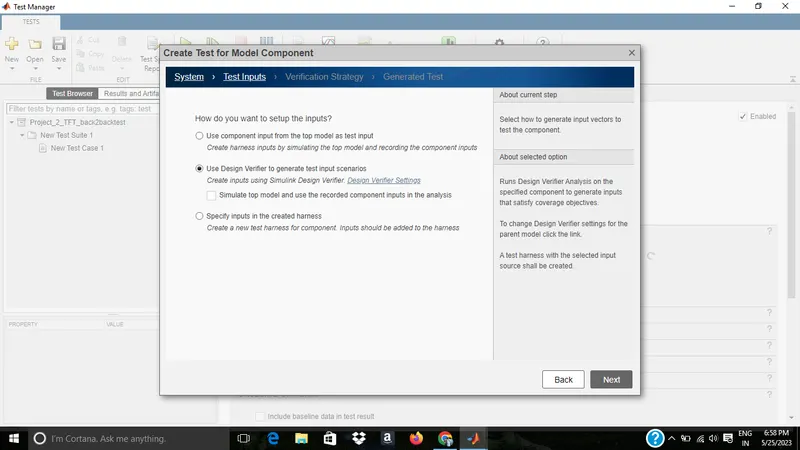
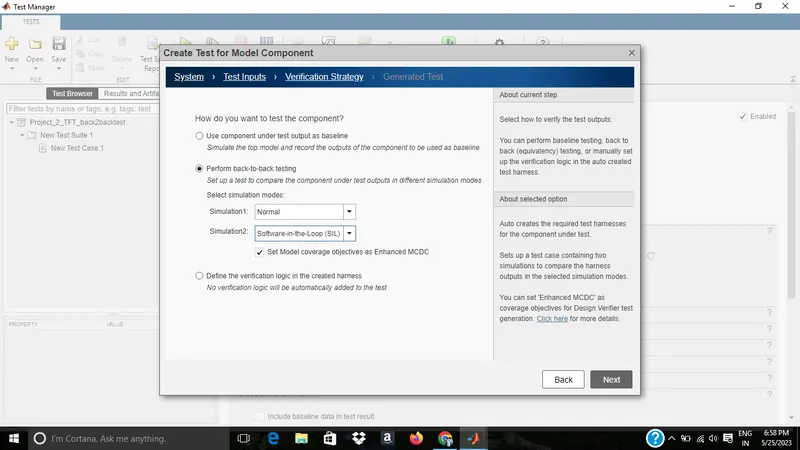
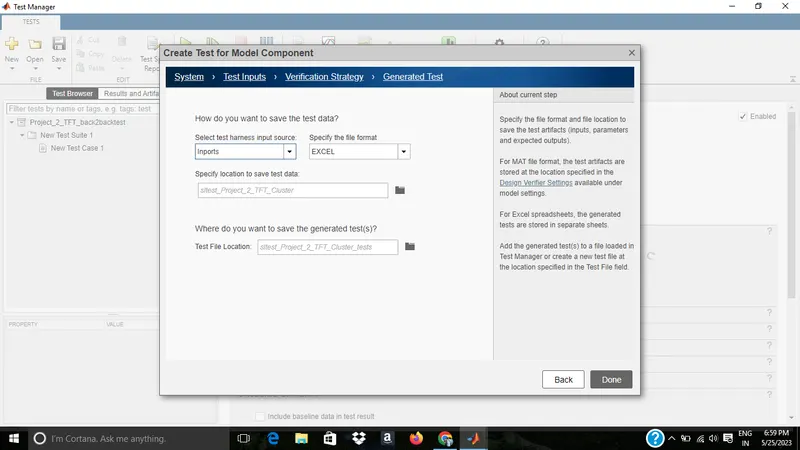
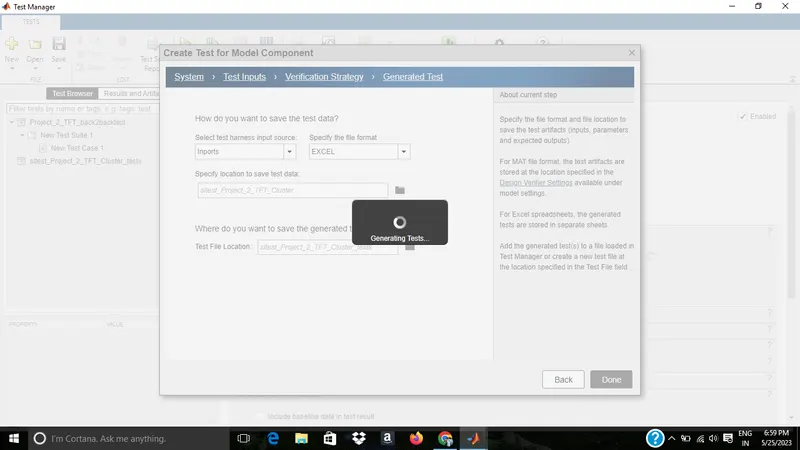
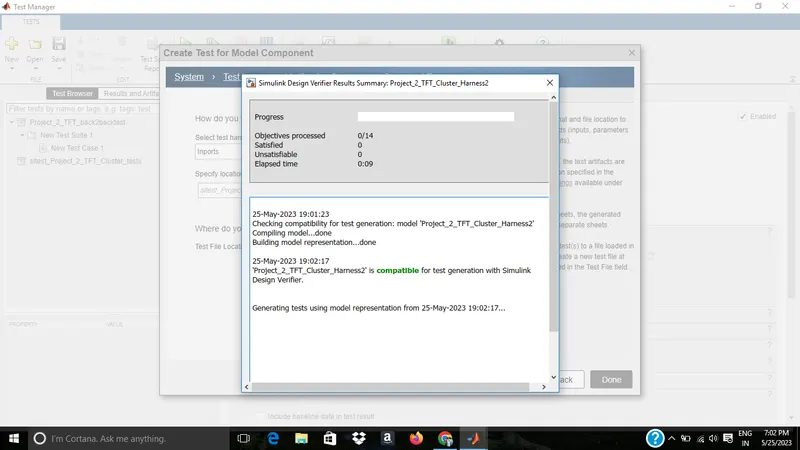
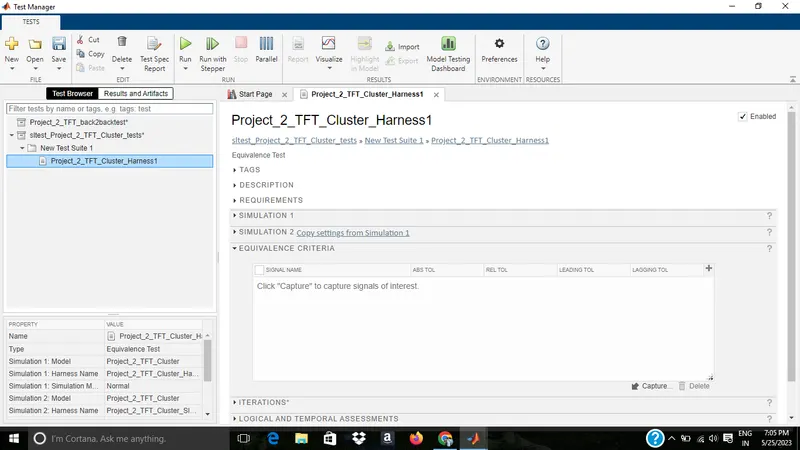
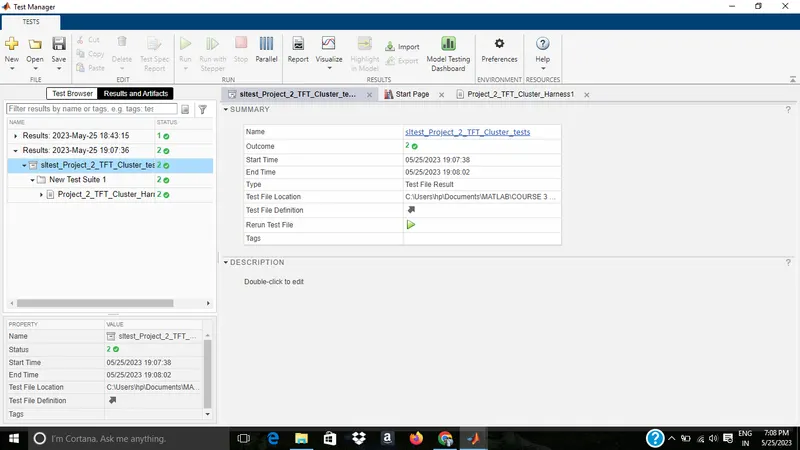
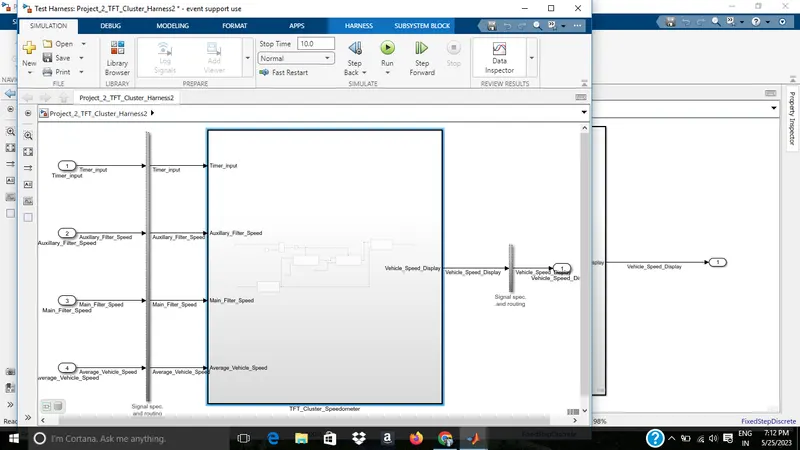
MIL and SIL harnes of backto back test
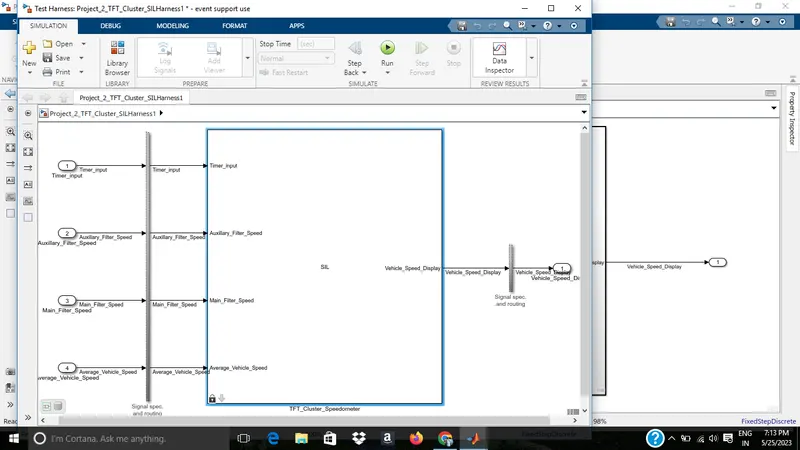
In the back to back test report the differnece between simulation output and Backtoback test is zero line is showing zero
The baseline test report file is attached as Project_2_Backtobacktestreport
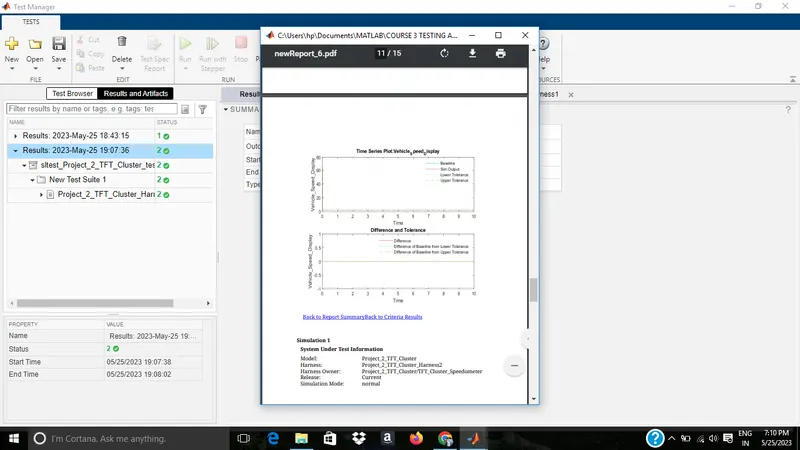
ALL THE TESTS IN THE QUESTION HAS BEEN COMPLETED