Project 1 - Wiper control system and Vehicle speed calculation for ABS using Wheel Speed sensor
Project 1
Q1
Aim
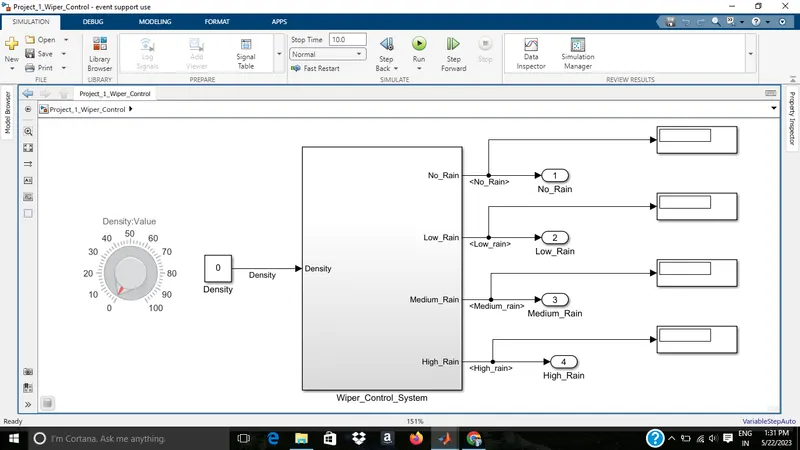
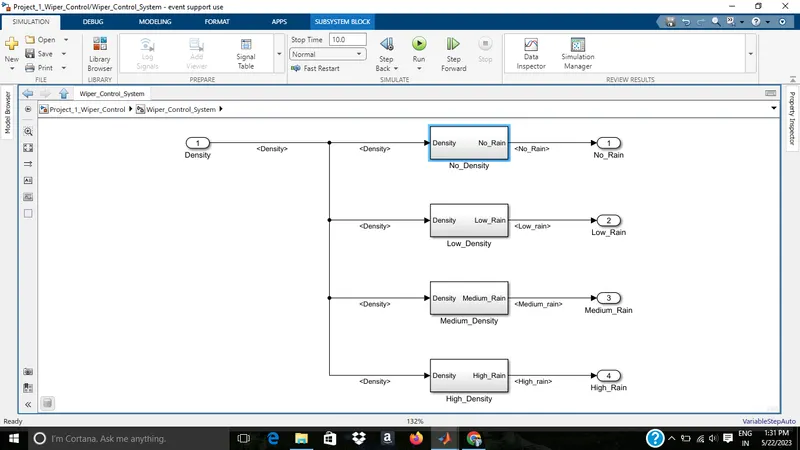
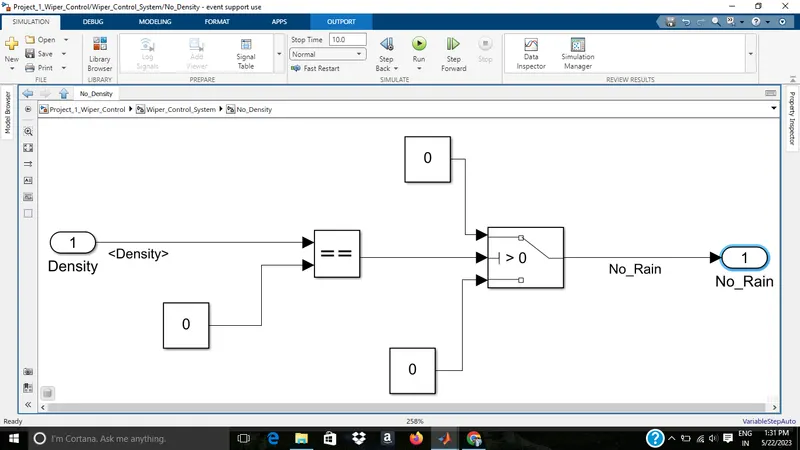
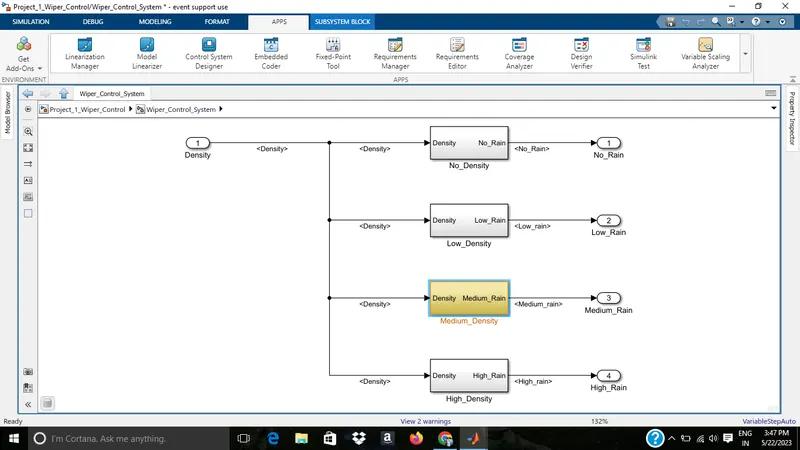
Develop Simulink/state flow model for wiper control system based on the given conditions.
Description of Challenge:
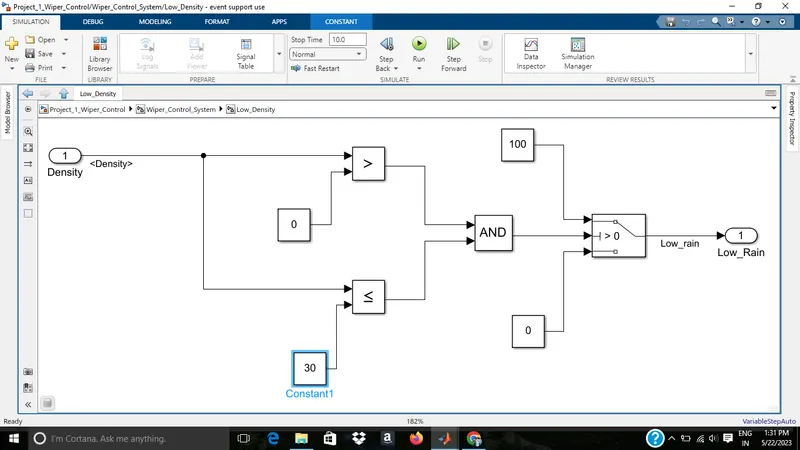
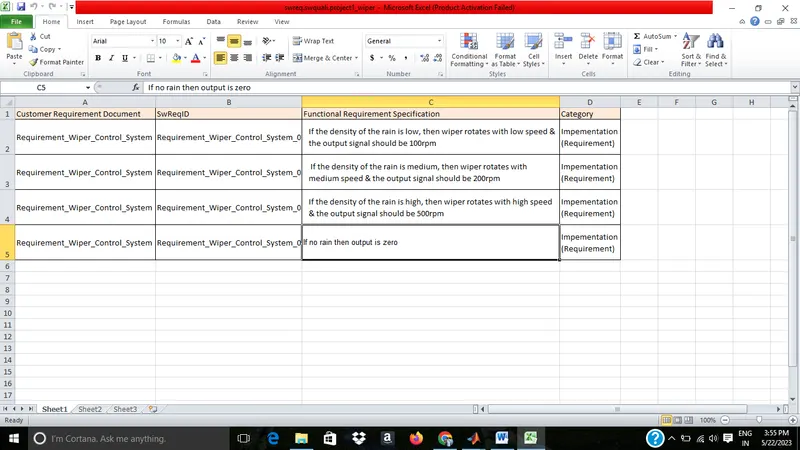
- If the density of the rain is low, then wiper rotates with low speed & the output signal should be 100rpm
- If the density of the rain is medium, then wiper rotates with medium speed & the output signal should be 200rpm
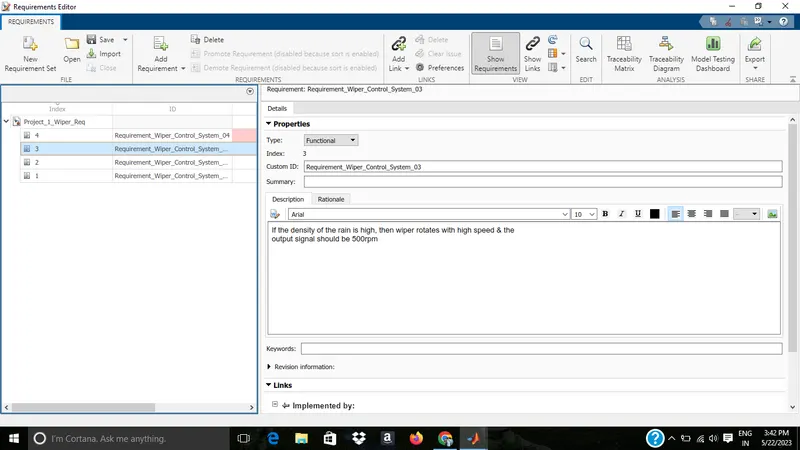
- If the density of the rain is high, then wiper rotates with high speed & the output signal should be 500rpm
1)Model development
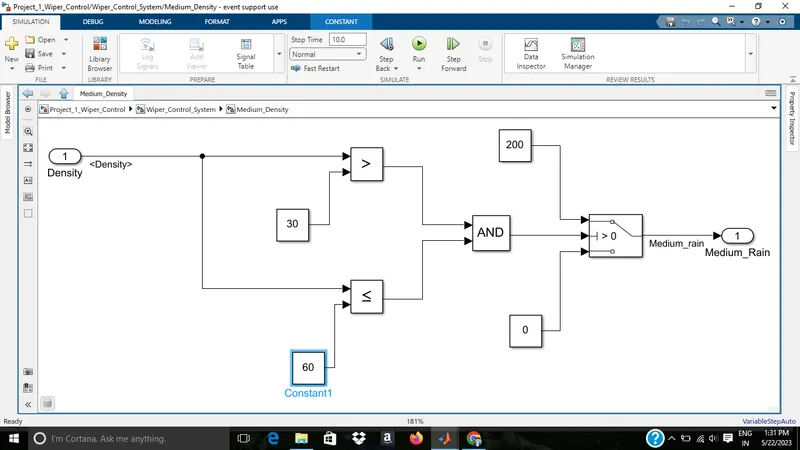
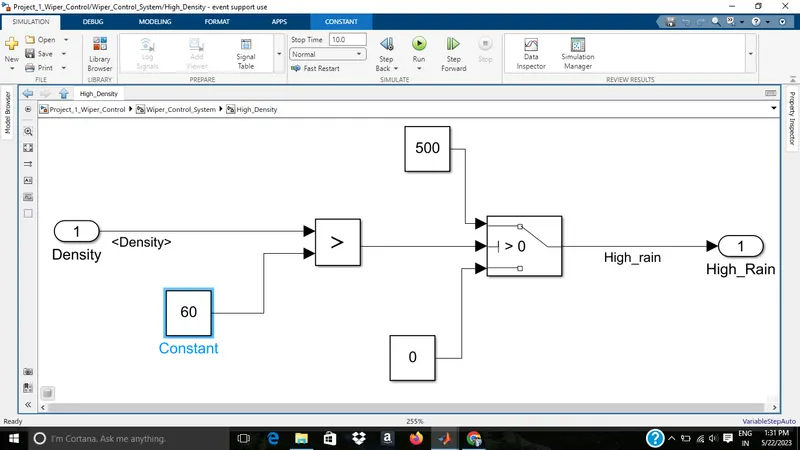
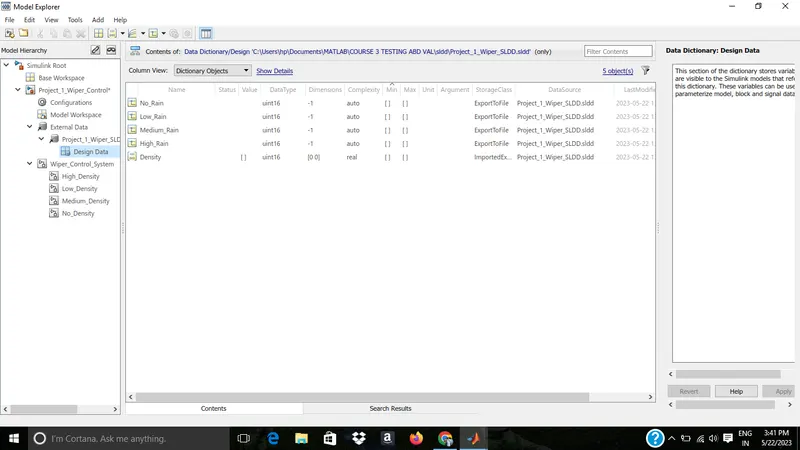
2)SLDD
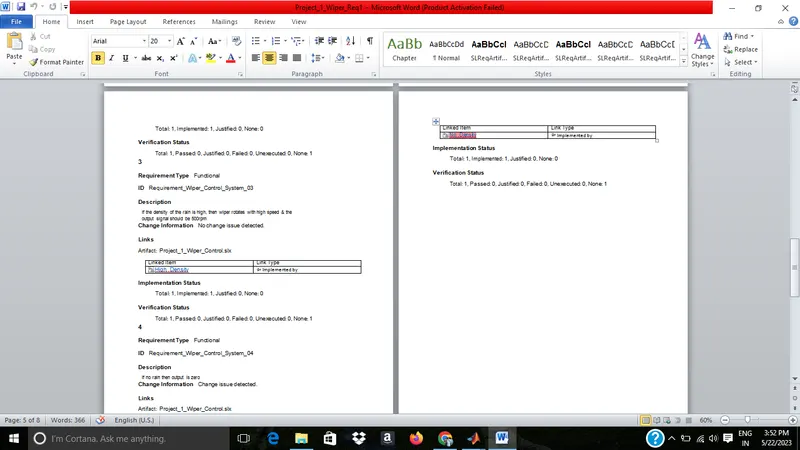
3)Requirement doc
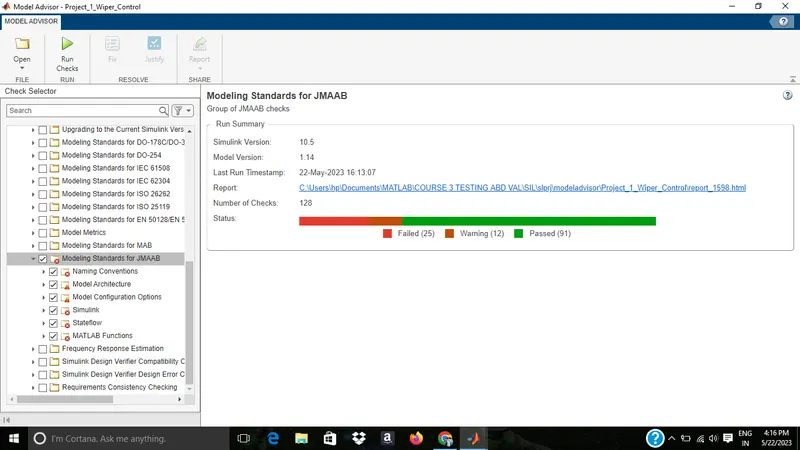
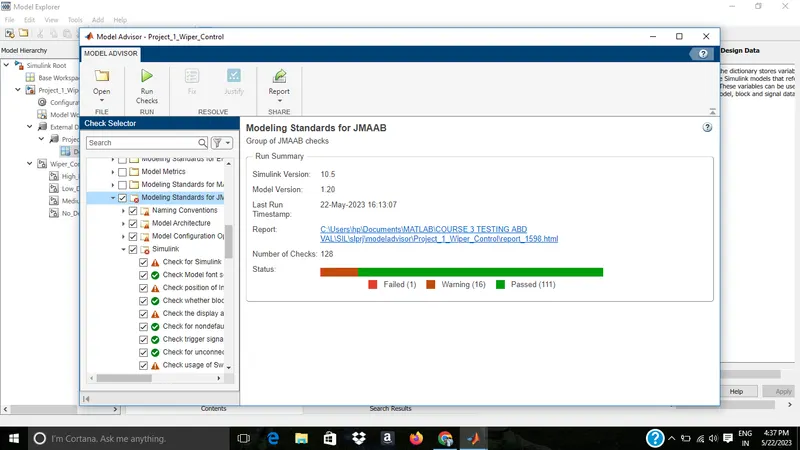
4)JMAAB model advisor check
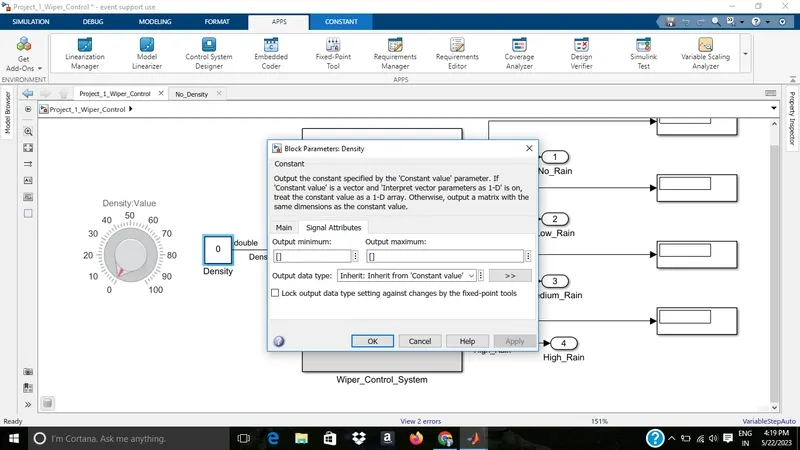
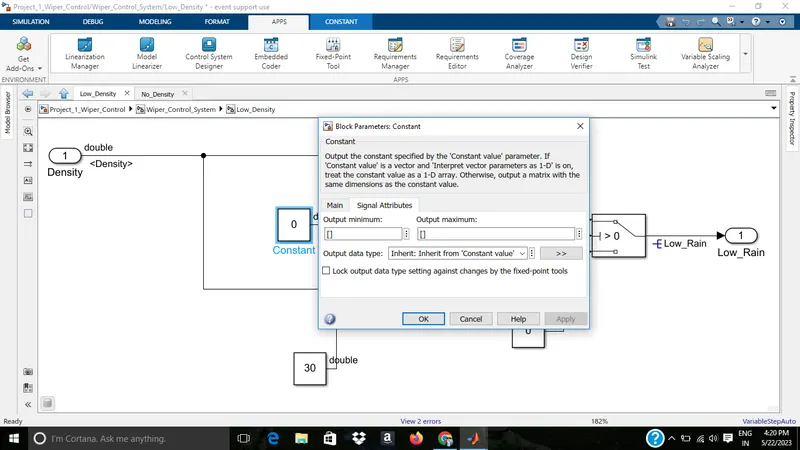
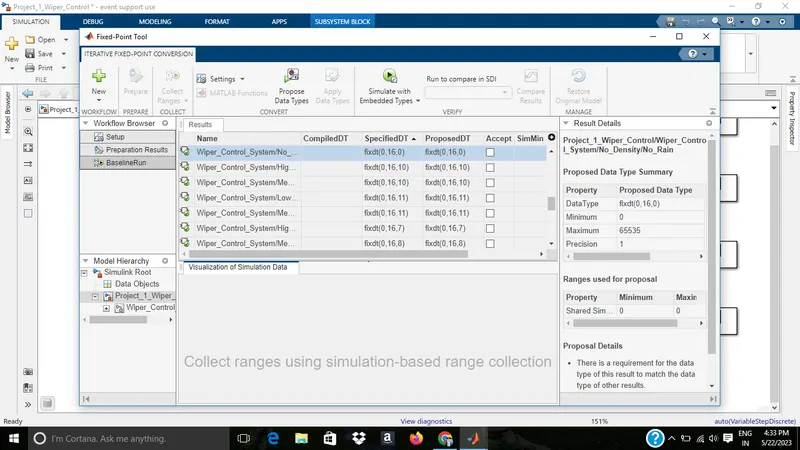
5)Fixed point tool
before
After
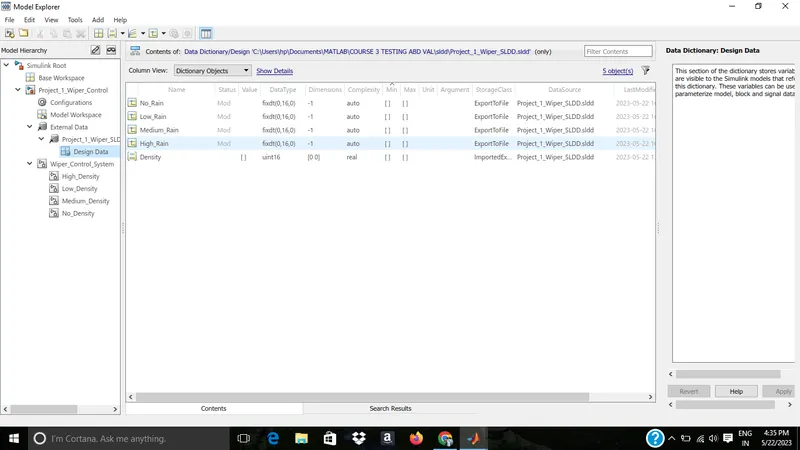
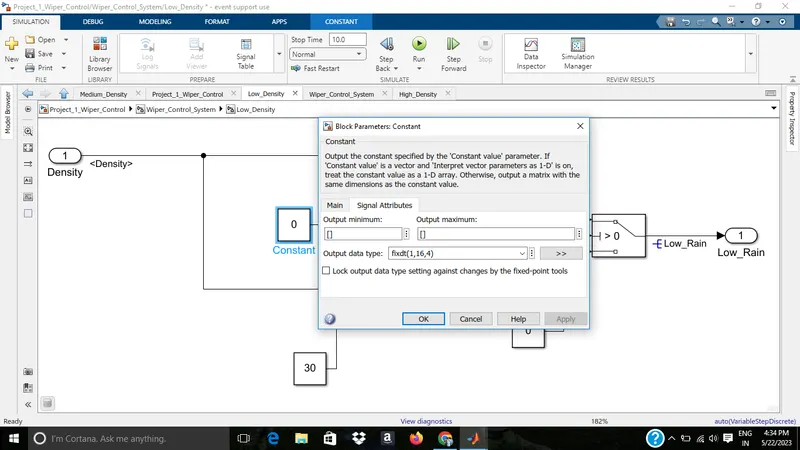
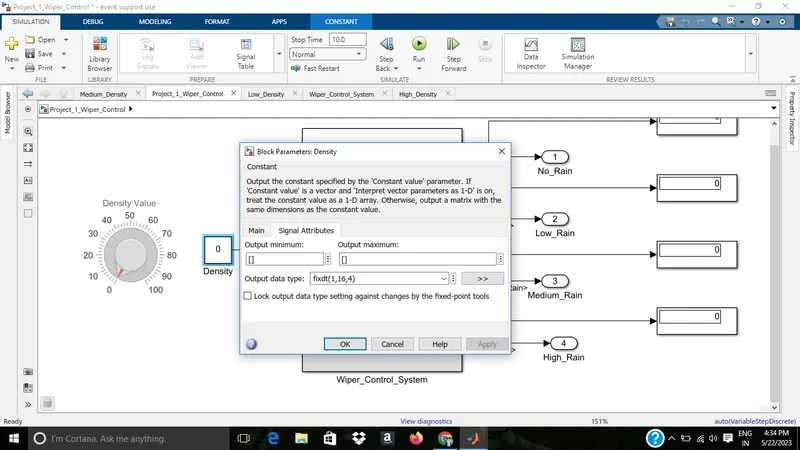
Model advisor after fixed point tool conversion
6)SLDV design error detection report
Using design verifier app
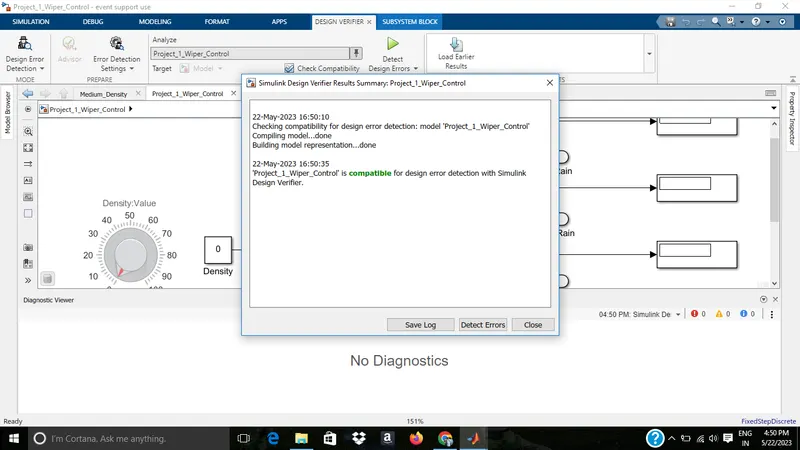
Change the settings for dead logic , coverage etc
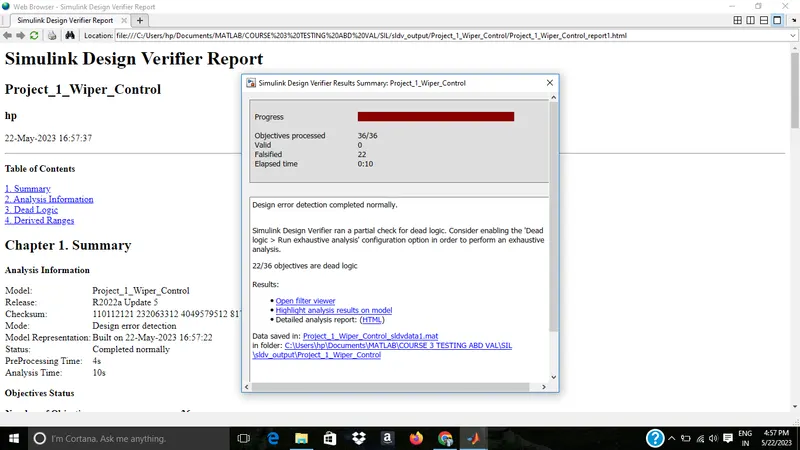
Generate report
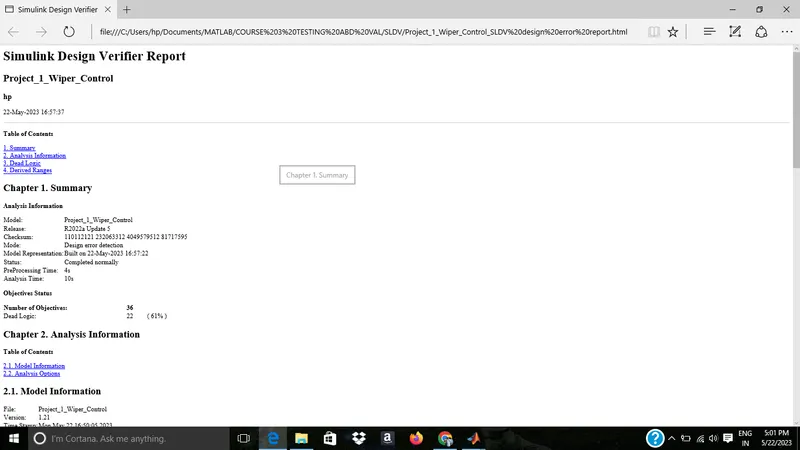
7)
MIL
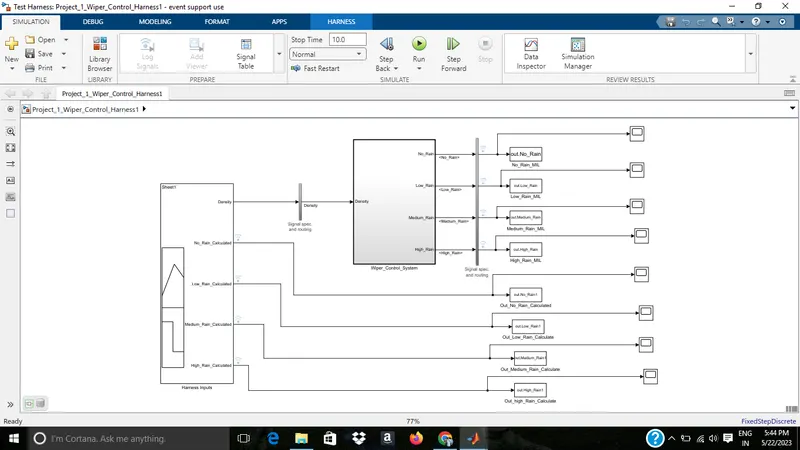
Test case
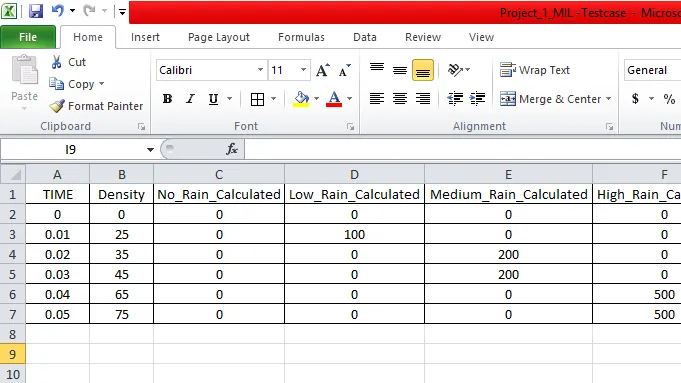
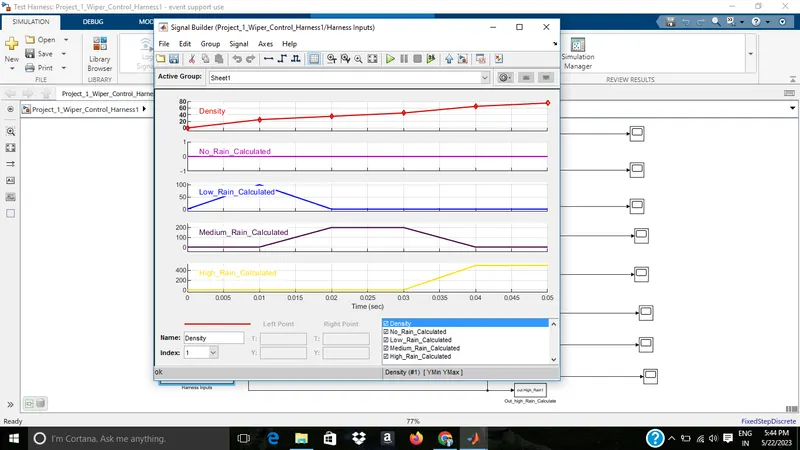
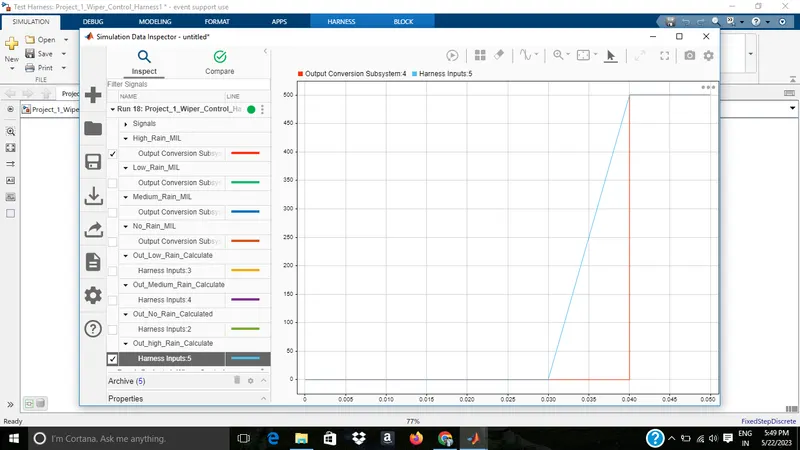
Signals are logged and data inspector wave form..all the output wave forms are converging at same point at same time simulated
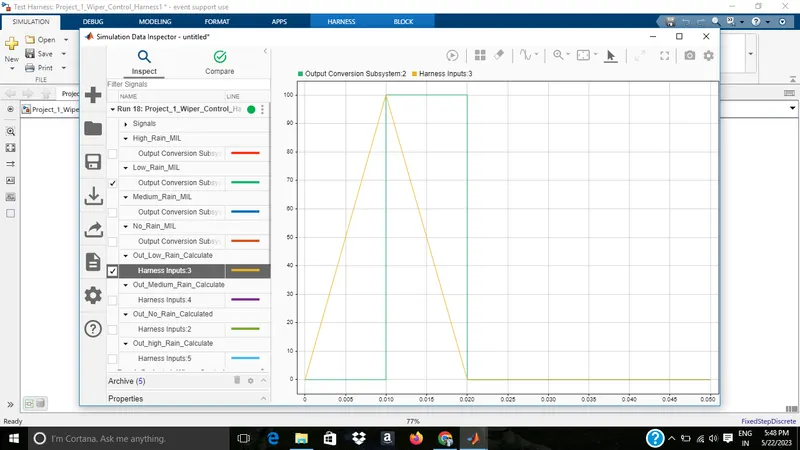
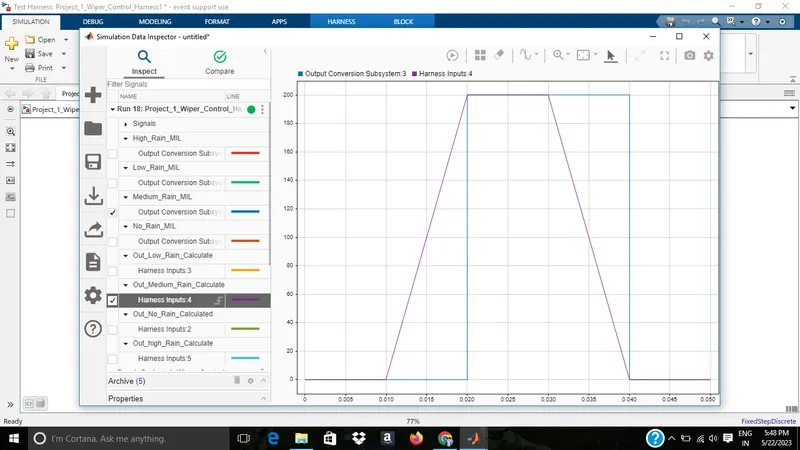
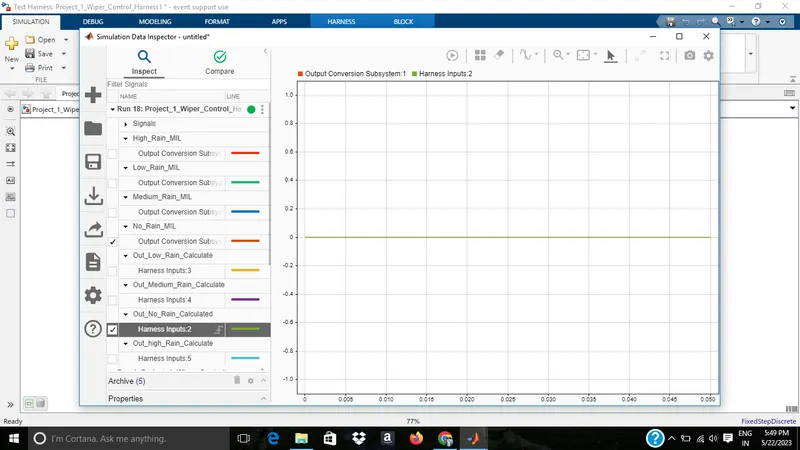
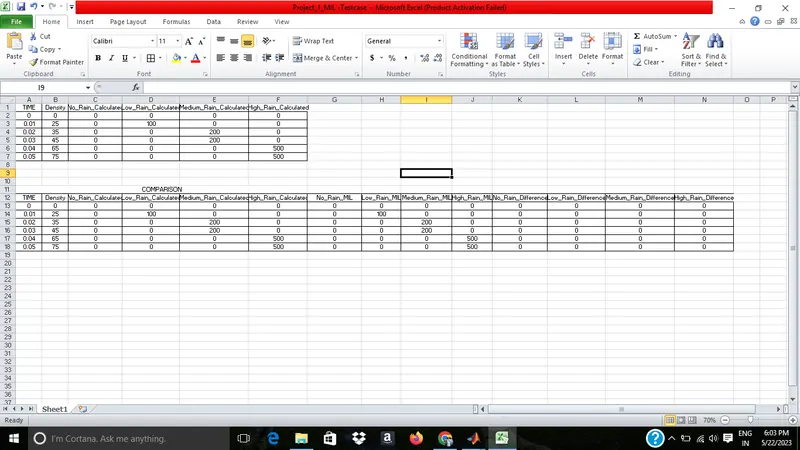
The difference between calculated output and MIL out put(obtained from workspace) The difference is zero...
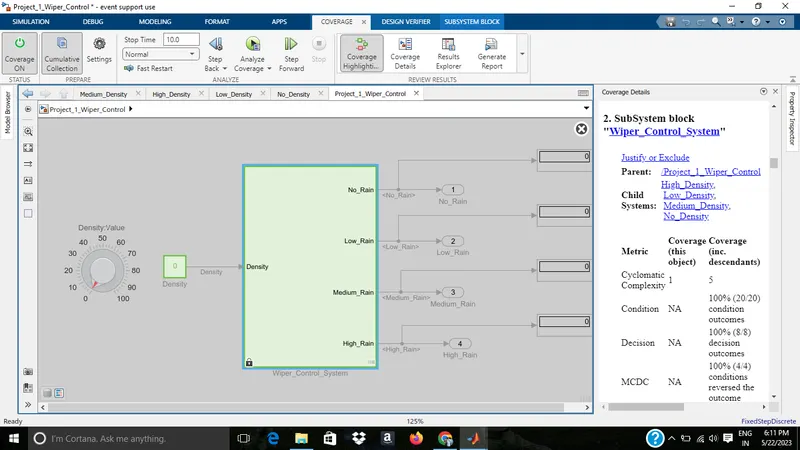
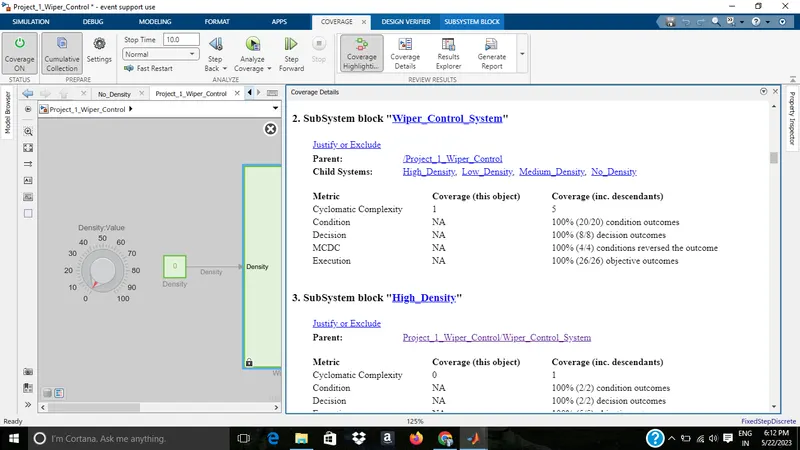
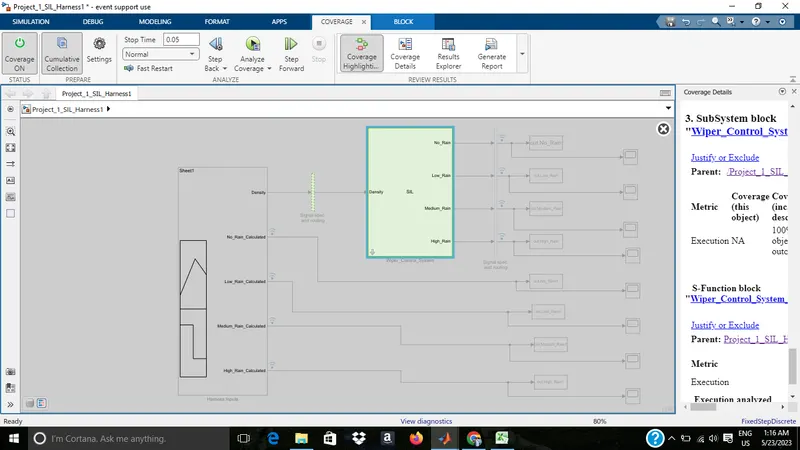
coverage
SIL model
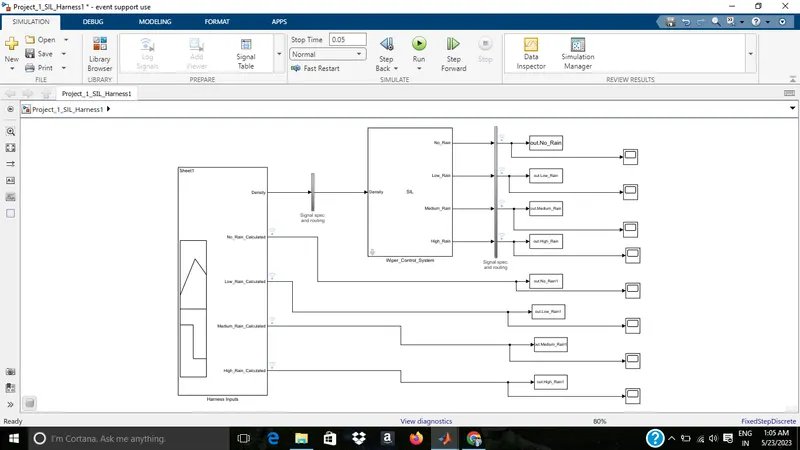
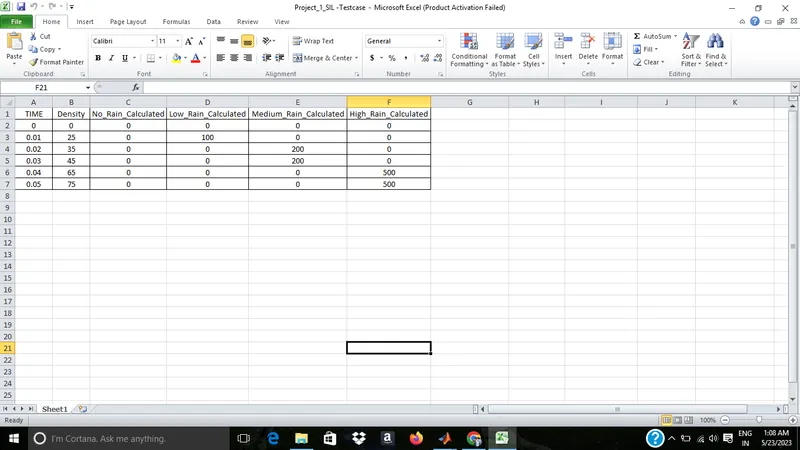
Testcase
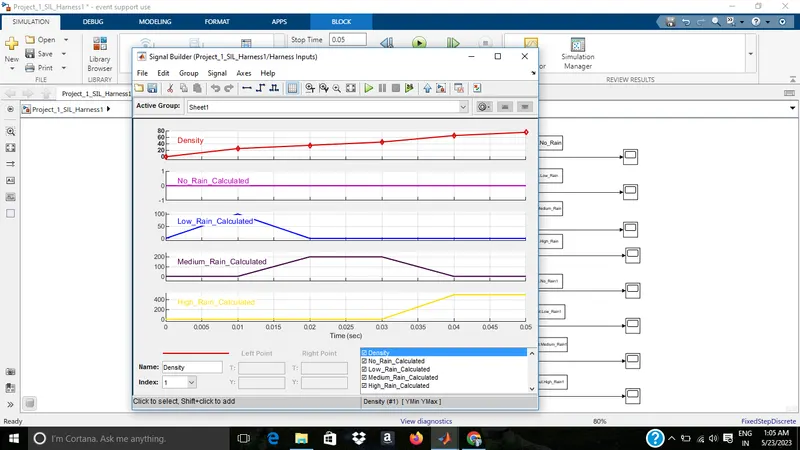
Signals are logged and data inspector wave form..all the output wave forms are converging at same point at same time simulated
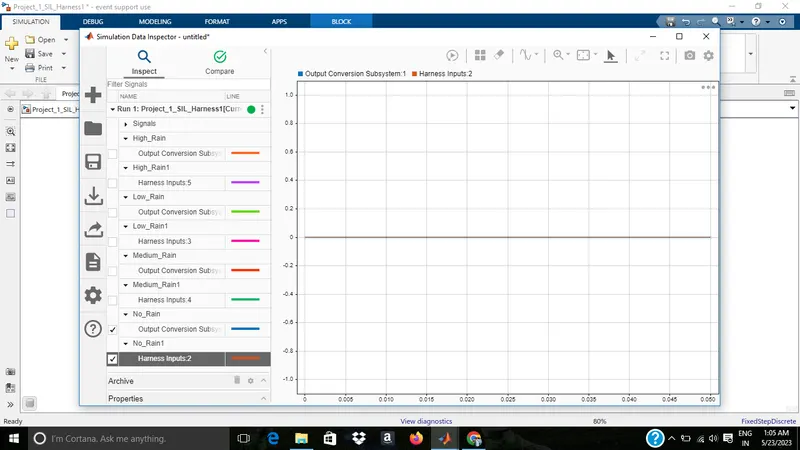
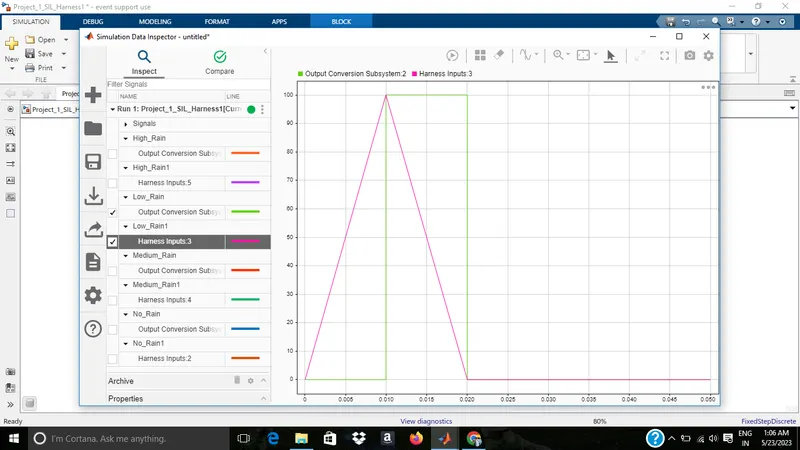
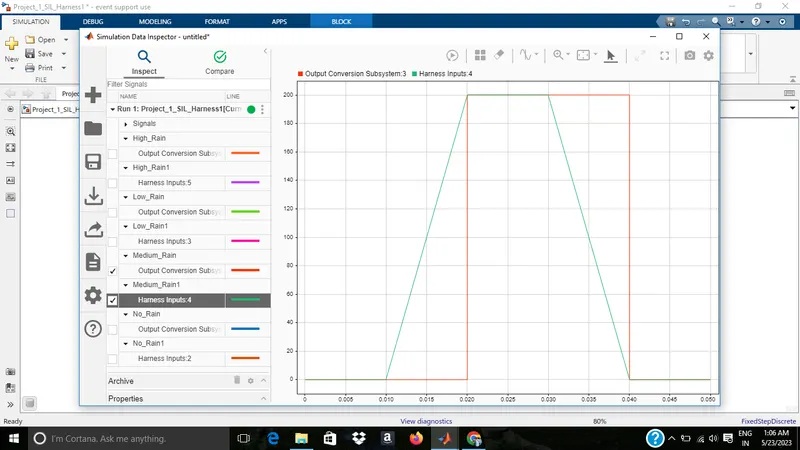
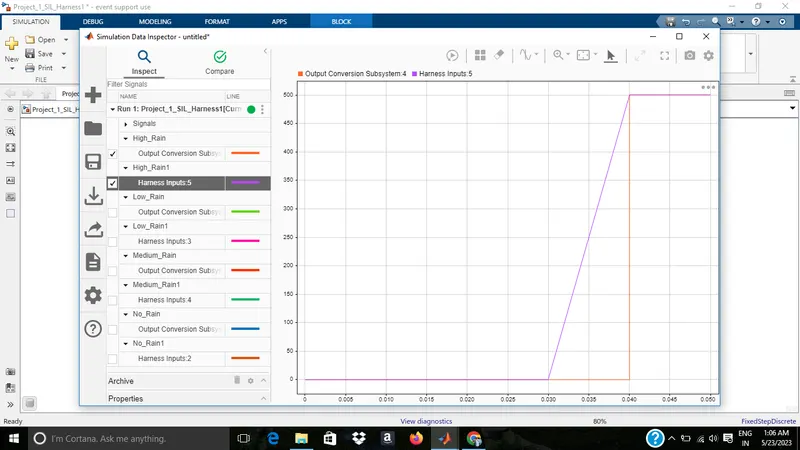
The difference between calculated output and SIL out put(obtained from workspace) The difference is zero...
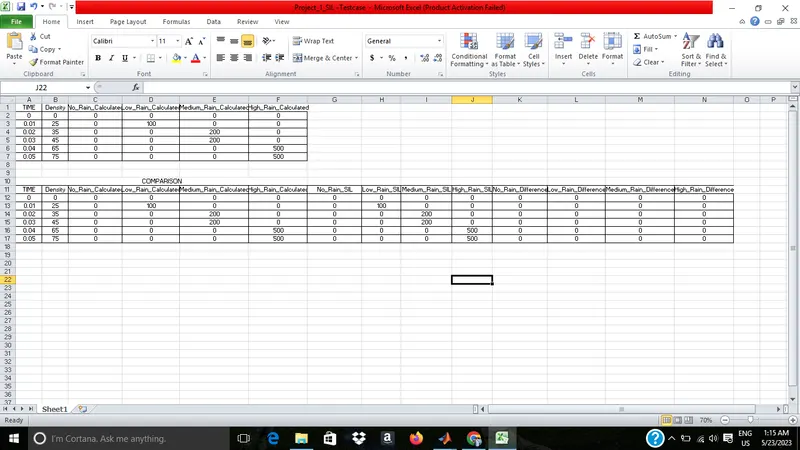
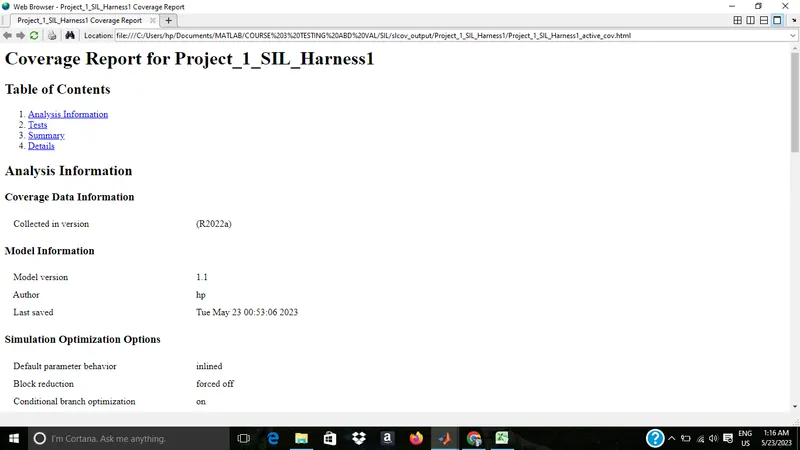
SIL coverage
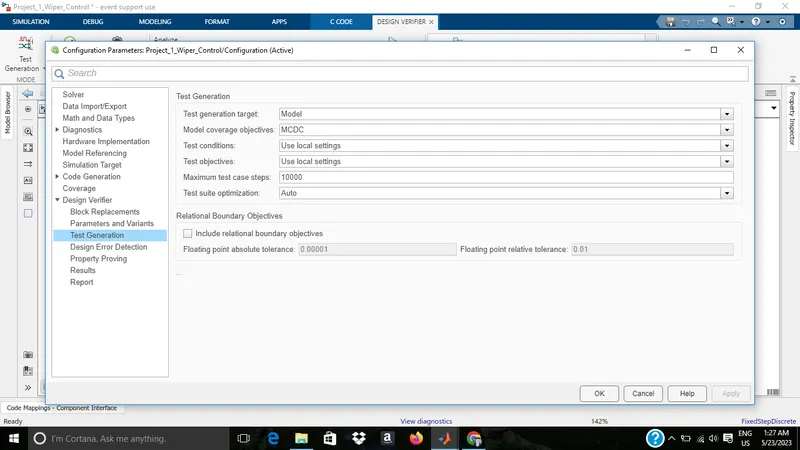
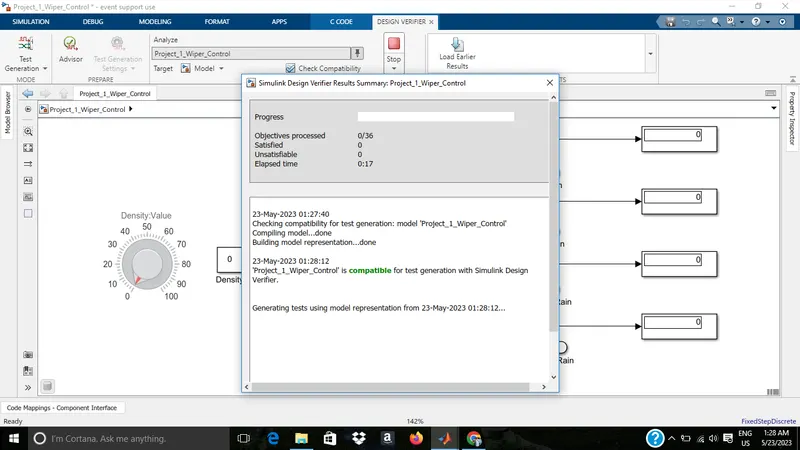
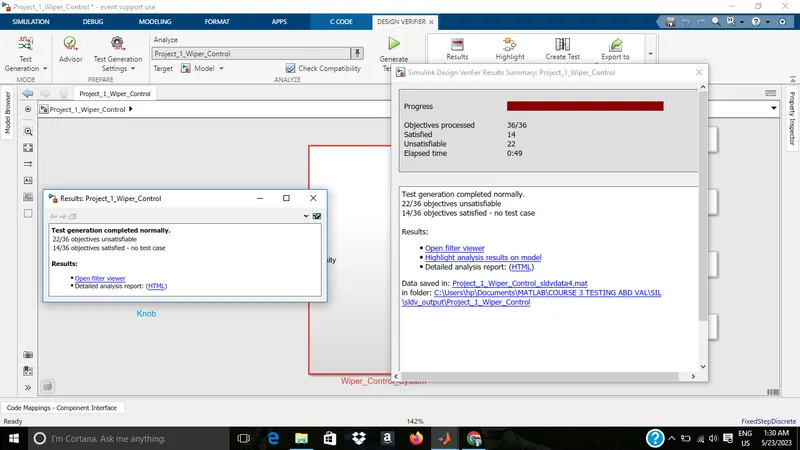
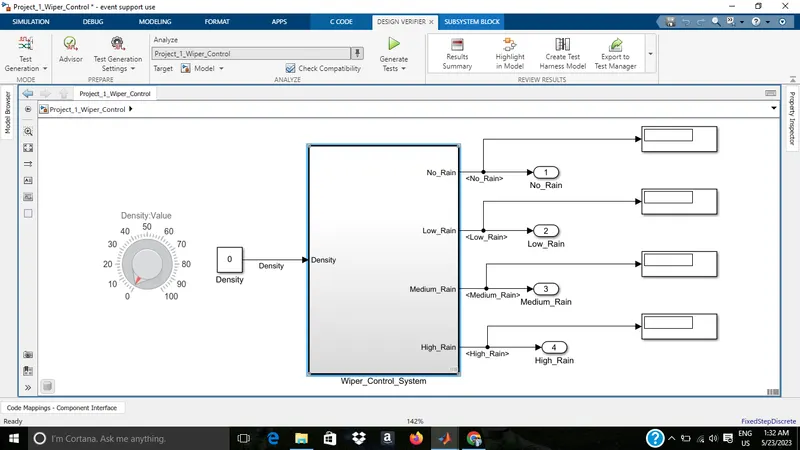
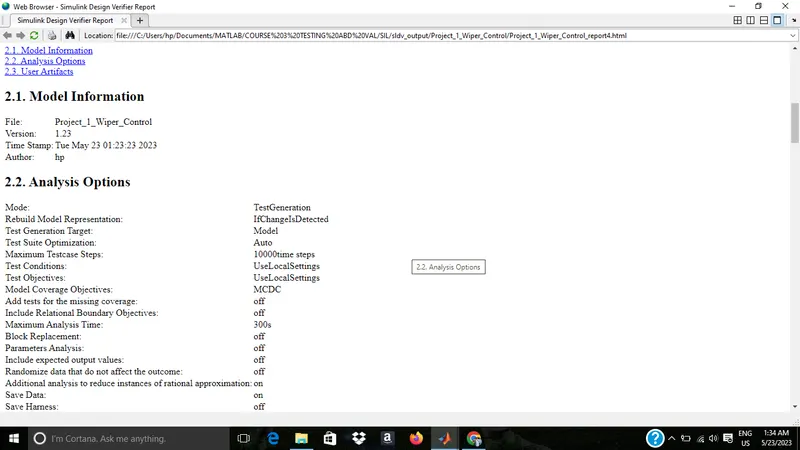
8)SLDV Test generation report
9)Auto code Generation
build
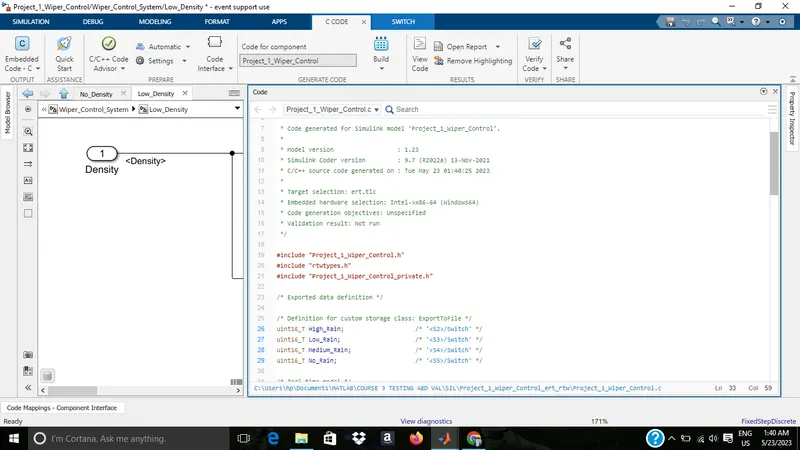
.c files
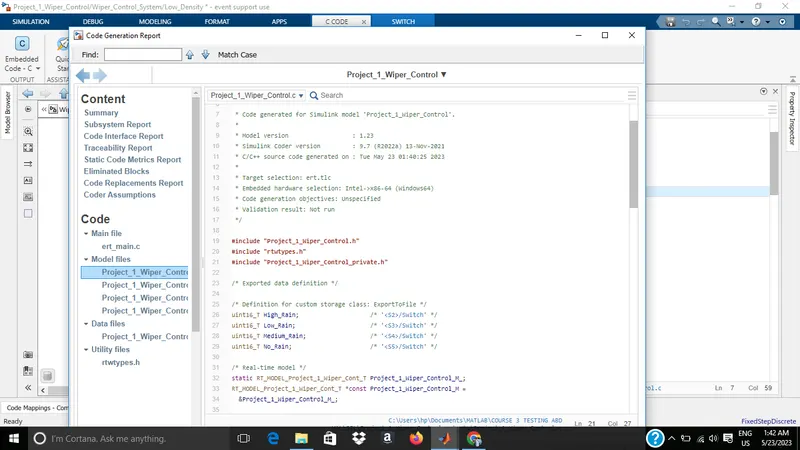
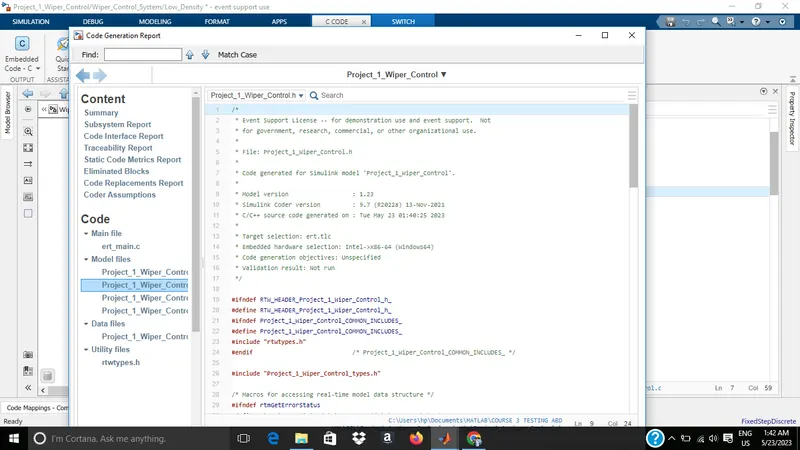
.h files
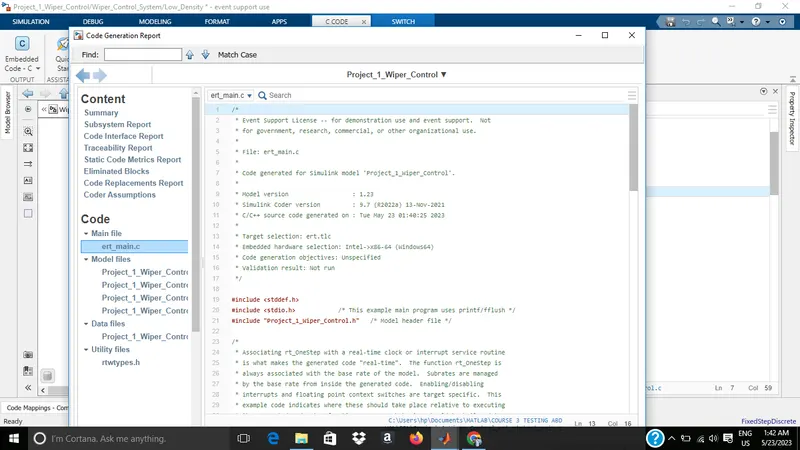
.c and . files are attached
10)Polyspace analysis
For Polyspace Bug finder
1)First need to generate the code
2)Goto model configuration settings and change the code generation settings to embedded coder.
3)click on APPS and select emedded coder.
4)Do the code generation by clicking generate code.
5)Open the polyspace tool
6)start a new project
7)Give the project name
8)project files get added to project browser.
9)Do the configuration settings for compiler and processor
10)Change the settings for coding standards and metrices if needed
11)Keep the default settings for bug finder analysis
12)Mark the generate report
13)Save the settings
14)Click on run on bug finder
15)From the result analyse the code
For Polyspace Code Prover
1)First generate the C code
2)Goto model configuration settings and change the code generation settings to embedded coder.
3)click on APPS and select emedded coder.
4)Do the code generation by clicking generate code.
5)Open the polyspace tool
6)start a new project
7)Give the project name
8)project files get added to project browser.
9)Under code prover verification, change the settings for, verification, check behaviour, precision
10)Do the configuration settings for compiler and processor
11)Change the settings for coding standards and metrices if needed
12)Save the settings
13)Mark the generate report
14)Click on run on code prover
15)From the result analyse the code
11)Test generation report
Baseline testing
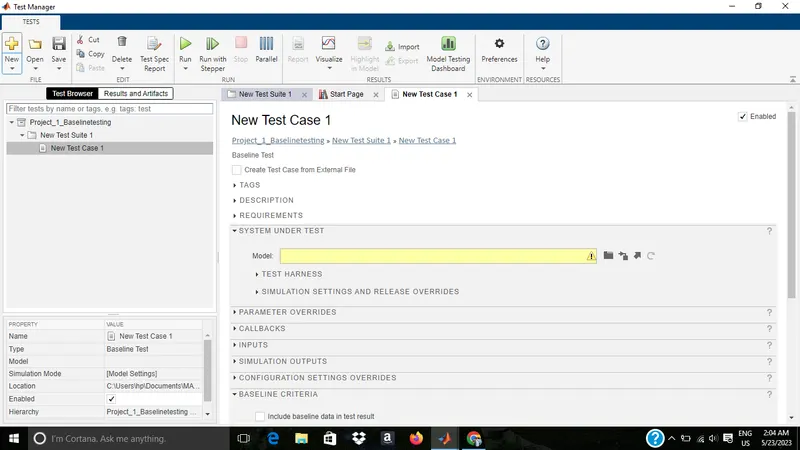
Inports
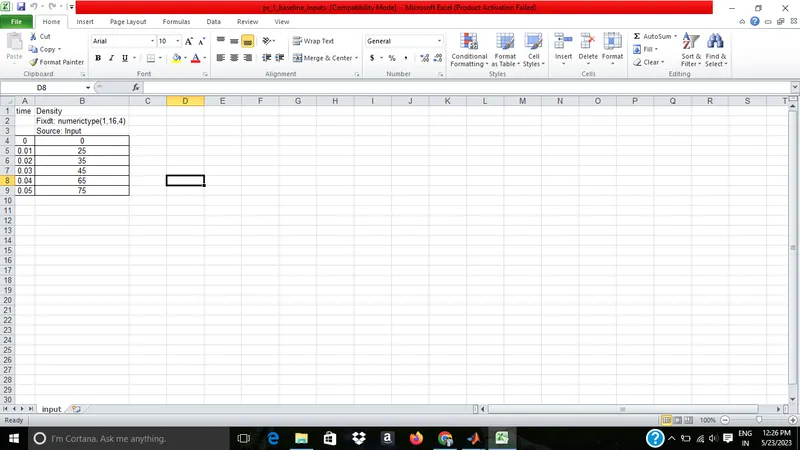
Baseline outputs
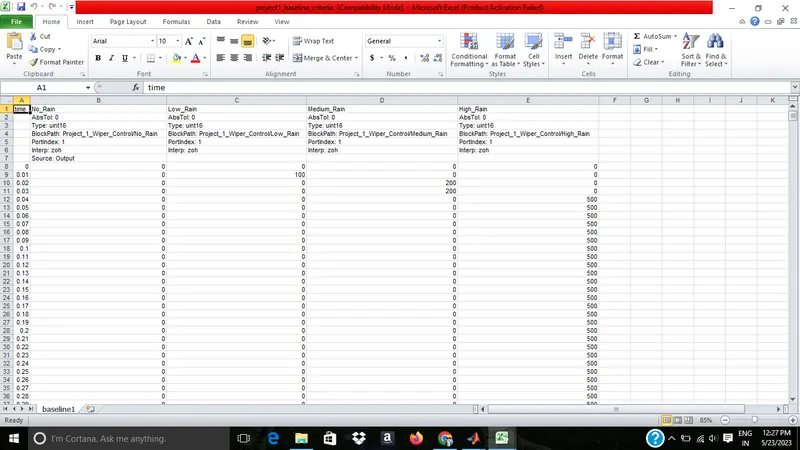
Output
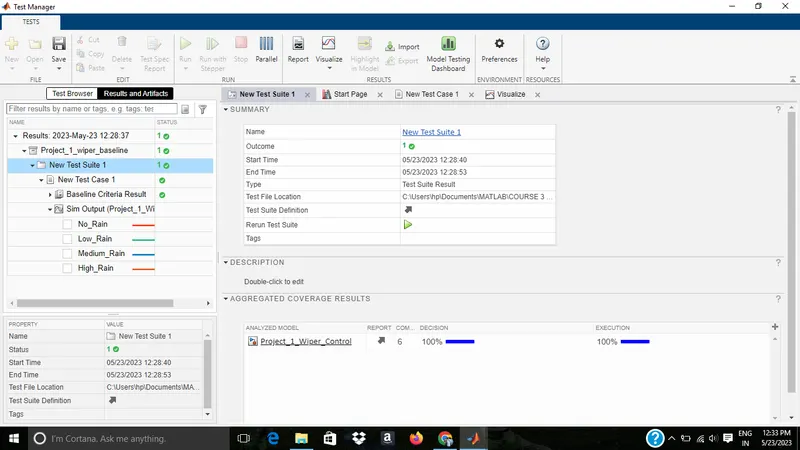
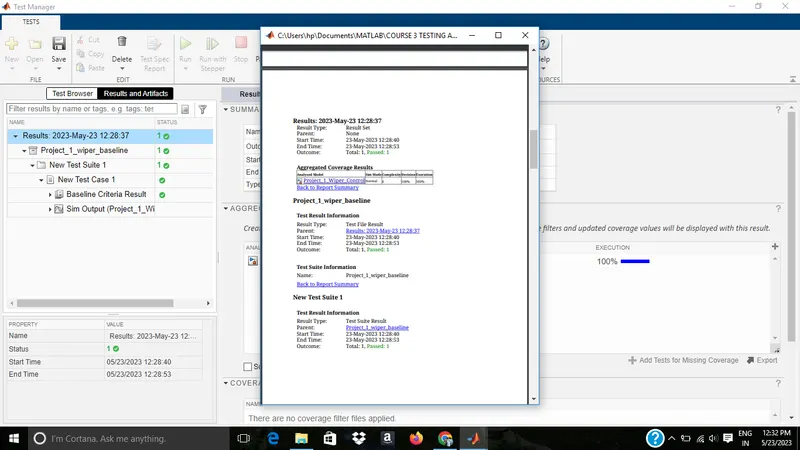
Report file is attached as file.. and screenshot is below.it is saved as Project_1_baseline_report
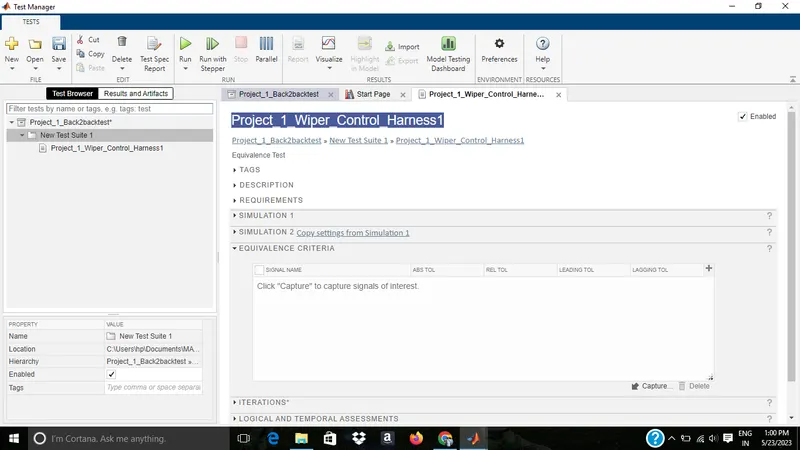
Back to back test
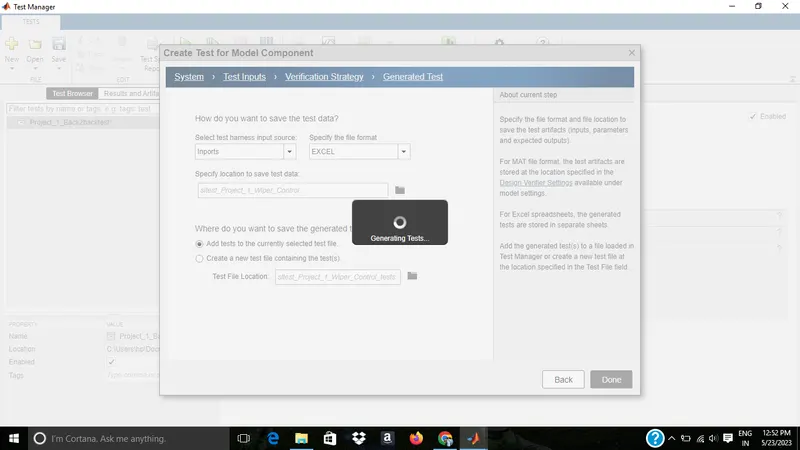
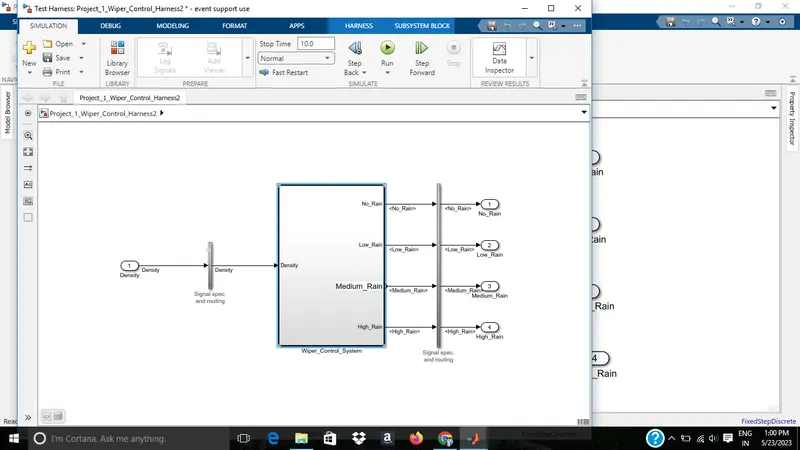
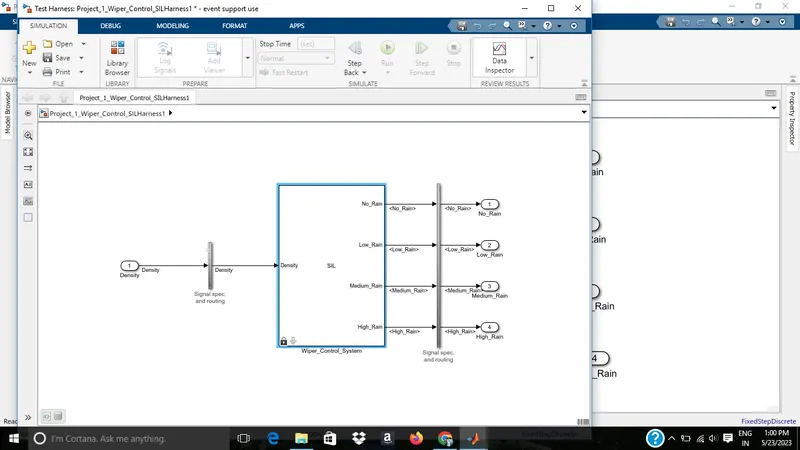
Generated MIL & SIL model
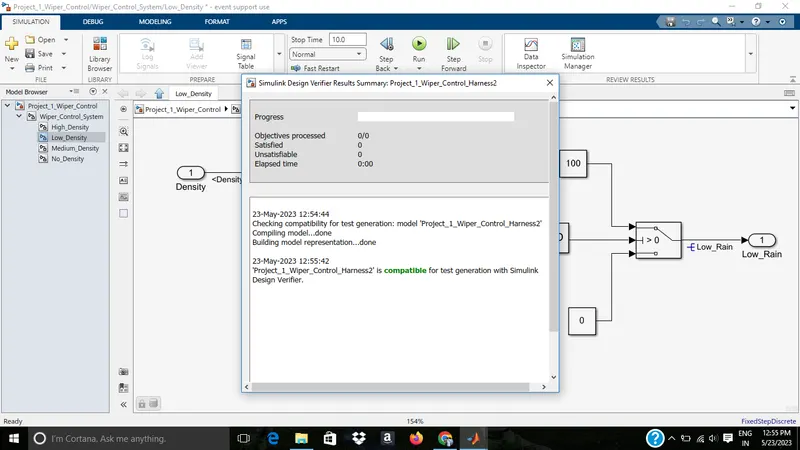
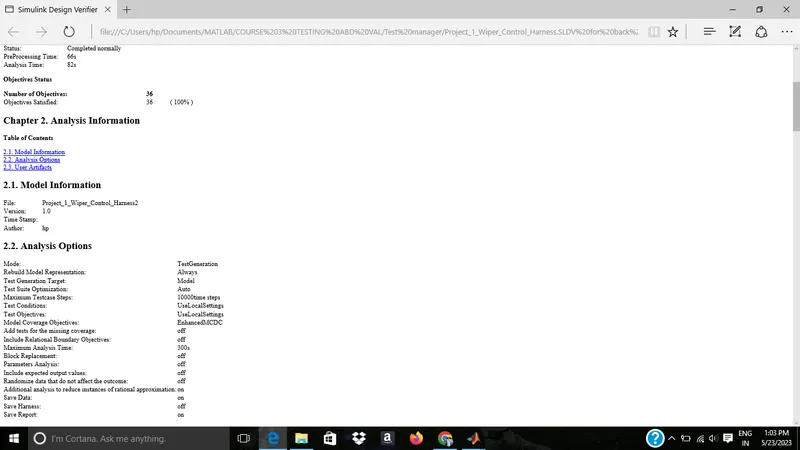
Generated SLDV report
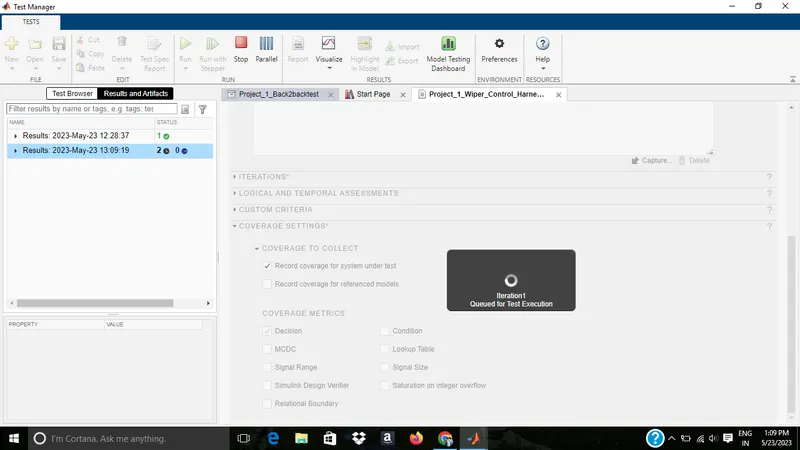
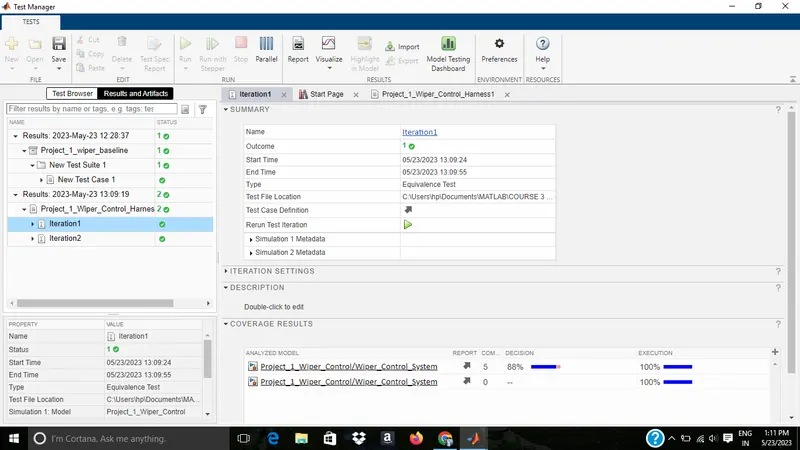
Generated Report
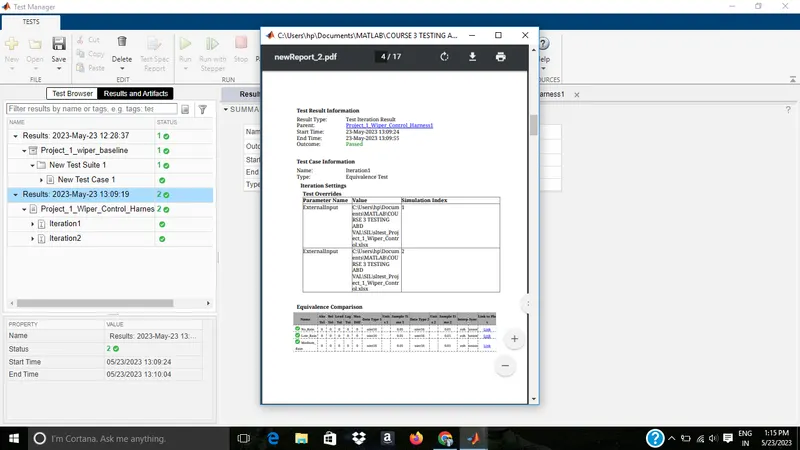
From the report it is clear that for all tests the difference is zero .
The back to back report is attached as project_1_back2backtestreport.pls find the attached file.
now .
Also the simulink model file is attched as Project_1_Wiper_Control.Pls find the attached file
all the test for Wiper control system has been completed...
Project 2
Q2
Aim
Vehicle speed calculation for ABS using Wheel Speed sensor
Develop Simulink/state flow model for the vehicle speed calculation unit inside the ABS system for the below conditions.
Description of Challenge:
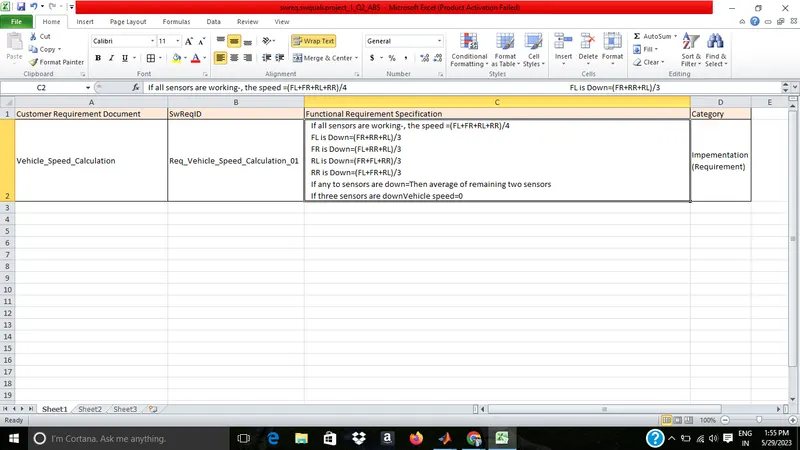
fl, fr, rl and rr are the wheel speeds of front left, front right, rear left and rear right respectively.
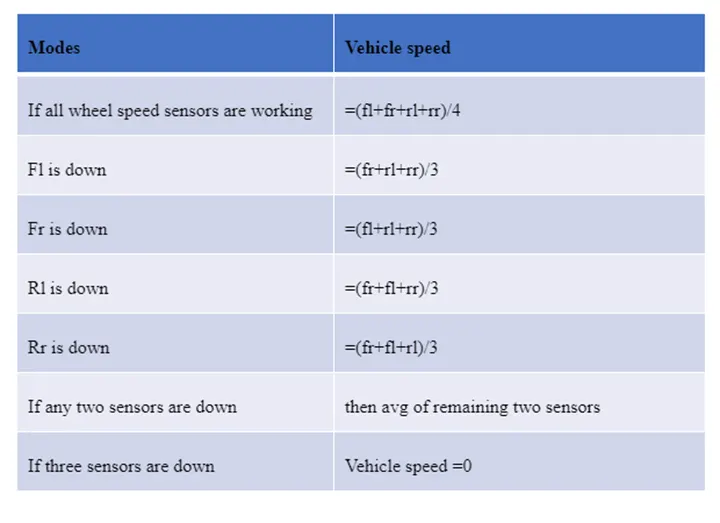
Note: Based on the conditions, requirements can be framed up.
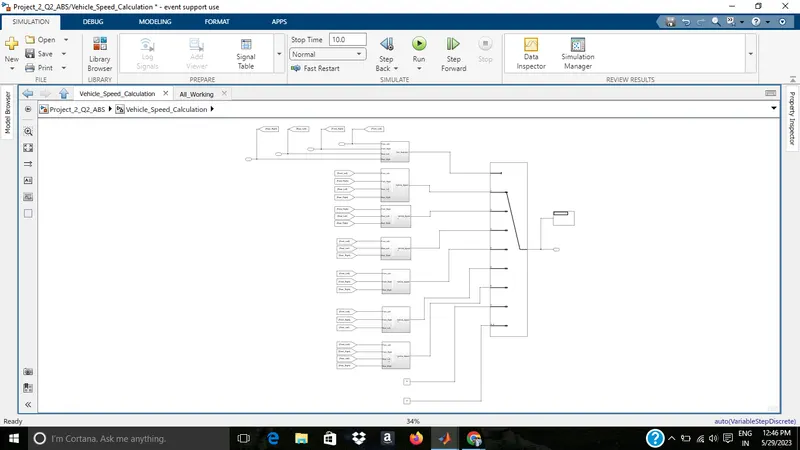
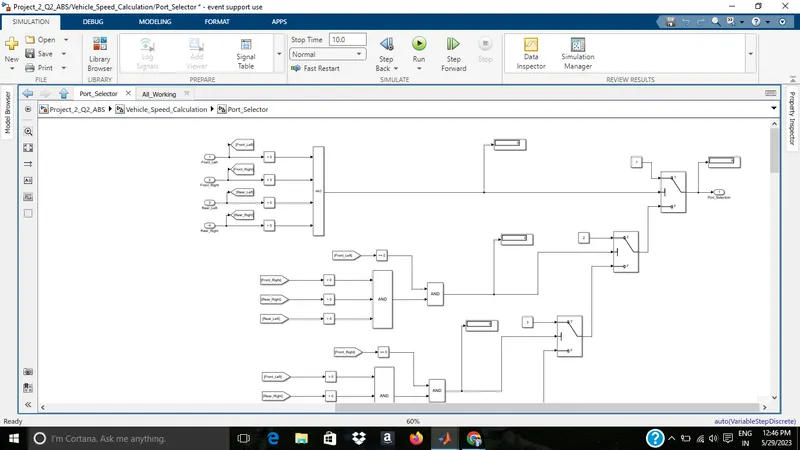
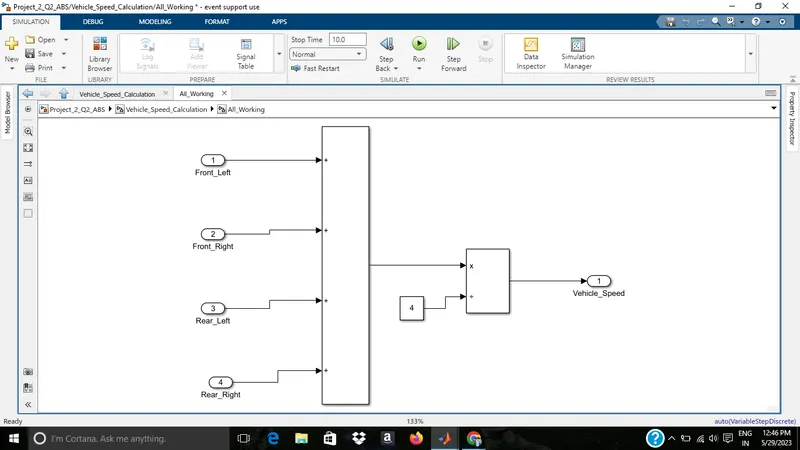
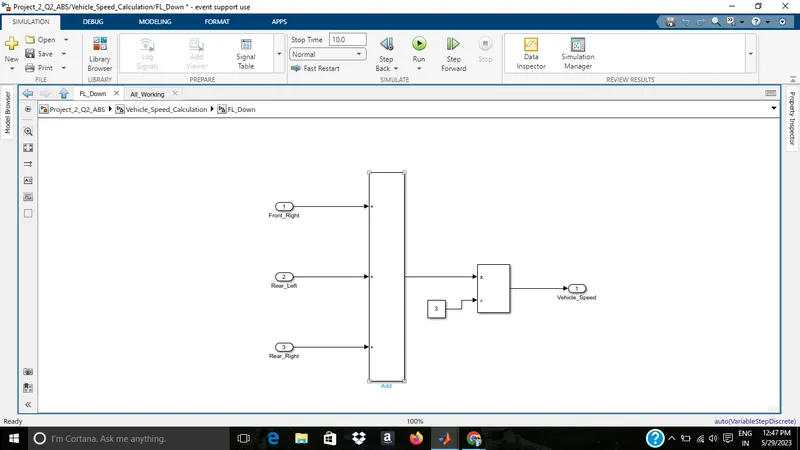
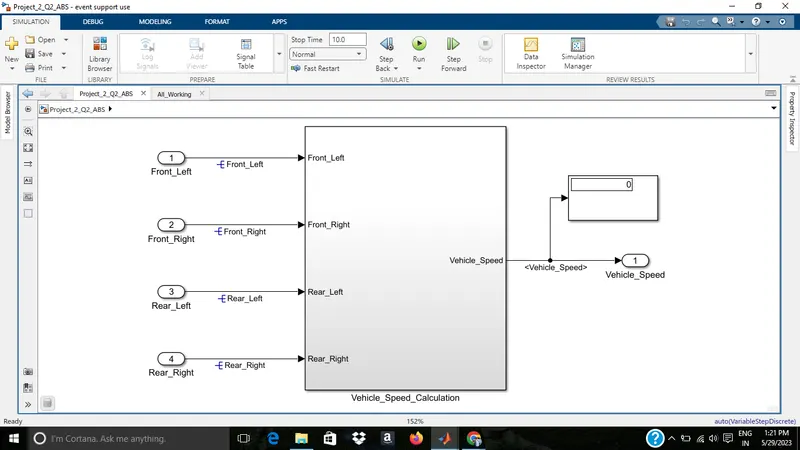
1)Simulink Model File..The file is attached as file as Project_2_Q2_ABS
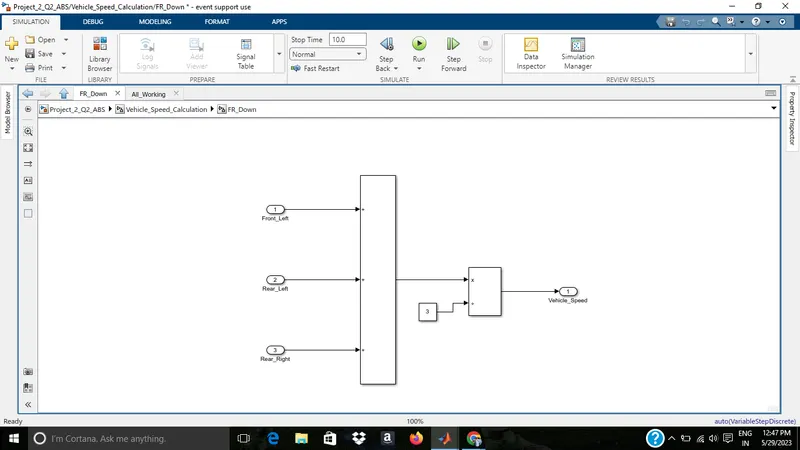
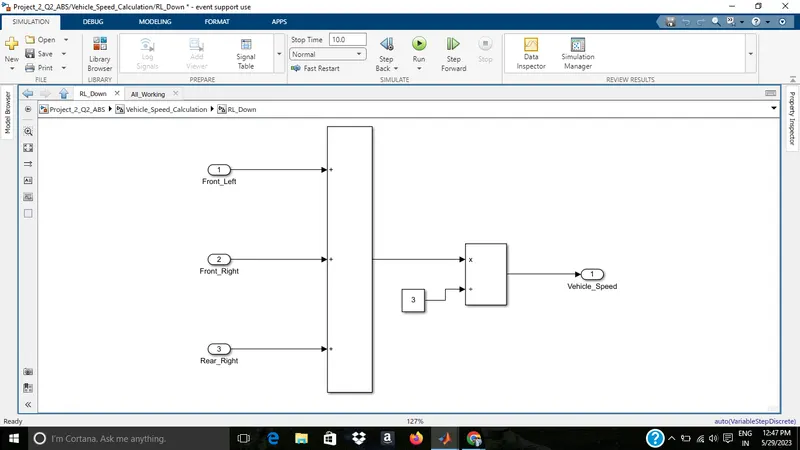
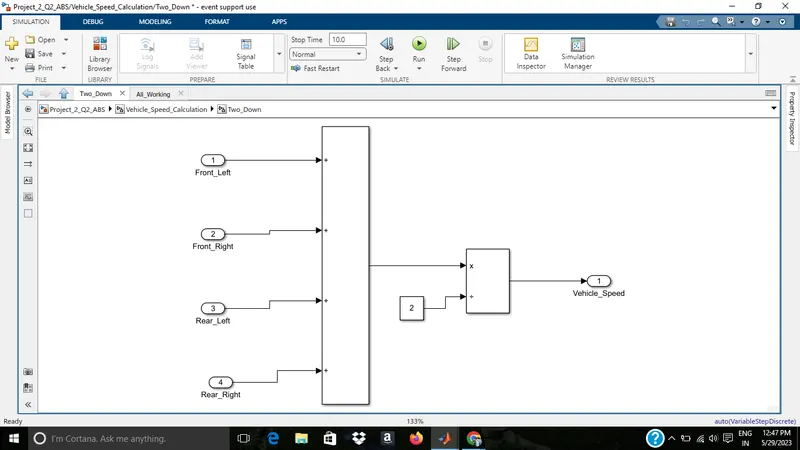
The screenshots are attached below..
Output is shown for all cases..
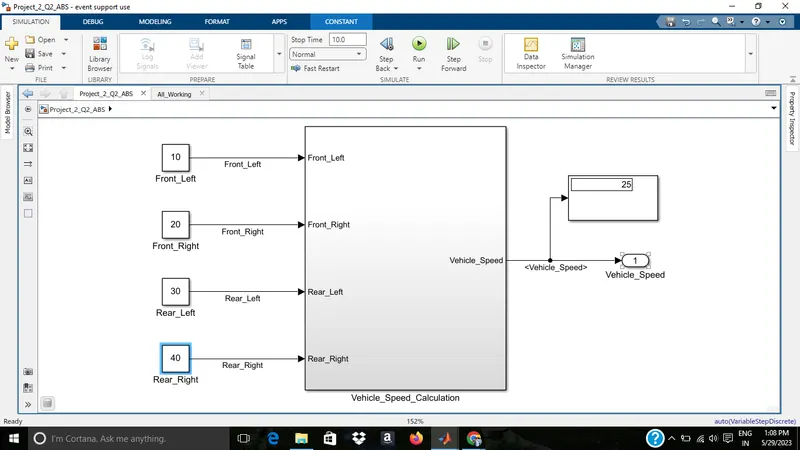
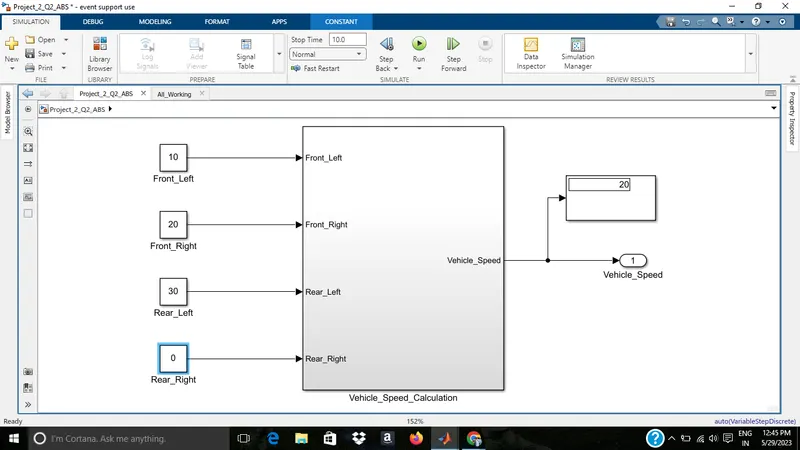
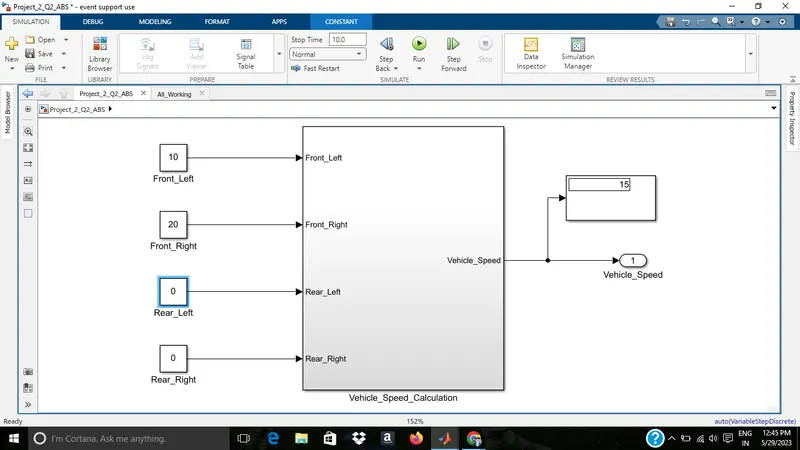
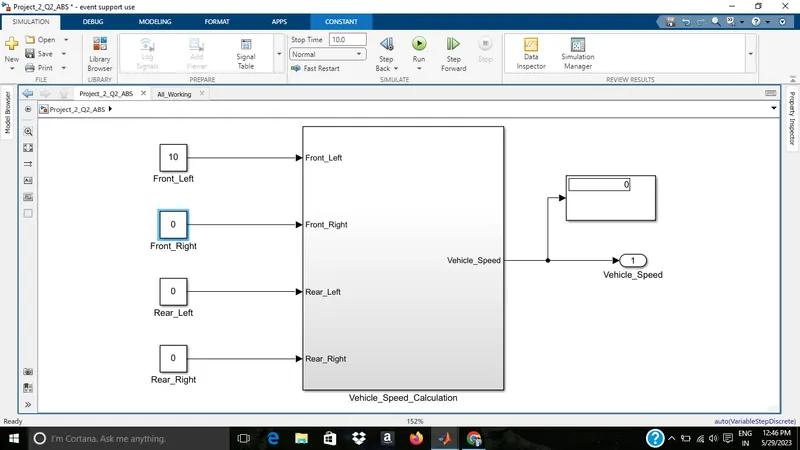
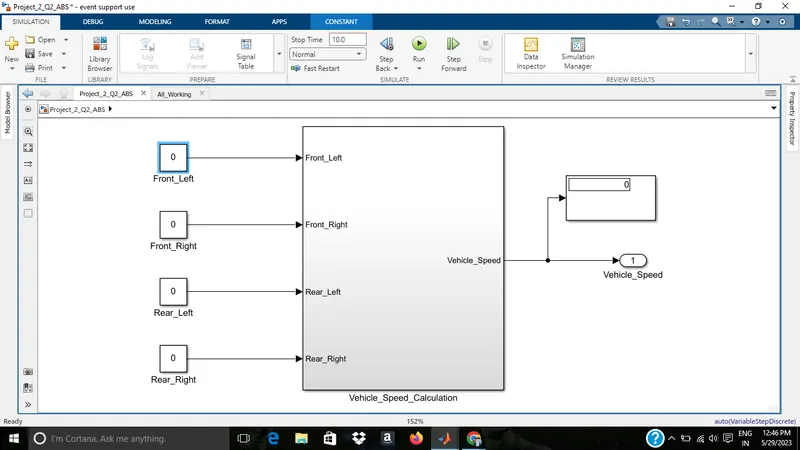
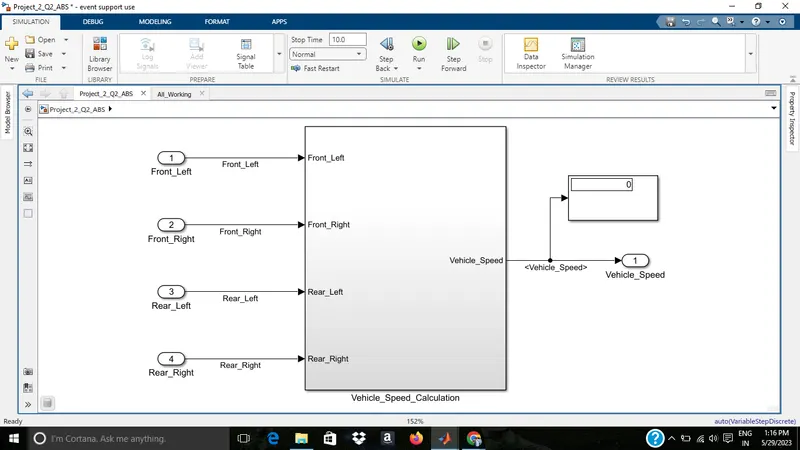
SIgnal names for subsstem,inports and outports are given
2)SLDD file
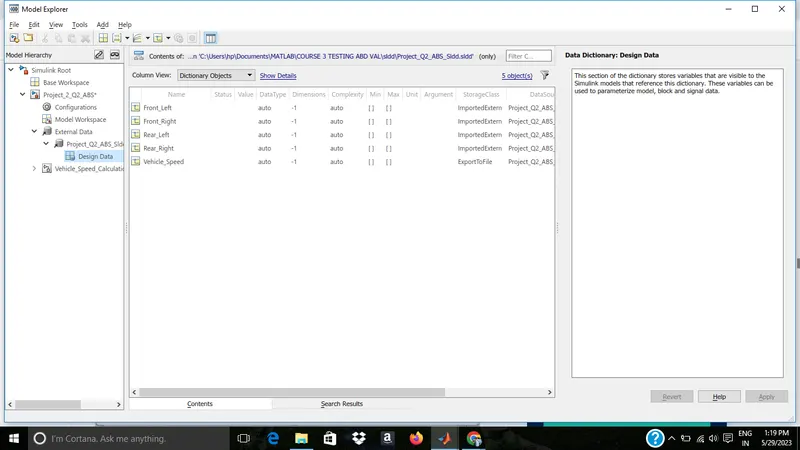
The screenshots and sldd file is attached
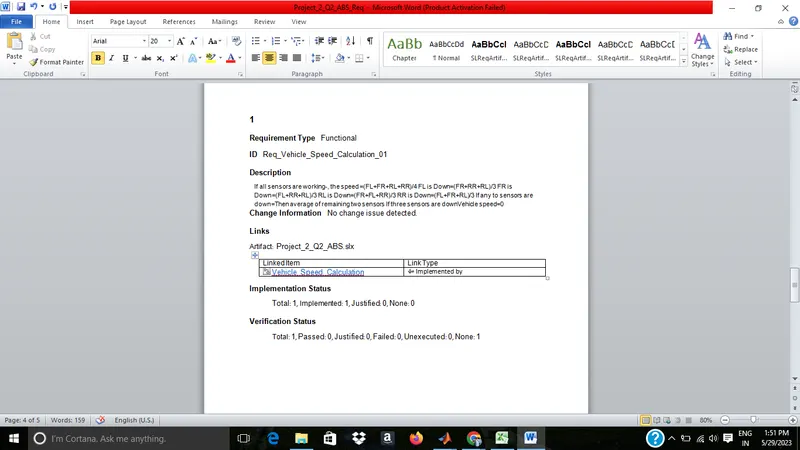
3)Requirement Tagging
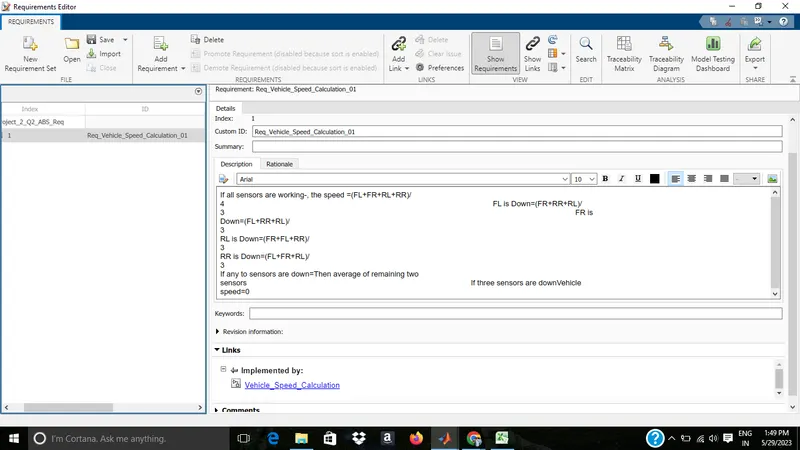
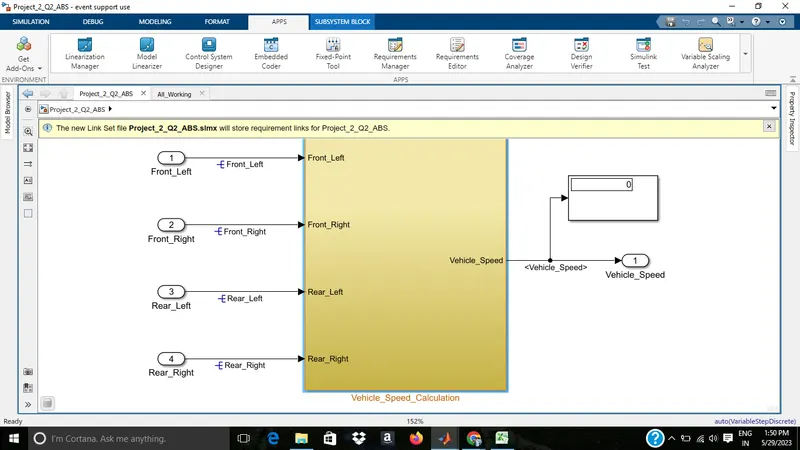
The Report is attached as file also screenshots are attached
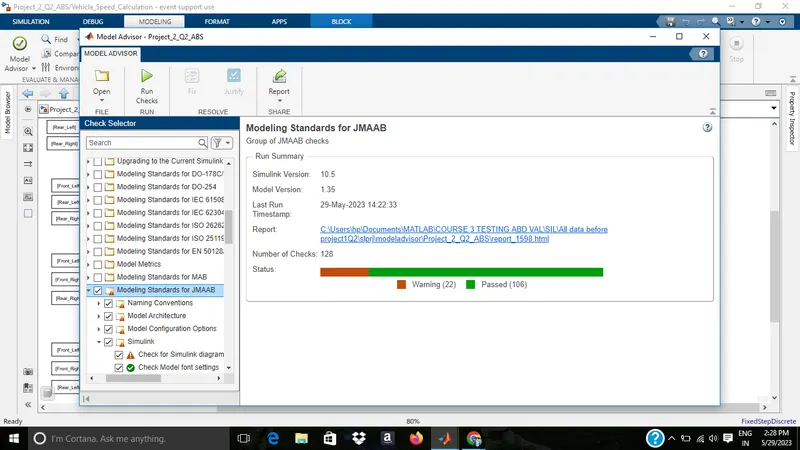
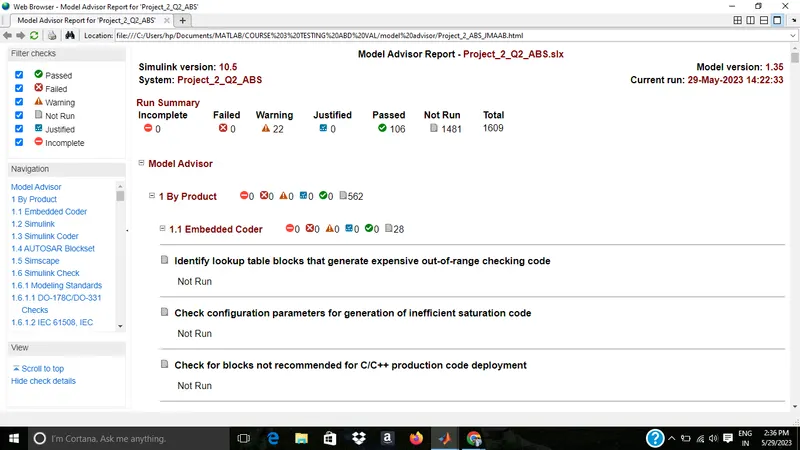
4)Model advisor-JMAAB
No failed tests & the test report is attached as file, alos screenshots are attached
5)Fixed Point Tool
Before
SLDD
inport and outport
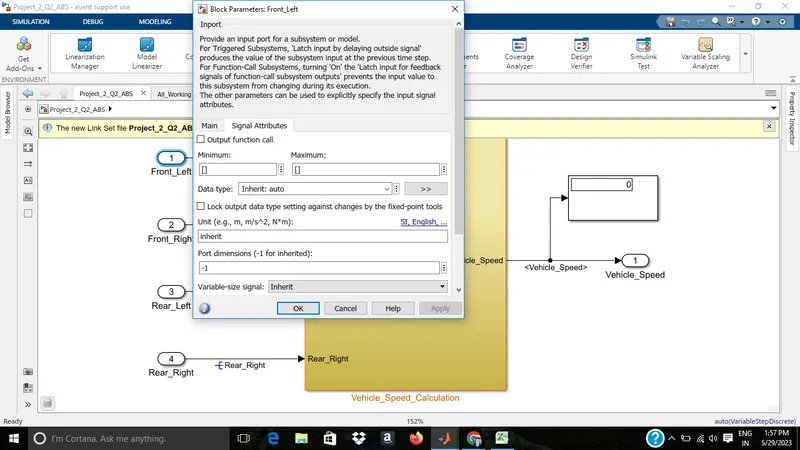
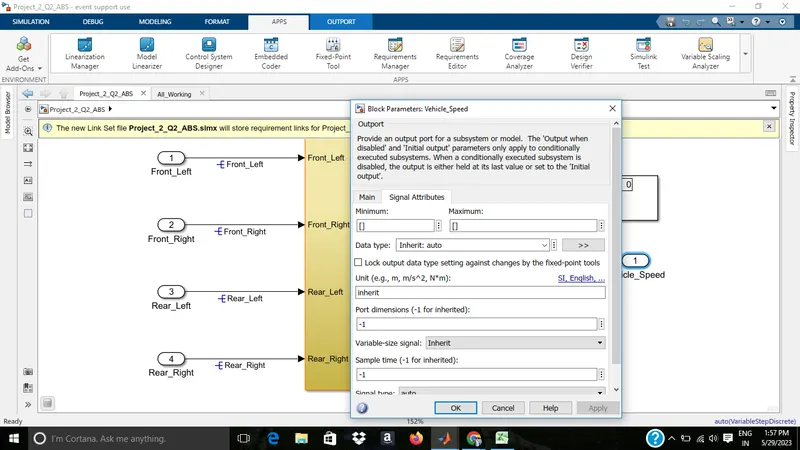
After
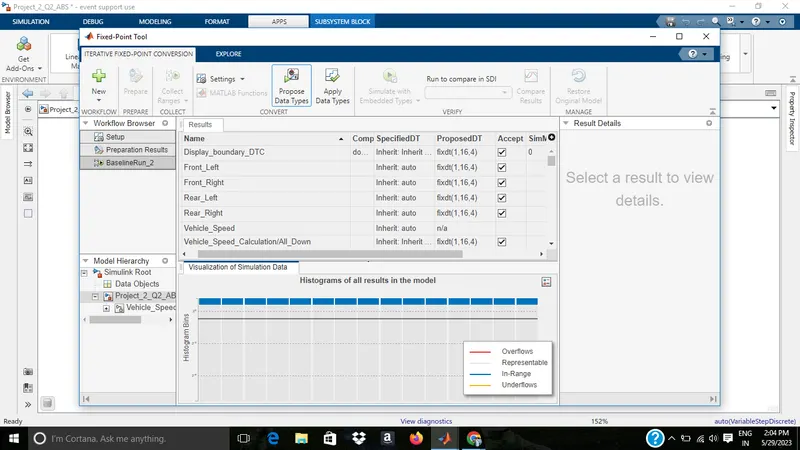
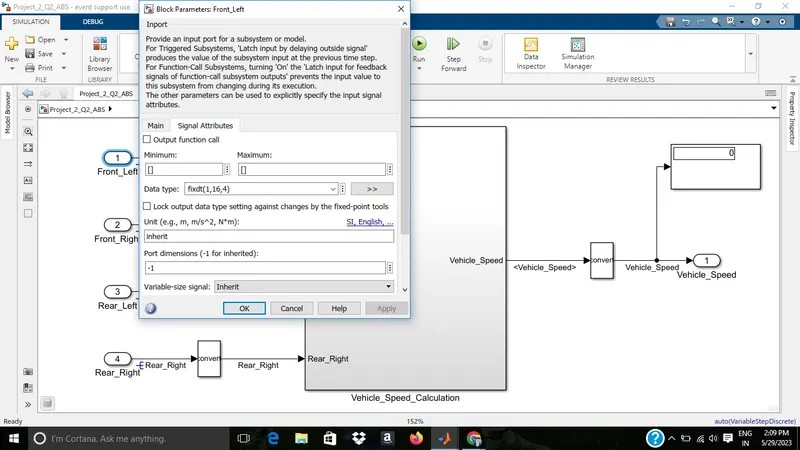
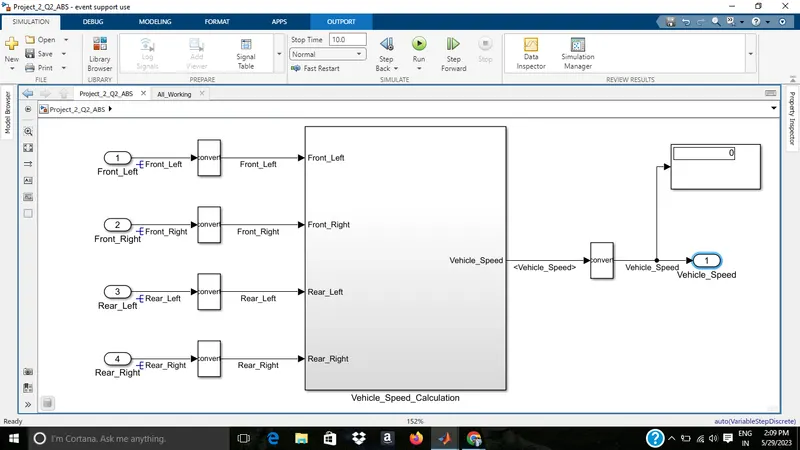
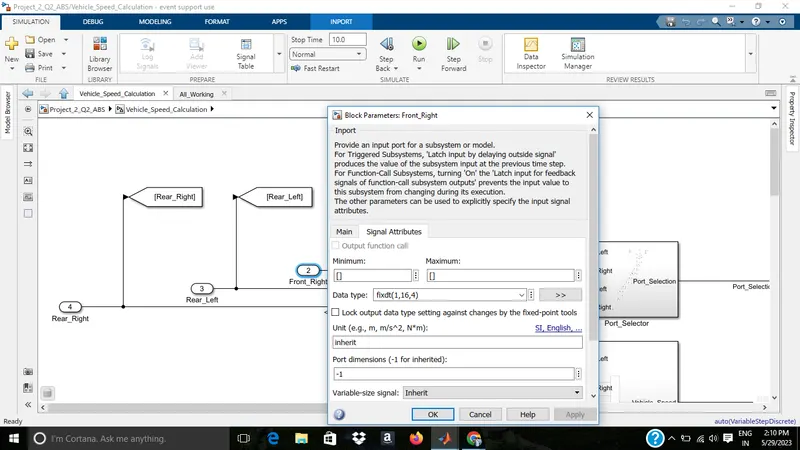
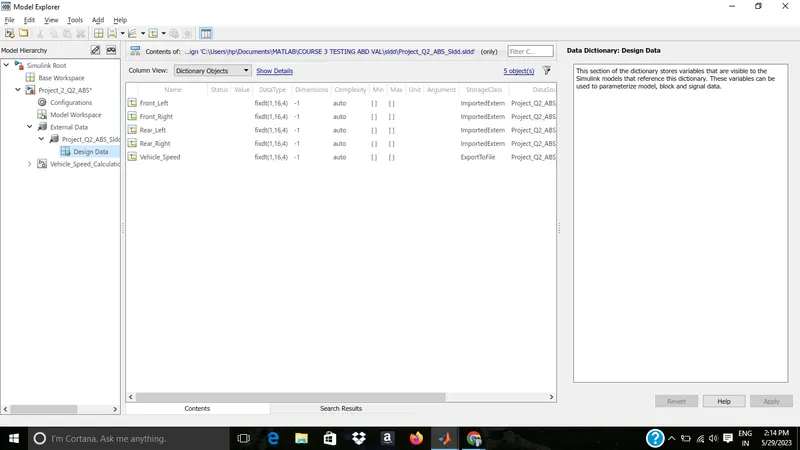
Changed the SLDD also as per changes occured in inport and outport after fixed point conversion
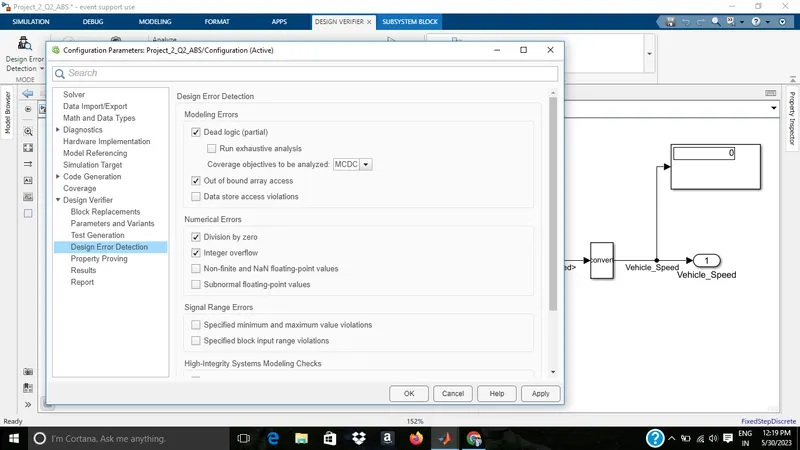
6)SLDV Design error detection
After running the SLDV error detection
 .
.
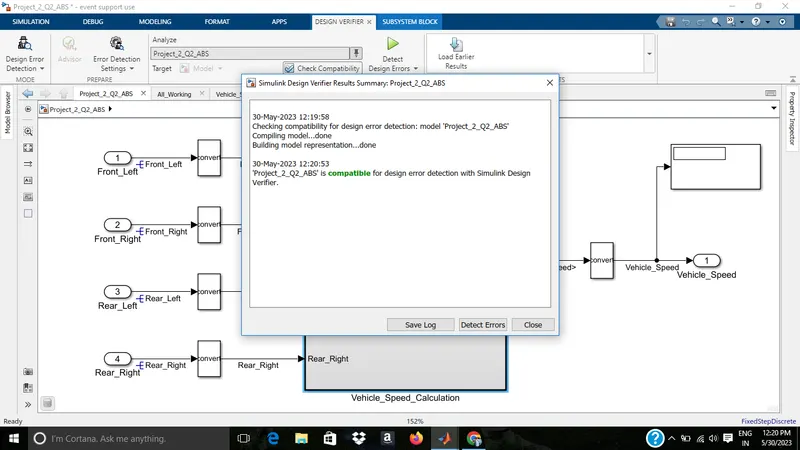
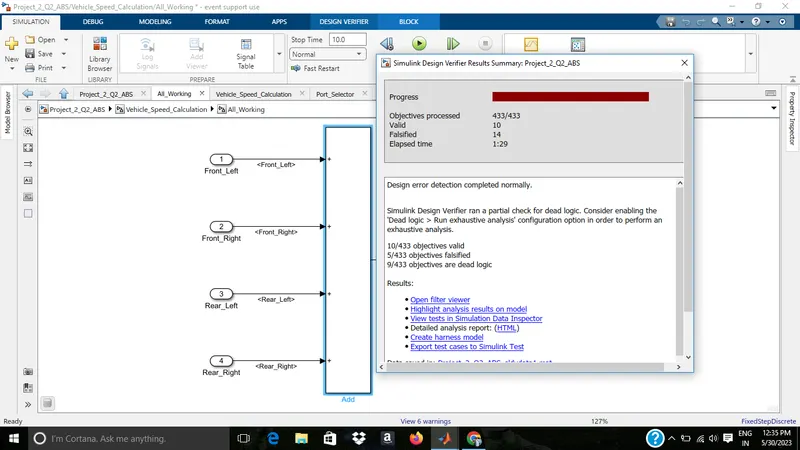
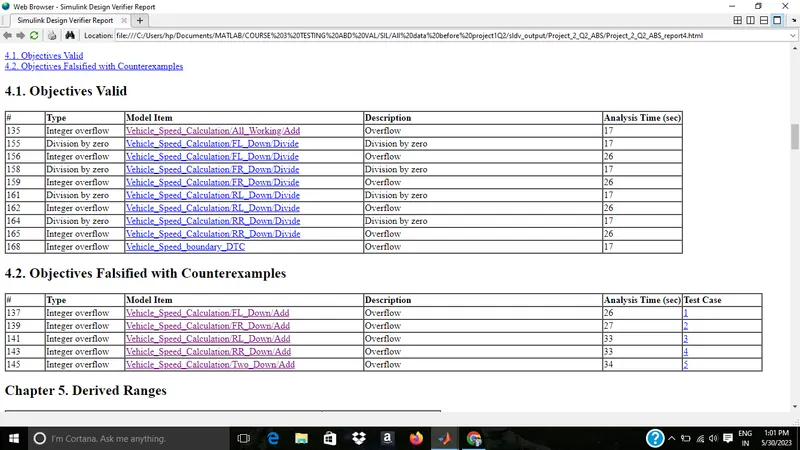
There were 14 falsified conditions including dead logic overflow etc
By clearing all the falsified conditions...
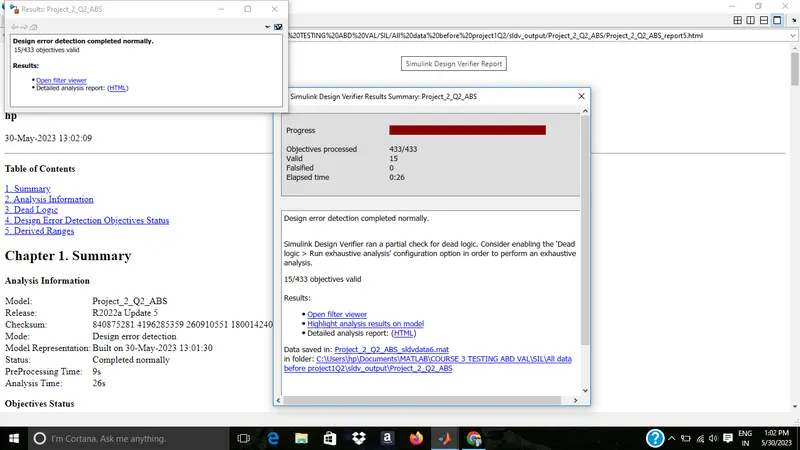
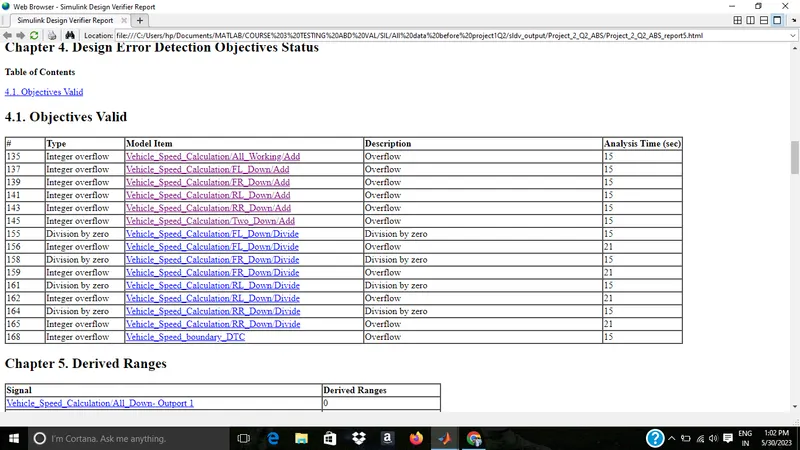
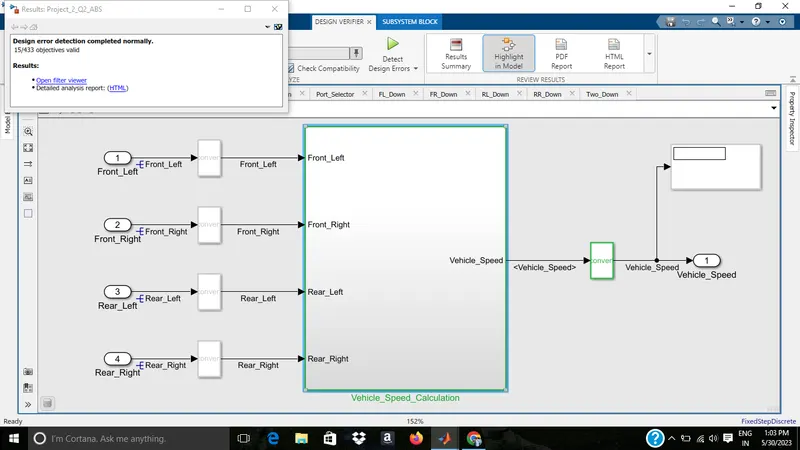
The report is attched as file
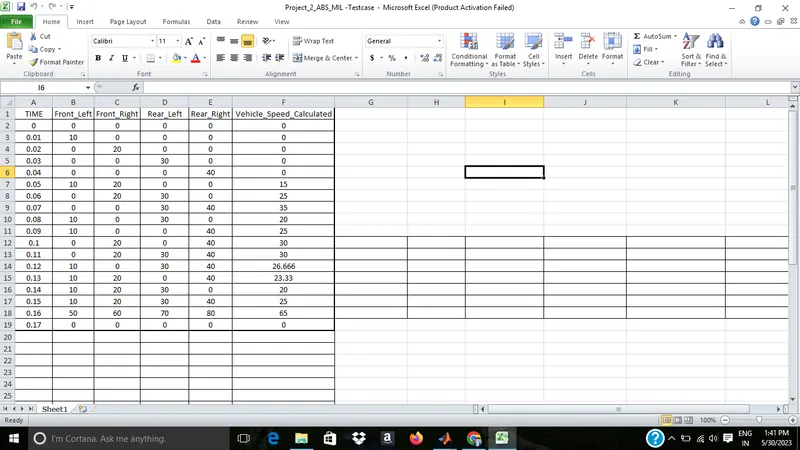
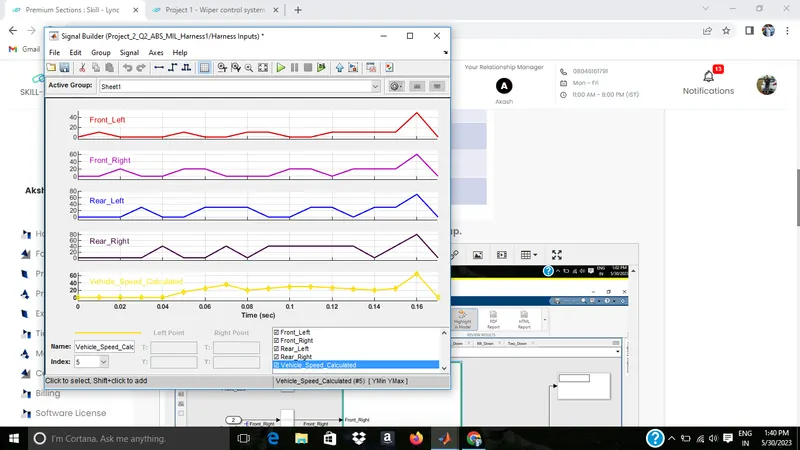
7)Functional test case
MIL
MIL Test Cases
MIL Harness
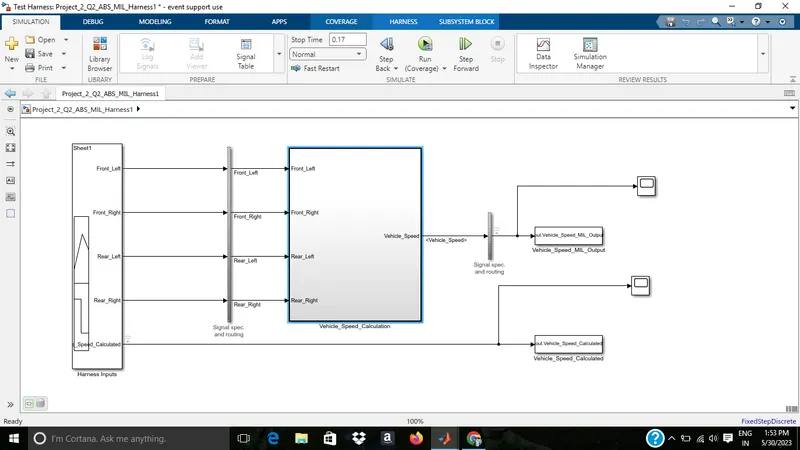
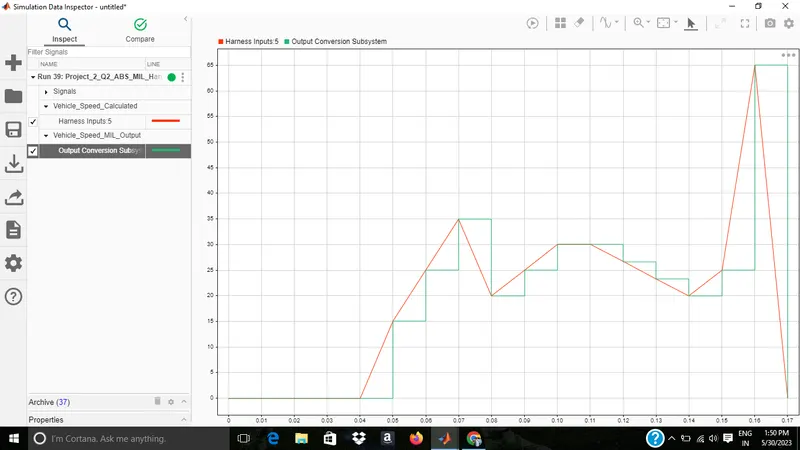
This is the data inspector graphs for MIL output and calculated output which shows no difference
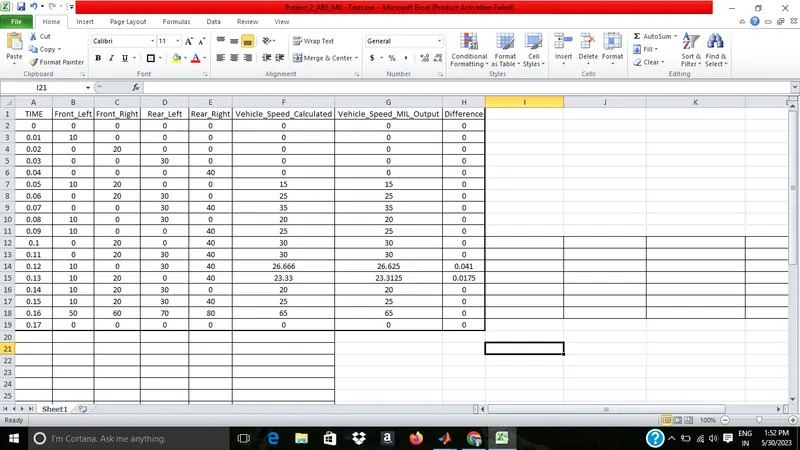
This is the excel sheet showing difference which is showing zero difference
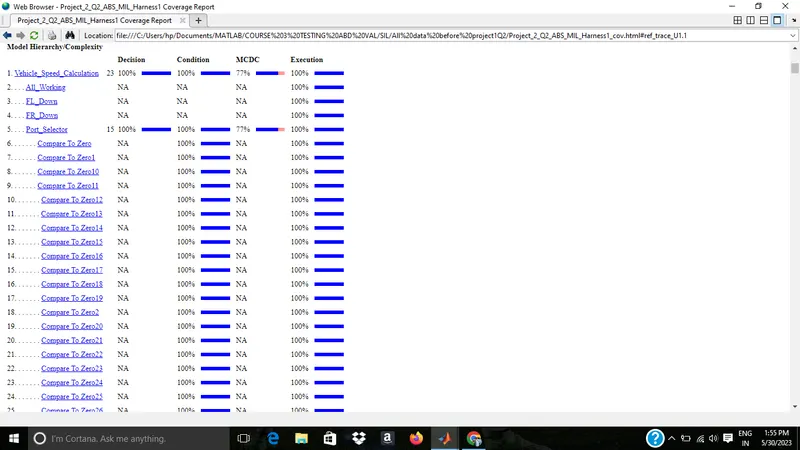
MIL Coverage report is attached as file & also testcase excel sheet
SIL
SIL test cases
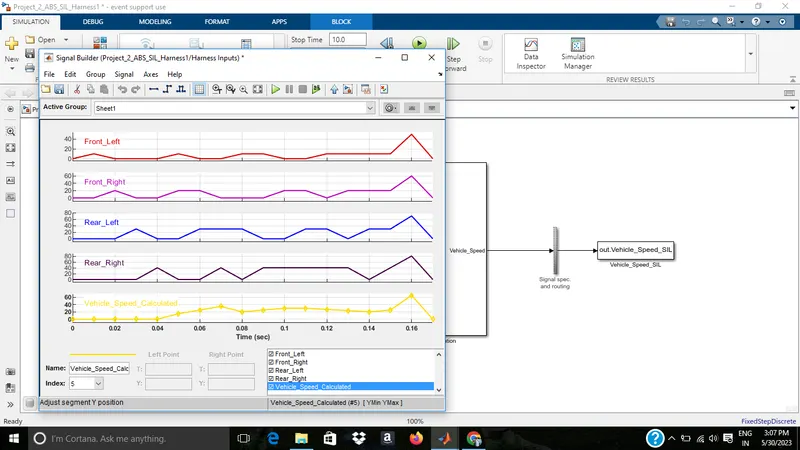
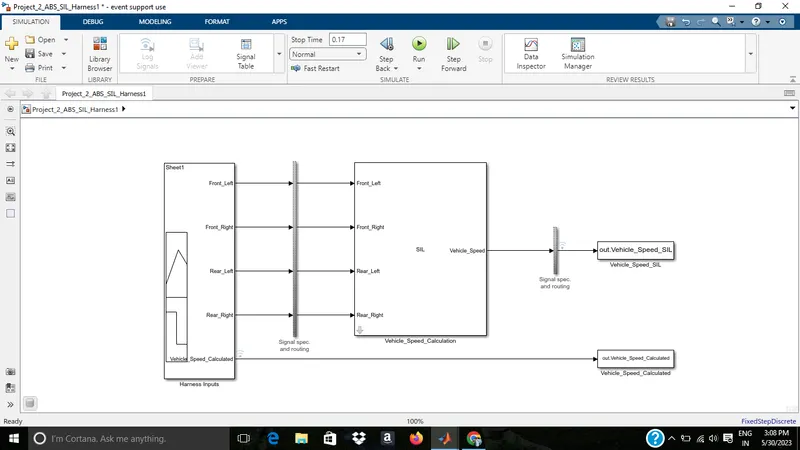
SIL Harness
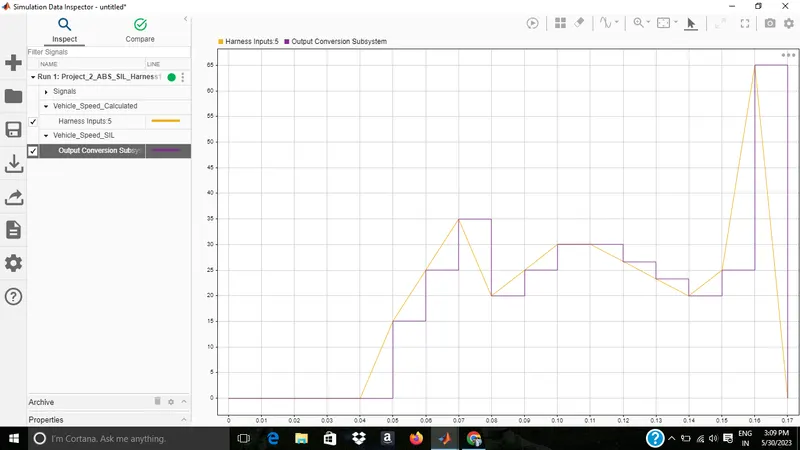
This is the data inspector graphs for SIL output and calculated output which shows no difference
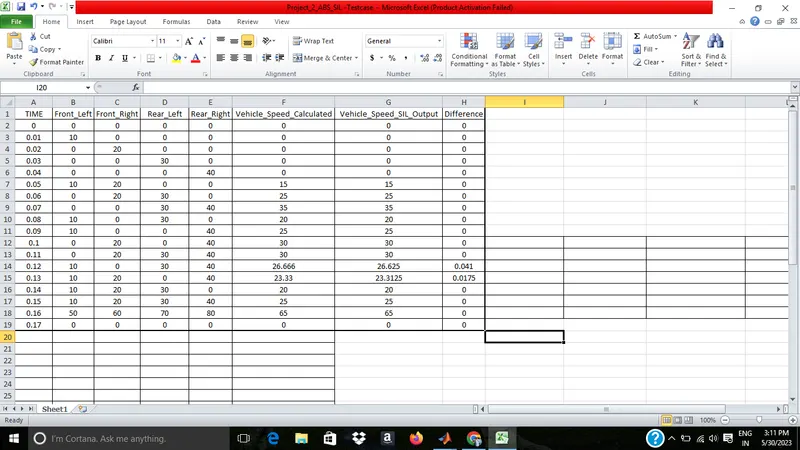
This is the excel sheet showing difference which is showing zero difference
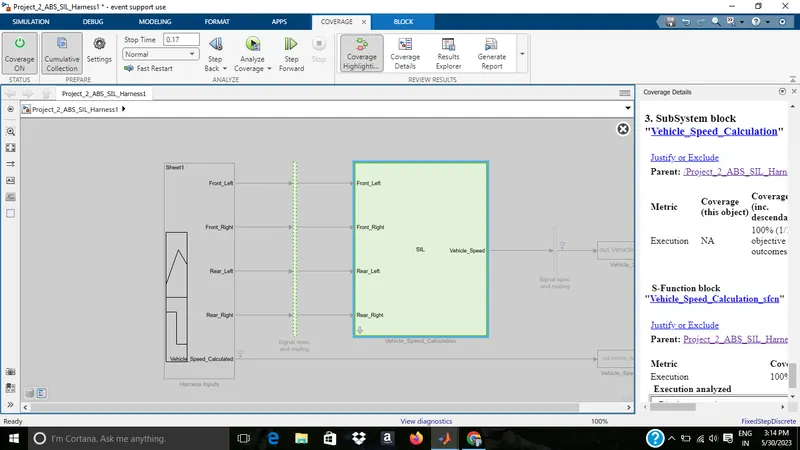
SIL Coverage report is attached as file & also testcase excel sheet also SIL Harness is also attached
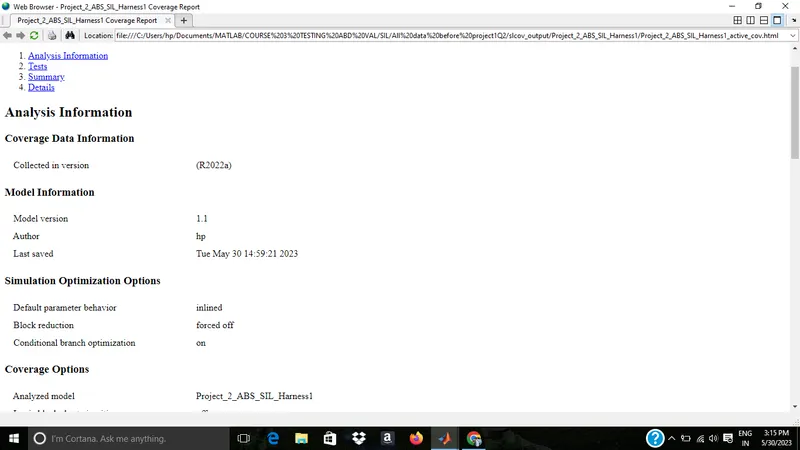
100 % coverage for SIL
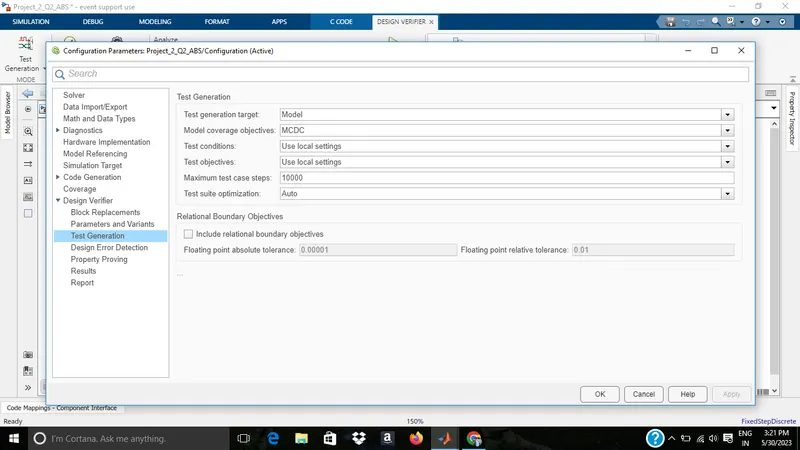
8)SLDV Test Generation
Advisor
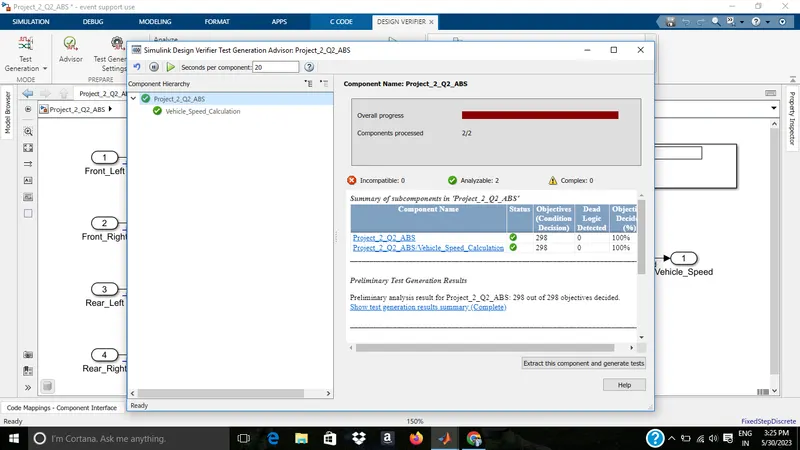
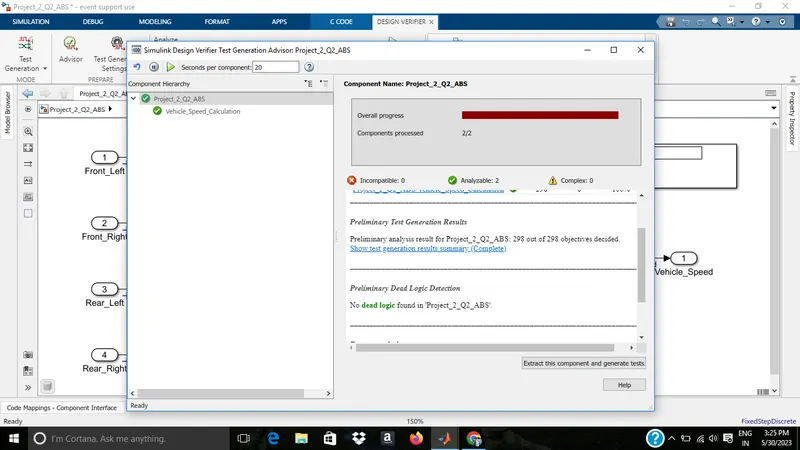
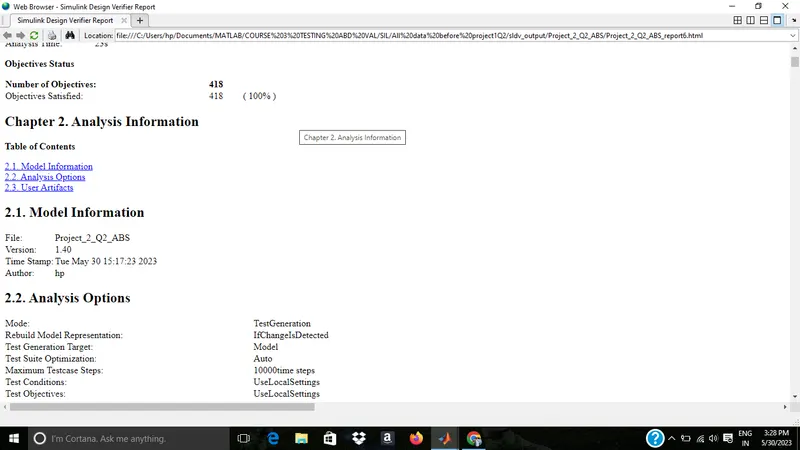
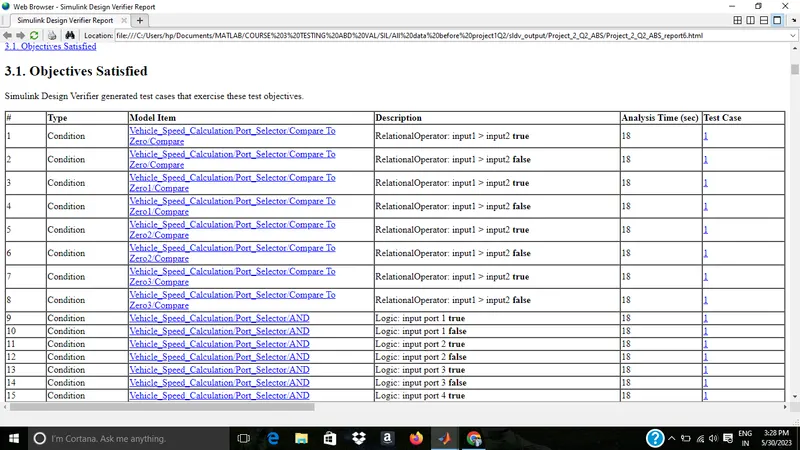
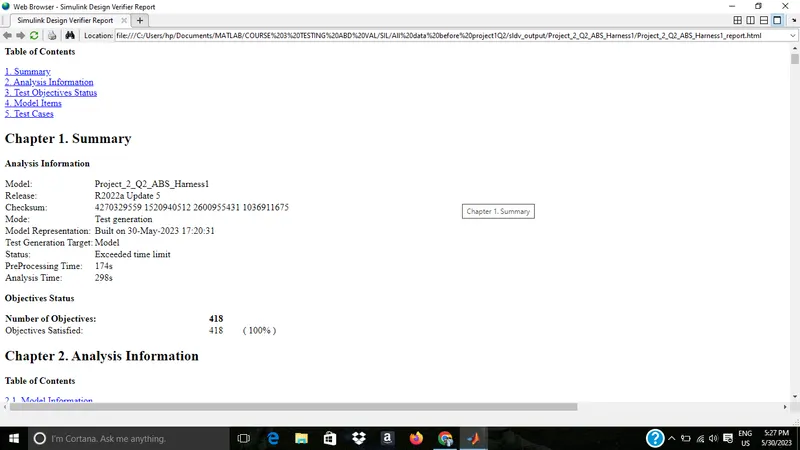
All the conditions are satisfied
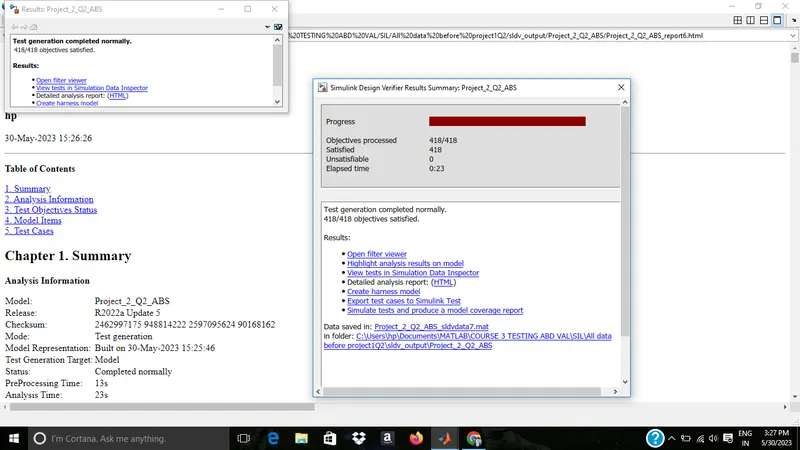
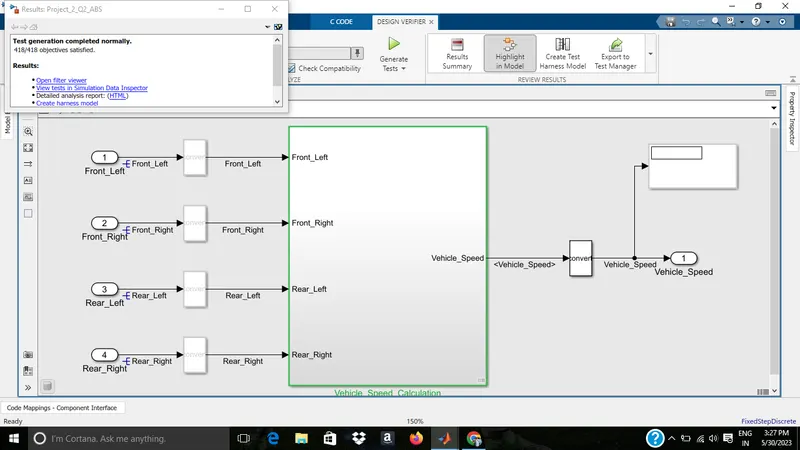
screenshot of report is given below, also the file is attached
Creating Harness and its coverage
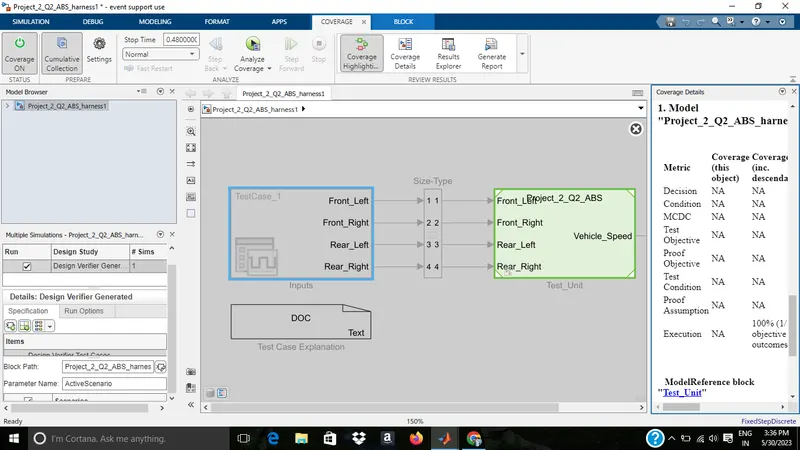
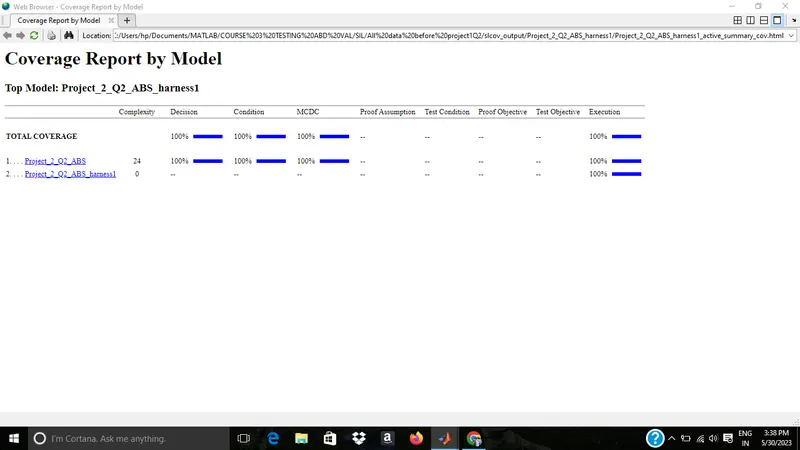
The harness coverage report is attached as file
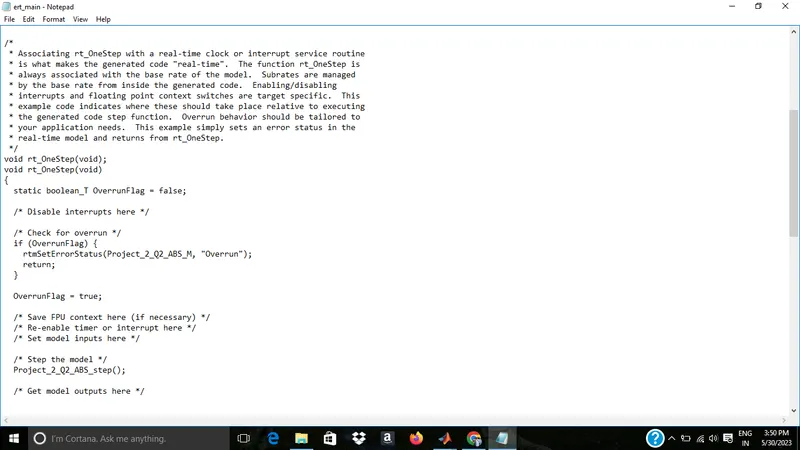
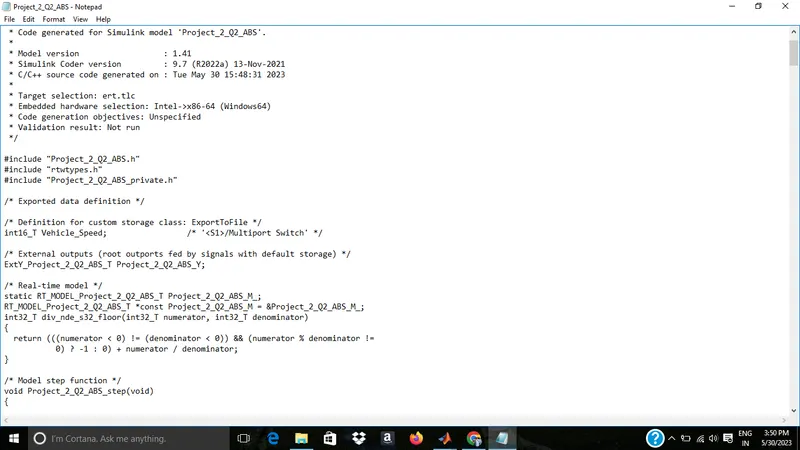
9)Autocode Generation
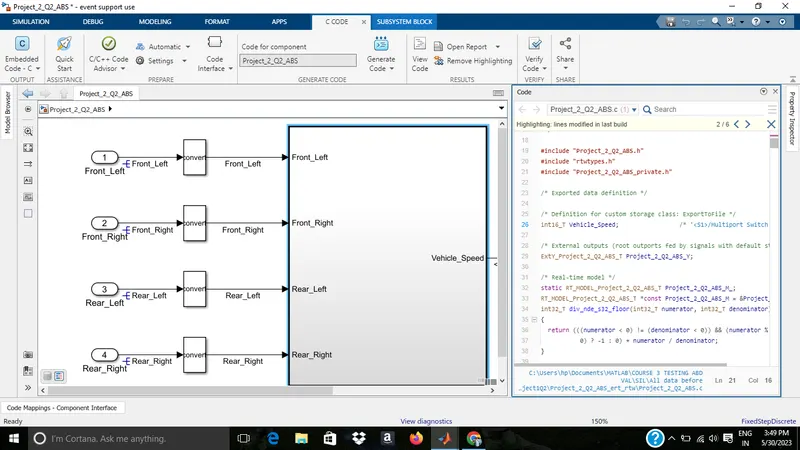
main.c
.c file
.h file
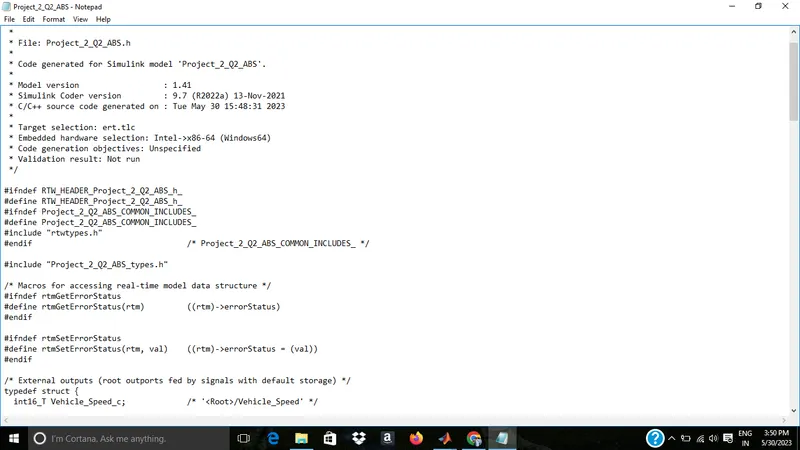
all the main, .c and .h are attached as file also
10)Polyspace analysis
For Polyspace Bug finder
1)First need to generate the code
2)Goto model configuration settings and change the code generation settings to embedded coder.
3)click on APPS and select emedded coder.
4)Do the code generation by clicking generate code.
5)Open the polyspace tool
6)start a new project
7)Give the project name
8)project files get added to project browser.
9)Do the configuration settings for compiler and processor
10)Change the settings for coding standards and metrices if needed
11)Keep the default settings for bug finder analysis
12)Mark the generate report
13)Save the settings
14)Click on run on bug finder
15)From the result analyse the code
For Polyspace Code Prover
1)First generate the C code
2)Goto model configuration settings and change the code generation settings to embedded coder.
3)click on APPS and select emedded coder.
4)Do the code generation by clicking generate code.
5)Open the polyspace tool
6)start a new project
7)Give the project name
8)project files get added to project browser.
9)Under code prover verification, change the settings for, verification, check behaviour, precision
10)Do the configuration settings for compiler and processor
11)Change the settings for coding standards and metrices if needed
12)Save the settings
13)Mark the generate report
14)Click on run on code prover
15)From the result analyse the code
11)Test generation report
Baseline testing
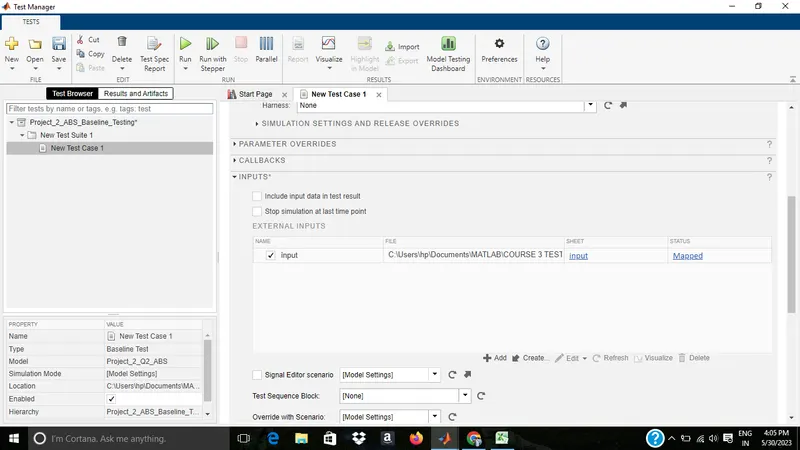
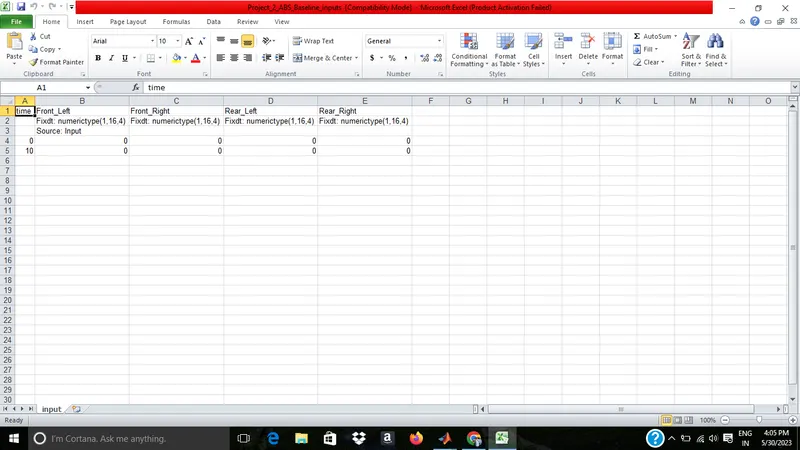
copying previous test cases
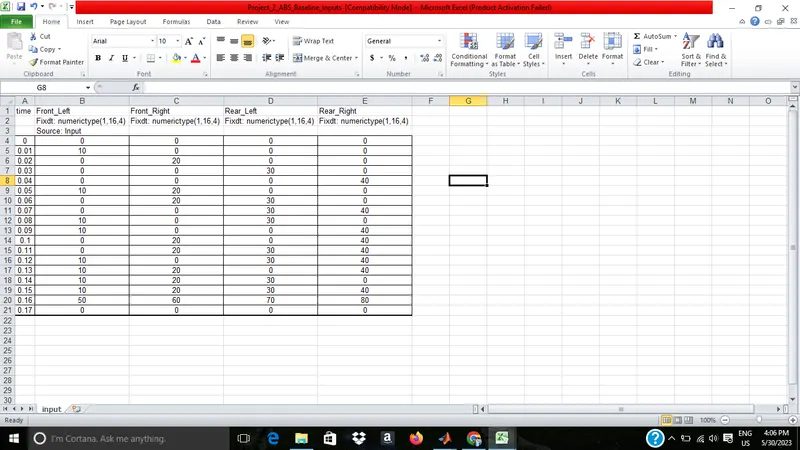
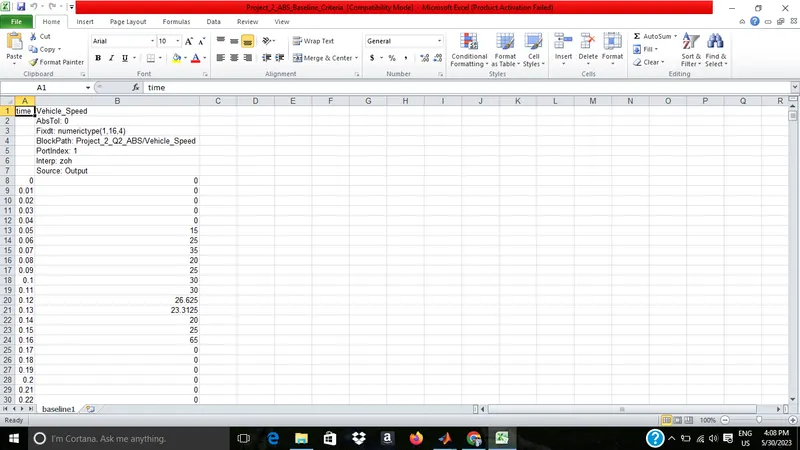
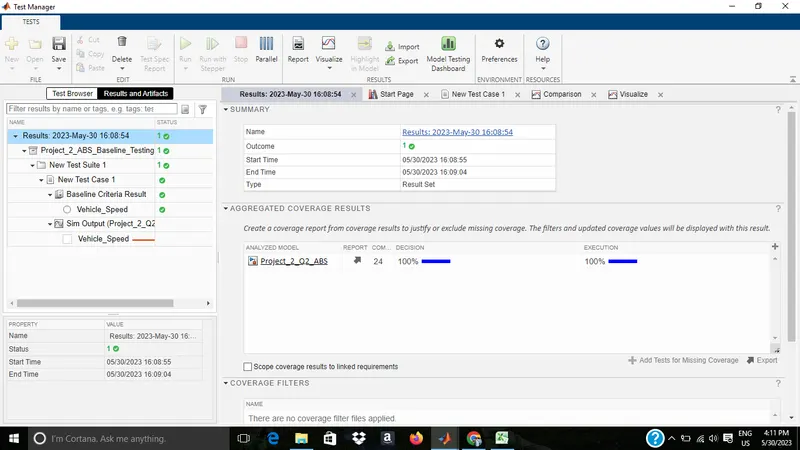
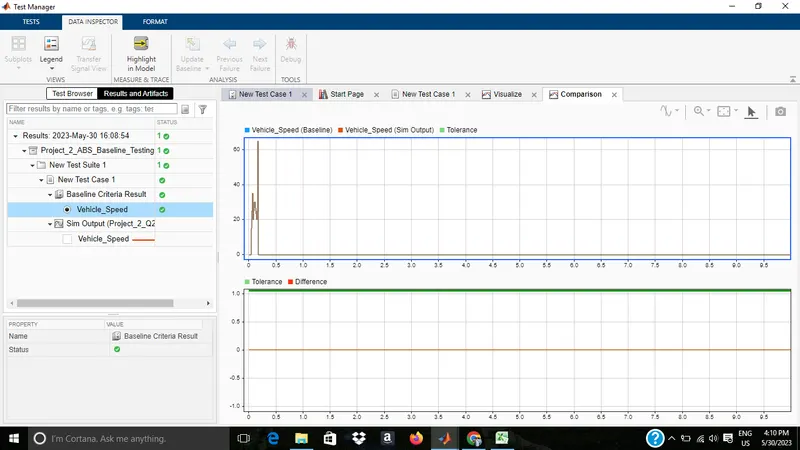
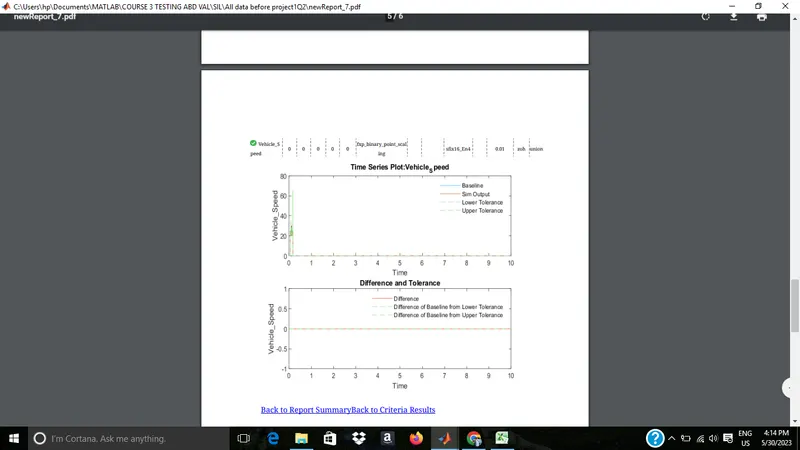
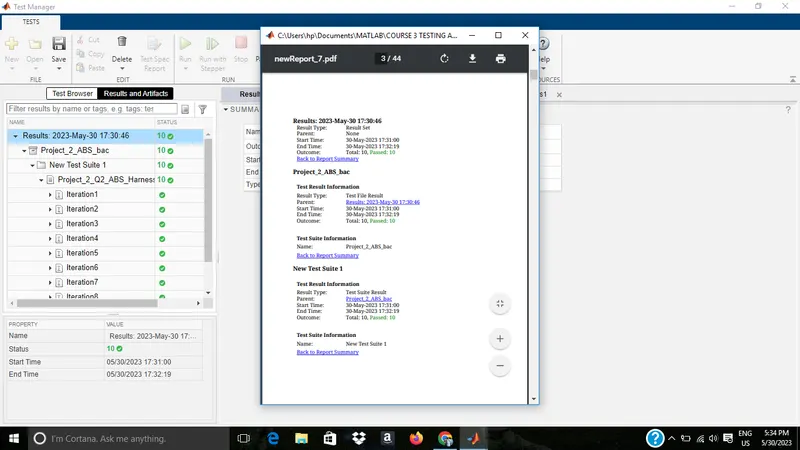
The baseline testing report is given as screenshot and also attached as file(.pdf)
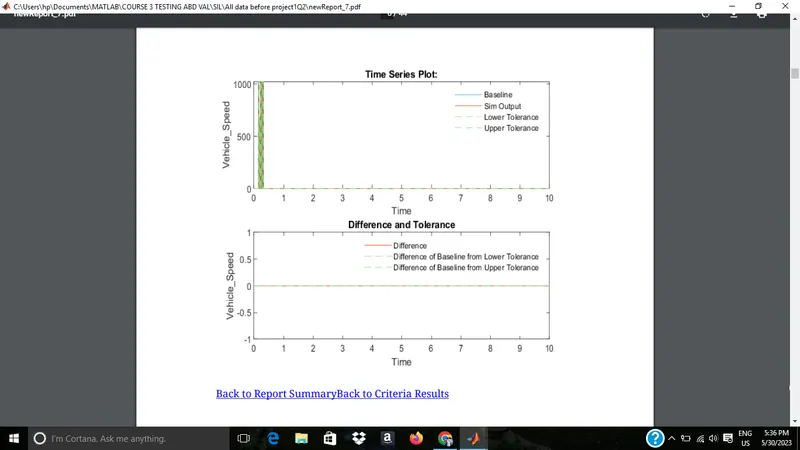
From the result it is clear that both simulation output and baseline output is same , and the difference graph is zero line.
Back to back testing
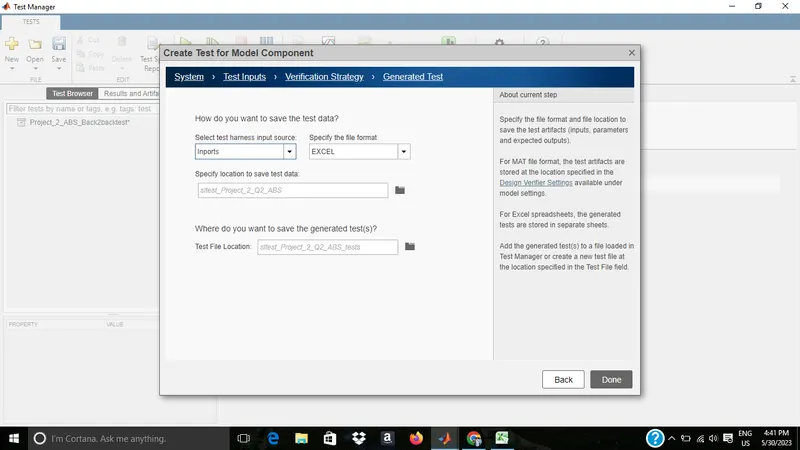
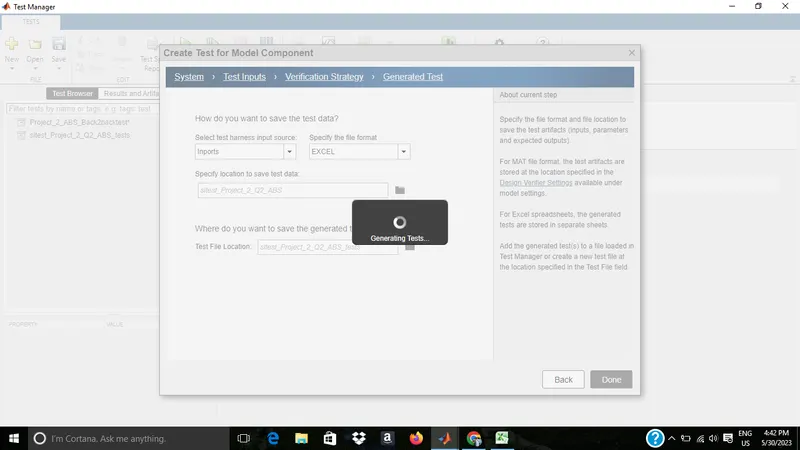
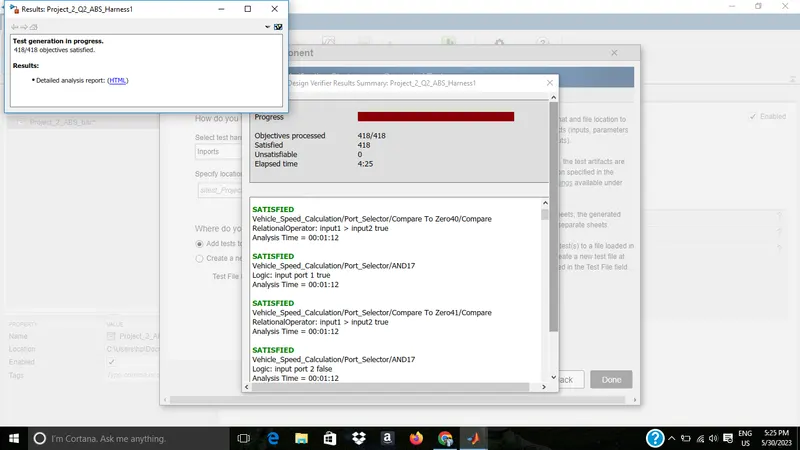
SLDV report
The MIl and SIL harness
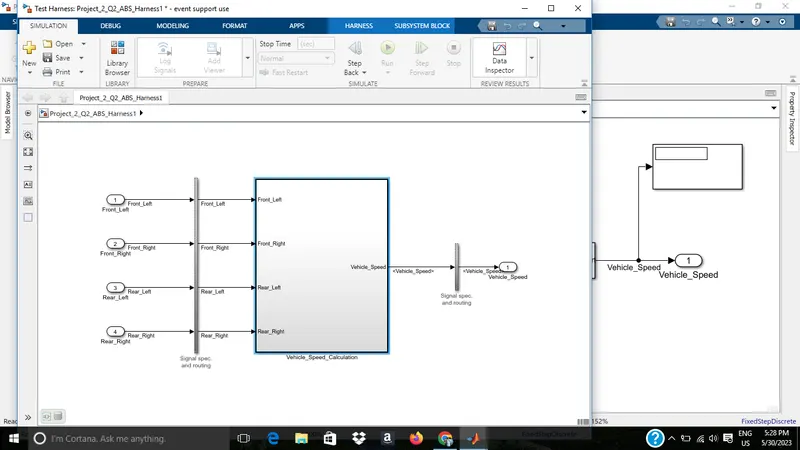
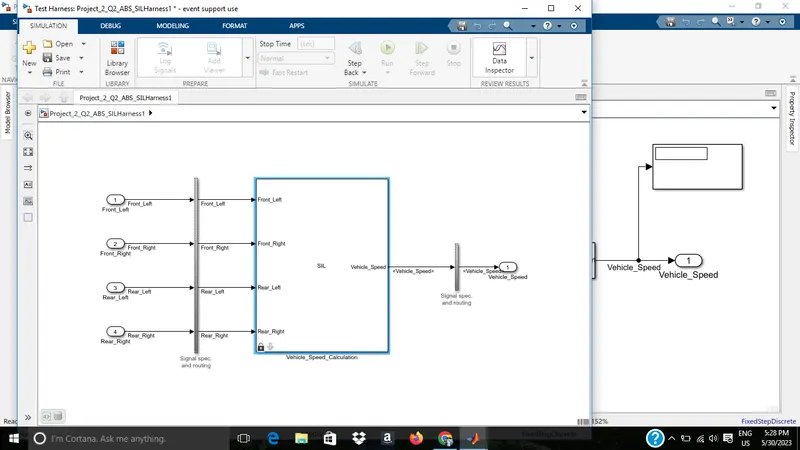
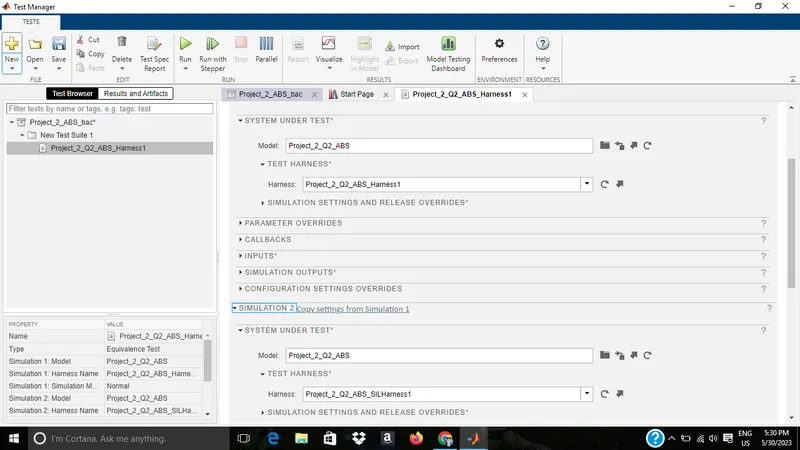
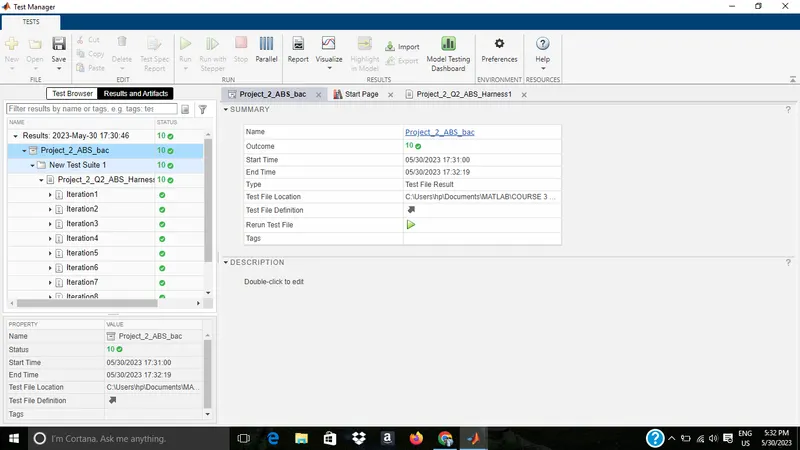
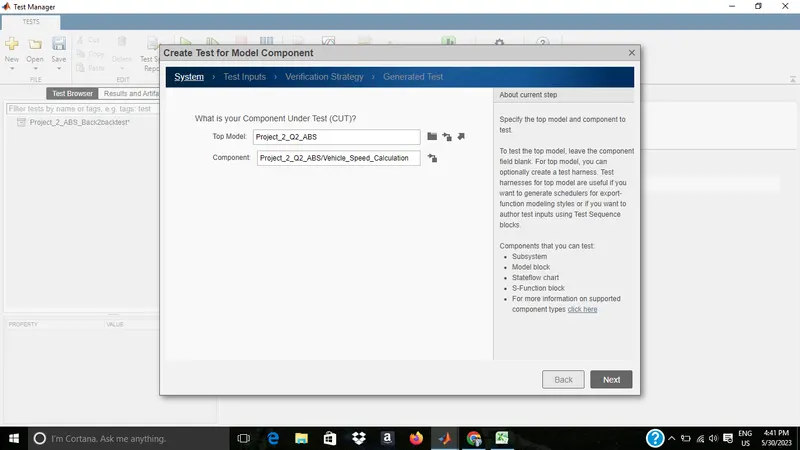
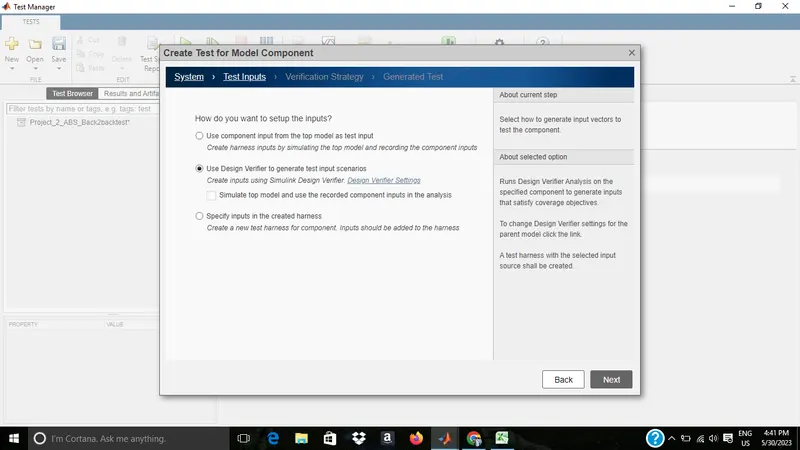
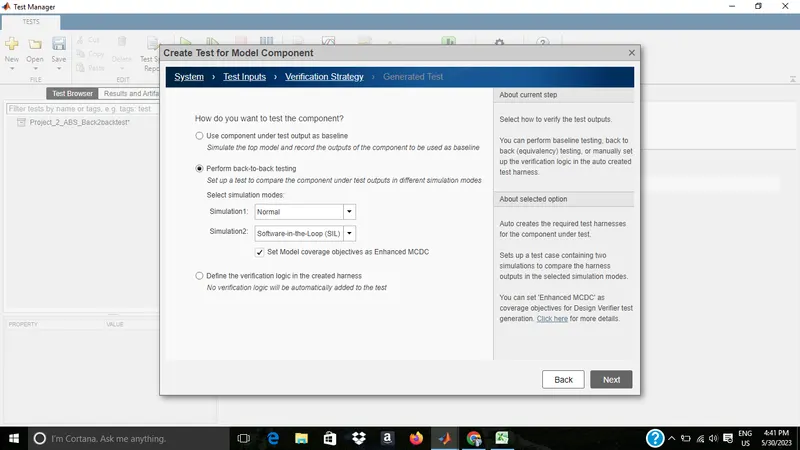
The back to back testing report is given as screenshot and also attached as file(.pdf)
From the result it is clear that both simulation output and back to back output is same , and the difference graph is zero line.
all the test for Vehicle speed calculation for ABS using Wheel Speed sensor has been completed...