Project 2 - Create a report using PowerQuery, Macro VBA, List Functions and Data Validation functions for Data Reporting of Supply Chain Management companies
Project 2 - Create a report using PowerQuery, Macro VBA, List Functions and Data Validation functions for IJS Bank Limited
Challenge
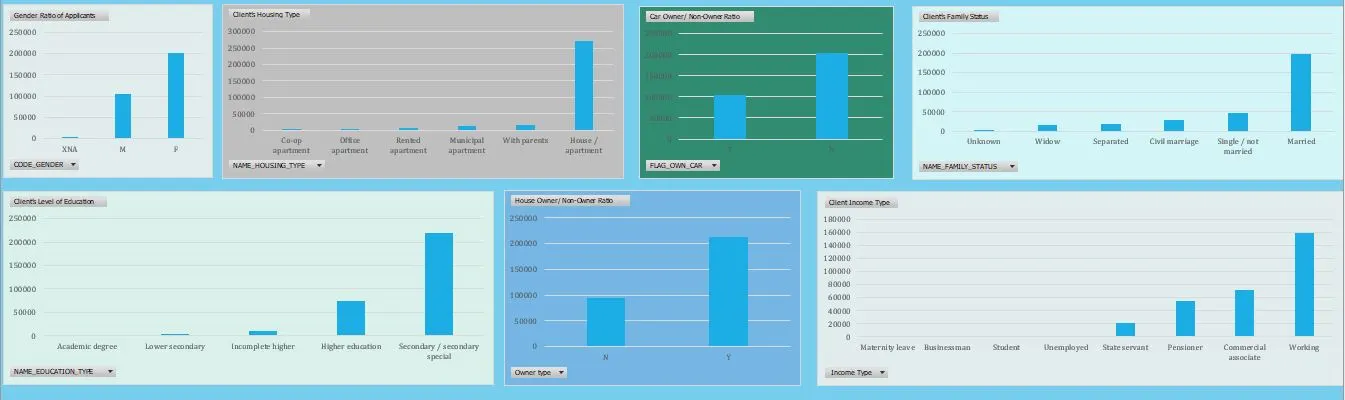
You are working as a Business Analyst at IJS Bank Limited. Currently, your organization is working on Loan Applicant Clients for the current quarter. The Manager of the Branch asked you to analyze the Loan Applicant’s data and to Present an appropriate report on the shared data. The report should be demonstrated using Dashboard in MS Excel.
DASHBOARD
- Gender Ratio of Applicants
- Car Owner/ Non-Owner Ratio
- House Owner/ Non-Owner Ratio
- Client Income Type
- Client’s Level of Education
- Client’s Housing Type
- Client’s Family Status
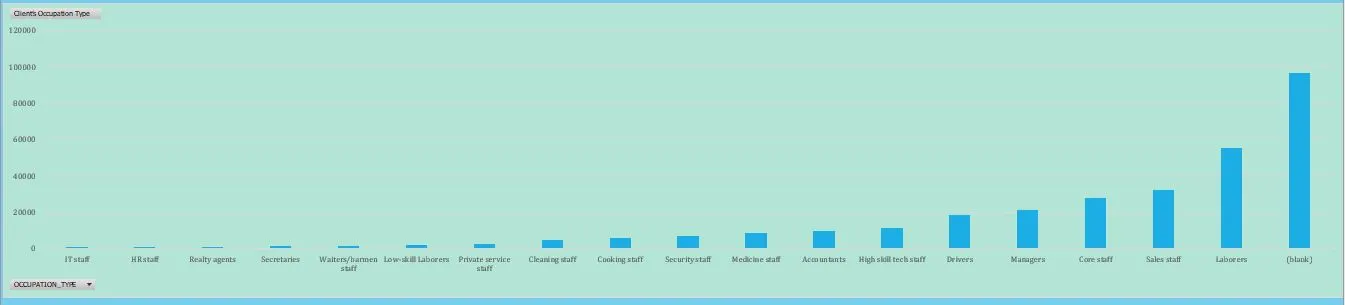
- Client’s Occupation Type
DATA SUMMARY
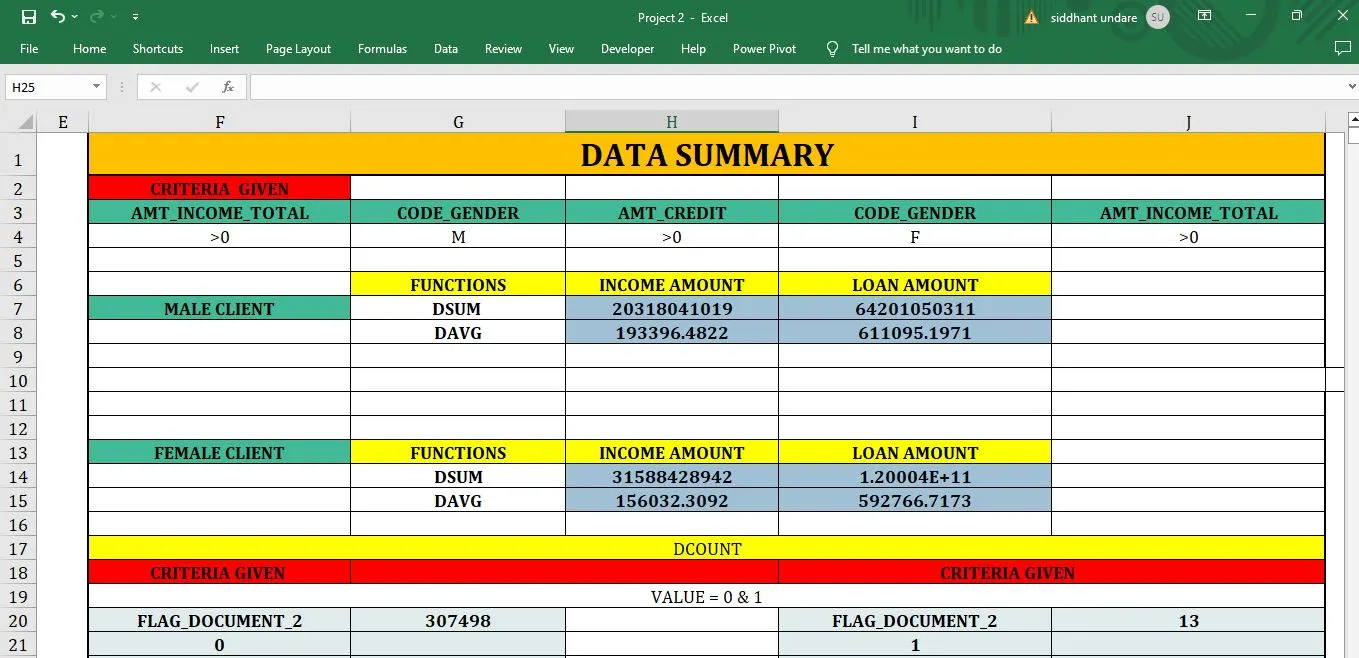
- Data Summary of All Female Client’s for Income and Loan Amount using New Functions (hint: use unique,sort,filter functions) if These functions are not supporting in your software please give a theoritical answer.
- Data Summary of All male Client’s for Income and Loan Amount using list Functions (hint:use dsum,daverage,..)
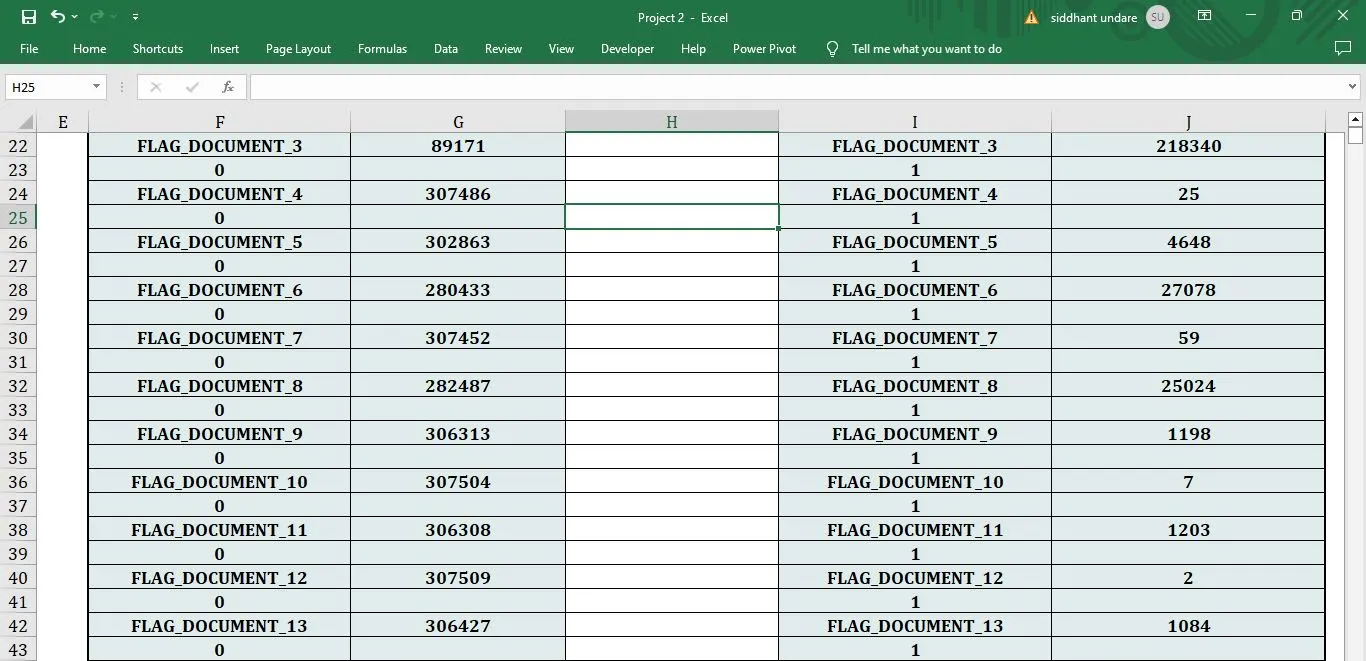
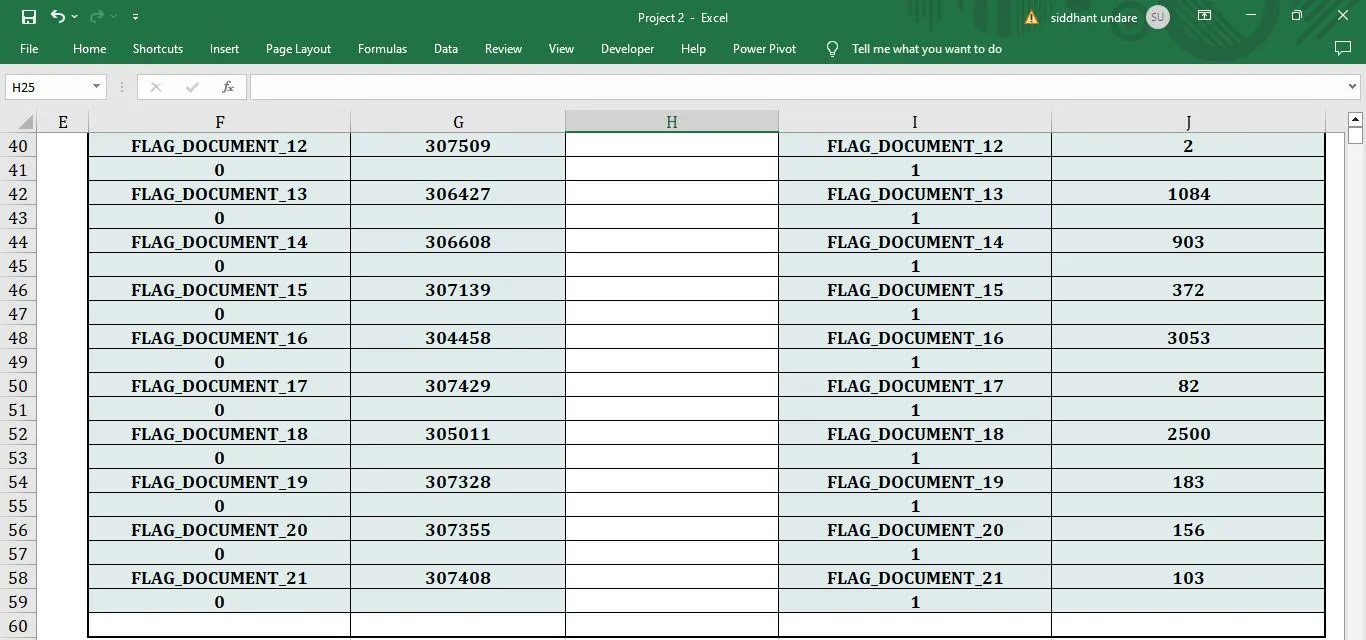
- Data Summary for all Flag Columns like (FLAG_DOCUMENT_2, FLAG_DOCUMENT_3 etc.) using all variants of DCOUNT function.
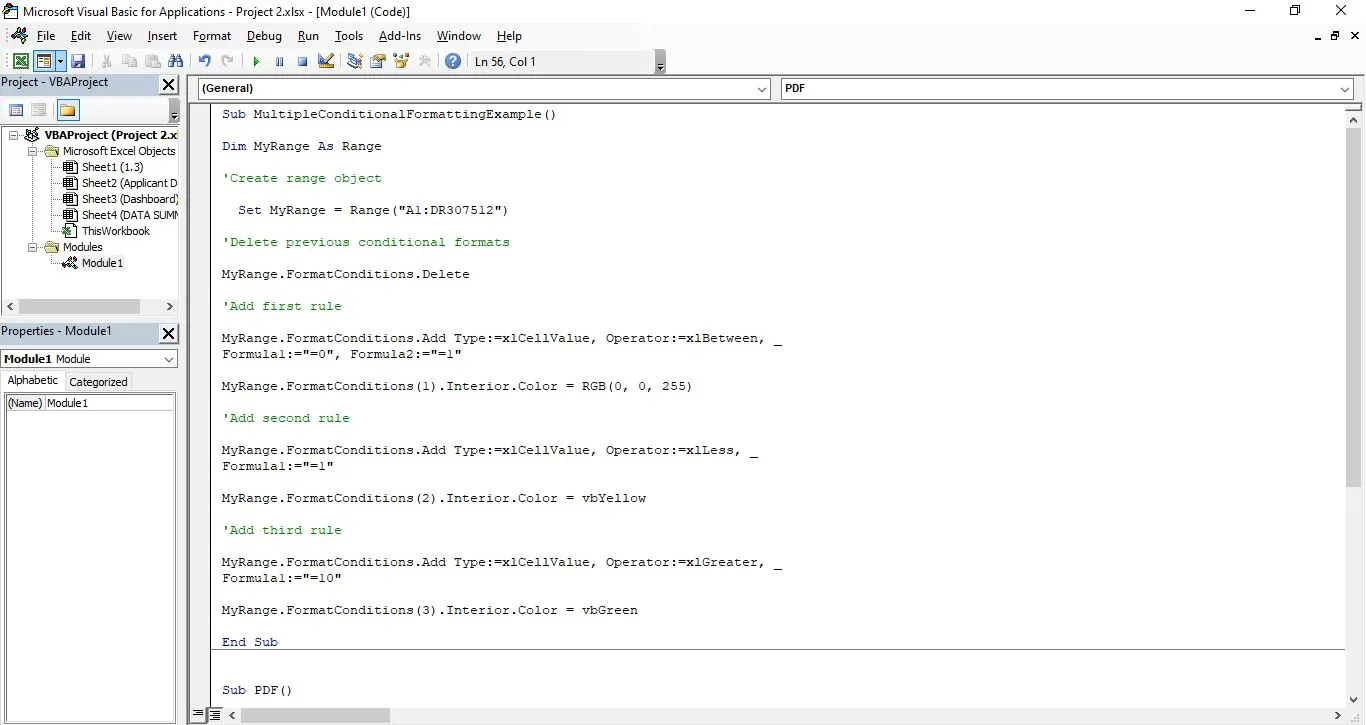
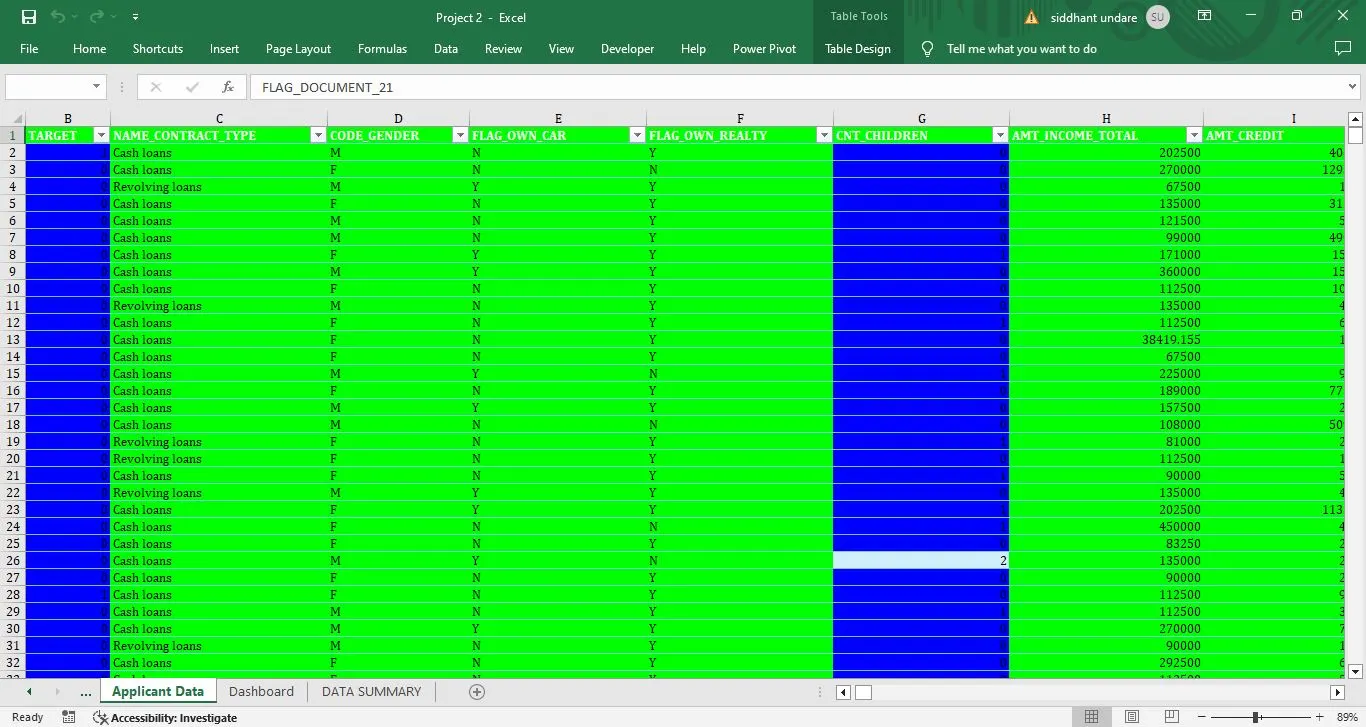
Create a macro for conditional formatting & freezing panes
Sub MultipleConditionalFormattingExample()
Dim MyRange As Range
'Create range object
Set MyRange = Range("A1:DR307512")
'Delete previous conditional formats
MyRange.FormatConditions.Delete
'Add first rule
MyRange.FormatConditions.Add Type:=xlCellValue, Operator:=xlBetween, _
Formula1:="=0", Formula2:="=1"
MyRange.FormatConditions(1).Interior.Color = RGB(0, 0, 255)
'Add second rule
MyRange.FormatConditions.Add Type:=xlCellValue, Operator:=xlLess, _
Formula1:="=1"
MyRange.FormatConditions(2).Interior.Color = vbYellow
'Add third rule
MyRange.FormatConditions.Add Type:=xlCellValue, Operator:=xlGreater, _
Formula1:="=10"
MyRange.FormatConditions(3).Interior.Color = vbGreen
End Sub
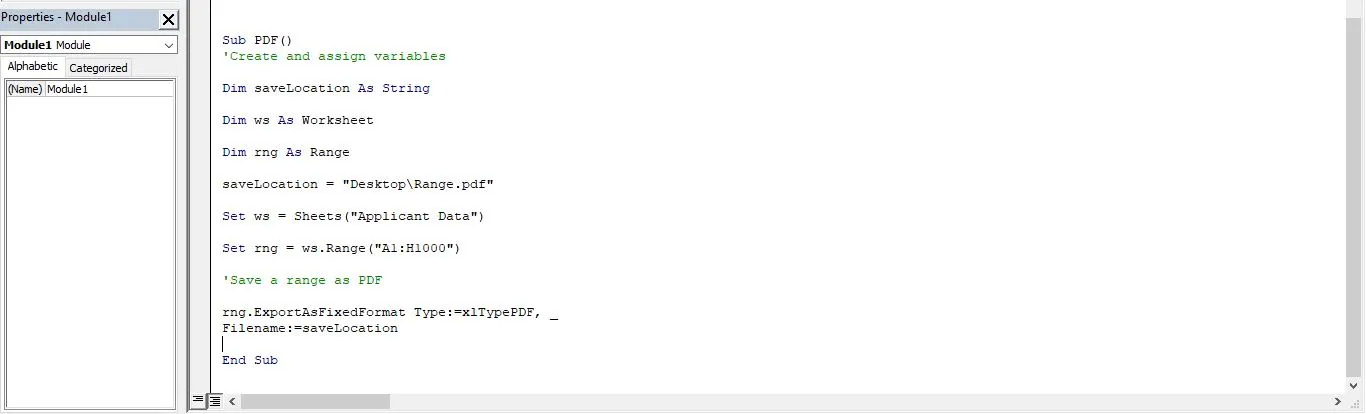
Create VBA Code to convert selected data into pdf from applicant data
Sub PDF()
'Create and assign variables
Dim saveLocation As String
Dim ws As Worksheet
Dim rng As Range
saveLocation = "Desktop\Range.pdf"
Set ws = Sheets("Applicant Data")
Set rng = ws.Range("A1:H1000")
'Save a range as PDF
rng.ExportAsFixedFormat Type:=xlTypePDF, _
Filename:=saveLocation
End Sub
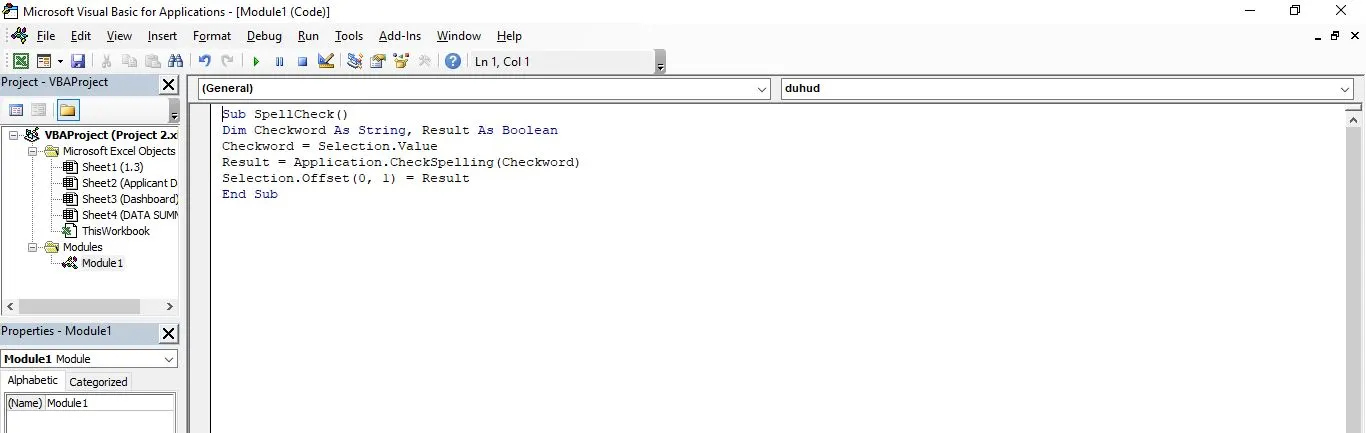
Check Spelling mistakes in the workbook using VBA Code
Sub SpellCheck()
Dim Checkword As String, Result As Boolean
Checkword = Selection.Value
Result = Application.CheckSpelling(Checkword)
Selection.Offset(0, 1) = Result
End Sub
PROJECT LINK
https://drive.google.com/drive/folders/1B8bbNy9-iba9ZfVp-3qaw1ul5ovKYvm0