Project 2
Project - 2
2D Meshing Spare wheel Holder
Aim:
To mesh the given CAD model as per the given quality criteria.
Abstract :
The given CAD model is the spare wheel holder which is to be mid surfaced and meshed, capturing the features of the component. The mesh is to be generated as per the quality criteria maintaining a good mesh flow. After generating the mesh, thickness has to be assigned according to the component's thickness.
Methodology:
- Import the geometry and check for any kind of imperfect finishings which are to be fixed manually.
- Create a mid surface by auto mid surface feature. Clean up the geometry for any kind of imperfect surfaces and unnecessary lines or points.
- Start meshing as per the quality criteria starting from one side of the surface to another side.
- After meshing the total component, assign the thickness as per the original parent geometry.
Introduction:
A spare wheel holder is a major component in a car or any 4 wheeled vehicles which is used for storing a spare wheel and can be accessed while needed. The spare wheel holder is usually mounted below the vehicle's rear side. The geometry for the project is given as shown below.
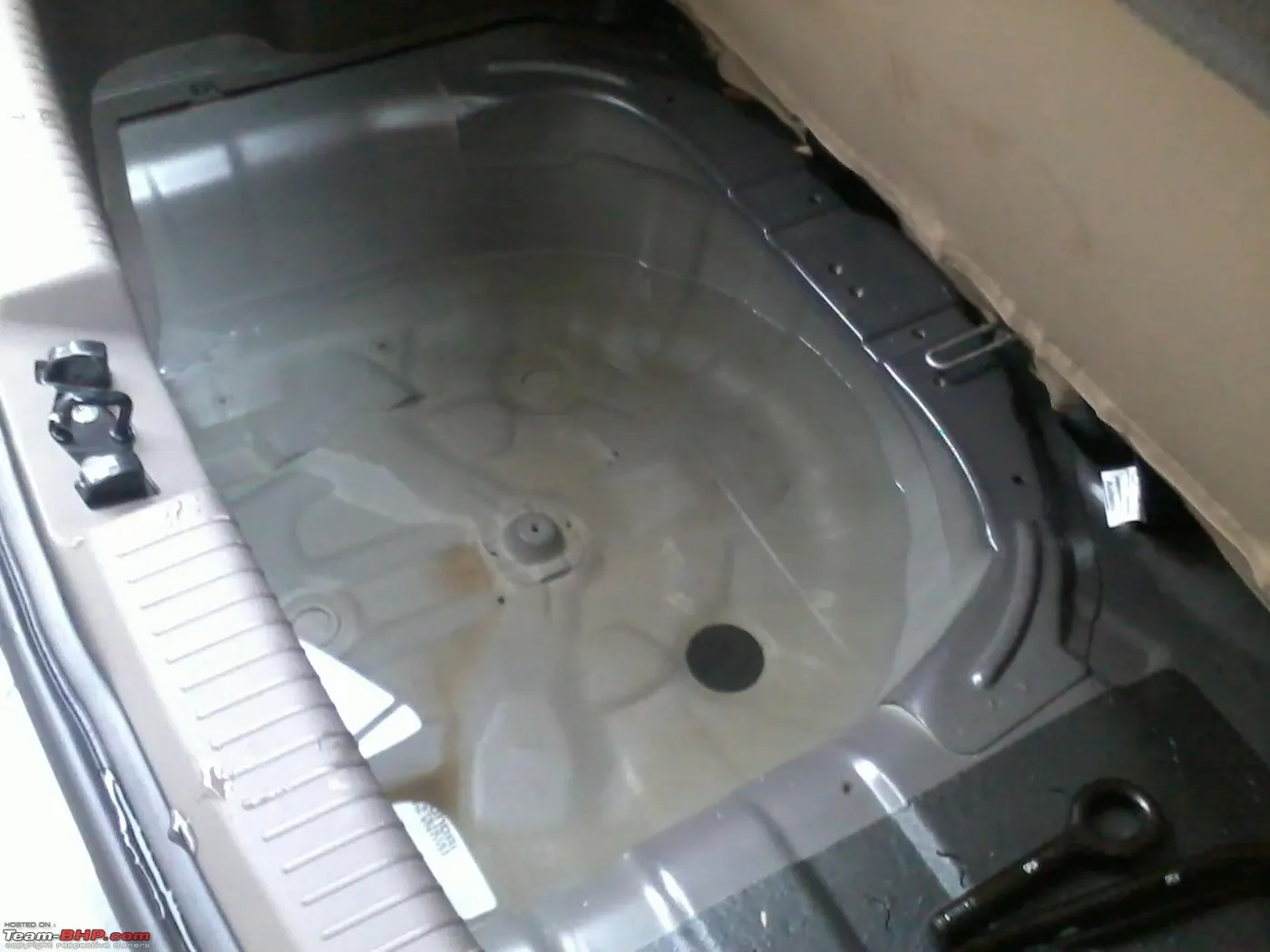
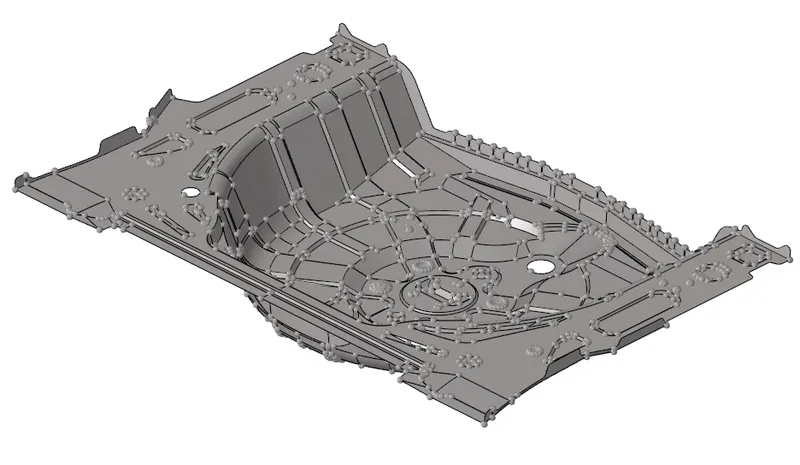
Fig 1: Spare wheel holder in real-world Fig 2: Spare wheel holder CAD model.
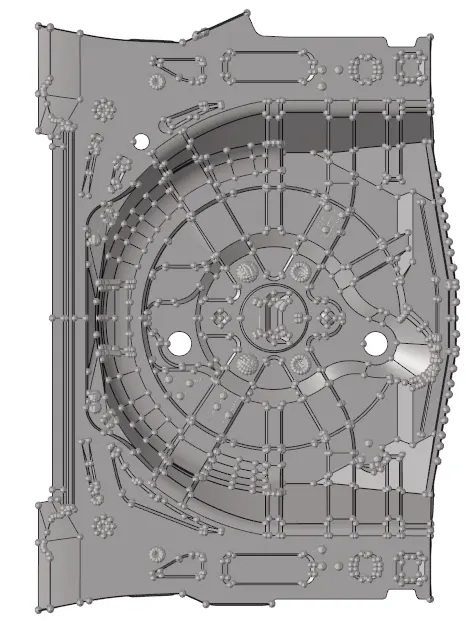
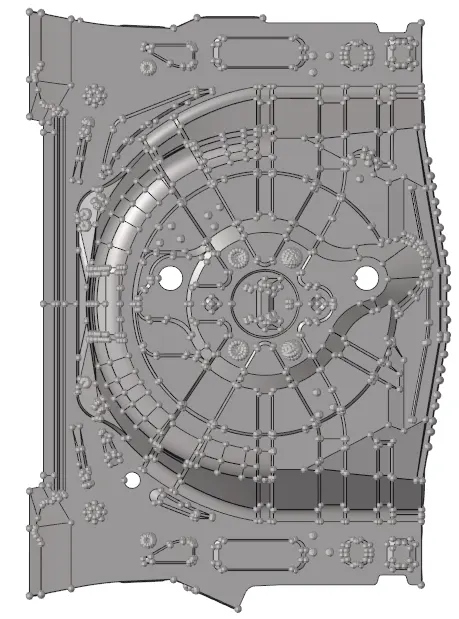
Fig 3: Spare wheel top view. Fig 4: spare wheel bottom view.
Procedure:
- Import the geometry and check for any imperfect or unfinished surfaces. The given component has few imperfections which are to be fixed manually so that to generate a perfect mid surface of the component.
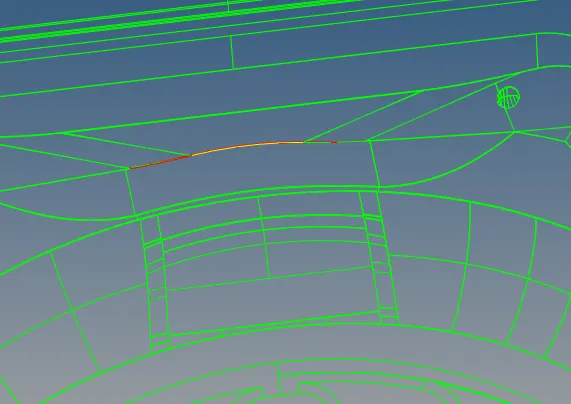
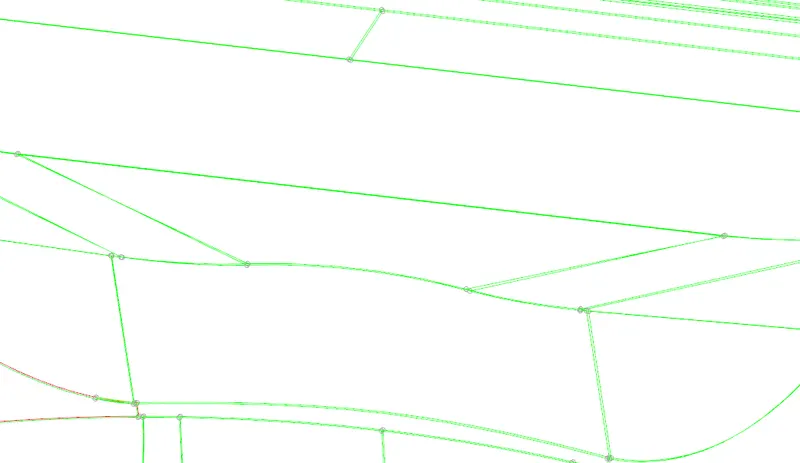
Fig 5: imperfect surface connection Fig 6: Fixed surface connection.
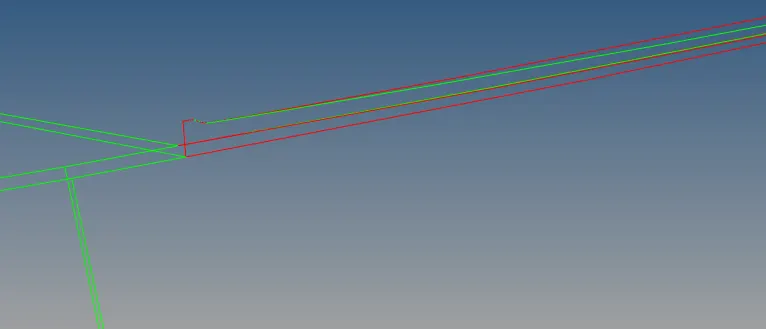
Fig 7: imperfect surface
The pictures shown in figs 5, 7 are fixed by using the tools in the quick edit menu.
2. After fixing the surface for the original geometry, a mid surface is to be created. The mid surface for the given component is generated using the auto mid surface feature due to the constant thickness throughout the geometry.
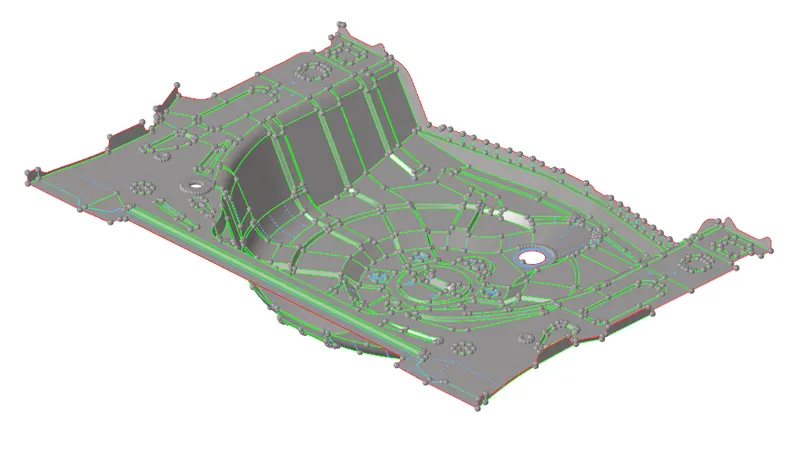
Fig 8: Generated mid surface
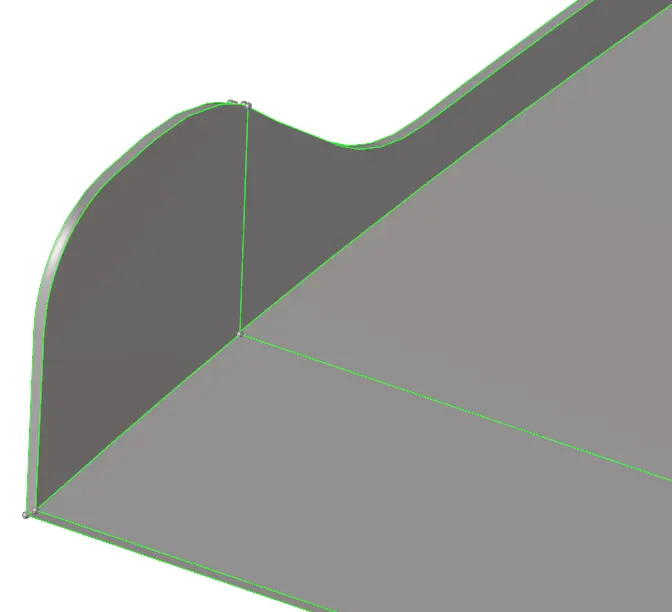
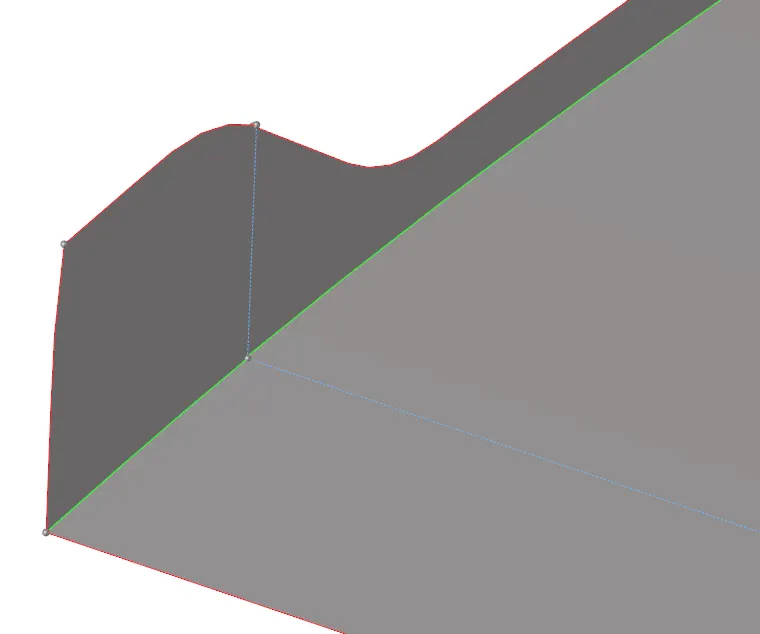
Fig 9: Original geometry Fig 10: midsurfaced geometry.
3. Cleanup the mid surface for unnecessary lines and points so that there may be failed element formation while generating the mid surface. The unnecessary lines are toggled to suppressed lines so that they may be toggled back to normal lines if needed.
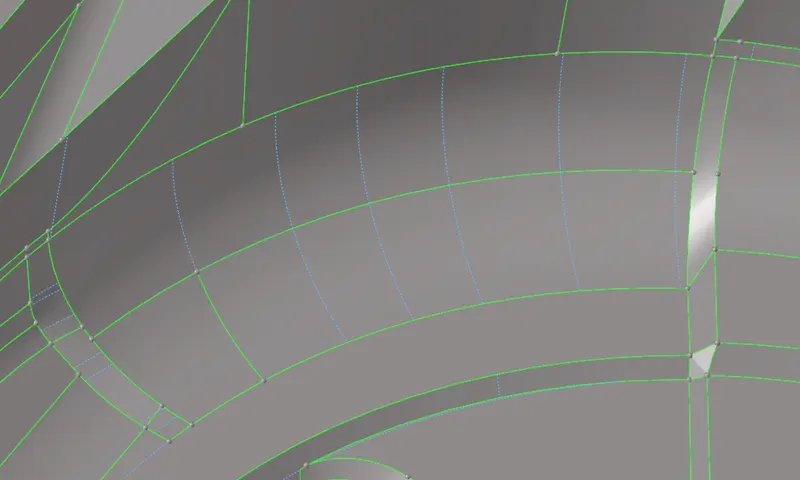
Fig 11: toggled lines to suppressed lines.
4. Start meshing the geometry after cleaning up the mid surface. Enter the quality criteria in the criteria file before meshing the component.
| Aspect Ratio | 5 | |
| Skewness | 45 | |
| Warping | 15 | |
| Taper | 0.5 | |
| Minimum Length | 2 | |
| Maximum Length | 8 | |
|
45 | |
| Maximum angle Quad | 135 | |
| Minimum angle Tria | 20 | |
| Maximum angle Tria | 120 | |
| Tria % | 10 |
Table 1:Given Quality criteria
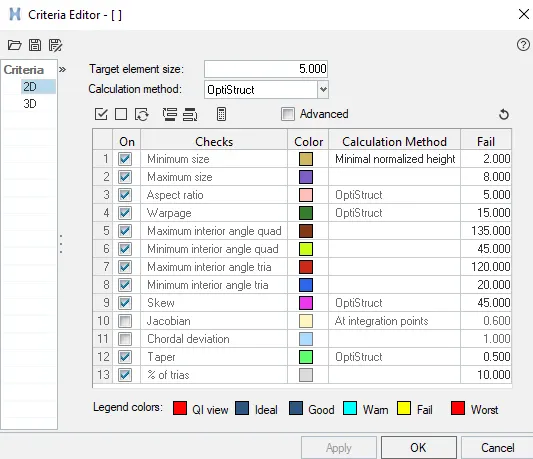
Fig 12: Criteria file.
5. Mesh the component starting from any one side for the geometry and continuing the flow throughout the component so that to get a good mesh flow. The auto mesh tool is used for meshing the component. While meshing the component, adjust the mesh flow in such a way such that the number of trias is maintained at a minimum level by adjusting the number of nodes on the edges of the surface.
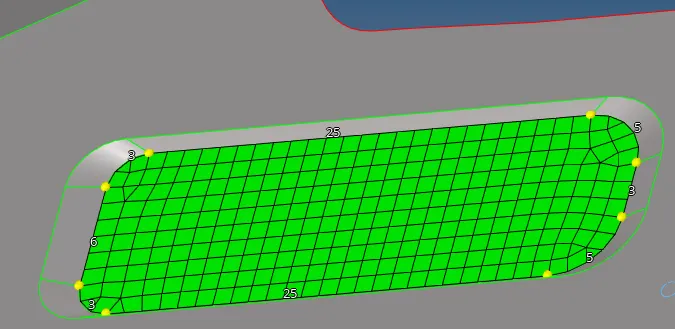
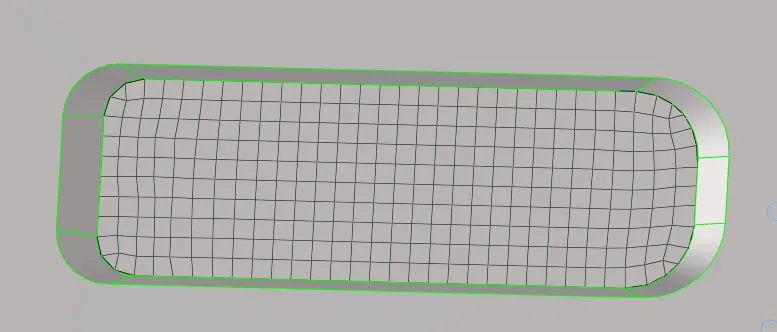
Fig 13: adjusting the mesh Fig 14: adjusted mesh
6. Set the mesh mode to "By element quality" so that the failed elements are easily visible.
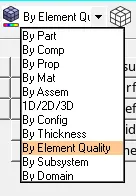
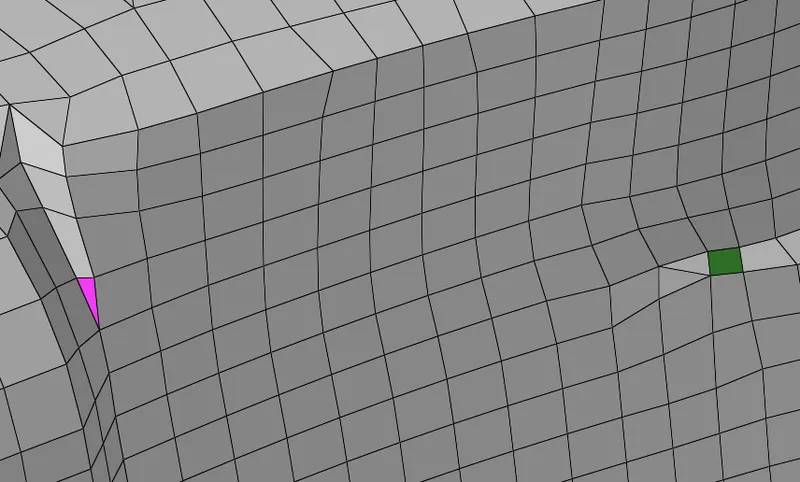
Fig 15: Setting mesh mode Fig 16: visible failed elements.
The failed elements can be fixed using the element fixing tools in the quality criteria menu. While using the quality criteria menu the failed elements are highlighted in yellow and red colours. Yellow errors indicate that the errors can be fixed easily, whereas the red colour indicates critical errors.
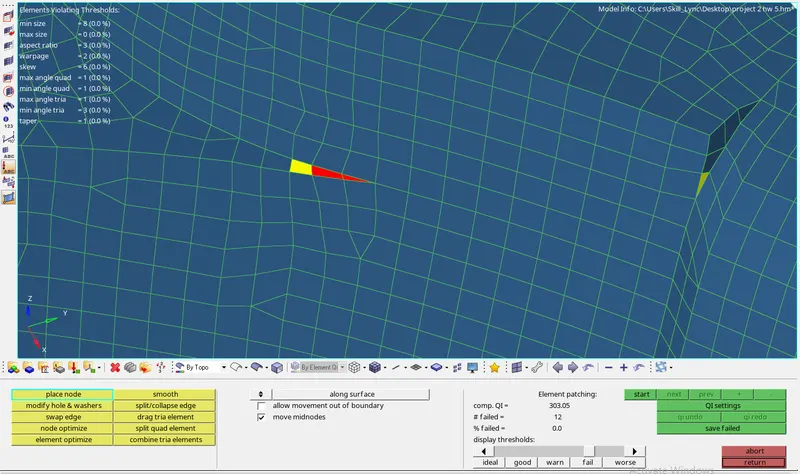
Fig 17: quality index menu.
7. Failed elements
There are totally 12 failed elements in the mesh. These failed elements are formed due to the skewness and minimum length errors created at the sharp edges of the component. These errors cannot be fixed because the features of the component may get deformed.
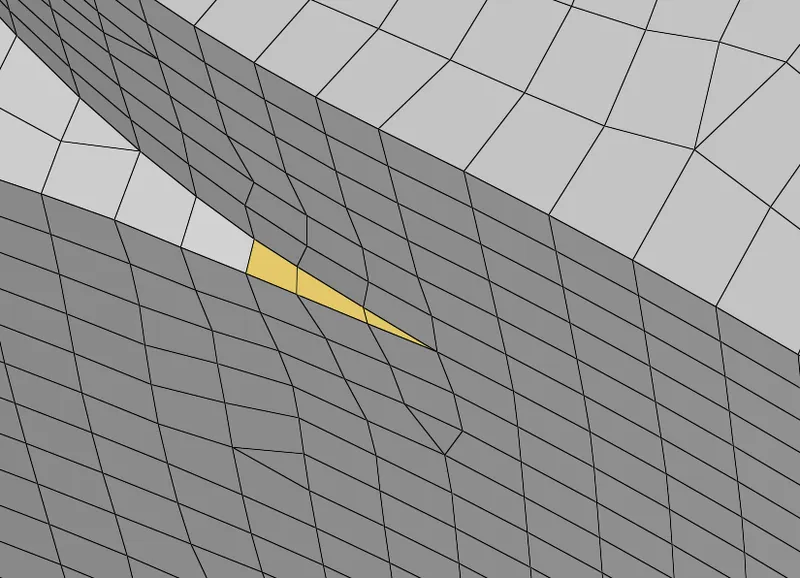
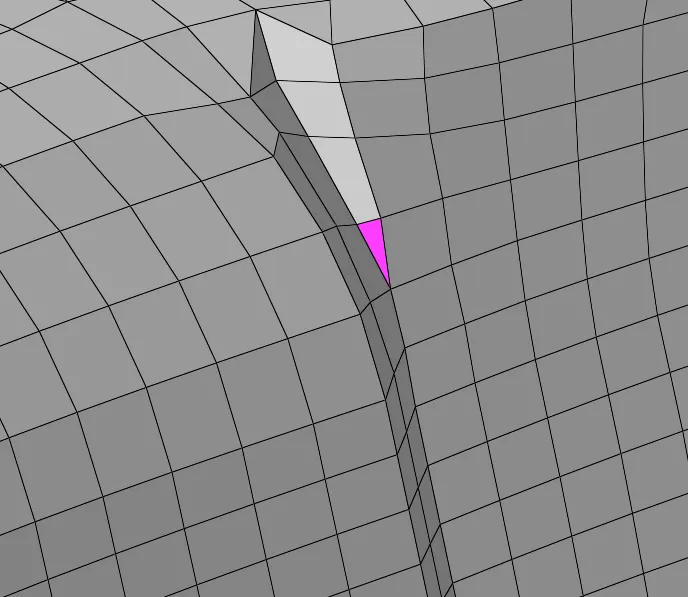
Fig 18: Minimum length error Fig 19: Skewness error
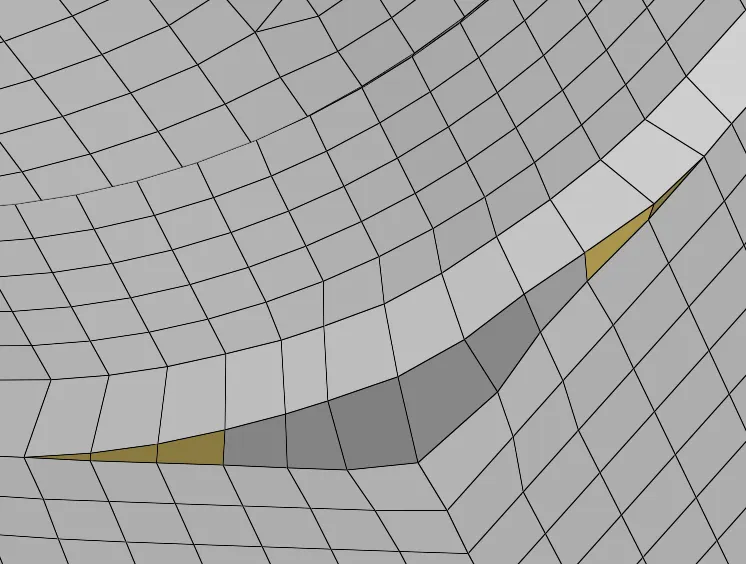
Fig 20: failed elements due to minimum length errors
8. Thickness is to be assigned after meshing the component. The parent geometry has a small varying thickness. So the thickness is generated automatically. Select the mesh menu, select the assign mid thickness option. The mid thickness is to be set as shown below.
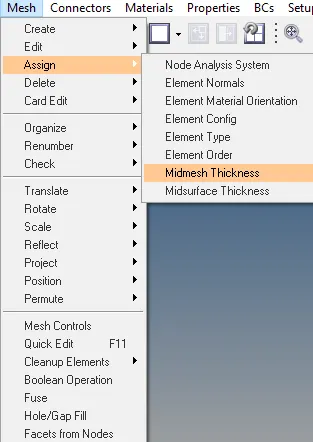
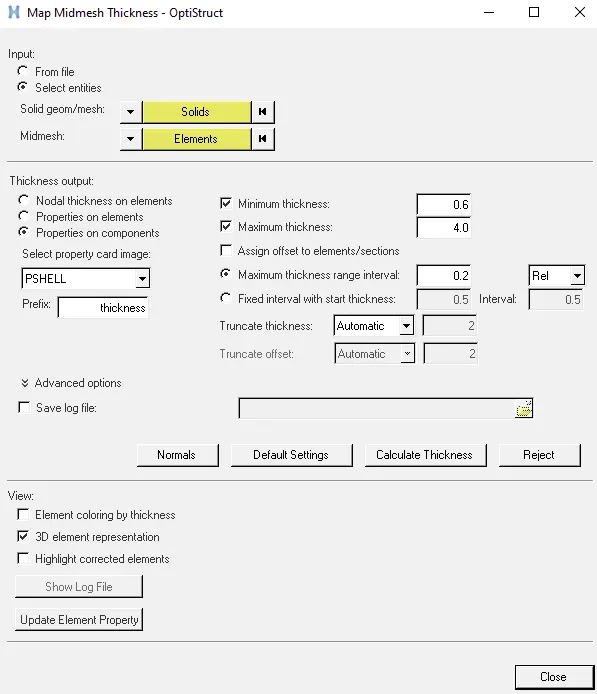
Fig 21: selecting mesh mid thickness. Fig 22:Mesh mid thickness control panel.
9. Set the mesh view mode to the 2D detailed mesh representation mode to view the thickness.
Result:
Thus meshing and assigning the thickness for the given spare wheel holder component is completed.
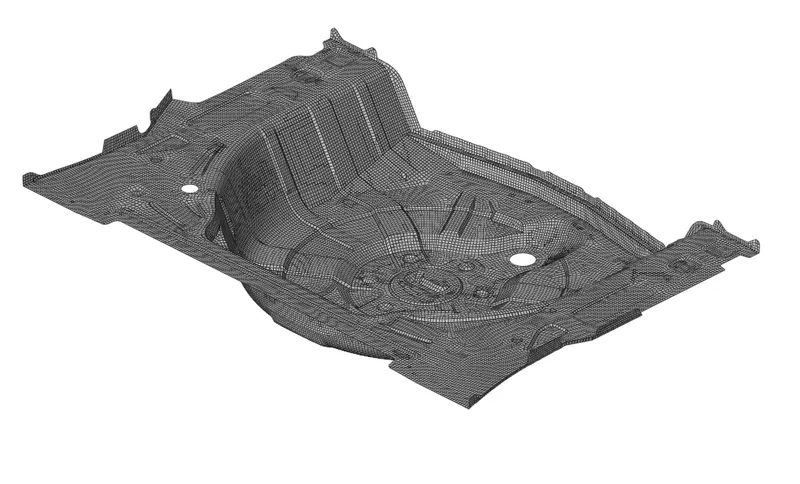
Fig 23: Meshed spare wheel holder
Learning Outcomes:
- Learned to fix the complicated imperfect surfaces.
- Learned to mesh the component maintaining good mesh flow.
- Learned to assign automatic thickness to the components.
- Learned to fix the failed elements in complicated regions.