Project 2
AIM:
To extract the midsurface for the given component and mesh it with given quality criteria.
METHODOLOGY:
- Importing the model.
- Cleaning the imported geometry.
- Extracting the midsurface for the geometry.
- Meshing the surfaces with given quality criteria.
INTRODUCTION:
A spare tire well is used to store the tire which is not in use. Usually a stiff cardboard is used to cover the spare tire.
PROCEDURE:
Importing:
- Click on open, open the folder in which file is located.
- Click on ‘open’.
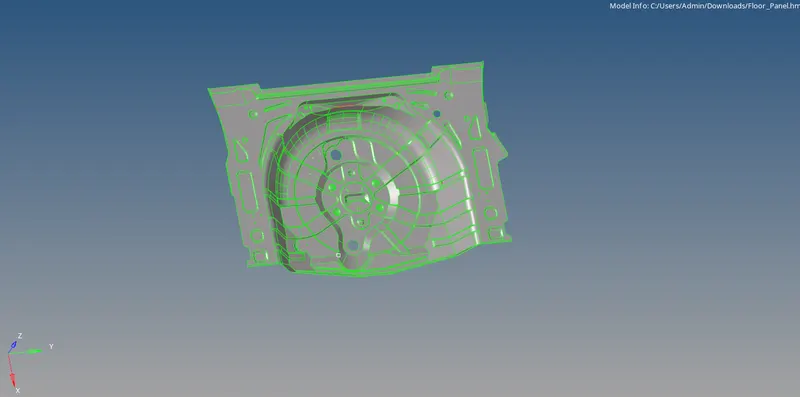
Figure-1(model import)
Clean up:
- Delete all the solids of the geometry.
- Clean up the each component using different options like
- Toggle
- Add / remove point
- Split surf node
- Split surf line
- Toggle all unwanted lines in the geometry.

Figure-2(clean up tools)
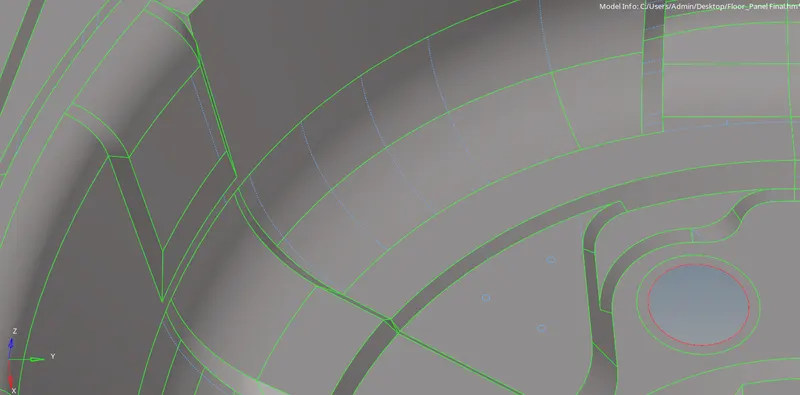
Figure-3(cleaning the model)
Midsurface & Meshing:
- Go to geom panel, click on ‘midsurface’.
- Select the component, add the offset value and click on ‘extract’.
- After extracting midsurface, split the component into small parts.
- Set the criteria in criteria editor module and click on apply.
- Go to 2D panel and select ‘automesh’.
- Select the surface and set element type as ‘5’ and mesh type as mixed.
- Click on mesh.
- Solve the errors if any by quality index options.
- Select the appropriate option to solve the error.
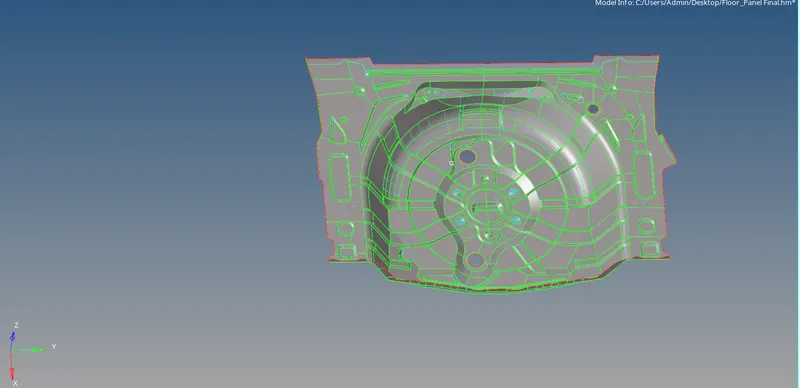
Figure-4(midsurface)
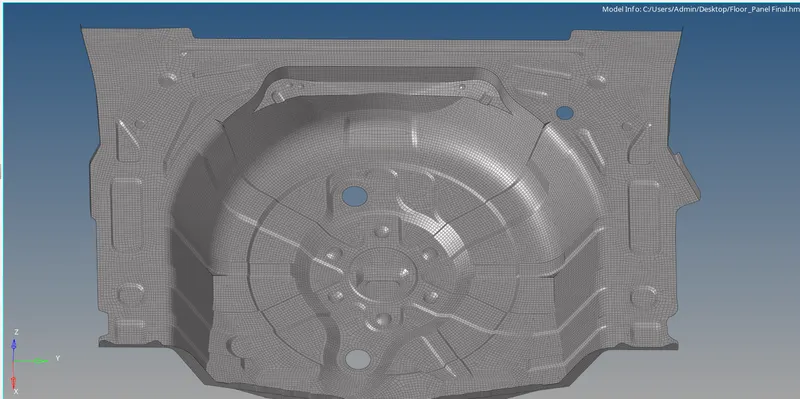
Figure-5(meshed model)
Assign the thickness:
- Go to mesh options, select the ‘assign’.
- Select ‘midmesh thickness’.
- Set the parameters and click on calculate thickness.
- It automatically creates the thickness properties and assign it.
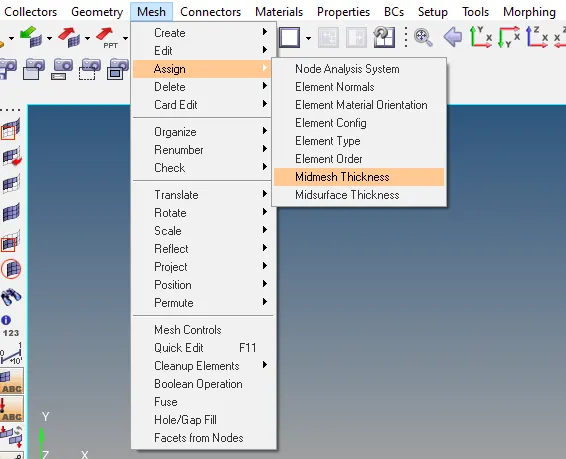
Figure-6(mesh module)
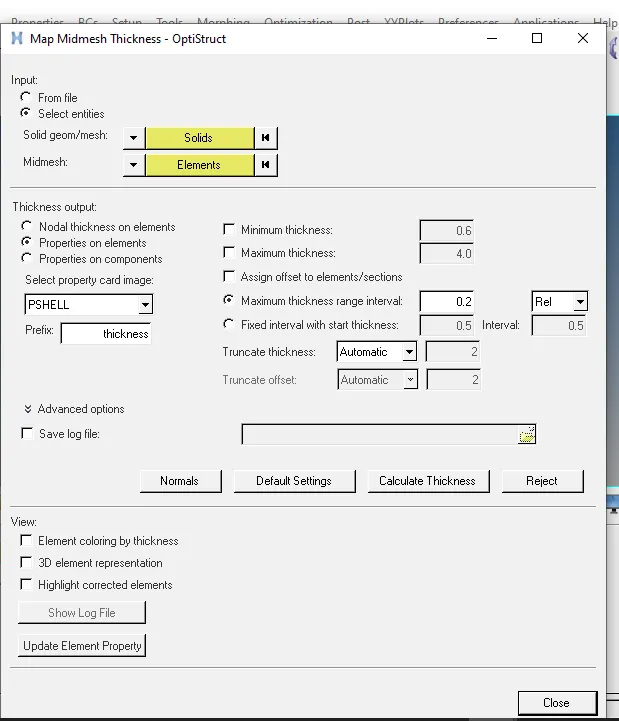
Figure-7(midmesh module)
Result:
The given model is extracted the midsurfaces and meshed the model with given quality criteria.
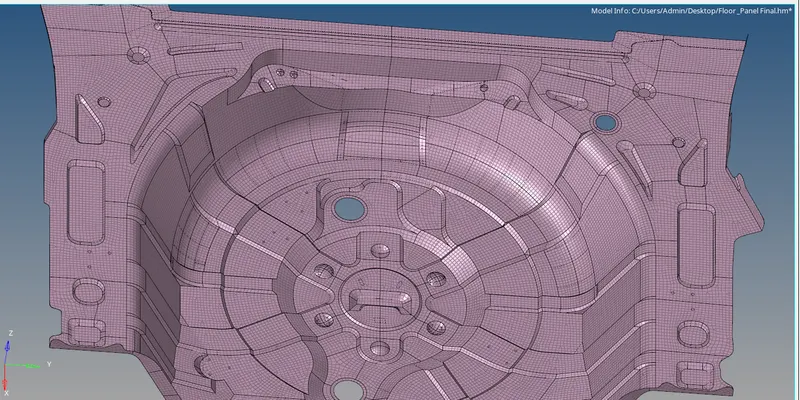
Figure-8( final model)
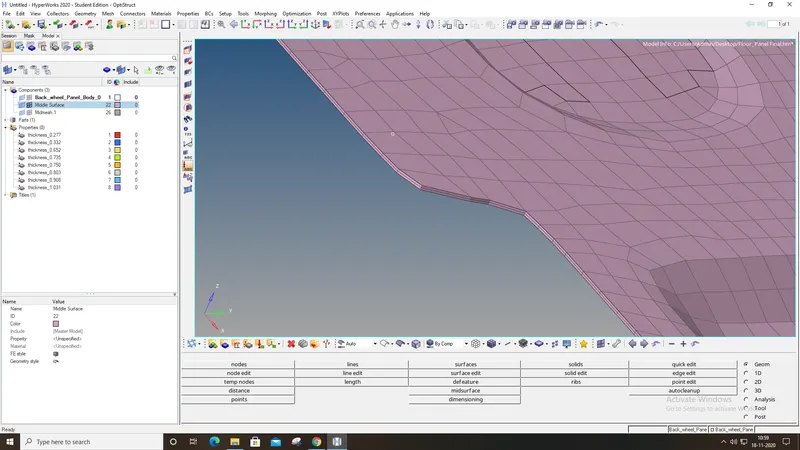
Figure-9(thickness)