Project 2
Challenge Project 02.
1). Route the Wiring harness on Given Back Door and Prepare flattened view drawing in CATIA V5. Application of all Packaging rules, Industry best practices studied in this course shall be demonstrated in design. Apply Protection coverings as required.
Ans). So this challenge contain a Back Door( Tail Gate) model where i route the wiring harness. As we all know that tail gate contain various electrical parts for aapropriate and pricise fuctionality during operation.
Electrical devices like viper actautor motor, parking sensor, rear camera, tail lamp, No. plate light and ect.,
Following are the steps which i follow to complete the challenge:
- Start with download the stp/igs files of connectors, clips, support parts.
- Then ceate them in cad part and converted those parts in electical parts in Electrical Part Design workbench.
- Then placed the electrical define parts on back door model as per required position.
- Then finally route the wiring harness from interconnection connector to all the other connectors with the application clips.
- After routing the wiring harness i am add protective covering to required bundles.
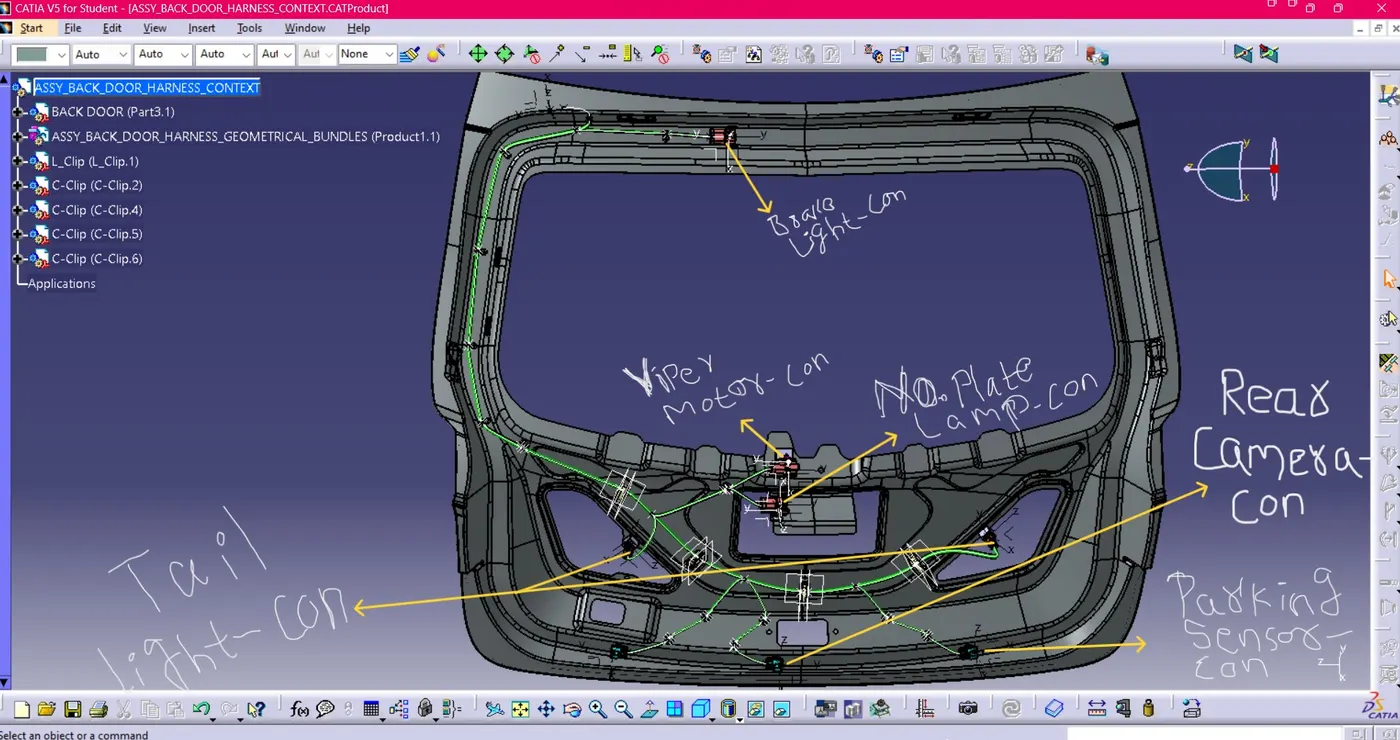
Below the image of back door harness assembly with defining the connector connection with electrical devices. In image "Con" stand for connector.
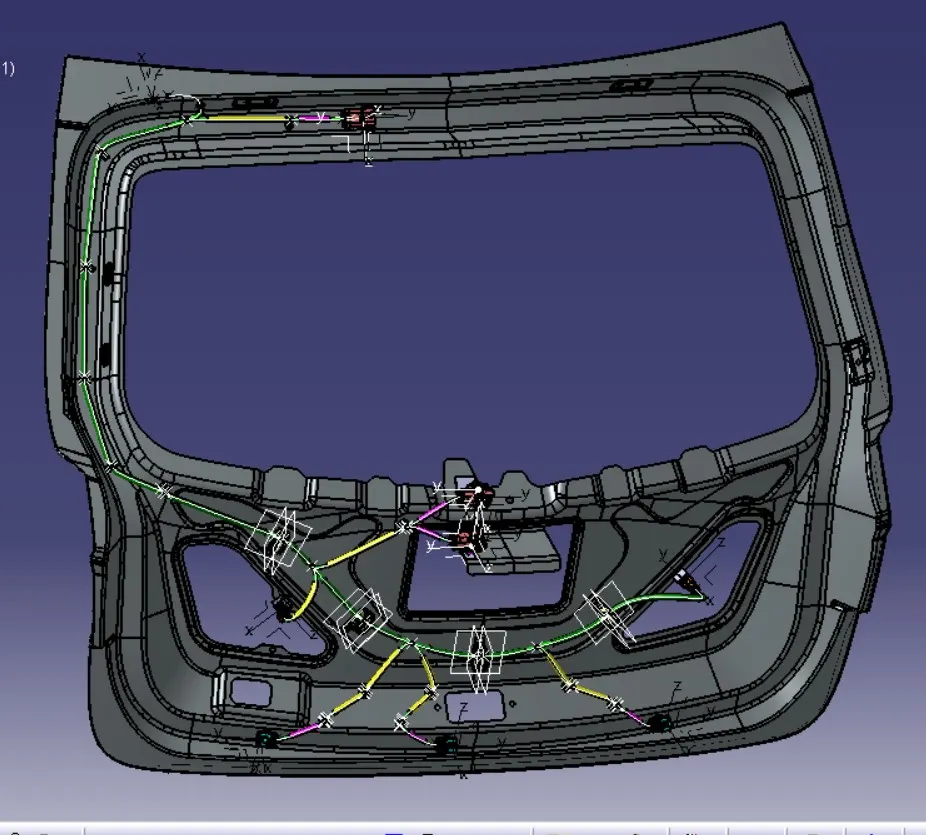
- After completion of wiring routing on back door then i check the bundle continuity for flattening view and result are positive all the bundles are fully connected.
As shown in below image.
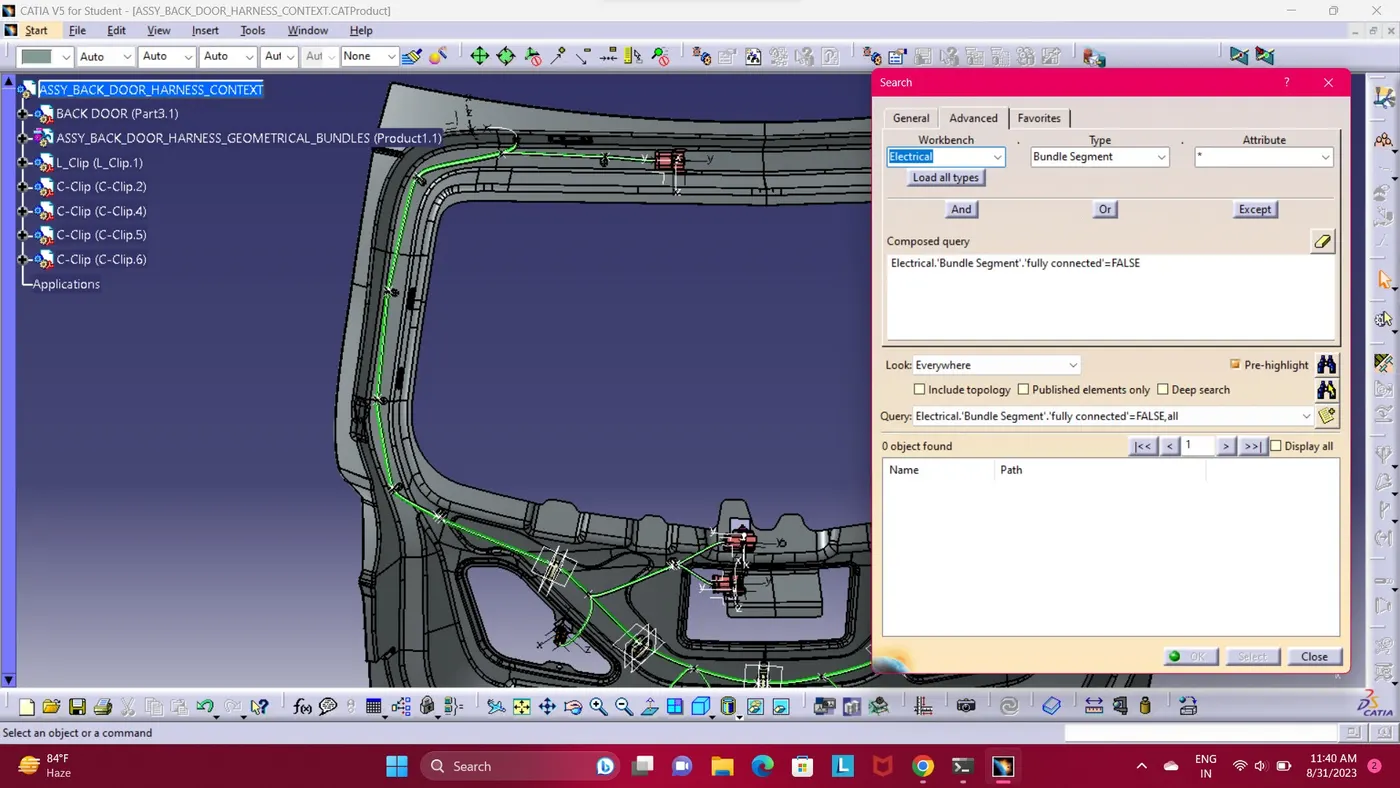
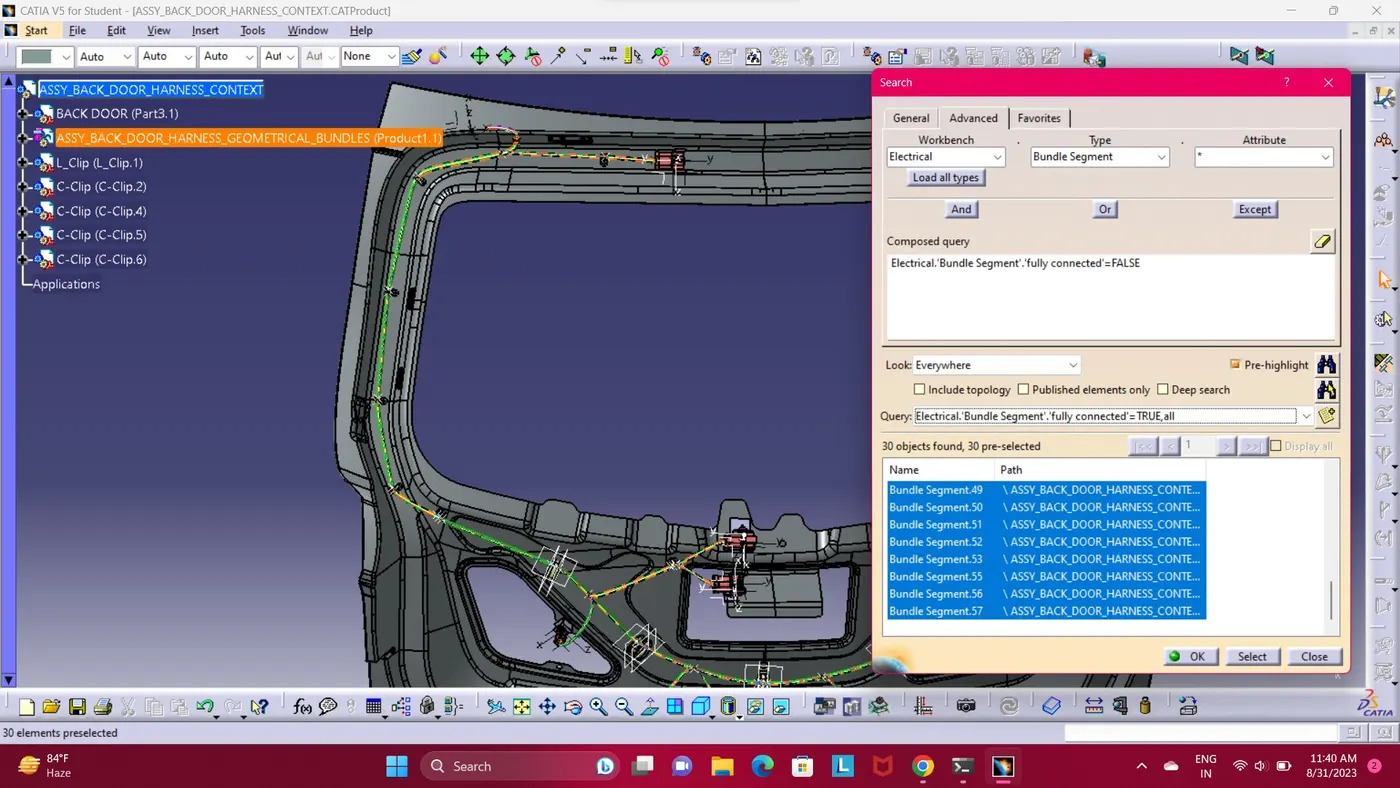
( Bundle continuity check with Flase attribute criterion ) ( Bundle continuity check with True attribute criterion )
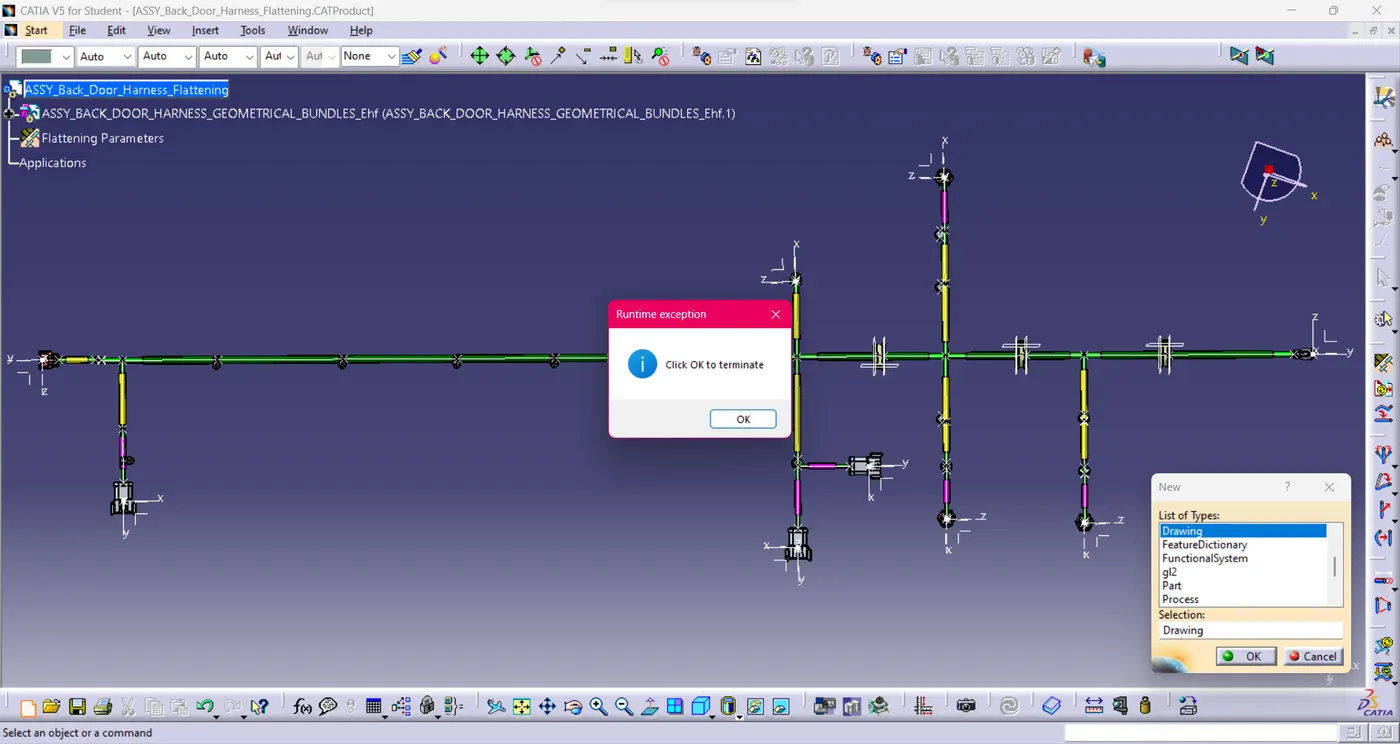
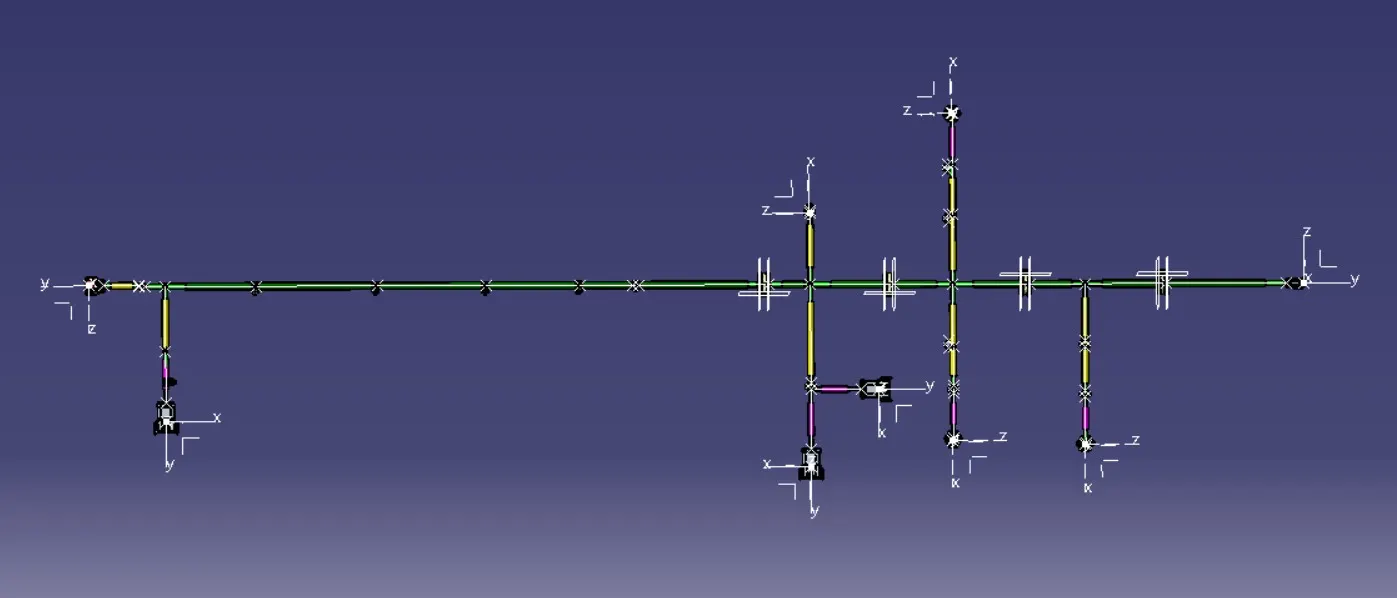
- To create a flattening view for drawing first i taken a new product and move to Electrical Harness Flattening workbench. Then setting-up the electrical parameters in harness flattening parameter
 . Then arrange both (Context assy & Ehf) the windows virtically and extract
  the harness geometrical bundle to flattening workbench and lastlly apply the flatten command
  .
.
NOTE:
Here in this challenge i am not able to apply DRAWNING Workbench because of catia software error. That why i am not created Drawning Sheet for flatten model. Even i tried uninstalled and reinstalled the software but the same error pop-up. Regarding this error i attend the session but mentor even cant help because it software issue he said, and advice to try uninstalled and reinstalled software. Maybe work.