Project 1 - Wiper control system and Vehicle speed calculation for ABS using Wheel Speed sensor
Wiper control system
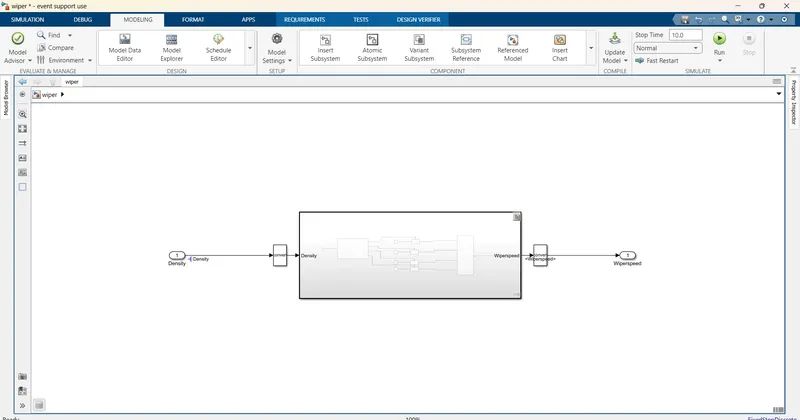
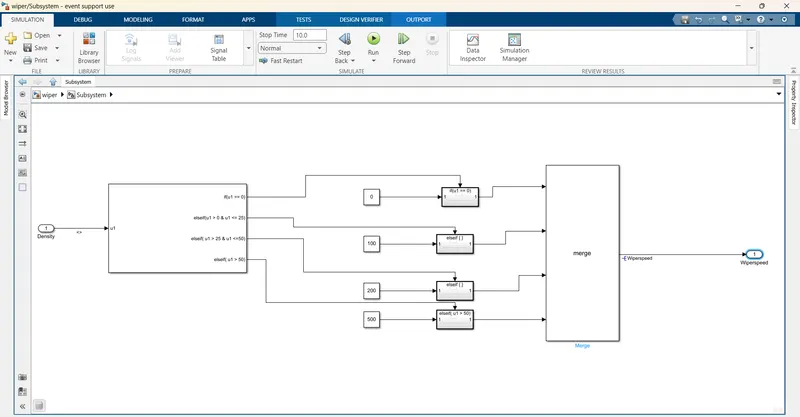
1. Simulink model file
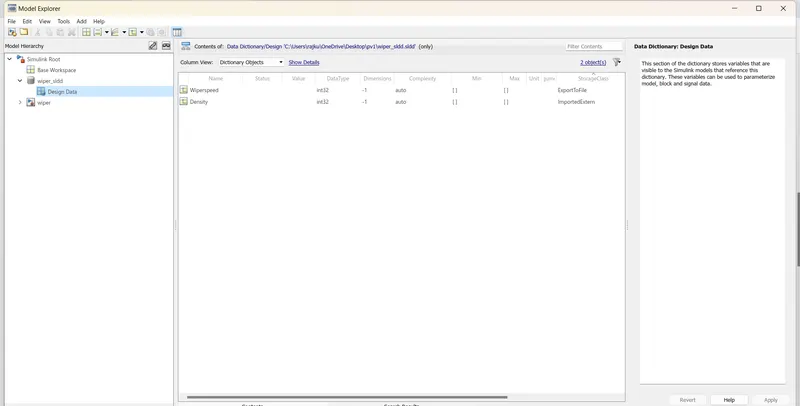
2.SLDD file
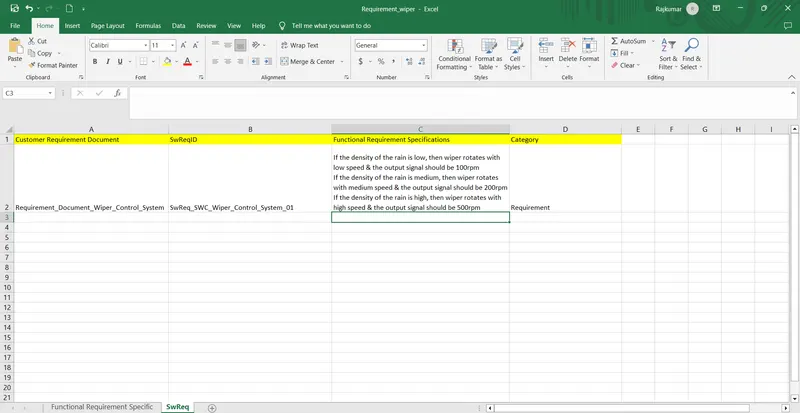
3. Requirement tagging report
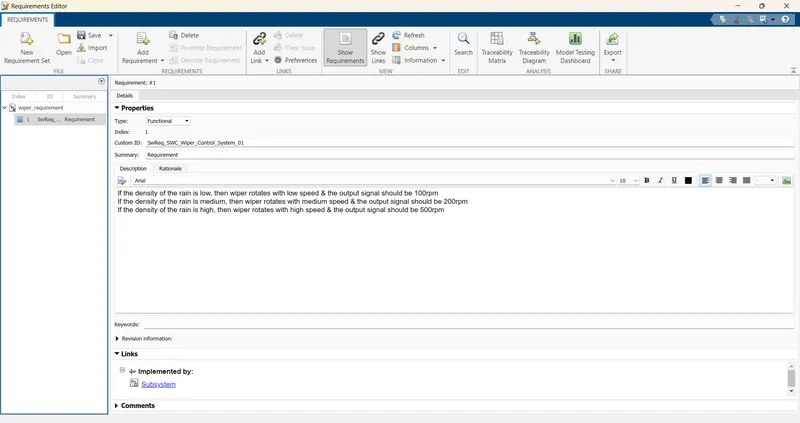
4.Model advisor - JMAAB compliance report 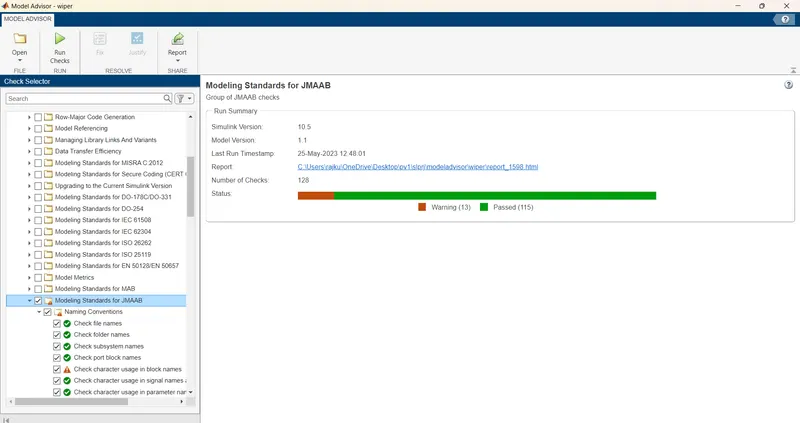
5.Fixed-point Tool
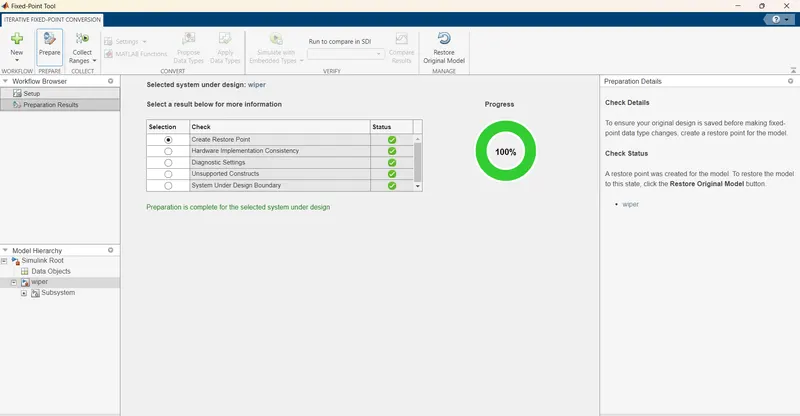
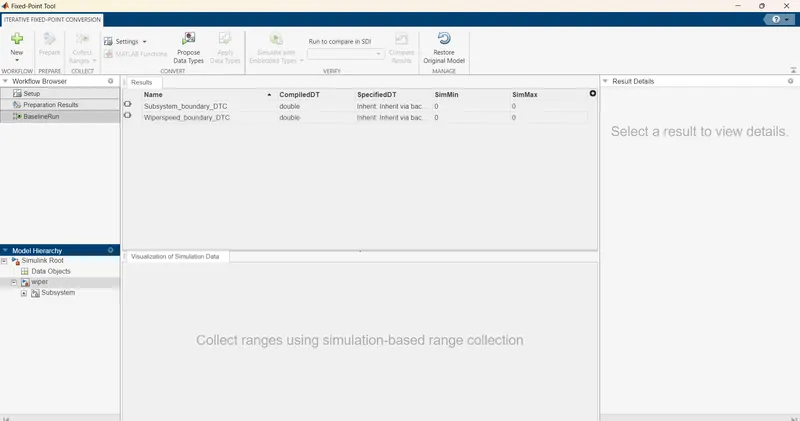
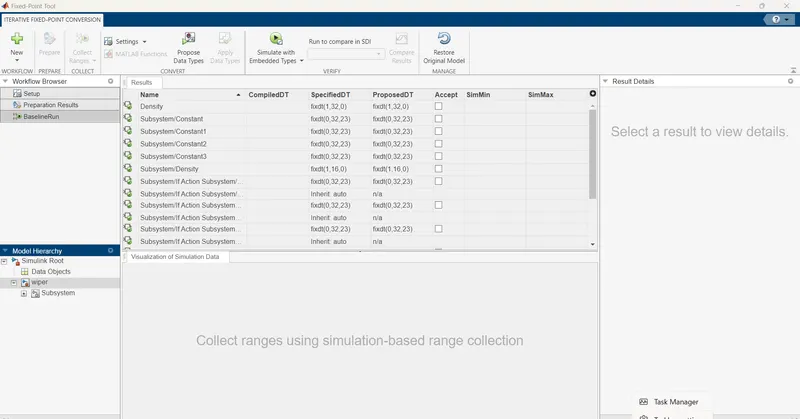
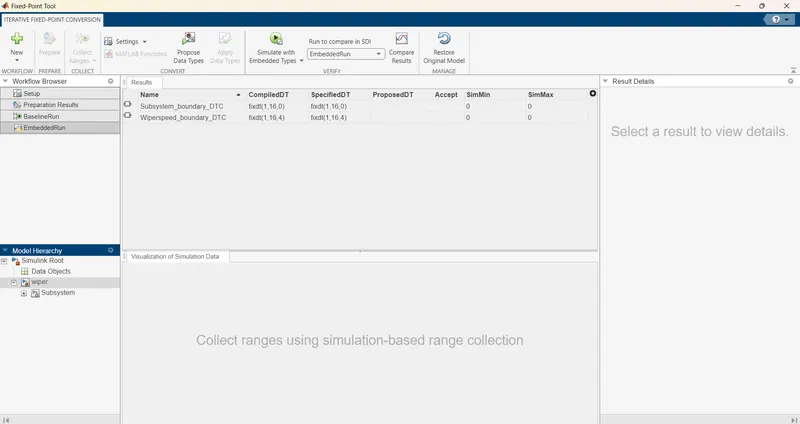
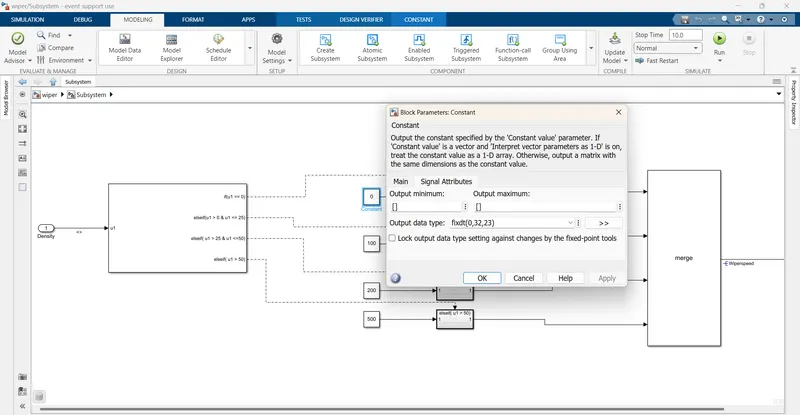
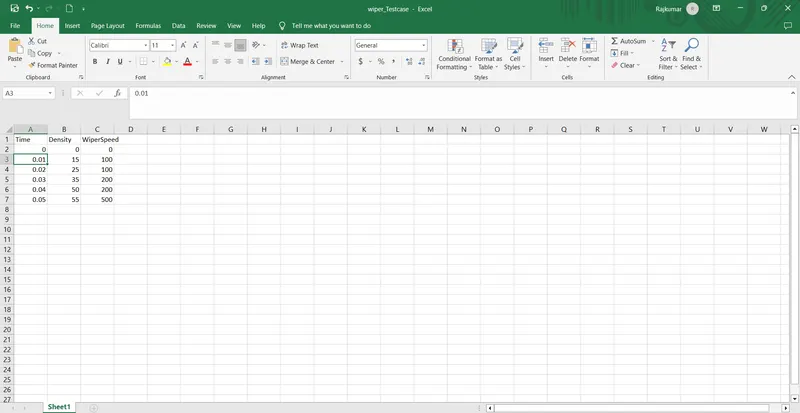
6.SLDV Design error detection report
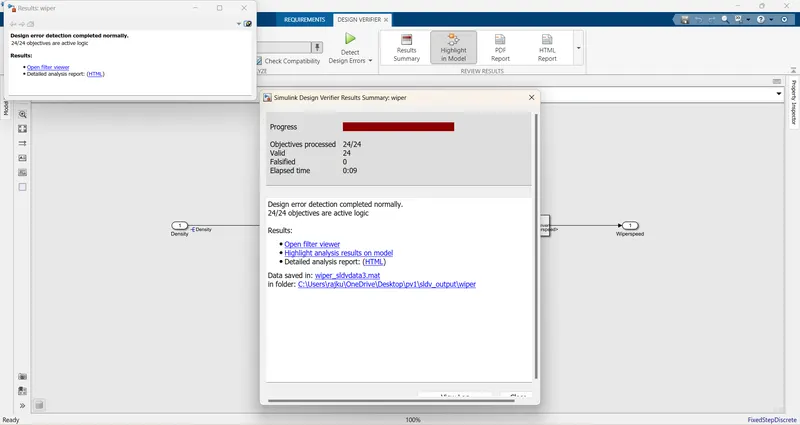
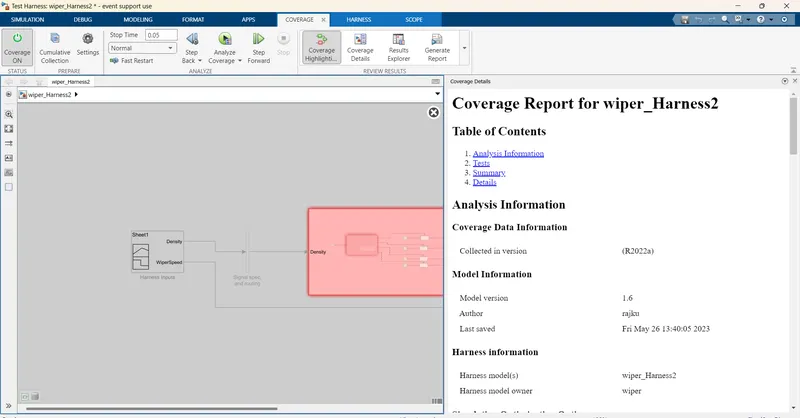
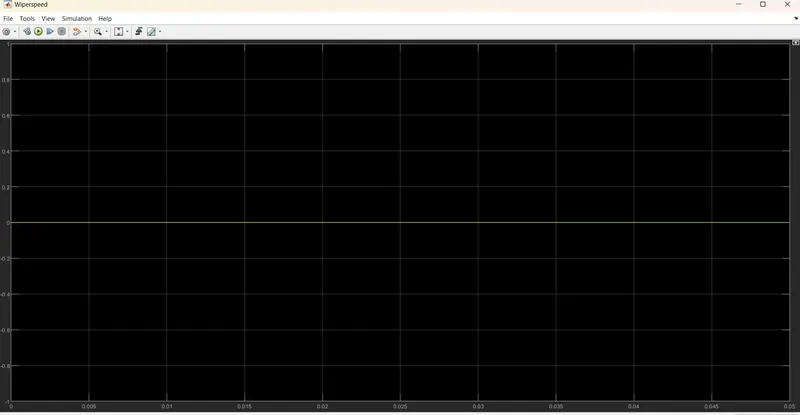
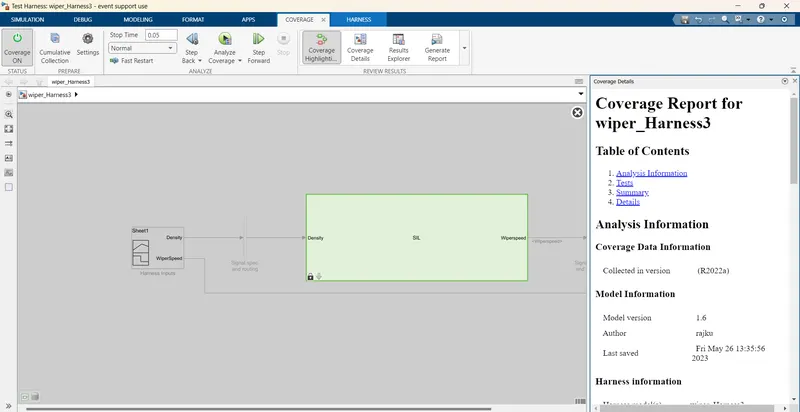
7.Functional test case, MIL, SIL harness, coverage Reports 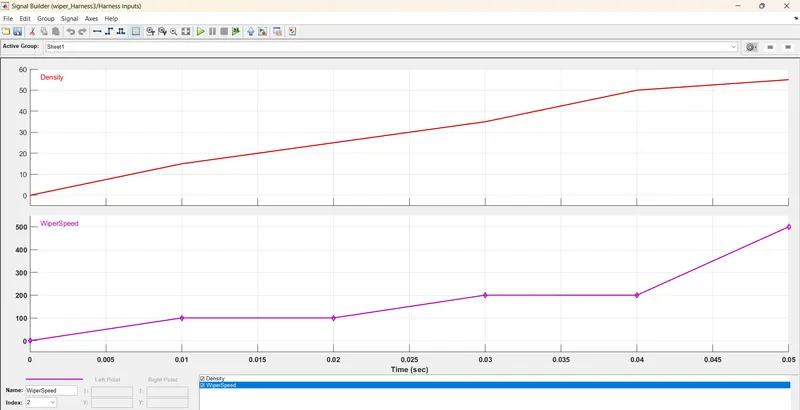
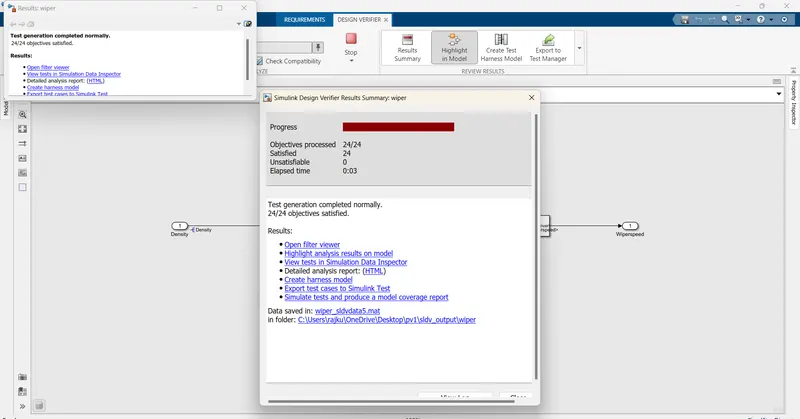
8.SLDV test generation report
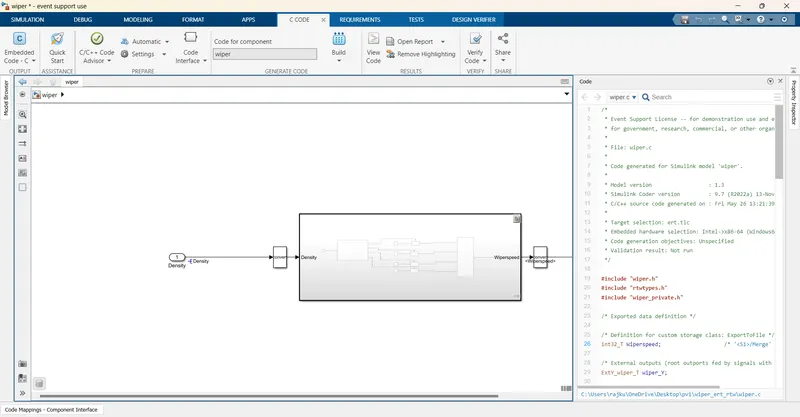
9. Auto-code generation report, main , .c & .h files
10. Poly space analysis report / outputs
1. Open model and save a copy to a writable location.
2. Open the Simulink Coder app.
3. Open the Model Configuration Parameters dialog box. In the C Code tab, click Settings. Alternatively, from the command line, enter:
View the code generation report.
The report includes links to model files and associated utility and header files.
Polyspace Bug Finder:
In c & c++ embedded software, polyspace bug finder detects run time errors,as well as AUTOSAR c++14,CERT C++ & custom naming Conventions.
First we need to do the Configuration parameters settings ;In that we can see tha tha polyspace general overview.
'Project configuration' option in configuration parameters can be configured via the polyspace tool as well .
And we need to set the source code language is set to 'C.
The 'Bug finder Analysis ' option allows us to choose the criteria based on which the run time errors & other code related errors are evaluated.
Integer Overflow parameters are not available by default, hence we can choose custom & select the same .
Each defect category parameter listed here is automatically classified by the tool based on its impact & criticality:
Low , medium & high.
Inside the Polyspace workspace will be created. All the files wiil be located on the workspace.
like Target & computer ,Coding standards & code metrics as well as precision & Reporting etc..
We need to select all the options inside it .
for Auto code generation we need to set the configuration parameters as fuxed step solver and discrete continous mode , Then after code generation must be in embedded coder only.
After setting the model settings click on apps , in that choose embedded coder , click on build the the code will be generated.
We need to import files in coding standards & code metrics And we need to check the option of MISRAC2004.
And check the option of calculate code metrics.
In Bug finder analysis check the option of default.
And we can see the errors in tab.
In polyspace , the very first thing we need to clikc on the new project, and we need to enter our project name.
Before running polyspace Bug finder, generate code using Embedded coder.
Reports folder gets created in the MATLAB folder path where the model is placed .
Polyspace application opens with a new project automatically getting created in the same name as model that we created in our folder.And at last we need to analyze the code results.
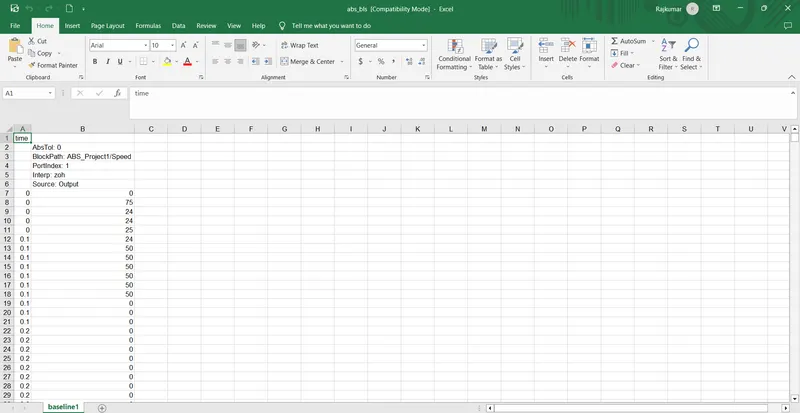
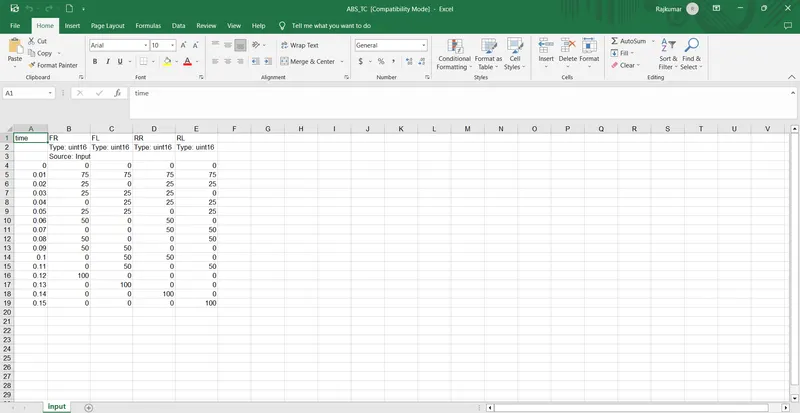
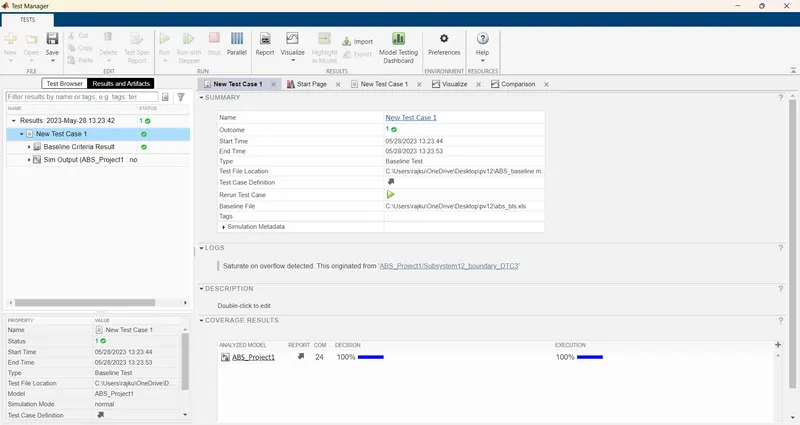
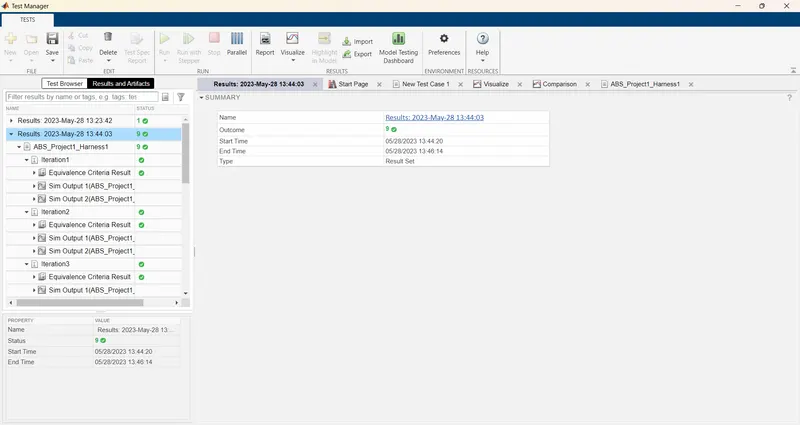
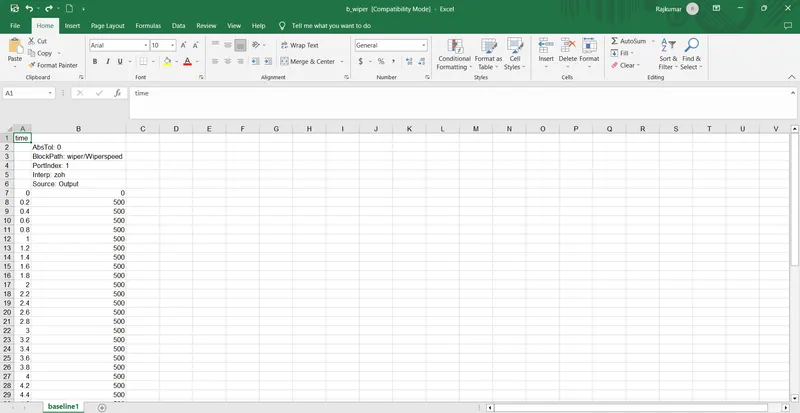
11.Test manager reports – baseline & back-to-back testing
Vehicle speed calculation for ABS using Wheel Speed sensor
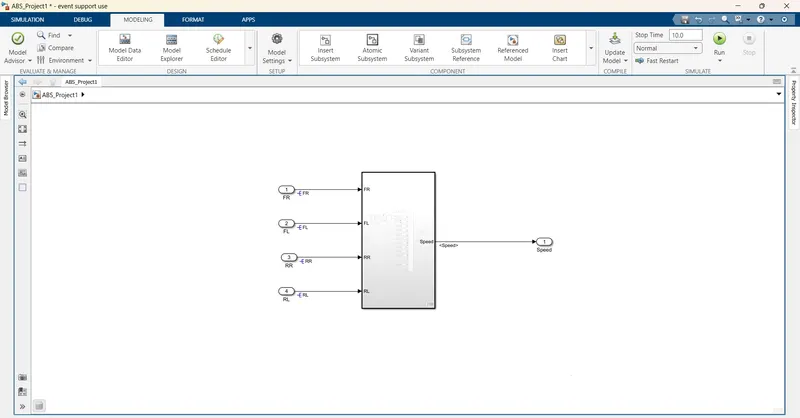
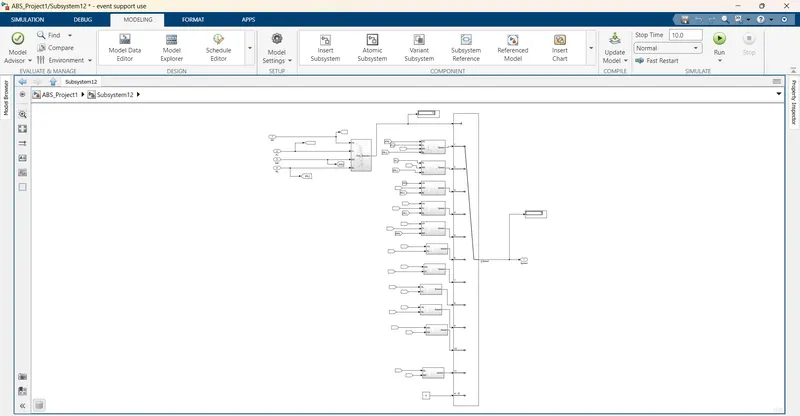
1. Simulink model file
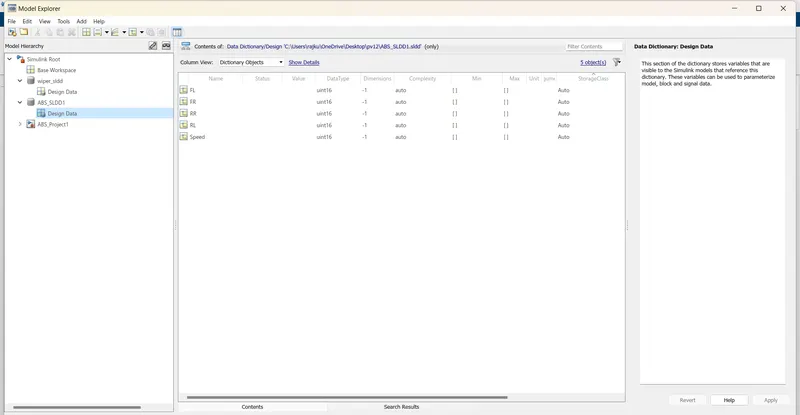
2.SLDD file
3. Requirement tagging report
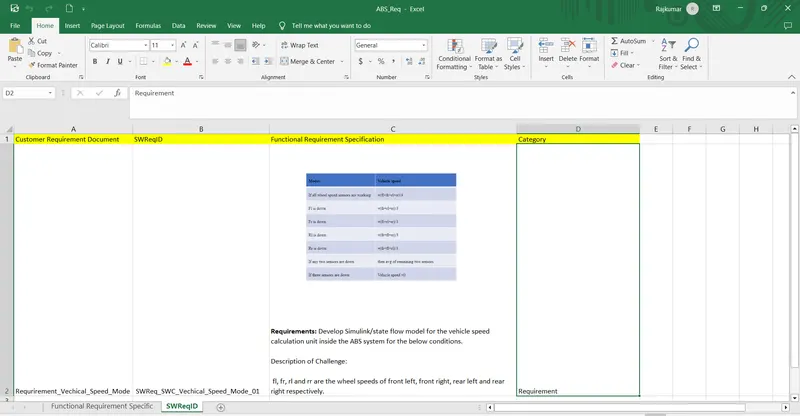
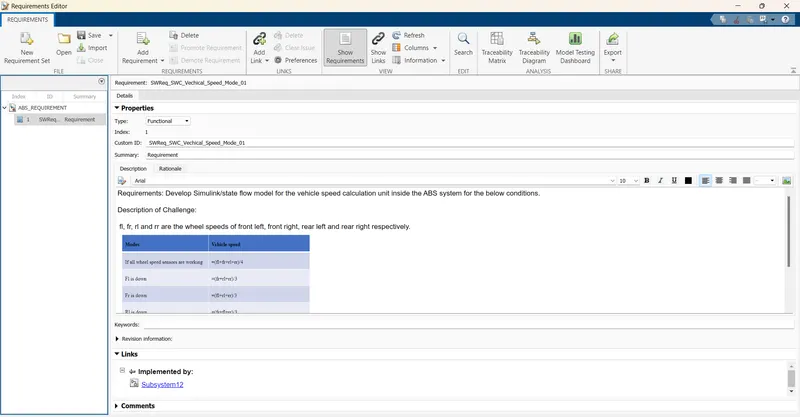
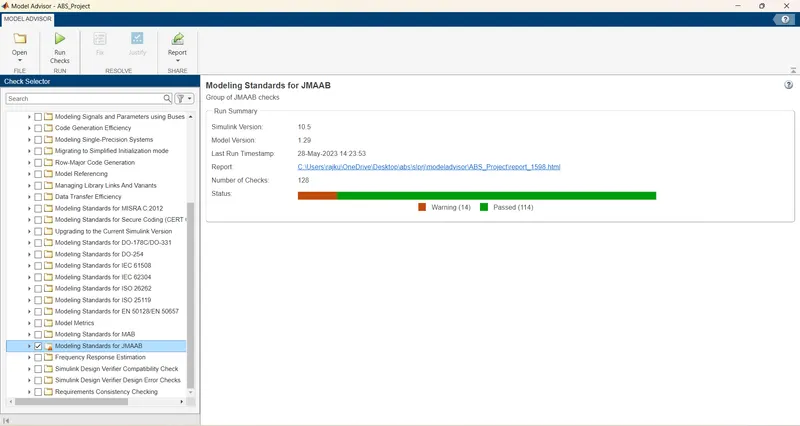
4.Model advisor - JMAAB compliance report
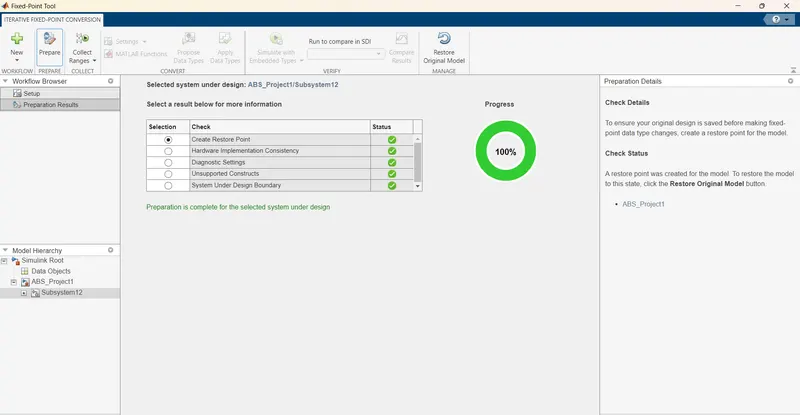
5.Fixed-point Tool
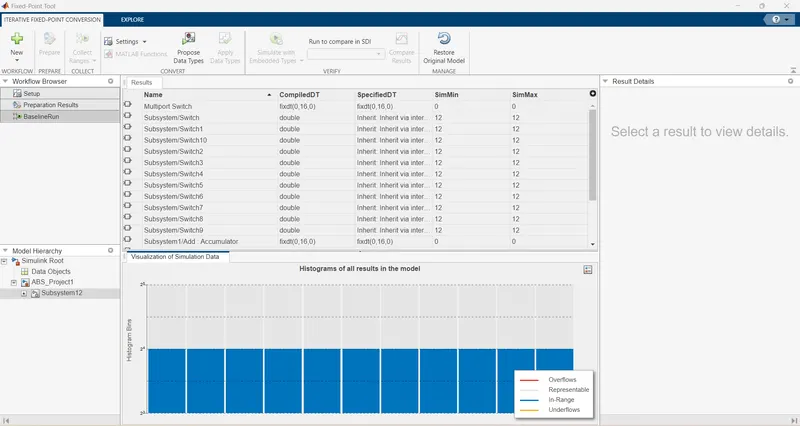
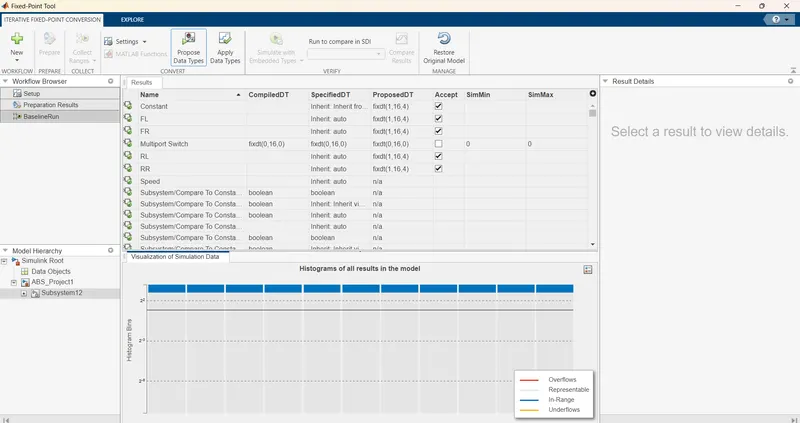
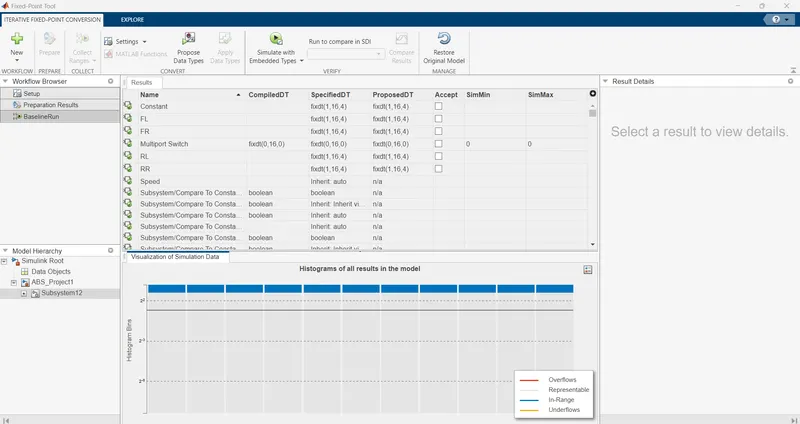
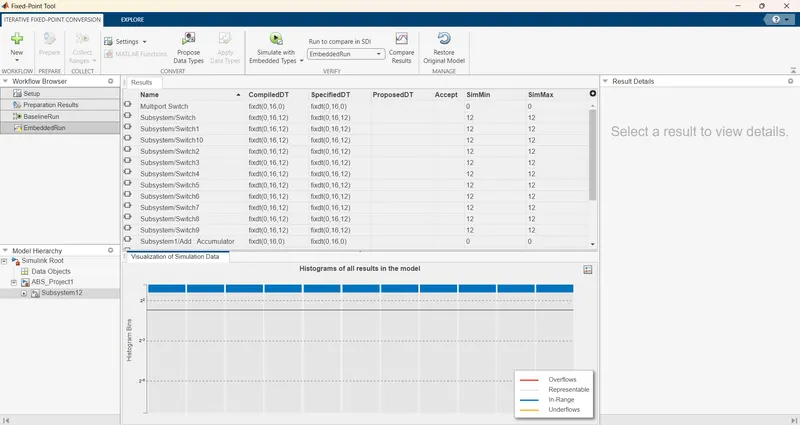
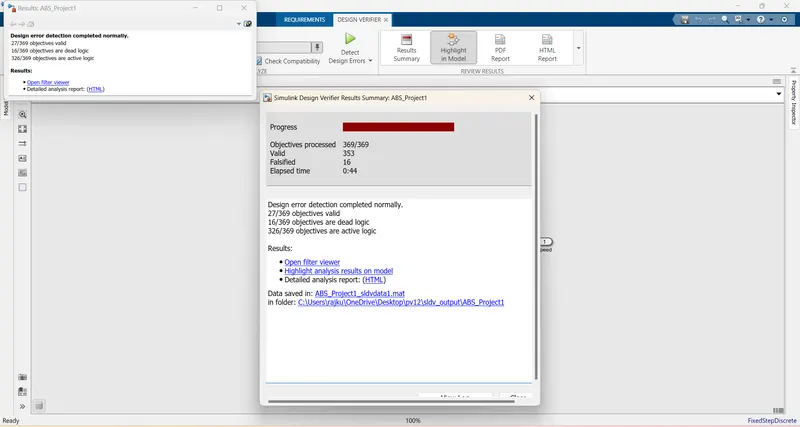
6.SLDV Design error detection report
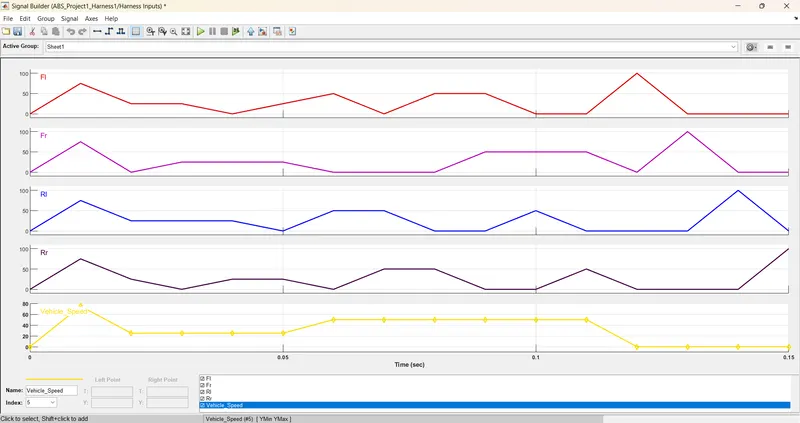
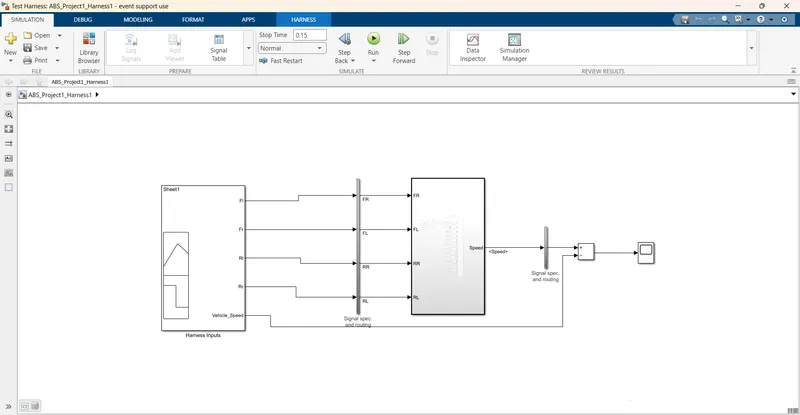
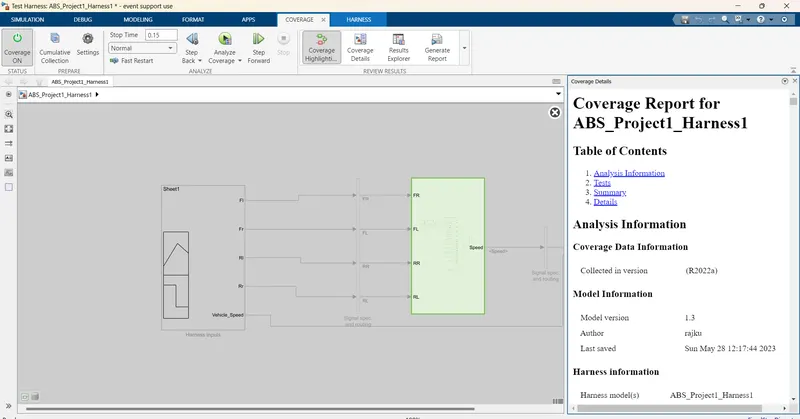
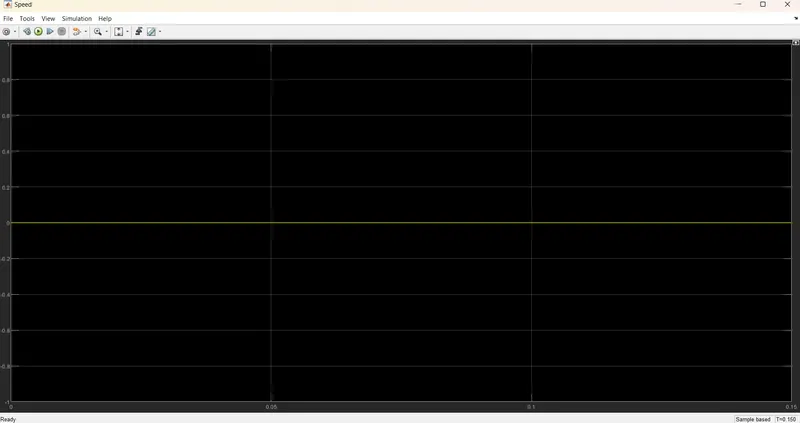
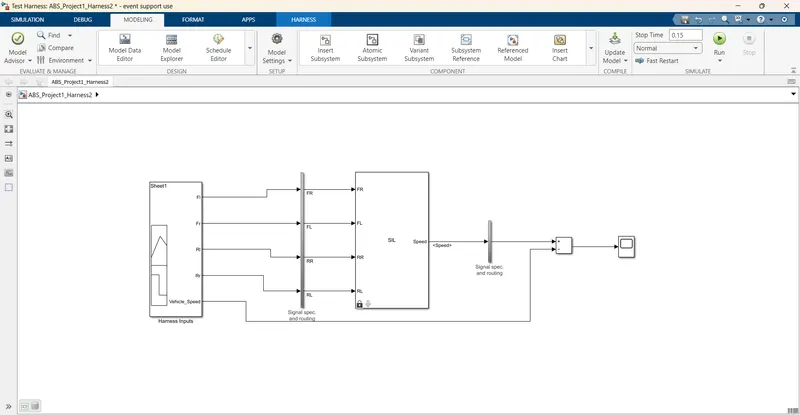
7.Functional test case, MIL, SIL harness, coverage Reports 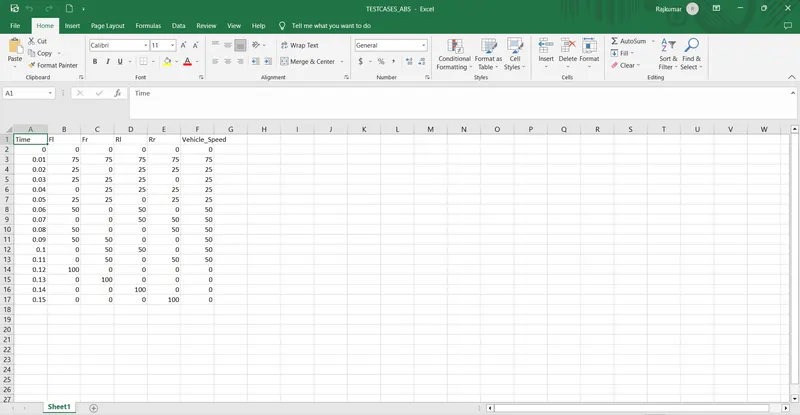
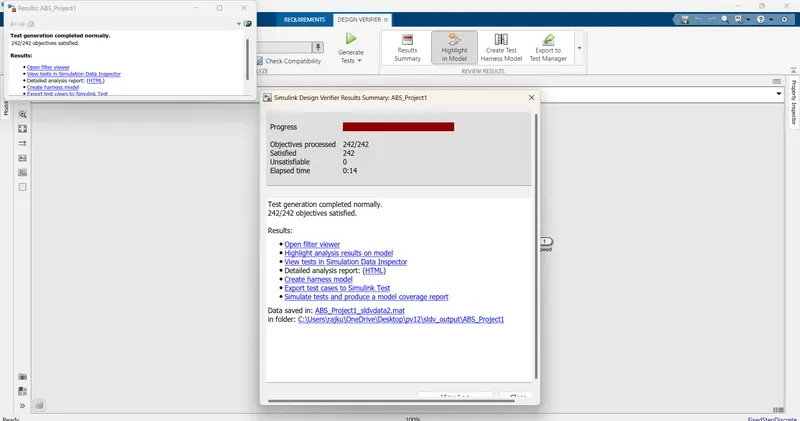
8.SLDV test generation report
9. Auto-code generation report, main , .c & .h files 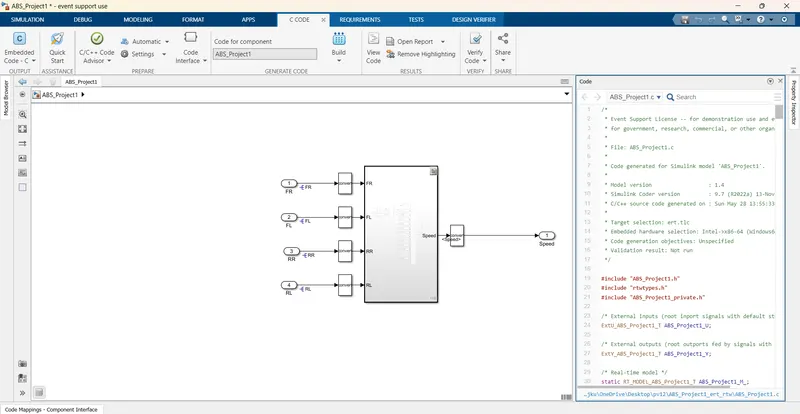
10. Poly space analysis report / outputs
1. Open model and save a copy to a writable location.
2. Open the Simulink Coder app.
3. Open the Model Configuration Parameters dialog box. In the C Code tab, click Settings. Alternatively, from the command line, enter:
View the code generation report.
The report includes links to model files and associated utility and header files.
Polyspace Bug Finder:
In c & c++ embedded software, polyspace bug finder detects run time errors,as well as AUTOSAR c++14,CERT C++ & custom naming Conventions.
First we need to do the Configuration parameters settings ;In that we can see tha tha polyspace general overview.
'Project configuration' option in configuration parameters can be configured via the polyspace tool as well .
And we need to set the source code language is set to 'C.
The 'Bug finder Analysis ' option allows us to choose the criteria based on which the run time errors & other code related errors are evaluated.
Integer Overflow parameters are not available by default, hence we can choose custom & select the same .
Each defect category parameter listed here is automatically classified by the tool based on its impact & criticality:
Low , medium & high.
Inside the Polyspace workspace will be created. All the files wiil be located on the workspace.
like Target & computer ,Coding standards & code metrics as well as precision & Reporting etc..
We need to select all the options inside it .
for Auto code generation we need to set the configuration parameters as fuxed step solver and discrete continous mode , Then after code generation must be in embedded coder only.
After setting the model settings click on apps , in that choose embedded coder , click on build the the code will be generated.
We need to import files in coding standards & code metrics And we need to check the option of MISRAC2004.
And check the option of calculate code metrics.
In Bug finder analysis check the option of default.
And we can see the errors in tab.
In polyspace , the very first thing we need to clikc on the new project, and we need to enter our project name.
Before running polyspace Bug finder, generate code using Embedded coder.
Reports folder gets created in the MATLAB folder path where the model is placed .
Polyspace application opens with a new project automatically getting created in the same name as model that we created in our folder.And at last we need to analyze the code results.
11.Test manager reports – baseline & back-to-back testing