Project 1 : CFD Meshing for Tesla Cyber Truck
Aim:
To do surface mesh & Wind Tunnel by considering the mesh target length for Cybertruck
Objective:
Step 1: Open the Challenge model in ANSA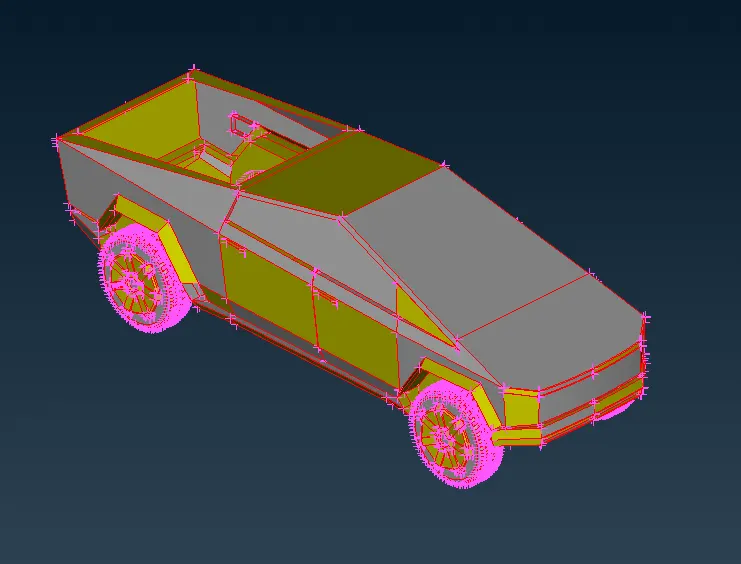
Step 2:
Then do the perimeters --> Length from Classic MESH Deck to change the length of perimeter to 1 inorder to have a proper curvature.
Bisect the model into half using Plane cut --> Single option by selecting three hot points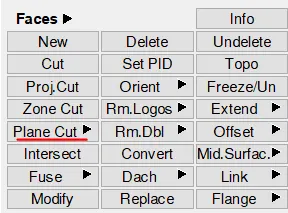
Now delete the half of the model using global delete option 
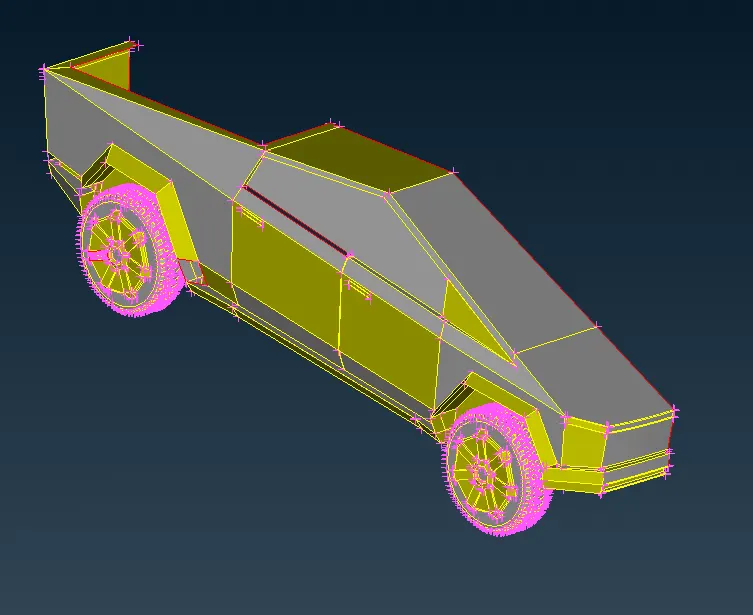
Step 3:Need to perform geometry cleanups for the Cybertruck
GeometryCleanups include Creating faces using Face --> New Option, removing the overlapping surfaces using Face --> Delete option
After doing basic cleanups, do the Geometric Checkup from Check manager option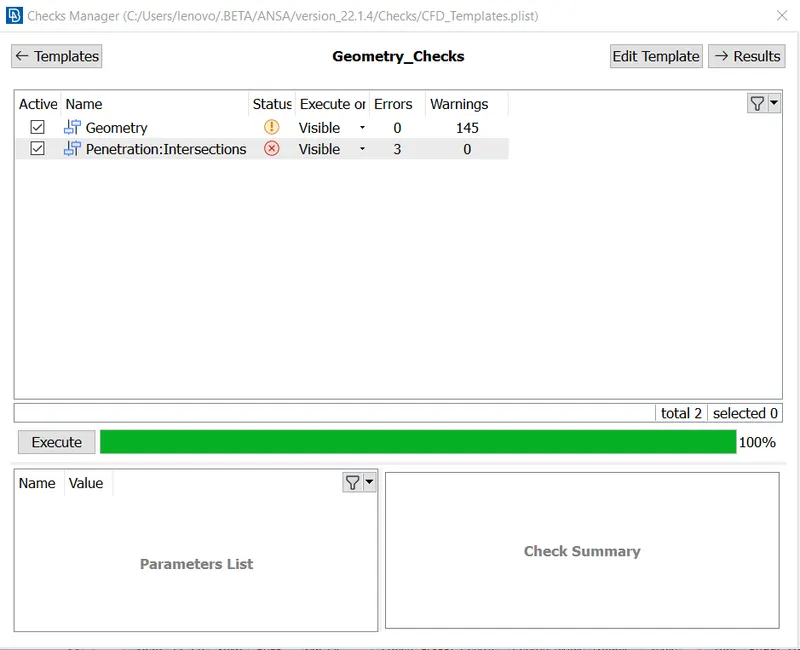
Double click the Penetration option to identify the intersection entities (by selecting it)
After that, do the proper geometry cleanups again by following the same steps.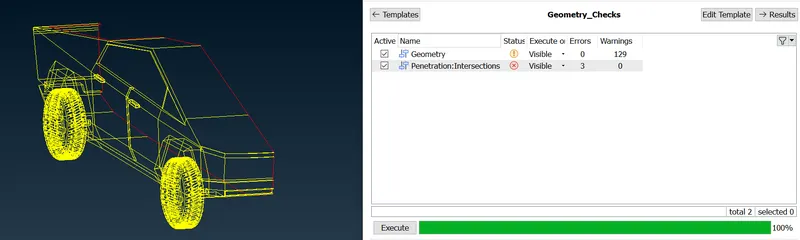
After doing the geometry cleanups, try to overlook the sharp edges also, inorder to avoid skewness during meshing.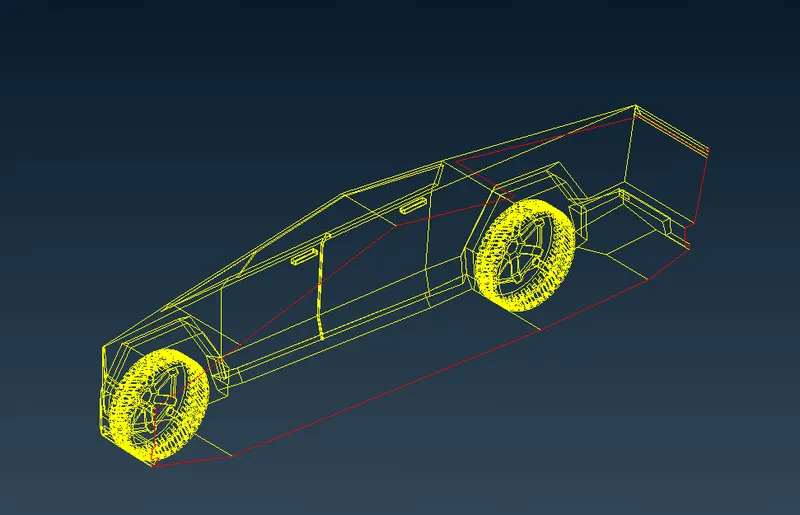
Step 4: Now assign the PID's to the model by poviding the proper the definition (Body, Window, Rims and Tyres & Lightings)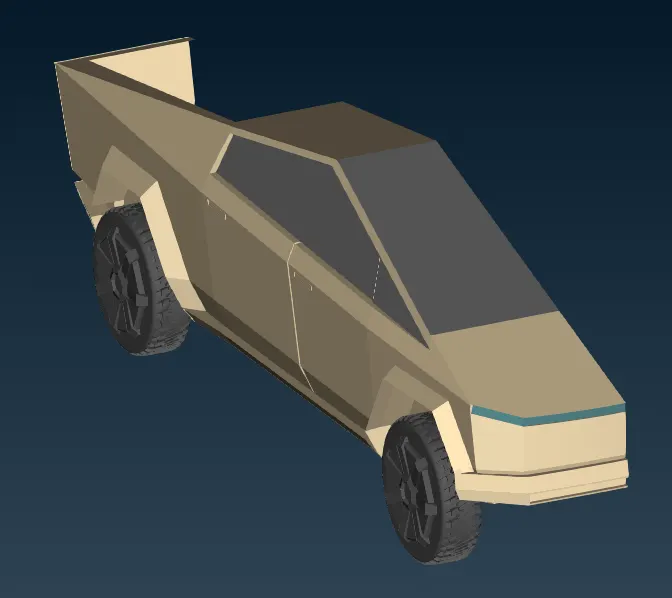
Step 5: After this, try to mesh the part individually.
For that, figure out the target length for each parts
Also provide the Quality Criteria 
Skewness as 0.5 and Min /Max Target based on the targat length decided for the parts
Then, click Mesh parameter and provide the necessary target length as tolerance basis 
CFD Mesh type is Tria & Click Ok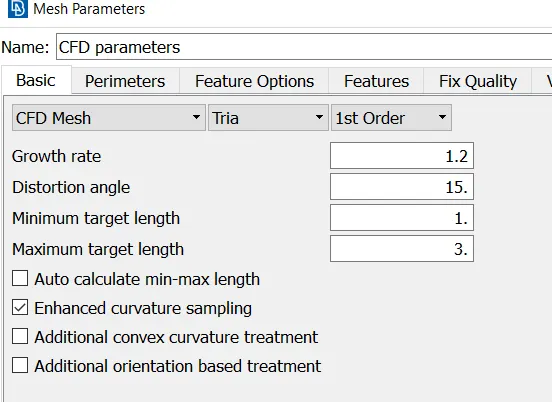
Select meshing deck and click Perimeter --> Spacing --> Auto CFD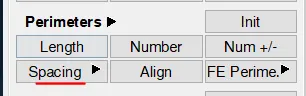
In that select the entities by draging over the model for both perimeter and macro
Then go to mesh --> CFD --> Visible option to mesh the part
Wheels and Rims --> 2mm
Windows --> 2mm
Body --> 3mm
Lighting --> 4mm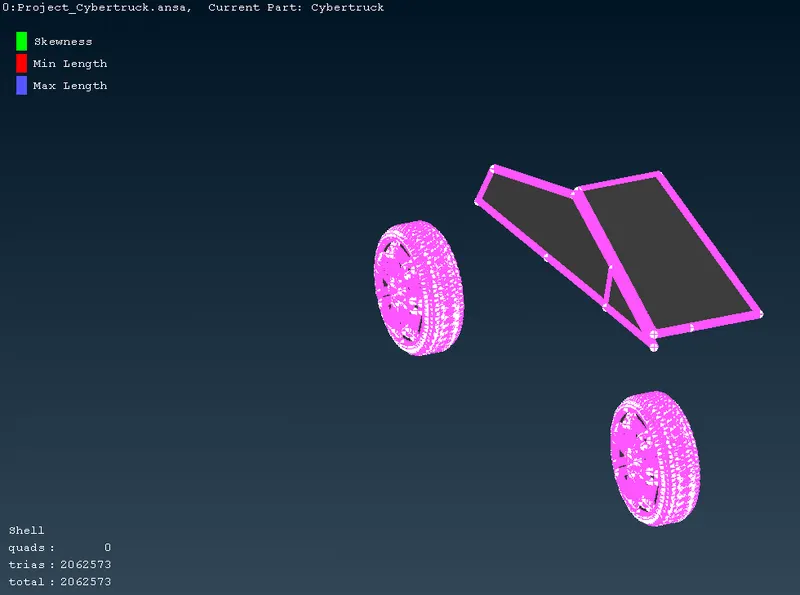
Then freeze the model by dragging the entities after selecting freeze/unfreeze panel option 
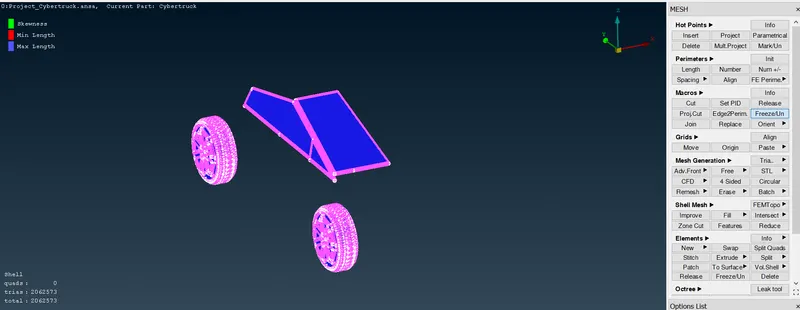
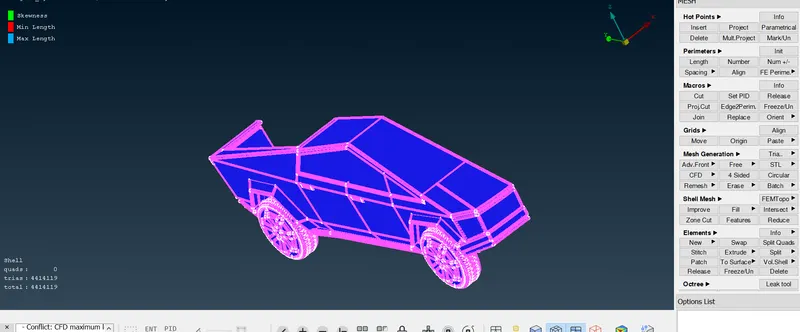
Sometimes, there may be a issue of getting Off elements, in that time right click , select improve option to avoid these errors
A pop up appears, in that select Recontruct / Reshape option to improve it.
Even though if its not fully improved, then try to find out the area where the errors shows and then do the geometry cleanup again or else try to move the grid by dragging individually to remove these errors using below option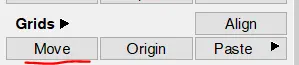
Step 6: Then select the Transform option to do the symmetry of the cybertruck by selecting the Mirror 3 point plane in TOPO deck
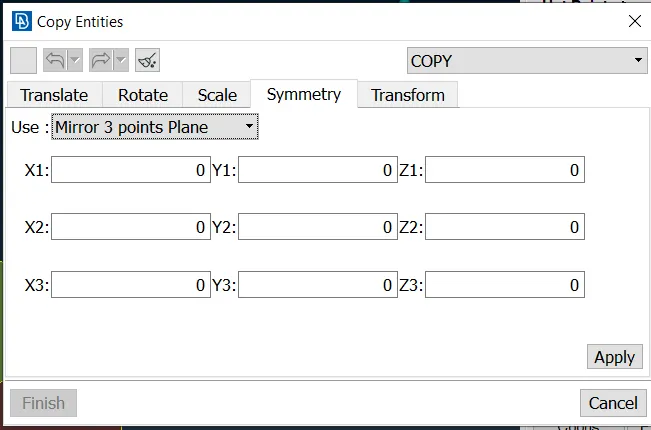
Click apply and finish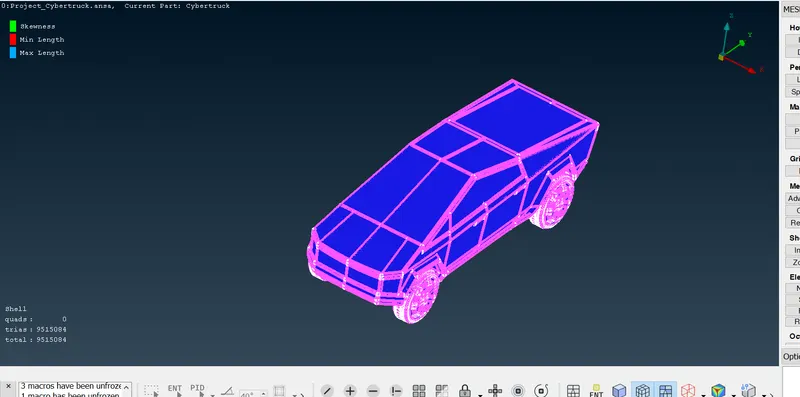
Then unfreeze the mesh by reselcting the same panel but by doing left drag over the entity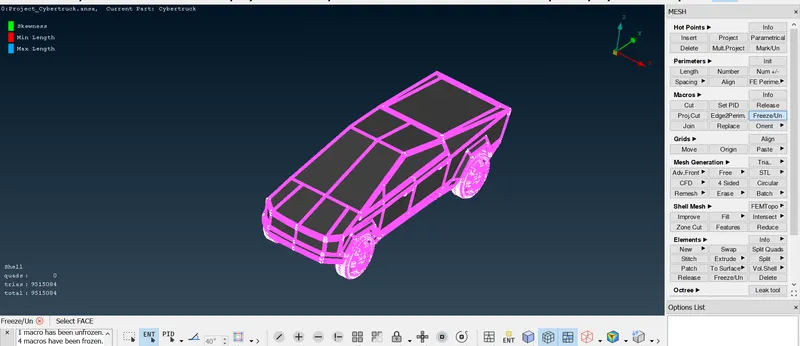
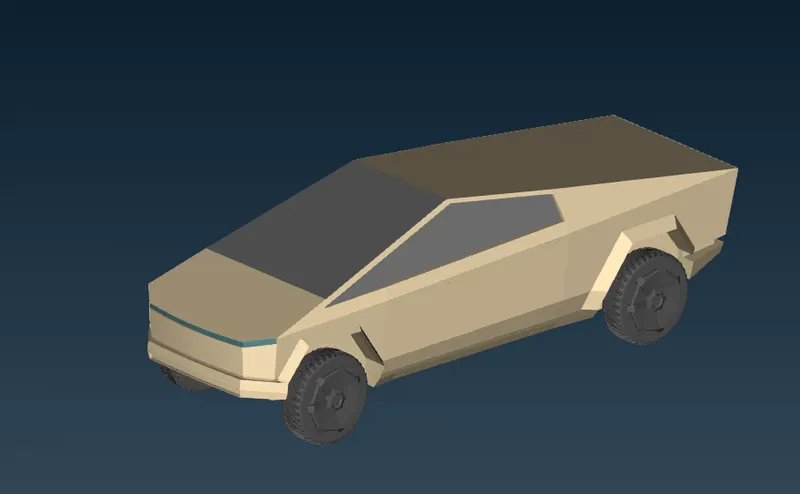
Step 7: Need to create a wind tunnel using Point --> Relative option 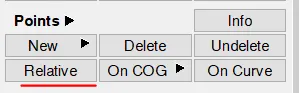
Need to measure the total length of car and then based on the criteria --> length, breadth and width of Tunnels is defined
Create a point using the proper dimensioning
After this create a face --> new to have the wind tunnel like below
Assign PID's for that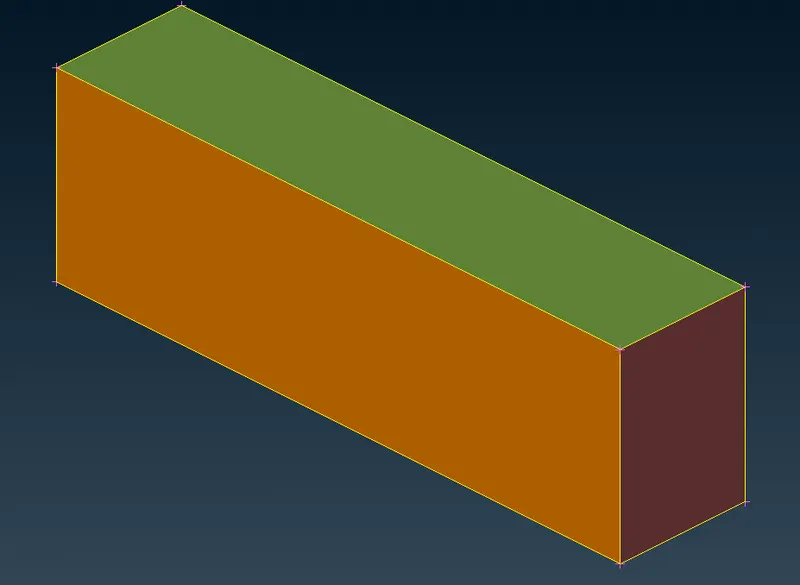
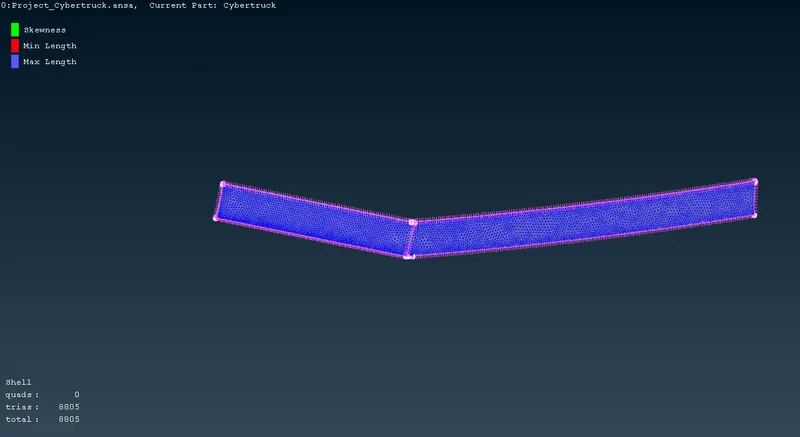
Step 8: Here do the surface mesh for wind tunnel but with a concept of Growing mesh ( 50 - 200 target length)
Select the bottom and Top face with a target element length of 50 and 200 using Spacing --> Auto CFD and then mesh using CFD --> Visible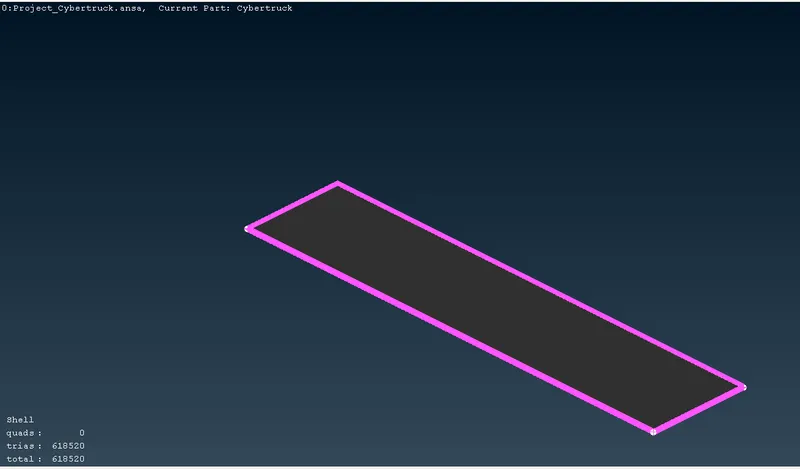
After that, select the Spacing--> Manual. Click four edges by making the arrow facing towards upside inorder to have growing mesh from lowest target length to highest (downward to upward)and provide the below neccessary info
Click CFD --> VISIBLE to mesh the wind tunnel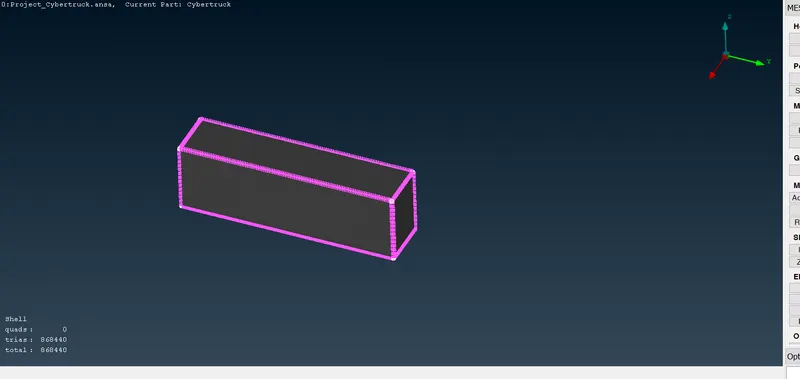
Finally the wind Tunnel meshing is over for Cybertruck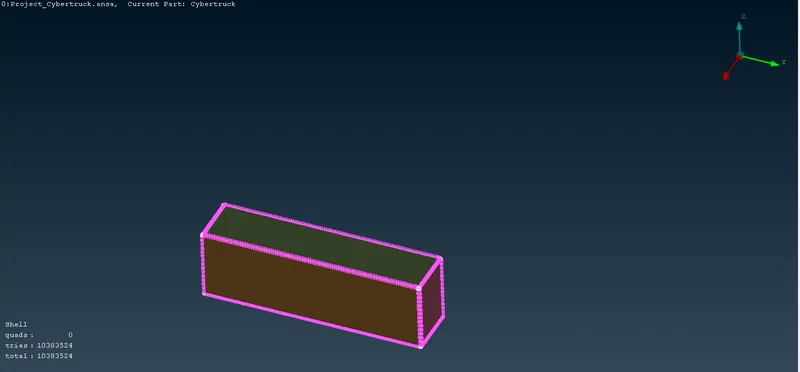
Volumteric mesh not considered due to the system competency
Note: Due to high size of model, drive link provided below
OneDrive Link - Cybertruck Model