Preparing Schedule & Cost Estimation for a building using REVIT
Question 1 :-
- Use the shortcut keys in Revit discussed in class to complete the following tasks and list them below :-
- Using 3D model create a section box.
- To create similar doors and windows in a floor plan layout.
- To reduce the thickness of lines visible in plan views.
- To apply override settings to a floor in the model section view.
- To increase the range of visibility in a plan view.
- To select the previously selected items.
- To add annotations to the model views.
- To bring the model elements in line.
- To rotate the model elements.
- To move an object to another location.
- To copy a model element.
- To mirror an element about an axis.
- To create an array of model elements.
Answer :-
- The shortcut keys in Revit to complete the following tasks are :-
- Using 3D model create a section box = BX
- To create similar doors and windows in a floor plan layout = CS
- To reduce the thickness of lines visible in plan views = TL
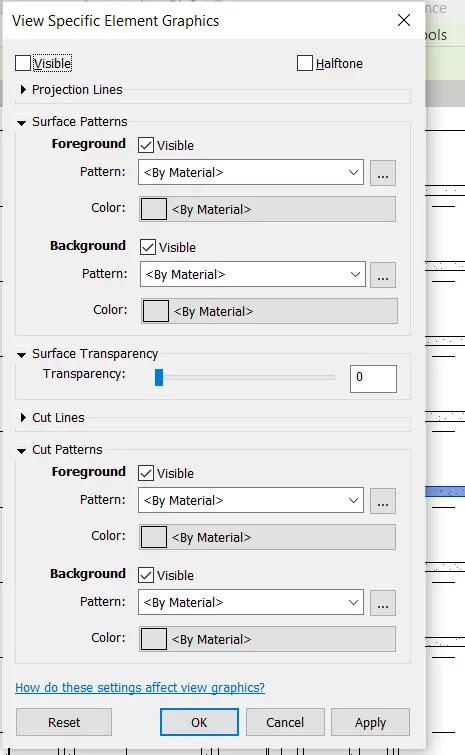
- To apply override settings to a floor in the model section view = EOD
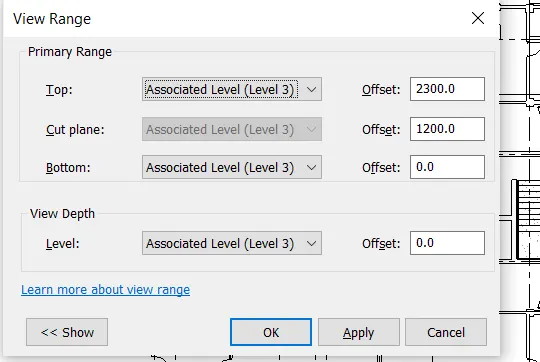
- To increase the range of visibility in a plan view = VR
- To select the previously selected items = ctrl + < (Control key + Left Arrow key)
- To add annotations to the model views = DI
- To bring the model elements in line = AL
- To rotate the model elements = RO
- To move an object to another location = MV
- To copy a model element = CO
- To mirror an element about an axis = MM
- To create an array of model elements = AR
Question 2 :-
- Using Revit and the project used from week 6 to 8 prepare a schedule for the following :-
- Walls
- Doors
- Windows
- Material – Concrete/Wood
Answer :-
AIM :- To prepare a schedule for the Walls, Doors, Windows and Material – Concrete/Wood.
Procedure :-
Step 1 :-
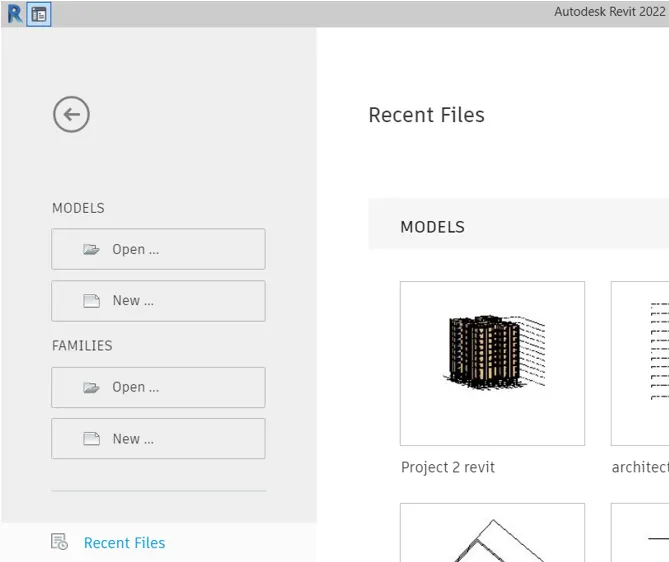
- Double click on the Revit application icon and opens the app.
- Open the project whose schedule is to be prepared by clicking on "Open" option and selecting the project.
Step 2 :- Preparing Wall Schedule
- Go to the "View" Tab and Select the "Schedule" Tool.
- From the drop down select "Schedule/Quantity".
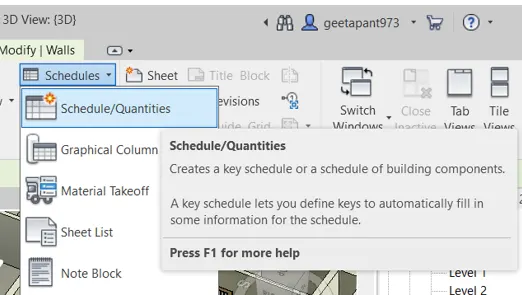
- New Schedule Dialog Box will appear.
- In the category, Select "Wall" and click "OK".
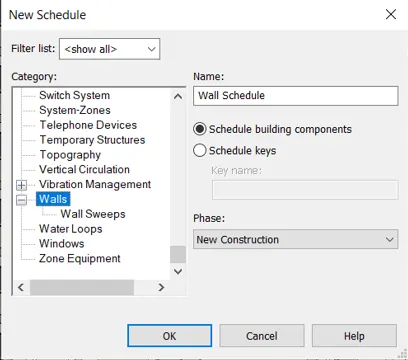
- Now, in the schedule properties dialog box, Select the Parameters which you wants to involve in the Schedule.
- Press "OK".
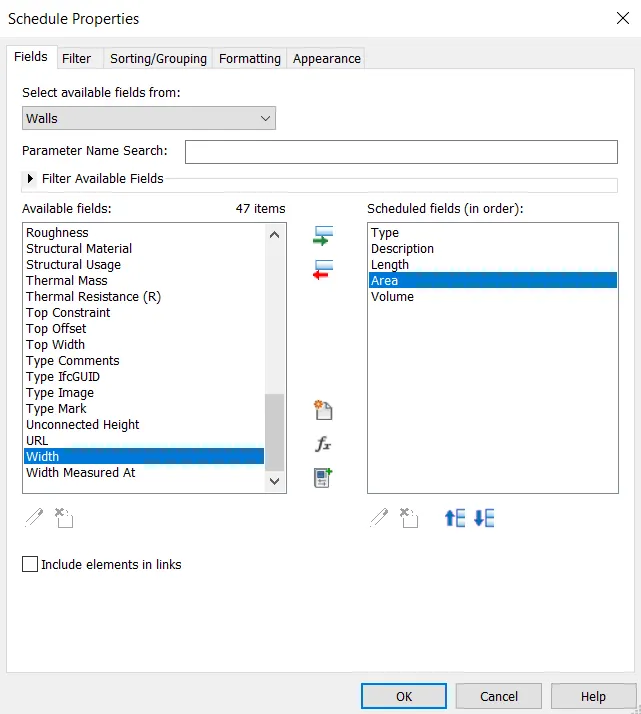
- Wall Schedule will be diplayed in the Revit Screen.
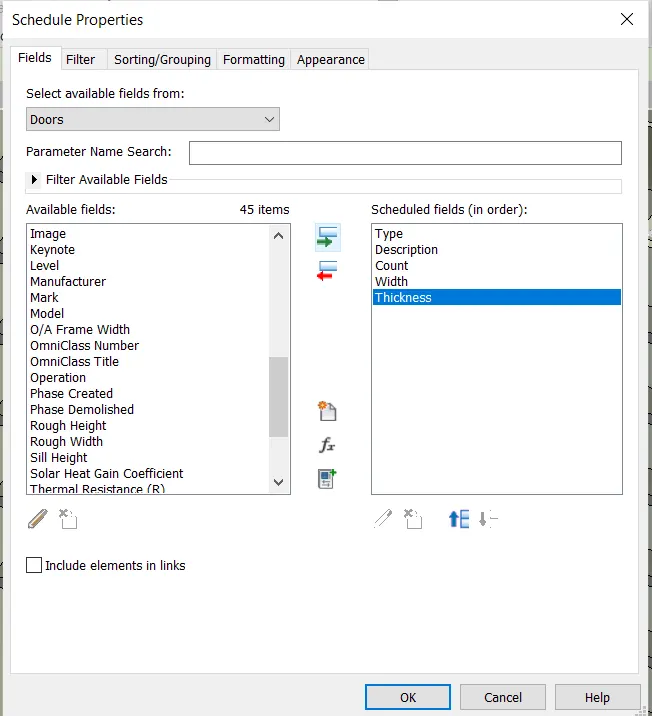
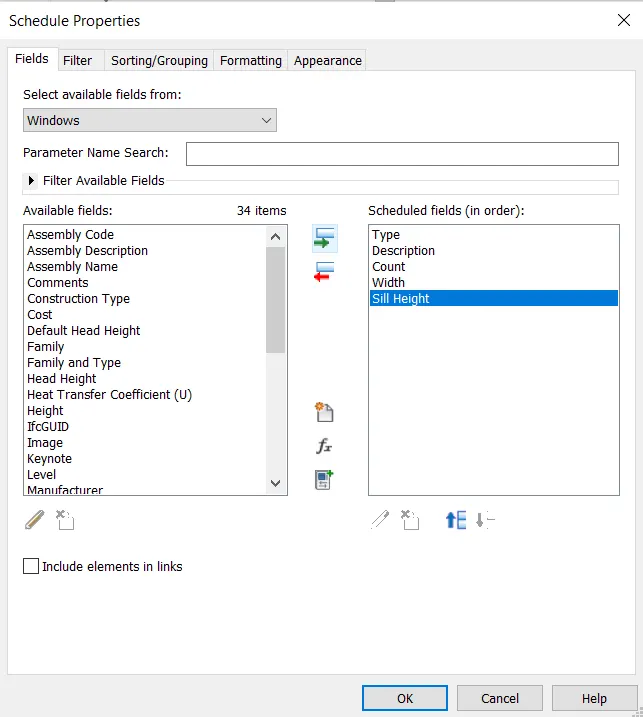
- Repeat the same steps to create the schedules of Doors, Windows and Materials.
- DOORS :-
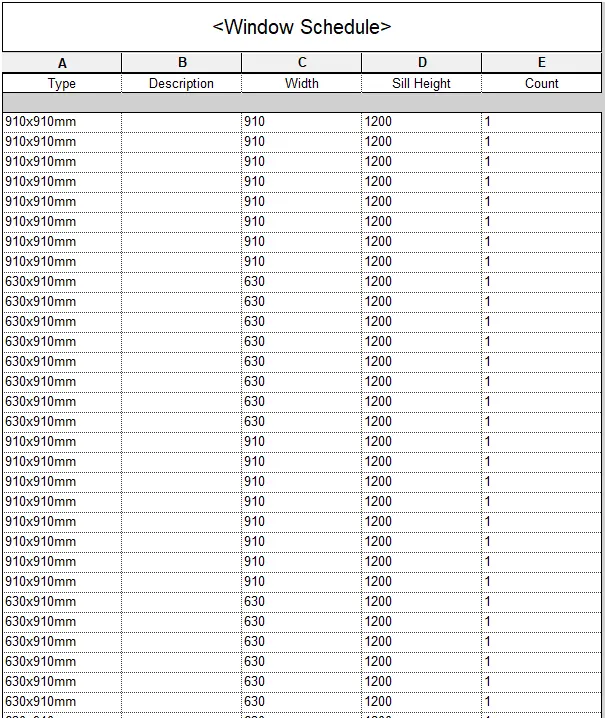
WINDOWS :-
RESULTS :-
WALL SCHEDULE :-
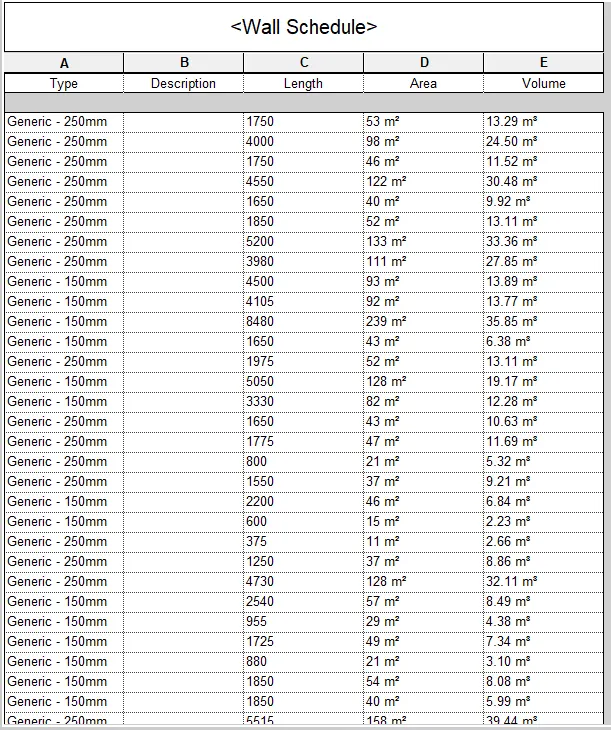
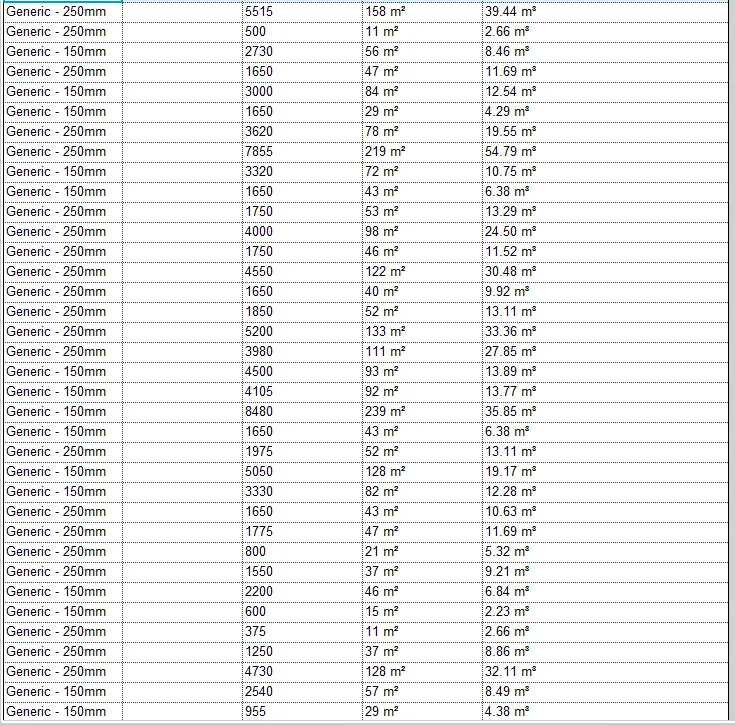
DOOR SCHEDULE :-
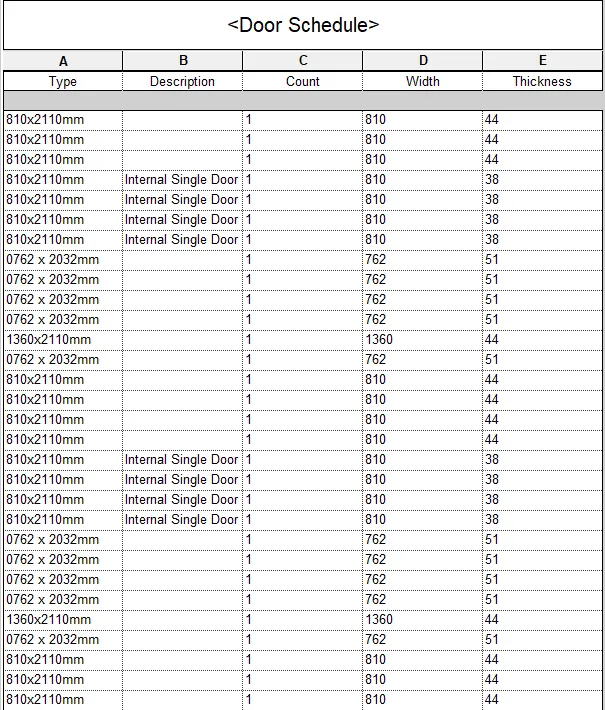
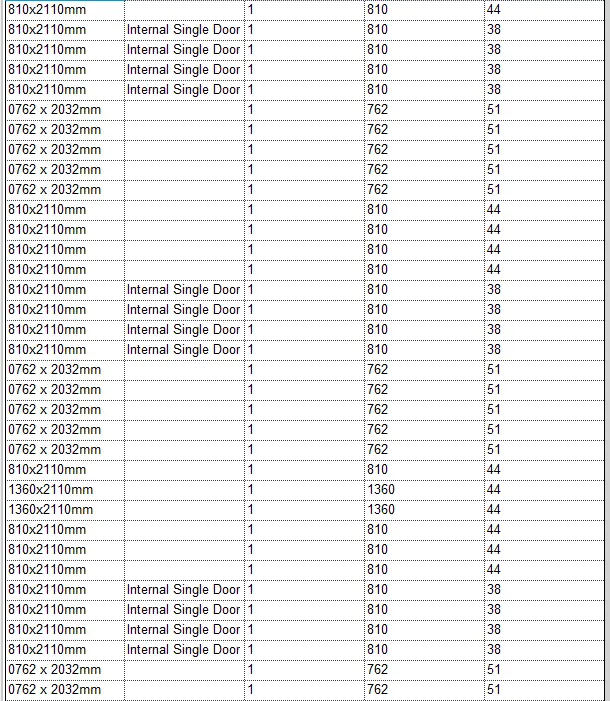
WINDOW SCHEDULE :-
MATERIAL SCHEDULE :-

Question 3 :-
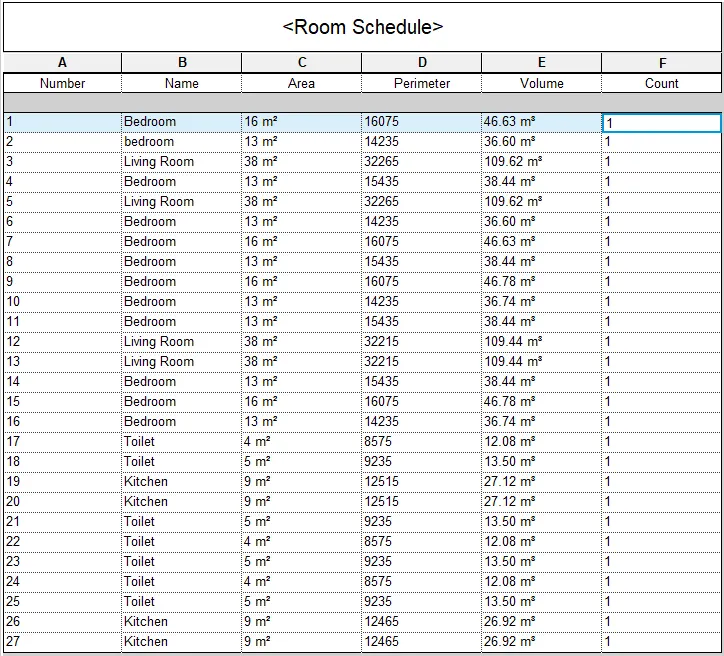
- Using Revit Calculate area and volume of each room in the model with appropriate room tags applied to each room. Prepare a schedule report for area and volume of each room.
Answer :-
AIM :- To prepare a schedule report for area and volume of each room.
Procedure :-
Step 1 :-
- Double click on the Revit application icon and opens the software application.
- Open the project whose schedule is to be prepared by clicking on "Open" option and selecting the project.
Step 2 :- Preparing Room Schedule
- Give each room a "Room Tag".
- Rename each room tag as per choice by double clicking on it.
- Go to the "View" Tab and Select the "Schedule" Tool.
- From the drop down select "Schedule/Quantity".
- New Schedule Dialog Box will appear.
- In the category, Select "Room" and click "OK".
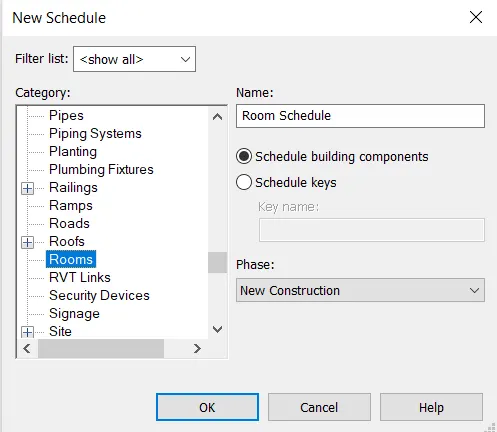
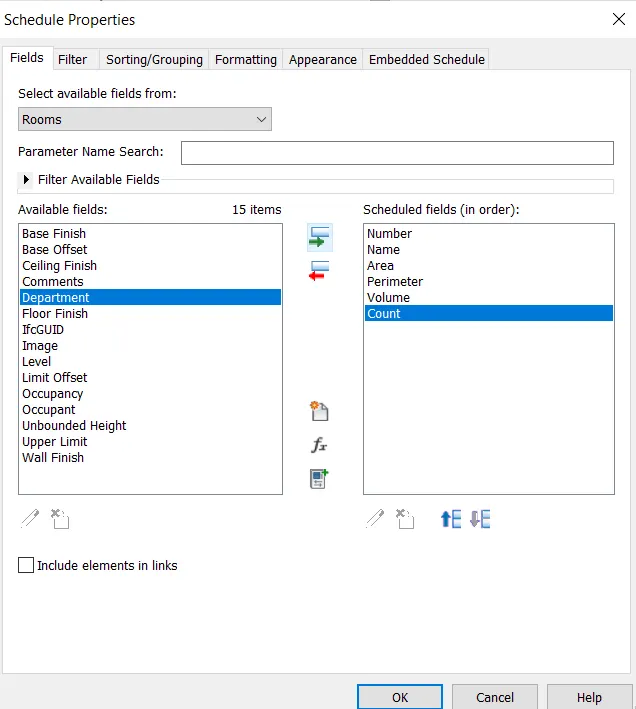
- Now, in the schedule properties dialog box, Select the Parameters which you wants to involve in the Schedule.
- Select Number, Name, Area, Perimeter, Volume and count.
- Press "OK".
- Schedule report for area and volume of each room will be diplayed in the Revit Screen.
RESULTS :-
Room Schedule with Area, Perimeter and Volume of each Room :-
Question 4 :-
- Using the same schedule using the unit cost rate for materials available in the internet, prepare total cost of materials used in the project
- Total Cost of Materials.
- Individual Material Take off.
Answer :-
AIM :- To prepare a schedule which includes total cost of material used in project.
Procedure :-
Step 1 :-
- Double click on the Revit application icon and opens the software application.
- Open the project whose schedule is to be prepared by clicking on "Open" option and selecting the project.
Step 2 :- Preparing Schedule
- Select the element which user wanted to involve in the schedule.
- Go to "Edit Type" in "Properties" and give the cost value to that element by comparing the rate of that element from internet.
- Go to the "View" Tab and Select the "Schedule" Tool.
- From the drop down select "Material Takeoff".
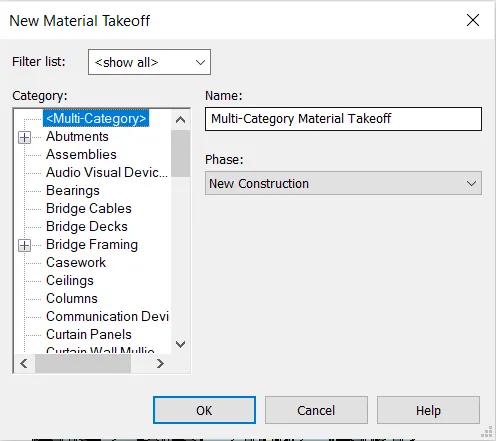
- Select the Element whose schedule is to be prepared.
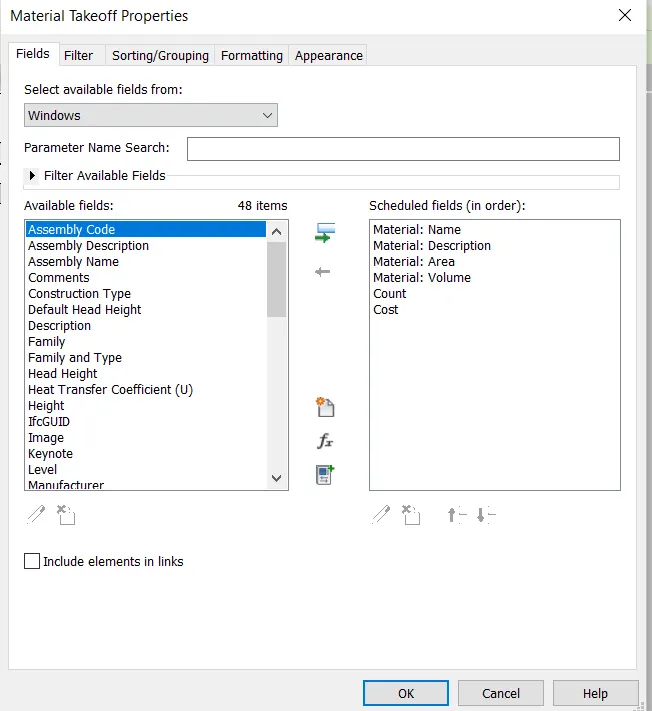
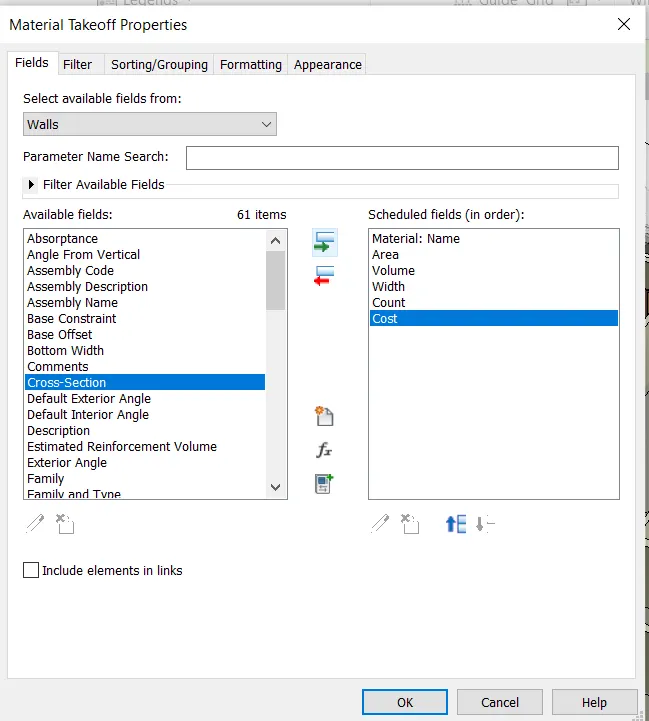
- Select the parameter which user wants to involve along with cost parameter.
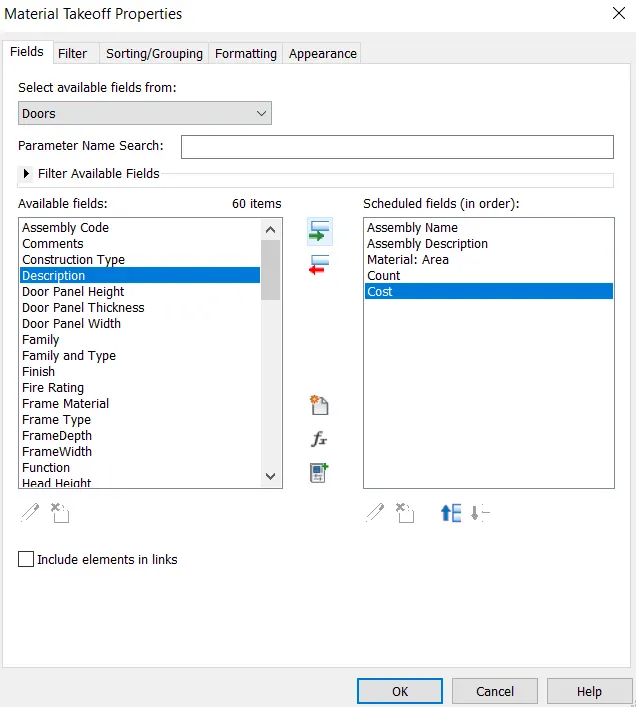
- click "OK".
- Repeat the same steps to create the schedules of Doors, Windows, Walls, Floors etc.
Windows Properties Parameters :-
Walls Properties Parameters :-
Floors Properties Parameters :-
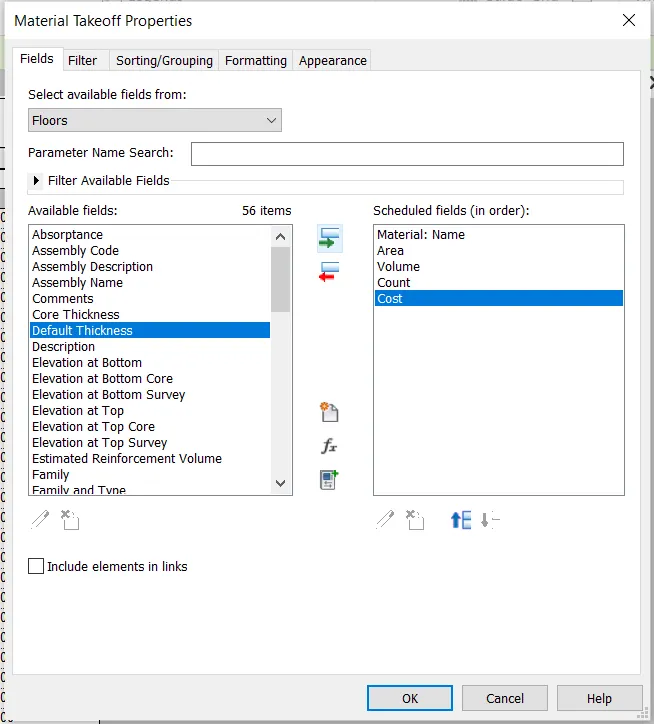
Columns Properties Parameters :-
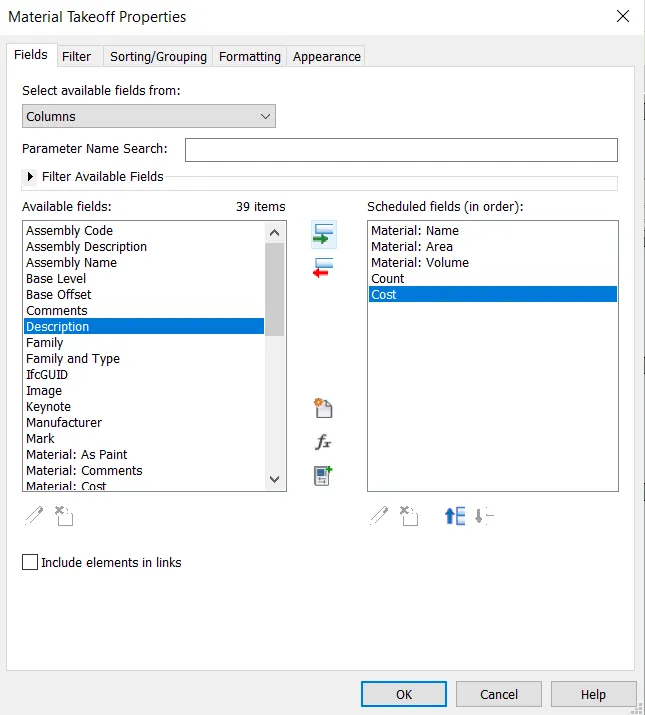
- Schedule report for material with their cost will be diplayed in the Revit Screen.
RESULTS :-
- DOOR COST SCHEDULE :-
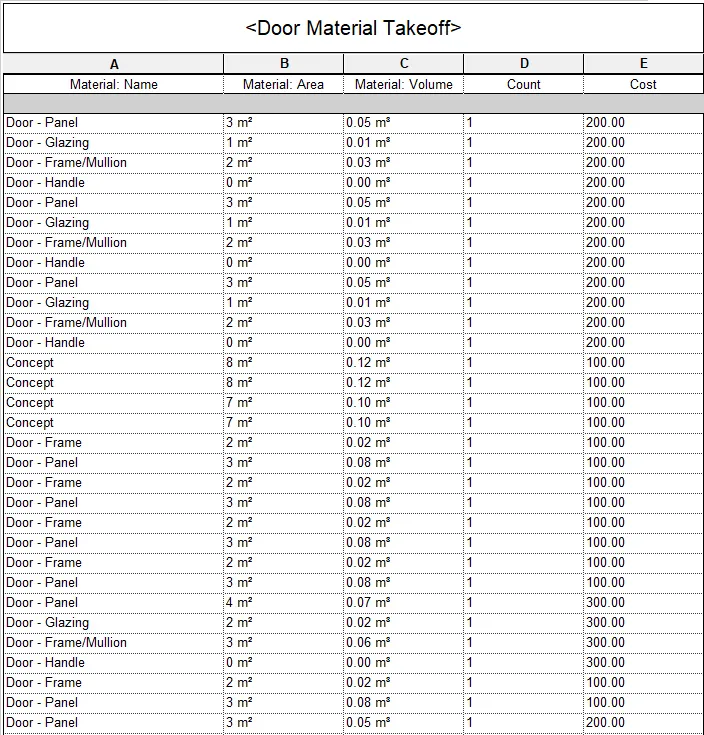
- WINDOW COST SCHEDULE :-
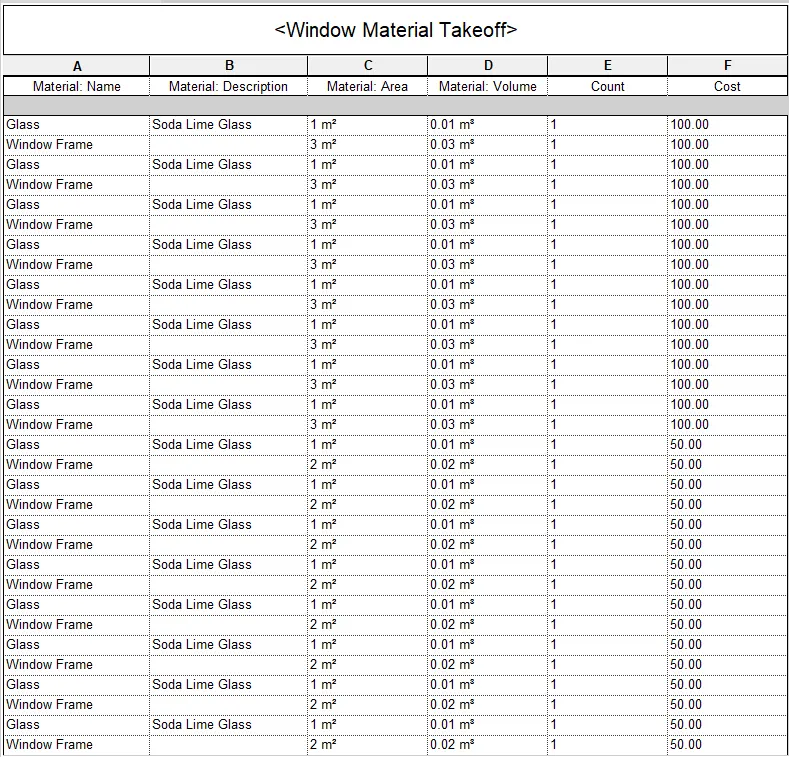
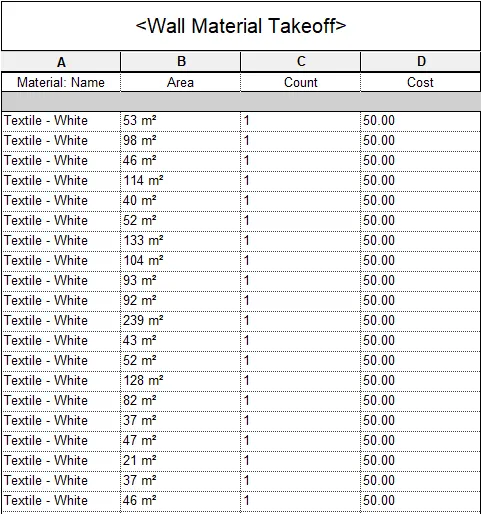
- WALL COST SCHEDULE :-
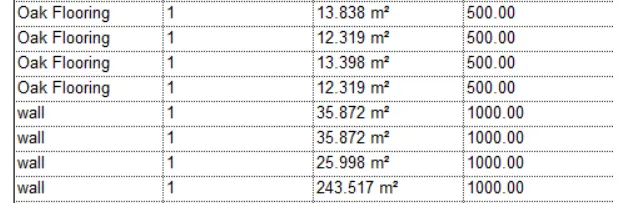
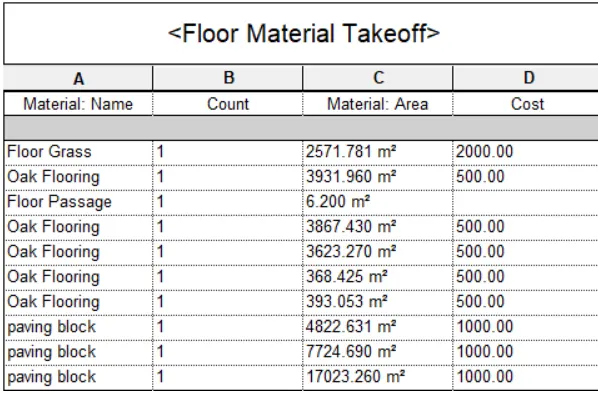
- FLOOR COST SCHEDULE :-
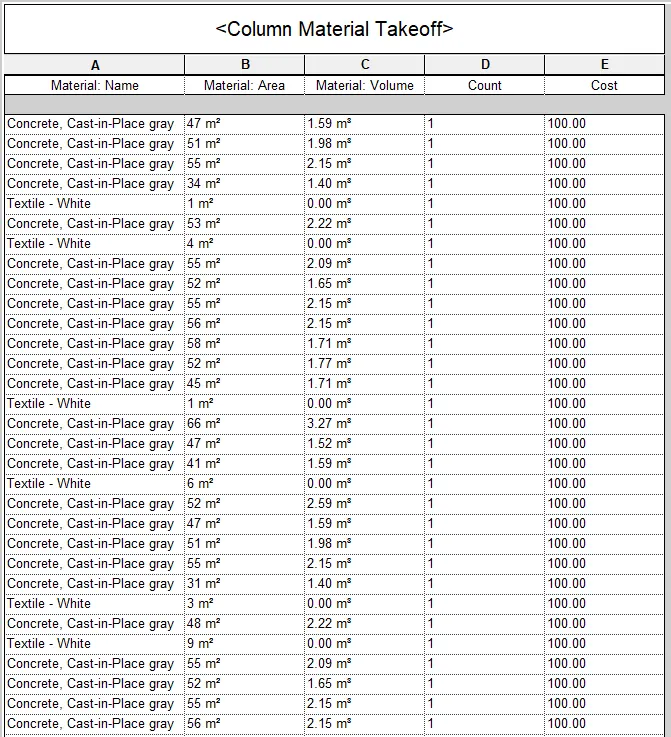
- COLUMN COST SCHEDULE :-
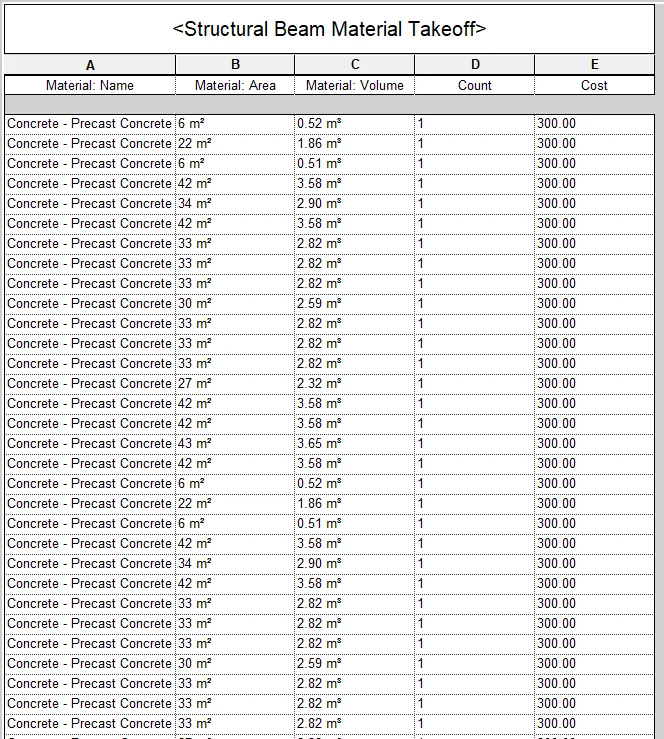
- BEAM COST SCHEDULE :-
Question 5 :-
- Using the concept of Visual Programming discussed in class, list a flowchart for the following scenario :-
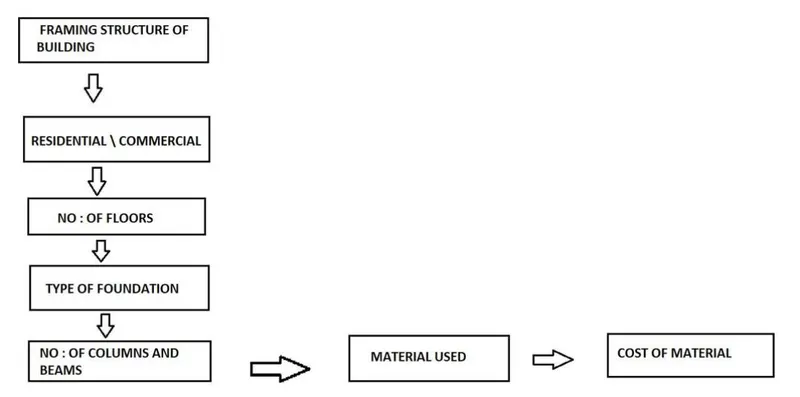
- How to decide framings for a structure using Dynamo?
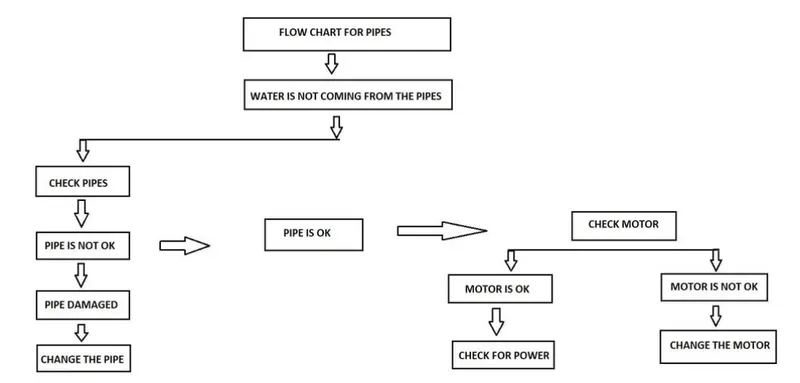
- If there is no water coming from the pipes.
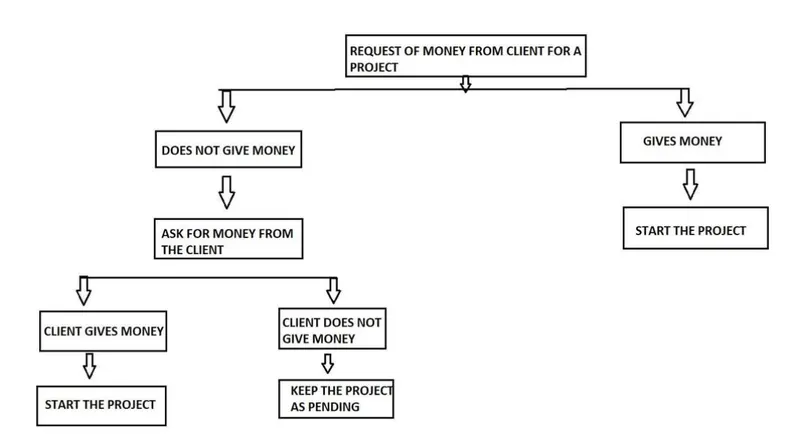
- If request for money from client has been declined for the project.
Answer :-
- Flowchart for the following scenario :-
A) How to decide framings for a structure using Dynamo :-
B) If there is no water coming from the pipes :-
C) If request for money from client has been declined for the project :-
Question 6 :-
- List the parameters associated with each model element :-
- Wall
- Floor
- Door
- Window
- Table
- Building
Answer :-
A) The parameters associated with Wall :-
- Types of Wall
- Wall Thickness
- Wall Length
- Wall Height
- Wall Description
- Wall Material
- Wall Location
- Material Cost
- Wall Volume
B) The parameters associated with Floor :-
- Type of Floor
- Floor thickness
- Floor Length
- Floor Area
- Floor Volume
- Floor Description
- Floor Material
- Material Cost
C) The parameters associated with Door :-
- Door Type
- Door Length
- Door Width
- Door Height
- Door Material
- Door Description
- Door Area
- Door Volume
- Material Cost
D) The parameters associated with Window :-
- Window Type
- Window Length
- Window Width
- Window Length
- Window Material
- Window Description
- Window Area
- Window Volume
- Material Cost
E) The parameters associated with Table :-
- Table Type
- Table Material
- Table Description
- Table Length
- Table Width
- Table Height
- Table Cost
F) The parameters associated with Building :-
- Building Type
- Bulding Location
- Building Area
- Building Perimeter
- Number of Possible Loads on Building
- Building Height
- Building Material