Morphing & TCL Command File Creation Challenge
Q1.Morph the given side body component to the desired shape shown in the images below and write a Macro for the same
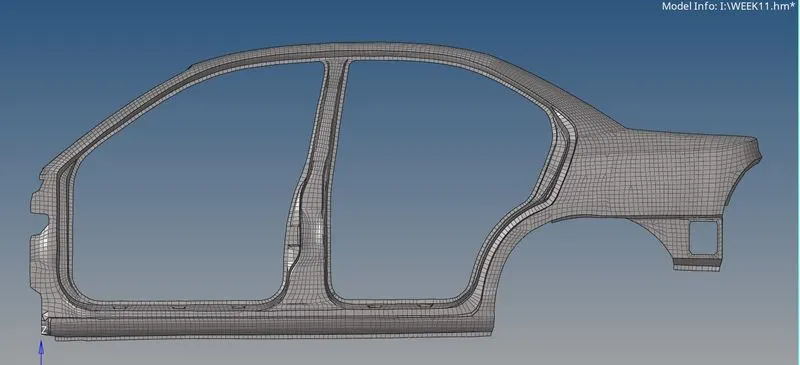
SOLUTION
select the profile optistruct
first import the file using file-import-solver geometry(in case of .fem)-file name
make the duplicate component to work on it so that the parent component do not get destroyed by
going to right click on component-duplicate-tools-organise-collector-select elements-copy
i have already duplicated thats why desk component is empty

now make the surface go to surface -from fe-select elements

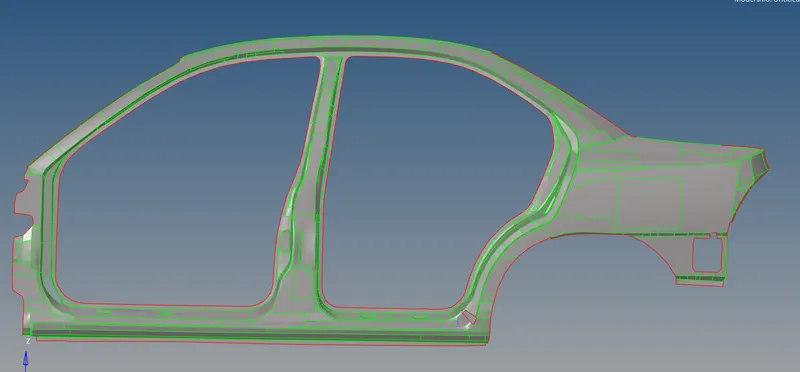
surface created
now hide the geometry and show mesh
Now to start morph
go to tools-hypermorph
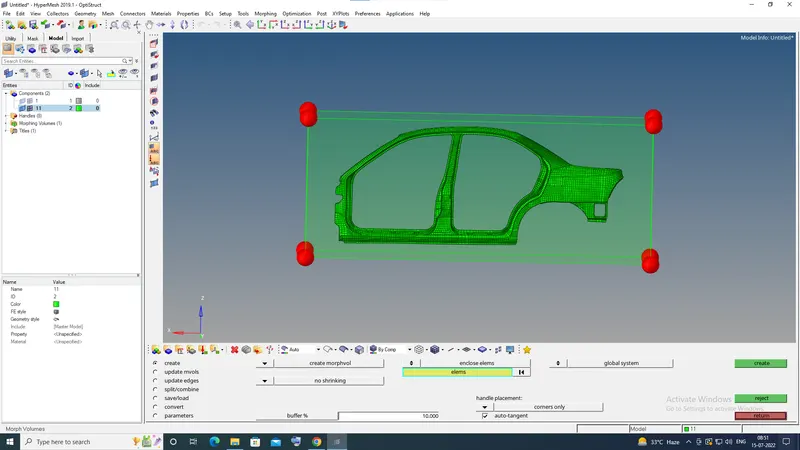
to create volume go to tools-hypermorph-morph volumes-create-select elements-creat
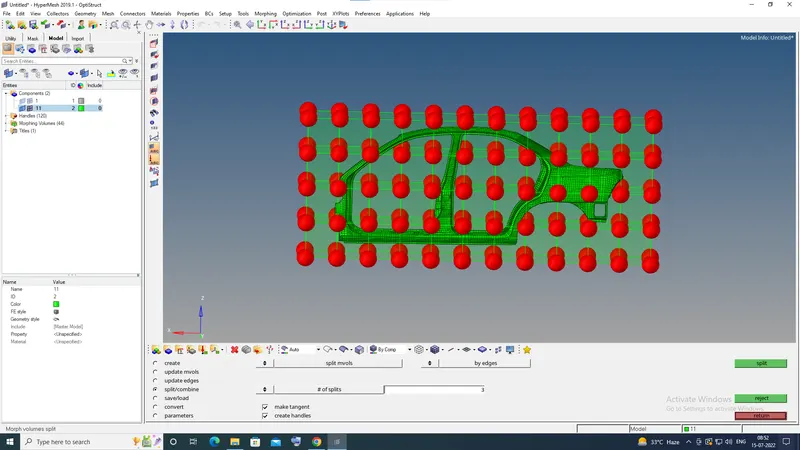
to split the volume go to tools-hypermorph-morph volumes-split/combine-#of splits (give how many splits you want)-split
you can split vertically and horizontally after input no of splits click on vertical or horizontal line.
if you want to decrease the size of handles
go to tools-hypermorph-handles-give the size-create

now main step to morph go to tools-hypermorph-morph-move handles
now move the handles to get the shapes you want
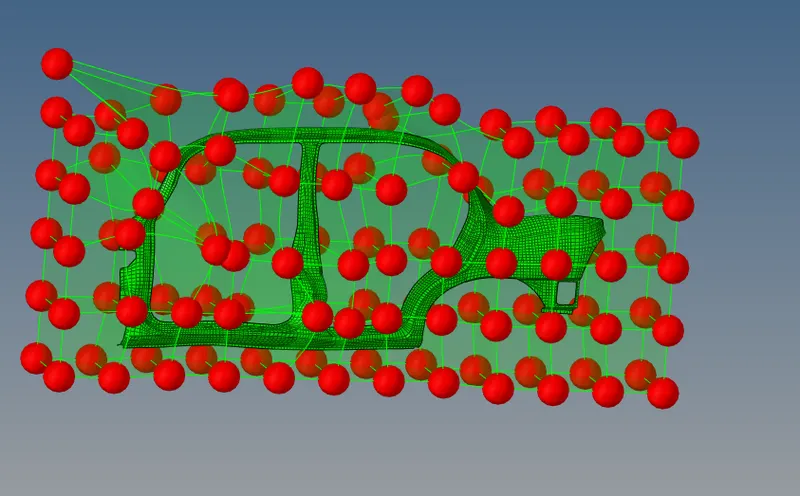
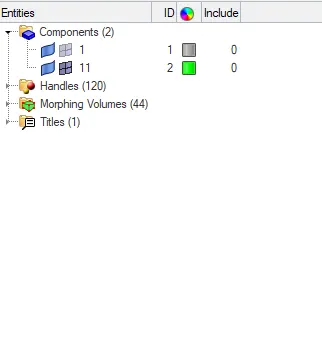
you can delete or hide the handles and volumes.
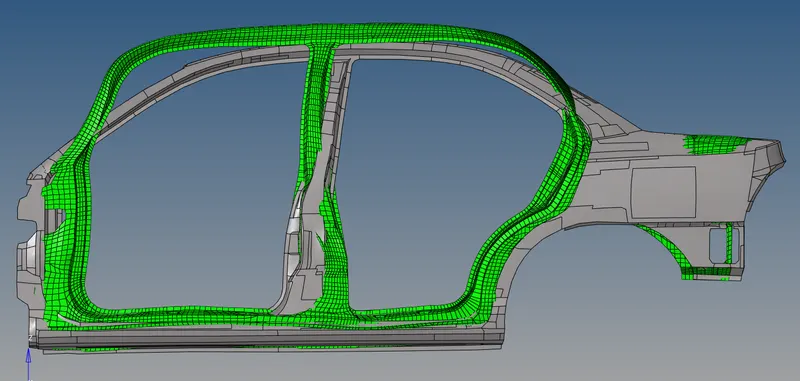
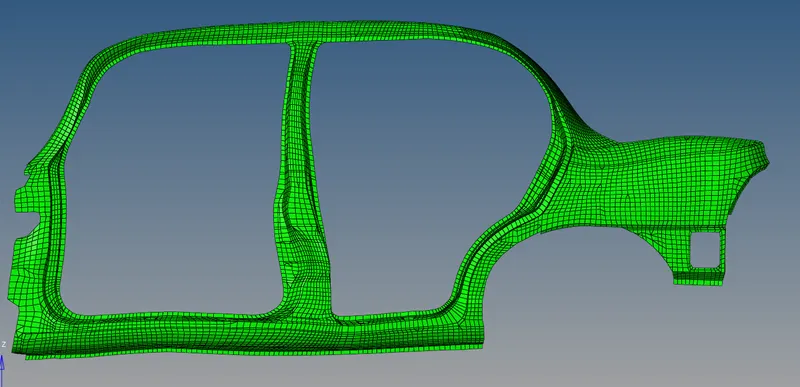
Now final
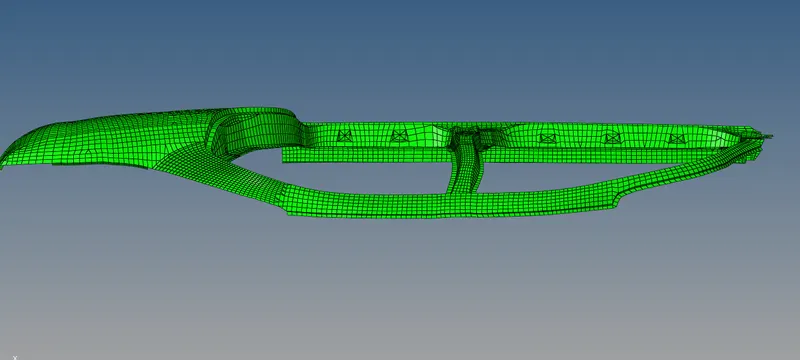
NOW TO MAKE MACROS
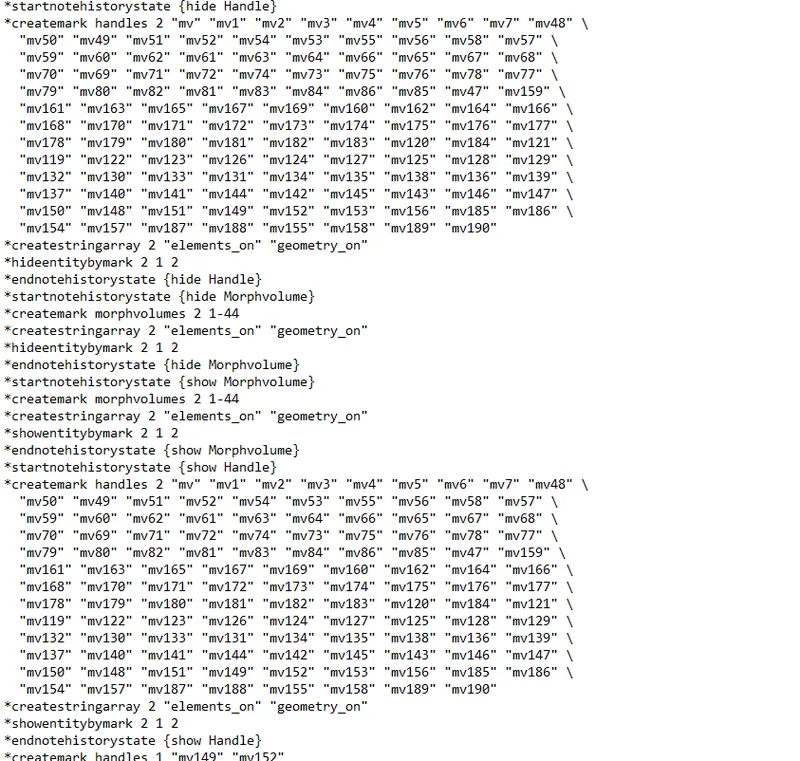
first i have deleted the commands in command.tcl file before starting the morphing.
after completing morphing i have copied commands.tcl from documents to different folder to make some changes in it by opening in notepad.
and check it by going in hypermesh-file-run-tcl/tk script if it is running perfectly.
now delete the rotate,viewset in command.tcl file to get the commands we need .
CONCLUSION
I have done the morphing and got some knowledge about tcl script.