Introduction to REVIT concepts
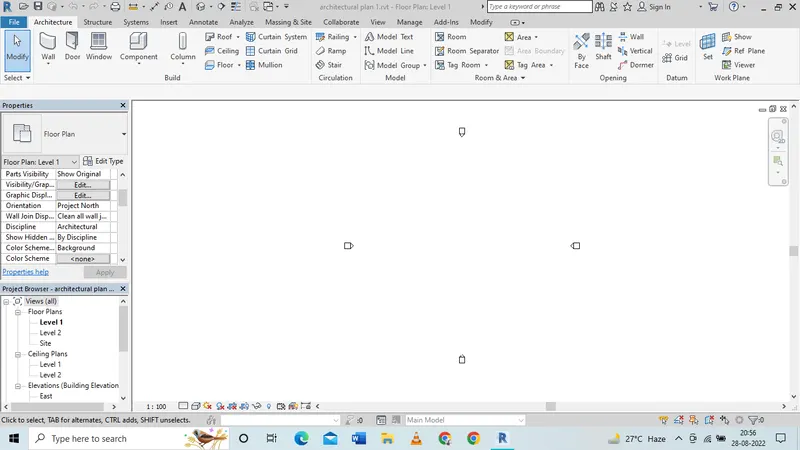
1) From the file menu, create a new project (Structural / Architectural / Construction template ) and name the project appropriately.
Ans:
AIM:From the file menu, create a new project (Structural / Architectural / Construction template ) and name the project appropriately.
Introduction: The autodesk revit software used to create the structural / architectural/Construction project.
Procedure:
1. First we have to open Autodesk revit software.
2.Then we can see open and new file commands.
3.We have to open new file of architectural template.
4.Then name the file as architecrual plan 1 by saving the file.
2) Save the new project file. Close and open using icons from file toolbar
ANS:
Aim: Save the new project file. Close and open using icons from file toolbar.
Introduction: The autodesk revit software used to create the structural / architectural/Construction project.
Procedure:
1. From the first question we have opened the new file.
2.Then we have to save the file from file menu.
3.The file we have to save first click on the save command and select destination file and name as Architectural plan 1.
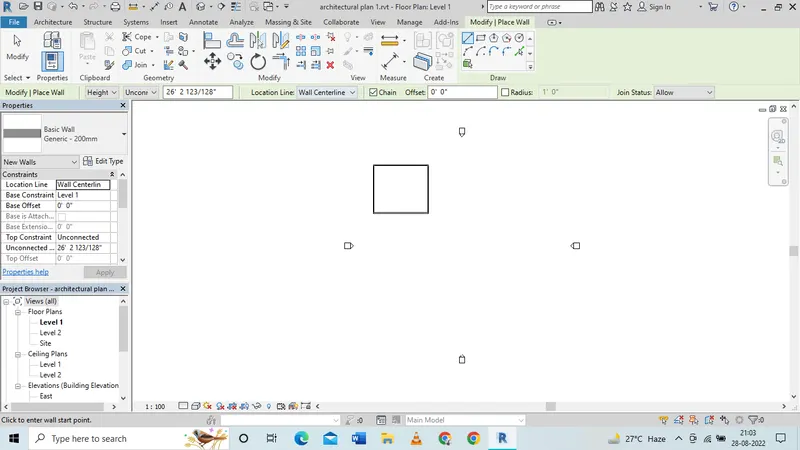
3) From the architecture/ structure toolbar familiarize with options to draw a wall. Create a rectangular layout of walls of about 40’-0” X 35’-0”.
ANS:
Aim: From the architecture/ structure toolbar familiarize with options to draw a wall. Create a rectangular layout of walls of about 40’-0” X 35’-0”.
Introduction: The autodesk revit software used to create the structural / architectural/Construction project. We can create plan, elevation and section.
Procedure:
1.First we have to open autodesk revit software.
2.Then open the new file as architectual/construction template.
3.Then wall command and create a rectangular using wall of 40' X 35'.
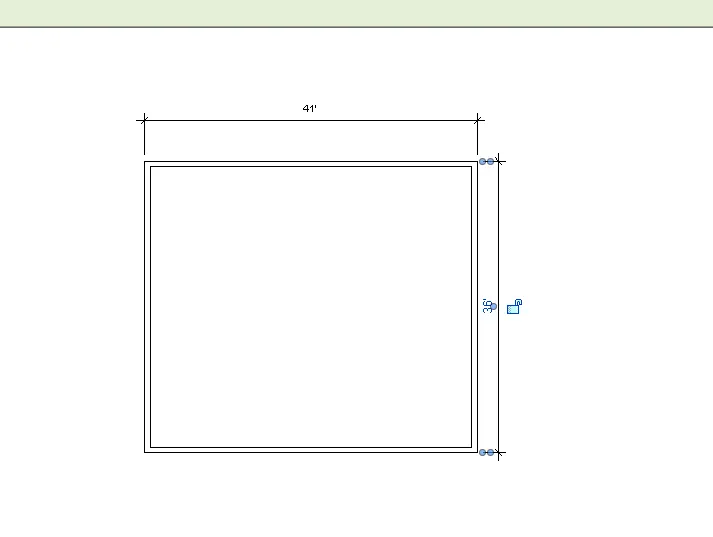
4) From the Annotate toolbar use the aligned option to add dimensions to the layout.
ANS:
Aim: From the Annotate toolbar use the aligned option to add dimensions to the layout.
Introduction: The autodesk revit software used to create the structural / architectural/Construction project. We can create plan, elevation and section.
Procedure:
1. From the 3 question we have created the rectangle with wall of 40'X35'.
2.So then we have to add the dimensions by using annotate command.
3.Then select alinged or liner command then select points in of the walls and specify dimensions.
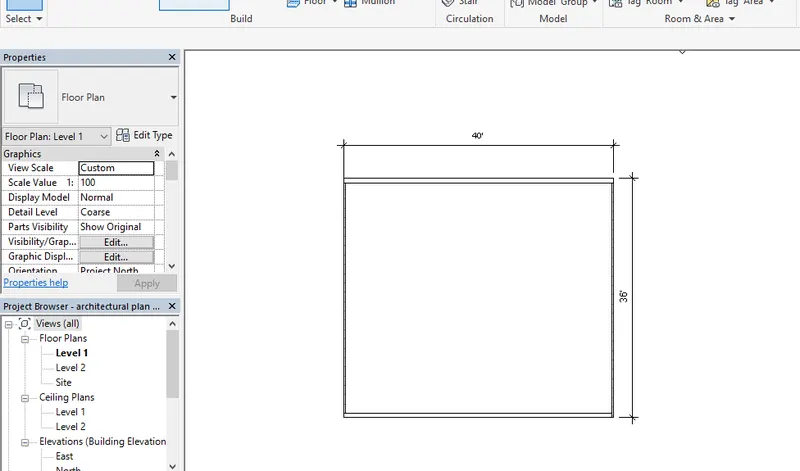
5) Use the properties browser to switch to different wall types
ANS:
Aim: Use the properties browser to switch to different wall types.
Introduction: The autodesk revit software used to create the structural / architectural/Construction project. We can create plan, elevation and section.
procedure:
1.After creating dimensions then open the property browser.
2.Change the wall types by selecting the wall.
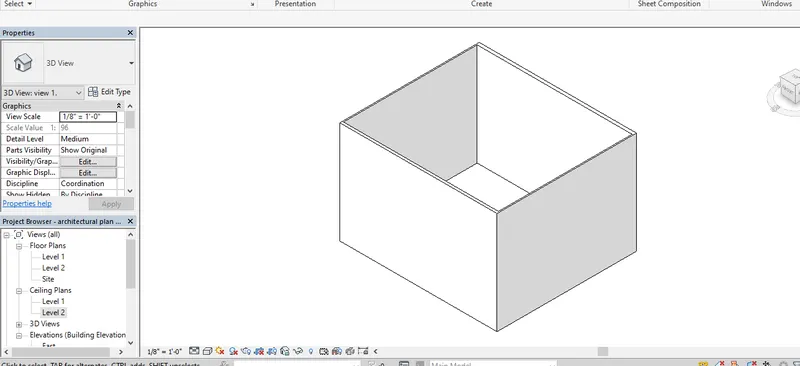
6) Create a 3D view from the view toolbar and save the view with the appropriate name
ANS:
Aim: Create a 3D view from the view toolbar and save the view with the appropriate name.
Introduction: The autodesk revit software used to create the structural / architectural/Construction project. We can create plan, elevation and section.
procedure:
1.After changing the walls we can view the model in 3d.
2.from the view tab select 3d icon.
3.Select 3d view cube.
4.Then we got the 3d view of the given plan.
5.Then select any view and save the view .
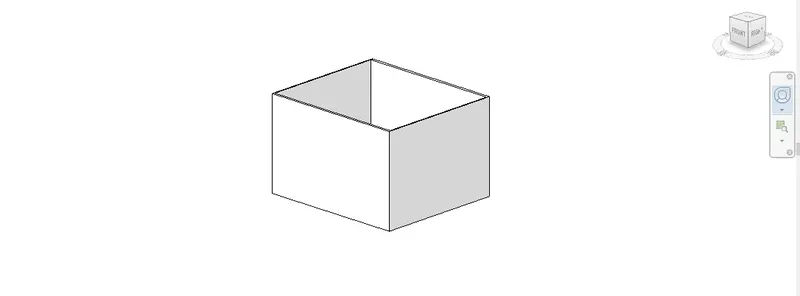
7) Navigate through the 3D model using the view cube. Orbit/pan through the model layout created.
ANS:
Aim: Navigate through the 3D model using the view cube. Orbit/pan through the model layout created.
Introduction: The autodesk revit software used to create the structural / architectural/Construction project. We can create plan, elevation and section.
Procedure:
1.From the navigation tool bar below the view cube.
2.The navigation tool comes in that pan, orbit, zoom, walk commands are there.
3.We can zoom, and pan and orbit to any side using navigation tool bar.
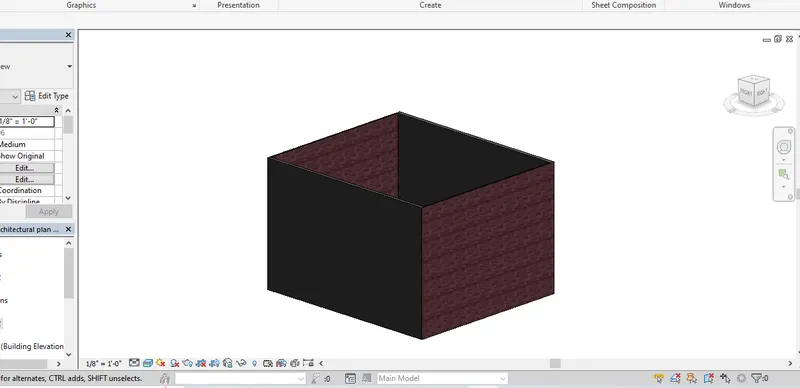
8) Use the visibility settings option below to switch model to shaded, realistic, hidden lines options.
ANS:
Aim: Use the visibility settings option below to switch model to shaded, realistic, hidden lines options.
Introduction: The autodesk revit software used to create the structural / architectural/Construction project. We can create plan, elevation and section.
Procedure:
1.From the bottom we have to select the visibility setting.
2.There we have shaded, realistic, hidden and wireframe line options.
3.We can create what ever shade we want .
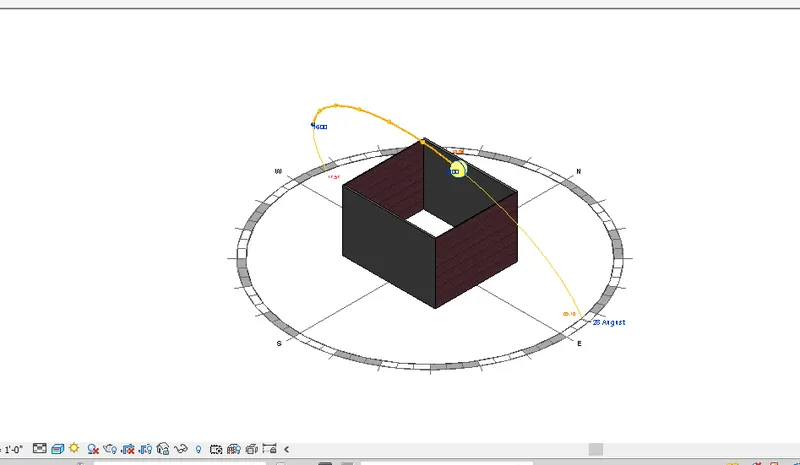
9) Turn the sun path on and off to view shadings in the layout created
ANS:
Aim:Turn the sun path on and off to view shadings in the layout created
Introduction: The autodesk revit software used to create the structural / architectural/Construction project. We can create plan, elevation and section.
Procedure:
1.Next to the visibility settings we can see sun path settings.
2.We can change the sun on and sun off.
3.In that sun path command we can give the geographical location to set the sun shade.
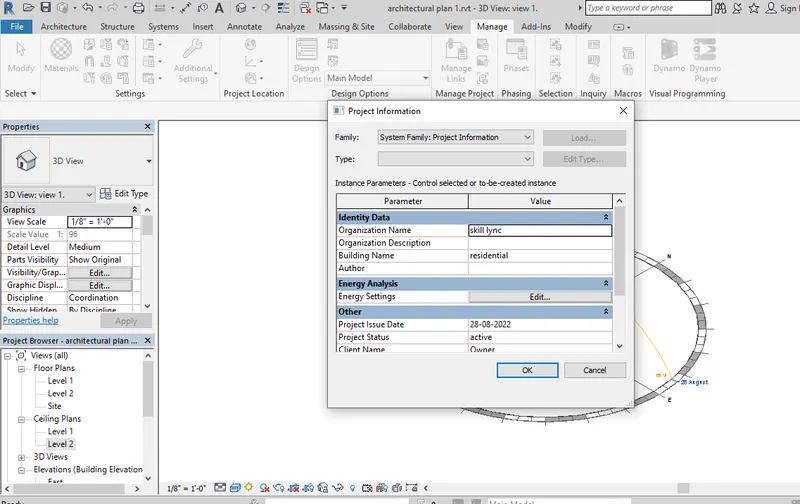
10) Use the Manage toolbar to enter project settings, project name, and project issue date (choose according to your convenience).
ANS:
Aim:Use the Manage toolbar to enter project settings, project name, and project issue date (choose according to your convenience).
Introduction: The autodesk revit software used to create the structural / architectural/Construction project. We can create plan, elevation and section.
Procedure:
1. select the manage tool bar and appear the project information command.
2.In that we have to save the project settings.
3.Then select the project name, project issue date and project details what ever necessary.
11) What is the Analyze toolbar used in Revit? How it is beneficial for design and modeling.

Ans: Analysis tool bar used to specify the load conditions on the structure. To analysis the load combinations and boundary conditions on the building. by analysis these load conditons we can design the rooms and machinery and some other equipment.
12) What are the links that Revit supports to be linked to the model?
ANS:
Link revit, link cad, link IFC ,link topography, link pdf and some other command in the links.
Link revit: It is used to link the revit file to another revit file or for the other displine such as mep drawings.
Link cad: It is used to link the present revit to CAD file.
Link IFC: Link IFC is used to curent file used for the information that is required for the additional design work.
Link PDF: It is used to link image or pdf the revit model.
13) Why do you need the Collaborate tab in Revit? How it supports modeling and its efficiency.

ANS: The collaborate tab in revit is used to communicate the work with all the zones working on the current project. Such as we have the construction plan and we can collaborate to mep drawing and make changes in the centralised file.
collaborate :
Work sharing: We can share the work to all member who are working on current project helps to make changes.
Cloud sharing: We can upload on the revit project who wants to change or see the project can see and make changes and work on the same file of different displines.
Central model: By collaborating the revit file we can save as centralised file that all displines can make changes on the central model and share the work to current project.