Drafting of various geometries using Chamfer, Fillet tool in AutoCad
Commands used in this challenge are
- Line
- Circle
- Rectangle
- Copy
- Mirror
- Offset
- Trim
- Polygon
- Point
- Rotate
- Fillet
DIAGRAM 1
Aim: To draw the given figure using AutoCAD
Procedure:
Open grid and snap settings
- Change snap and grid spacing to 1
- Change major line every grid line to 10
- Turnoff adaptive grid
Step 1: Drawing outer box
Type ‘L’ or line in command box or select line from the draw tool bar
- Specify first point: Type (0,0) and press enter
- Specify next point: Type 4 and press enter
- Specify next point: Type @ 2.12<45 and press enter
- Specify next point: Type @ 2.83<135 and press enter
- Specify next point: Type 2 and press enter
- Specify next point (Close: Exit: Undo): Press close to complete the box
Step 2: Drawing bottom Inner circle
Type ‘C’ or Circle in the command box or select circle from the draw toolbar
- Specify center point for circle: Type (1.5,1) and press enter
- Specify radius of circle or Diameter: Press diameter and type 1.2 and press enter
Step 3: Drawing top Inner circle
Type ‘C’ or Circle in the command box or select circle from the draw toolbar
- Specify center point for circle: Type (1.5,2.5) and press enter
- Specify radius of circle or Diameter: Press diameter and type 0.8 and press enter
Result:
The resultant figure is as follows with dimensions
Notes:
- All dimensions are in meter
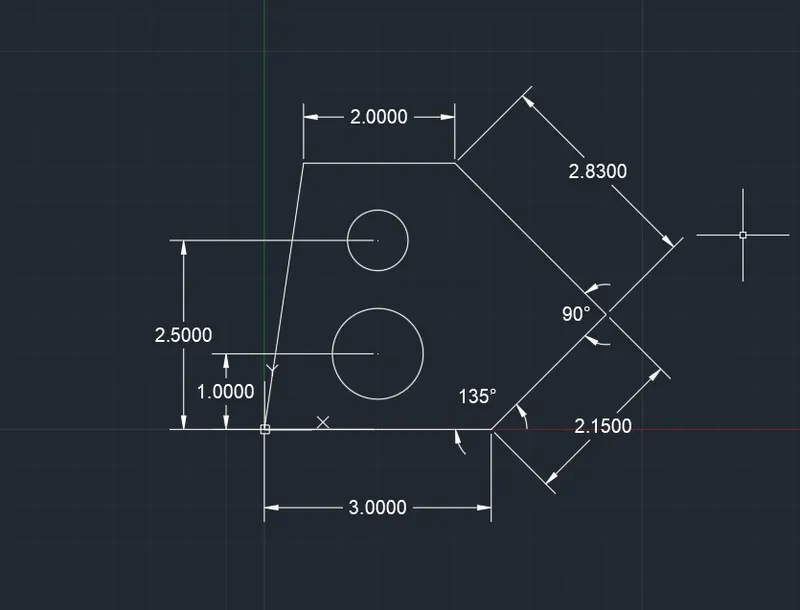
DIAGRAM 2
Aim: To draw the above figure using AutoCAD
Procedure:
Create an imperial drafting sheet
Open grid and snap settings
- Change snap and grid spacing to 1’
- Change major line every grid line to 10’
- Turnoff adaptive grid
Step 1: Drawing right side of figure
Type ‘L’ or line in command box or select line from the draw tool bar
- CLICK THE FIRST POINT
- Specify first point: Type 8 and press enter
- Specify next point: Type 1'9" and press enter
- Specify next point: Type @ 2’10” <225 and press enter
Step 2: Drawing left side of figure
Type ‘L’ or line in command box or select line from the draw tool bar
- Specify first point: Turn on Osnap and select the top left end point or start point
- Specify next point: Type -2’5”and press enter IN -VE Y AXIS.
- Specify next point: Type @ 3’ <300 and press enter
- Specify next point: Type @ 2’6” <30 and press enter
- Specify next point (Close: Exit: Undo): Turn on Osnap and select the last end point drawn in last step
Result:
The resultant figure is as follows with dimensions
Notes:
- All dimensions are in feet and inches
- Included angles are calculated manually
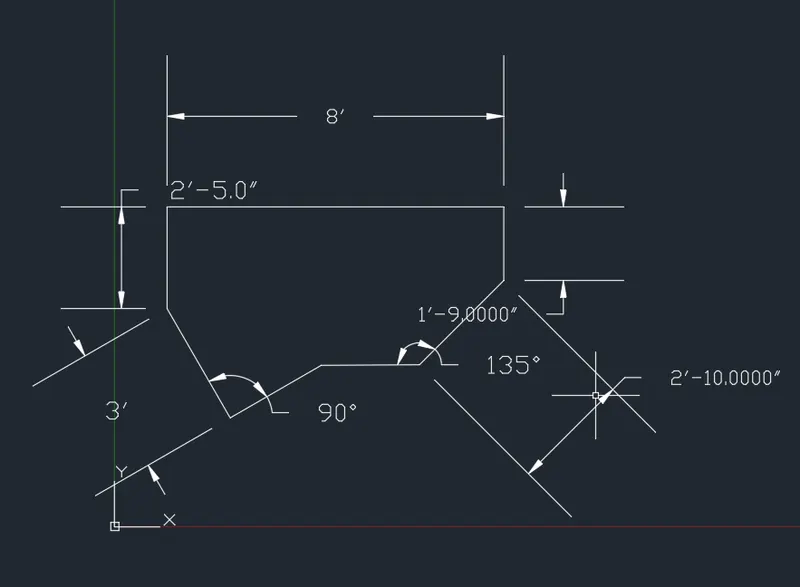
DIAGRAM 3
Aim: To draw the above figure using AutoCAD
Procedure:
Open grid and snap settings
- Change snap and grid spacing to 1’
- Change major line every grid line to 10’
- Turnoff adaptive grid
Step 1: Drawing outer box
Type ‘L’ or line in command box or select line from the draw tool bar
- Specify first point: Type (9,5) and press enter
- Specify next point: Type @ 0, -1’6” and press enter
- Specify next point: Type @ -5’0.1”,0 and press enter
- Specify next point: Type @ 0, 3’3” and press enter
- Specify next point: Type @ 2’6.5”,0 and press enter
- Specify next point (Close: Exit: Undo): Press close to complete the box
Step 2: Creating points for inner circle
Type PDMODE and press enter and type 3 and press enter
Type ‘po’ or point in command box and press enter
Turn on polar tracking
- Keep the curser on bottom left corner of the box and then move is right side of that point for polar tracking and type 1’3” and press enter
- Keep the cursor on the last point created and move it up for polar tracking and type 1’6” and press enter
Step 3: Drawing Inner circle
Type ‘C’ or Circle in the command box or select circle from the draw toolbar
- Specify center point for circle: Turn on Osnap and click on the point created for circle center
- Specify radius of circle or Diameter: Press diameter and type 1’6” and press enter
Result:
The resultant figure is as follows with dimensions
Notes:
- All dimensions are in feet and inches
- Included angles are calculated manually
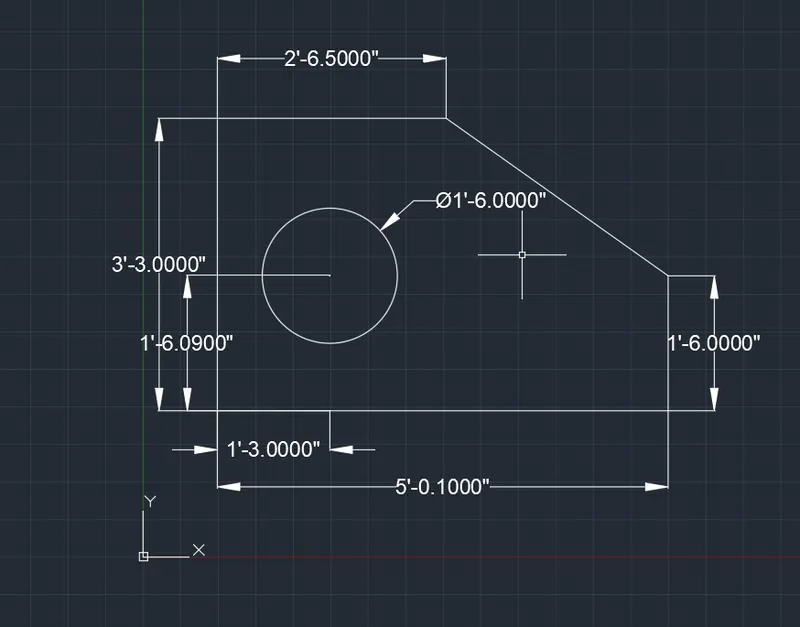
DIAGRAM 4
Aim: To draw the above figure using AutoCAD
Procedure:
Open grid and snap settings
- Change snap and grid spacing to 1
- Change major line every grid line to 10
- Turnoff adaptive grid
Step 1: Drawing outer box
Type ‘L’ or line in command box or select line from the draw tool bar
- Specify first point: Type (1,1) and press enter
- Specify next point: Type @ 3,0 and press enter
- Specify next point: Type @ 0, -05 and press enter
- Specify next point: Type @ 2.5,0 and press enter
- Specify next point: Type @ 0,2.5 and press enter
- Specify next point: Type @ -2,0 and press enter
- Specify next point: Type @ 0,3 and press enter
- Specify next point: Type @ -2.5,0 and press enter
- Specify next point: Type @ 0, -2 and press enter
- Specify next point: Type @ -1,0 and press enter
- Specify next point (Close: Exit: Undo): Press close to complete the box
Result:
The resultant figure is as follows with dimensions
Notes:
- All dimensions are in meter
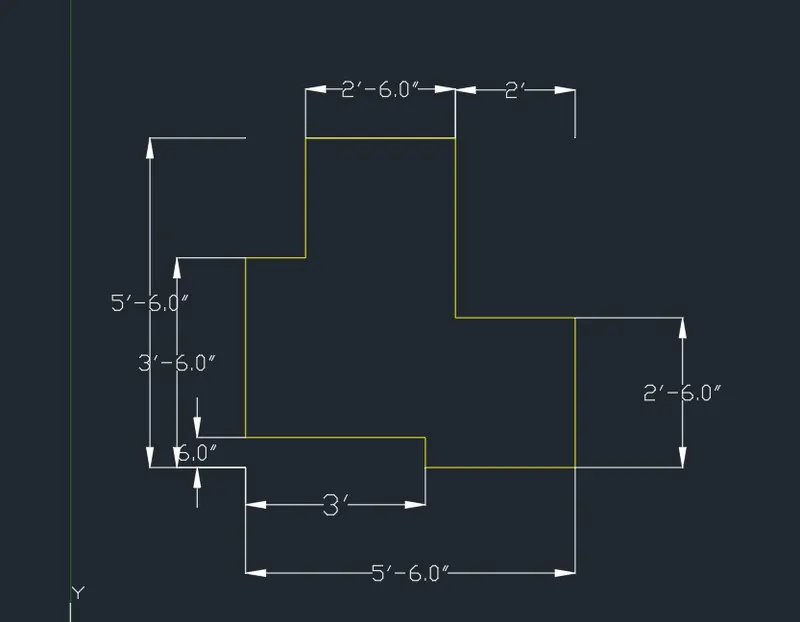
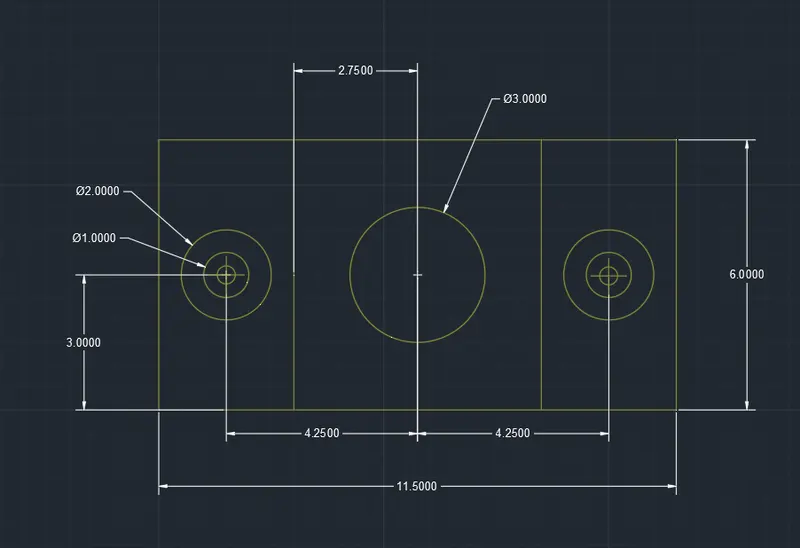
DIAGRAM 5
Aim: To draw the above figure using AutoCAD
Procedure:
Open grid and snap settings
- Change snap and grid spacing to 1
- Change major line every grid line to 10
- Turnoff adaptive grid
Step1: Drawing rectangle
Type ‘rec’ or rectangle in the command box or select rectangle from the draw toolbar
- Specify first corner point: Type (10,10) and press enter
- Specify other corner point or [ Area: Dimension: Rotation]: Click on dimensions
- Specify length for rectangle: Type 11.5 and press enter
- Specify width for rectangle: Type 6 and press enter and set the direction as first quadrant
Step 2: Drawing geometric center on the rectangle and the geometric center of left rectangle
Type ‘L’ or line in command box or select line from the draw tool bar
- Specify first point: Type (13,10) and press enter
- Specify next point: Turn on perpendicular in Osnap and select the perpendicular point on opposite side of rectangle
Type PDMODE and press enter and type 3 and press enter
Turn on polar tracking
Turn on OSNAP and select center and geometric center
Type ‘po’ or point in command box and press enter
- Specify a point: Select the geometric center of the rectangle
Type ‘po’ or point in command box and press enter
- Specify a point: Select the geometric center of the left rectangle
Step 3: Drawing left side holes of figure and center hole
Type ‘C’ or Circle in the command box or select circle from the draw toolbar
- Specify center point for circle: Turn on Osnap and click on the point as geometric center of rectangle
- Specify radius of circle or Diameter: Press diameter and type 3 and press enter
Type ‘C’ or Circle in the command box or select circle from the draw toolbar
- Specify center point for circle: Turn on Osnap and click on the point as geometric center of left rectangle
- Specify radius of circle or Diameter: Press diameter and type 1 and press enter
Type ‘C’ or Circle in the command box or select circle from the draw toolbar
- Specify center point for circle: Turn on Osnap and click on the point as geometric center of left rectangle
- Specify radius of circle or Diameter: Press diameter and type 2 and press enter
Step 4: Creating mirror image the holes and left rectangle
Type ‘mi’ or mirror in the command box and press enter or select mirror from the modify tool bar
- Select objects: Select the left rectangle, center point created and two circle holes and press enter
- Select first point of mirror line: Select the geometric center of the main rectangle
- Select second point of the mirror line: Turn on Orthomode and Select any edge along the length
- Erase source object [ Yes: No]: Click on No
Result:
The resultant figure is as follows with dimensions
Notes:
- All dimensions are in meter
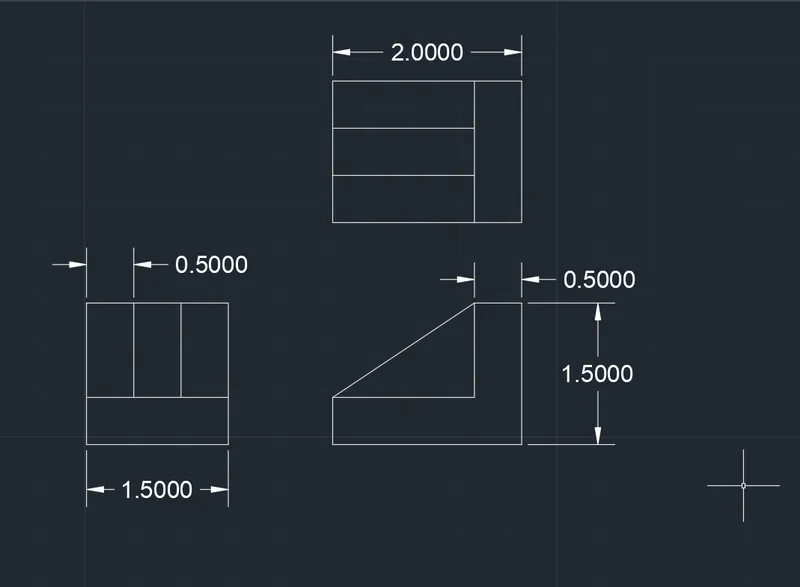
DRAWING 6
IM:
To draw the given drawing using AutoCAD software
PROCEDUE :
STEP 1 :
- In the command prompt type Units >type> decimal > precesion > 0.0
STEP 2: (RECTANGLE AT THE RIGHT )
- In the command prompt type line
- In the command prompt type distance 1.5
- In the command prompt type distance 1.5
- In the command prompt type distance 1.5
- In the command prompt type distance 1.5
- In the command prompt type offset
- In the command prompt type offset distance 0.5
- With the help of offset get a horizontal line of distance 0.5
- With the help of offset get two vertical line of each distance 0.5
STEP 3: (RECTANGLE AT THE TOP )
- In the command prompt type line
- In the command prompt type distance 2.0
- In the command prompt type distance 1.5
- In the command prompt type distance 2.0
- In the command prompt type distance 1.5
- In the command prompt type offset
- In the command prompt type offset distance 0.5
- With the help of offset get a vertical line of distance 0.5
- With the help of offset get two horizontal line of each distance 0.5
STEP 3 : ( DRAWINGT AT THE CENTRE )
- Extended the horizontal lines from the right rectagular drawing
- Extended the vertical lines from the top rectangular drawing
- With the help of line command join the intersecton points
- And trim the extras with the help of trim command
DRAWING 7
AIM:
To draw the given drawing using AutoCAD software
PROCEDUE :
STEP 1 :
- In the command prompt type Units >type> decimal > precesion > 0.0
STEP 2:
- In the command prompt type line
- In the comman prompt type distance 100
- In the command prompt type distance 210
- In the command prompt type distance 75
- In the command prompt type fillet
- In the command prompt type radius > 15.0
- select the 100 line and 210 line
- select the 210 line and 75 line
STEP 3 :
- From the end point of 100 draw a horizontal line of 70
- In the menu bar click circle > centre , radius
- center is the midpoint of the previous line and radius is 35
- In the menu bar click circle > centre , diameter
- centre is the centre of the previous circle (R35) and diameter is 50
- From the end point of line 70 draw a vertical line of 40 .
STEP 4 :
- From the end point of 75 draw a horizontal line of 50
- In the menu bar click circle > centre , radius
- center is the midpoint of the previous line and radius is 25
- In the menu bar click circle > centre , diameter
- centre is the centre of the previous circle (R25) and diameter is 30
- From the end point of line 50 draw a vertical line of 15 .
- Close the gap with the help of the line
STEP 5 :
- In the command prompt type fillet > radius > 20
- select the two lines to get the curve
- In the command prompt type fillet > radius > 6
- select the two lines to get the curve
STEP 6:
- At a distance of 20 from the left top corner and 10 from the top (specify starting point )
- From that point with the help of the rectangular command draw a rectangle with dimensions 70and 30
- offset the rectangle at a distance of 30 with the help of offset command
RESULT:
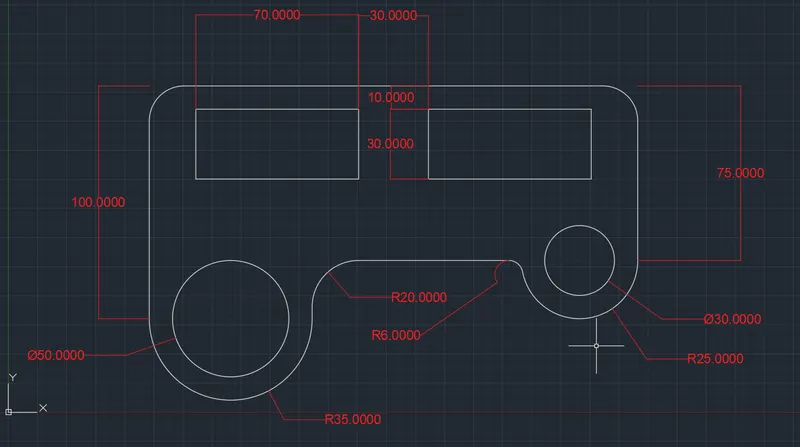
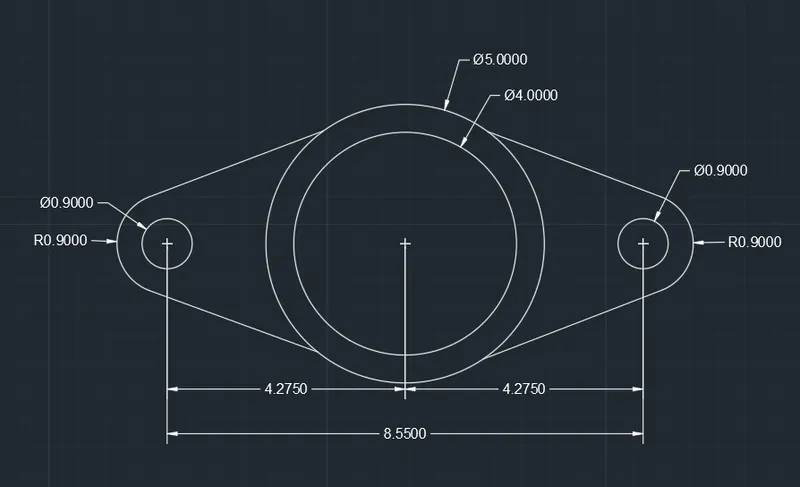
DIAGRAM 8
AIM:
To draw the given drawing using AutoCAD software
PROCEDUE :
STEP 1 :
- In the command prompt type Units >type> decimal > precesion > 0.000
STEP 2: ( left side )
- In the command prompt type line > distance > 8.550
- In the menu bar > circle > centre , diameter
- centre is the end point of line 8.550 and diameter is 0.90
- In the menu bar > circle > centre , radius
- centre is the end point of line 8.550 and radius is 0.90
STEP 3:(right side )
- In the menu bar > circle > centre , diameter
- centre is the end point of line 8.550 and diameter is 0.90
- In the menu bar > circle > centre , radius
- centre is the end point of line 8.550 and radius is 0.90
STEP 4 :
- In the menu bar > circle > centre , diameter
- centre is the midpoint of line 8.550 and diameter is 50
- In the menu bar > circle > centre , radius
- centre is the midpoint of line 8.550 and diameter is 40
STEP 5:
- Join the tangets of the outer circle with helpof lines and trim the extras
RESULT:
DRAWING 8
AIM:
To draw the given drawing using AutoCAD software
PROCEDUE :
STEP 1 :
- In the command prompt type Units >type> engineering > precesion > 0.0
STEP 2: ( left side )
- In the command prompt type line > distance > 32'-6"
- In the menu bar > circle > centre , diameter
- centre is the end point of line 32'-6" and diameter is 8'
STEP 3:(right side )
- In the menu bar > circle > centre , diameter
- centre is the end point of line 32'-6" and diameter is 9'
STEP 4 : (DOWN ARC)
- In the menu bar > circle > centre , diameter
- centre is the end point of line 32'-6" and diameter is 32'-6" (LS)
- In the menu bar > circle > centre , diameter
- centre is the end point of line 32'-6" and diameter is 32'-6" (RS)
- Point where two circles are intersecting (bottom) raw a circle with radius 32'-6"
- Thus arc is formed now trimmed the extras
STEP 5 : (UP ARC )
- In the menu bar > circle > centre , diameter
- centre is the end point of line 32'-6" and diameter is 33'-8" (LS)
- In the menu bar > circle > centre , diameter
- centre is the end point of line 32'-6" and diameter is 32'-8" (RS)
- Point where two circles are intersecting (bottom) raw a circle with radius 41'-8"
- Thus arc is formed now trimmed the extras
RESULT:
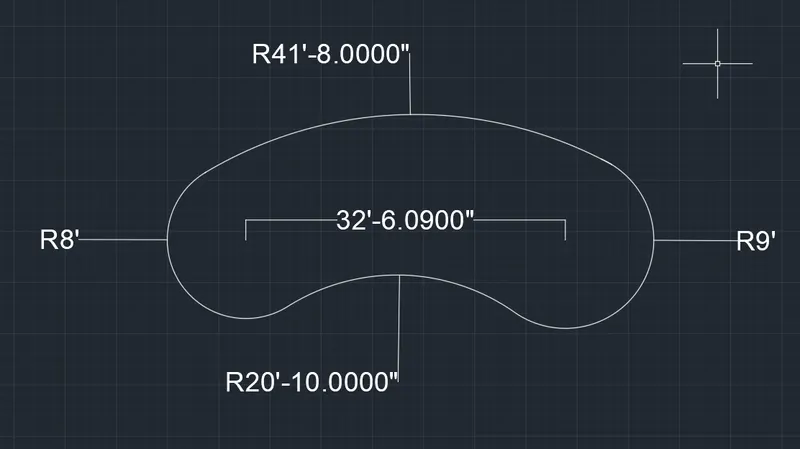
DIAGRAM 9
AIM:
To draw the given drawing using AutoCAD software
PROCEDUE :
STEP 1 :
- In the command prompt type Units >type> decimal > precesion > 0.0
STEP 2 :
- In the command prompt type rec > dimensions > 5 >5
- offset the recangle and rotate it to the diamond shape
- using offset command offset rectangle and diamond
STEP 3 :
- Using trim command trim out the unwanted lines as shown in the drawing
RESULT:
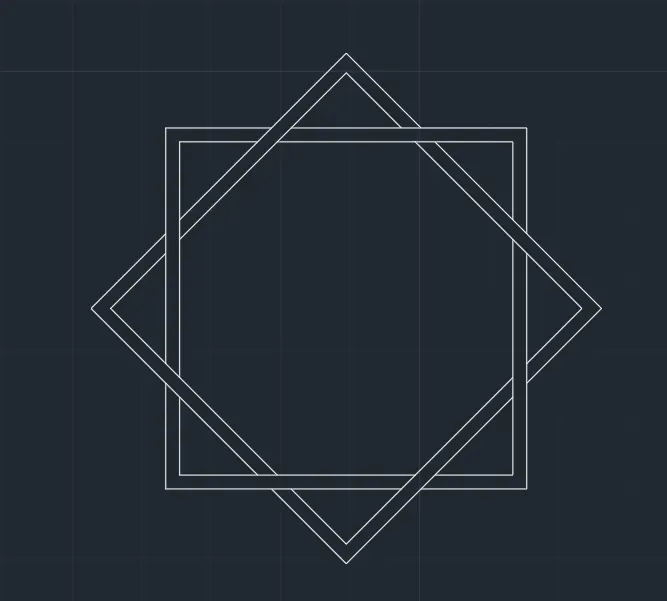
DIAGRAM 10
AIM:
To draw the given drawing using AutoCAD software
PROCEDUE :
STEP 1 :
- In the command prompt type Units >type> engineering > precesion > 0.0
STEP 2:
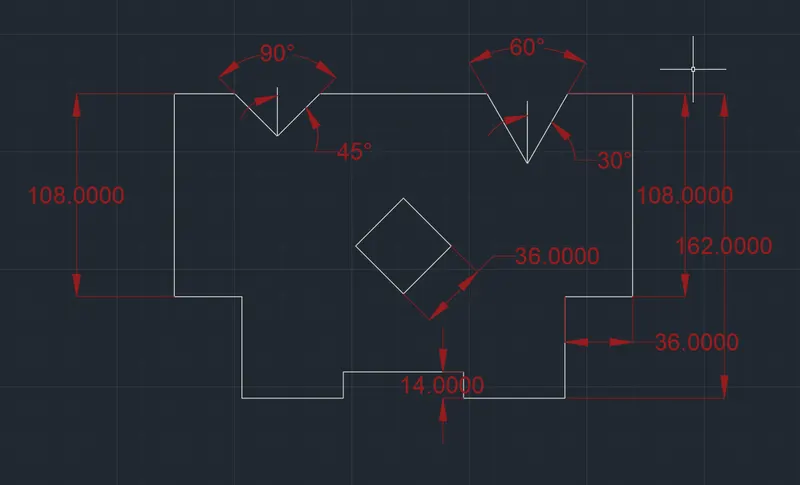
- In the command prompt type line > distance > 20' 4"> 9'> 3'>4' 6" > 4' 6" > 1'2" >5' 4"> 1'2" > 4'6"> close
STEP 3 :(LS V )
- Take offset distance of 3' from corner and 2' 8" from top with offset command
- With the line command draw a V and polar coordinates must be 45 .90,135,180
STEP 4 : (RS V)
- Take offset distance of 3' from corner and 3' 7" from top with offset command
- With the line command draw a V and polar coordinates must be 30,60,90,120
STEP 5 ( CENTRE DIAMOND )
- Take offset distance of 10'2" from corner and 6' 10" from top with offset command
- Keeping the intersection point as centre draw a diamond with radius 3 and angle 90
RESULT: