Drafting of various geometries using Chamfer, Fillet tool in AutoCad
1.
Drafting various geometrics using chamfer and fillet in Autocad software
AIM: To create a geometry
COMMANDS:
Line, circle
PROCEDURE:
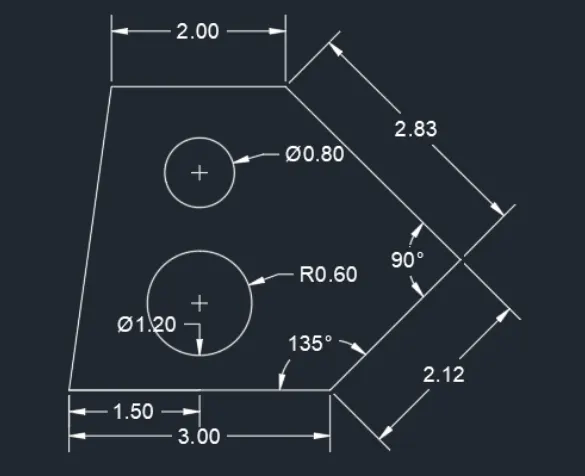
1. Create a line using command L and the coordinates are 0,0 and 3,0
2. Relative coordinates are 2.12-135 and other coordinate is @2.83-90 next is -2,0 then close
3. Create a circle now using command C offset of 1 unit upwards from bottom line center
4. Simillarly give the other offsets 2.5 from bottom line of 3 and draw the reference line left corner to upwards and offsets at a distance 1.5 towards right
5. Draw a circle diameter 1.2and click on center give diameter 0.8 and earse all set line
Results :
AIM: To create the geometry by using autocad
COMMANDS:
Line
PROCEDURE:
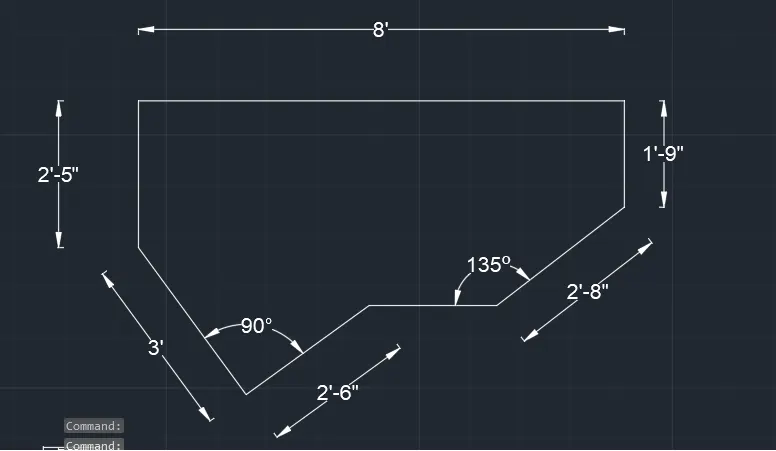
1. First change the units in command UN and enter engineering feets and inches
2. Draw a line length 2'6" angle 210 degrees using command line with an angle 90 degrees another line of length 3
3.Then on the ortho mode and draw another line of length 2'5" vertically upwards and another line 8' horizontally
4. Draw anothr line 19" vertically downwards and use line command @2'10"<135 and click the starting point of line and click escape
Result:
AIM: To create the geometry
COMMANDS:
Line, circle, Chamfer
PROCEDURE:
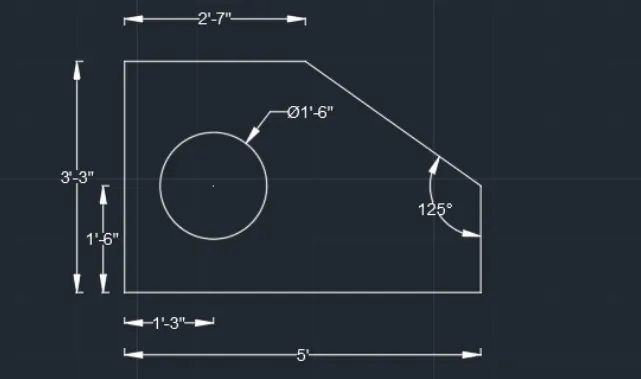
1. First change the units in command UN and enter engineering feets and inches
2. Draw a line coordinates point 10,10 then on ortho mode and move cursor left side enter 5'1" then upwards 3'3.0" and right 27" and then escape
3. Using line from the starting point move the cursor upwards and enter 16.0" and click other end of the diagram
4. Draw off sets 1'6" vertically upwards from bottom line and then 1'3" from the left corner towards right
5. Create a circle dia intersecting two offsets lines will be enter and specift the dia 1'6" and earse both offsets line
Result:
AIM: To create gerometry
COMMANDS:
Line
PROCEDURE:
1. using poly line and on the orthomode given coordinates point 10.10 and come to downwards 3 and towards right and enter again 3 move cursor downwards and enter 0.5
2. Then move to right side 2.5 and leftside 2.0 and upwards 3.0 and left side 2.5 and then move to downwards 2.0
Result:
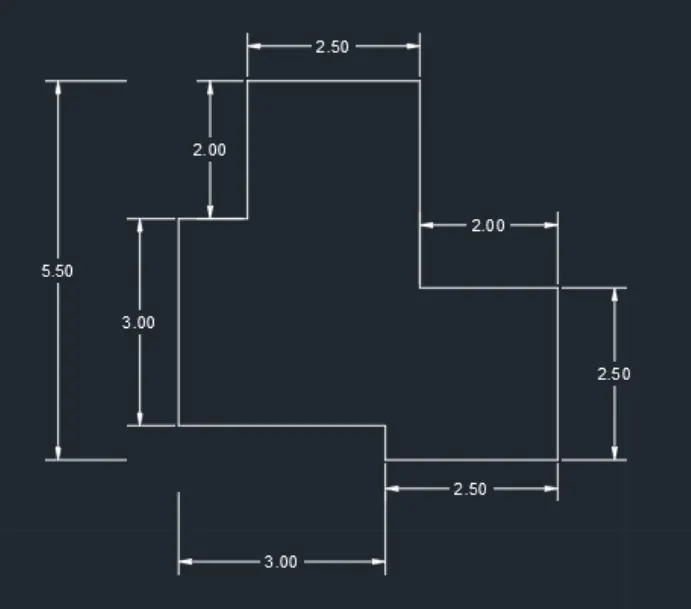
AIM:To create geometry
COMMANDS:
Line, circle, offsets, trim, explode
PROCEDURE:
1. Draw a rectangle given coordinates 5,5 and the length 11.5 and width 6 then explode the rectangle in different segments
2. Create offset distance 3 units and 1.5 units towards inside rectangle at bothsides and vertically 3 units upwards
3. Create a circle diameter 3 units and another two circles dia 2 units and 1 unit at the intersection of offset lines on bothsides
4. Earse unwanted lines
Result:
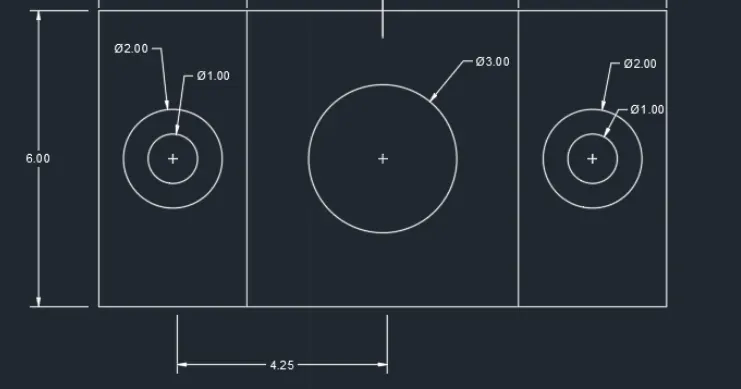
AIM: To create geometry
COMMANDS:
Line, offset, trim, Chamfer
PROCEDURE:
1. Daw a line 2 units to right side and 1.5 vertically upwards and 2 units left side
2. Then make offset right side corner of bottom line 0.5 and same vertically upwards 0.5 from bottom line 2 and trim unwanted lines
3. using command L first point towards right 2.0 and upwards 1.5 and left side 0.5 then downwards 1.0 then close
4. By using ortho mode on by usingrectangle command draw a square of 1.5 x 1.5 units
5. offsets distance 0.5 from left to right side of a rectangle and trim the unwanted lines
Result:
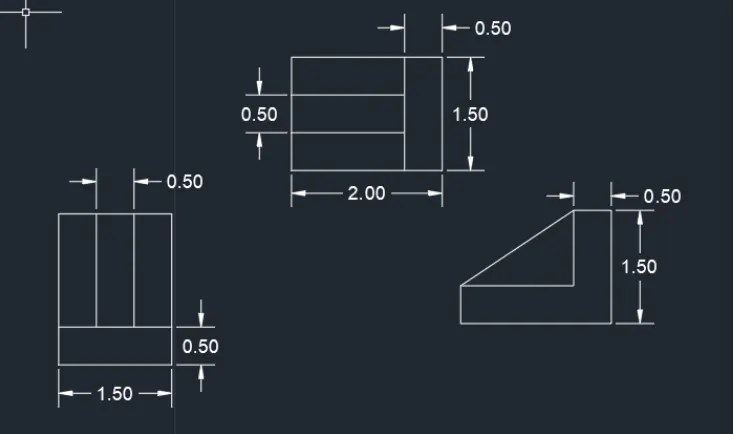
AIM: To create geometry
COMMANDS:
Line, circle, offset, trim, fillet
PROCEDURE:
1. Draw a line 100 units vertically upwards and right 210 units and vertically downwards 75 and click enter
2. By using offset distance 10 units 40, 60 from top line to downwards
3. Again using offset distance 20 units 90, 120, 190 from left side to right side
4. In command line enter C take two poins s method bottom corner 100 first and second point 70 distance
5. Draw a circle dia 50 and line first pont 35 radis of circle above the offset line and use fillet radis 20 remove unwaanted lines
6. In command line enter C take two poins s method bottom corner 75 first and second point 50 distance. Draw a circle dia and fillet radius 6 line above offset
7. Using fillet select objects top left corner line and radius 15 and same process at the top right corner.
Result:
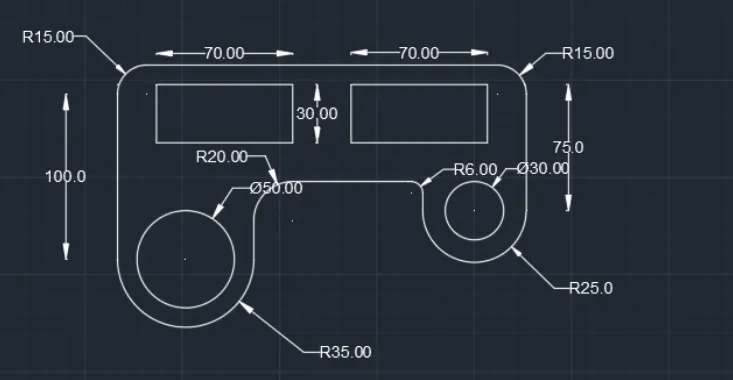
AIM: To create geometry
COMMANDS:
Line, circle, trim, erase
PROCEDURE:
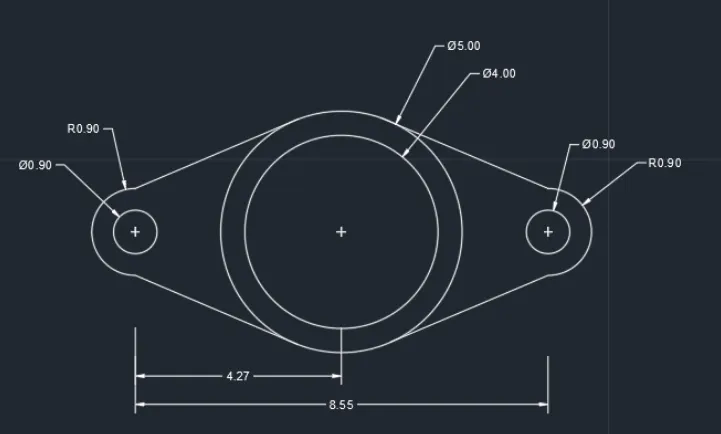
1.Draw a dia 4 and specify the center line dia 4 and another circle 5 dia with same center
2. Draw a line 4.275 from the center of a circle using line command and using command C specify the center at the end of line and click on dia and give 0.9 units
3. same center line another circle dia 0.9
4. BY using polyline draw a tangent to the circle of radius 0.9 first circle dia 5 in top and bottom on both sides and trim the unwanted lines 5. By using mirror select the two circles and tangents specify base points as a center 5 units dia and place it at the other end of the line and press escape.
Result:
AIM: To create geometry
COMMANDS:
Circle, trim, erase
PROCEDURE:
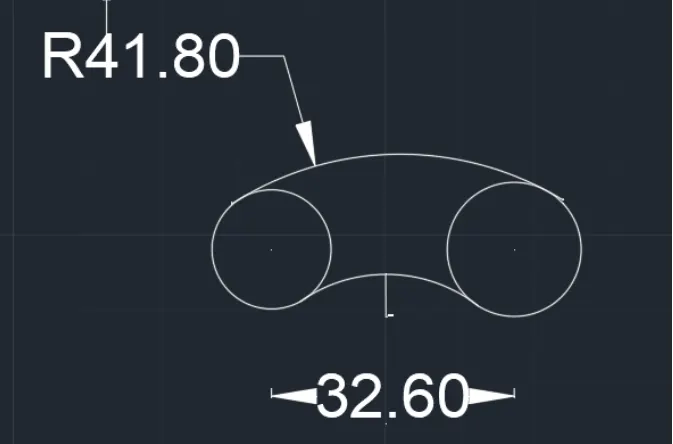
1. Draw a line 32'6", Take the centres as ends of the line draw two circles of radius 8' and 9:
2.To draw the bottom arc, draw offset to both the circles with offset distance as radius of the bottom arc. Command "o" circle offset distance as 20'10" intersection of the two circles, from the intersecting point.
3. Draw a circle with centre as intersection point of the offset circles and radius of 2010".
4. Trim the rest of the figure to get an arc and thus an arc of 20'10' will be formed draw the upper curve,
5.Draw a circle with radius 32'8" (418-9-32'8") with centre same as that of radius 9 circle.
6. Draw another circle with radius 33'8" (41'8-8'-33'8") with centre same as that of radius 8' circle.
7. Draw another circle, with centre as the intersecting point of the bottom circles and with radius 41'8" It passes through the two circles of radius 8' and 91
8. Trim off the rest, so that an arc of radius 41'8" is formed between the tangents.Trim the part of the circle and the line connecting the centre of circles.
Result:
AIM: To create gerometry
COMMANDS:
Rectangle, offsets, trim, rotate, copy
PROCEDURE:
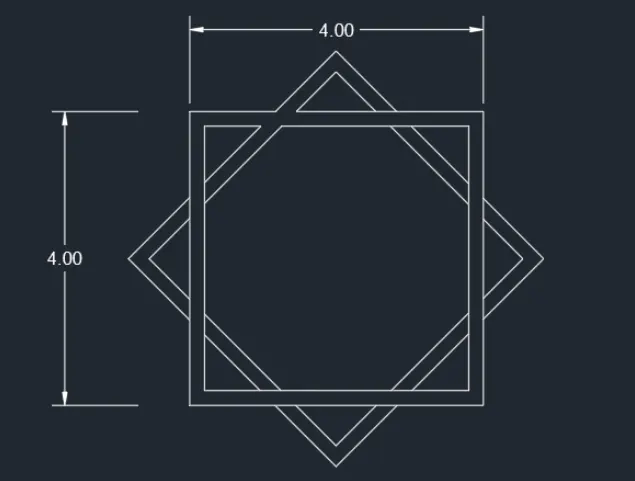
1. Draw a rectangle at a point in plane and dimensions length 5 breadth 5 and offsetd 0.2 inside rectangle
2. Copy the square and rotate the square and select base point from botto by 45 degrees and trim unwanted lines
Result:
AIM: To create geometry
COMMANDS:
Line, offset. mirror, trim
PROCEDURE:
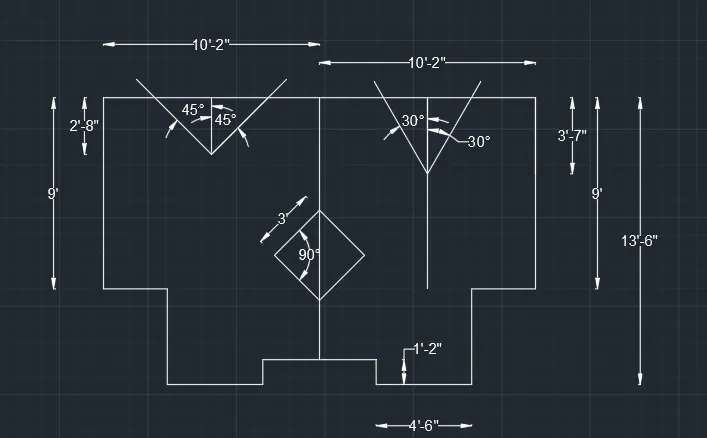
1. UNits are in feets and inches by using line first point plane and move cursor right side 10'2" and move the cursor down wards and enter 9" and move the cursor left side and enter 3' and move the cursor downwards and enter 4-6" and move the cursor left and enter4'-6"
2. Move the cursor upwards enter 1-2". In the command line enter "MI" select all the objects and click on enter select base point and mirroring the image.
3. Give offset line of distance 3'7" horizontally by offset command "O" Give offset line at the mid point of top 10-2 line and vertically by offset command "O" on both sides such that the included angle is 60-degree 30 degree on both side of the vertical line.
4. Similarly, on the other side, take an offset of mid point of top 10-2' line and from the corner 2'8" from top and draw the inclined lines such that the included angle is 90degree.
5. Take offset distance of 10'2" from corner and 6 10" from top with offset command intersection point as centre draw a diamond with radius 3 and angle 90
Results: