Drafting of various geometries using Chamfer, Fillet tool in AutoCad
AIM-Drafting of various geometries using Chamfer, Fillet tool in AutoCad.
fig 1
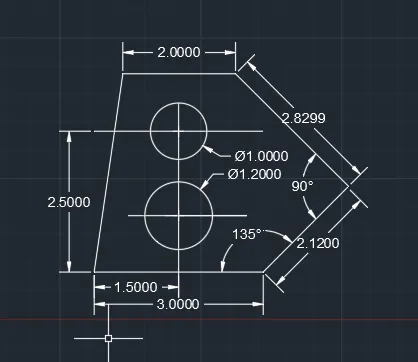
1}open units and set the unit to deceimal digit
2}select line tool and start drawing line tool and input the value mensioned in the fig .
3}Drop the line using and turn on the polar co-orinate option .
4}Draw the ref. line to construct the circle as per given in the attacment fig .
5}Find the centre of the circle and select circle option from the menu bar
6}write the radius of the circle
7}open dimension tool and then do all the dimension as per drawing
8}Adjust non matched dimension and move or streach the line as per dimension.
result - as a result u will get the drafting fig as per attachment and will learn to use line command fillet command other various tools used in above fig .
fig 2
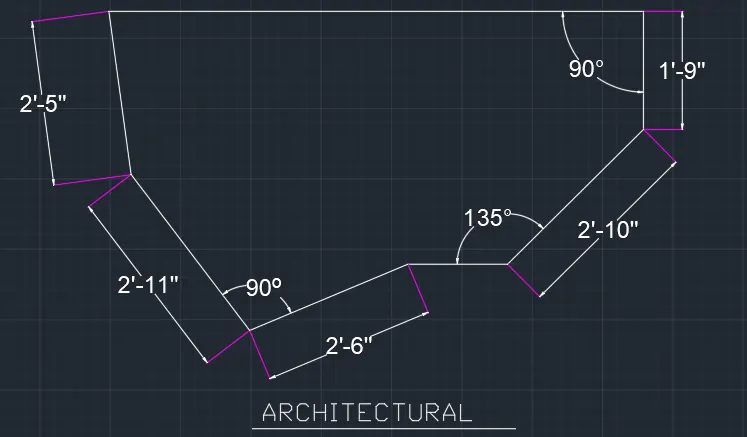
1}open units and set the unit to deceimal digit
2}select line tool and start drawing line tool and input the value mensioned in the fig .
3}Drop the line using and turn on the polar co-orinate option .
4}Draw the ref. line to construct the circle as per given in the attacment fig .
5}Find the centre of the circle and select circle option from the menu bar
6}write the radius of the circle
7}open dimension tool and then do all the dimension as per drawing
8}Adjust non matched dimension and move or streach the line as per dimension.
result - as a result u will get the drafting fig as per attachment and will learn to use line command fillet command other various tools used in above fig .
fig 3
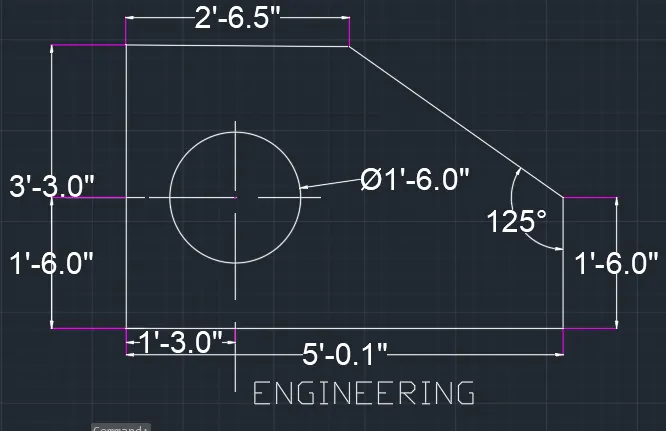
1}open units and set the unit to deceimal digit
2}select line tool and start drawing line tool and input the value mensioned in the fig .
3}Drop the line using and turn on the polar co-orinate option .
4}Draw the ref. line to construct the circle as per given in the attacment fig .
5}Find the centre of the circle and select circle option from the menu bar
6}write the radius of the circle
7}open dimension tool and then do all the dimension as per drawing
8}Adjust non matched dimension and move or streach the line as per dimension.
9}write text on command box and write the text mentioned in fig .
result - as a result u will get the drafting fig as per attachment and will learn to use line command fillet command other various tools used in above fig .
fig 4
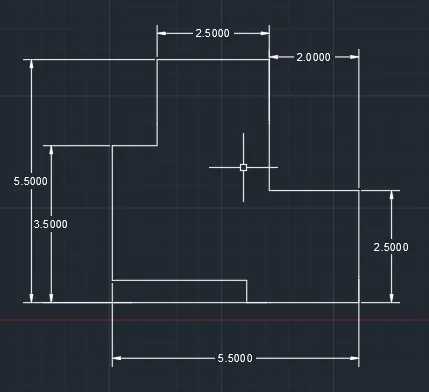
1}open units and set the unit to deceimal digit
2}select line tool and start drawing line tool and input the value mensioned in the fig .
3}Drop the line using and turn on the polar co-orinate option .
4}Draw the ref. line to construct the circle as per given in the attacment fig .
5}Find the centre of the circle and select circle option from the menu bar
6}write the radius of the circle
7}open dimension tool and then do all the dimension as per drawing
8}Adjust non matched dimension and move or streach the line as per dimension.
result - as a result u will get the drafting fig as per attachment and will learn to use line command fillet command other various tools used in above fig .
fig 5
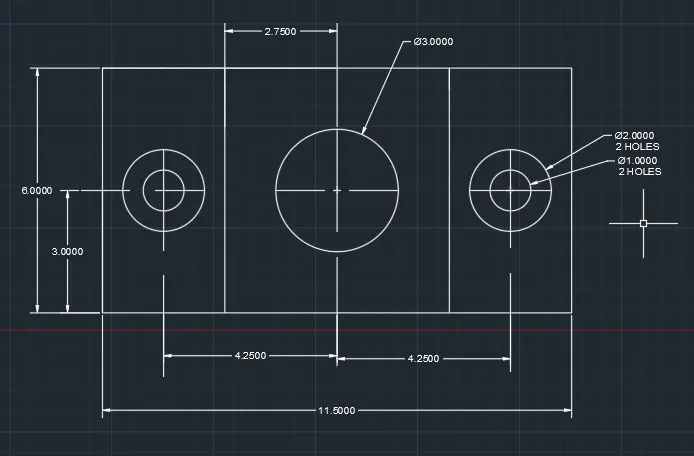
1}open units and set the unit to deceimal digit
2}select line tool and start drawing line tool and input the value mensioned in the fig .
3}Drop the line using and turn on the polar co-orinate option .
4}Draw the ref. line to construct the circle as per given in the attacment fig .
5}Find the centre of the circle and select circle option from the menu bar
6}write the radius of the circle
7}open dimension tool and then do all the dimension as per drawing& for angular dim select angular option in annotation bar.
8}Adjust non matched dimension and move or streach the line as per dimension.
result - as a result u will get the drafting fig as per attachment and will learn to use line command fillet command other various tools used in above fig .
fig 6
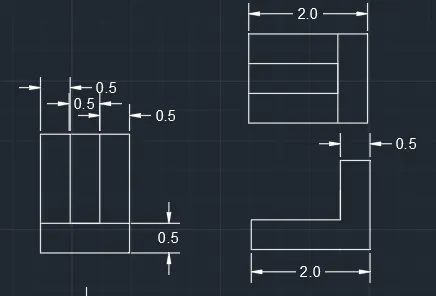
1}open units and set the unit to deceimal digit
2}select line tool and start drawing line tool and input the value mensioned in the fig .
3}Drop the line using and turn on the polar co-orinate option .
4}Draw the ref. line to construct the circle as per given in the attacment fig .
5}Find the centre of the circle and select circle option from the menu bar
6}draw 1st fig and copy paste and rotate the drawing as per given in attachment .
7}open dimension tool and then do all the dimension as per drawing& for angular dim select angular option in annotation bar.
8}Adjust non matched dimension and move or streach the line as per dimension.
result - as a result u will get the drafting fig as per attachment and will learn to use line command fillet command other various tools used in above fig .
fig 7
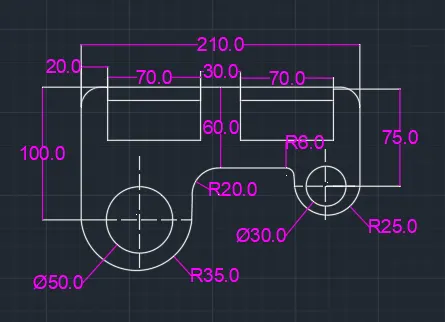
1}open units and set the unit to deceimal digit
2}select line tool and start drawing line tool and input the value mensioned in the fig .
3}Drop the line using and turn on the polar co-orinate option .
4}Draw the ref. line to construct the circle as per given in the attacment fig .
5}Find the centre of the circle and select circle option from the menu bar
6}Select fillet and write down the fillet radius as per given attachment and ajust the fillet and line accordingly.
7}open dimension tool and then do all the dimension as per drawing& for angular dim select angular option in annotation bar.
8}Adjust non matched dimension and move or streach the line as per dimension.
result - as a result u will get the drafting fig as per attachment and will learn to use line command fillet command other various tools used in above fig .
Fig 8
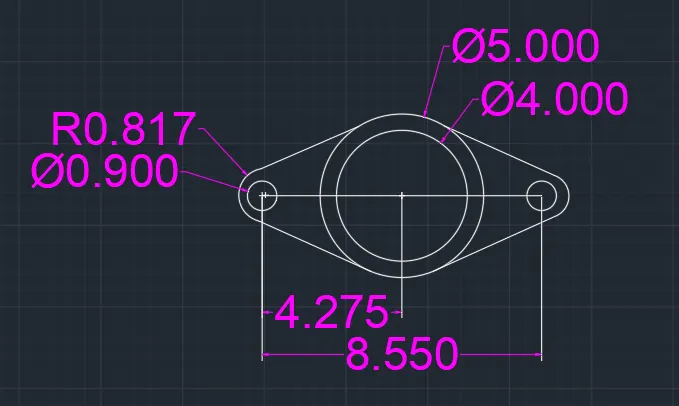
1}open units and set the unit to deceimal digit
2}select line tool and start drawing line tool and input the value mensioned in the fig .
3}Drop the line using and turn on the polar co-orinate option .
4}Draw the ref. line to construct the circle as per given in the attacment fig .
5}Find the centre of the circle and select circle option from the menu bar
6}Select fillet and write down the fillet radius as per given attachment and ajust the fillet and line accordingly.
7}open dimension tool and then do all the dimension as per drawing& for angular dim select angular option in annotation bar.
8}Adjust non matched dimension and move or streach the line as per dimension.
result - as a result u will get the drafting fig as per attachment and will learn to use line command fillet command other various tools used in above fig .
fig 9
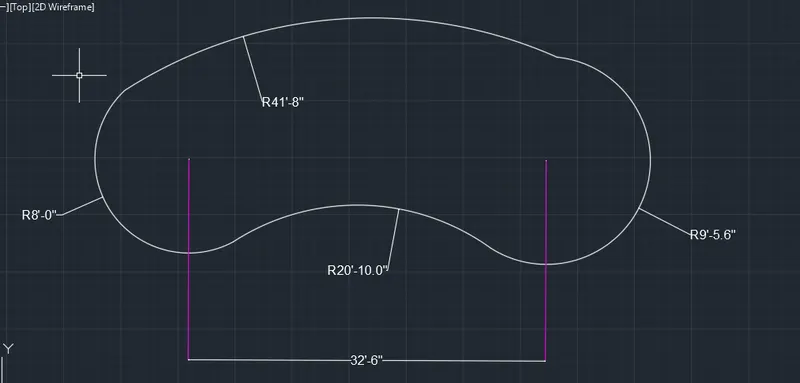
1}open units and set the unit to engineering feet and inches digit
2}select line tool and start drawing line tool and input the value mensioned in the fig .
3}Drop the line using and turn on the polar co-orinate option .
4}Draw the ref. line to construct the circle as per given in the attacment fig .
5}Find the centre of the circle and select circle option from the menu bar
6}Select fillet and write down the fillet radius as per given attachment and ajust the fillet and line accordingly.
7}open dimension tool and then do all the dimension as per drawing& for angular dim select angular option in annotation bar.
8}Adjust non matched dimension and move or streach the line as per dimension.
result - as a result u will get the drafting fig as per attachment and will learn to use line command fillet command other various tools used in above fig .
fig 10
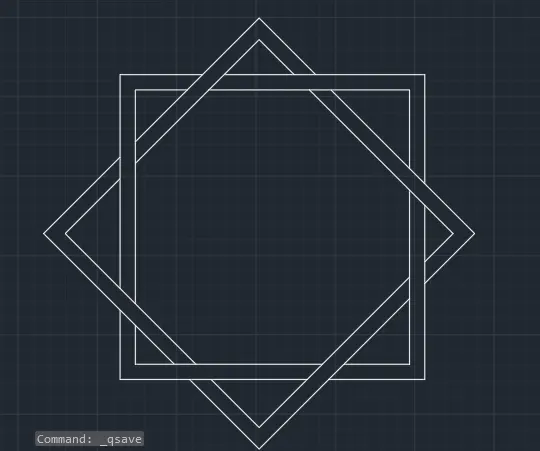
1}open units and set the unit to engineering feet and inches digit
2}select line tool and start drawing line tool and input the value mensioned in the fig .
3}Drop the line using and turn on the polar co-orinate option .
4}Draw the ref. line to construct the circle as per given in the attacment fig .
5}Find the centre of the circle and select circle option from the menu bar
6}Select fillet and write down the fillet radius as per given attachment and ajust the fillet and line accordingly.
result - as a result u will get the drafting fig as per attachment and will learn to use line command fillet command other various tools used in above fig .
fig11
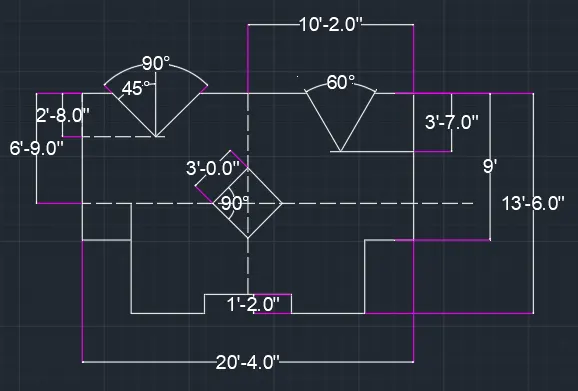
1}open units and set the unit to engineering feet and inches digit
2}select line tool and start drawing line tool and input the value mensioned in the fig .
3}Drop the line using and turn on the polar co-orinate option .
4}Draw the ref. line to construct the circle as per given in the attacment fig .
5}Find the centre of the circle and select circle option from the menu bar
6}Select fillet and write down the fillet radius as per given attachment and ajust the fillet and line accordingly.
7}open dimension tool and then do all the dimension as per drawing& for angular dim select angular option in annotation bar.
8}Adjust non matched dimension and move or streach the line as per dimension.
result - as a result u will get the drafting fig as per attachment and will learn to use line command fillet command other various tools used in above fig .