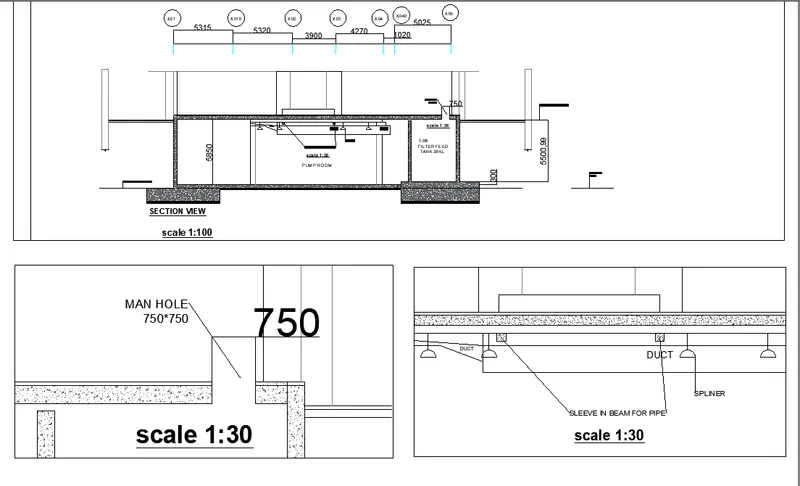
Creation of Multiple viewports, Scaling the drawing and setting in Template in AutoCad
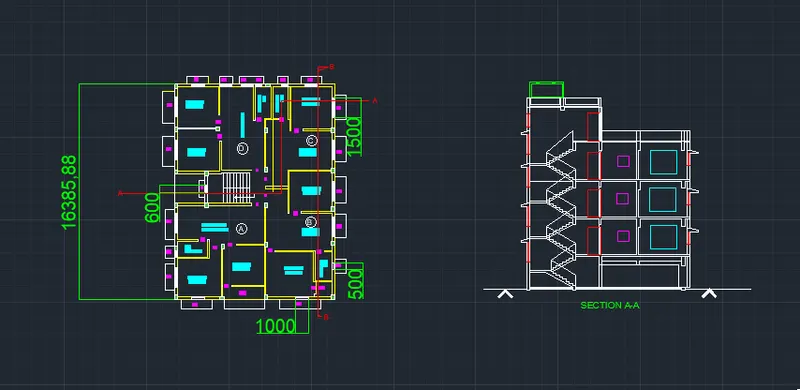
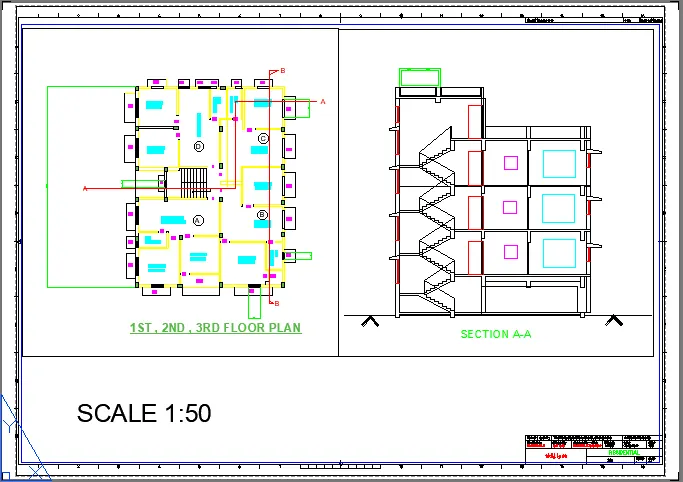
1. Create a layout of the Plan and Section A of the project in Challenges 7, using the template Tutorial-mArch.dwt in a scale as given in the Figure. Use the MV command to create the viewport of the size as shown in Figure. Also, use ATTEDIT command to edit the information in the title block. Use A1 size for the layout. Take a plot.
AIM :
To craete a layout of the plan and section A of the project in challange 7.
COMMAND USED :
- view
- layout
- multiple view
- model space
- paper space
- scale
- xref
- lock
- pan
- plot
PROCEDURE :
- In the command prompt, type units>decimal>mm
- In the command prompt, type limits>0,0>100,100
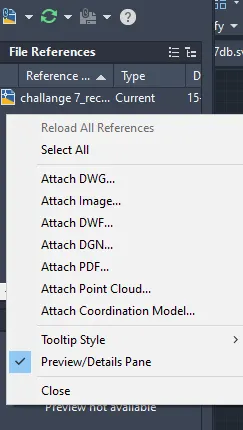
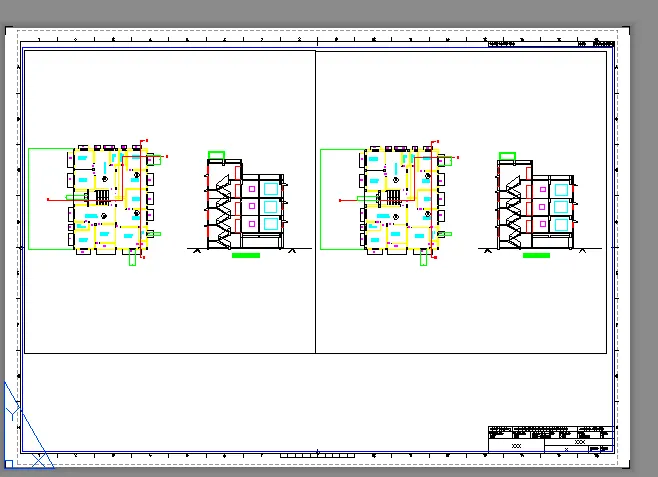
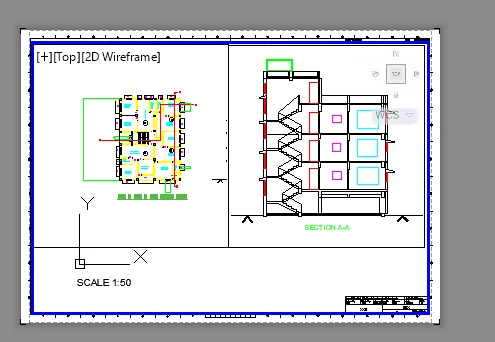
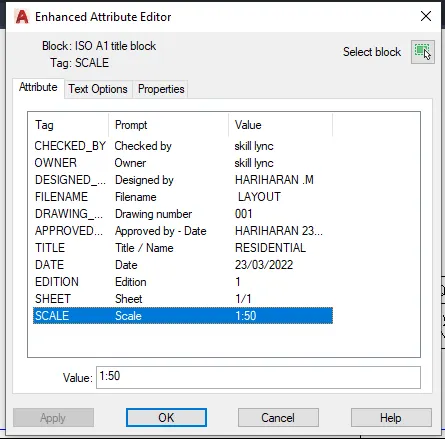
- In the command prompt, type layout>template>tutorial arch.m
- In the command prompt,type MS to specify the centre of the plot
- Then click on the tittle box and edit the tittle,
- In the command prompt type MV to add the view,
- In the command prompt type ctrl+p to plot it
- In the command type page setup
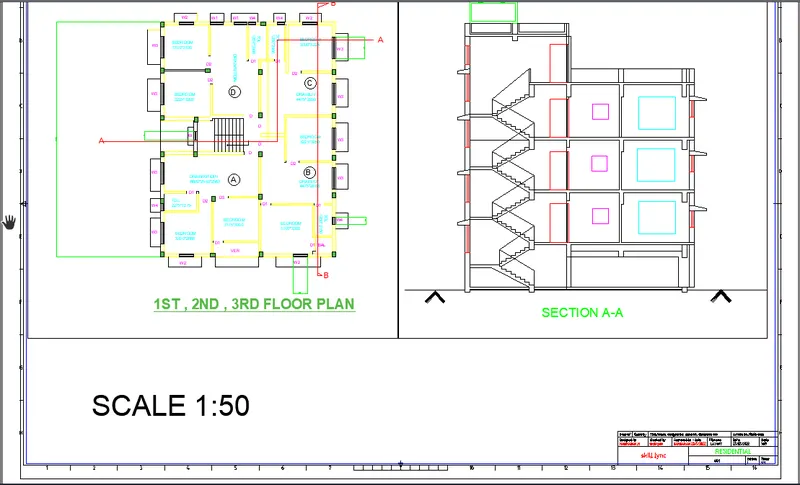
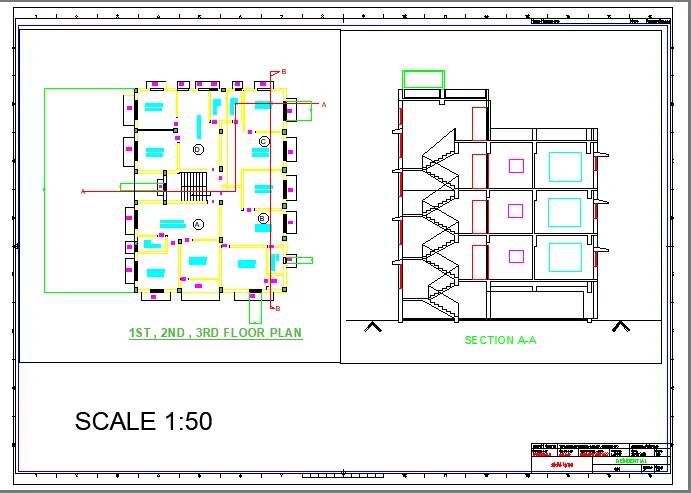
FINAL RESULT :
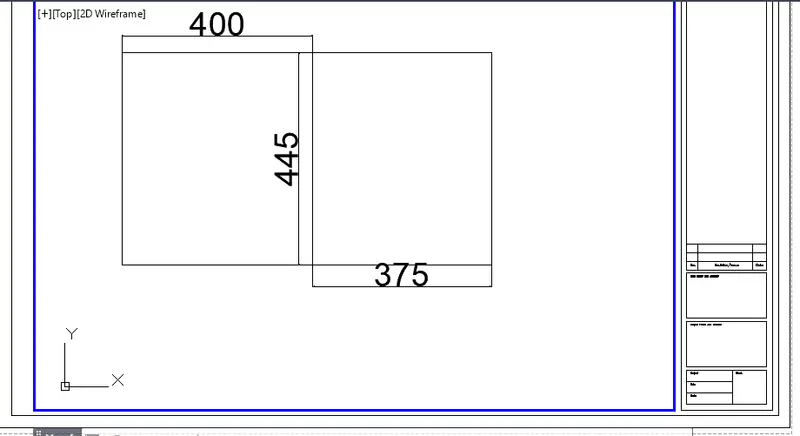
Layout is created using template m arch.dwt viewport is created by using mv command size of 400*445 and 375*445
the scale of view port is set to 1:50, Attributes in the template are edited a plot is taken using A1size,.
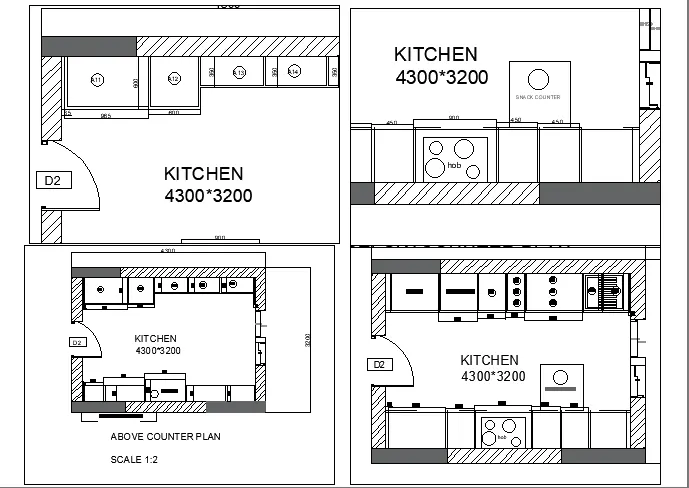
2. Create a layout of the Kitchen drawn in Challenge 9 as shown in Figure. Use the scale as shown in the Figure. Use A4 Size page for the layout. Take a plot.
AIM:
To create layout of the kitchen drawn in challange 9, using A4 size page for a layout and take a plot.
COMMAND USED :
- view
- layout
- multiple view
- model space
- paper space
- scale
- xref
- lock
- pan
- plot
PROCEDURE :
- In the command prompt, type ps and ms to adjust the view.
- In the command prompt,type MS to specify the centre of the plot
- Then click on the tittle box and edit the tittle,
- In the command prompt type MV to add the view,
- In the command prompt type ctrl+p to plot it
- In the command type page setup
- In the command prompt type page setup to make the size a4 size,
- click on the arrow make the change view.
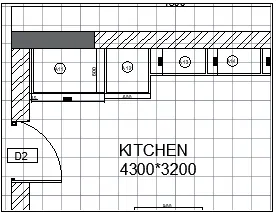
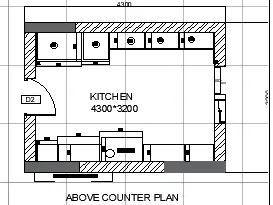
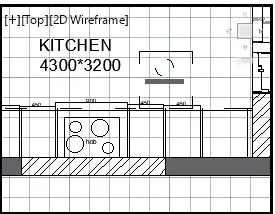
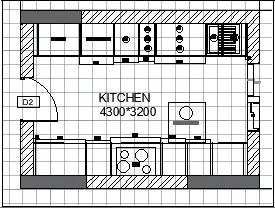
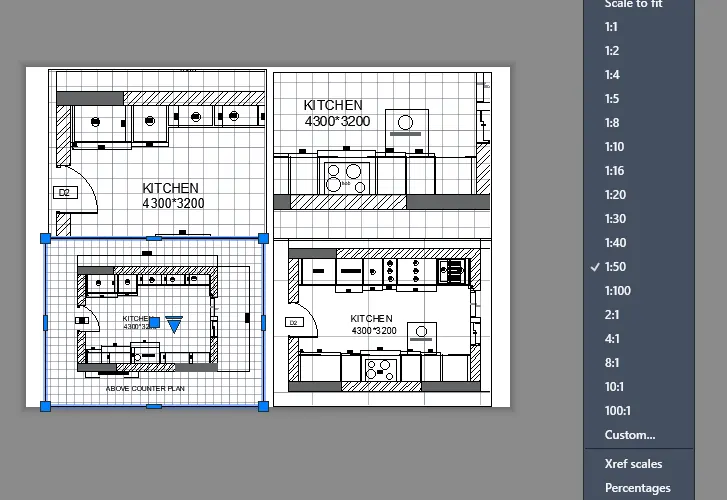
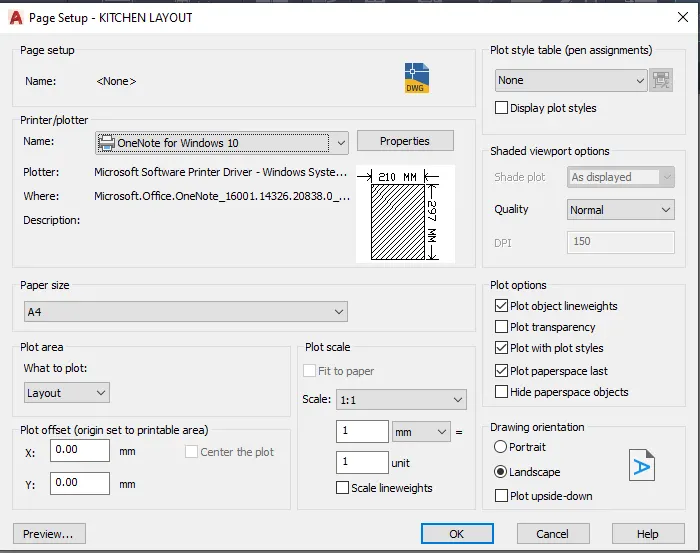
FINAL RESULT :
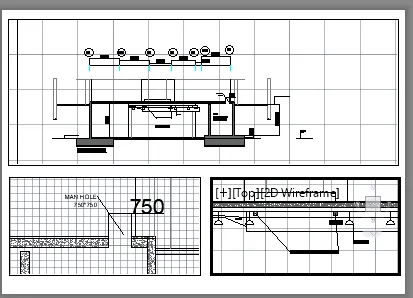
3. Create a layout of the section created in Challenges 9.
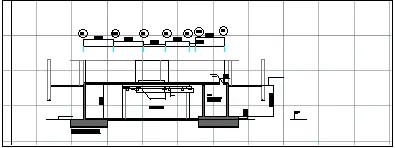
Use scale as mentioned in the Figure. Use MV command create multiple viewports. Take a plot.
AIM :
To create a layout of the section created in challange 9'
COMMAND USED :
- view
- layout
- multiple view
- model space
- paper space
- scale
- xref
- lock
- pan
- plot
PROCEDURE :
- Open the file challange 9 is created
- go to layout, in the command prompt type mv
- In the command prompt,type MS to specify the centre of the plot
- Then click on the tittle box and edit the tittle,
- In the command prompt type MV to add the view,
- In the command prompt type ctrl+p to plot it
- In the command type page setup
- change the scale accordingly
- in command prompt type ms and ps to adjust the view accordingly.
FINAL RESULT :