Creation of geometries by Coordinate system methods using AutoCad
Topic 1- Make P1 figure by using all four coordinate system
1. Absoulte Coordinate system
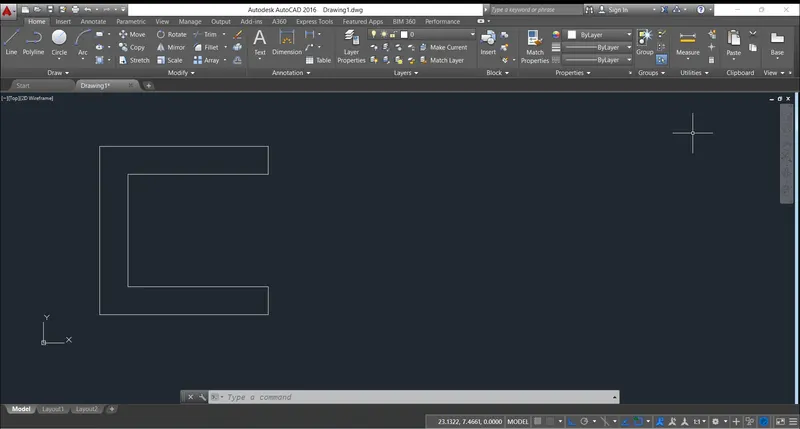
Procedure-
step 1- Enter line commond by using shortcut L
step 2- Specify 1st point that is (2,1)
step 3- now put second point (8,1)
step 4- enter third point (8,2)
step 5- enter fourth point (3,2)
step 6- enter fifth point (3,6)
step 7- enter sixth point (8,6)
step 8- enter seventh point (8,7)
step 9- enter eight point (2,7)
step 10- enter ninth point (2,1)
2. Relative Rectangular Coordinate
Procedure-
step 1- Enter line commond by using shortcut L
step 2- Specify 1st point that is (2,1)
step 3- now put second point (@6,0)
step 4- enter third point (@0,1)
step 5- enter fourth point (@-5,0)
step 6- enter fifth point (@0,4)
step 7- enter sixth point (@5,0)
step 8- enter seventh point (@0,1)
step 9- enter eight point (@-6,0)
step 10- enter ninth point (@0,-6)
3.Polar Coordinate
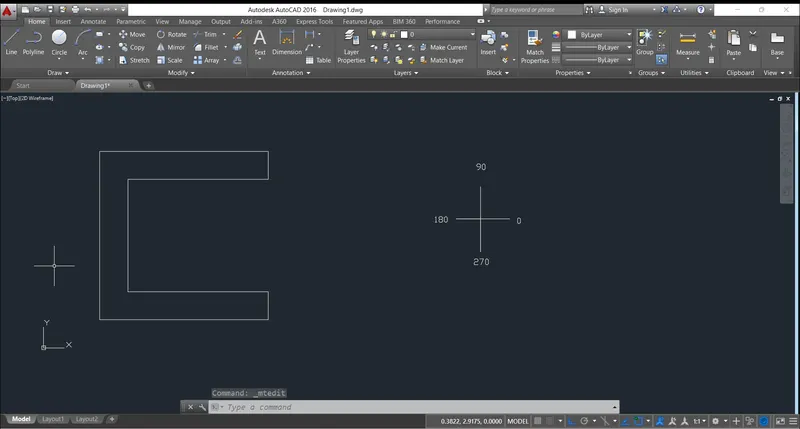
Procedure-
step 1- Enter line commond by using shortcut L
step 2- Specify 1st point that is (2,1)
step 3- now put second point (@6 <0)
step 4- enter third point (@1<90)
step 5- enter fourth point (@5 <180)
step 6- enter fifth point (@4 <90)
step 7- enter sixth point (@5 <0)
step 8- enter seventh point (@1<90)
step 9- enter eight point (@6 <180)
step 10- enter ninth point (@6 <270)
4. direct distance method
Procedure-
step 1- Enter line commond by using shortcut L
step 2- Specify 1st point that is (2,1)
step 3- position the cursor to the right and enter distance 6
step 4- position the cursor to the up and enter distance 1
step 5- position the cursor to the left and enter distance 5
step 6- position the cursor to the up and enter distance 4
step 7- position the cursor to the right and enter distance 5
step 8-position the cursor to the up and enter distance 1
step 9- position the cursor to the left and enter distance 6
step 10- position the cursor to the down and enter distance 6
Topic 2- Make P2 figure by using all four coordinate system
1. Absoulte Coordinate system
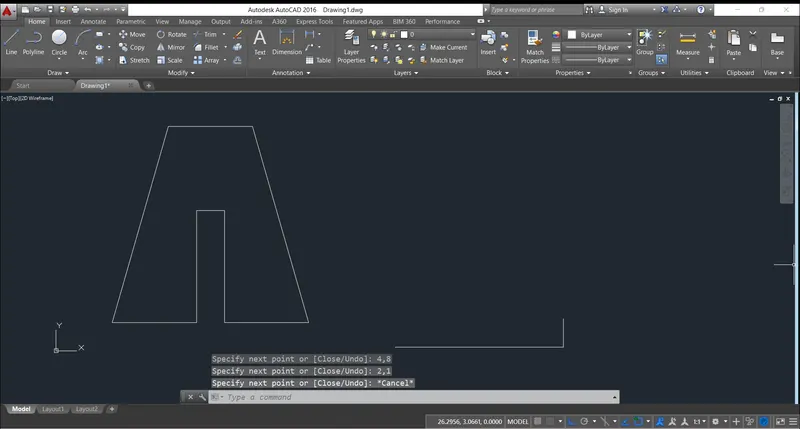
Procedure-
step 1- Enter line commond by using shortcut L
step 2- Specify 1st point that is (2,1)
step 3- now put second point (5,1)
step 4- enter third point (5,5)
step 5- enter fourth point (5,6)
step 6- enter fifth point (6,5)
step 7- enter sixth point (6,1)
step 8- enter seventh point (9,1)
step 9- enter eight point (7,8)
step 10- enter ninth point (2,1)
2. Relative Rectangular Coordinate
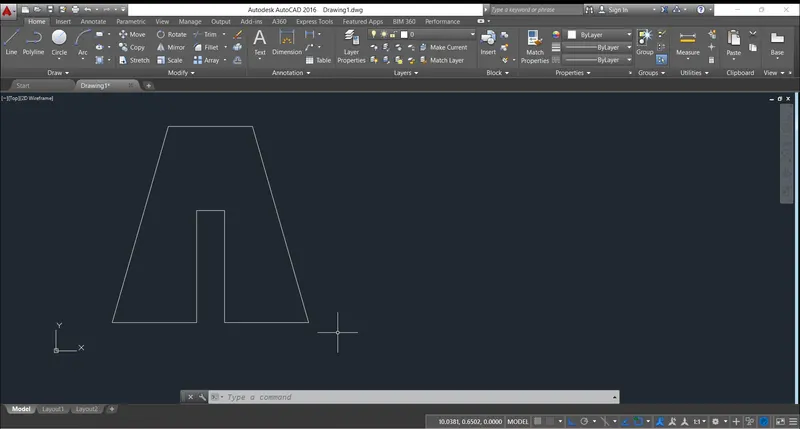
Procedure-
step 1- Enter line commond by using shortcut L
step 2- Specify 1st point that is (2,1)
step 3- now put second point (@3,0)
step 4- enter third point (@0,4)
step 5- enter fourth point (@1,0)
step 6- enter fifth point (@0,-4)
step 7- enter sixth point (@3,0)
step 8- enter seventh point (@-2,7)
step 9- enter eight point (@-3,0)
step 10- enter ninth point (@-2,-7)
3.Polar Coordinate
Procedure-
step 1- Enter line commond by using shortcut L
step 2- Specify 1st point that is (2,1)
step 3- now put second point (@3<0)
step 4- enter third point (@4<90)
step 5- enter fourth point (@1 <0)
step 6- enter fifth point (@4 <270)
step 7- enter sixth point (@3 <0)
step 8- enter seventh point (@7<106)
step 9- enter eight point (@3<180)
step 10- enter ninth point (@7 <254)
4.Direct Distance Method
Procedure-
step 1- Enter line commond by using shortcut L
step 2- Specify 1st point that is (2,1)
step 3- position the cursor to the right and enter distance 3
step 4- position the cursor to the up and enter distance 4
step 5- position the cursor to the right and enter distance 1
step 6- position the cursor to the down and enter distance 4
step 7- position the cursor to the right and enter distance 3
step 8-position the cursor to the diagonally left up and enter distance 7
step 9- position the cursor to the left and enter distance 3
step 10- position the cursor to the diagonally left down and enter distance 7
Topic 3- Make P4 figure by using absolute coordinate system
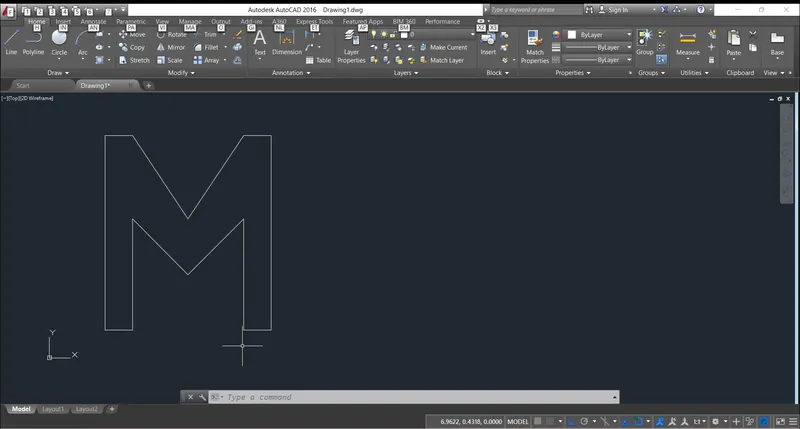
Procedure-
step 1- Enter line commond by using shortcut L
step 2- Specify 1st point that is (2,1)
step 3- now put second point (3,1)
step 4- enter third point (3,5)
step 5- enter fourth point (5,3)
step 6- enter fifth point (7,5)
step 7- enter sixth point (7,1)
step 8- enter seventh point (8,1)
step 9- enter eight point (8,8)
step 10- enter ninth point (7,8)
step 11- enter tenth point (5,5)
step 12 enter coordinate (3,8)
step 13- enter next coordinate (2,8)
step 14 enter once again coordinate (2,1) to close the figure.
Topic 4 Make P5 figure by using absolute coordinate system
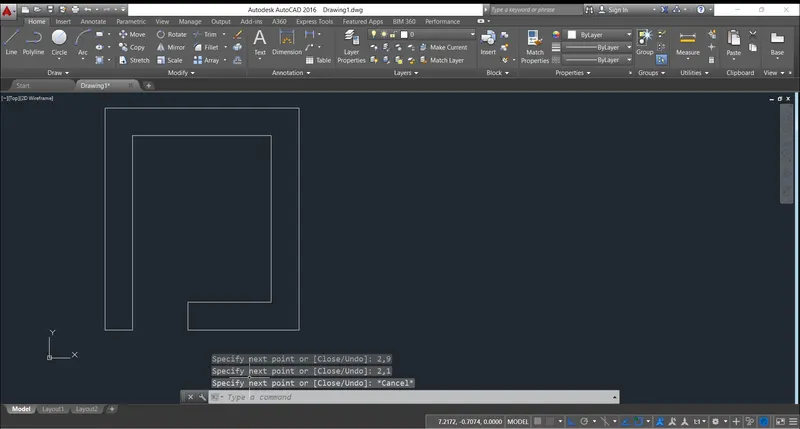
Procedure-
step 1- Enter line commond by using shortcut L
step 2- Specify 1st point that is (2,1)
step 3- now put second point (3,1)
step 4- enter third point (3,8)
step 5- enter fourth point (8,8)
step 6- enter fifth point (8,2)
step 7- enter sixth point (5,2)
step 8- enter seventh point (5,1)
step 9- enter eight point (9,1)
step 10- enter ninth point (9,9)
step 11- enter tenth point (2,9)
step 12 enter once again coordinate (2,1) to close the figure.
Topic 5- Make P8 figure by using absolute coordinate system
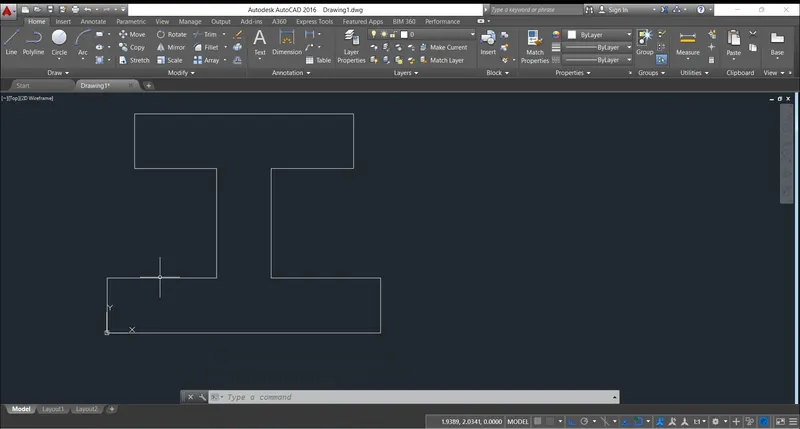
Procedure-
step 1- Enter line commond by using shortcut L
step 2- Specify 1st point that is (0,0)
step 3- now put second point (10,0)
step 4- enter third point (10,2)
step 5- enter fourth point (6,2)
step 6- enter fifth point (6,6)
step 7- enter sixth point (9,6)
step 8- enter seventh point (9,8)
step 9- enter eight point (1,8)
step 10- enter ninth point (1,6)
step 11- enter tenth point (4,6)
step 12- enter next coordinate point (4,2)
step 13- enter next coordinate point (0,2)
step 12 enter once again coordinate (0,0) to close the figure.
Topic 6- Make P7 figure by using absolute coordinate system
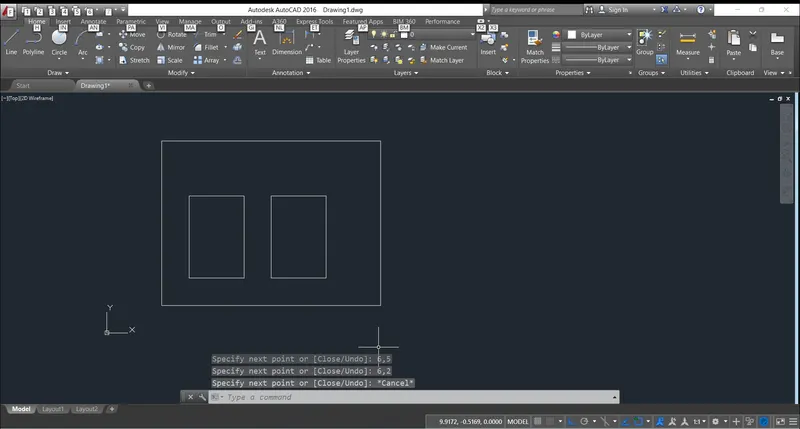
Procedure-
step 1- Enter line commond by using shortcut L
step 2- Specify 1st point that is (2,1)
step 3- now put second point (10,1)
step 4- enter third point (10,7)
step 5- enter fourth point (2,7)
step 6- enter fifth point (2,1)
step 7- esc and enter line commond by using shortcut L
step 8- enter next coordinate point (3,2)
step 9- enter next coordinate point (5,2)
step 10- enter next coordinate point (5,5)
step 11- enter next coordinate point t (3,5)
step 12- esc and enter line commond by using shortcut L
step 13- enter next coordinate point (6,2)
step 14- enter next coordinate point (8,2)
step 15- enter next coordinate point (8,5)
step 16- enter next coordinate point t (6,5)
step 17 enter next coordinate point t (6,2)
Topic 7 -Make P10 figure by using absolute coordinate system
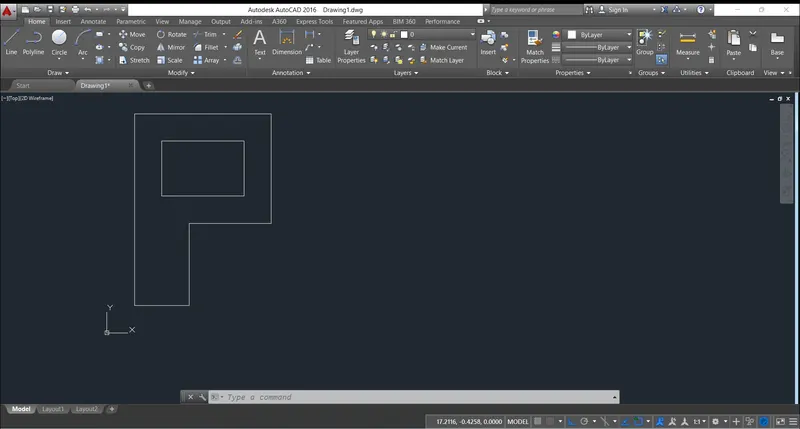
Procedure-
step 1- Enter line commond by using shortcut L
step 2- Specify 1st point that is (1,1)
step 3- now put second point (3,1)
step 4- enter third point (3,4)
step 5- enter fourth point (6,4)
step 6- enter fifth point (6,8)
step 7- enter next coordinate point (1,8)
step 8- enter next coordinate point (1,1)
step 9- esc and enter line commond by using shortcut L
step 10- enter next coordinate point (2,5)
step 11- enter next coordinate point t (5,5)
step 12- enter next coordinate point (5,7)
step 13- enter next coordinate point (2,7)
Topic 8 Make P9 figure by using absolute coordinate system
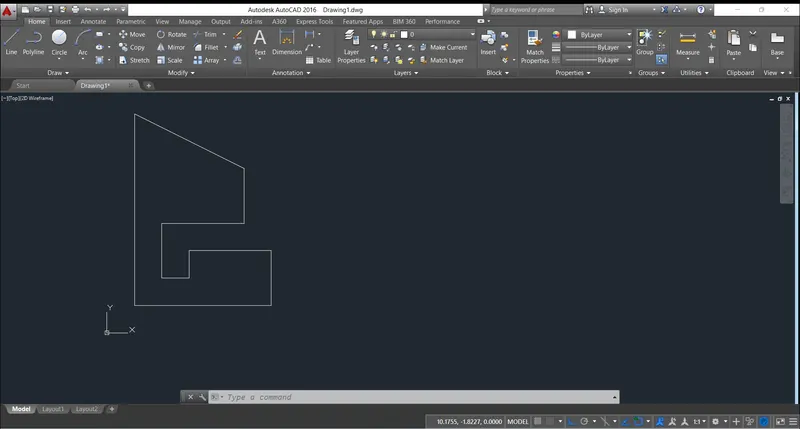
Procedure-
step 1- Enter line commond by using shortcut L
step 2- Specify 1st point that is (1,1)
step 3- now put second point (6,1)
step 4- enter third point (6,3)
step 5- enter fourth point (3,3)
step 6- enter fifth point (3,2)
step 7- eenter next coordinate point (2,2)
step 8- enter next coordinate point (2,4)
step 9- enter next coordinate point (5,4)
step 10- enter next coordinate point (5,6)
step 11- enter next coordinate point t (1,8)
step 12-enter next coordinate point t (1,1)
Topic 9 Make Profile Wood by using absolute coordinate system
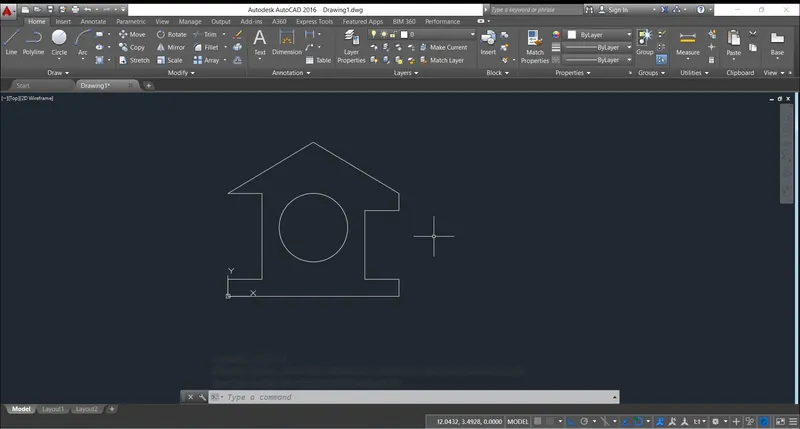
Procedure-
step 1- Enter line commond by using shortcut L
step 2- Specify 1st point that is (0,0)
step 3- now put second point (10,0)
step 4- enter third point (10,1)
step 5- enter fourth point (8,1)
step 6- enter fifth point (8,5)
step 7- enter next coordinate point (10,5)
step 8- enter next coordinate point (10,6)
step 9- enter next coordinate point (5,9)
step 10- enter next coordinate point (0,6)
step 11- enter next coordinate point t (2,6)
step 12-enter next coordinate point t (2,1)
step 13- enter next coordinate point (0,1)
step 14- enter next coordinate point t (0,0)
step 15- esc and enter circle commond by using shortcut C
step 16- specifiy the centre coordinate(5,4)
step 17 enter the radius of circle i.e 2 units
Topic 10- Make Queen Post truss by using absolute coordinate system
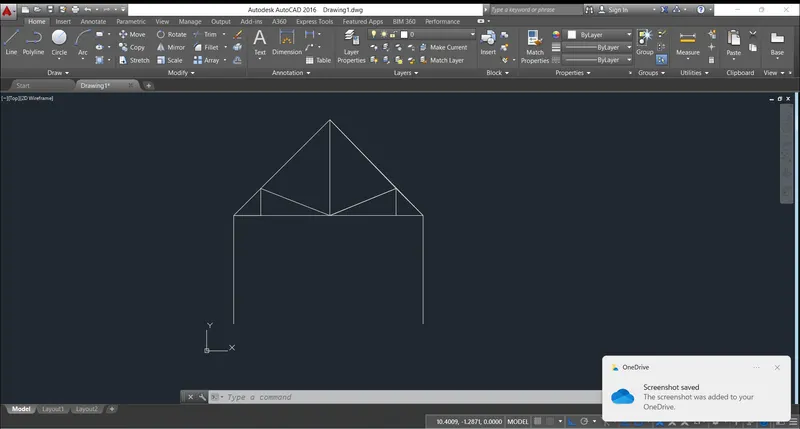
Procedure-
step 1- Enter line commond by using shortcut L
step 2- Specify 1st point that is (1,1)
step 3- now put second point (1,5)
step 4- enter third point (4.55,5)
step 5- enter fourth point (2,6)
step 6- enter fifth point (2,5)
step 7- enter next coordinate point (1,5)
step 8- enter next coordinate point (4.55,8.55)
step 9- enter next coordinate point (4.55,5)
step 10- enter next coordinate point (7,6)
step 11- enter next coordinate point t (7,5)
step 12-enter next coordinate point t (8,5)
step 13- enter next coordinate point (4.55,8.55)
step 14- enter next coordinate point t (8,5)
step 15- specifiy the centre coordinate(8,1)
Topic 11- Make Mono Pitch by using absolute coordinate system
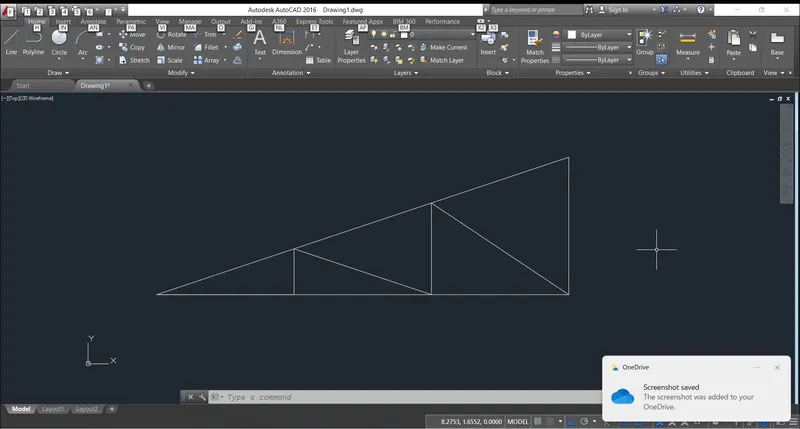
Procedure-
step 1- Enter line commond by using shortcut L
step 2- Specify 1st point that is (1,1)
step 3- now put second point (7,1)
step 4- enter third point (7,3)
step 5- enter fourth point (1,1)
step 6- enter fifth point (3,1)
step 7- enter next coordinate point (3,1.667)
step 8- enter next coordinate point (5,1)
step 9- enter next coordinate point (5,2.333)
step 10- enter next coordinate point (7,1)