Creation of geometries by Coordinate system methods using AutoCad
ANS-
AIM=To create the given geometries and trusses in AutoCAD, using the diffrent coordinate system methods and the line and circle drawing tools.
Geometries p-1 and p-2 drawing using all coordinate system,and each of the remaininggeometries are drawn using any one of the coordinate system or the direct distance entry method.
INTRODUCTION
Coordinate System:-Cordinate system is a system where are numbers are used to determine the unique and/or other geometric elements.
THE VARIOUS COORDINATE SYSTEM ARE:-
1. Absolute Coordinate System:- In this system all point are established at same distance in the x and y axis (some times z axis )from a common origin (usually 0,0).
2.Relative Coordinate System:-The location of a relative coordinate is define from a referance point in AutoCAD,when using this system the first point of the drawing/gemetry is alwats absolute, it is established with respect to origin (0,0) and then all the successive position are established with respect to their preceding point. this system is further classifide as-
3.Relative Rectangular Coordinates:- it is acoordinate system that specifies each point by a pair of numerical coordinates in the x-axis and y-axis in this system the point succeeding the first point are typed in as '@x,y' in the commond line.
4.Relative polar coordinate:-this system specifies the distance(length) and angle of apaticular point with respect to its previous point, in relative polar coordinate system ,points are established by typing '@distance<angle'[enter] in the commond line.
Direct distance entry method:- it is another popular method use for drawing diffrent shapes /geometries in AutoCAD. Direct distance entry method enables to user to draw an object by simple pointing the cursor in the desired direction and entering the required distance in the command line.
PROCEDURE:-
STARTING AutoCAD SOFTWARE:-
-Go to start menu ,select autocad 2022
-Click on start drawing
-In the command line type in: STARTUP [ENTER]
-Enter now value of startup:
-go to application manu and select new
-In the creat new drawing dilog box we select the imperialsystem in the start from scratch option.
-Next we select the decimal,unit system from the 'advanced setup 'option.
-Set the limite by entering LIMITS in the command tab. The lower left corner is specifide as 0,0; and upper right corner is specifide as 100,100.
[NOTE: The above procedure is followed each time a new drawing is to be created.]
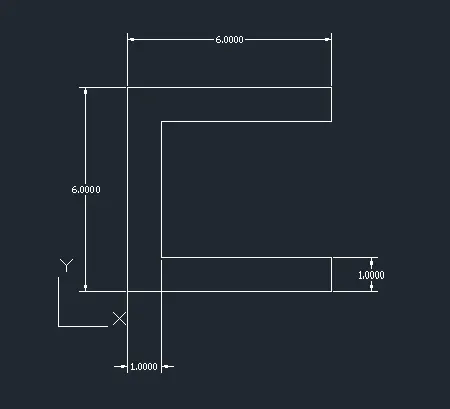
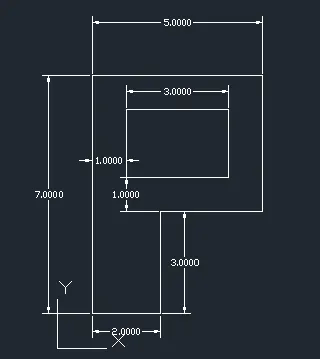
DRAWING:- P1
Using Relative Rectangular Coordinate system:-
1-using command LINE
2-First point 2,1
3- Next point @6,0
4-Next point @0,1
5-Next point @-5,0
6-Next point @0,4
7-Next point @5,0
8-Next point @0,1
9-Next point @-6,0
10-Next point @0,-6; and it is close point.
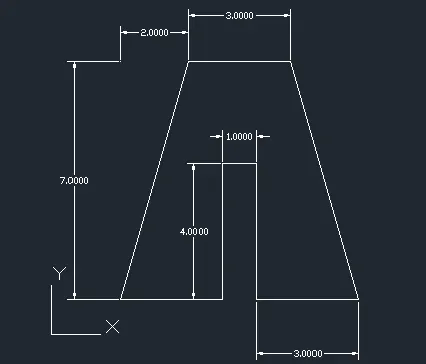
DRAWING: P2:-
USING ABSOLUTE COORDINATE SYSTEM :-
1-using command 'LINE'
2-First point 2,1
3- Next point 5,1
4-next point 5,5
5-next point 6,5
6-next point 6,1
7- next point 9,1
8- next point 7,8
9- next point 4,8
10- next point 2,1; and it is CLOSED point.
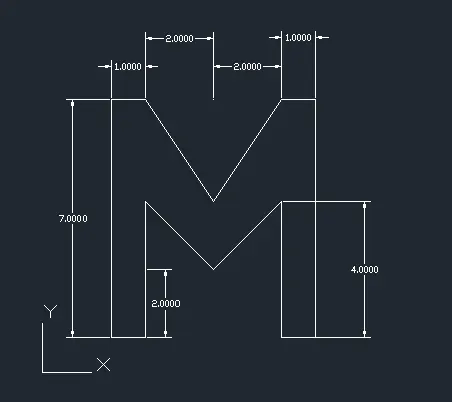
DRAWING P-4:-
USING ABSOLUTE COORDINATE SYSTEM:-
1-Using command 'LINE'
2- First point 2,1
3- Next point 3,1
4- Next point 3,5
5- Next point 5,3
6- Next point 7,5
7- Next point 7,1
8- Next point 8,1
9- Next point 8,8
10- Next point 7,8
11- Next pont 5,5
12- Next point 3,8
13- Next point 2,8
14- Next point 2,1; it is closing pont.
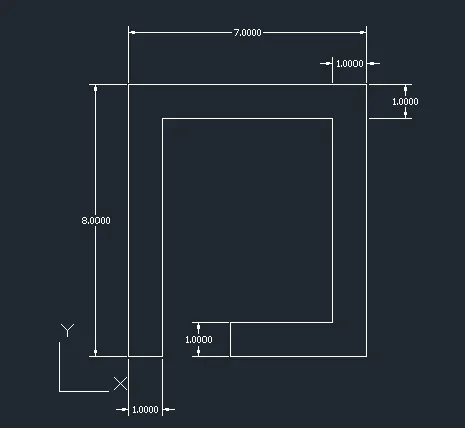
DRAWING P-5:-
USING RELATIVE RECTANGULAR COORDINATE SYSTEM:-
1- Using command 'LINE'
2-First point 2,1
3- Next point @1,0
4- Next point @0,5
5- Next point @5,0
6- Next point @0,-4
7- Next point @-3,0
8- Next point @0,1
9- Next point @4,0
10- Next point @0,6
11- Next point @-7,0
12- Next point is the closing poin.
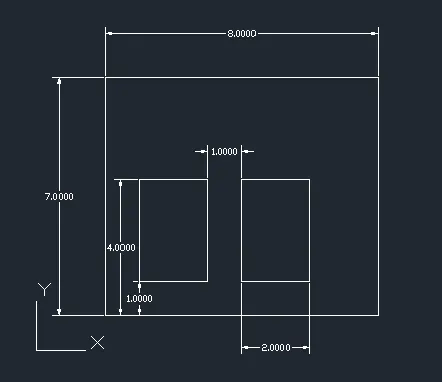
DRAWING P-7:-
USING ABSOLUTE COORDINATE SYSTEM :-
1- Using command 'LINE'
2- First point 2,1
3- Next point 10,1
4- Next point 10,7
5- Next point 2,7
6- Next point is first point
7- Now using command 'LINE'
8- Take point 3,2
9- Next point 5,2
10- Next point 5,5
11- Next point 3,5
12- next point 3,2
13 - Take a new command 'LINE'
14- Take point 6,2
15- Next point 8,2
16- Next point 8,5
17-Next point 6,8
18- Next point 6,2
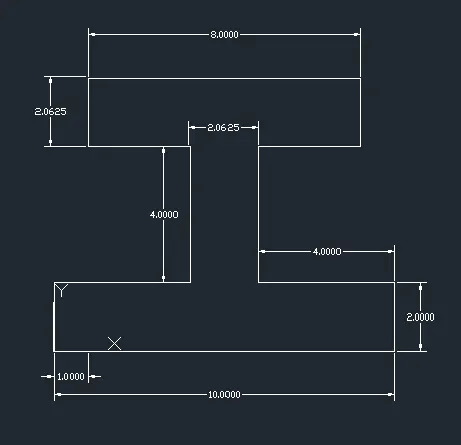
DRAWING P-8:-
USING RELATIVE RECTANGULAR COORDINATE SYSTEM:-
1- Using command 'LINE'
2- First point 0,0
3- Next point @10,0
4- Next point @0,2
5- Next point @-4,0
6- Next point @0,4
7- Next point @3,0
8- Next point @0,2
9- Next point @-6,0
10- Next point @0,-2
11- Next point @3,0
12- Next point @0,-4
13- Next point @-4,0
14- Next point @0,-2;it is closed point.
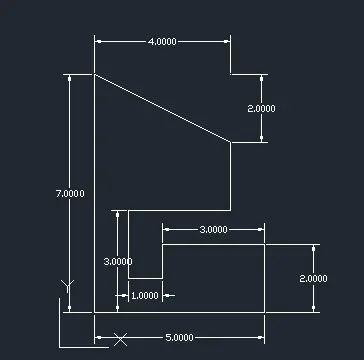
DRAWING P-9:-
USING ABSOLUTE COORDINATE SYSTEM:-
1- Using command 'LINE'
2- First point 1,1
3- Next point 6,1
4- Next point 6,3
5- Next point 3,3
6- Next point 3,2
7- Next point 2,2
8- Next point 2,4
9- Next point 5,4
10- Next point 5,6
11- Next point 1,8
12- Last is the closing point.
DRAWING P-10:-
USING ABSOLUTE COORDINATE SYSTEM :-
1- Using command 'LINE'
2- First point 1,1
3- Next point 3,1
4- Next point 3,4
5- Next point 6,4
6- Next point 6,8
7- Next point 1,8
8- Next point 1,1
9- Take new command 'LINE'
10- Take point 2,5
11- Next point 5,5
12- Next point 5,7
13- Next point 2,7
14- Next point 2,5
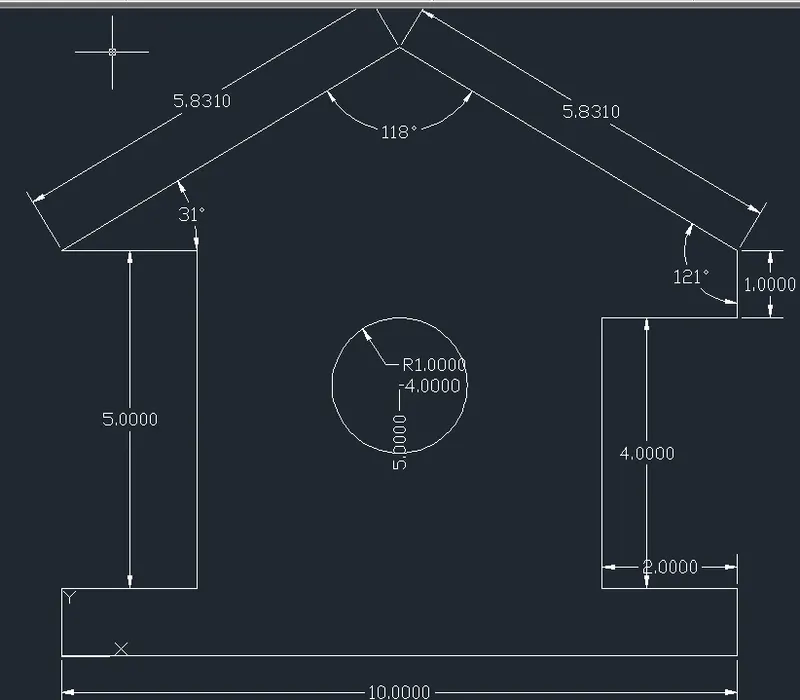
DRAWING OF PROFILE-WOOD:-
USING RELATIVE COORSINATE SYSTEM OF BOTH CONDITION:-(rectangular , polar and also used circle command)
1- Using command 'LINE'
2- First point 0,0
3- Next point @10,0
4- Next point @0,1
5- Next point @-2,0
6- Next point @0,4
7- Next point @2,0
8- Next point @0,1
9- Take a new command 'LINE' in first point
10- At the first point @0,1
11- Next point @2,0
12- Next point @0,6
13- Next point @-2,0
14- Next point @5.831<31
15 Next point @5.831<118
16- Take a new command 'CIRCLE'
17- (CENTRE,RADIUS)=[(5,4),4]
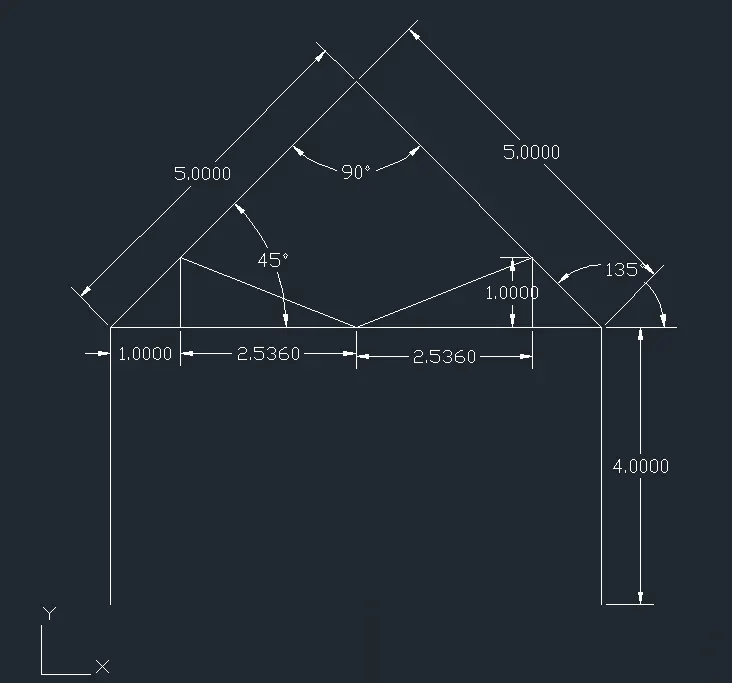
DRAWING OF QUEEN POST TRUSS:-
USING RELATIVE COORDINATE SYSTEM BOTH CONDITION (RECTANGULAR, POLAR):-
1- Using command 'LINE'
2- First point 1,1
3- Next point @0,4
4- Next point @5<45
5- Next point @5<90
6- Next point @0,4
7- Take a new command 'LINE' and start trangle any on side
8- Take a point @1,0
9- Next point @2.536,0
10- Next point @2.536,0
11- Next point @1,0
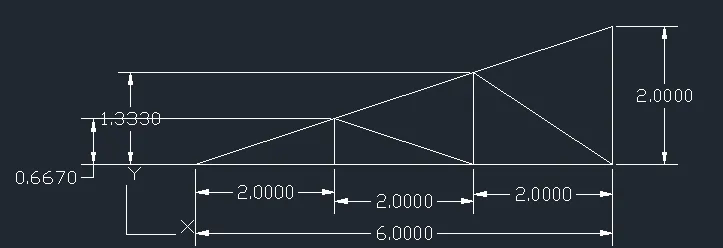
DRAWING OF MONO PITCH:-
USING ABSOLUTE COORDINATE SYSTEM:-
1- Using command 'LINE'
2- First point 1,1
3- Next point 3,1
4- Next point 3,1.667
5- Next point 5,1
6- Next point 5,2.333
7- Next point 7,1
8- Next point 7,3
9- Next point 1,1;it is closing point