Creation of geometries by Coordinate system methods using AutoCad
Figure 1: P1
Aim : To create the geometries from P1 to P2 using all coordinates system methods.
- Absolute coordinate system
- Relative coordinate system
- Polar coordinate system
Procedure :
First method - Absolute coordinate system
Step 1 : enter the line command,
1] Specify the first point: type 2,1 at command section and then press enter
2] Specify next point at 8,1 and press enter
3] Specify the next point at 8,2 and press enter
Step 2 : Then specify the next point as 3,2 and press enter
Step 3 : Specify next point as 3,6 and press enter
Step 4 : Specify the next point at 8,6 and press enter
Specify the next point 8,7 and press enter
Step 5 : Specify the next point at 2,7 and press enter
Select the close option and press enter.
Second method - Relative coordinate system
Step 1 : Enter the line command,
1] Specify the first point type 2,1 at command section and then press enter
2] Specify next point at @6,0 and press enter
3] Specify next point at @0,1 and press enter
4] Specify next point at @-5,0 and press enter
5] Specify next point at @0,4 and press enter
6] Specify next point at @5,0 and press enter
7] Specify next point at @0,1 and press enter
8] Specify next point at @-6,0 and press enter
9] Select the close option and press enter
Third method - Polar coordinate system
Step 1 : Enter the line command,
1] Specify the first point type 2,1 at command section and then press enter
2] Specify next point at @6<0 and press enter
3] Specify next point at @1<90 and press enter
4] Specify next point at @5<180 and press enter
5] Specify next point at @4<90 and press enter
6] Specify next point at @5<0 and press enter
7] Specify next point at @1<90 and press enter
8] Specify next point at @6<180 and press enter
9] Select the close option and press enter
Result :
Final sketch drawn using Autocad

Figure 2 : P2
Aim : To create the geometries from P1 to P2 using all coordinates system methods.
- Absolute coordinate system
- Relative coordinate system
- Polar coordinate system
Procedure :
First method - Absolute coordinate system
Step 1 : enter the line command,
1] Specify the first point: type 2,1 at command section and then press enter
2] Specify next point at 5,1 and press enter
3] Specify the next point at 5,5 and press enter
Step 2 : Then specify the next point as 6,5 and press enter
Step 3 : Specify next point as 6,1 and press enter
Step 4 : Specify the next point at 9,1 and press enter
Specify the next point 7,8 and press enter
Step 5 : Specify the next point at 4,8 and press enter
Select the close option and press enter.
Second method - Relative coordinate system
Step 1 : Enter the line command,
1] Specify the first point type 2,1 at command section and then press enter
2] Specify next point at @3,0 and press enter
3] Specify next point at @0,4 and press enter
4] Specify next point at @1,0 and press enter
5] Specify next point at @0,-4 and press enter
6] Specify next point at @3,0 and press enter
7] Specify next point at @-2,7 and press enter
8] Specify next point at @-3,0 and press enter
9] Select the close option and press enter
Third method - Polar coordinate system
Step 1 : Enter the line command,
1] Specify the first point type 2,1 at command section and then press enter
2] Specify next point at @3<0 and press enter
3] Specify next point at @4<90 and press enter
4] Specify next point at @1<0 and press enter
5] Specify next point at @4<270 and press enter
6] Specify next point at @3<0 and press enter
7] Specify next point at @7<90 and press enter
8] Specify next point at @2<180 and press enter
9] Select the next point at @3<180 and press enter
Result :
Final sketch drawn using Autocad
Figure 3 : P3
Procedure :
Method used - Absolute coordinate system
Step 1 : enter the line command,
1] Specify the first point: type 2,1 at command section and then press enter
2] Specify next point at 3,1 and press enter
3] Specify the next point at 3,3 and press enter
Step 2 : Then specify the next point as 6,3 and press enter
Step 3 : Specify next point as 6,4 and press enter
Step 4 : Specify the next point at 3,4 and press enter
Specify the next point 3,7 and press enter
Step 5 : Specify the next point at 8,7 and press enter
Specify the next point at 8,1 and press enter
Specify the next point at 2,1 and press enter
Select the close option and press enter.

Figure 4 : P4
Procedure :
Method used - Absolute coordinate system
Step 1 : enter the line command,
1] Specify the first point: type 2,1 at command section and then press enter
2] Specify next point at 2,8 and press enter
3] Specify the next point at 3,8 and press enter
Step 2 : Then specify the next point as 5,5 and press enter
Step 3 : Specify next point as 7,8 and press enter
Step 4 : Specify the next point at 8,8 and press enter
Specify the next point 8,1 and press enter
Step 5 : Specify the next point at 7,1 and press enter
Specify the next point at 7,5 and press enter
Step 6 : Specify the next point at 5,3 and press enter
Specify the next point at 3,5 and press enter
Step 7 : Specify the next point at 1,1 and press enter
Select the close option and press enter.

Figure 5 : P5
Procedure :
Method used - Absolute coordinate system
Step 1 : enter the line command,
1] Specify the first point: type 2,1 at command section and then press enter
2] Specify next point at 2,9 and press enter
3] Specify the next point at 9,9 and press enter
Step 2 : Then specify the next point as 9,1 and press enter
Step 3 : Specify next point as 5,1 and press enter
Specify the next point at 5,2 and press enter
Step 4 : Specify the next point 8,2 and press enter
Specify the next point at 8,8 and press enter
Step 5 : Specify the next point at 3,8 and press enter
Specify the next point at 3,1 and press enter
Select the close option and press enter.

Figure 6 : P6
Procedure :
Method used - Absolute coordinate system
Step 1 : enter the line command,
1] Specify the first point: type 2,1 at command section and then press enter
2] Specify next point at 6,1 and press enter
3] Specify the next point at 10,3 and press enter
Step 2 : Then specify the next point as 10,5 and press enter
Step 3 : Specify next point as 6,5 and press enter
Step 4 : Specify the next point at 6,9 and press enter
Specify the next point 2,9 and press enter
Step 5 : Select the close option and press enter.
Command : line
1] Specify first point : 3,3
2] Specify next point : 5,3
3] Specify next point : 5,6
4] specify next point : 3,6
5] Specify next point 3,3 and close
Figure 7 : P7
Procedure :
Method used - Absolute coordinate system
Step 1 : enter the line command,
1] Specify the first point: type 2,1 at command section and then press enter
2] Specify next point at 2,7 and press enter
3] Specify the next point at 10,7 and press enter
Step 2 : Then specify the next point as 10,1 and press enter
Specify next point as 2,1 or close
Step 3 : Specify first point at 3,2 and press enter
Step 4 : Specify the next point at 3,5 and press enter
Specify the next point 5,5 and press enter
Step 5 : Specify the next point at 5,2 and press enter
Specify the next point at 3,2 and close
Step 6 : Specify first point at 6,2 and press enter
Specify the next point at 6,5 and press enter
Specify the next point 8,5 and press enter
Step 7 : Specify the next point at 8,2 and press enter
Specify the next point at 6,2 and close

Figure 8 : P8
Procedure :
Method used - Absolute coordinate system
Step 1 : enter the line command,
1] Specify the first point: type 0,0 at command section and then press enter
2] Specify next point at 10,0 and press enter
3] Specify the next point at 10,2 and press enter
Step 2 : Then specify the next point as 6,2 and press enter
Step 3 : Specify next point as 6,6 and press enter
Step 4 : Specify the next point at 9,6 and press enter
Specify the next point 9,8 and press enter
Step 5 : Specify the next point at 1,8 and press enter
Specify the next point at 1,6 and press enter
Specify the next point at 4,6 and press enter
Step 6 : Specify the next point at 4,2 and press enter
Specify the next point at 0,2 and press enter
Select the close option and press enter.

Figure 9 : P9
Procedure :
Method used - Absolute coordinate system
Step 1 : enter the line command,
1] Specify the first point: type 1,1 at command section and then press enter
2] Specify next point at 6,1 and press enter
3] Specify the next point at 6,3 and press enter
Step 2 : Then specify the next point as 3,3 and press enter
Step 3 : Specify next point as 3,2 and press enter
Step 4 : Specify the next point at 2,2 and press enter
Specify the next point 2,4 and press enter
Step 5 : Specify the next point at 5,4 and press enter
Specify the next point at 5,6 and press enter
Specify the next point at 1,8 and press enter
Select the close option and press enter.
Figure 10 : P10
Procedure :
Method used - Absolute coordinate system
Step 1 : enter the line command,
1] Specify the first point: type 1,1 at command section and then press enter
2] Specify next point at 3,1 and press enter
3] Specify the next point at 3,4 and press enter
Step 2 : Then specify the next point as 6,4 and press enter
Step 3 : Specify next point as 6,8 and press enter
Step 4 : Specify the next point at 1,8 and press enter
Specify the next point 1,1 and close
Step 5 : Specify the first point at 2,5 and press enter
Specify the next point at 5,5 and press enter
Step 6 : Specify the next point at 5,7 and press enter
Specify the next point at 2,7 and press enter
Select the close option and press enter.

CIVIL RELATED PROBLEMS
Answer 1 :

To draw the above figure using absolute coordinate system follow these steps :
Command : line
Specify first point : 0,0
Specify next point : 10,0
Specify next point : 10,1
Specify next point : 8,1
Specify first point : 8,5
Specify next point : 10,5
Specify first point : 10,6
Specify next point : 5,9
Specify next point : 0,6
Specify next point : 2,6
Specify first point : 2,1
Specify next point : 0,1
Specify next point : 0,0 or Close and enter
Command : Circle
Specify centre point of circle : 5,4
Specify radius of circle : 2
Answer 2 :
To draw the above figure using absolute coordinate system follow these steps :
Command : line
Specify first point : 1,1
Specify next point : 1,5
Specify next point : 4.5,8.5
Specify next point : 8,5
Specify first point : 8,1
Command : Line
Specify first point : 1,5
Specify next point : 8,5
Command : line
Specify first point : 2,5
Specify next point : 2,6
Specify next point : 4.5,5
Specify next point : 7,6
Specify next point : 7,5
Command : line
Specify first point : 4.5,5
Specify next point : 4.5,8.5
Answer 3 :
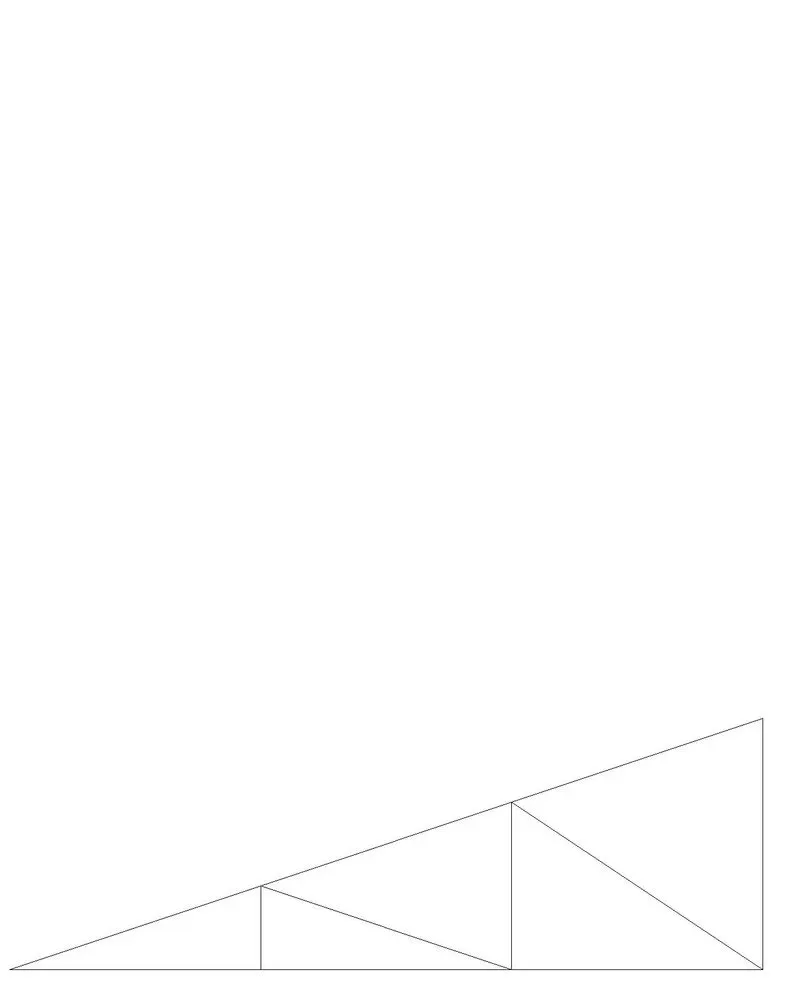
To draw the above figure using absolute coordinate system follow these steps :
Command : line
Specify first point : 1,1
Specify next point : 7,1
Specify next point : 7,3
Specify next point : 1,1
Command : line
Specify first point : 3,1
Specify next point : 3,1.667
Specify first point : 5,1
Specify next point : 5,2.333
Specify next point : 7,1