Creation of Column Schedule and Drawing Template using AutoCad
1. Create a column schedule as shown in the figure.
Note: Create a column schedule with the help of lines. Also, insert text with the help of Dtext command or Single Line text.
Hint: Use font name: romans.shx; Height: 8”, Justify: Left
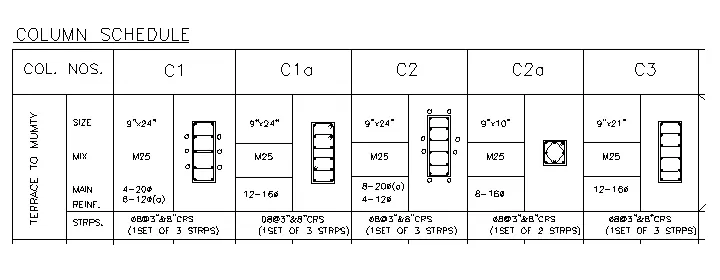
ANSWER:-
step1:- command a table tool and select no rows and columns and draw a table.
step2:- command a line tool and draw a reinforcement.
step3:- command a text and enter all the text and save.
2. Create a window schedule as shown in the figures:
Window Schedule:
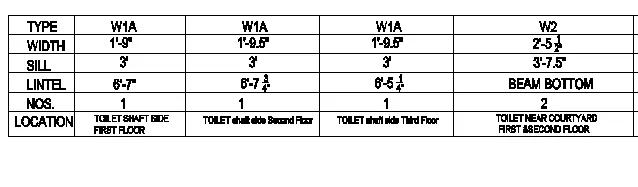
ANSWER:-
step1:- command a table tool and select no rows and columns and draw a table.
step2:- command a text and enter all the text and save.
3. Create the drawing template as shown in the figure:< Use the Notes as in the figure>
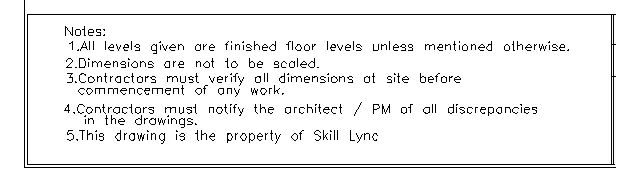

ANSWER:-
step1:- command a table tool and select no rows and columns and draw a table.
step2:- command a text and enter all the text and save.
4. Create the list of drawing schedule as shown in the figure:
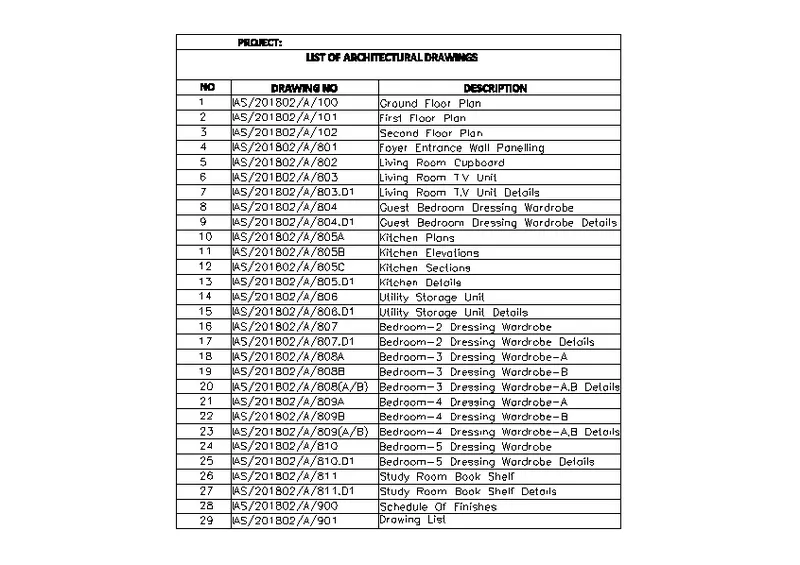
ANSWER:-
step1:- command a table tool and select no rows and columns and draw a table.
step2:- command a text and enter all the text and save.
5. Create the Beam detail as shown in the figure and provide text wherever given.
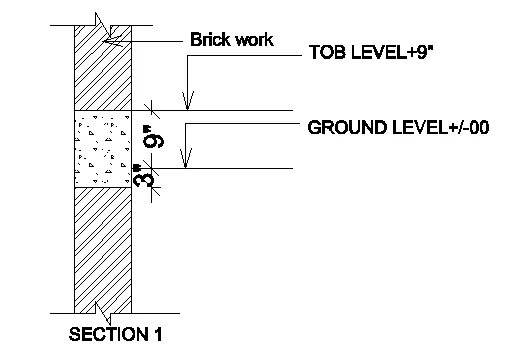
ANSWER:-
step1:- command a line tool and draw a section.
step2:- command a hash command and select hash and apply.
step3:- command a multileader tool and leader with text and save.
step4:- command a text tool and enter a dimensions.
step5:- command rotate and select the object and rotate angle of 90 degrees.