Creation of Column Schedule and Drawing Template using AutoCad
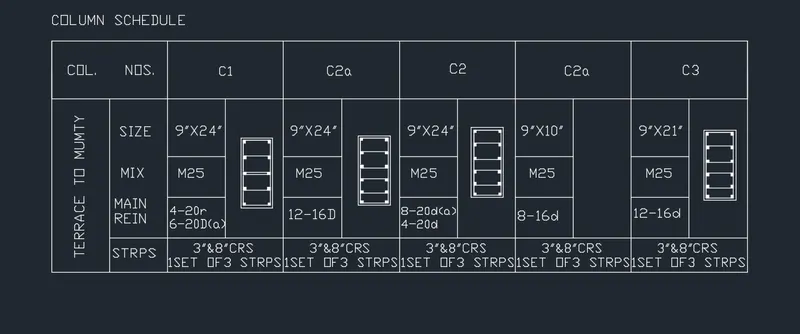
1.Aim: Create a column schedule as shown in the figure.
Introduction: Create a column schedule with the help of lines. Also, insert text with the help of Dtext command or Single Line text.
By using font name: romans.shx; Height: 8”, Justify: Left
The steps are following to create a column schedule
Ortho on (F8)
Command: _line
Specify first point:
Specify next point or [Undo]: 120
Specify next point or [Undo]: 40
Specify next point or [Close/Undo]: 120
Specify next point or [Close/Undo]: 40
Command: o
OFFSET
Make a line at a distance 20
OFFSET
Make a line at a distance 10
Command: tr
TRIM the unwanted lines
Command: o
OFFSET
Make a line at a distance 7
Command: o
OFFSET
Make a line at a distance 6
Command: tr
TRIM the unwanted lines.
Command DT
DTEXT font name: romans.shx; Height: 8”, Justify: Left
Entering the given text same a s in the Figure
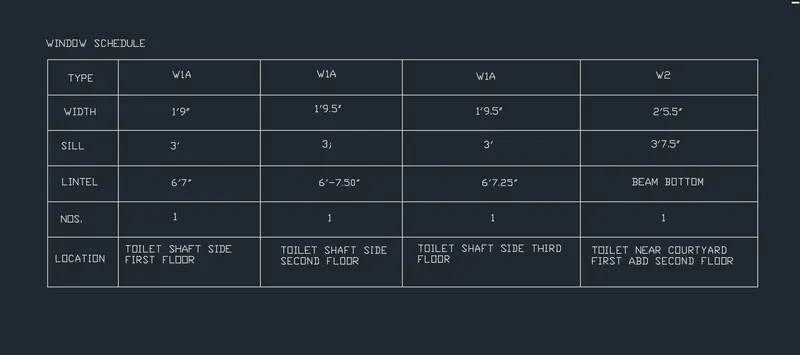
2. Aim: Create a window schedule as shown in the figures:
Introduction: Create a Window schedule with the help of lines. Also, insert text with the help of DTEXT command.
The steps are following to create a column schedule
Ortho on (F8)
Command: _line
Specify first point:
Specify next point or [Undo]: 120
Specify next point or [Undo]: 40
Specify next point or [Close/Undo]: 120
Specify next point or [Close/Undo]: 40
Command: o
OFFSET
Make a line at a distance 15
OFFSET
Make 2 lines Vertically at a distance 20
OFFSET
Make a line at a distance 25
OFFSET
Make Horizontally 4 lines at a distance 6
OFFSET
Make Horizontally 2 lines at a distance 8
Command DT
DTEXT
Entering the given text same a s in the Figure
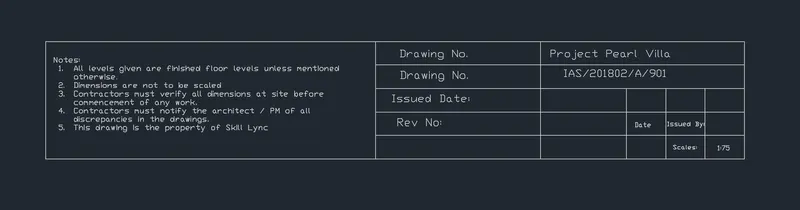
3. Aim: Create the drawing template as shown in the figure
Introduction: Drawing the template as shown in the figure by Using the Notes as shown in the figure
Using the Line Command
The steps are as follows:
Ortho on (F8)
Command: _line
Specify first point:
Specify next point or [Undo]: 60
Specify next point or [Undo]: 10
Specify next point or [Close/Undo]: 60
Specify next point or [Close/Undo]: 10
Command: o
OFFSET
Make a line Vertically at a distance 28
Command: o
OFFSET
Make a line Vertically at a distance 14
Command: o
OFFSET
Make a line Vertically at a distance 18
Command: o
OFFSET
In 2nd and 3rd box make draw 4 offset lines horizontally at a distance of 2
Command: o
OFFSET
In 3rd box draw an offset line vertically at a distance of 7.3
Command: o
OFFSET
In 3rd box draw 2 offset lines vertically at a distance of 3.3
Command: tr
TRIM the unwanted lines.
Command DT
DTEXT
Entering the given text same a s in the Figure
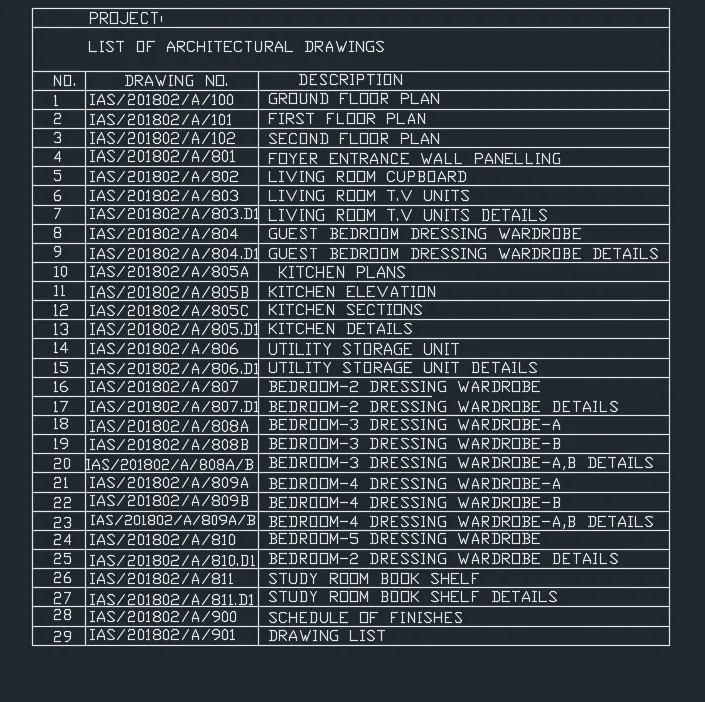
4.Aim: Create the list of drawing schedule as shown in the figure:
Introduction: Drawing a table of drawing schedule by iusing the line command and filling all the details in it.
The steps are as follows:
Ortho on (F8)
Command: _line
Specify first point:
Specify next point or [Undo]: 22
Specify next point or [Undo]: 22.5
Specify next point or [Close/Undo]: 22
Specify next point or [Close/Undo]: 22.5
OFFSET
Make a line Vertically at a distance 2
OFFSET
Make a line Vertically at a distance 6
OFFSET
Make a line Vertically at a distance 14
OFFSET
Make a line Horizontally at a distance 0.6
OFFSET
Make a line Horizontally at a distance 1.5
OFFSET
Make 28 lines Horizontally at a distance 0.6
Command: tr
TRIM the unwanted lines.
Command DT
DTEXT
Entering the given text same a s in the Figure
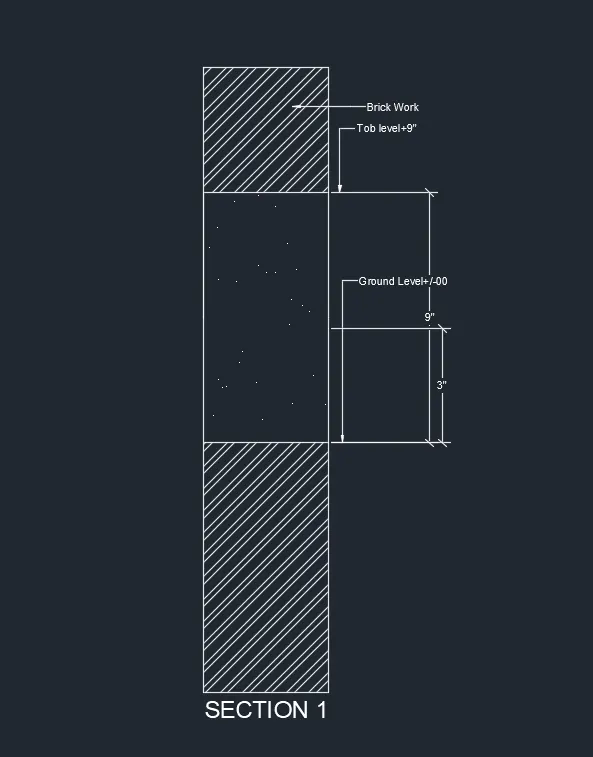
5. Aim: Create the Beam detail as shown in the figure and provide text wherever given.
Introduction: Drawing a beam section and detailing it and providing text wherever given.
The steps are as follows:
Ortho on (F8)
Command: _line
Specify first point:
Specify next point or [Undo]: 1’3”
Specify next point or [Undo]: 3”
Specify next point or [Close/Undo]: 1’3”
Specify next point or [Close/Undo]: 3”
OFFSET
Make a line Horizontally at a distance 4”,9”.
DTEXT
Entering the given text same a s in the Figure
HATCH
Providing suitable hatch