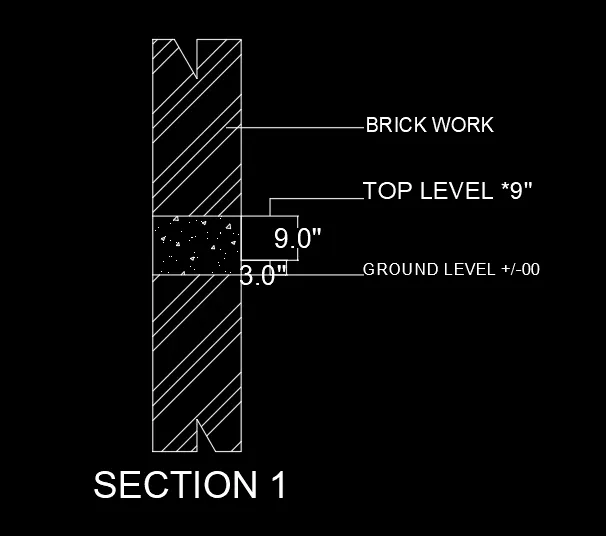
Creation of Column Schedule and Drawing Template using AutoCad
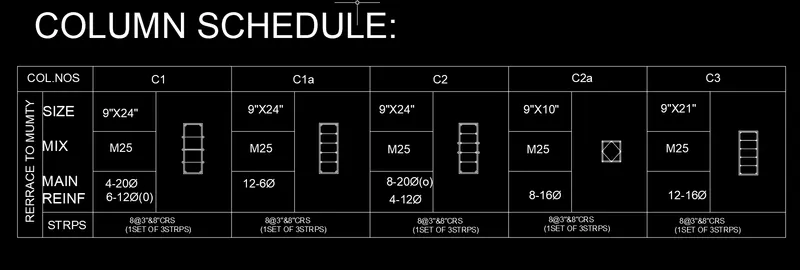
1. Aim: To create a column schedule as shown in the figure.
Procedure:
- In the command box type line and create a table.
- In the command box type ST(text style)-font name-height-justify
- In the command box type text to give the text in drawings.
- In the command box type Mtext and symbols.
Result:
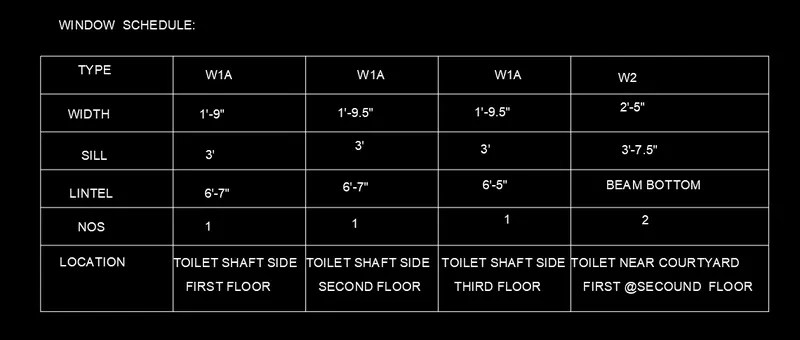
2.
Aim: To create a Window schedule as shown in the figure.
Procedure:
- In the command box type table and specify the no.of rows and columns.
- In the command box type ST(text style)-font name-height-justify
- In the command box type text to give the text in drawings.
Result:
3.Aim: To create a column schedule as shown in the figure.
Procedure:
- In the command box type line and create a table.
- In the command box type ST(text style)-font name-height-justify
- In the command box type text to give the text in drawings.
- In the command box MTEXT
Result:

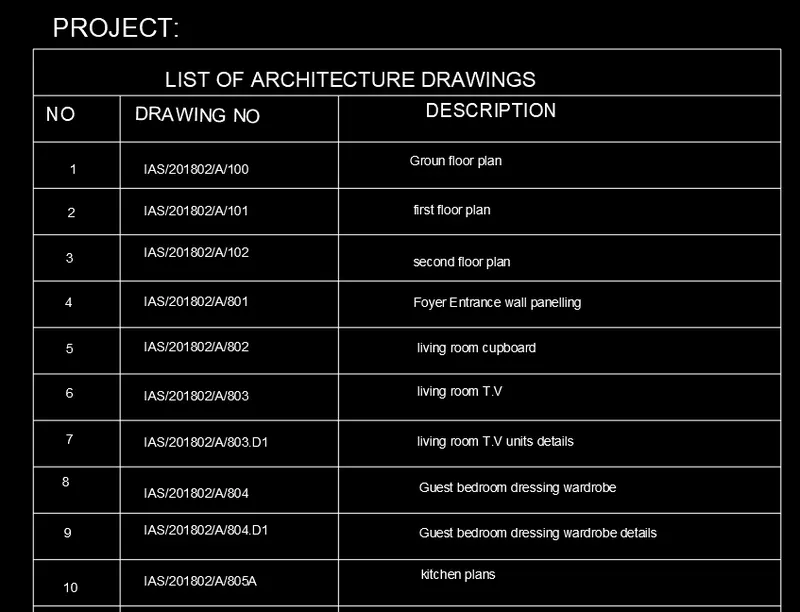
4.Aim: To create a column schedule as shown in the figure.
Procedure:
- In the command box type line and specify the no.of rows and columns.
- In the command box type ST(text style)-font name-height-justify
- In the command box type text to give the text in the table
Result:
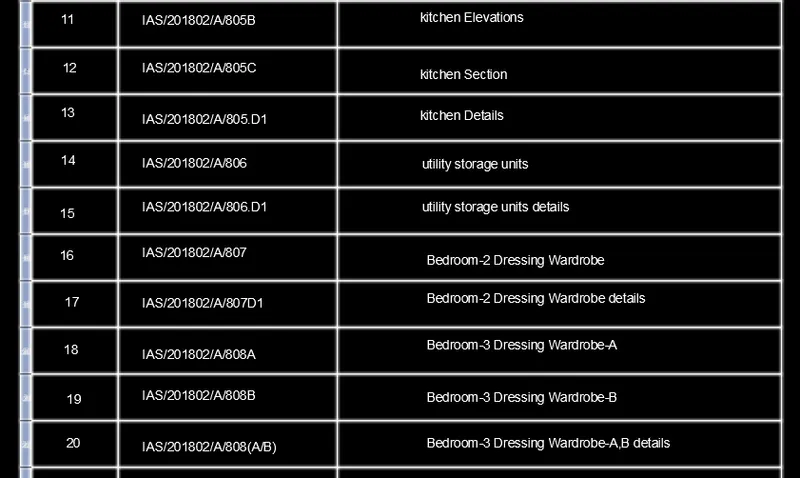
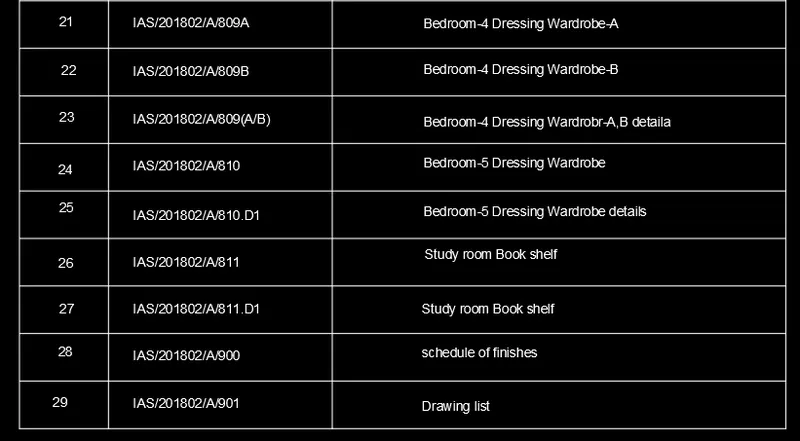
5.Aim: To create a column schedule as shown in the figure.
Procedure:
- In the command box type units-Eingineering-0'-0.0"
- In the command box type line and to create a section.
- In the command box type HATCH and select
- In the command box type ST(text style)-font name-height-justify
- In the command box type text to give the text in drawings.
Result: