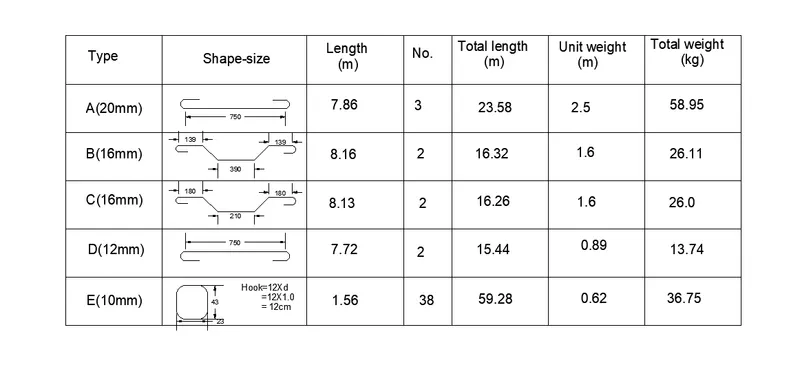
Creating Bar Bending schedule, Different Door types, and Creation of standard drawing templates using AutoCad
- Aim: To create the templates as shown in Figures.
Introduction: To create the templates as shown in Figures. Taking the size of the title block as per industry standards or assuming it as per the size of the paper. Use text and attributes wherever required. After creating the title saving it as a block with names: Custom1_titleblock and Custom2_titleblock, respectively.
Table 1
Command: _rectang
Making a rectangle of 2X4 and exploding it by using explode command, to make 4 different lines.
Command: O
OFFSET
Specify offset distance or [Through/Erase/Layer] <1.0>: 0.25
Select object to offset or [Exit/Undo] <Exit>: 0.15
Command:
OFFSET
Specify offset distance or [Through/Erase/Layer] <0.3>: 0.15
Command:
OFFSET
Specify offset distance or [Through/Erase/Layer] <0.2>: 0.25
Command:
OFFSET
Current settings: Erase source=No Layer=Source OFFSETGAPTYPE=0
Specify offset distance or [Through/Erase/Layer] <0.3>: 0.15
Command:
OFFSET
Specify offset distance or [Through/Erase/Layer] <0.2>: 0.10
Command:
OFFSET
Specify offset distance or [Through/Erase/Layer] <0.1>: 0.2
Command: O
OFFSET
Specify offset distance or [Through/Erase/Layer] <0.2>: 0.85
Command:
Specify offset distance or [Through/Erase/Layer] <0.9>: 0.5
Select object to offset or [Exit/Undo] <Exit>:
Command:
OFFSET
Specify offset distance or [Through/Erase/Layer] <0.5>: 0.3
Command:
OFFSET
Specify offset distance or [Through/Erase/Layer] <0.3>: 0.25
Command: O
OFFSET
Specify offset distance or [Through/Erase/Layer] <0.3>: 0.4
Select object to offset or [Exit/Undo] <Exit>:
Command:
OFFSET
Specify offset distance or [Through/Erase/Layer] <0.4>: 0.25
Command:
OFFSET
Specify offset distance or [Through/Erase/Layer] <0.3>: 0.2
Command: O
OFFSET
Specify offset distance or [Through/Erase/Layer] <0.2>: 0.2
Command:
OFFSET
Specify offset distance or [Through/Erase/Layer] <0.2>: 0.3
OFFSET
Specify offset distance or [Through/Erase/Layer] <0.3>: 0.2
Command: DT
TEXT
Command: O
OFFSET
Specify offset distance or [Through/Erase/Layer] <0.2>: 1
Command:
OFFSET
Specify offset distance or [Through/Erase/Layer] <1.0>: 0.67
Command: DT
TEXT
Filling all the text as same as required in the figure
Command B
BLOCK
Saving the table as a block and naming it as Custom1_titleblock
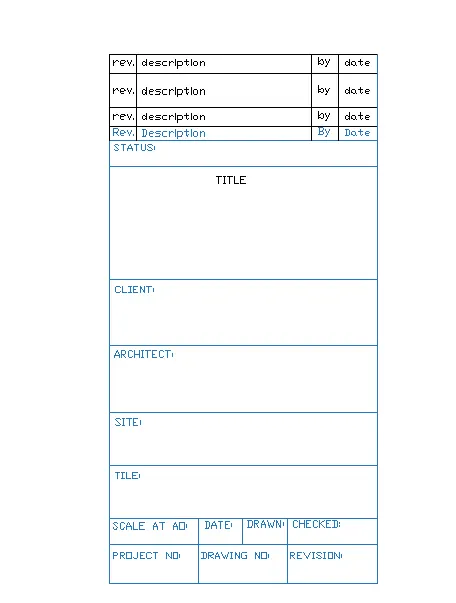
Table 2
Command: _rectang
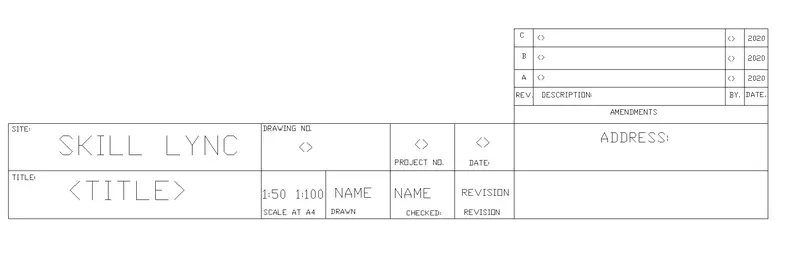
Making a rectangle of 8X2 and exploding it by using explode command, to make 4 different lines.
Command: O
OFFSET
Specify offset distance or [Through/Erase/Layer] >: 1
Command:
OFFSET
Specify offset distance or [Through/Erase/Layer] : 1
Command:
OFFSET
Specify offset distance or [Through/Erase/Layer] <>: 0.267
Command:
OFFSET
Specify offset distance or [Through/Erase/Layer] <>: 2.67
Command:
OFFSET
Specify offset distance or [Through/Erase/Layer] :2.67
Command:
OFFSET
Specify offset distance or [Through/Erase/Layer] : 0.19 (3 TIMES)
Command: O
OFFSET
Specify offset distance or [Through/Erase/Layer] <0.2>: 0.68
Command:
Specify offset distance or [Through/Erase/Layer] <0.9>: 0.68
Command:
OFFSET
Specify offset distance or [Through/Erase/Layer] <0.5>: 0.68
Command: DT
TEXT
Filling all the text as same as required in the figure
Command B
BLOCK
Saving the table as a block and naming it as Custom2_titleblock
2.Aim: To create the doors type for warehouse as shown in the Figure.
Introduction: Creating the doors type for warehouse as shown in the Figure, creating each door type as per standard size or given dimensions after Creating the door create it as a block
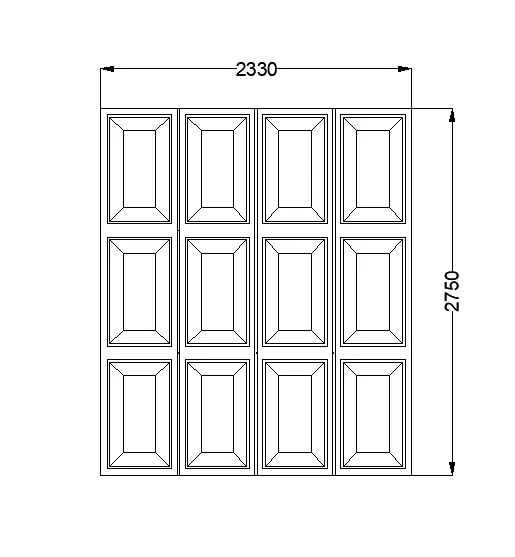
Door 1:
Command: _rectang
Making a rectangle of 2330 X 2750 and exploding it by using EXPLODE command, to make 4 different lines.
Command:
OFFSET
Specify offset distance or [Through/Erase/Layer] : 916.67
Specify offset distance or [Through/Erase/Layer] : 916.67
Specify offset distance or [Through/Erase/Layer] : 916.67
Specify offset distance or [Through/Erase/Layer] : 916.67
Command:
RECTANGLE
Creating a rectangle of dimension 583 X 917
Command co
COPY
Copy all the rectangles to make the door design
Command:
OFFSET
Specify offset distance or [Through/Erase/Layer] :50
Specify offset distance or [Through/Erase/Layer] : 20
Specify offset distance or [Through/Erase/Layer] : 50
Command l
LINE
Joining the corner of the point to make the design of the door like this
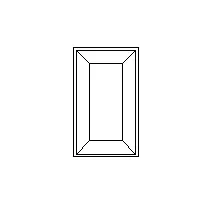
Copy this to all the rectangles to make a complete door
Command tr
TRIM
Trim the unwanted lines
Command dim
Specify the dimensions of the door
Command
BLOCK
Name as the block as Door_1
Door 2
Command:
OFFSET
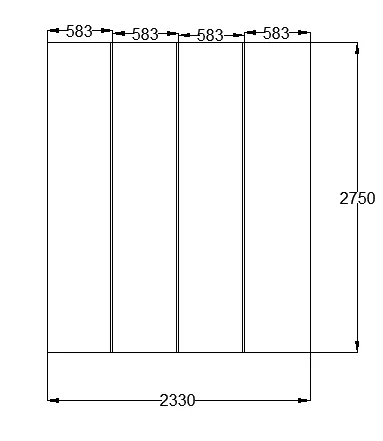
Specify offset distance or [Through/Erase/Layer] : 583
Specify offset distance or [Through/Erase/Layer] : 583
Specify offset distance or [Through/Erase/Layer] : 583
Command: _rectangle
Making a rectangle of 2330 X 2750 and exploding it by using EXPLODE command, to make 4 different lines.
Command
BLOCK
Name as the block as Door_2
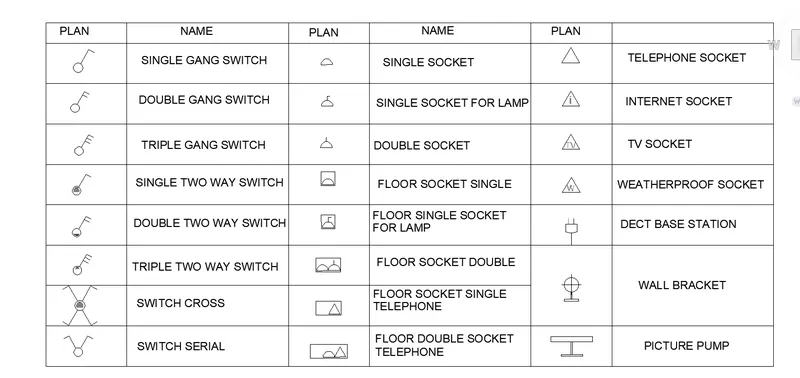
3.Aim: To create each symbol as a block with the name given in the legend.
Introduction: To create each symbol as a block with the name given in the legend and after creating the blocks arranging them in the legend as shown in the Figure.
Command: _line
Specify first point:
Specify next point or [Undo]: 18
Specify next point or [Undo]: 8.5
Specify next point or [Close/Undo]: 18
Specify next point or [Close/Undo]: 8.5
Command: O
OFFSET
Specify offset distance or [Through/Erase/Layer] <20>: 2
Command:
OFFSET
Specify offset distance or [Through/Erase/Layer] <2>: 4
Command:
OFFSET
Specify offset distance or [Through/Erase/Layer] <4>: 2
Command:
OFFSET
Specify offset distance or [Through/Erase/Layer] <2>: 4
Command:
OFFSET
Specify offset distance or [Through/Erase/Layer] <4>: 2
Command:
OFFSET
Specify offset distance or [Through/Erase/Layer] <2>: 0.5
Command:
OFFSET
Specify offset distance or [Through/Erase/Layer] <0>: 1 (8 times to make complete tables)
Making of legends given in figure
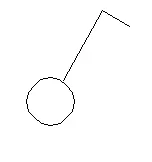
- Single gang switch
Make a circle by command CIRCLE and make a line through it
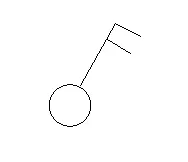
- Double gang switch
Copy Single gang switch and by LINE command draw a line
- Triple gang switch
Copy double gang switch and make a line parallel to line
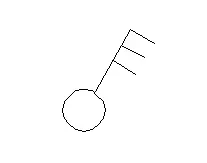
- SINGLE TWO WAY SWITCH
Copy Single gang switch and using hatch fill the solid black colour to it
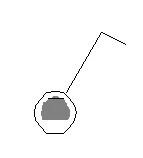
- DOUBLE TWO WAY SWITCH
Copy double gang switch and using hatch fill the solid black colour to it
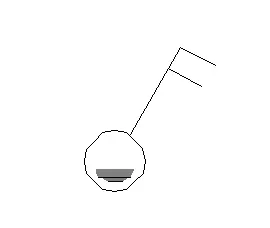
- TRIPLE TWO WAY SWITCH
Copy triple gang switch and using hatch fill the solid black colour to it
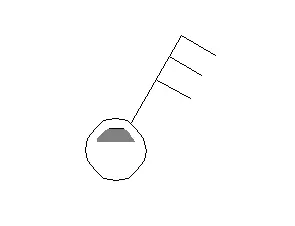
- SWITCH CROSS
Draw a circle by command CIRCLE
Make a line like single way switch
Select polar array give the number 4
and Copy it and using hatch fill the solid black colour to the circle.
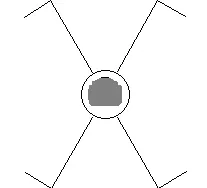
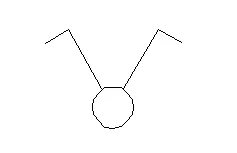
- SWITCH SERIAL
Copy the switch cross and erase the bottom 2 lines and hatch
Similarly make the legends
After making all the legends make them as a different blocks by command BLOCK
Command
Insert
Insert the blocks as we make a table earlier
Command dt
DTEXT
Name them as given in the figure.
- Aim: To create the door type for residential building as a block.
Introduction: To create the door type for residential building as a block and save the name of the blocks as type by using given dimensions or assuming dimensions as per industry standards
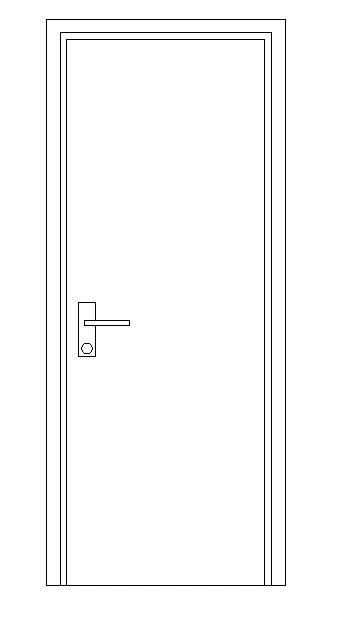
Door 1
Making a rectangle of 2’10”X6’11” and exploding it by using EXPLODE command, to make 4 different lines.
Command:
OFFSET
Specify offset distance or [Through/Erase/Layer]: 2” (to make the sides of the door)
Specify offset distance or [Through/Erase/Layer]:1” (to make the sides of the door)
Command
TRIM
Trim the unwanted lines
Command
BLOCK
Name them as a Door 1 and save it.
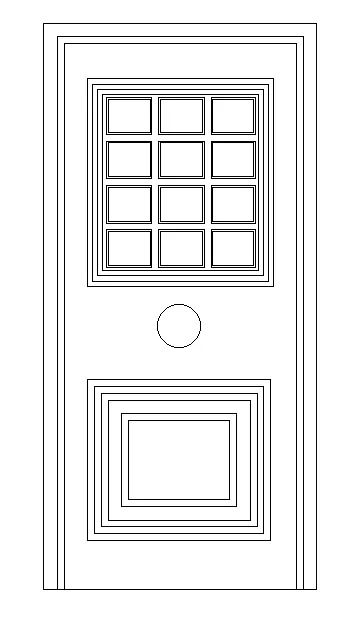
Door 2
Making a rectangle of 3’4”X6’11” and exploding it by using EXPLODE command, to make 4 different lines.
Command:
OFFSET
Specify offset distance or [Through/Erase/Layer]: 2” (to make the sides of the door)
Specify offset distance or [Through/Erase/Layer]:1” (to make the sides of the door)
Draw two rectangles to make the design of the door
Command:
OFFSET
Specify offset distance or [Through/Erase/Layer]: 0.3”
(On both the rectangles)
Draw a rectangle and using array command copy it to make a beautiful design
Command
TRIM
Trim the unwanted lines
Command
BLOCK
Name them as a Door 2 and save it.
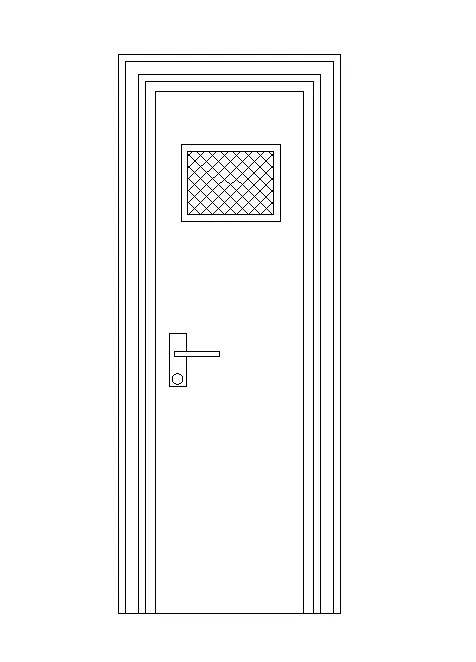
Door 3
Making a rectangle of 2’9”X6’11” and exploding it by using EXPLODE command, to make 4 different lines.
Command:
OFFSET
Specify offset distance or [Through/Erase/Layer]:1”
Specify offset distance or [Through/Erase/Layer]:2”
Specify offset distance or [Through/Erase/Layer]:1”
Specify offset distance or [Through/Erase/Layer]:1”
Draw a rectangle to make the wire mess design
Using hatch command fill the wire design to it
Command
TRIM
Trim the unwanted lines
Command
BLOCK
Name them as a Door 3 and save it.
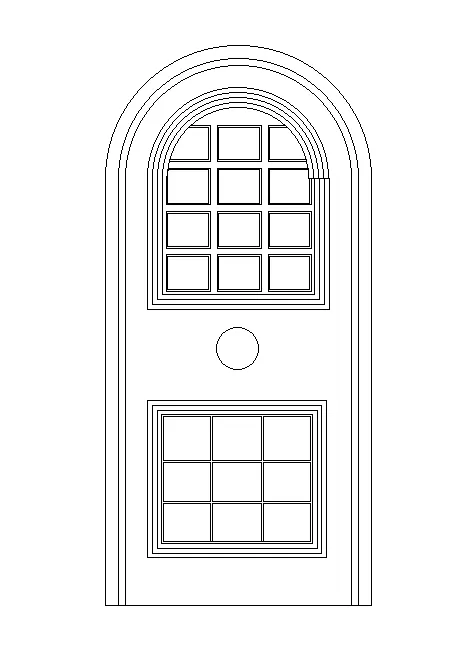
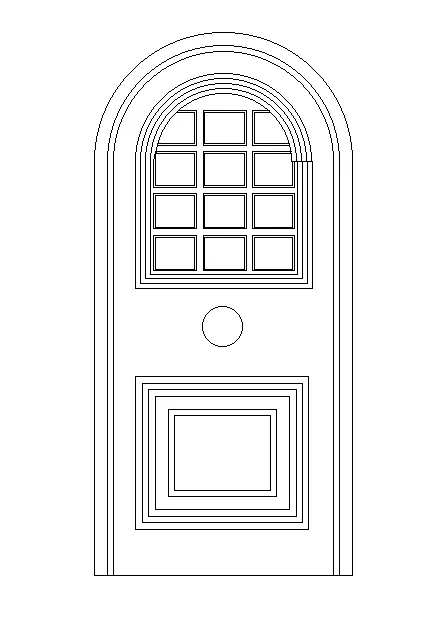
Door 4
Copy the Door 2
ORTHO on
On the third rectangle above make a straight line
On the object snap on the midpoint
Make different circle from the midpoint of the line to the different points to give the door as an arc shape
Command
TRIM
Trim the unwanted lines
On the bottom rectangles make design using rectangle
Draw a rectangle and using array command copy it to make a beautiful design
Command
BLOCK
Name them as a Door 4 and save it.
Door 5
Copy the Door 2
Copy the below rectangle design from the Door 4
Command
BLOCK
Name them as a Door 5 and save it.
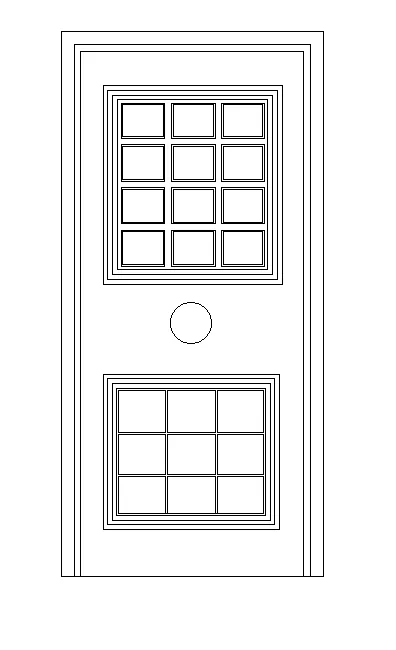
Door 6
Copy the Door 4
Copy the below rectangle design from the Door 2
Command
BLOCK
Name them as a Door 6 and save it.
5.Aim: To create each shape as a block as shown in the Figure.
Introduction: To create each shape as a block as shown in the Figure and saving the block and insert them on the table as shown in the Figure.