Assignment 7-Side Pole Crash Simulation Challenge
Objective:- To assign all the kinematic condition, contact interface, rigid wall and run the simulation to observe model under side crash analysis.
Question:
Neon side crash -BIW
- Check unit system and either follow [Mg mm s] or [Kg mm ms].
- Create appropriate interface ,friction 0.2 and recommended parameters.
- Make sure of no penetration and intersections.
- Create rigid wall with friction 0.1 as per referance model.
- Compare the model weight with the referance model and use added masses to reach target weight 700kg while getting CG about the required range.
- Initial velocity as shown in picture.
- Use model checker to ensure good quality.
- Timestep :0.5 to 0.1 microseconds.
- Run 80ms.
Procedure:-
-
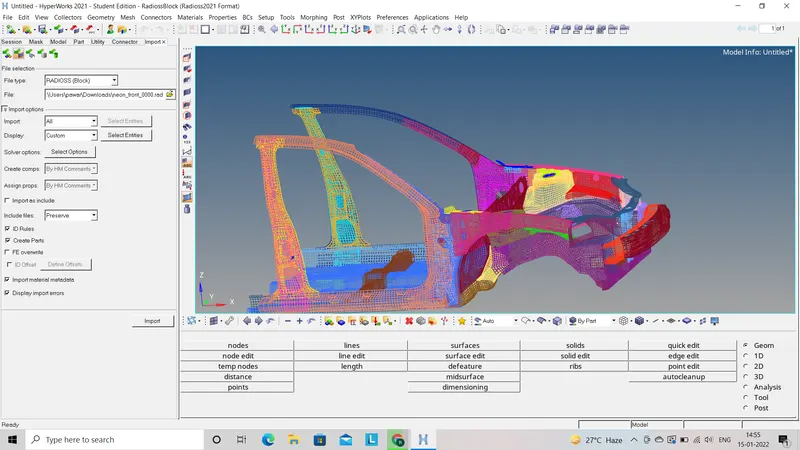
First step we have to do is import the starter file (0000.rad) to the hypermesh. We have to choose Radioss as the profile for further process.
-
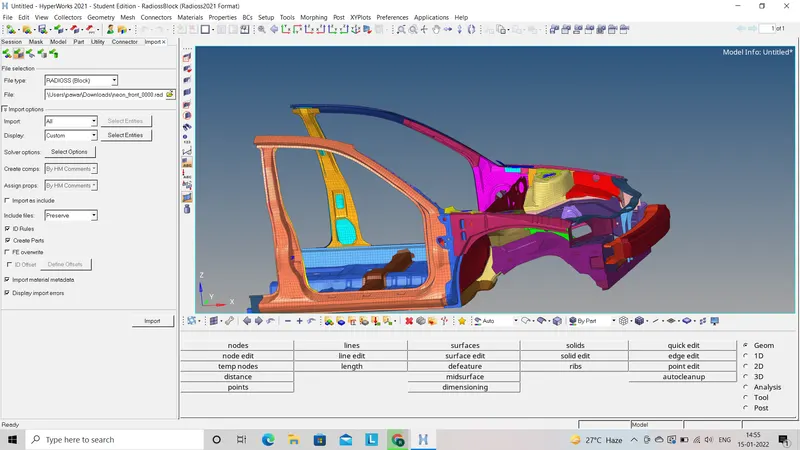
After importing the file we will get wired frame mode we have to change it to solid frame so that we can observe model properly.
-
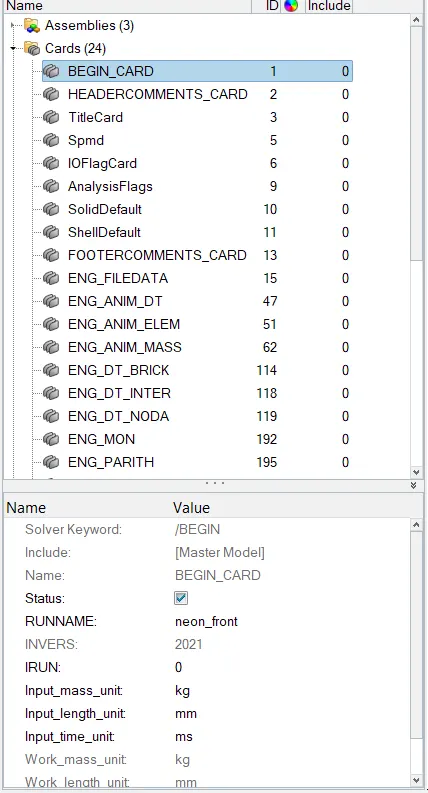
Now we have to check the unit system which will follow throughout the simulation by using (Model deck - Cards - Begine_card - Check the units).
-
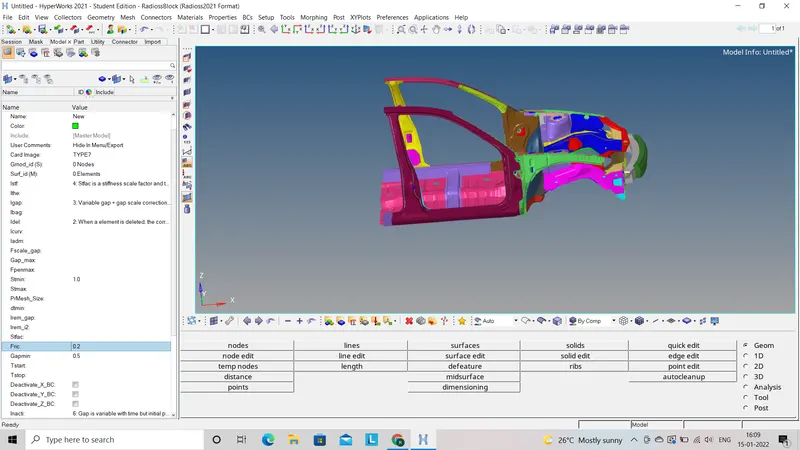
To create the contact interface we have to go to the model deck and right click - create - contact. Now we will choose the type 7 contact interface and assign the friction value as 0.5 as per given condition.
-
To check the penitration in whole model we will go to Tools - Penitration check - Check. In this model their is no penitration found.
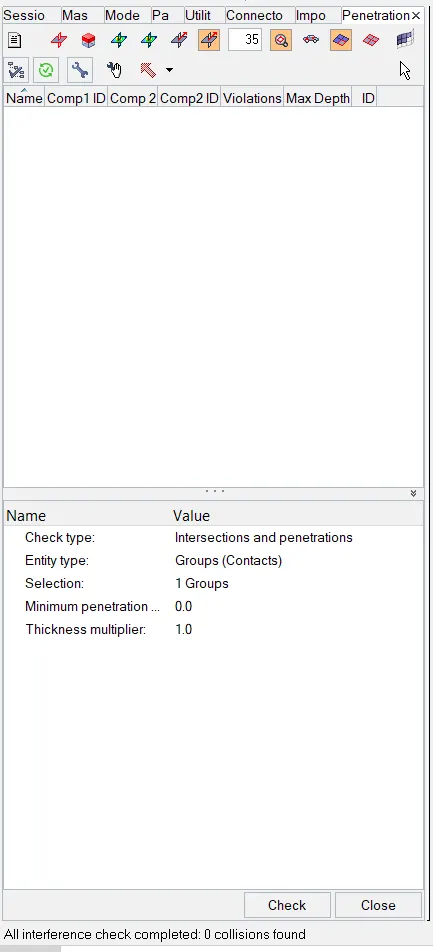
-
If unwanted rigid bodies are present then we have to delete that rigid bodies as it will affect the simulation time.
- Now we will go for create rigid wall for side crash so we have to create wall resembles to cyllindrical part. To create the rigid wall we have to go Solver deck - Right click - Create - R_WALL - Cylindrical. In this way we create the rigid wall now we have to assign all the values like frict=0.1 as per bellow figure. We have to select any one point on side door to create the rigid wall.
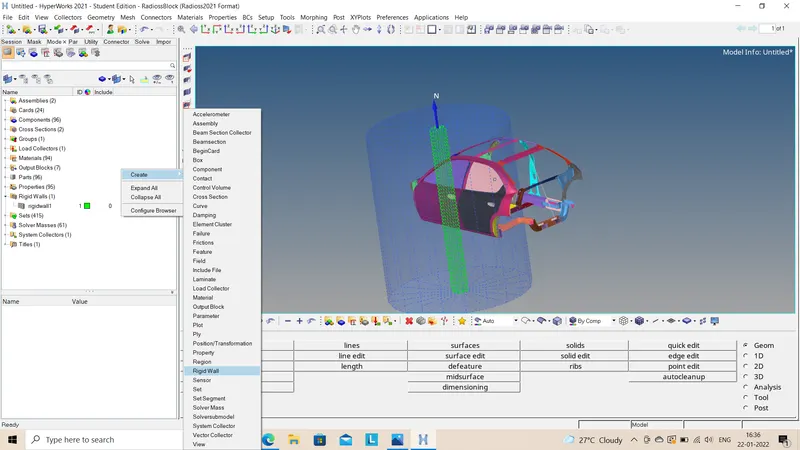
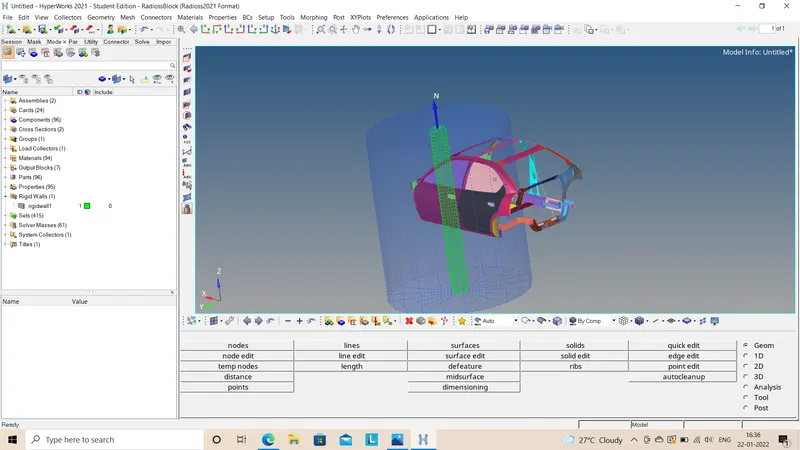
- Now we have to check the COG of model as well as mass of model. To check this we have to go for Tools - Mass details - Select the COG,mass and inertia.
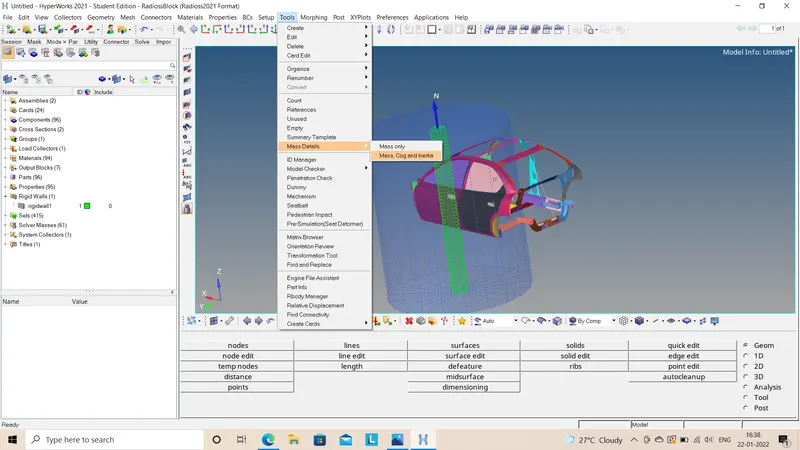
- Now we have add some mass to the model so that COG of model should lie between two bellow rails and overall mass should be near 700 kg as per given condition.
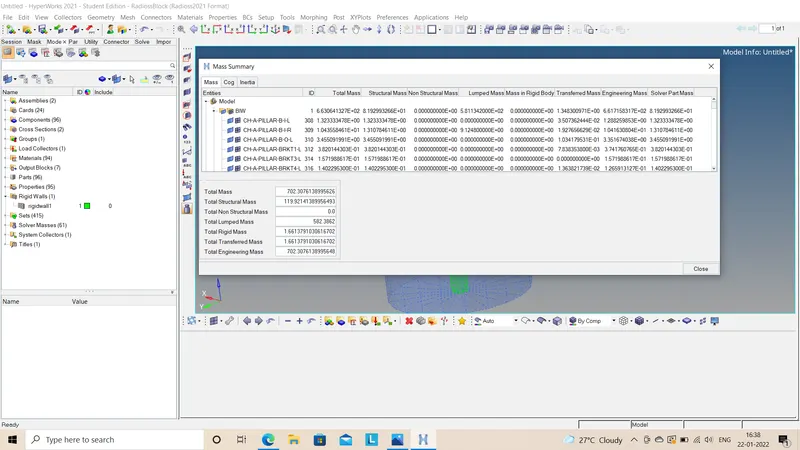
- To check the possition of COG we have to add temp. node as per co-ordinates given in COG option.
- To create the initial velocity we have to go Solver deck - Right click - Create - Boundry conditions - INVEL - INIV/TRA so it create the translational velocity. We have to select all the nodes to assign the velecity then add the value of 15.64mm/ms.
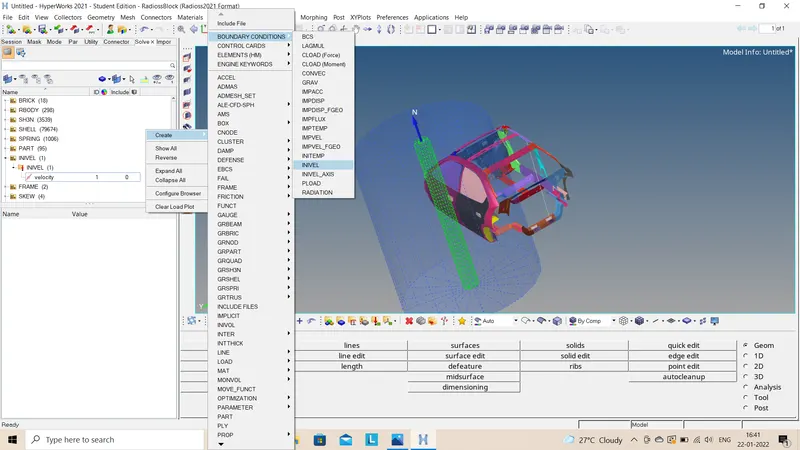
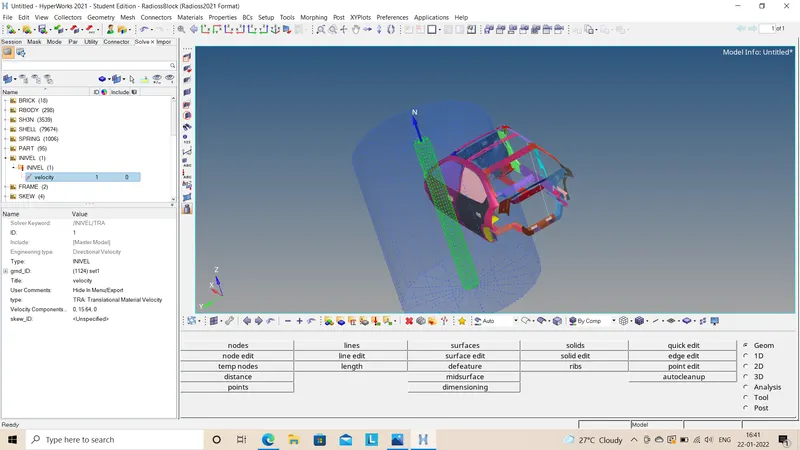
- To Use model checker to ensure good quality we have to go to tools - Model checker - Radioss block - check.
- To assign the time step and the run time we have to go to model deck Begin_card and ENG_ANIM_DT.
Output requests:
1) Sectional force in the cross member:
- To create the sections on both the rails we have to first create the frame by right clicking in solver deck - Frame - Mov.
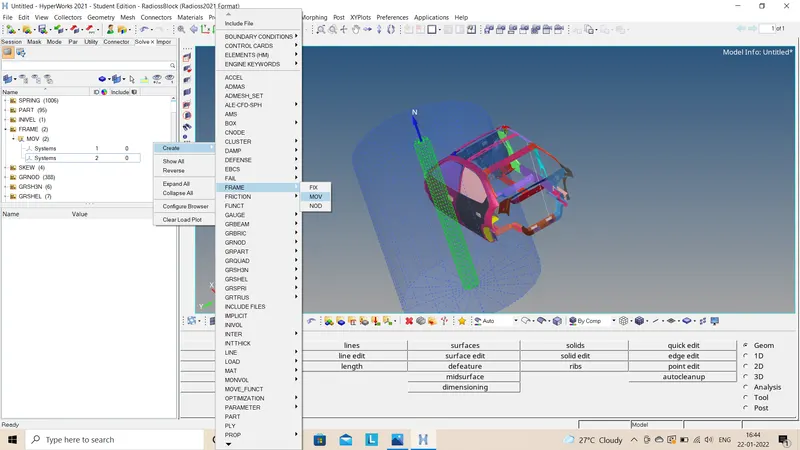
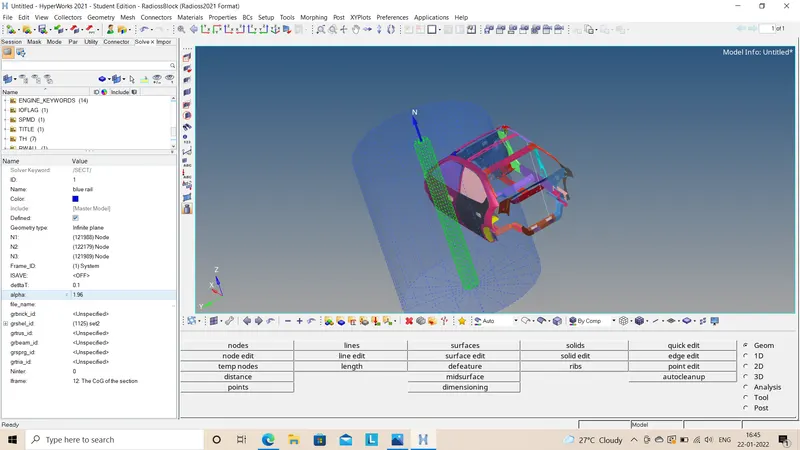
- Now we have to select the three nodes to create the frame. after that we will create the section and assign the frame id to the section.
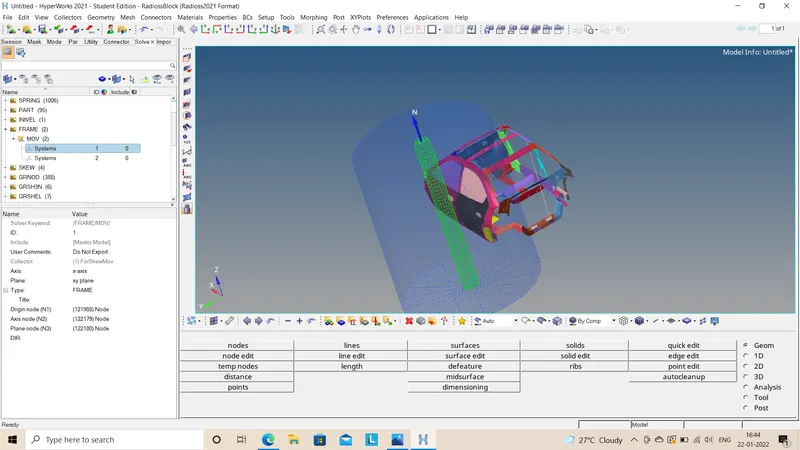
- Now we will create the output block in model deck and then assign both the sections to it. In this way we have created the section on both the rails.
2) Intrusion at B pillar,hinge pillar and fuel tank region:
- To observe how forces will react with respect to time to the given car model we have to add three different output blocks for B pillar, Hinge pillar, Fuel tank respectively.
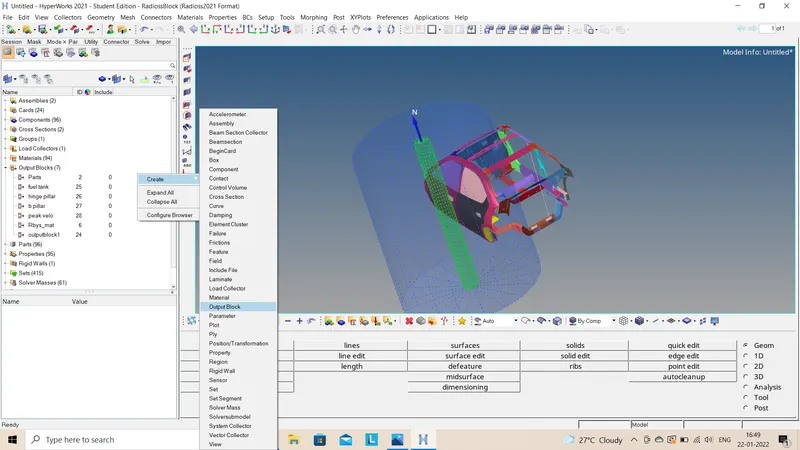
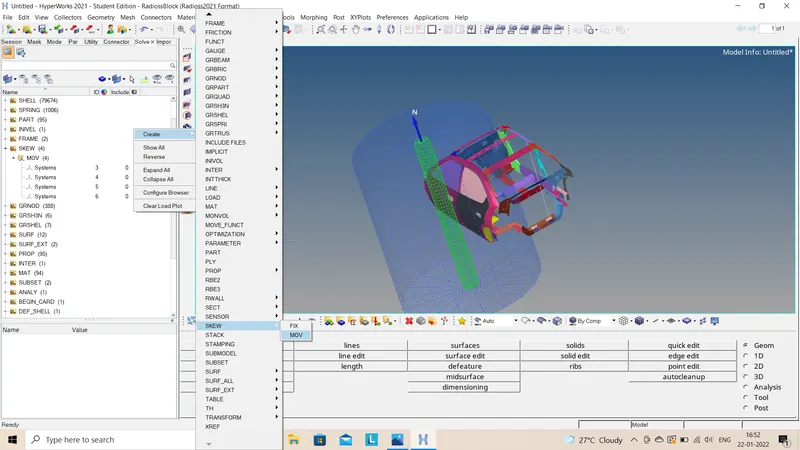
- To create the output blocks we have to go in model deck the right click and create. Also we have to create three different skews in solver deck.
3) Peak velocity of inner node of the door:
- To know the intensity of velocity of side impact on side door we have to check the peak velocity of impact on door as per driver or passenger safety.
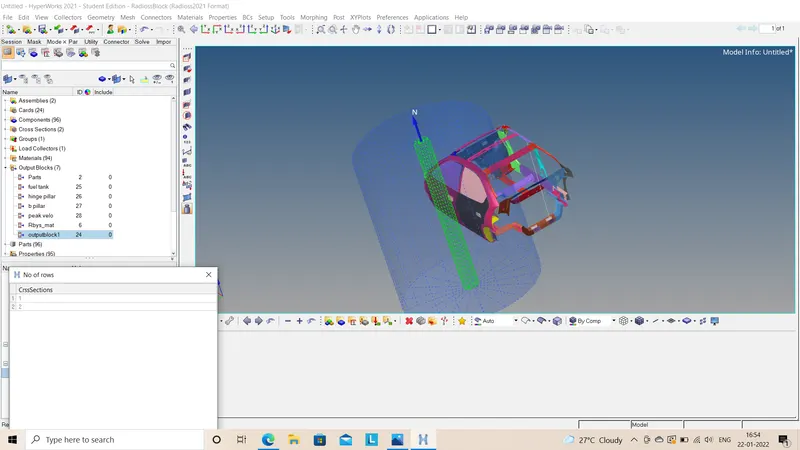
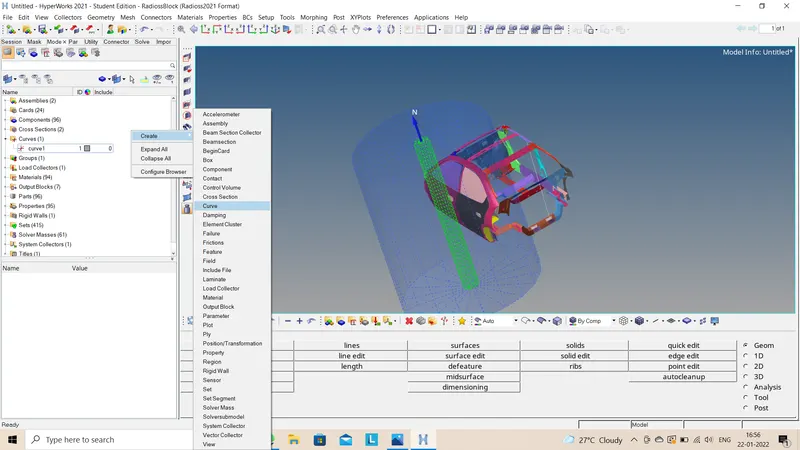
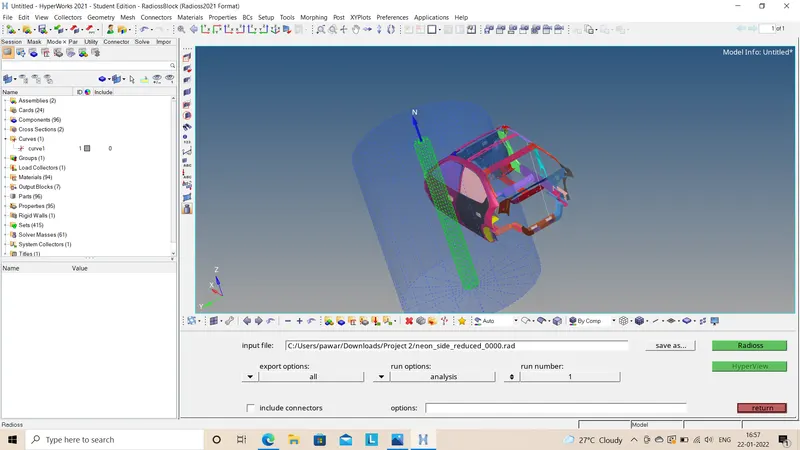
- After completing all the output requests and all input conditions we will go for run the simulation as Analysis - Radioss - Select the file - Raadioss.
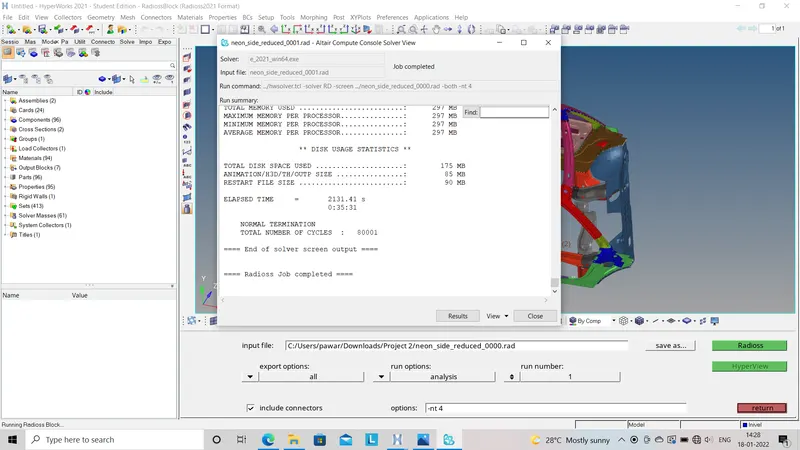
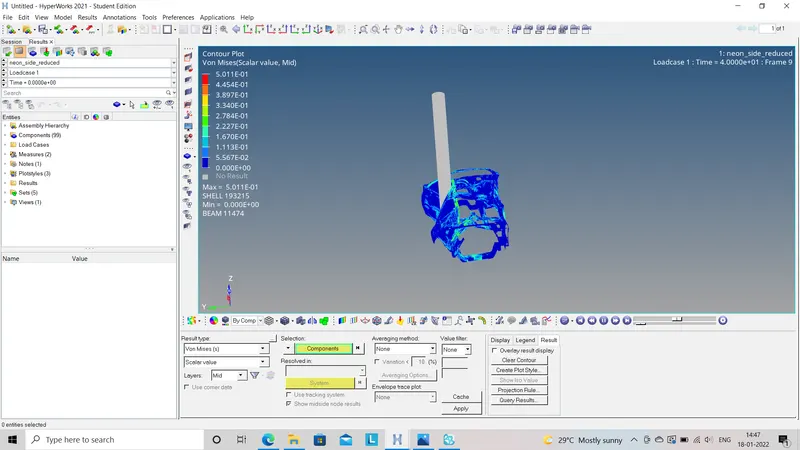
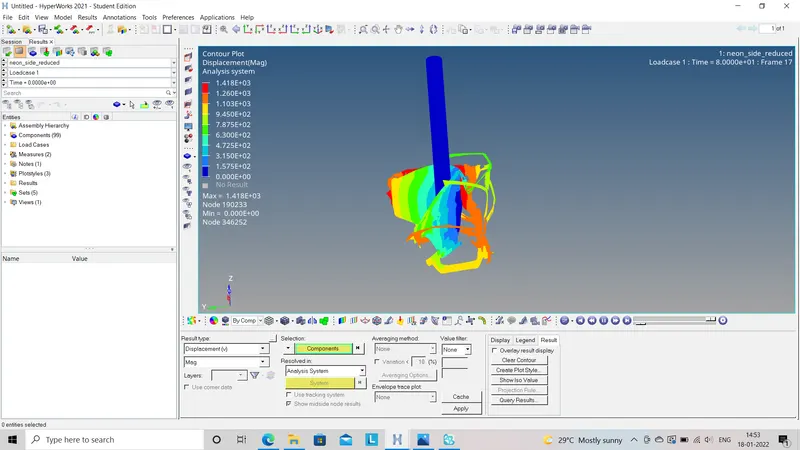
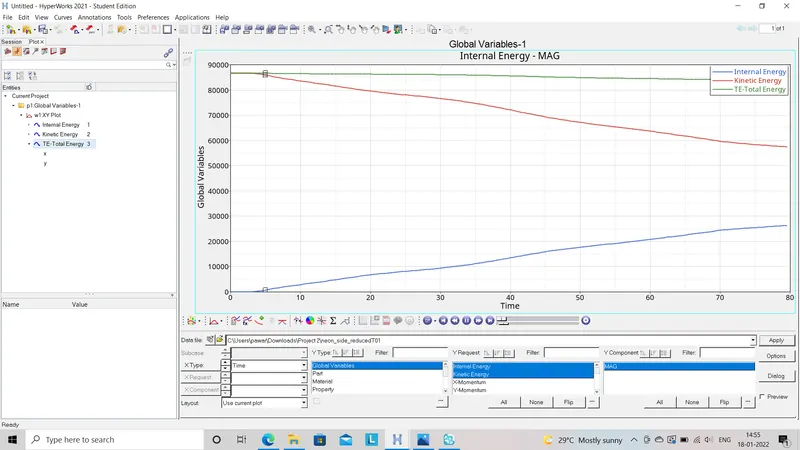
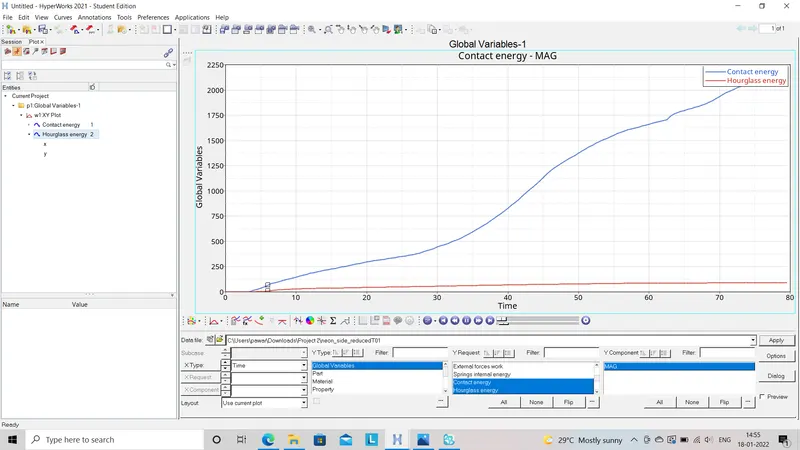
- After completing the simulation we will go on result so that it will open directly H3D file by importing that we will see all the energy animations.
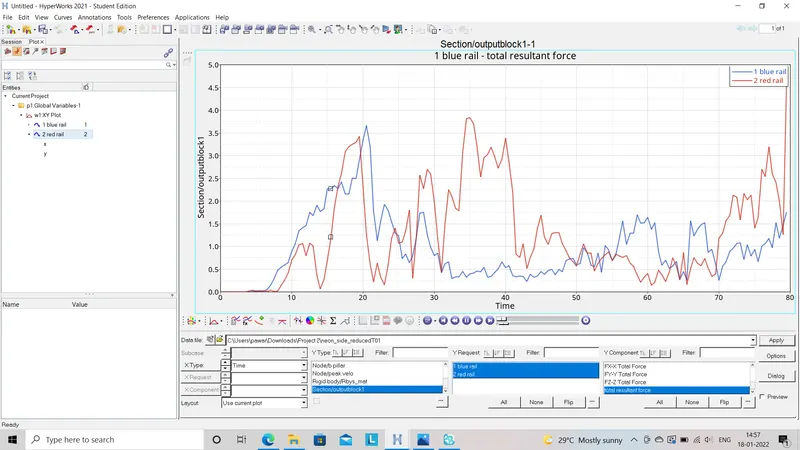
Resultant force on both the rails
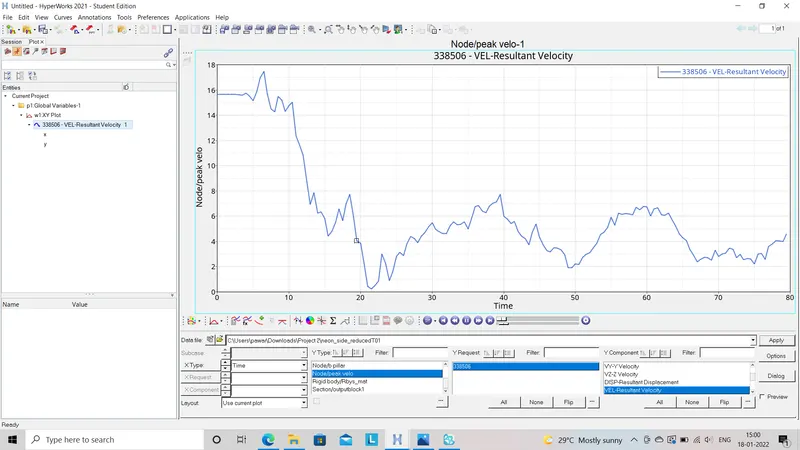
Peak velocity
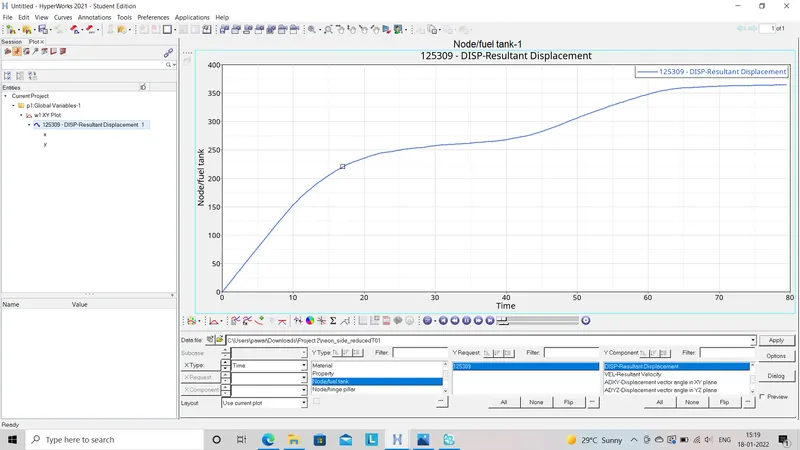
Fuel tank
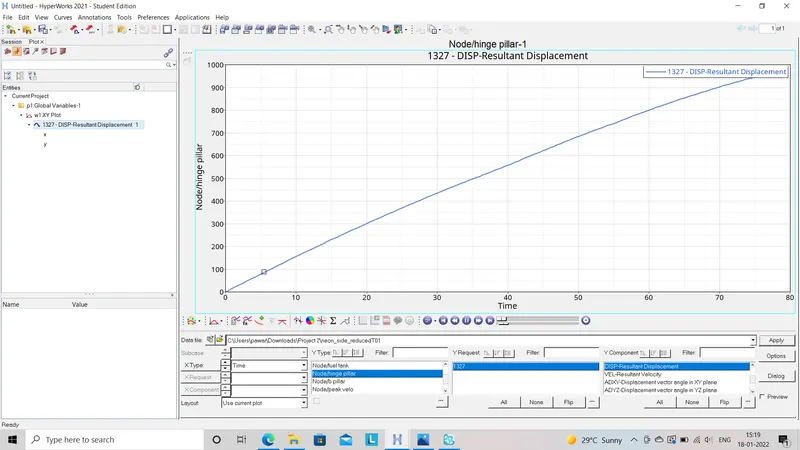
Hinge pillar
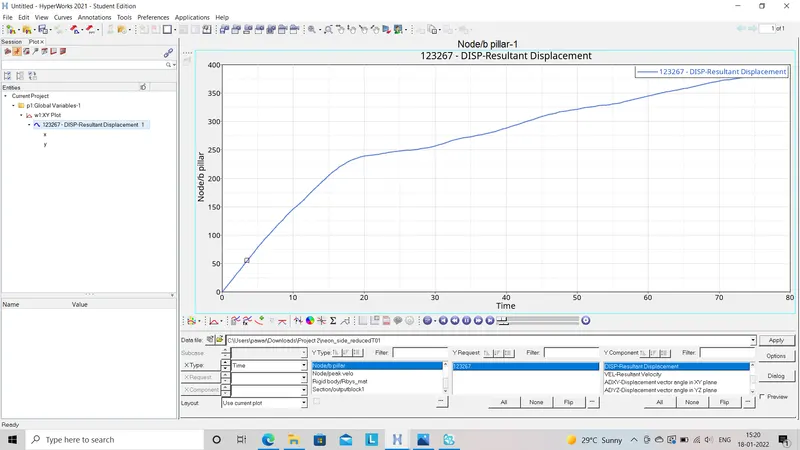
B-pillar
Result: In this challenge we will check the force distribution on the side door due to side impact on door. To check that we have add some sections and frame so that we can analyse the model. Also we will check the peak velocity so we can analyse the impact velocity and its adverse effect on passenger and driver. Also we have to analyse the force distribution in some sensitive parts like battery, b-pillar etc.
Conclusion: In this challenge I have learn about how side imact on side door of car will make some difference and adverse effect on car parts and driver along with passenger in the car. So we will analyse all the conditions like vonmysses stress, displacement, forces etc