Assignment 6
Car Crash Simulation for the Frontal Region.
Aim:
To perform crash test simulation for the frontal region of the car and to observe the impacts formed in various regions of the car with the help of graphs.
Abstract:
The given car model has a very basic shape as required for performing the crash simulation and for observing the deformation in the frontal region of the car. The required conditions are to be set for preparing the car for the simulation process. The errors and penetrations are to be checked and rectified before simulation. After the simulation process, the deformations formed are to be checked by plotting the graphs for the required cross-sections.
Methodology:
- Import the starter file for opening the component.
- Check the units set of measurements and change them as required.
- Set the group type as required and set the standard values for defining the material type of the car.
- Create a centre of gravity for the model as required for simulation.
- Check for any kind of errors and penetrations on the component and fix the errors.
- Create cross sections and skew points so that the impacts can be noted and plotted for the graphs.
- Start the simulation process.
- Check the animation of the simulation and plot the graphs for observation after completion of the simulation process.
Introduction:
Crash simulation is a process where crash tests are done for any type of components to observe and determine which type of material or the production process is to be done for manufacturing. For the production of vehicles the simulations are done in such a way that in case of an accident, most of the impacts are absorbed by the vehicle to keep the passengers safe inside. For the following simulation, the car model shown below is to be simulated as per the required safety conditions.
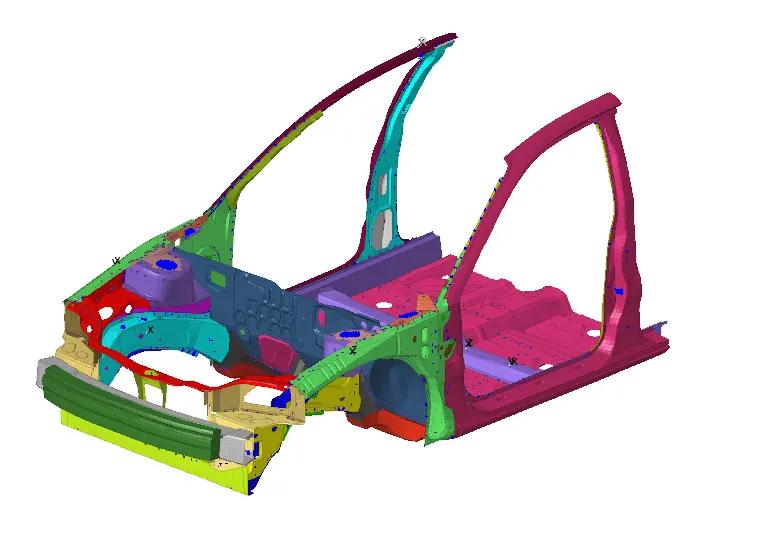
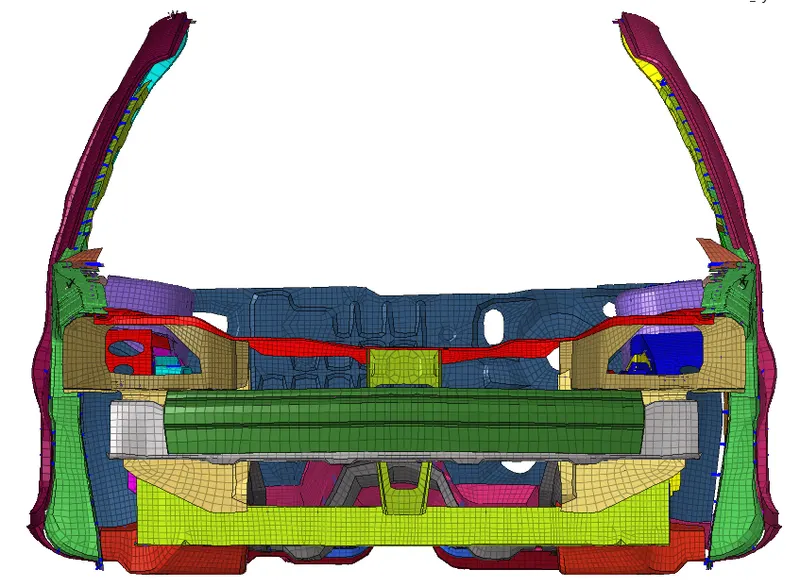
Fig 1: Given car model. Fig 2: Car front view.
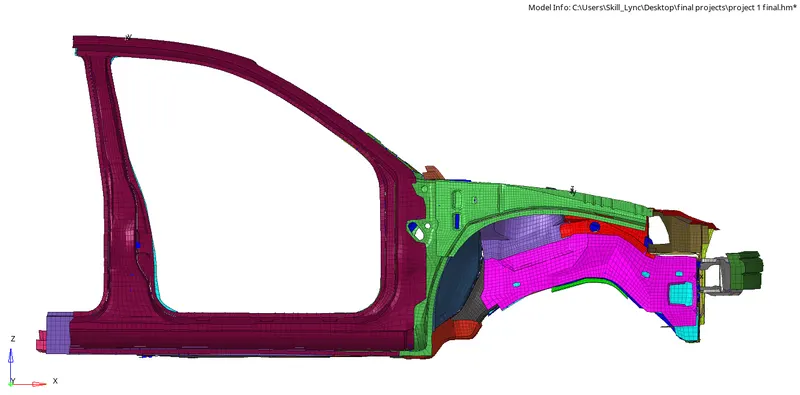
Fig 3: Car side view
Procedure:
- Check the units of the component in the begin card file in the tab bar. Change the units as required. The required units are
(i) Input mass unit = kg
(ii) Input length unit = mm
(iii) Input time unit = ms.
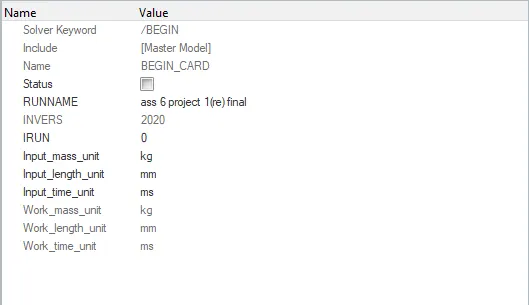
Fig 4: Begin card.
2. A group card is to be created for defining the material property and the standard values are to be mentioned in the group card. The created group card is set to /TYPE7.
Interface/TYPE7 is a multi-usage impact interface, modelling contact between a master surface and a group of slave nodes. It is also possible to consider heat transfer and heat friction. The values for the card are mentioned per the standard values shown below.
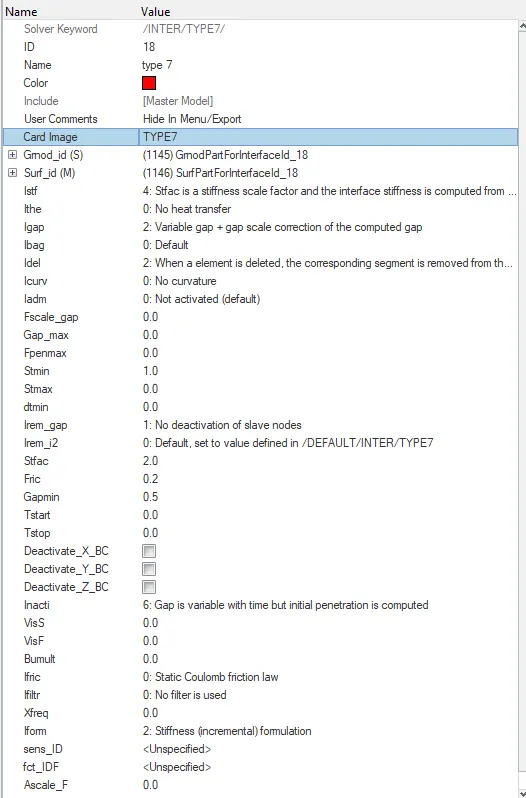
Fig 5: Group card type 7
3. Penetrations and intersections should not be present in the model. To check the penetrations, select the penetration check option in the tools option, select the group which has been created for the simulation and run the check process. If no penetrations the software shows as ‘0 collisions found’. If penetrations found the mesh is to be adjusted manually.
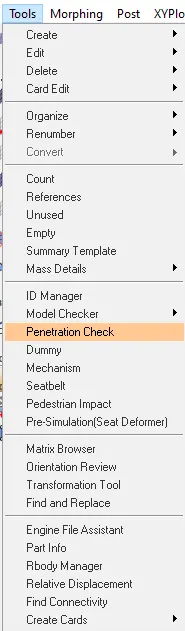
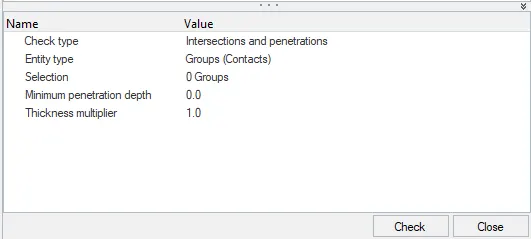
Fig 6: Selection of penetration check Fig 7: Penetration check card
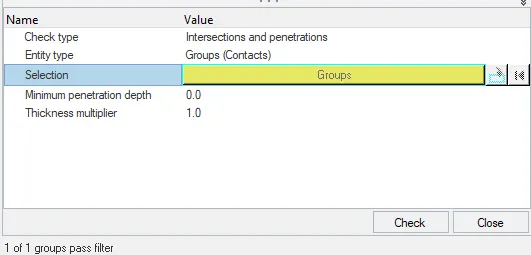
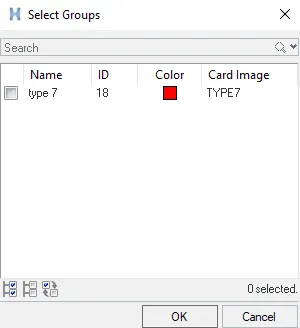
Fig 8: Group selection Fig 9: Group selection window.
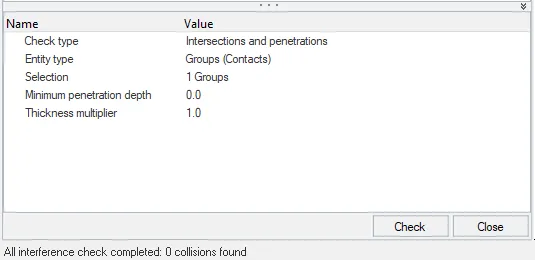
Fig 10: completed penetration check
4. Make sure that the rigid connections for the components are connected properly. If needed connect the components in required regions.
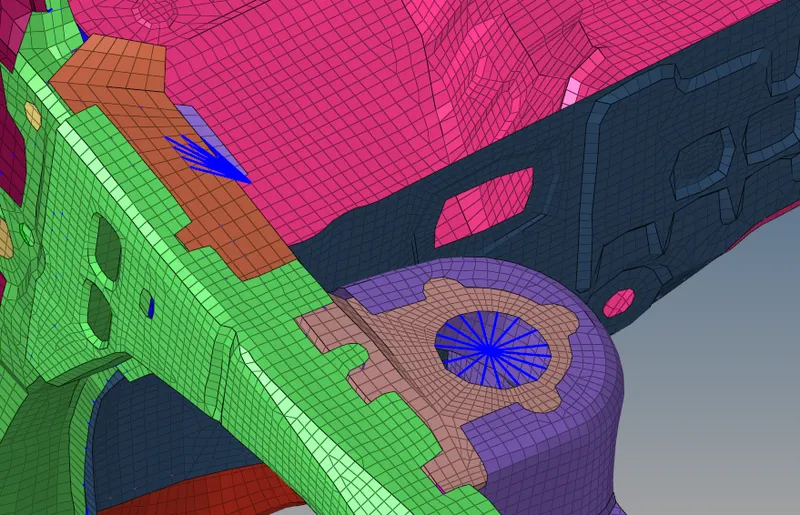
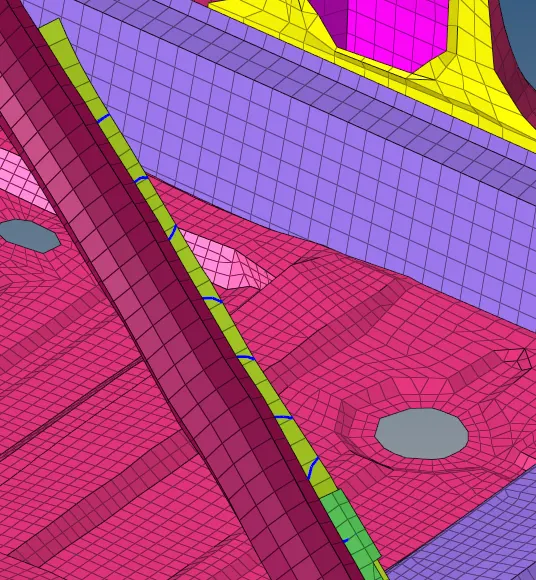
Fig 11: rigid connections. Fig 12: rigid connections.
5. The simulation is to be done for checking the deformations on the frontal region of the car. To provide the impact, a rigid wall is created in front of the component. The frontal part is facing in the x-axis so the positioning of the rigid wall is given as -1 in the normal option and the remaining axes are mentioned as zero. The positioning distance is to be mentioned as per the position of the component. The friction for the rigid wall is set as 0.1 and the Dsearch value is set to 1000.
Dsearch is to create an imaginary region in front of the wall so that while crashing in the simulation process the nodes which are connected to the deformed nodes will also experience the impact of the deformation in Dsearch region.
The values set for the rigid wall are as shown below.
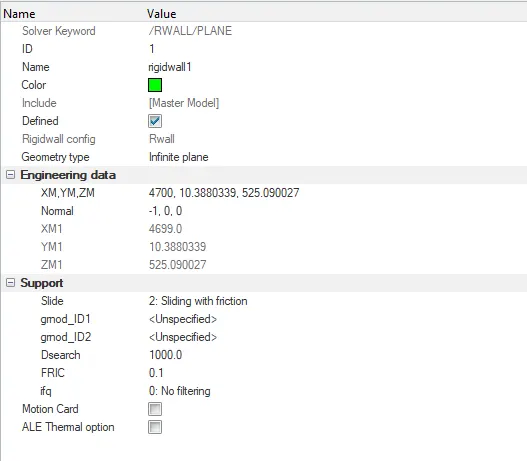
Fig 13: Rigid wall file
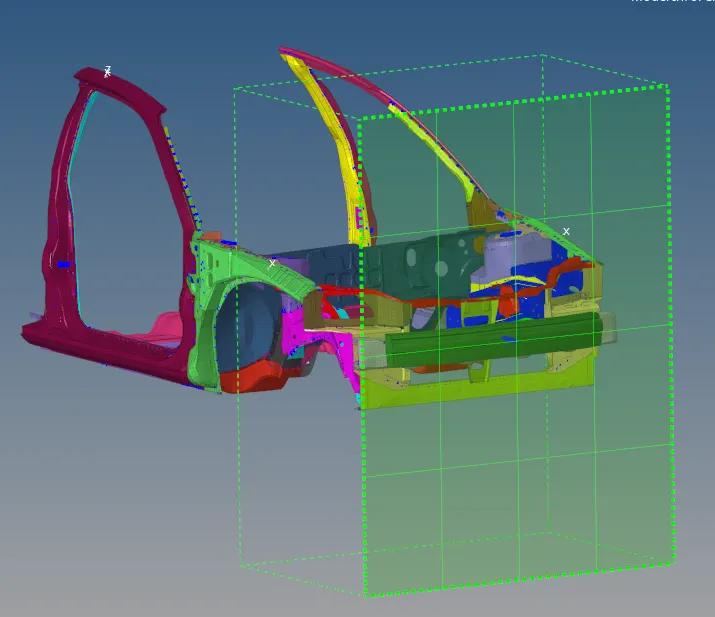
Fig 14: Created a rigid wall.
6. Mass, as well as the centre of gravity (COG), is to be created for the component. As per the given conditions, the mass of the component is to be set as 700 kg. To provide mass as well as COG the mass is to be distributed throughout the nodes in the component until the required mass and position of COG is achieved.
(i) First create an ‘ADMAS’ file in the solver deck tab. Create a new mass file. Open the file and set the file type as ‘0: Mass is added to each node of the node group.
(ii) Right-click on the gmd_ID and create the gmd_ID file. This is to be done twice because a duplicate file will be created for the first time and for the second time a set file will be created in the model tab.
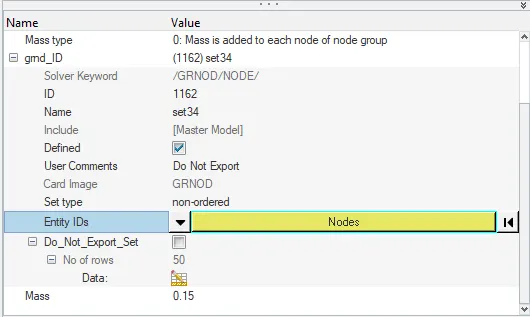
Fig 15: ADMAS card.
(iii) The mass for each node is set as 0.15 kg. Select the node option in the Entity_ID option and select the nodes through the component until the desired mass and COG position is achieved.
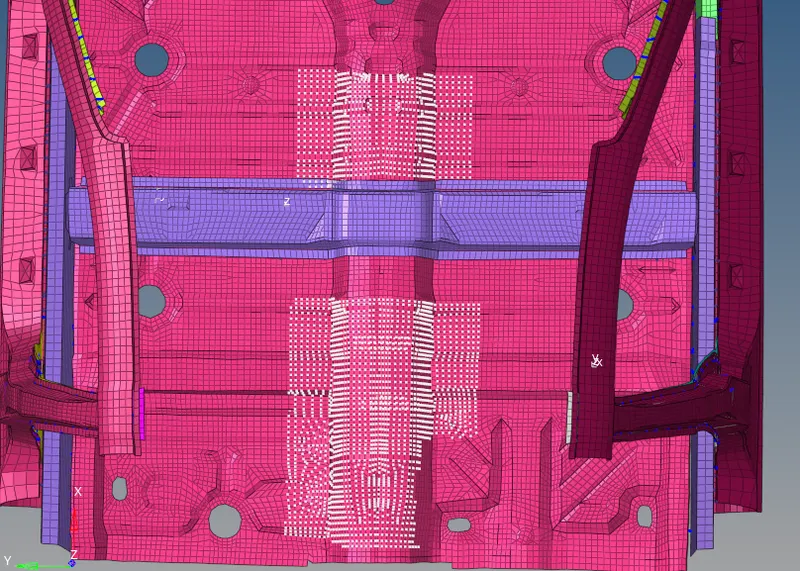
Fig 16: Selection of nodes for adding mass and positioning COG.
(iv) To check the mass and COG details, select the mass details option in the tools menu. Click on mass, cog and inertia option and go to COG option. The mass and COG details are as shown below.
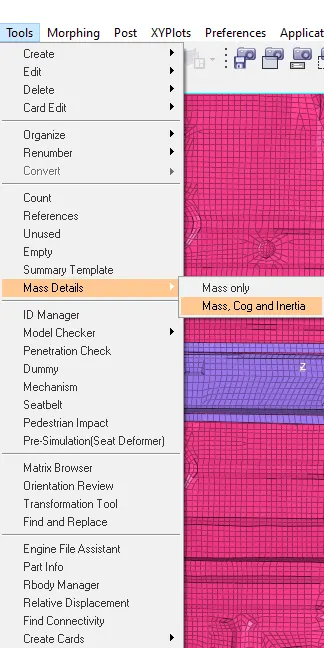
Fig 17: Selection of mass and COG details
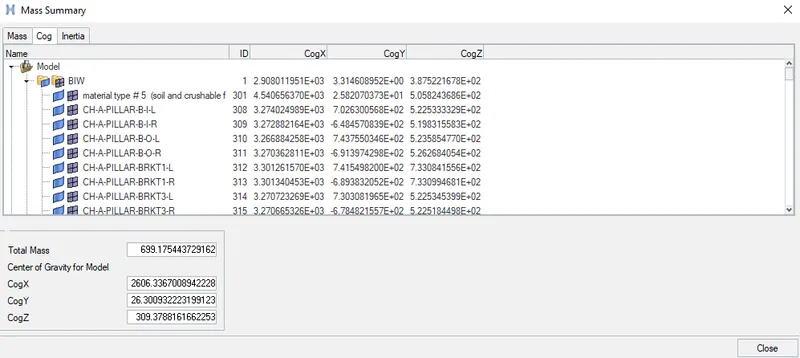
Fig 18: Mass and COG details.
(v) To view the exact position of the COG, take the values COG position and enter those values for creating the node viewing COG.

Fig 19: entering the COG details
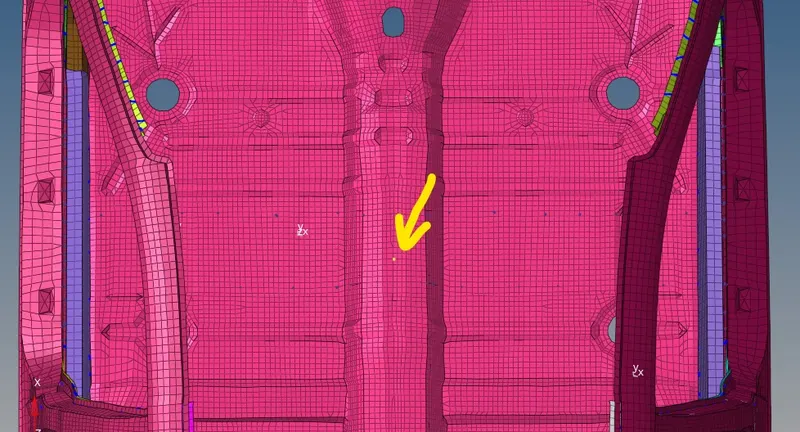
Fig 20: COG position
7. Initial velocity is to be created for the model so that to represent the car crashing with that particular velocity. To provide the initial velocity create an ‘INIVEL’ card in the solver tab. As per the given condition the velocity is to be given as 35mph i.e., 15.6 mm/ms. Select the created file and mention the velocity. As the car is facing in the x-axis, mention the velocity in the x phase. Set the remaining options in the file as shown below.
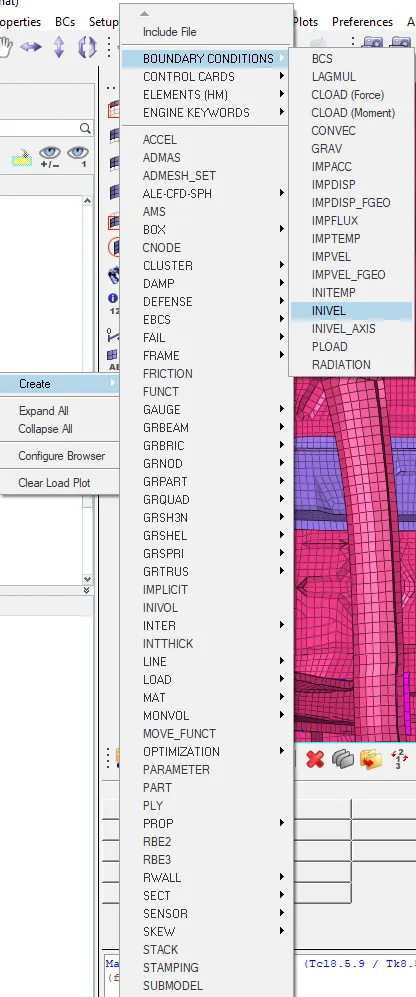
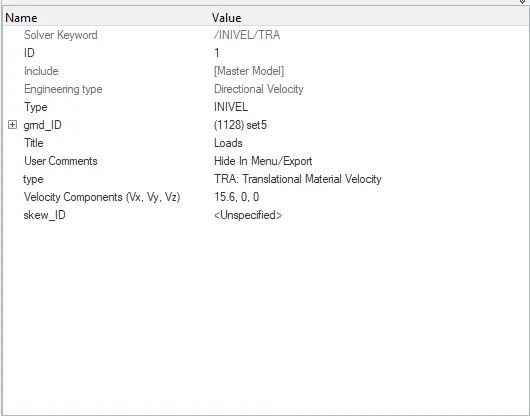
Fig 21: Creating INIVEL card Fig 22: INIVEL card
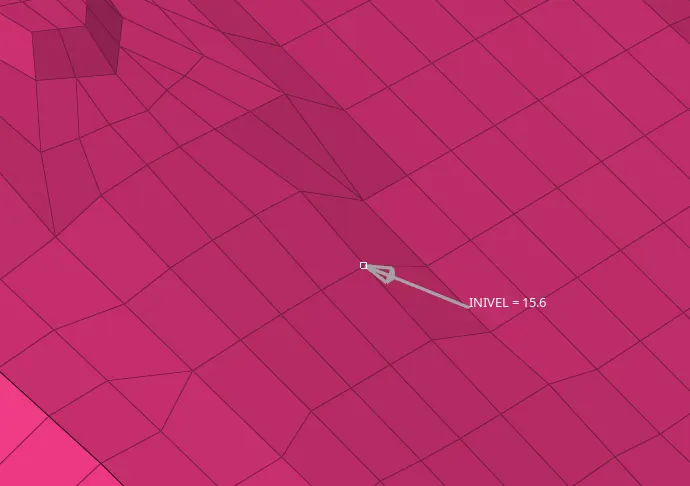
Fig 23: Created initial velocity.
8. Check the model for any errors and fix the errors. To check the errors, select the model check option in the tools menu. Select as ‘Radioss Block’ in the model checker. The model checker tab is created in the tab area. Right-click on the errors file and select the run option. The software will check if there are any errors. If any errors the software will show the errors in the tab area. The errors are to be fixed manually.
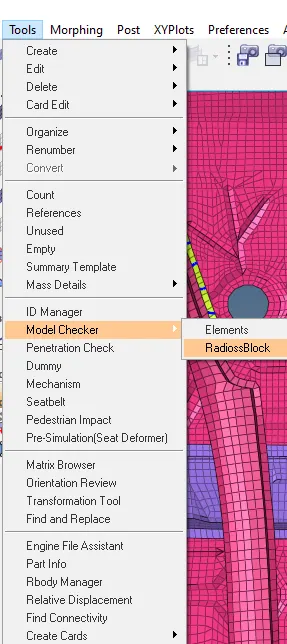
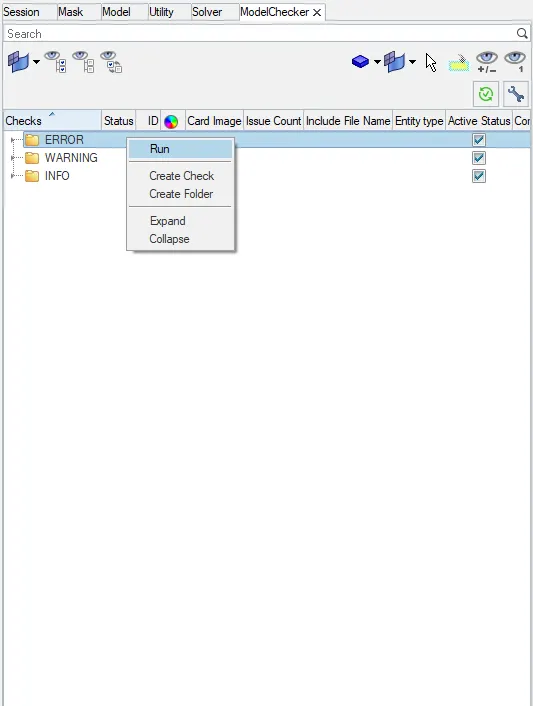
Fig 24: Selection of model checker Fig 25: Running for errors detection.
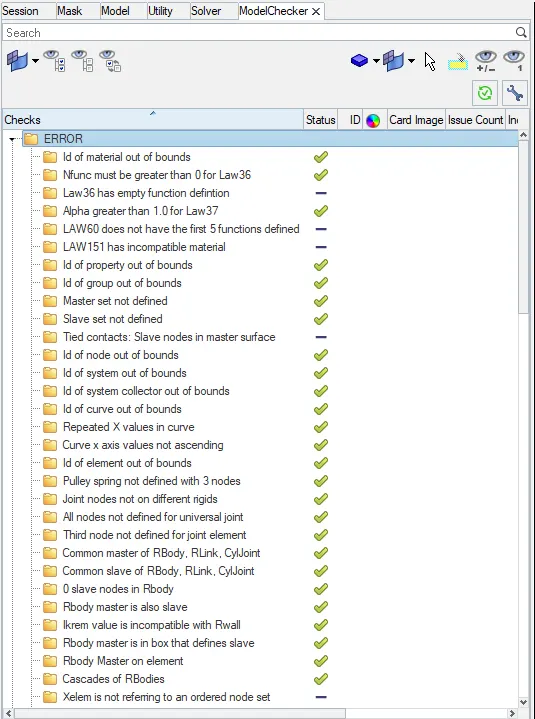
Fig 26: Results of error detection.
9. Few errors are to be checked and rectified in the hyper crush software. The errors are solved in the hyper crash software and are to be exported back to the HyperWorks software.
10. Cross-sections are to be created for the mentioned areas as per the conditions.
(i)To create cross-sections, create a ‘SECT’ file in the solver tab.
(ii) Considering the a piller on the left side of the model. Make sure that the region to be cross-sectioned should have quad elements throughout that particular row.
(iii) Select the nodes N1, N2, N3 in an ‘L’ shape to that to represent the x, y, z-axis for the crosssections. The selected nodes will be mentioned in the card as a node ID.
(iv) Select the gmod_ID on the component i.e., select the three rows of noded throughout at which the N1, N2, N3 are created.
(or)
Create a ‘FRAME’ file in the solver tab and mention the frame_ID in the SECT card instead of mentioning the gmod_ID.
(v) Mention the ‘delta T’ and ‘alpha’ values are 0.1 and 1.67 respectively.
Where delta T = time step for saving data
Alpha = coefficient for filtering the time step.
(vi) Shell elements are to be selected at the region where the 3 rows of nodes are being selected before (or) covering the created frame region. Right-click and create two grshell_IDs. Select the entity_IDs in the grshell_IDs. Click on elements are select the elements.
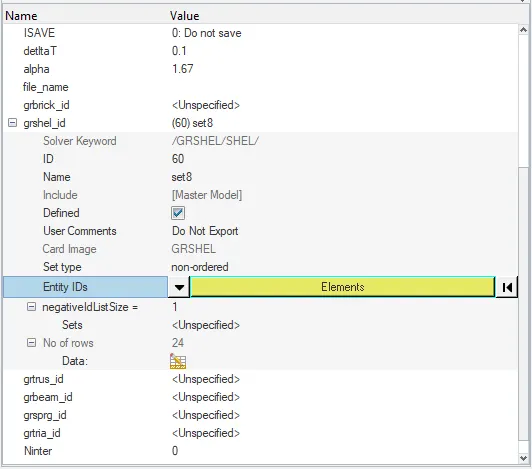
Fig 27: Element selection.
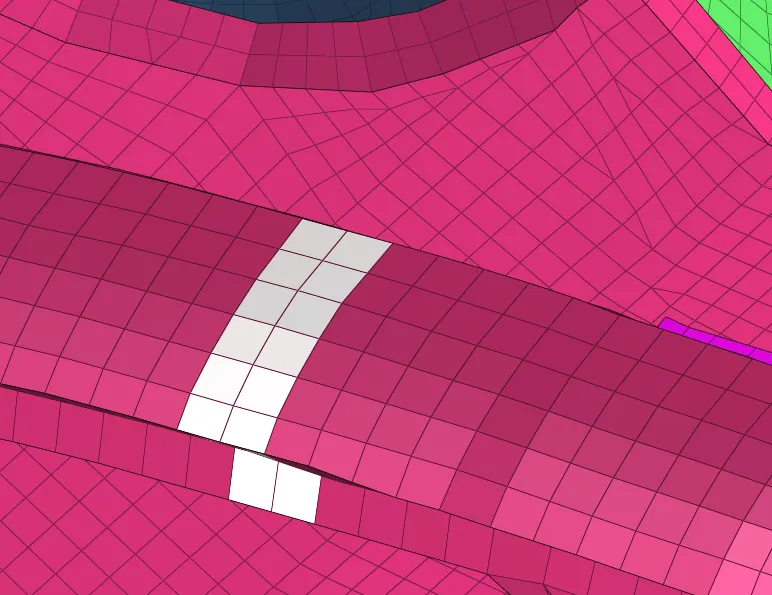
Fig 28: Selection of elements for the cross-sections.
(vii) Set the Iframe type to 12 i.e., the COG of the section.
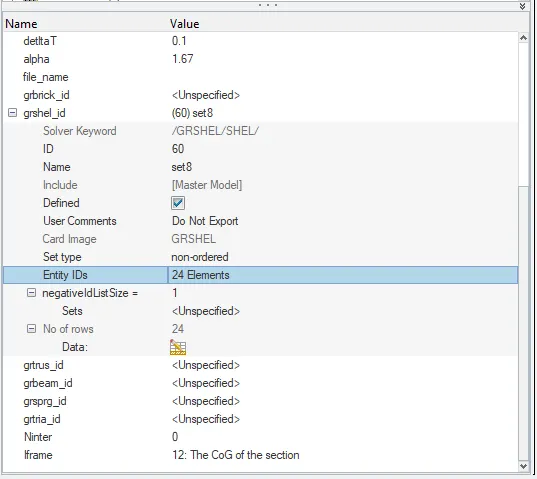
Fig 29: Cross-section card for a piller left.
Create the SECT files for the remaining areas i.e., a pillar right, shotgun left, shotgun right, bumper left, bumper right, rail left and rail right.
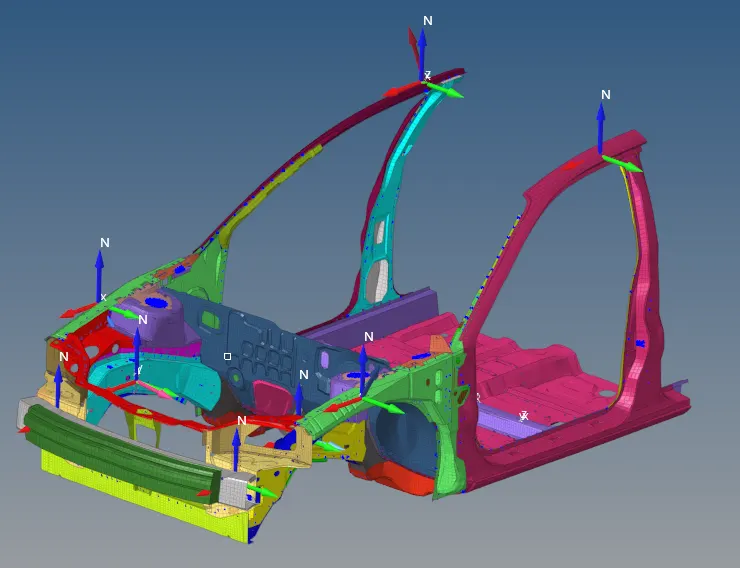
Fig 30:Cross-section created for the required components.
11. Accelerometers are to be placed below the B pillar region of the car as per the given condition so that to calculate the deformation formed at the pillar. To create the accelerometers create the ‘ACCEL’ card in the solver tab. Open the file, select the node_ID and select a node near the B pillar. Create another accelerometer on the opposite side of the B pillar.
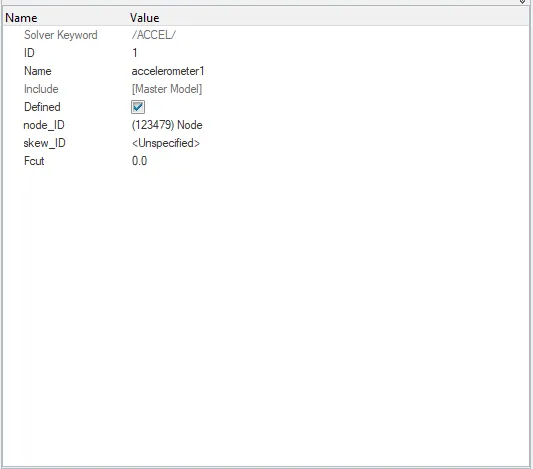
Fig 31: Accelerometers card
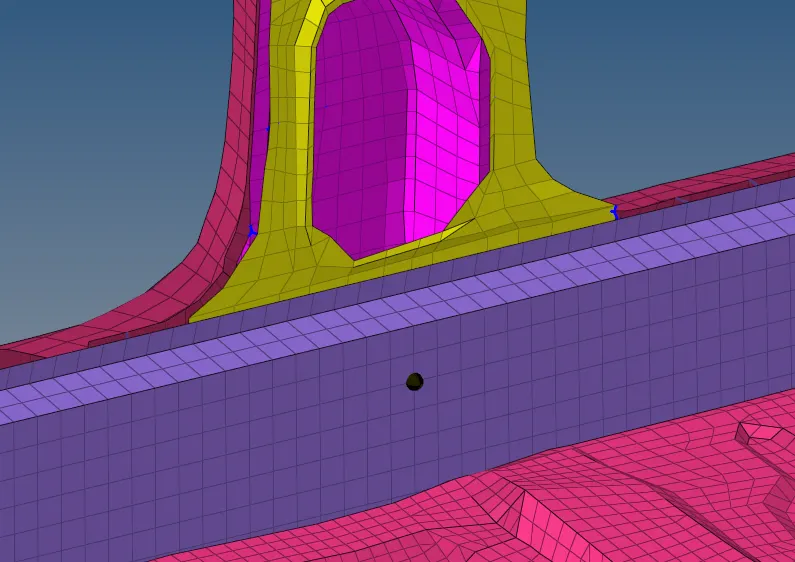
Fig 32: Created Accelerometer
12. Intrusions on the dash wall at the mentioned nodes are to be tracked for deformations. Select the nodes which are to be calculated i.e., 66695, 66244. Identify the nodes, mark the IDs before creating the skew. Create a skew file in the solver tab, create a skew parallel to the selected nodes. In the SKEW file select the node to be targetted to track the impact. Create another skew parallel to a different node.
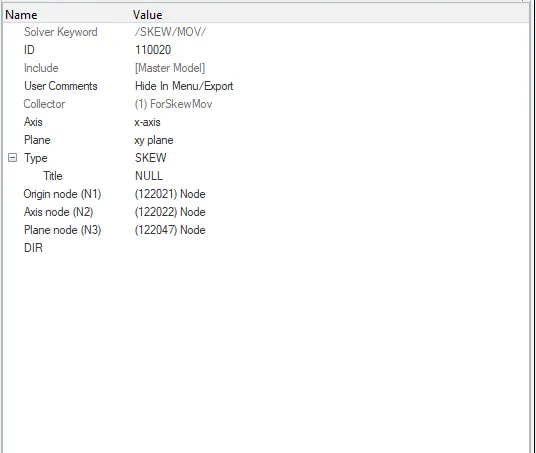
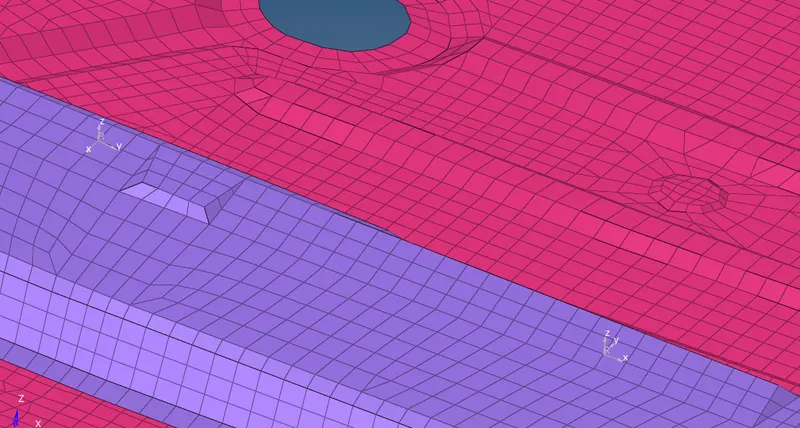
Fig 33: Skew card Fig 34: Created skew points.
13. Create the output blocks in the model tab for the cross-sections, accelerometers, and skews. The files are to be mentioned for each output block files in the entity IDs as shown below.
14. Set the Tfreq from 0.5 to 0.1 ms. The Tfreq is set to 0.3 ms for this assignment.
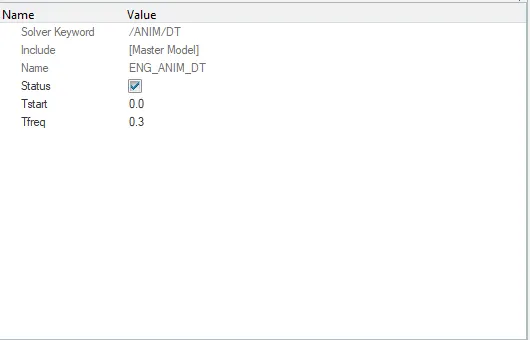
Fig 35:Eng_anim_Dt file.
15. Set the Tstop in the engine run file as 80ms.
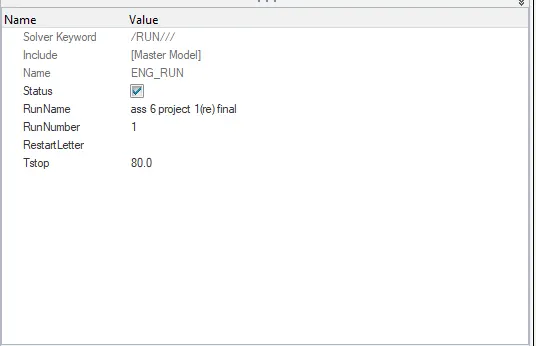
Fig 36: Eng_Run file.
16. The model is to be prepared for the simulation process.
17. Create a new file for the simulation files and set the direction for saving the simulation files in Radioss. Set the necessary options as shown below and start the simulation process. The process may take 2 hours to complete the simulation.
After the completion of the simulation process, the simulation animation and the graphs are to be observed. Both are viewed in hyperview and hypergraph respectively.
Errors faced:
Few errors are to be fixed manually by the user. Some of those errors are:
1. Unsupported card:
When a model is imported from another software to the HyperWorks software, few non-supported files occur which are written to the unsupported cards panel. Unsupported cards are stored as text and pointers are not considered.
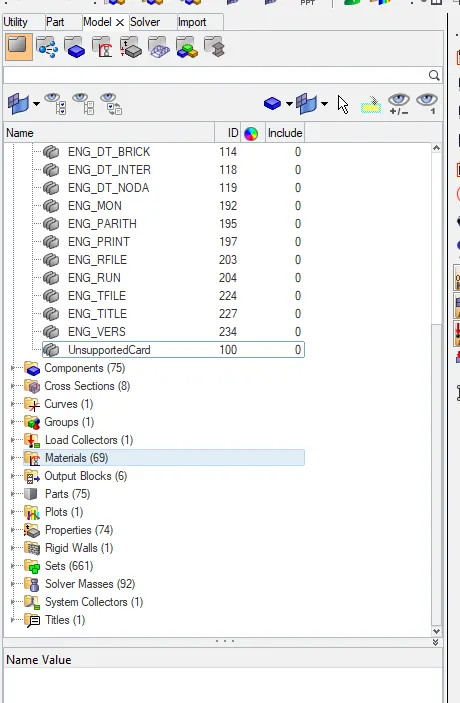
Fig 37: Location of the unsupported card.
This error will not be found while running error detection. The user should delete the file from the cards file in the model tab. Otherwise, the simulation will fail to show as ‘error 54’.
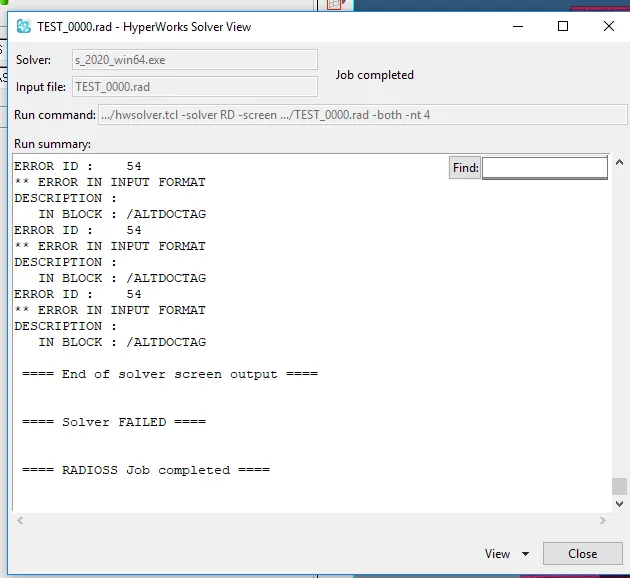
Fig 38: Error 54 formation.
2. Empty files:
Few errors are not found in the HyperWorks error checker, but the simulation won’t run showing errors containing empty files. These errors are found in the hypercrash software. Run the model checker operation to detect empty file errors. The volume which is mentioned besides the file name shows ‘0’ if the file is empty. The empty files can be deleted from the hypercrash software.
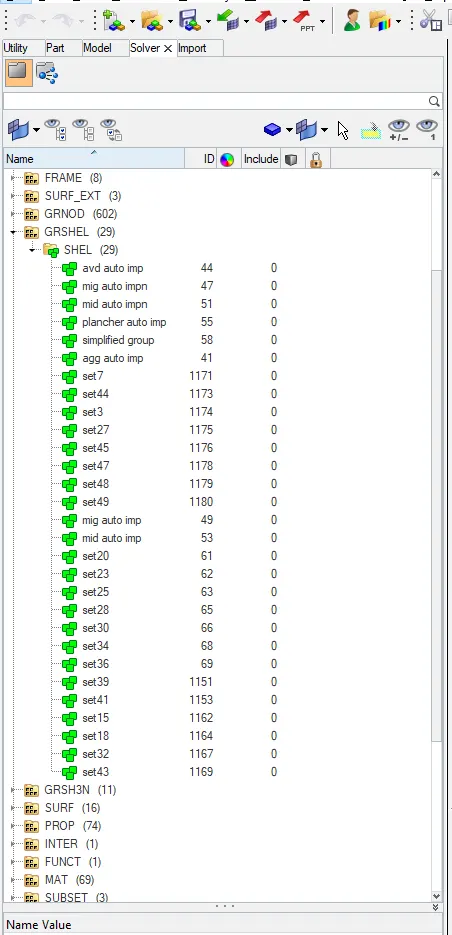
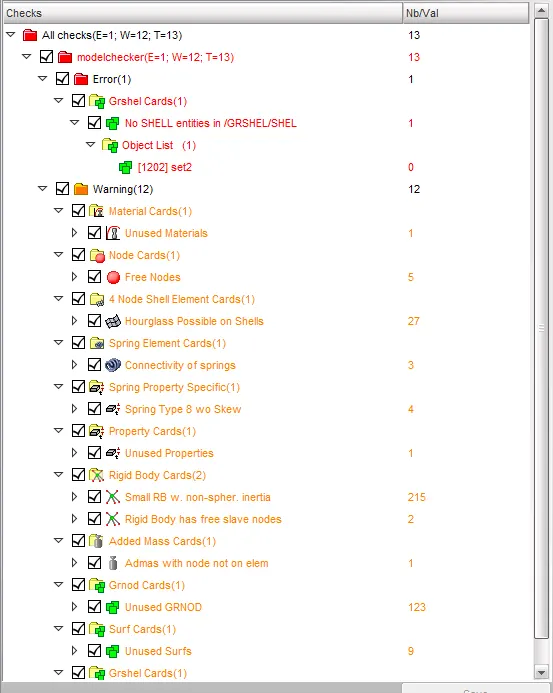
Fig 39: Empty files formation. Fig 40: Error detection in the hypercrash.
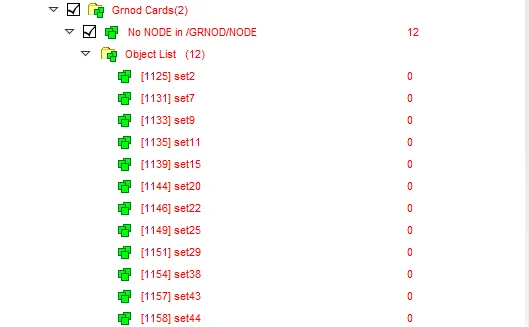
Fig 41: empty files detection in hypercrash software
These empty files are formed while creating gr_nodes and gr_shell elements twice, where one file is for creating a duplicate file.
Hyper view:
Set the hyper mesh software mode to hyper view to start the animation. The animation files and the graph files will be saved in the newly created folder. Import the animation H3D file to the hyper view control panel and click on apply. The animation will start while playing the simulation.
Fig 37: Selecting a hyper view option.

Fig 38: hyper view control panel.
Hyper graph:
The created cross-sections, accelerometers are to be plotted in the graph for observation. To check the graph set the hyper view mode to hypergraph model. Import the graph file (T01) to the hypergraph control panel. Select the properties to be analyzed in the graph as mentioned in the assignment.

Fig 39: Hypergraph control panel.
Observation:
The simulated animations and the graphs are as shown below.
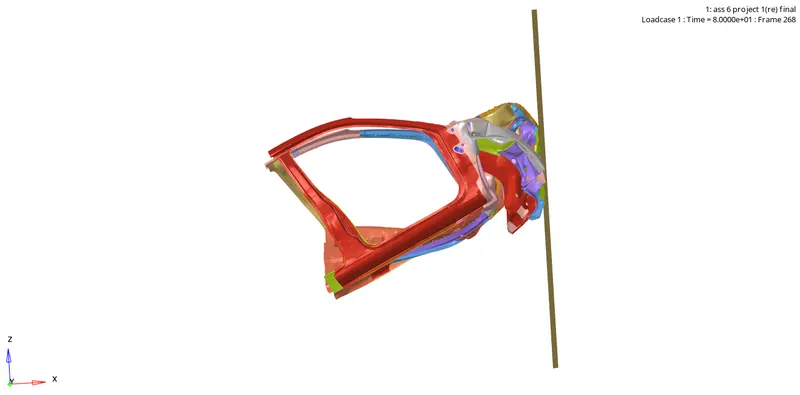
Fig 40: Animated model.
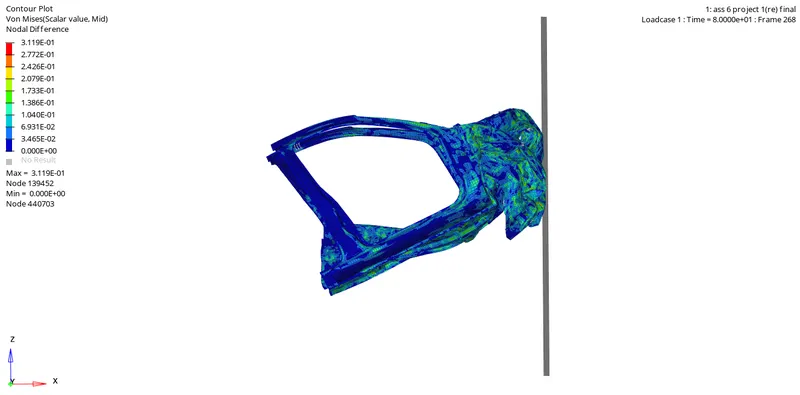
Fig 41: nodal difference observation.
The colours difference shown in fig 41 shows the stress formed in the nodal difference form. As the warmer colours indicate the stressed regions as the model is getting deformed in the animation.
The graphs for the above model are as shown below.
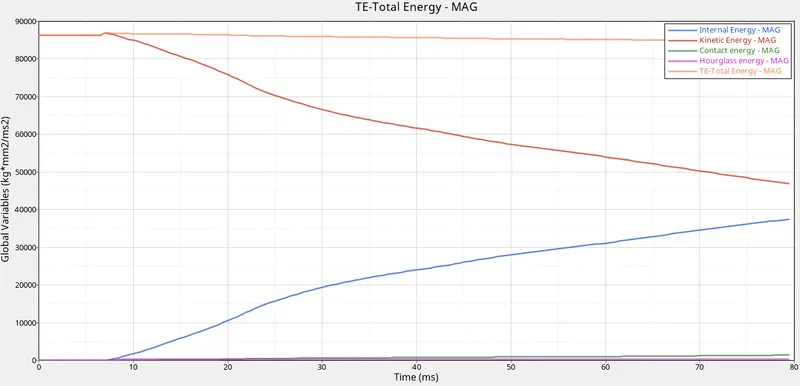
Fig 42: Energy graph
1. The energy graph is plotted as shown in fig 42. The initial velocity is increasing approximately from 9ms whereas the kinetic energy was constant and decreases where the initial energy increases. This deviation is formed because the deformation started at 9ms.
2. The Hourglass and contact energies are almost constant at total energy zero kg*mm2.
3. The total energy is constant at 90000 kg*mm2.
The graphs plotted for the cross-sections are as shown below.
1. A-pillar left:
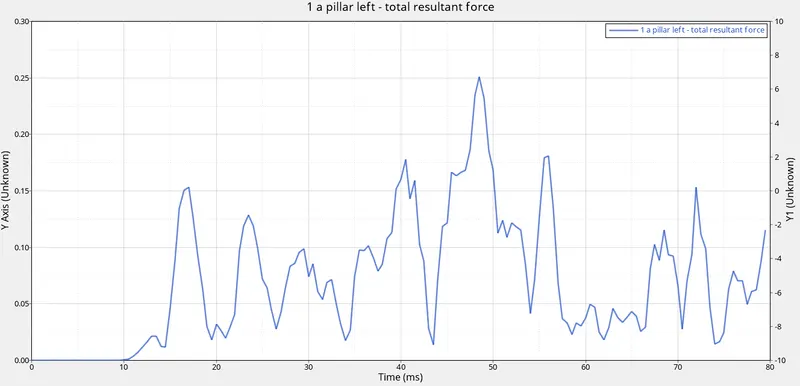
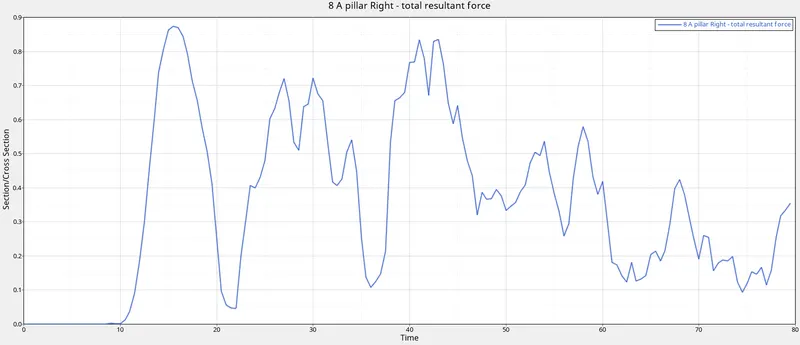
Fig 43: A-pillar left. Fig 44: A-pillar right.
As shown in the graph Fig 43 the maximum stress occurred on the left cross-section is 0.25 nearly at 48ms. Whereas on the right rail in fig 44 the maximum stress occurred is near 0.9 nearly at 17ms. A-pillar left is experiencing the highest impact compared to the right side.
Shotgun :
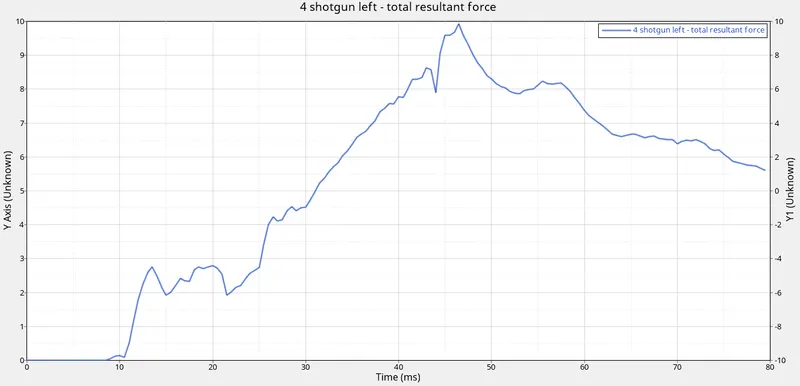
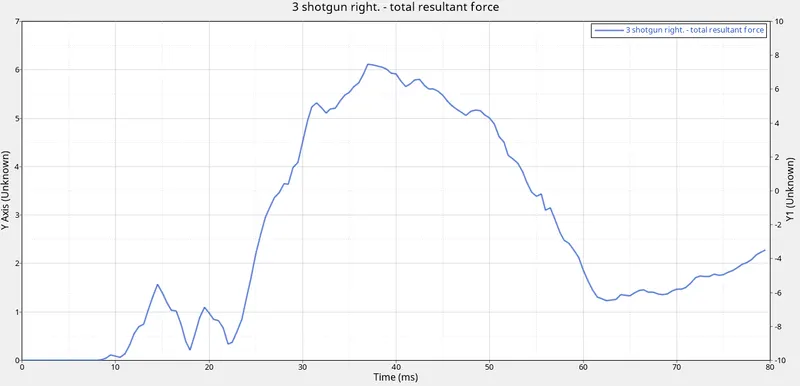
Fig 45: Shotgun left Fig 46: Shotgun right.
As shown in the above graph fig 45 the highest stress formed is 10kN/mm2 at 46 ms time. At the shotgun right as shown in fig 46 the highest stress formed is near 6kN/mm2 at 38 ms time. The shotgun on the left side is experiencing more impact compared to the one on the right.
Bumper:
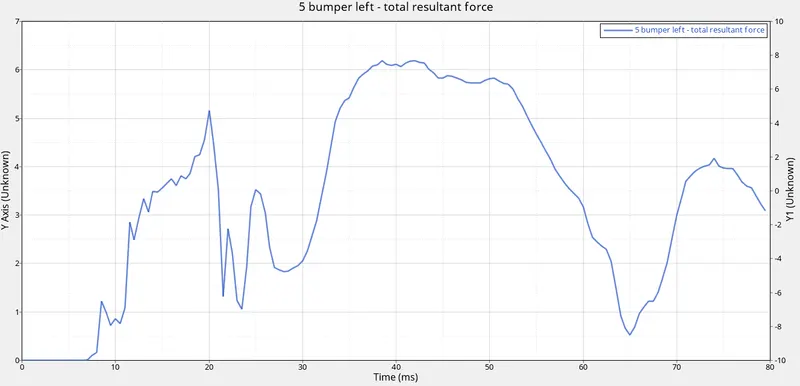
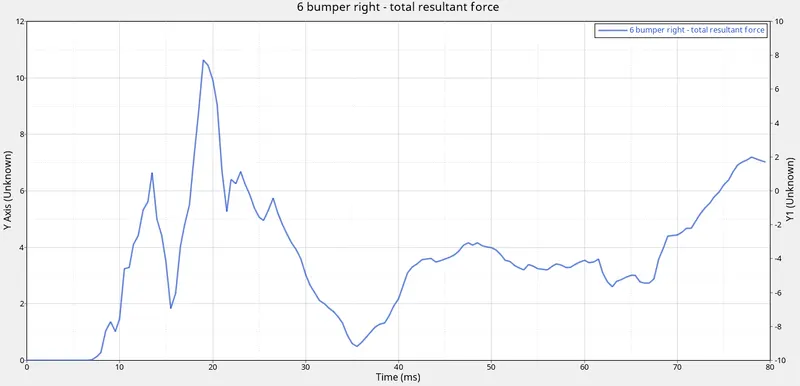
Fig 47: Bumper left Fig 48: Bumper right.
As shown in the graph fig 46 the highest stress formed is above 6kN/mm2 at 40 ms. Whereas for the right side the highest impact formed is more than 10 kN/mm2 at 21ms. The left bumper is experiencing more impact compared to the right one.
Rail:
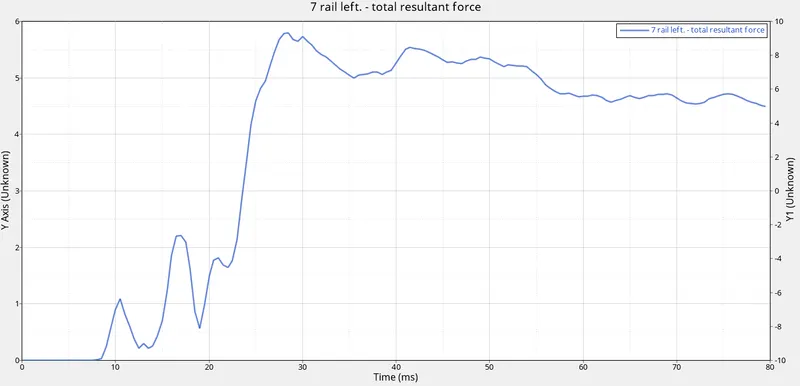
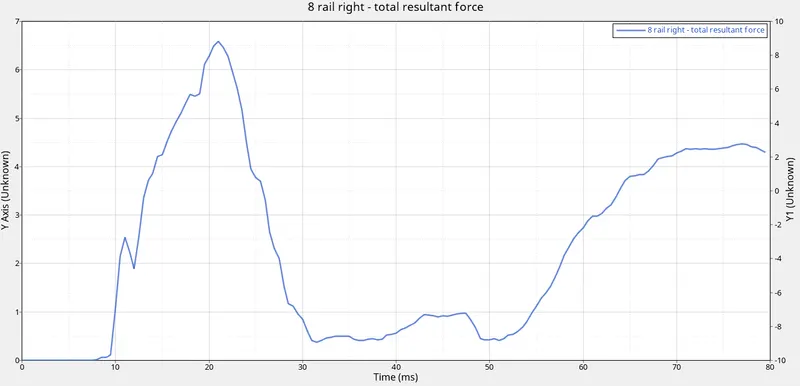
Fig 49: Left rail Fig 50: Right rail.
As shown in the graph on the left rail the highest stress is formed less than 6kN/mm2 at 28ms of time. Whereas for the right rail the highest stress is formed above 6kN/mm2 at 22 ms of time. The highest impact is formed on the right rail compared to the left one.
Accelerometers:
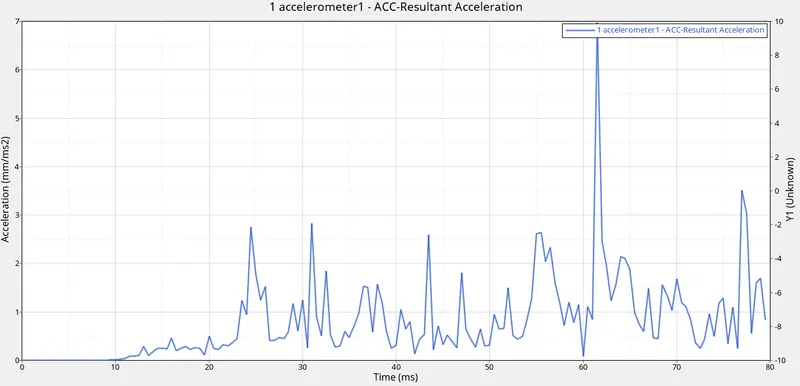
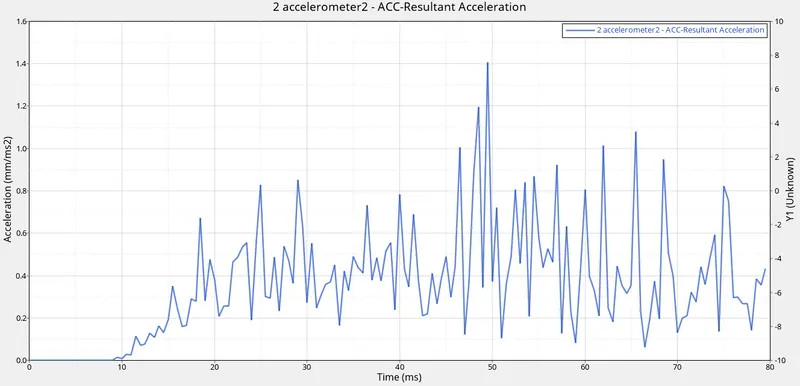
Fig 51: Accelerometer 1 Fig 52: Accelerometer 2
The accelerometers 1 and 2 are placed near the left B-pillar and right B-pillar respectively. The impact formed on those particular areas are as shown in the above graphs Fig 50 and Fig 51. The highest amount of vibrations occurred near accelerometer.
Intrusions:
Measure the distance between the selected nodes and the skews created parallel to the nodes. The measurements for the node IDs 66695 and 66244 are 793mm and 761mm respectively. The distance between the nodes will be changed after the impact as shown in both the graphs below respectively.
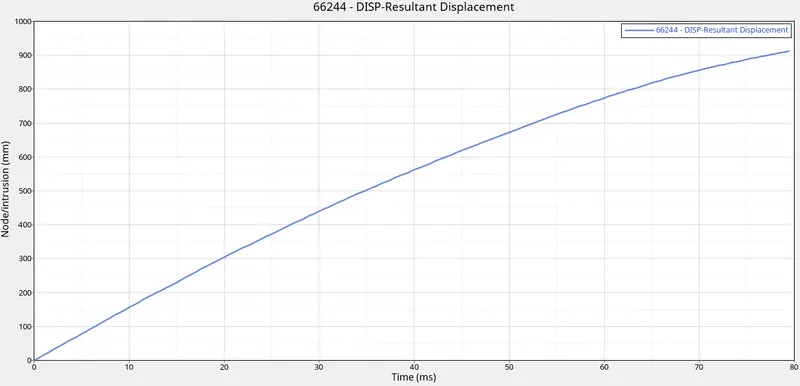
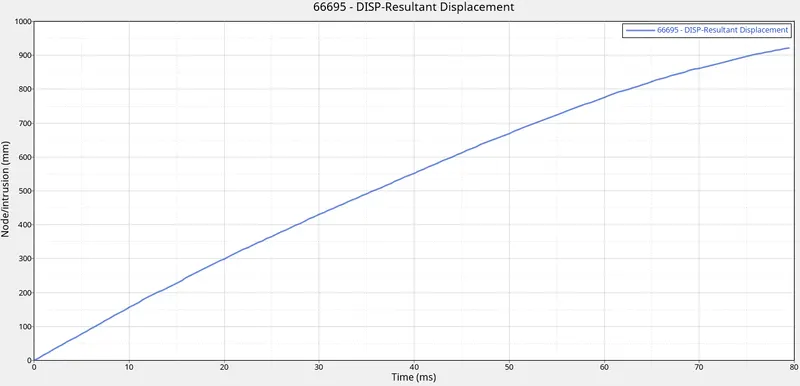
Fig 53: Graph for node 66244. Fig 54: Graph for node 66695
As per the graphs in Fig 53 and Fig 54 the distance of the nodes are increased above 900mm as the skew point distance is moving forward during the impact.
Result:
Thus simulating the given car model as per the given conditions and plotting the energies caused during the impact and observation of the cross-sections are completed as required.
Learning Outcomes:
- Learned to set the group card conditions.
- Learned to create cross-sections in the required regions.
- Learned to check the errors and penetrations in the model.
- Learned to simulate the given model.
- Learned to plot the graphs and observe the impacts formed.