Assignment 5-RADIOSS Interfaces & Study of Effect of Notches Challenge
Aim:- To update and create diffrent contact interface to given model also analyse the behaviour of energies, forces on model in different condition.
Procedure:-
- We can work on this challenge in both the softwares like Hypermesh and Hypercrash. But if we work on the hypercrash for this challenge we find duplicates which are formed during exporting the file. Also we cant run the simulation in hypercrash so I used hypermesh for whole challenge.
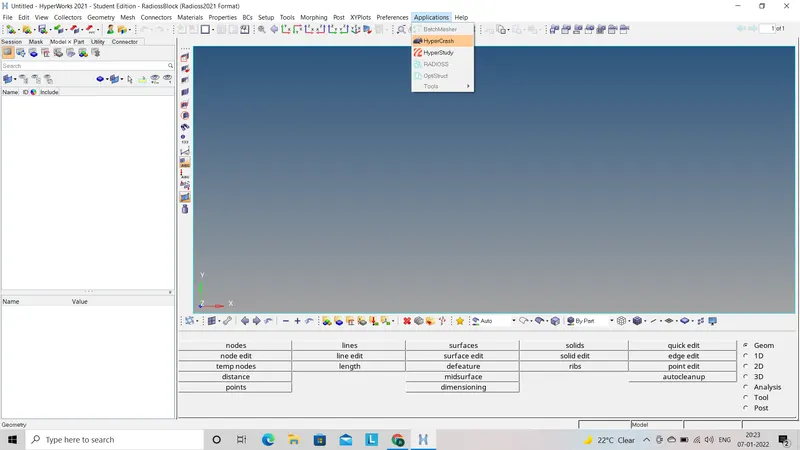
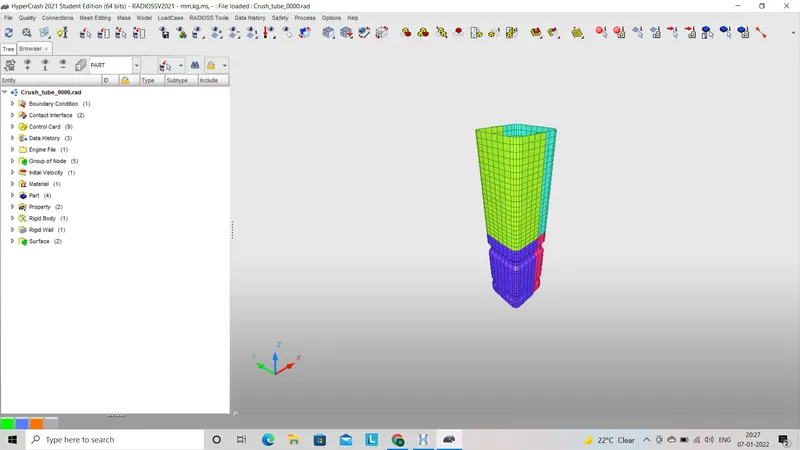
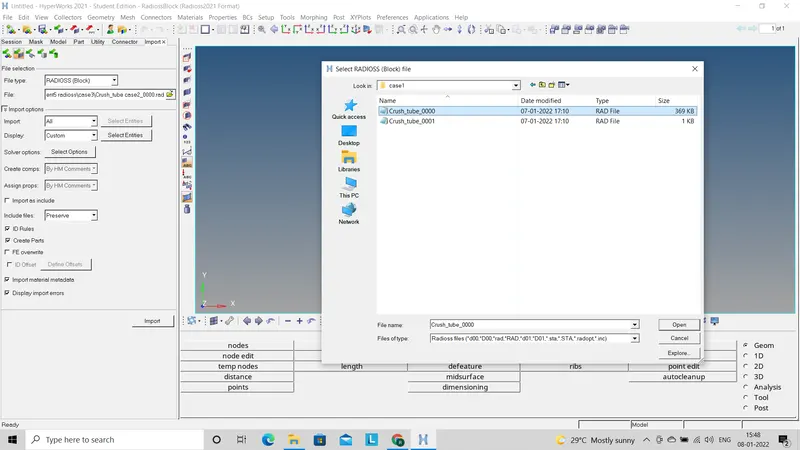
- First step we have to do is import the starter (0000.rad) file to hypermesh GUI.
- After importing the starter file we will get wired form model, we have to convert it to solid mode.
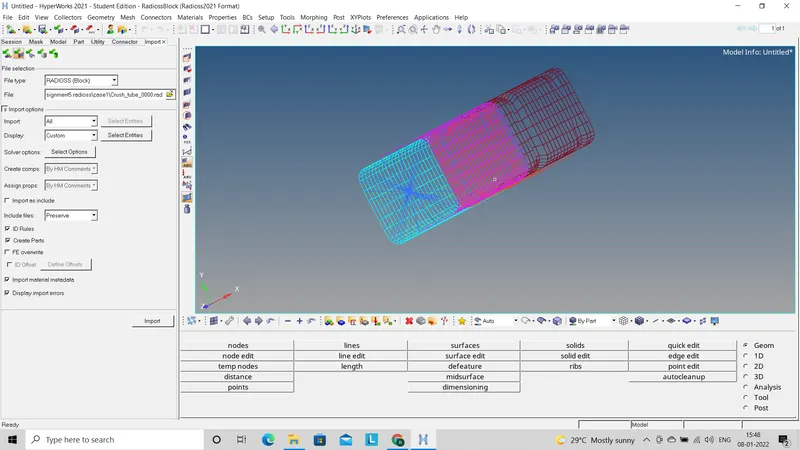
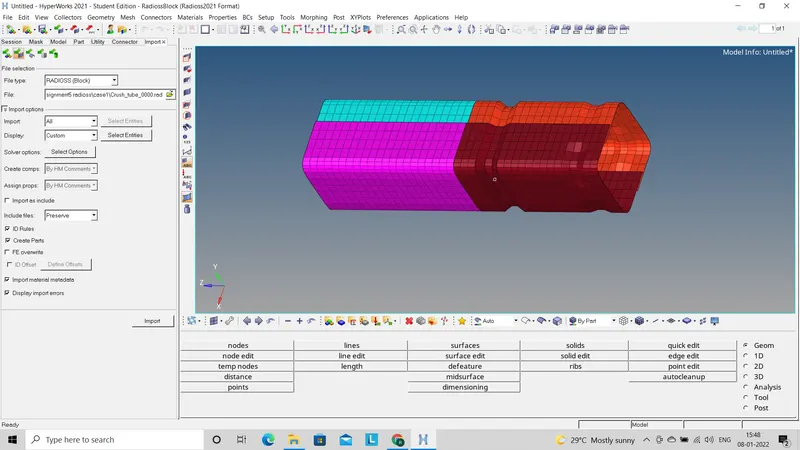
Case1:- Import given model
- In this case as per given condition we have to run the simulation as it is without changing any credantials.
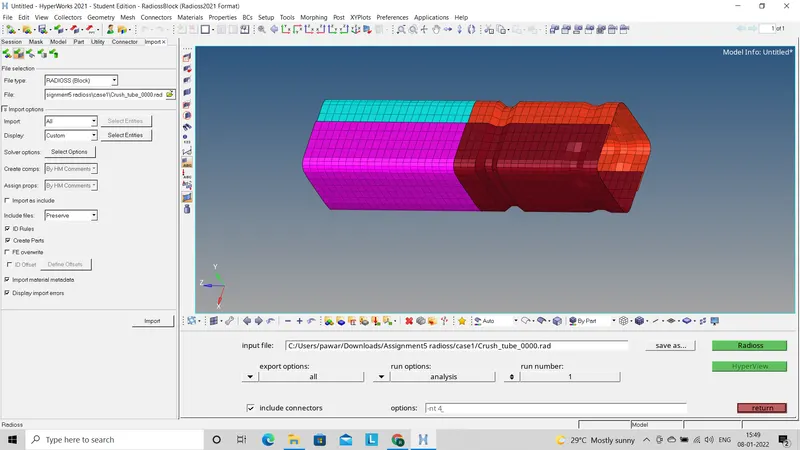
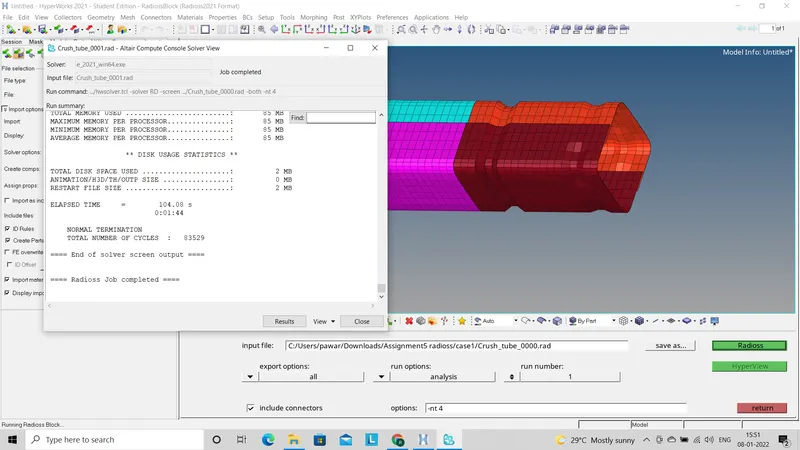
- After importing the model we have to go for run the simulation by using (Analysis - Radioss - Save as(Select the possition where we have to save all the files which will create during the simulation) - click on include connectors - Fill the option area as (-nt 4) - Radioss).
- After completing the simulation click on Result which will take us to hyperwork and directly open the h3d file. Now go to the contour mode which will gives us energy distribution through out the model.
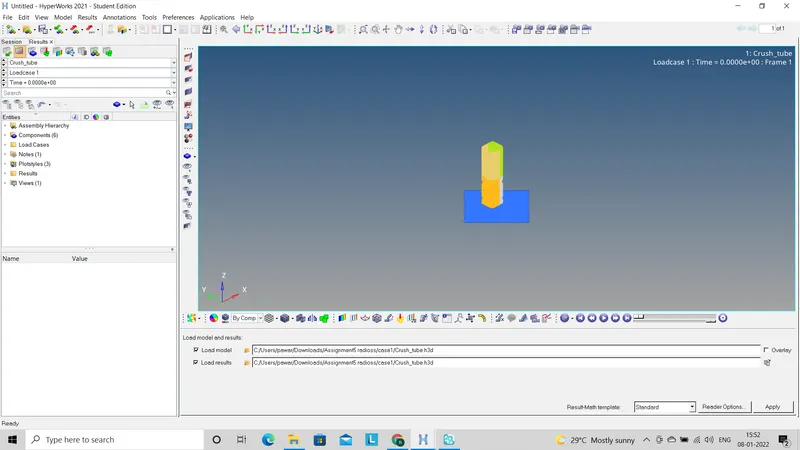
- Select the vonmises energy and go to apply which will give the vonmisses energy distribution throughout the model.
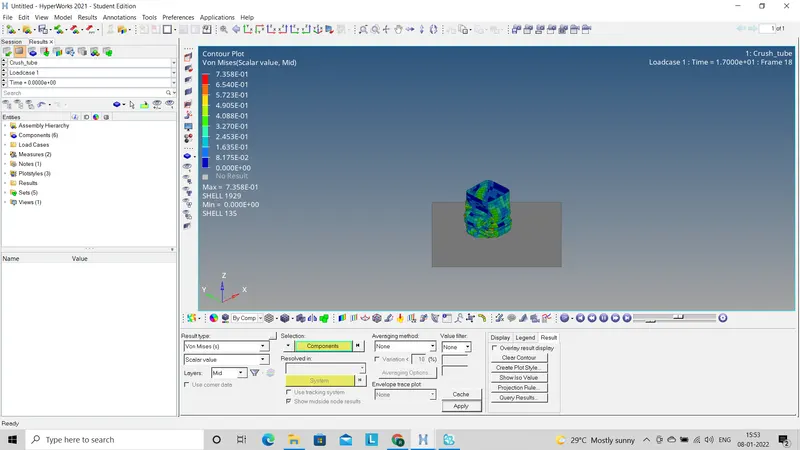
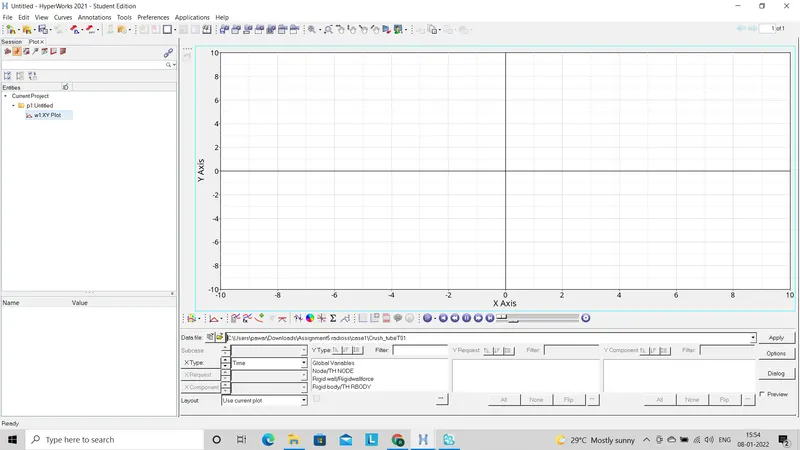
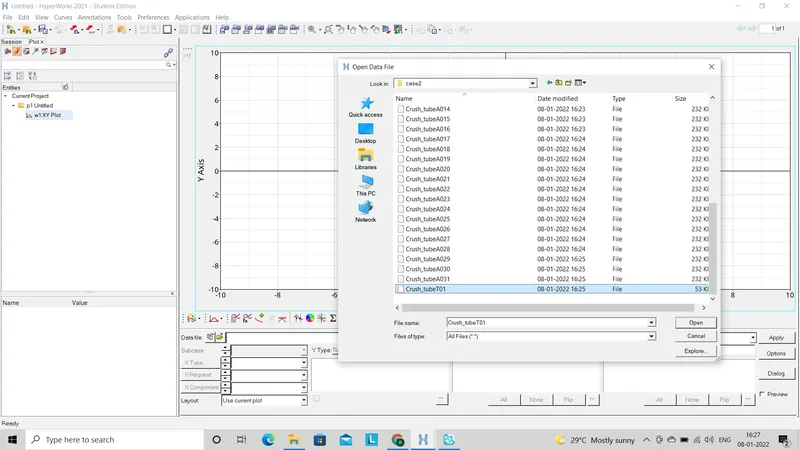
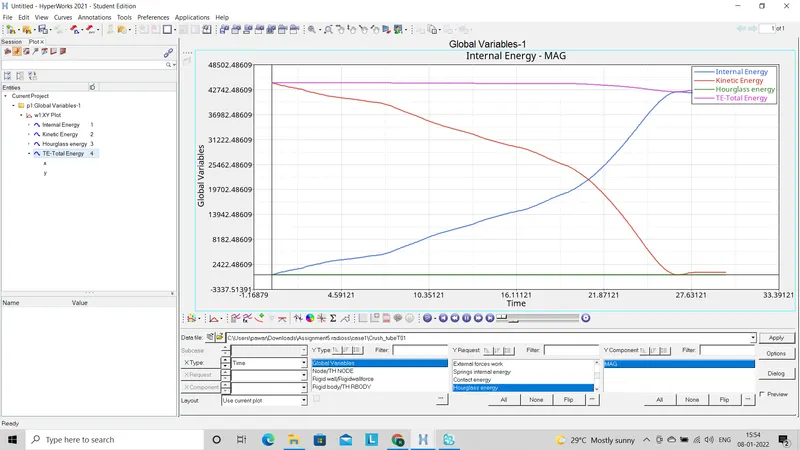
- Now to check the behaviour of energies like Total energy, Kinetic energy, Hourglass energy on the model and behaviour of forces on given model go to the Graph2D and import the T01 file which was created during the simulation in the folder which was selected as location for save as file.
Case2:- (Inacti=6)
- In this case we have to change the value of Inacti=6 by using (Model deck - Groups - Self contact - Select the value).
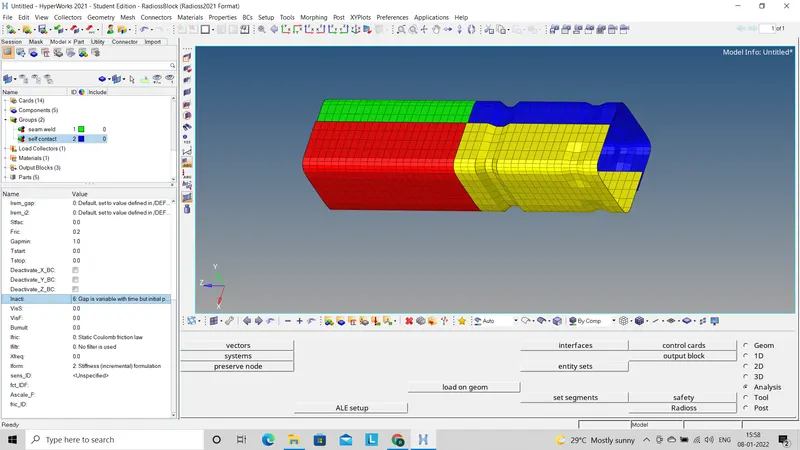
- After importing the model we have to go for run the simulation by using (Analysis - Radioss - Save as(Select the possition where we have to save all the files which will create during the simulation) - click on include connectors - Fill the option area as (-nt 4) - Radioss).
- After completing the simulation click on Result which will take us to hyperwork and directly open the h3d file. Now go to the contour mode which will gives us energy distribution through out the model.
- Select the vonmises energy and go to apply which will give the vonmisses energy distribution throughout the model.
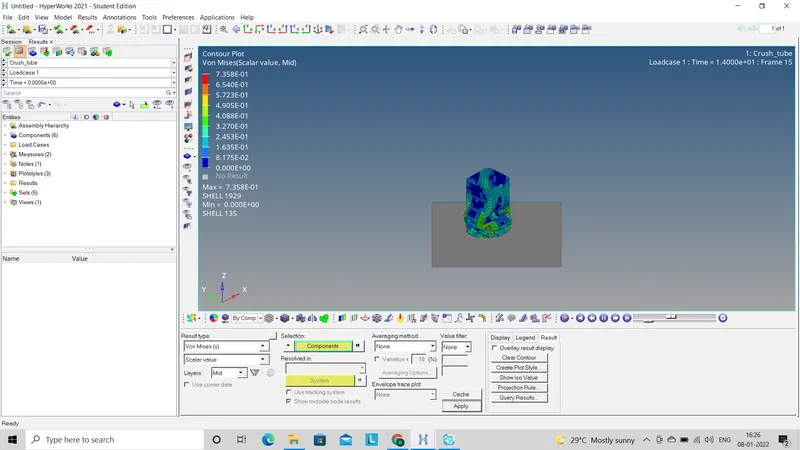
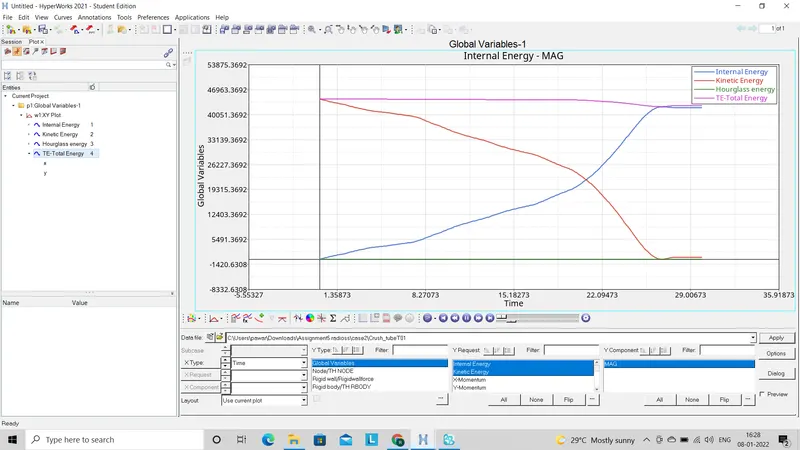
- Now to check the behaviour of energies like Total energy, Kinetic energy, Hourglass energy on the model and behaviour of forces on given model go to the Graph2D and import the T01 file which was created during the simulation in the folder which was selected as location for save as file.
Case3:- (Create type1 contact)
- In this case, as per given condition we have to create new interface contact collector and choose the card image to Type11.
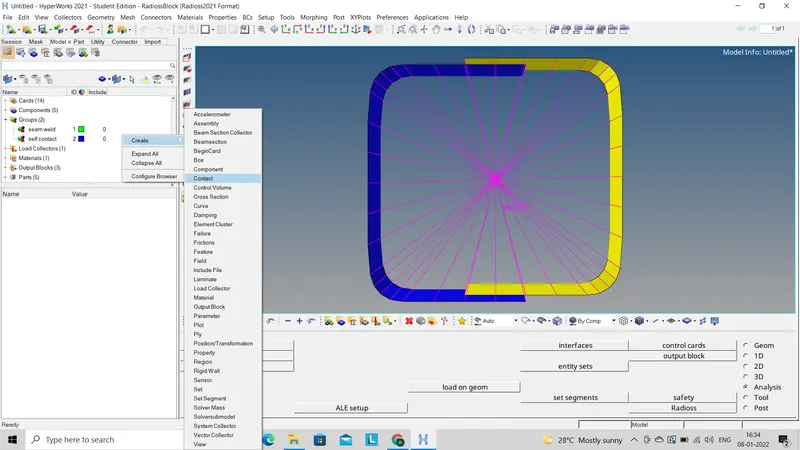
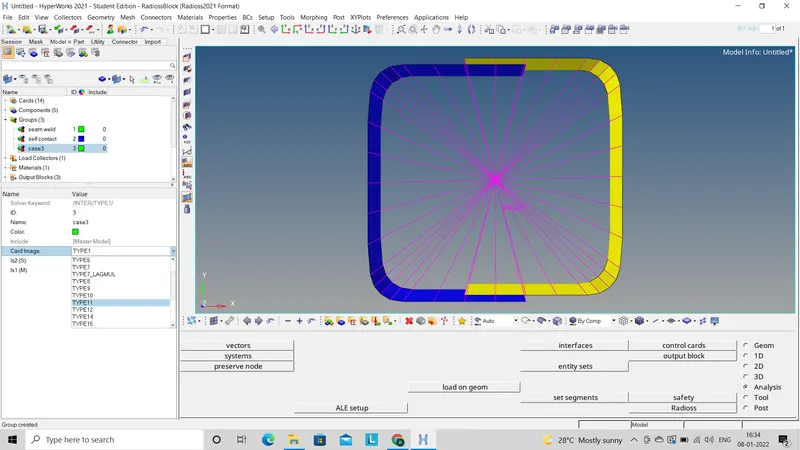
- In this card we have edit some values as per below image also we have to assign slave entity and master entity by selecting whole component for both.
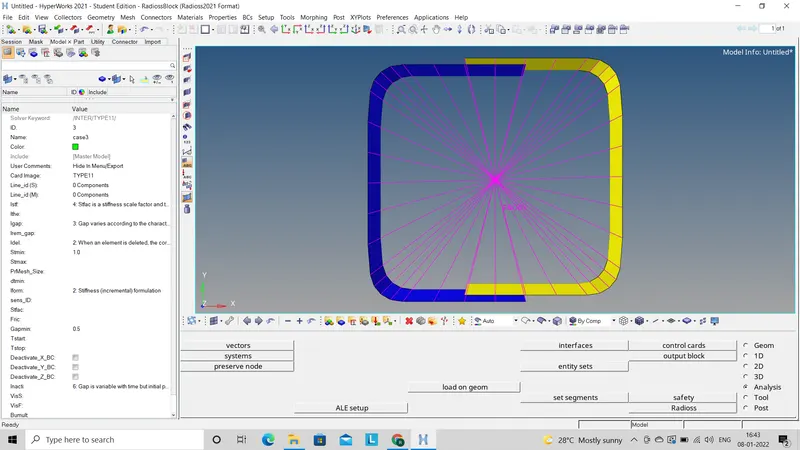
- Now we will import case2 file.
- After importing the model we have to go for run the simulation by using (Analysis - Radioss - Save as(Select the possition where we have to save all the files which will create during the simulation) - click on include connectors - Fill the option area as (-nt 4) - Radioss).
- After completing the simulation click on Result which will take us to hyperwork and directly open the h3d file. Now go to the contour mode which will gives us energy distribution through out the model.
- Select the vonmises energy and go to apply which will give the vonmisses energy distribution throughout the model.
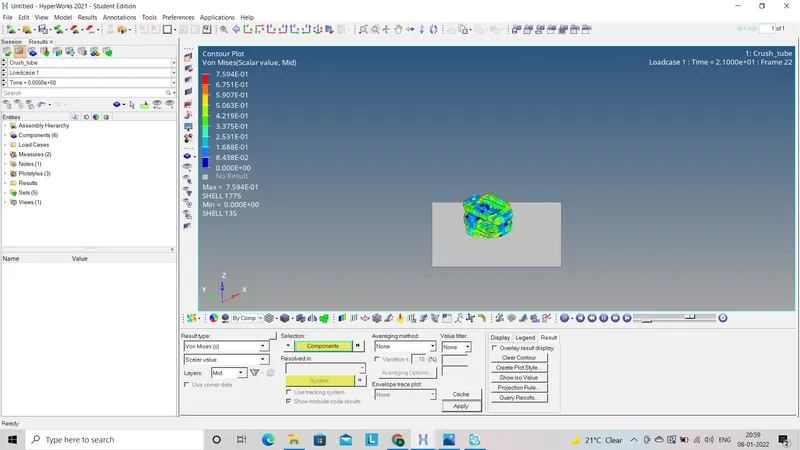
- Now to check the behaviour of energies like Total energy, Kinetic energy, Hourglass energy on the model and behaviour of forces on given model go to the Graph2D and import the T01 file which was created during the simulation in the folder which was selected as location for save as file.
Case4:- (Remove all the notches from the model)
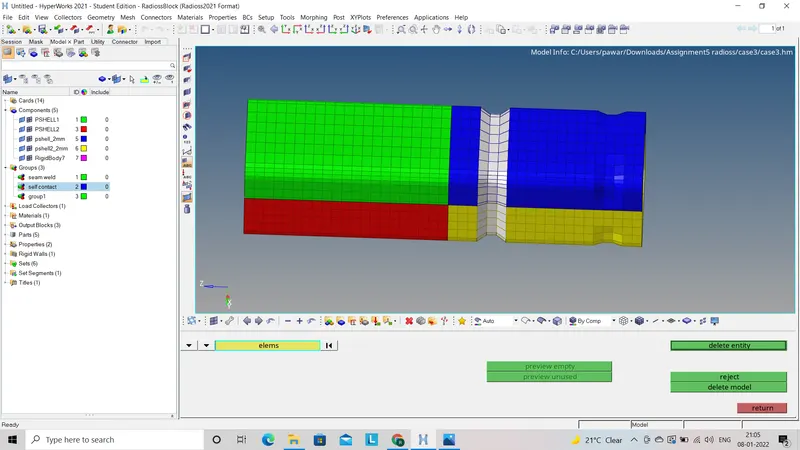
- In this case as per given condition we have to remove all the notches on the model. For this we have to delete the elements which are involves in the notch.
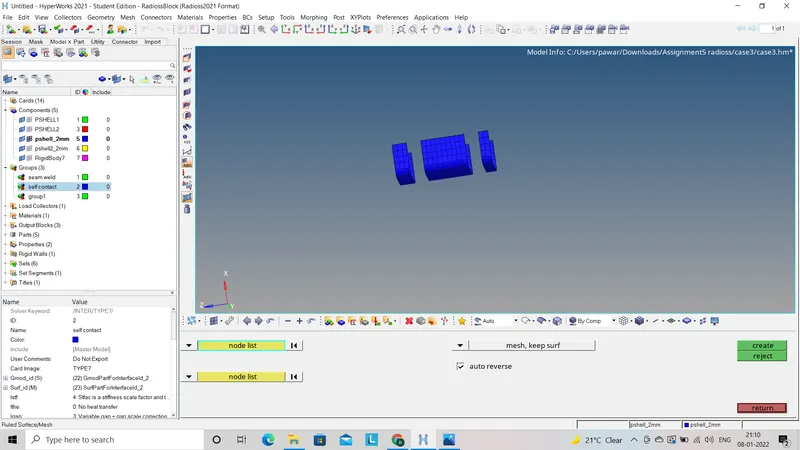
- After deleting the elements we have to create mesh by using (2D - Ruled - Select the element list on both side - Select the option of mesh w/o surface - Create).
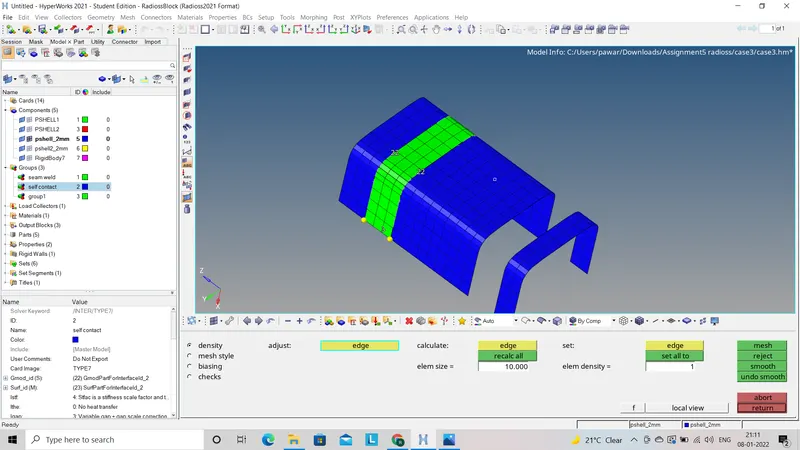
- In this way we remove all the notches on model which is imported file from case 3.
- After importing the model we have to go for run the simulation by using (Analysis - Radioss - Save as(Select the possition where we have to save all the files which will create during the simulation) - click on include connectors - Fill the option area as (-nt 4) - Radioss).
- After completing the simulation click on Result which will take us to hyperwork and directly open the h3d file. Now go to the contour mode which will gives us energy distribution through out the model.
- Select the vonmises energy and go to apply which will give the vonmisses energy distribution throughout the model.
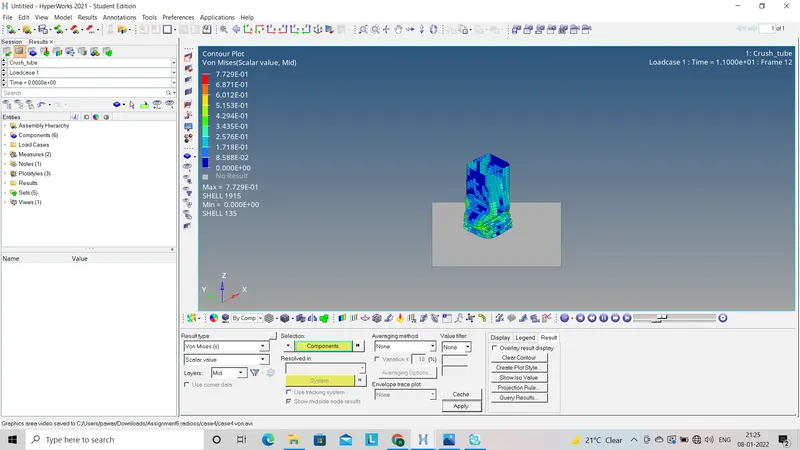
- Now to check the behaviour of energies like Total energy, Kinetic energy, Hourglass energy on the model and behaviour of forces on given model go to the Graph2D and import the T01 file which was created during the simulation in the folder which was selected as location for save as file.
Case5:- (Create the notch at middle)
- In this case we have to create the notch at middle to the model. To create the notch we have to translate the elements from their original possition by using align the element option (shift+F4).
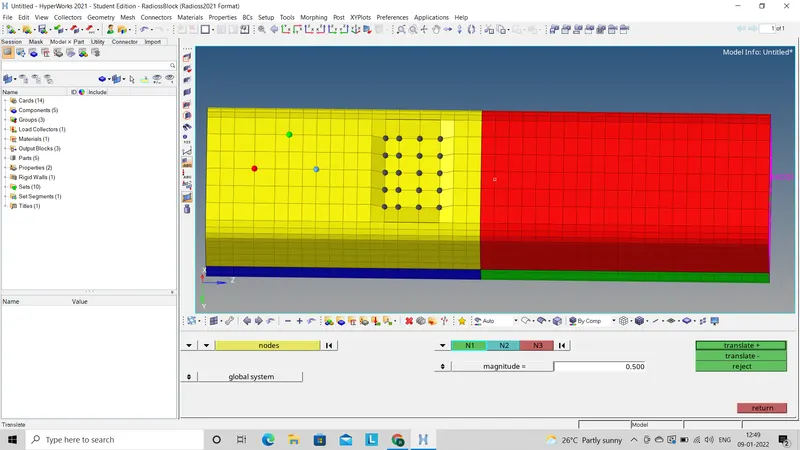
- This will take us to translate node option, We have to select the nodes which have to translate then slelect N1,N2,N3 on the surface and then go to translate+/-.
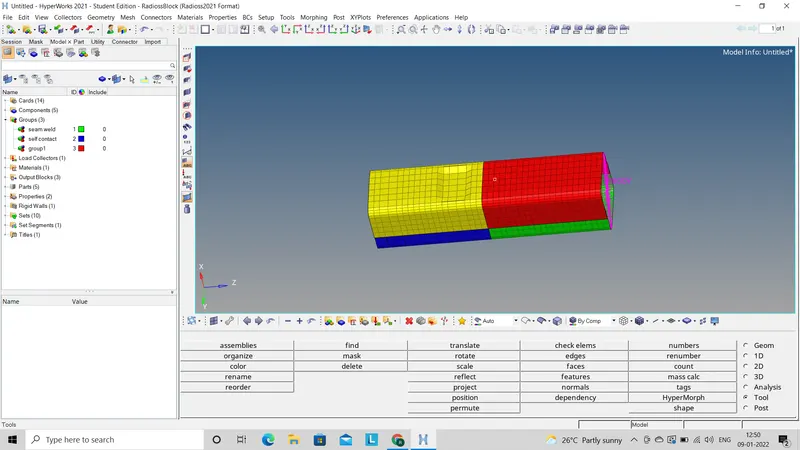
- In this way we create the notch in model which is imported ascase 4 file.
- After importing the model we have to go for run the simulation by using (Analysis - Radioss - Save as(Select the possition where we have to save all the files which will create during the simulation) - click on include connectors - Fill the option area as (-nt 4) - Radioss).
- After completing the simulation click on Result which will take us to hyperwork and directly open the h3d file. Now go to the contour mode which will gives us energy distribution through out the model.
- Select the vonmises energy and go to apply which will give the vonmisses energy distribution throughout the model.
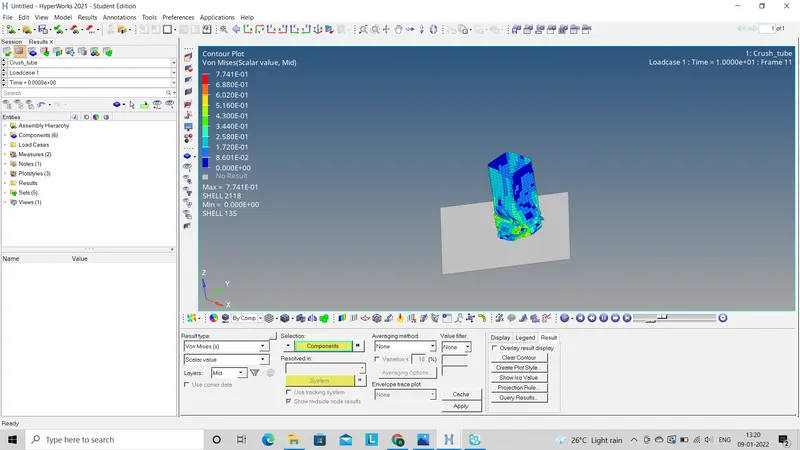
- Now to check the behaviour of energies like Total energy, Kinetic energy, Hourglass energy on the model and behaviour of forces on given model go to the Graph2D and import the T01 file which was created during the simulation in the folder which was selected as location for save as file.
Case 6:- Create notch on opposite surface
- In this case we have to create the notch on both the side on given model. To create the notch we have to translate the elements from their original possition by using align the element option (shift+F4).
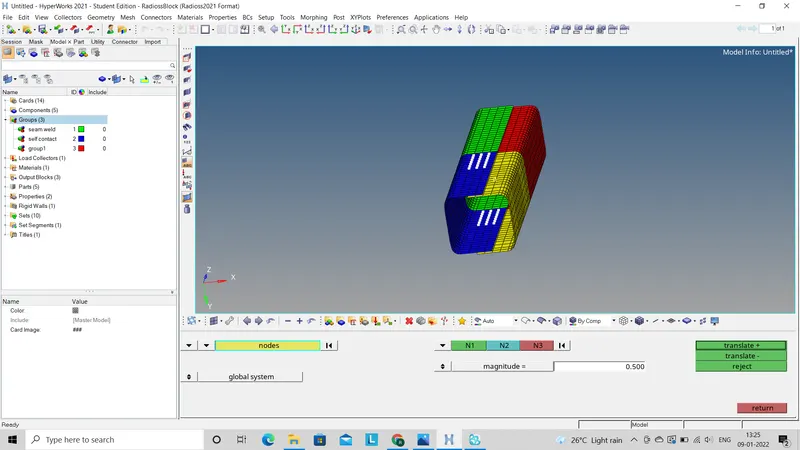
- This will take us to translate node option, We have to select the nodes which have to translate then slelect N1,N2,N3 on the surface and then go to translate+/-.
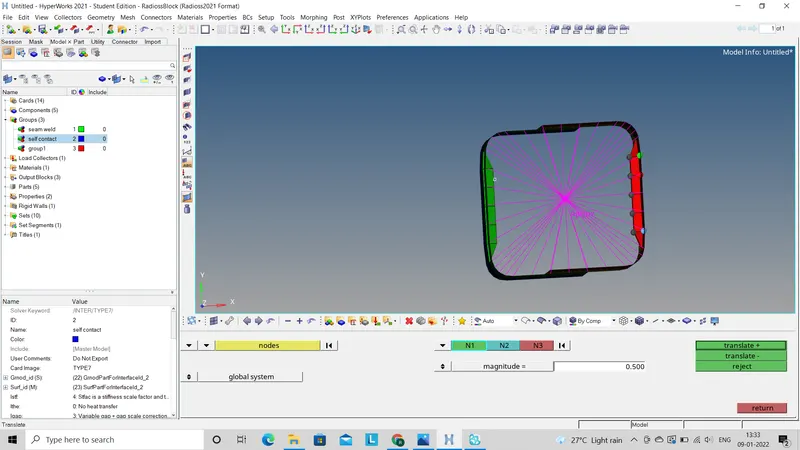
- In this way we create the notch in model which is imported ascase 4 file.
- After importing the model we have to go for run the simulation by using (Analysis - Radioss - Save as(Select the possition where we have to save all the files which will create during the simulation) - click on include connectors - Fill the option area as (-nt 4) - Radioss).
- After completing the simulation click on Result which will take us to hyperwork and directly open the h3d file. Now go to the contour mode which will gives us energy distribution through out the model.
- Select the vonmises energy and go to apply which will give the vonmisses energy distribution throughout the model.
- Now to check the behaviour of energies like Total energy, Kinetic energy, Hourglass energy on the model and behaviour of forces on given model go to the Graph2D and import the T01 file which was created during the simulation in the folder which was selected as location for save as file.
Total energy, Kinetic energy, Hourglass energy Graphs:
Case1:
Case2:
Case3:
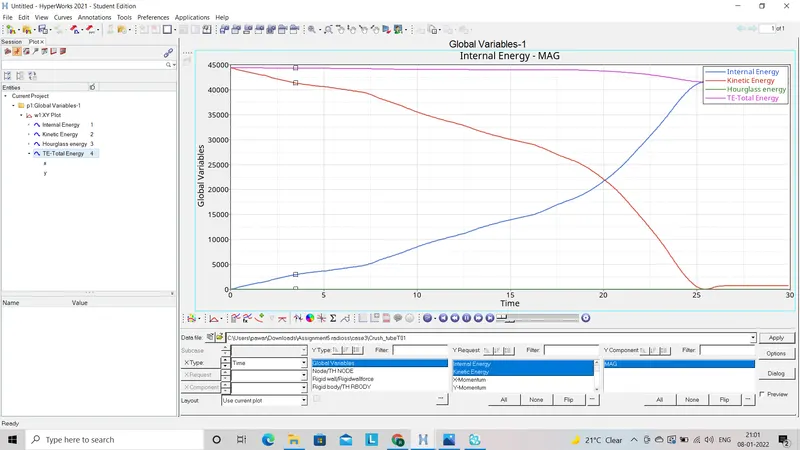
Case4:
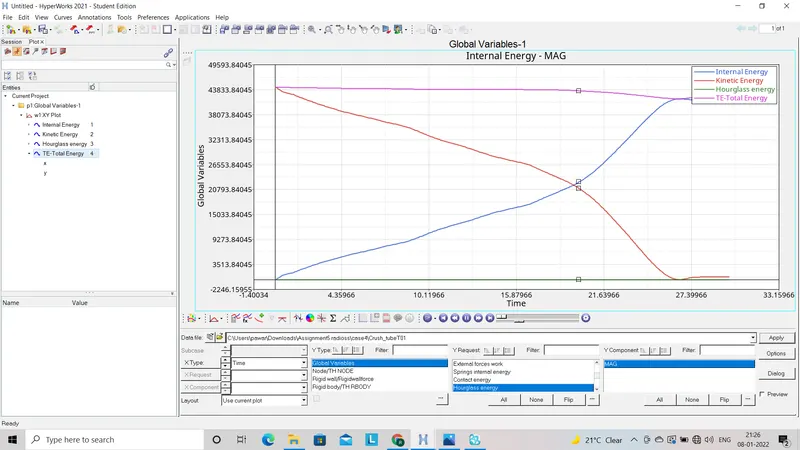
Case5:
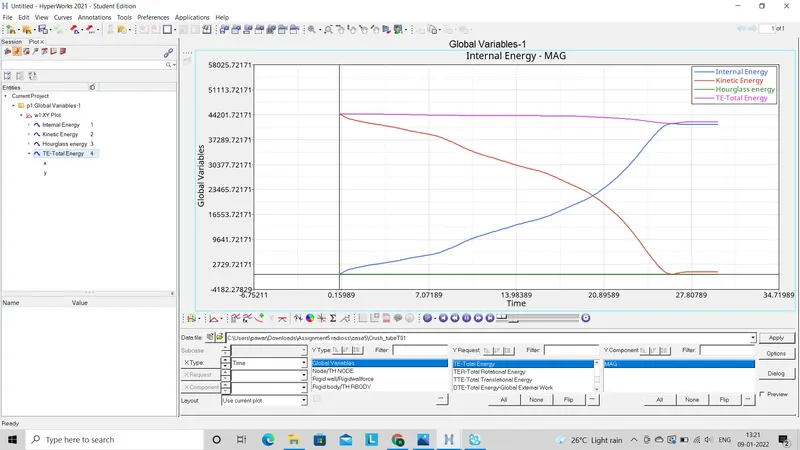
Case6:
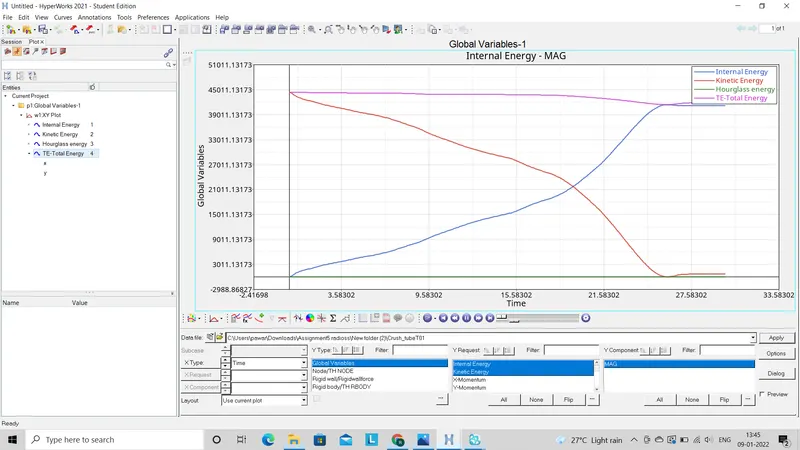
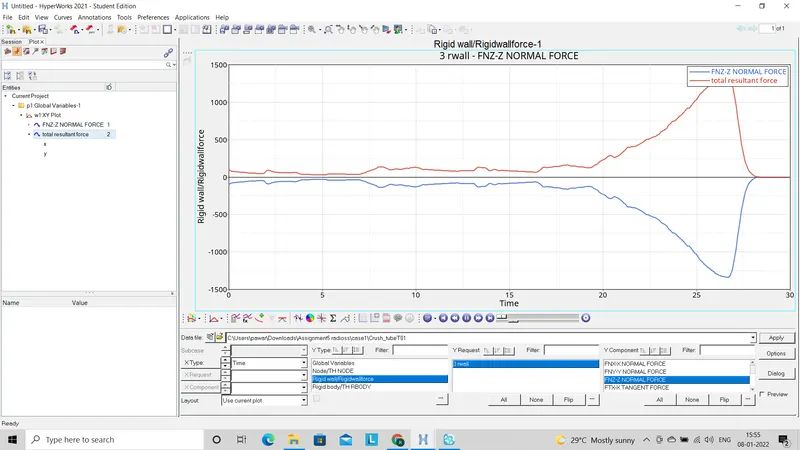
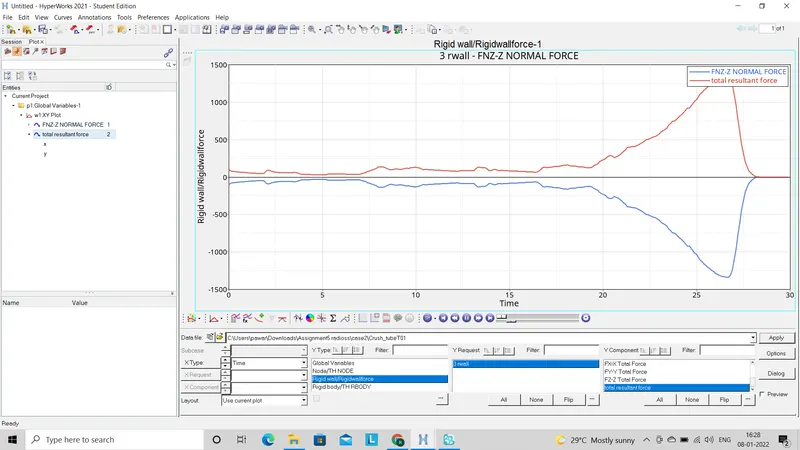
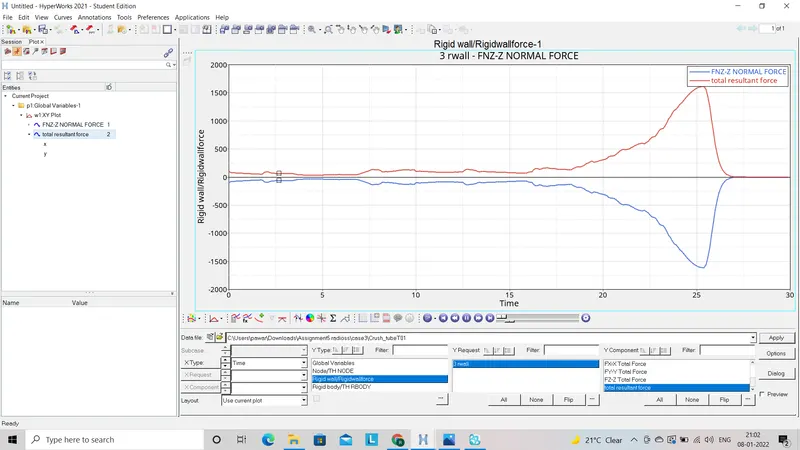
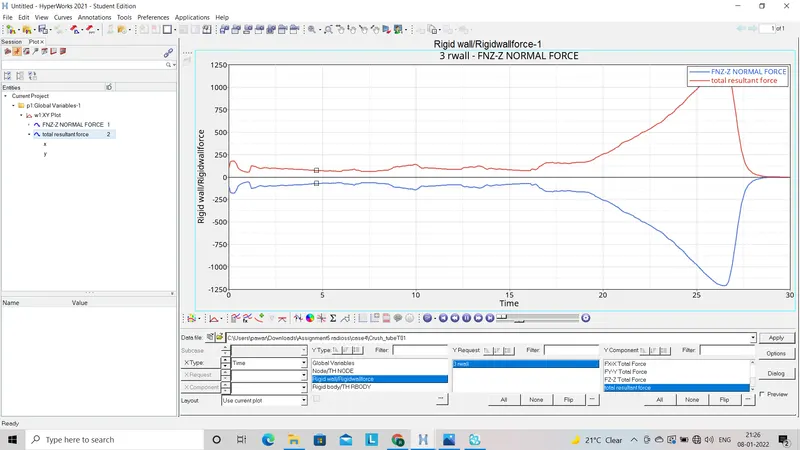
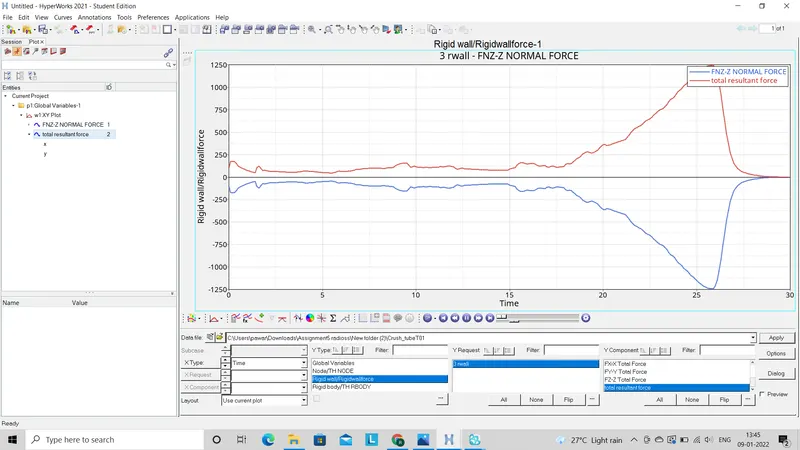
Force behaviour graph:-
Case1:
Case2:
Case3:
Case4:
Case5:
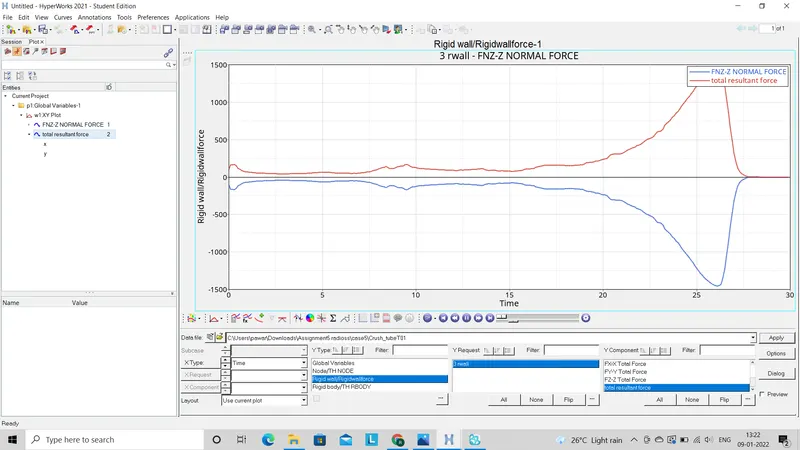
case6:
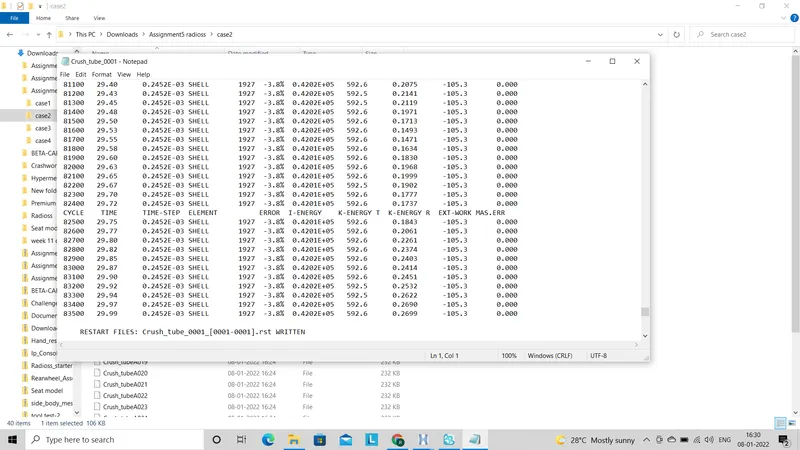
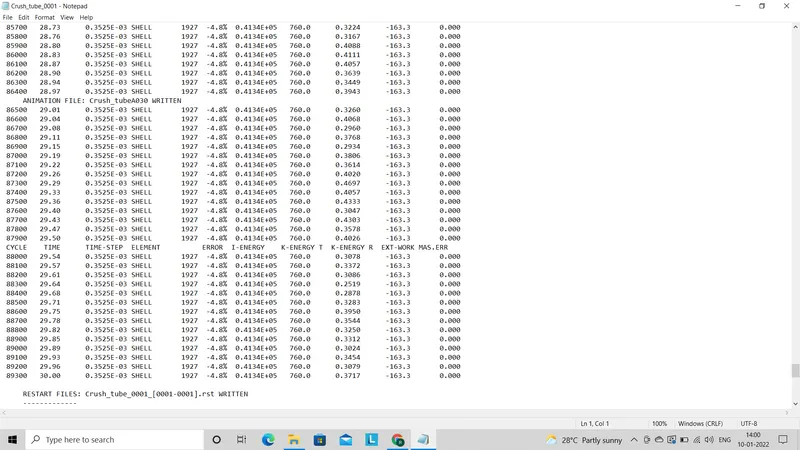
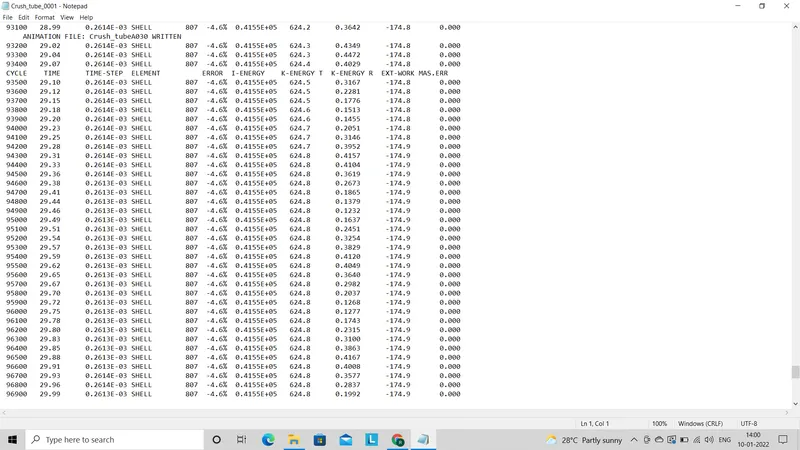
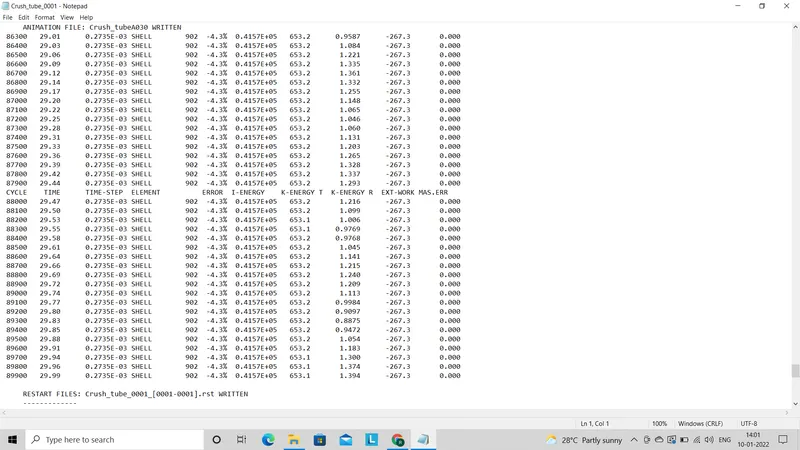
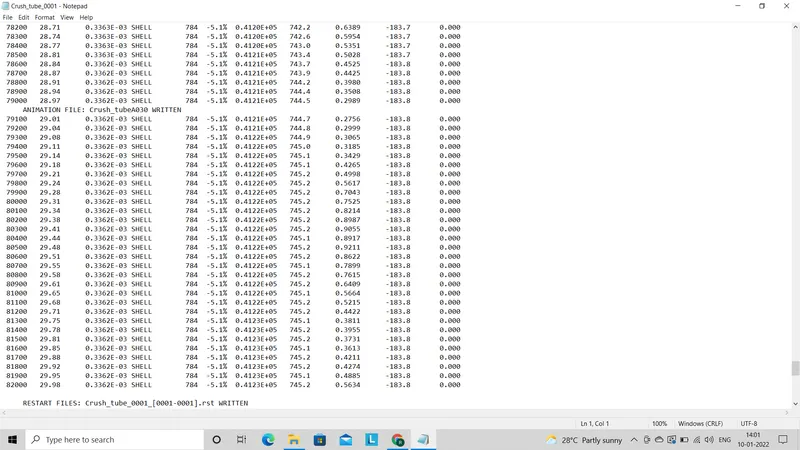
Energy error in out file:-
Case1:
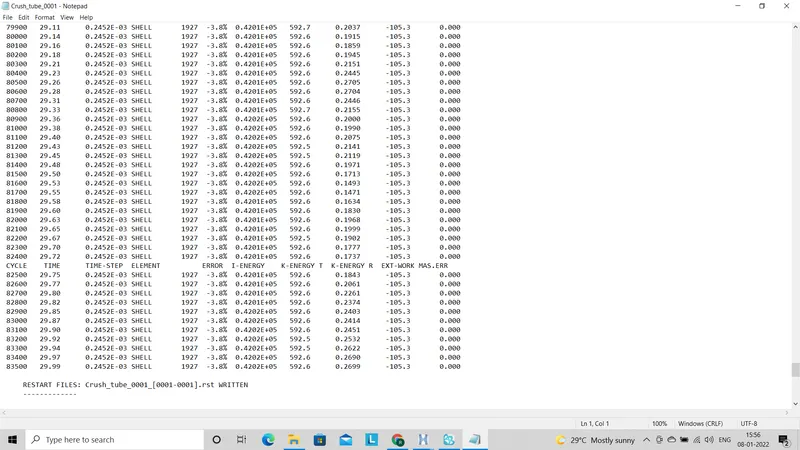
Case2:
Case3:
Case4:
Case5:
Case6:
Result:
- As notch has introduce in all cases except case4 so stress distribution in all the cases other than case 4 is more. As in case 4 there ie no any change in geometry through out the model as we remove the notch.
- Also elements near to the notch are failed before all elements.
| Sr.No. | Case | Contact type | vonmisses stress | Energy error |
| case1 | Type 7 | 0.735 | -3.8% | |
| case2 | Type 7 | 0.735 | -3.8% | |
| case3 | Type 11 | 0.759 | -4.8% | |
| case4 | Type 11 | 0.772 | -4.6% | |
| case5 | Type 11 | 0.774 | -4.3% | |
| case6 | Type 11 | 0.774 | -5.1% |
Conclusion:-
In this challenge I learn about how different contact interfaces affect the behaviour of geometry towords energy and force distribution. Also how notches are created and how they affect the simulation.