Assignment 5
Assignment - 5
Aim: 1) To mesh as per the given target element size and to connect the component using a weld connection.
2) To simulate the given model as per the given simulation conditions.
Abstract:
1)The given model is a bumper assemble of a vehicle which is to be automeshed as per the target element length as 6mm and is to be connected using weld connections.
2) The given component is a Crash tube which is meshed and being connected at an end with a rigid connection. Simulations are to be done as per the given six conditions and are to be compared with each other with the help of graph plotted with mentioned energies.
Methodology:
1) Bumper assembly:
- Import the component and delete unnecessary nodes.
- Mesh the component with a target length of 6mm
- Connect the component using weld connections.
2)Crash tube:
- Import the component.
- Start simulations as per the given 6 conditions.
- Compare the components with the help of hyper view and hypergraph.
Procedure:
1) Bumper assembly:
1. The given bumper assembly component is as shown below.
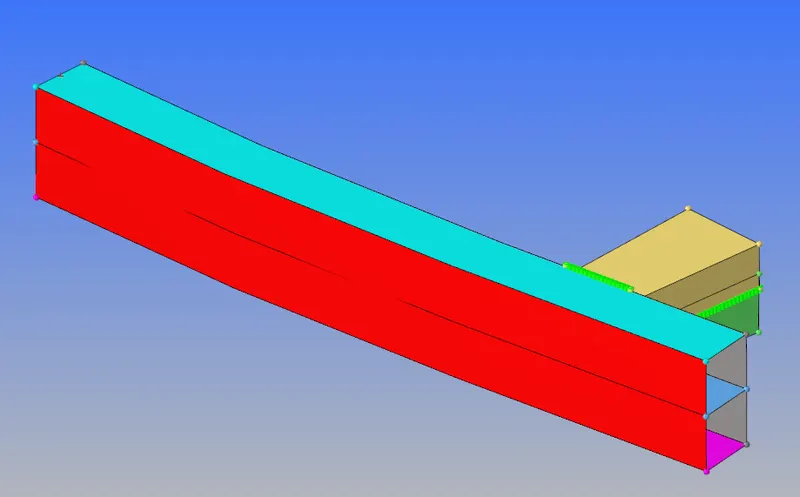
Fig 1: Bumper assembly
2) Mesh the component with a target length of 6mm. Maintain the mesh without any tria elements. The meshed component will be as shown below.
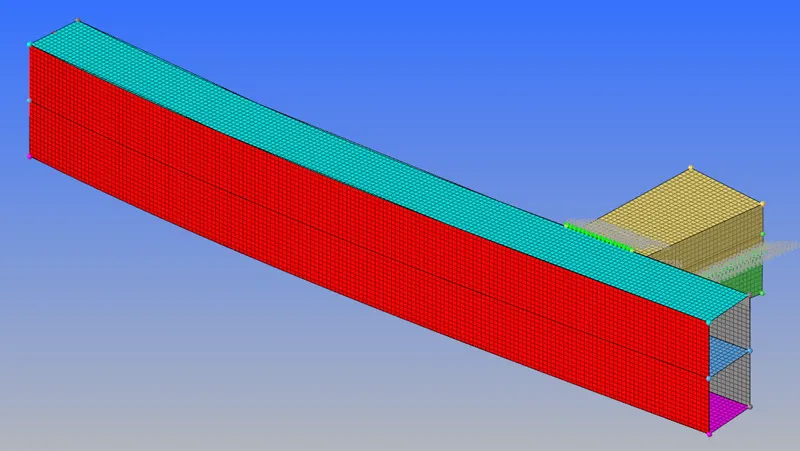
Fig 2: Bumper assembly meshed component.
3. The free parts of the components are to be connected using weld connections. The component is connected using the spot weld connection for this assignment.
4. To spot weld the component, select the connectors option in the 1D menu, select the spot option.

Fig 3: 1D menu.

Fig 4: connectors control panel.
5. Select the nodes on the free edge of the component which are to be connected, select the components which are to be connected. Set the tolerance and diameter of the weld and create a spot weld on the component.

Fig 5: spot weld control panel.
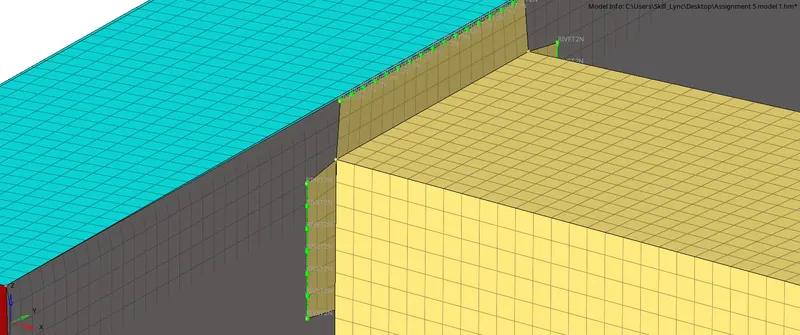
Fig 6: spot weld connections.
If the spot weld is connected perfectly the connection will be shown in green colour. Otherwise shows in red.
6. The total connected component will be as shown below.
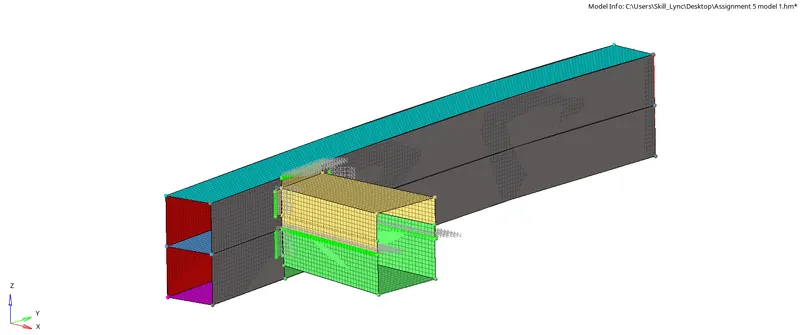
Fig 7: connected component.
2)Crash tube:
1. The given component is a crash tube which has a rigid connection at one side as shown below.
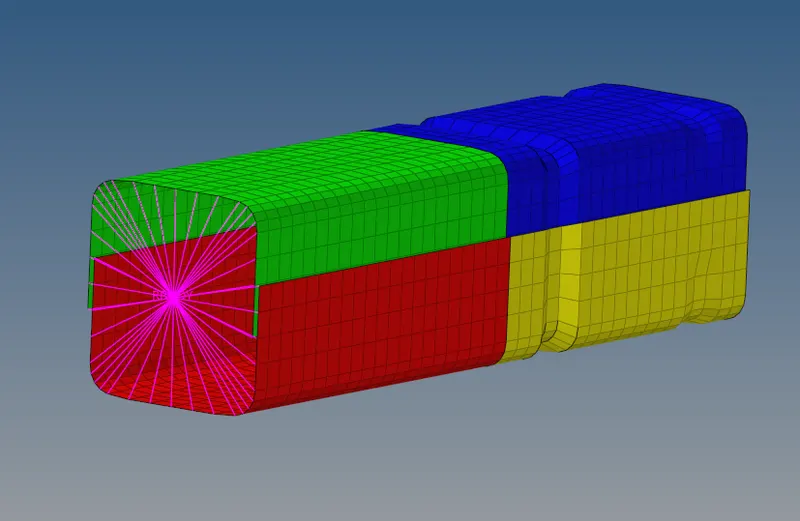
Fig 8: Crash tube.
2. The component is to be simulated as per the given conditions. Each simulation is considered as cases.
Case 1:
1. For the first case the simulation is to be done as it is.
- Create a new file named as case 1.Select the radios option in the Analysis menu.
- Save the direction of the file to case 1 and checkmark the include connections menu in the radios control panel.
- Set the processor operation to ‘-nt 4’ and start the simulation process. The simulation process will take a few minutes to complete the simulation.

Fig 9: Radios control panel
- If the simulation is successful the simulation will show as normal termination at the end of the simulation.
Case2 :
- For the 2nd case, the ‘Inactive’ type is to be changed to type 6 in the self contact group card.
- ‘Inactive’ is the action to be taken if initial penetrations exist. Type 6 for Inactive is to define that the gap is variable with time but the initial gap is adjusted.
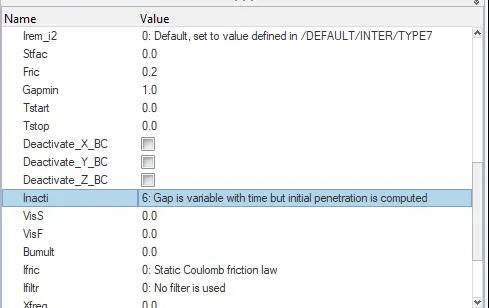
Fig 10: changing the Inacti type.
3. After setting the Inactive type 6, create a new file named case 2, set the direction for the file and start the simulation as done above for the case1 in Radios.
Case 3:
- For the 3rd case, a new group contact card is to be created and the parameters are to be set as per the requirements.
- Create a new contact card in the group tab and set the card type as 11. The parameters for the card are mentioned as below.
Istf = 4
Igap = 1000
Stfmin = 1
Fric = 0.25
Gapmin = 45
Inacti = 6
Idel = 0
Stmax = 0
Iform = 0
3. Assign the component cards to the created group card before simulation.
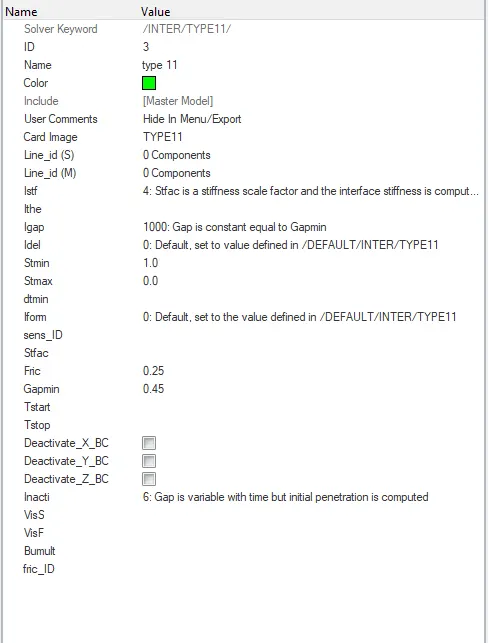
Fig 11: Case 3 Group property card
4. After setting the parameters, create a new file named as case 3 and run the simulation for the above 2 cases.
Case 4 :
- For the 4th case, the two notches of the component are converted to the plane surface and the boundary condition of the rigid body node is to be removed.
- Delete the elements on the component which feature the notch surface and create new mesh elements using the ruler option in the 2D menu.
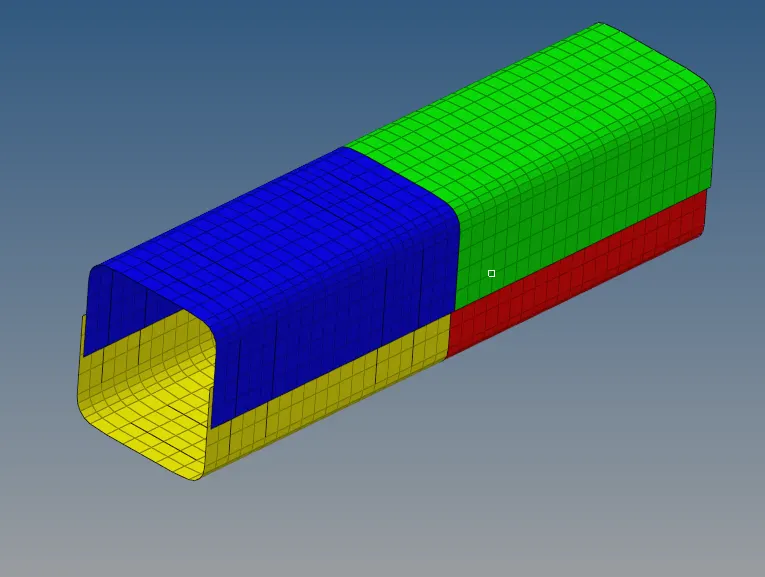
Fig 12:component for case 4
3. Delete the boundary condition file in the solver deck.
4. After giving the necessary requirements start the simulation process as done for the above cases.
Case 5:
- For the 5th case, a new notch is to be created in the middle of the tube and simulated.
- To create a notch in between, the nodes are being selected and pushed in according to the direction for creating notch using the translate option in the tools menu.
- The magnitude of translating the nodes are set as 4.094 as per the dimensions of the previous notches.
- After creating the notch proceed with the simulation process as done in the previous cases.
Case 6:
- For the 6th case, a second notch is to be created with nodes only from opposing 2 faces and run.
- The notch is created using translate as done previously but only for the opposing two faces.
- Create a new file named case 6 and start the simulation process as done for the above cases.
After the simulation of all the cases, the animation and graphs are to be observed for finding out the better material.
Viewing Simulation:
To view the simulated files, set the hyper mesh software mode to hyper view to start the animation.
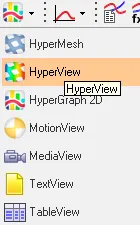
Fig 13: Selecting a hyper view option.
The animation files and the graph files will be saved in the newly created folder. Import the animation H3D file to the hyper view control panel and click on apply. The animation will start while playing the simulation.

Fig 14: hyper view control panel.
Plotting Graph:
A graph is to be plotted to analyze the change in the properties of the component. To check the graph set the hyper view mode to hypergraph model. Import the graph file to the hypergraph control panel. Select the properties to be analyzed in the graph as mentioned in the assignment.

Fig 15: Hypergraph control panel.
Observation:
As per the comparison of the six cases, the following conclusions are drawn below.
As per the animations:
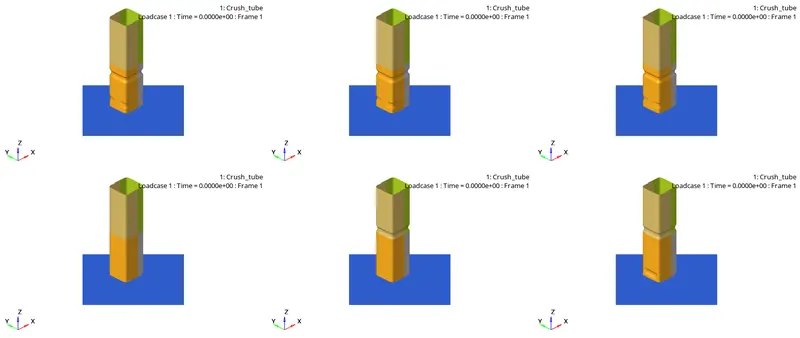
Fig 16: Animation pictures of the 6 cases.
- The components having notches in between are getting deformed up to the notch features first followed by the remaining upper part of the component.
- The component without the notch at case 4 is getting deformed uniformly as compared to the remaining cases.
- Deformation of the component will be more near the notch surface.
As per the Graph.
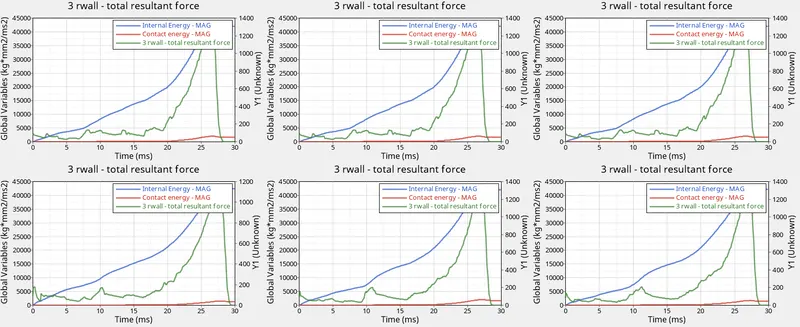
Fig 17: Graphs 1 to 6
1. Three forces are plotted as per the condition of the assignment.
(i) Initial energy
(ii) Contact energy
(iii) Rigid wall force
(i) The initial energy is almost identical in all cases.
(ii) The contact energy has a slight variation in cases 5 and 6.
(iii) The Rigid wall forces vary for each case as shown in the graph.
Result:
1) Thus meshing and connecting the given component is completed as per the given target length.
2) Thus simulating the component in 6 different cases and comparing each other is completed as per the given simulating conditions.
Important parameters used for this assignment:
1) Igap: Determines how the size of the gap is calculated.
2) Gapmin: Minimum gap for activation of the interface.
3) Inacti: Action to take if initial penetrations exist.
4) Istf: affects how the stiffness of the interface is calculated.
5) Iform: Friction formulation.
6) stmin: Minimum stiffness to use in interface.