Assignment 3-2D Element Formulation Challenge
Aim : To Perform stimulation of given shell geomerty for given material property.
Objective: To stimulate the given geometry with normal stimulation and to stimulate for above given material property are
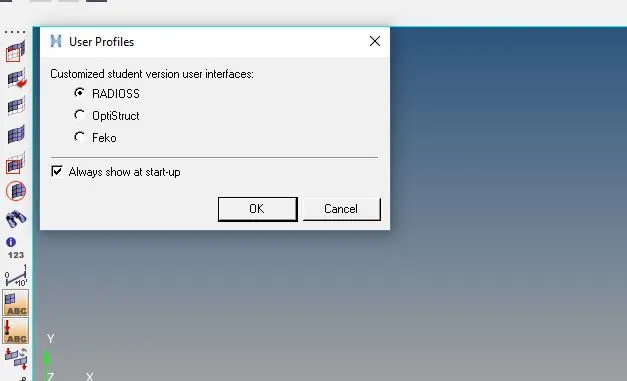
* Opening user profile :
* Importing the file :
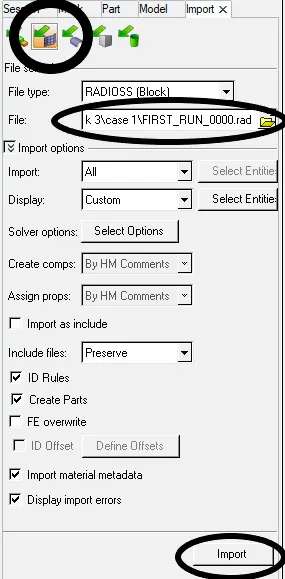
* From browser click import solver deck
* selecting the file type to radioss and click the required file as shown in below encircled region
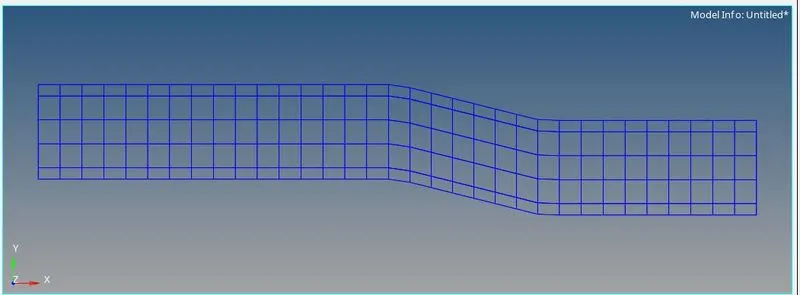
Given geometry file:
* Changing the run time :
1 . As mentioned above in changing the run time to 55ms .
* From model browser click to cards and select engine run card change the Tstop to 55 as shown below
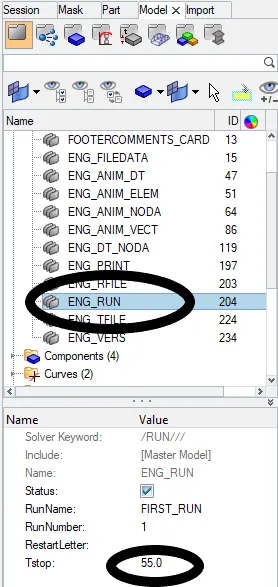
* In model browser select engin_anim_dt card and apply the value of the number of animation step 40 which gives 1.375 after calculation as shwown below
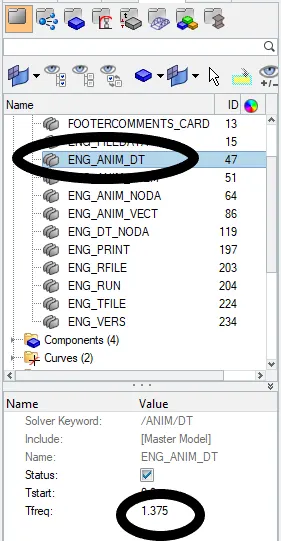
Tfreq are 1.375 because we have a formulae for Tferq which is given below
Tfreq = Total Run time / No of animations
Tfreq = 55/40 = 1.375 i.e, considering 40 as No of animations
* Run the file :
* Click analysis and save the file in required folder ,select radioss as shown below
* The encicled region shows the process


* The energy error and mass error :
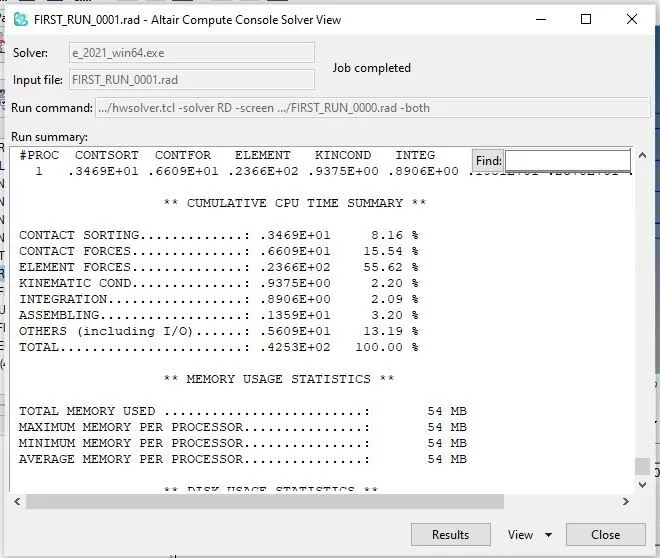
* In above fig click results and these takes to another page called hyperveiw where the animation video are show and are in the format of .h3d file open ,observer deformation of file .
* The above shown encircled region are click and changed the profile according to the requirement .
* The below shown are hyperveiw profile where the animation are shown
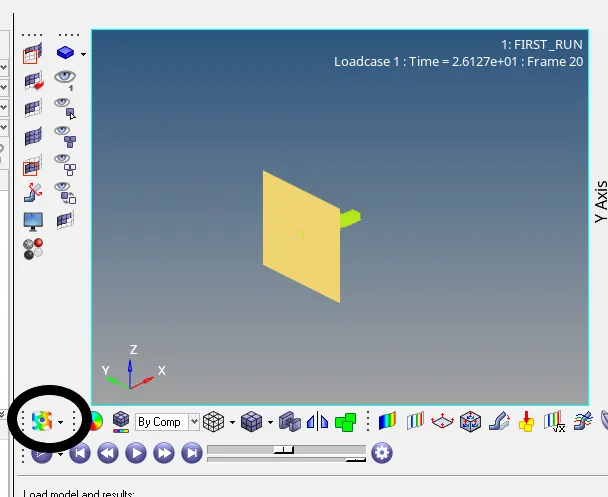
* The above shown encircled region are click and changed the profile according to the requirement .
* Plotting graph.
* Click hypergraph 2d as shown below are hypergraph profile .
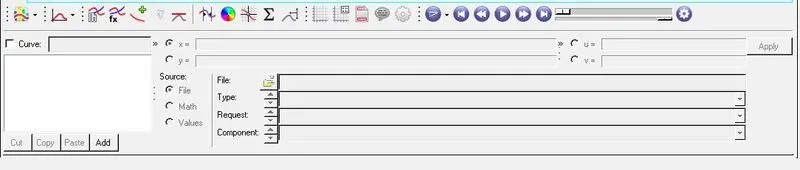
* Select add and change the type to rigid wall forces, internal energy, hourglass energy, contact energy and total energy

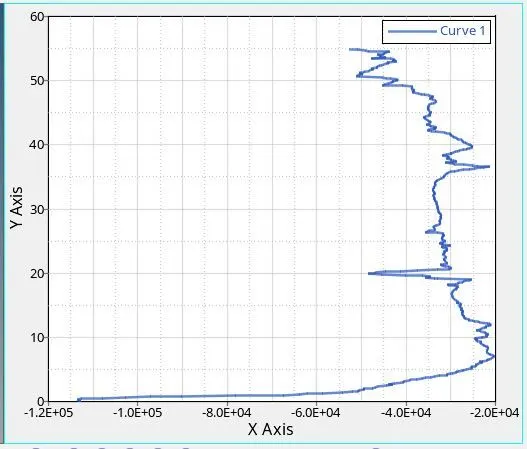
* Graph for Rigid wall forces :
* Click hypergraph 2d as shown below are hypergraph profile as shown in encircled regions .
* Select add and change the type to rigid wall forces
* keeping x axies as rigid wall force and y axies as time
* Select type as rigid wall and request as rigid wall as shown below

* For kinetic energy:
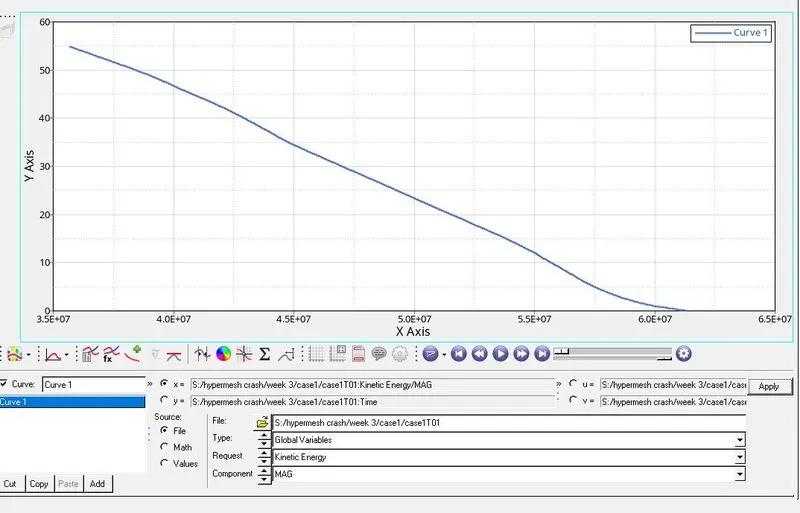
* Click hypergraph 2d as shown below are hypergraph profile as shown in encircled regions .
* Select add and change the type to kinectic energy
* keeping x axies as kinectic energy and y axies as time
* Select type as globale variable and request as kinectic energy and click apply as shown below
* For Internal energy :
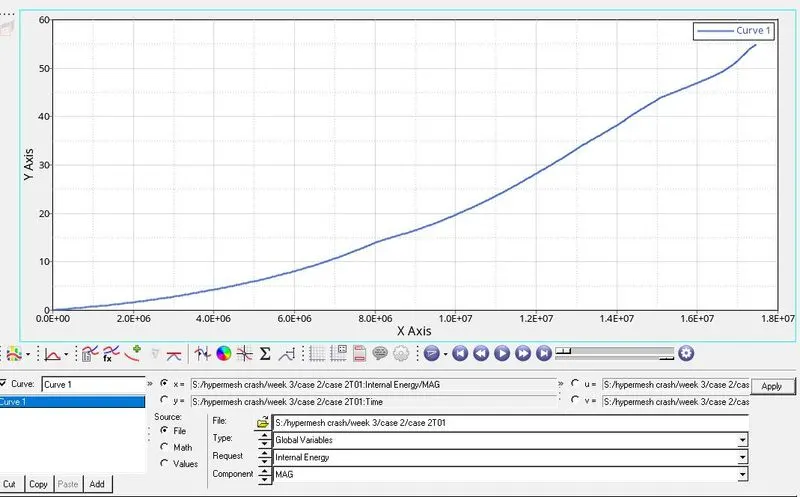
* Click hypergraph 2d as shown below are hypergraph profile as shown in encircled regions .
* Select add and change the type to Internal energy
* keeping x axies as Internal energy and y axies as time
* Select type as globale variable and request as Internal energy and click apply as shown below
* For Hour glass energy:
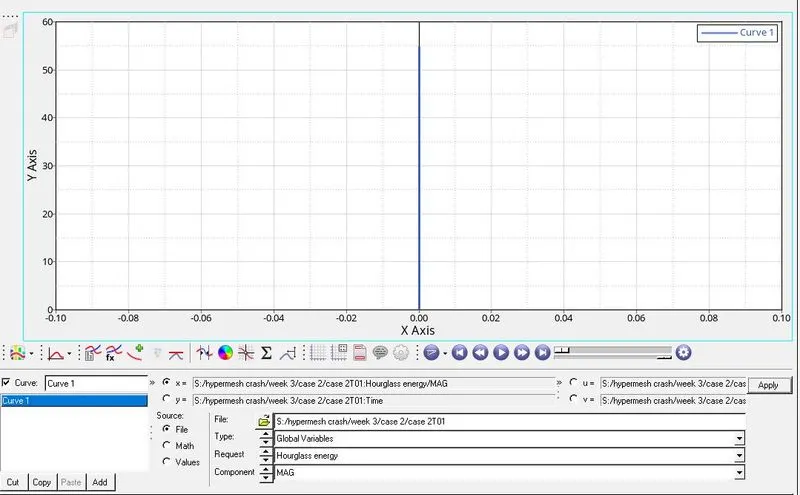
* Click hypergraph 2d as shown below are hypergraph profile as shown in encircled regions .
* Select add and change the type to Hour glass energy
* keeping x axies as Hour glass energy and y axies as time
* Select type as globale variable and Hour glass energy and click apply as shown below
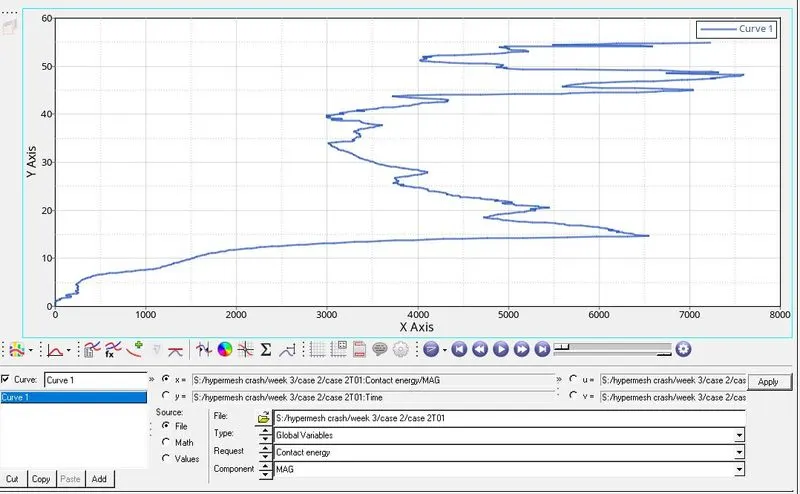
* For Contact energy :
* Click hypergraph 2d as shown below are hypergraph profile as shown in encircled regions .
* Select add and change the type to Contact energy
* keeping x axies as Contact energy and y axies as time
* Select type as globale variable and Contact energy and click apply as shown below
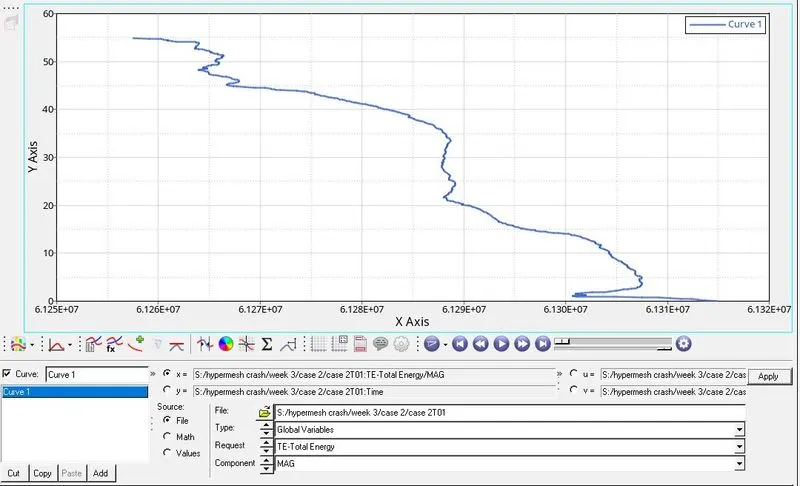
* For Total energy :
* Click hypergraph 2d as shown below are hypergraph profile as shown in encircled regions .
* Select add and change the type to Total energy
* keeping x axies as Total energy and y axies as time
* Select type as globale variable and Total energy and click apply as shown below
* Stimulation process for above mentioned material properties .
| Parameters | Comment | |
|
Ishell =24 |
QEPH 4 nodes shells are best combination of cost and accuracy. | |
|
Ismstr=2 |
Full geometric nonlinearities (default)with possible small strain formulation activation in RADIOSS Engine. | |
|
Ish3n=2 |
Standard 3 noded shell (C0)with modification for large rotation(default) |
|
| N=5 | Number of integration points set to 5 for accuracy bending. | |
|
Ithick=1 |
Thickness change is taken into account for accuracy. |
|
|
Iplas=1 |
Iterative plasticity for good accuracy. |
* Opening user profile :
* Importing the file :
* From browser click import solver deck
* selecting the file type to radioss and click the required file as shown in below encircled region
Given geometry file:
* Changing the run time :
1 . As mentioned above in changing the run time to 55ms .
* From model browser click to cards and select engine run card change the Tstop to 55 as shown below
* In model browser select engin_anim_dt card and apply the value of the number of animation step 40 which gives 1.375 after calculation as shwown below
Tfreq are 1.375 because we have a formulae for Tferq which is given below
Tfreq = Total Run time / No of animations
Tfreq = 55/40 = 1.375 i.e, considering 40 as No of animations
* Changing the material properties
* From model browser select the materials and click hat section ,close out panel as shown below
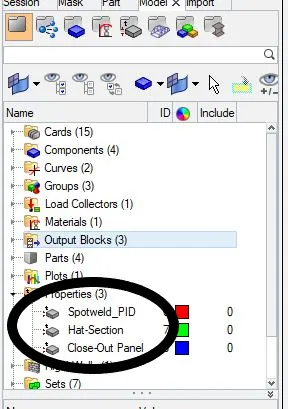
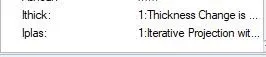
* Click to Ishell,Isemstr,Ish3n,Ithick and Iplas and change the properties as given below
| Parameters | Comment | |
|
Ishell =24 |
QEPH 4 nodes shells are best combination of cost and accuracy. | |
|
Ismstr=2 |
Full geometric nonlinearities (default)with possible small strain formulation activation in RADIOSS Engine. | |
|
Ish3n=2 |
Standard 3 noded shell (C0)with modification for large rotation(default) |
|
| N=5 | Number of integration points set to 5 for accuracy bending. | |
|
Ithick=1 |
Thickness change is taken into account for accuracy. |
|
|
Iplas=1 |
Iterative plasticity for good accuracy. |
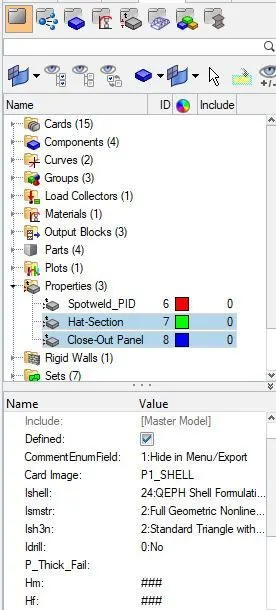
* After editing the file save and run
* Run the file :
* Click analysis and save the file in required folder ,select radioss as shown below
* The encicled region shows the process
* The energy error and mass error :
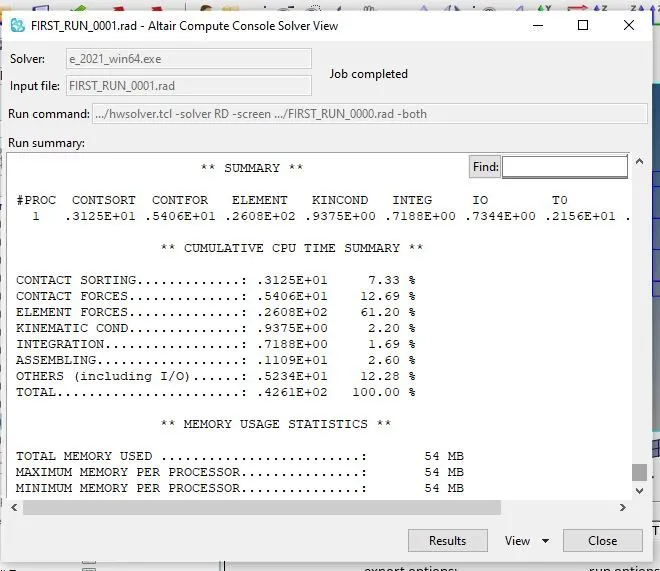
* In above fig click results and these takes to another page called hyperveiw where the animation video are show and are in the format of .h3d file open ,observer deformation of file .
* The above shown encircled region are click and changed the profile according to the requirement .
* The below shown are hyperveiw profile where the animation are shown
* The above shown encircled region are click and changed the profile according to the requirement .
* Plotting graph.
* Click hypergraph 2d as shown below are hypergraph profile .
* Select add and change the type to rigid wall forces, internal energy, hourglass energy, contact energy and total energy
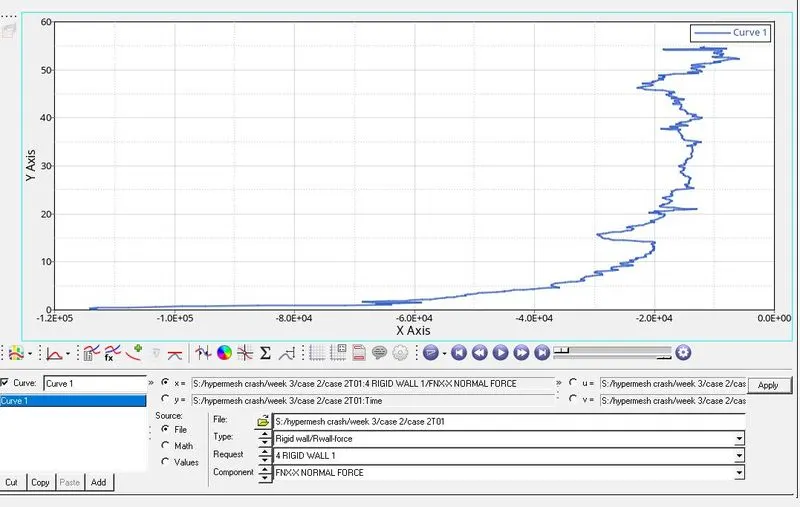
* Graph for Rigid wall forces :
* Click hypergraph 2d as shown below are hypergraph profile as shown in encircled regions .
* Select add and change the type to rigid wall forces
* keeping x axies as rigid wall force and y axies as time
* Select type as rigid wall and request as rigid wall as shown below
* For kinetic energy:
* Click hypergraph 2d as shown below are hypergraph profile as shown in encircled regions .
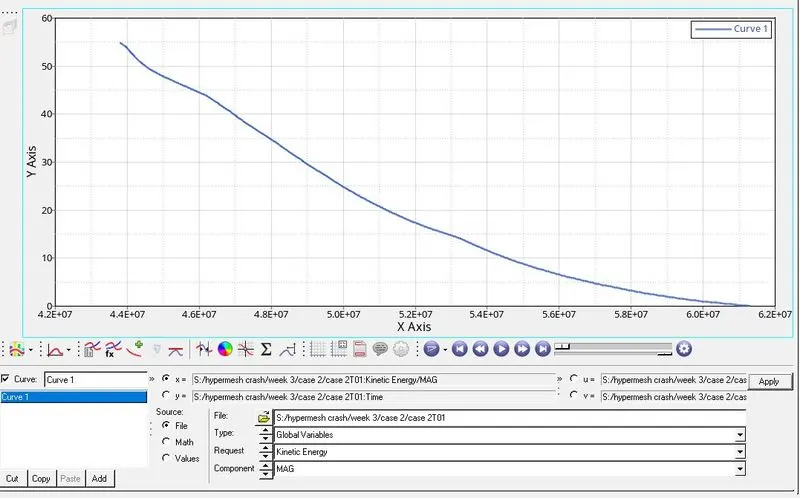
* Select add and change the type to kinectic energy
* keeping x axies as kinectic energy and y axies as time
* Select type as globale variable and request as kinectic energy and click apply as shown below
* For Internal energy :
* Click hypergraph 2d as shown below are hypergraph profile as shown in encircled regions .
* Select add and change the type to Internal energy
* keeping x axies as Internal energy and y axies as time
* Select type as globale variable and request as Internal energy and click apply as shown below
* For Hour glass energy:
* Click hypergraph 2d as shown below are hypergraph profile as shown in encircled regions .
* Select add and change the type to Hour glass energy
* keeping x axies as Hour glass energy and y axies as time
* Select type as globale variable and Hour glass energy and click apply as shown below
* For Contact energy :
* Click hypergraph 2d as shown below are hypergraph profile as shown in encircled regions .
* Select add and change the type to Contact energy
* keeping x axies as Contact energy and y axies as time
* Select type as globale variable and Contact energy and click apply as shown below
* For Total energy :
* Click hypergraph 2d as shown below are hypergraph profile as shown in encircled regions .
* Select add and change the type to Total energy
* keeping x axies as Total energy and y axies as time
* Select type as globale variable and Total energy and click apply as shown below
* Conclusion : As we run the stimulation with adding the given material and without applying the given material ,the energy error and mesh error are good as compared those both . Even the graphs rigid wall forces, internal energy, hourglass energy, contact energy, total energy are acceptble . the files are attched below.