Assignment 2-RADIOSS Engine File Editing & 3D Meshing Challenge
AIM:
o To study the Starter file and Engine file in RADIOSS user profile
Change the parameters according to the requirement in Starter and Engine files
• Create Tetra Mesh for housing component and solve Tet-Collapse
o Create Hexa Mesh for Arm Bracket
Objective:
1. Check the material properties of the rail component and calculate the speed of sound in steel rail= 2. The length of the rail is about 1000 mm. calculate the time takes for a shock wave to travel from one end of the rail to the other.
3. Time for sound to travel length of rail=_
4. Edit the engine file so that the stress wave can be monitored, moving from one end of the rail to the other during impact -this will require a termination time equal to the time it takes for the sound to travel the length of
the rail (set on/RUN card)
5. Set the frequency of animation output to a time that will give 20 animation steps(/ANIM/DT)
6. Change/print -10
7. 3d meshing tetra mesh and hex mesh
o Repeat class examples and, maintain the quality.
o Target tet size=5mm, hex size=10mm, tet collapse-0.15
Procedure:
Importing RAD file (FIRST_RUN_0000) in HYPERMESH
• Import". rad" file as shown below in RADIOSS user profile
• Browse the required file and click on import
Objectivel: Check the material properties of the rail component and calculate the speed of sound in steel rail
• Checking the material properties of the rail component
• Go to model block and in properties you can see the required values
• We can also open "FIRST_RUN_0000.rad" starter file in notepad and find the same values.
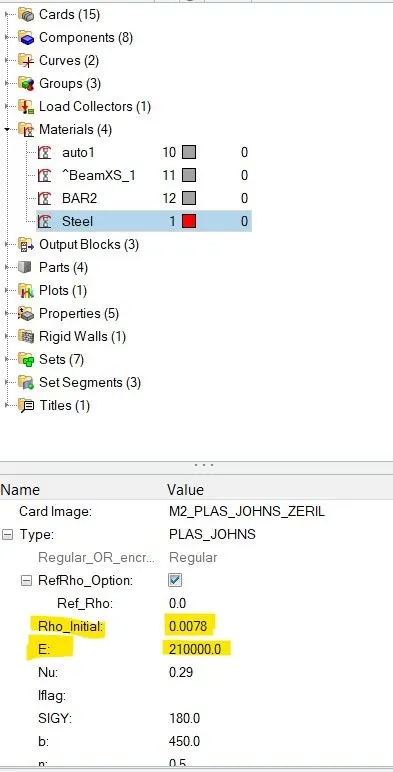
Here Rho initial= 0.0078 is the initial density and E= 210000 is the young's modulus
• Speed of sound in the material (c) = c = square root of (E/rho)
Therefore, speed of sound (c) = 5188.745 m/s
Objective 2: The length of the rail is about 1000 mm. calculate the time takes for a shock wave to travel from one
end of the rail to the other.
• Shock wave travels at the speed of sound
Therefore, shock wave speed = spped of sound= 5188 745 m/s
Here distance of the rail d=1000mm
time (t) = (Distance/Speed of shockwave)
• So. time taken for a shock wave to travel from one end of the rail to the other one= 0.192725ms
Objective 3: Time for sound to travel the length of rall = 0.192725 ms
Objective 4: Edit the engine file so that the stress wave can be monitored, moving from one end of the rail to the other during impact-this will require a termination time equal to the time it takes for the sound to travel the length of the rail (set on/RUN card)
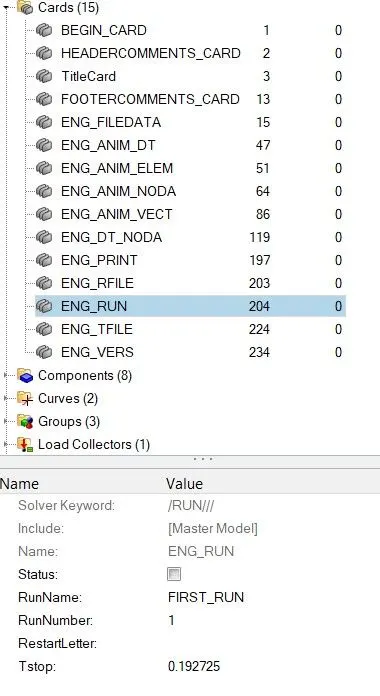
• Initially, the end time is 60ms. We need to change that to 0.192725ms
• You can edit it in Model deck >> Cards >> ENG RUN >> Tstop
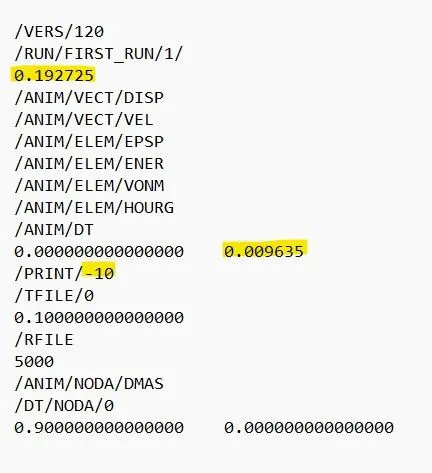
You can also edit the Tstop value in engine "FIRST RUN_0001" rad file
Objective 5: Set the frequency of animation output to a time that will give 20 animation steps (/ANIM/DT)
• frequency = (Time/ no. of. revolutions) = (0.1927/20)= 0.009635
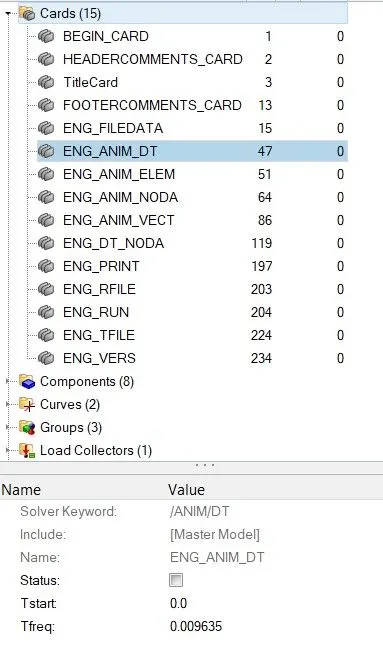
• Similarly, we can edit this in cards >> ENGINE_ANIM_DT or in (rad file) FIRST RUN_0001.
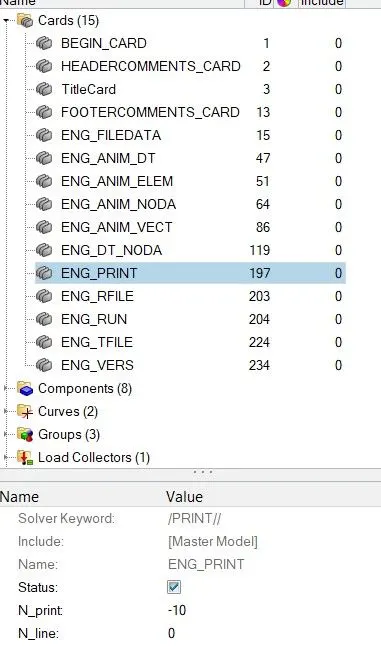
Objective 6: Change/print -10
Objective 7:
3d meshing tetra mesh and hex mesh
- Repeat class examples and, maintain the quality.
- Target tet size=5mm,hex size=10mm,tet collapse=0.15
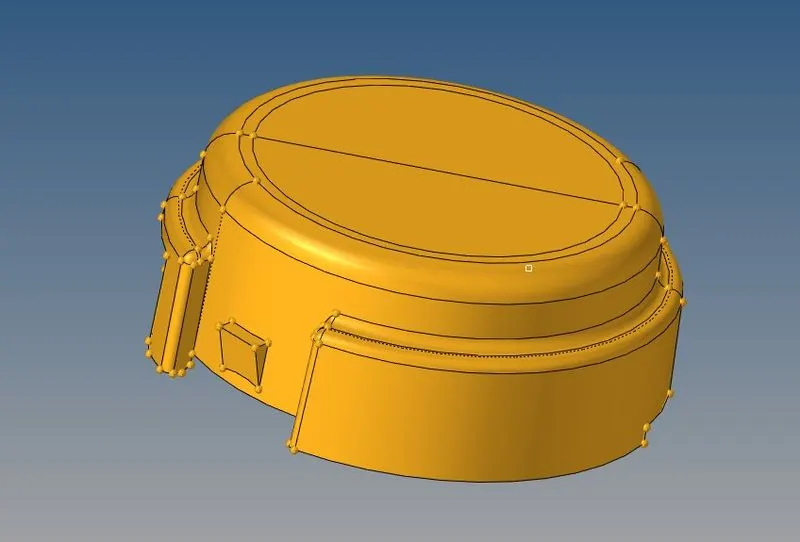
1. Volume Tetra
Go to 3D>> tetra mesh >> Volume tetra
• Tick curvature and proximity options for better feature capturing of mesh.

• Select the required solids or surfaces of each component individually
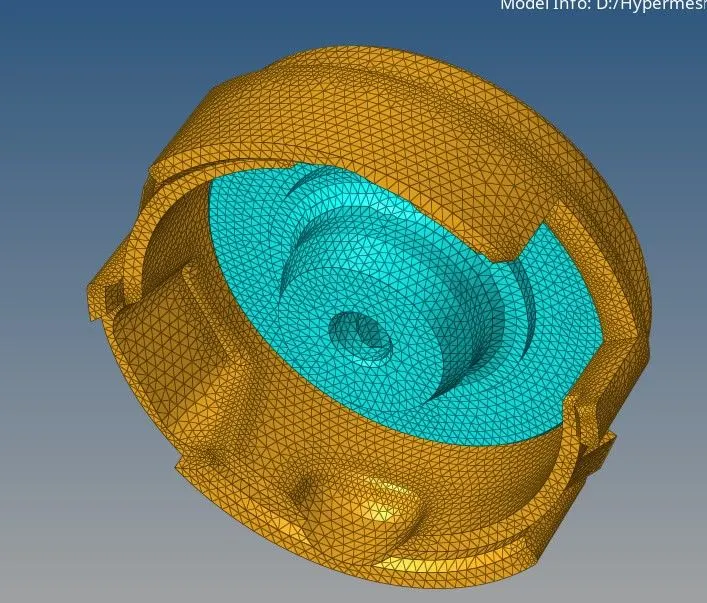
- Volume tetra mesh is generated successfully, I have masked some elements in order to check the mesh which
is generated. Similarly do the same process for the other solid to generate volume tetra mesh
HEXA mesh generation for Arm Bracket
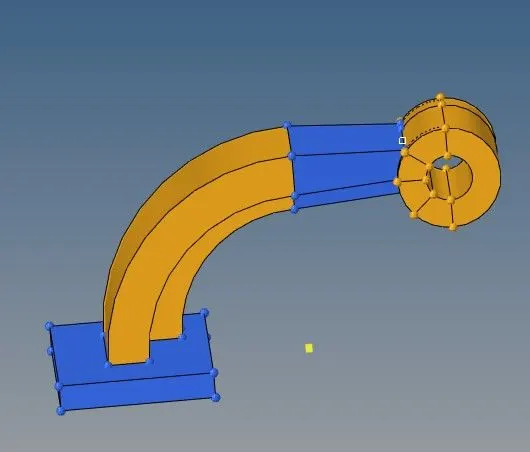
• The meshing of any component using Hexa elements is complicated as compared to tetra elements.
• In this challenge, the arm bracket must be meshed using only Hexa or brick elements
• I have divided the given geometry into 4 components inorder to maintain the mesh connectivity
• First create 2D quad mesh on the base model's top surface
• Remove all the trias and rotating quads. Use element size as 10
Creating Solid Layers
2D quad mesh on top surface
• Create 3D brick or Hexa elements from 2D quad mesh using 3D >> element offset >> solid layers
Now create a temporary node using geometry >> nodes >> arc center.. This node will act as a base node for spinning elements onto the 2nd U-shaped component
Spinning Elements
• Use 3D >> spin >> spin elements. Select the required elements for spinning. Give angle as 90, and also select the axis for rotation and base node
Using Solid mapping elements the next process is done.
Result:
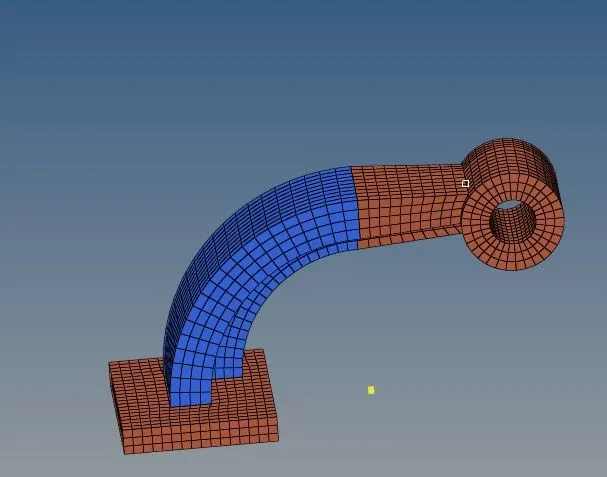
Deleting 2D quad elements
• Delete all the 2D quad elements which we created on the surfaces of components
• Use >> delete >> elements >> by config >> quad4 >> select entities >> delete entity
Learning Outcomes:
• All the calculations are made according to the question
• Edited Engine file according to the calculations made
• Tetra mesh is generated successfully for the housing component without any tet collapse
• Hexa mesh is generated for Arm Bracket with perfect element connectivity.