Assignment 2
Assignment -2
3D meshing and Engine file Support.
Aim: To 3D mesh the given two geometry models, connecting two plates and to edit the engine file as required.
Abstract:
1) The given geometrical models are the Arm bracket and housing which are to be hexa meshed and tetra meshed respectively.
2) RBE2 and RBE3 connections are to be given to the given plates as required.
3) Engine file is to be edited as mentioned for the assignment, taking the values from the starter file.
3D meshing:
3D meshing is a process used in Hypermesh software, used to mesh the components which have thickness more than 5 or 6mm and does"not have uniform thickness throughout the component. There are 2 types of the meshing process.
i) Hexa meshing, ii) Tetra meshing.
Hexa meshing is used for the components which are having simple 3D shapes, whereas tetra meshing is used for non-uniform surfaces.
Procedure for Arm Bracket meshing:
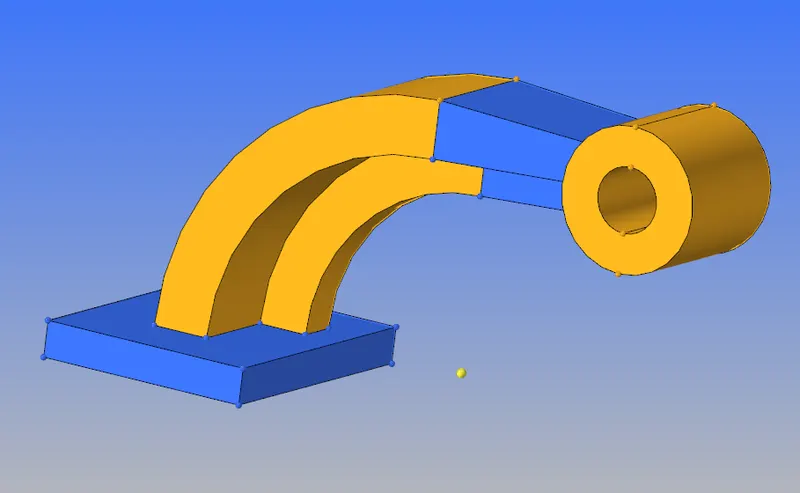
Fig 1: Arm Bracket
1. The component shown in fig 1 is to be Hexa meshed. The component is to be meshed part by part for the 3D meshing.
2. Considering the base component of the geometry, create a 2D mesh on the upper surface of the component. The target element length is set to 10mm as mentioned in the assignment. The mesh should not contain any kind of tria elements. The created mesh is to be 3D offset to the total component. Select the element offset option in 3D mesh menu. Select the elements to be offset, select the remaining surfaces of the component, set the rows of elements and thickness of the mesh in the control panel and offset the mesh. The mesh will be formed as shown in fig 2.
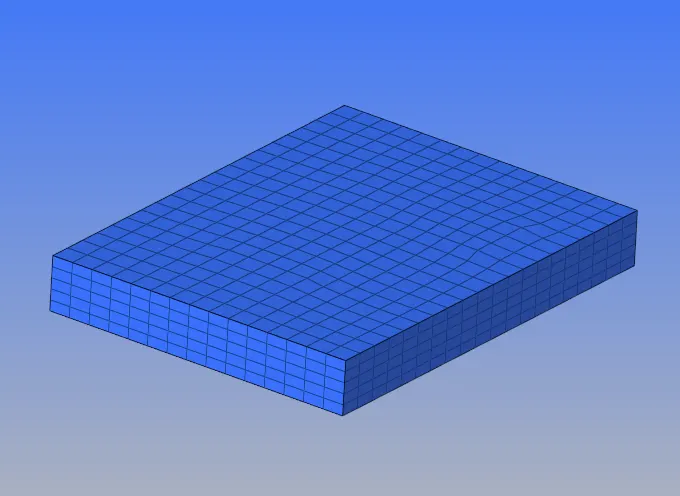
Fig 2: Hexa meshed base component.

Fig 3: 3D element offset control panel.
3. Considering the second component i.e., the arm curve the mesh is to be carried throughout the shape of the component. Since the component is in a curved shape the elements cannot be offset. The 2D elements created are to be created and spun according to the component. Before starting the process, a point is to be created representing the centre of the curved component so that the elements can be created in required shape concerning the point. Select the '"spin" option in the 3D menu, set the spin mode to element selection option. Select the elements which are to be projected i.e., the elements under the component, set the direction to be spun, select the created point as the base node, set the angle and on spine values as required and spine the elements. The created 3D mesh will be as shown in fig 4.
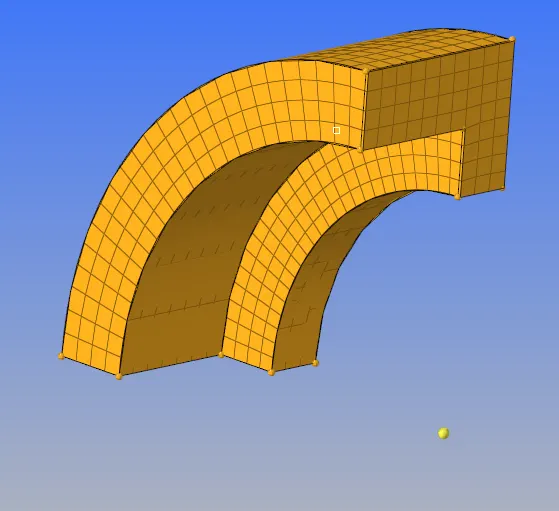
Fig 4: 3D meshed arm curve.

Fig 5: spin elements control panel
4. Considering the arm straight component, the component is shaped in a tapered manner. So 2D mesh is to be created on the free side of the component. The number of elements in the 2D mesh is to be maintained as the number of elements on the arm curve. After creating the 2D elements, the 3D elements are to be created by projecting from the connected component to the 2D elements. Select the liner solid menu, select the form elements and to elements. Set the N1, N2, N3 option and the density of the component and project the elements. The created 3D elements will be as shown below.
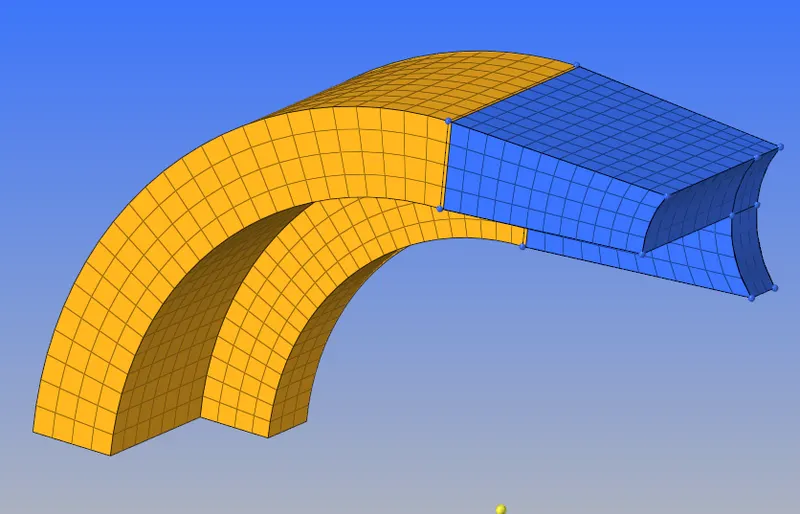
Fig 6: 3D meshed arm straight.

Fig 7: line solid control panel.
5. Considering the boss component. The component is in a cylindrical shape. To match the elements from the arm straight, project a point parallel to the cylindrical connection. Create a 2D mesh on one side of the component without any trai elements formation and solid offset the mesh to the other side of the component. The generated mesh will be as shown below.
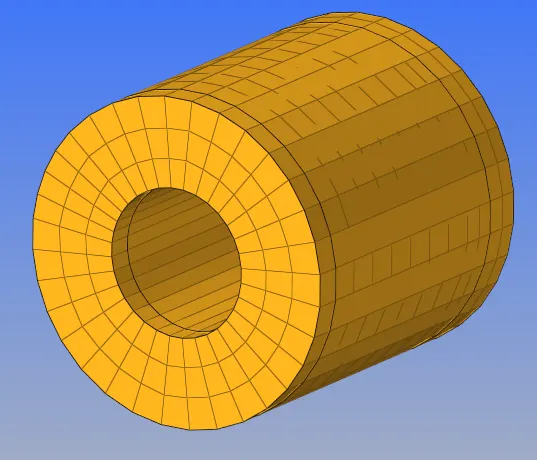
Fig 8: 3D mesh boss component.
Procedure for Housing Meshing:
1. Create a 2D mesh with tria elements of target length of 5mm for the component shown below.
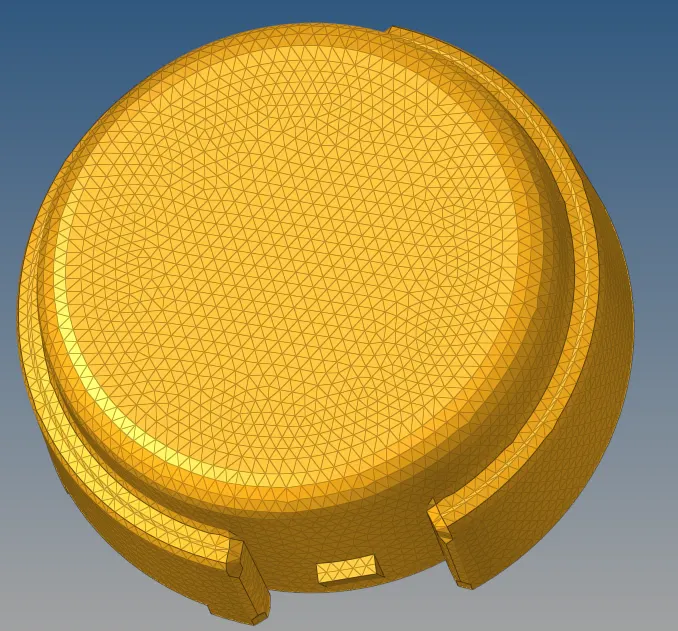
Fig 9: 2D meshed component
2. Clear the minimum and maximum length errors that are 2 and 7mm respectively.
3. A tetra mesh must be created inside the component. To create a 3D volume mesh the tetra mesh menu must be selected in the 3D menu. The control panel of the tetra mesh menu is as shown below.

Fig 10: tetra mesh control panel
4.Set the tetramesh parameters for the tet collapse, minimum and maximum element sizes.

Fig 11: tetra mesh parameters
5.After setting the parameters, mesh the component by selecting the component. To check the volume mesh created in the component, mask the 2D elements on the surface to view the 3D mesh elements.
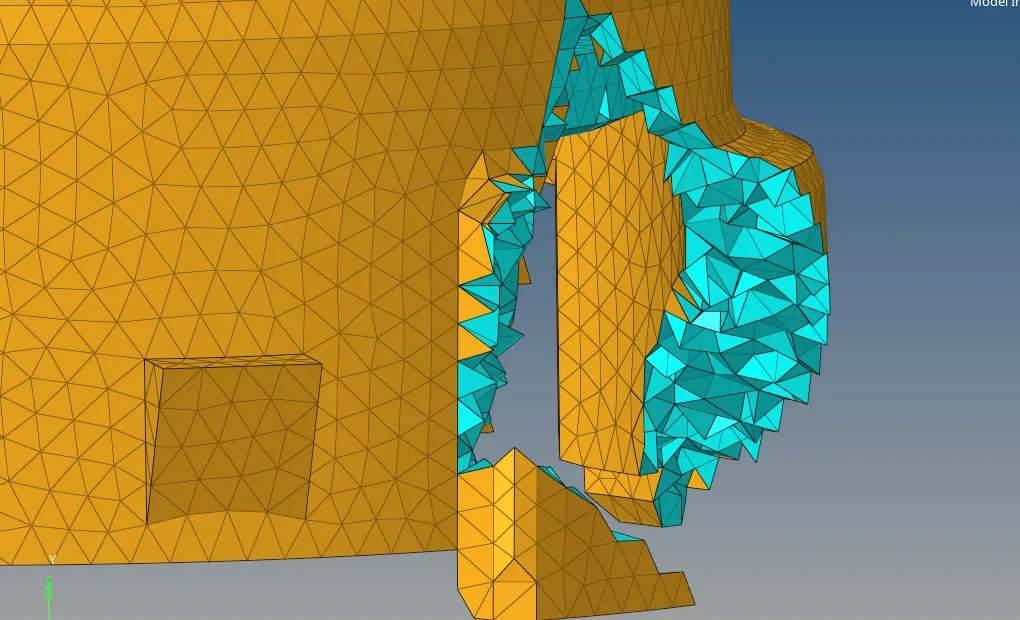
Fig 12: masking the component to check the volume elements inside the component
6.After the creation of the volume mesh check for the tet collapsed elements in the check elements menu. If there are any collapsed elements then remesh the component in the tetra mesh remesh menu.

Fig 13: Tetra remesh menu
7.Repeat the same process for another component in the model.
1D element connections :
1. The components given below are to be connected using 1 D connections.
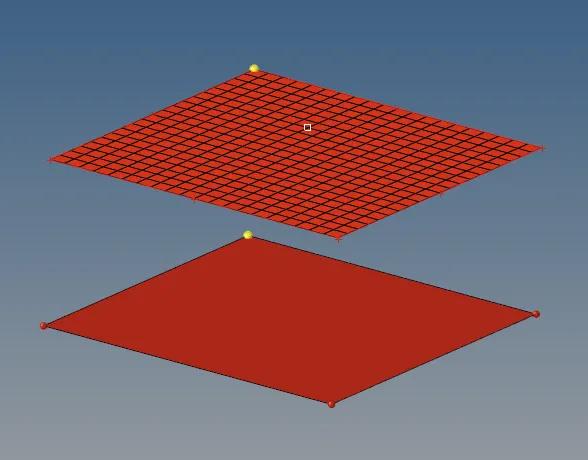
Fig 14: Given component to connect.
2. Mesh the plane component below with target length equal to the above component.
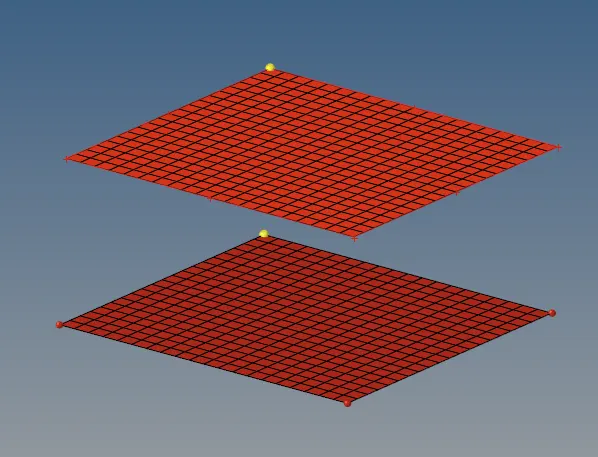
Fig 15: Total meshed component.
3. Select the 1D connection menu to access the RBE2 and RBE3 connections. RBE 2 represents the rigid connections whereas RBE 3 is used for mentioning the required degrees of freedom.
4. The connections are done by selecting the number of nodes to be connected to the other component. the connections will be having master nodes and slave nodes, where master nodes are used for guiding the slave nodes while the simulation process.
5. Connect the components as required using the options such as rods, beams, bars springs etc.
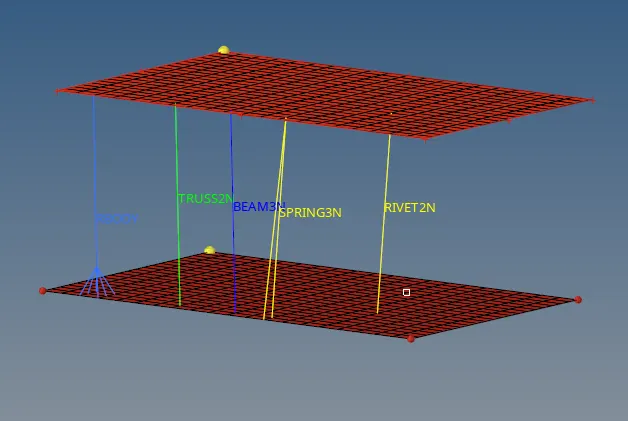
Fig 16: Connections created for the given component.
Questions:
1. Check the material properties of the rail component and calculate the speed of sound in steel rail=_______
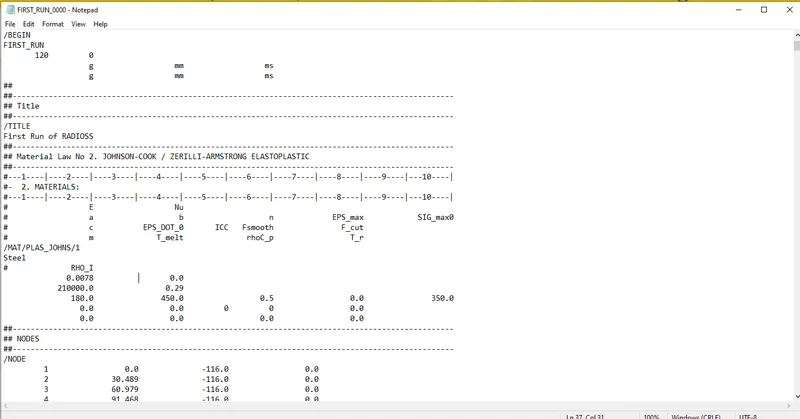
Fig 17: Starter file.
speed of sound `c = sqrt(E/rho`
where E= modules, `rho =`density
the values are taken from the starter file.
`c = sqrt(210000/0.0078`= 5188.74
2. The length of the rail is about 1000 mm. calculate the time takes for a shock wave to travel from one end of the rail to the other.
Given length of the rail = 1000mm
Termination time `Delta T = l/c`
where, l = length of the element, c = speed of sound.
`=1000/ 5188.74`
`DeltaT = 0.1927`
3.Time for sound to travel length of rail=______
Termination time `Delta T = l/c`
where, l = length of the element, c = speed of sound.
`=1000/ 5188.74`
`DeltaT = 0.1927`
4.Edit the engine file so that the stress wave can be monitored, moving from one end of the rail to the other during an impact -this will require a termination time equal to the time it takes for the sound to travel the length of the rail(set on/RUN card)
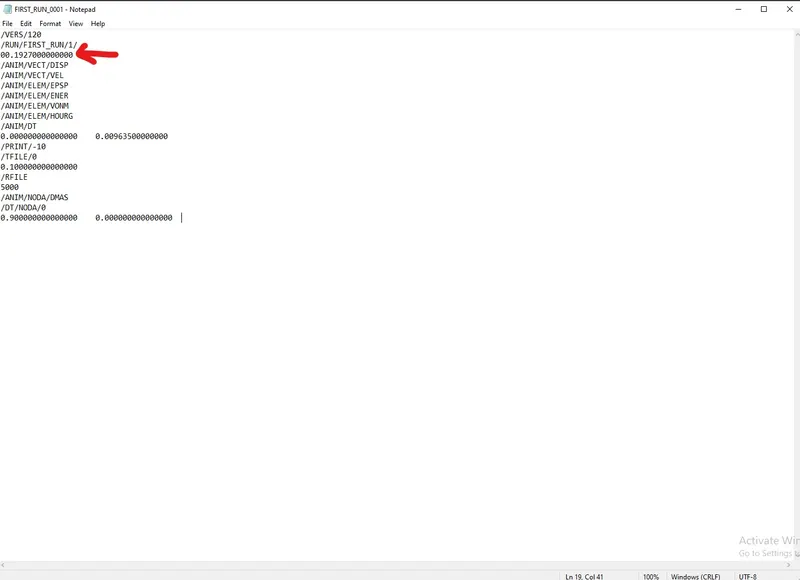
Fig 18: Engine file.
5.Set the frequency of animation output to a time that will give 20 animation steps(/ANIM/DT
Frequency `T_f = DeltaT/ (no of steps)`
= `0.1927/20`
= 0.009635
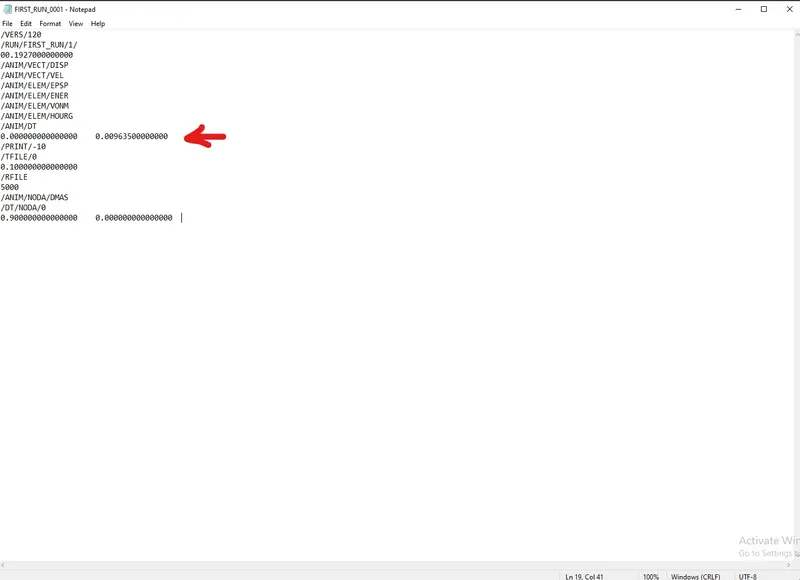
Fig 19: Engine file.
6.Change /print -10.
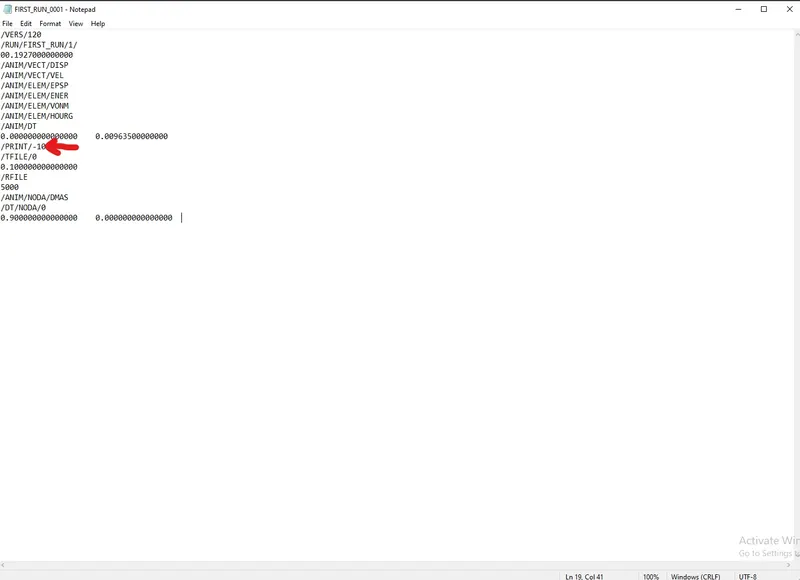
Fig 20: Engine file.
Result:
Thus 3D meshing the given components, connecting the given plane surfaces and editing the engine file is completed.
Learning outcomes.
- Learned to 3D mesh the components in both the ways.
- Learned to connect the components.
- Learned to edit the engine file as required.