Assignment 1-2D Meshing Challenge
Objectives:- 1. To extract middle surface from given CAD models.
2. To generate 2D mesh on midsurface following quality criteria.
Procedure:-
Part 1:-
- Import the geometry.
- Set geometry color mode as 'By Topo'. The geometry visible in topo mode.Then click on wireframe mode and see where the surfaces are missing and geometry is inappropriate. Then enable the shadow mode.
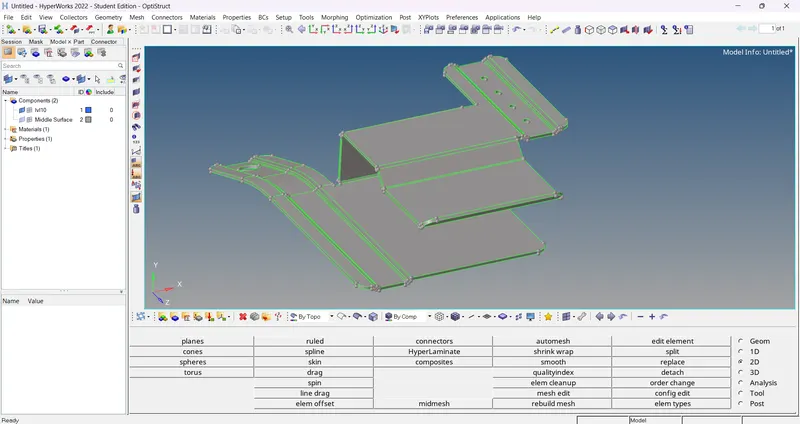
- Then select 'autocleanup' option in 'geometry' section and set target element size. Then select the surface and click on autocleanup. The geometry cleanup is done.
- After geometry cleanup go for midsurfacing. Select the 'midsurface' option in 'geometry' section. And select the 'automidsurface' option.
- Then go to extraction options and selectm'skin offset'. Select the extraction option according to the material of component. E.g. 'skin offset' is used for 'sheet metal component' and 'offset+planes+sweeps' is used for 'plastic component'.
- Then go to auto extraction and select the surafces and then click on extract. The middle surface is generated.
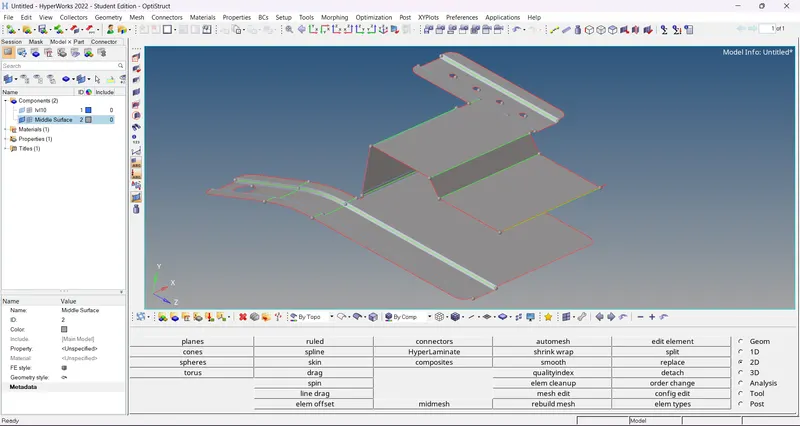
- After that cleanup the midsurface and toggle unwanted lines and edges.
- After creating midsurface, go for 2D meshing. For that, select 'automesh' command from '2D' section. Enter the quality criteria. Enter element size and mesh type. Set mesh type as 'mixed'. After that enable 'align' and 'size' option. Then select 'link opp. edges with AR<'. Then select the surface and click on mesh. 2D mesh is generated.
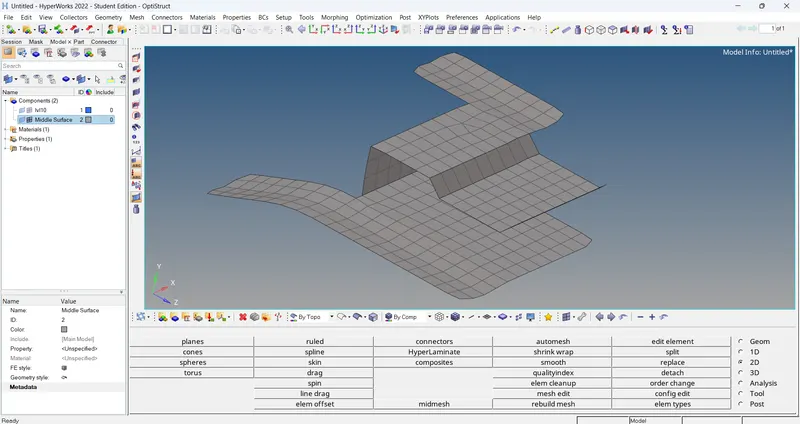
- If mesh flow is poor or getting off elements, then mesh rebuild is required. For that select 'mesh rebuild' option in '2D' section. Then edit criteria and parameters and select the elements. Click on rebuild, mesh gets modify and better.
- For off elements and tria, go to 'quality index' option in '2D' section and use the cleanup tools like place node, swap edge, smooth etc.
Part 2:-
- Import the geometry.
- Set geometry color mode as 'By Topo'. The geometry visible in topo mode.Then click on wireframe mode and see where the surfaces are missing and geometry is inappropriate. Then enable the shadow mode.
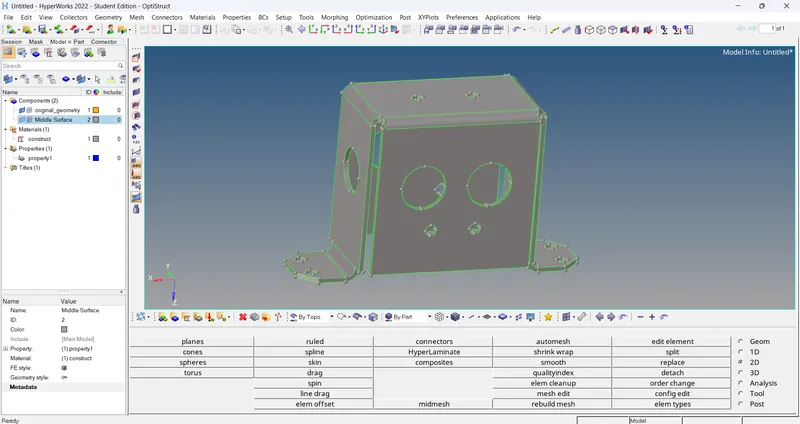
- Then select 'autocleanup' option in 'geometry' section and set target element size. Then select the surface and click on autocleanup. The geometry cleanup is done.
- After geometry cleanup go for midsurfacing. Select the 'midsurface' option in 'geometry' section. And select the 'automidsurface' option.
- Then go to extraction options and selectm'skin offset'. Select the extraction option according to the material of component. E.g. 'skin offset' is used for 'sheet metal component' and 'offset+planes+sweeps' is used for 'plastic component'.
- Then go to auto extraction and select the surafces and then click on extract. The middle surface is generated.
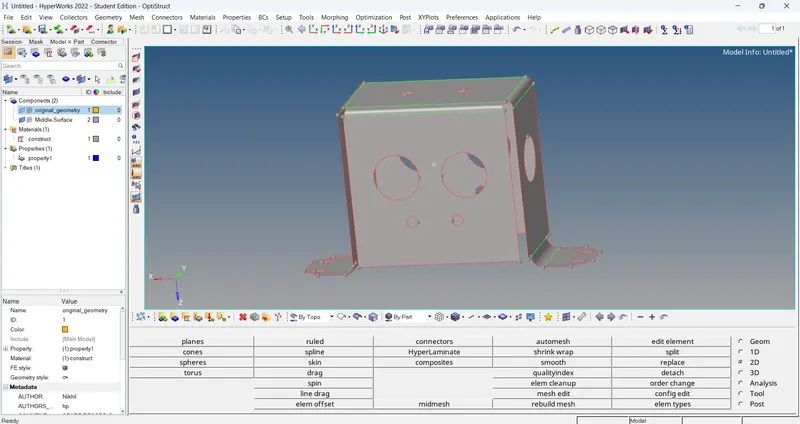
- After that cleanup the midsurface and toggle unwanted lines and edges.
- After creating midsurface, go for 2D meshing. For that, select 'automesh' command from '2D' section. Enter the quality criteria. Enter element size and mesh type. Set mesh type as 'mixed'. After that enable 'align' and 'size' option. Then select 'link opp. edges with AR<'. Then select the surface and click on mesh. 2D mesh is generated.
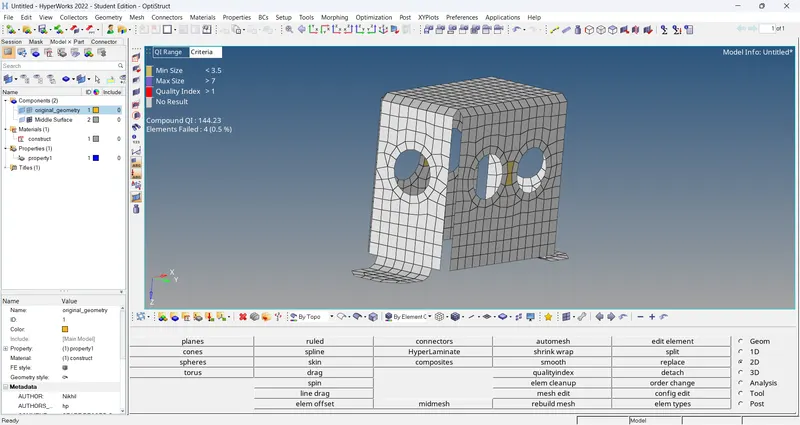
- If mesh flow is poor or getting off elements, then mesh rebuild is required. For that select 'mesh rebuild' option in '2D' section. Then edit criteria and parameters and select the elements. Click on rebuild, mesh gets modify and better.
- For off elements and tria, go to 'quality index' option in '2D' section and use the cleanup tools like place node, swap edge, smooth etc.
Part 3:-
- Import the geometry.
- Set geometry color mode as 'By Topo'. The geometry visible in topo mode.Then click on wireframe mode and see where the surfaces are missing and geometry is inappropriate. Then enable the shadow mode.
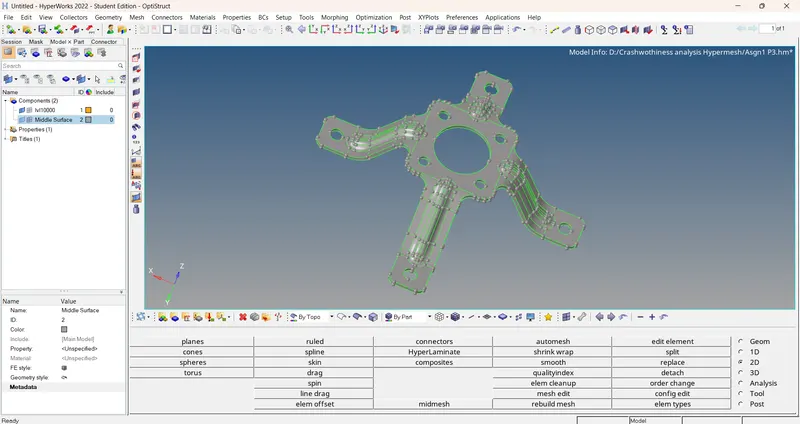
- Then select 'autocleanup' option in 'geometry' section and set target element size. Then select the surface and click on autocleanup. The geometry cleanup is done.
- After geometry cleanup go for midsurfacing. Select the 'midsurface' option in 'geometry' section. And select the 'automidsurface' option.
- Then go to extraction options and selectm'skin offset'. Select the extraction option according to the material of component. E.g. 'skin offset' is used for 'sheet metal component' and 'offset+planes+sweeps' is used for 'plastic component'.
- Then go to auto extraction and select the surafces and then click on extract. The middle surface is generated.
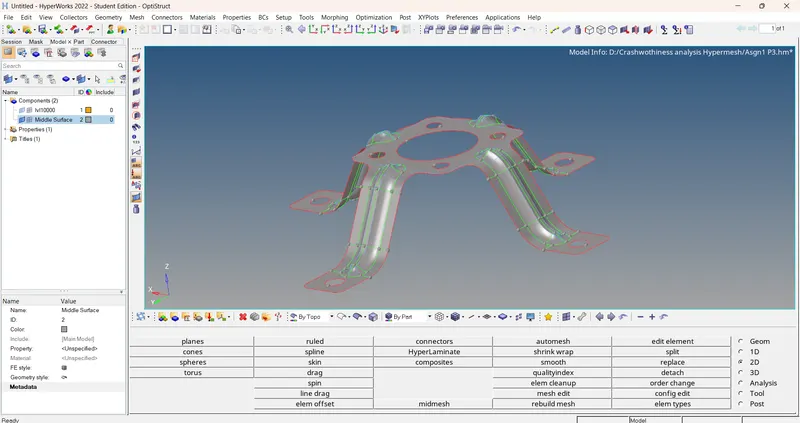
- After that cleanup the midsurface and toggle unwanted lines and edges.
- After creating midsurface, go for 2D meshing. For that, select 'automesh' command from '2D' section. Enter the quality criteria. Enter element size and mesh type. Set mesh type as 'mixed'. After that enable 'align' and 'size' option. Then select 'link opp. edges with AR<'. Then select the surface and click on mesh. 2D mesh is generated.
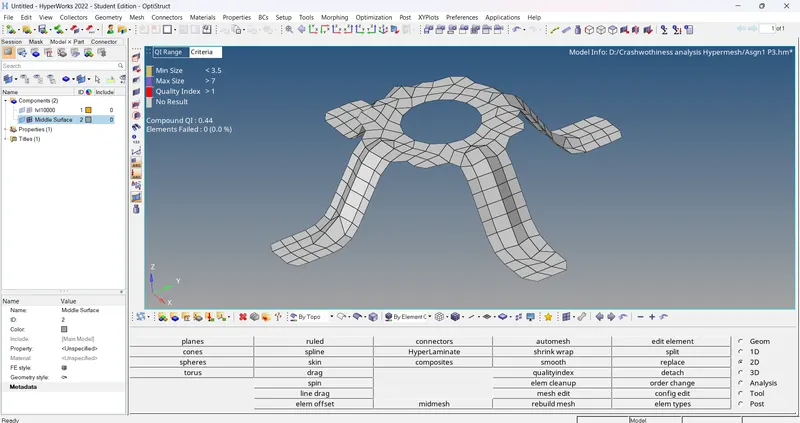
- If mesh flow is poor or getting off elements, then mesh rebuild is required. For that select 'mesh rebuild' option in '2D' section. Then edit criteria and parameters and select the elements. Click on rebuild, mesh gets modify and better.
- For off elements and tria, go to 'quality index' option in '2D' section and use the cleanup tools like place node, swap edge, smooth etc.
Conclusion:- First extracted the midsurface successfully and do a geometry cleanup. After that generate 2D mesh on this middle surface successfully.