Assignment 1-2D Meshing Challenge
Aim : To clean and mesh the given geometry ,in given parameters.
Objective :To perform the geometry cleanup operation on the given files,Clean the geometry,furthermore to Extract midsurface,Clean midsurface geometry ,Ignore holes less than dia 5mm.Create 2D mesh with target length 5mm, min 3.5mm max 7mm and assign proper thickness, by creating a generic property then Save in .hm format.
Given Geometries are shown below :
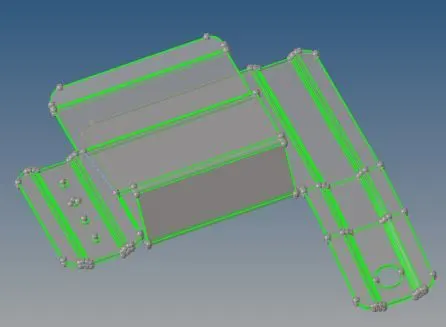
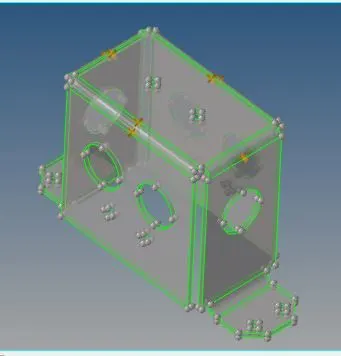
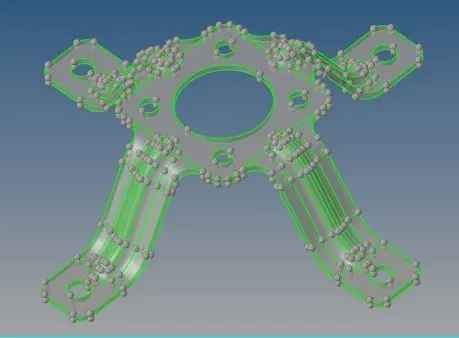
* For model 1
* Importing the file :
* From Tool bar click Open model and click open
* Model 1:
* Cleaning the geometry :
* Keeping the geomerty in subpanel ,select Qucik edit or F11


* Using above tools the model need to cleaneup
* To clean the free edges ,click toggle edge and select the requierd edge .
* To clean triple surface , Click delete surface and delete it.
* The Given geomerty without cleanup are shown below :
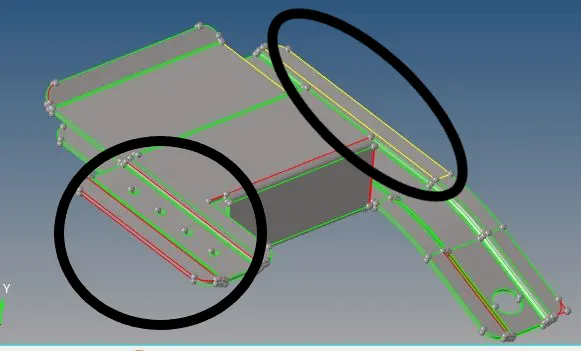
* In above geomerty the encircled region shows that a free edges and triple surfaceses which need to be cleaned .
To open as shown below
* The goemetry after clean up are shown below:
* Extracting the geometry :
*Select the geometry and click midsurface
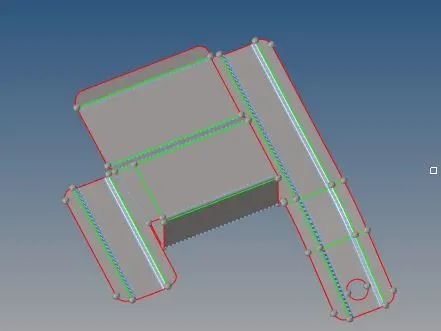
* In Midsurface select the appropriate extraction option .furthermore select the surface which need too be extracted and click extract as shown below :



* The model after extraction are shown below :
* Meshing and mesh errors:
* Selecting the 2d from sub panel and click automesh
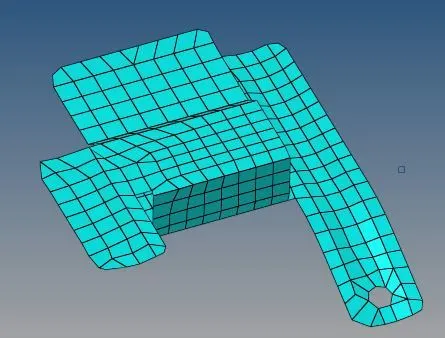
* In auto mesh giving the target element as 5 which is given above ,finally select the required surface which to be meshed and click mesh ,are shown below


* The geometry after mesh are shown below
* In sub click tools and to check elements , applying the give mesh creteria .finally checking the errors
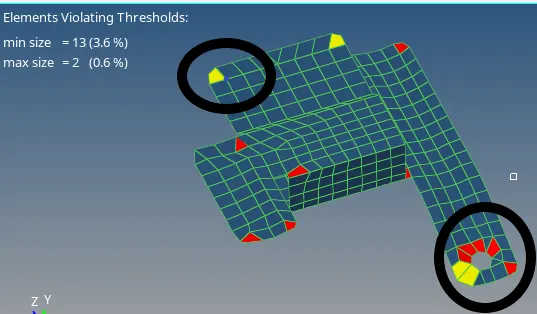
* In mesh creteria the maximum and minimum length are give as 3.5and 7


* The mesh errors in geometry are shown below
* The above shown mesh erros can be solved using below options
*Click to 2d and then to quality index ,further to cleanup tools
* In clean up tools there are similar options which is used to correct above erros

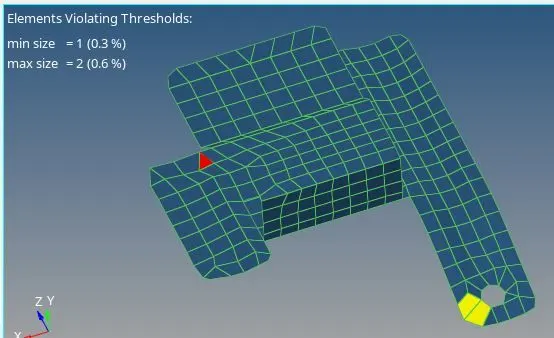
* It is possible to edit the creteria in quality index are shown below in encircled region


* The Model before mesh correction :
* The Model after mesh correction :
* Assigning the thickness of the mODEL:
* Click to geometry in sub panel and select the distance ,Measure the thickness of given model .
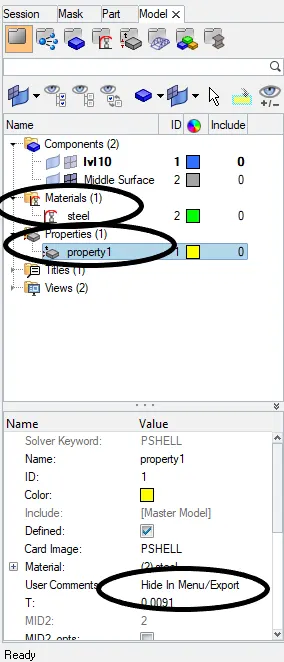
* Right click the mouse ,create a material of steel and a property by same processes
* Assign the thickness value in entity editor as show below .
* The thickness measured are 0.019mm
* The below encircled region shows that created material,property and thickness assigned .
* Conclusion : The given model can be performed with given mesh creteria ,extraction can be done . the file are attached below
For model 2
Aim : To clean and mesh the given geometry ,in given parameters.
Objective :To perform the geometry cleanup operation on the given files,Clean the geometry,furthermore to Extract midsurface,Clean midsurface geometry ,Ignore holes less than dia 5mm.Create 2D mesh with target length 5mm, min 3.5mm max 7mm and assign proper thickness, by creating a generic property then Save in .hm format.
Given Geometry 2 are shown below :
* Importing the file :
* From Tool bar click Open model and click open
* Cleaning the geometry :
* Keeping the geomerty in subpanel ,select Qucik edit or F11
* Using above tools the model need to cleaneup
* To clean the free edges ,click toggle edge and select the requierd edge .
* To clean triple surface , Click delete surface and delete it.
* The Given geomerty without cleanup are shown below :
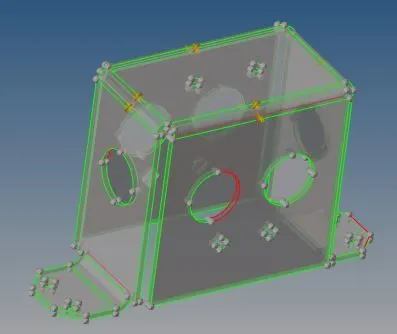
* In above geomerty the encircled region shows that a free edges and triple surfaceses which need to be cleaned .
To open as shown below
* The goemetry after clean up are shown below:
* Extracting the geometry :
*Select the geometry and click midsurface
* In Midsurface select the appropriate extraction option .furthermore select the surface which need too be extracted and click extract as shown below :
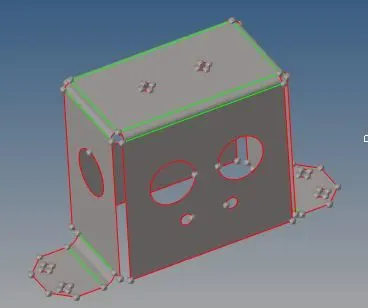
* The model after extraction are shown below :
* Meshing and mesh errors:
* Selecting the 2d from sub panel and click automesh
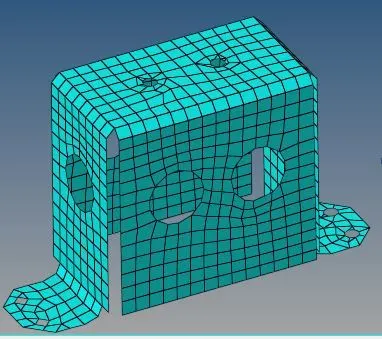
* In auto mesh giving the target element as 5 which is given above ,finally select the required surface which to be meshed and click mesh ,are shown below
* The geometry after mesh are shown below
* In sub click tools and to check elements , applying the give mesh creteria .finally checking the errors
* In mesh creteria the maximum and minimum length are give as 3.5and 7
* The mesh errors in geometry are shown below
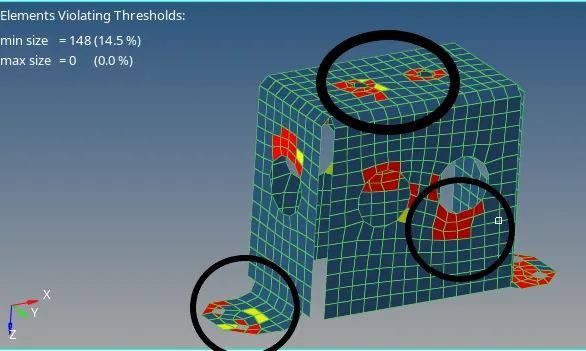
* The above shown mesh erros can be solved using below options
*Click to 2d and then to quality index ,further to cleanup tools
* In clean up tools there are similar options which is used to correct above erros
* It is possible to edit the creteria in quality index are shown below in encircled region
* The Model before mesh correction :
* The Model after mesh correction :
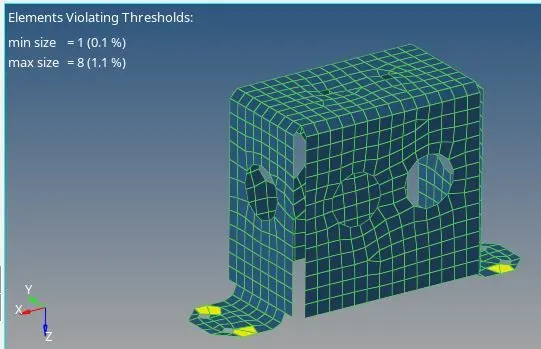
* Assigning the thickness of the mODEL:
* Click to geometry in sub panel and select the distance ,Measure the thickness of given model .
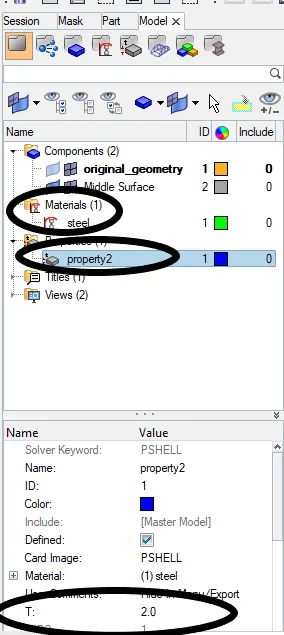
* The thickness measured are 2mm
* Right click the mouse ,create a material of steel and a property by same processes
* Assign the thickness value in entity editor as show below .
* The below encircled region shows that created material,property and thickness assigned .
* Conclusion : The given model can be performed with given mesh creteria ,extraction can be done . the file are attached below
For Model 3
Aim : To clean and mesh the given geometry ,in given parameters.
Objective :To perform the geometry cleanup operation on the given files,Clean the geometry,furthermore to Extract midsurface,Clean midsurface geometry ,Ignore holes less than dia 5mm.Create 2D mesh with target length 5mm, min 3.5mm max 7mm and assign proper thickness, by creating a generic property then Save in .hm format.
Given Geometry 3 are shown below :
* Importing the file :
* From Tool bar click Open model and click open
* Cleaning the geometry :
* Keeping the geomerty in subpanel ,select Qucik edit or F11
* Using above tools the model need to cleaneup
* To clean the free edges ,click toggle edge and select the requierd edge .
* To clean triple surface , Click delete surface and delete it.
* The Given geomerty without cleanup are shown below :
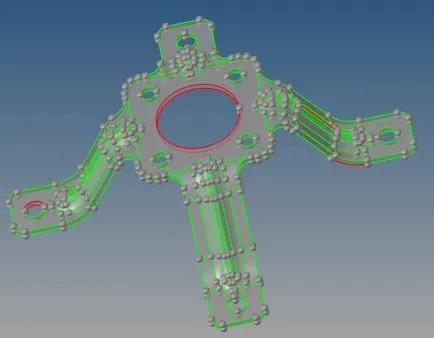
* In above geomerty the encircled region shows that a free edges and triple surfaceses which need to be cleaned .
To open as shown below
* The goemetry after clean up are shown below:
* Extracting the geometry :
*Select the geometry and click midsurface
* In Midsurface select the appropriate extraction option .furthermore select the surface which need too be extracted and click extract as shown below :
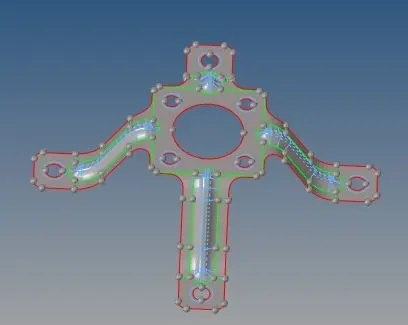
* The model after extraction are shown below :
* Meshing and mesh errors:
* Selecting the 2d from sub panel and click automesh
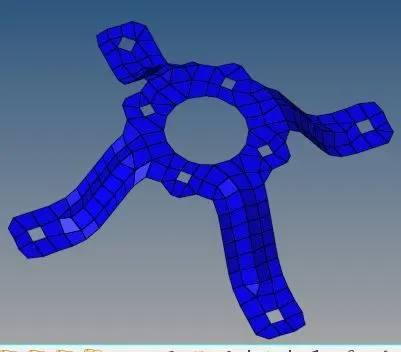
* In auto mesh giving the target element as 5 which is given above ,finally select the required surface which to be meshed and click mesh ,are shown below
* The geometry after mesh are shown below
* In sub click tools and to check elements , applying the give mesh creteria .finally checking the errors
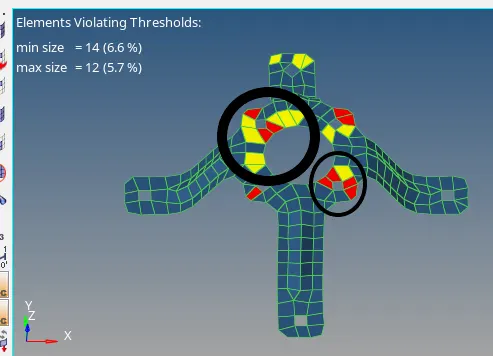
* In mesh creteria the maximum and minimum length are give as 3.5and 7
* The mesh errors in geometry are shown below
* The above shown mesh erros can be solved using below options
*Click to 2d and then to quality index ,further to cleanup tools
* In clean up tools there are similar options which is used to correct above erros
* It is possible to edit the creteria in quality index are shown below in encircled region
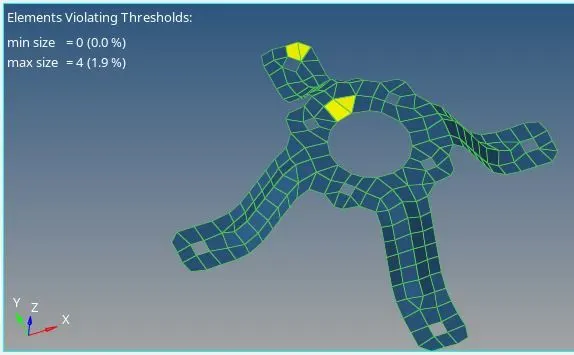
* The Model before mesh correction :
* The Model after mesh correction :
* Assigning the thickness of the mODEL:
* Click to geometry in sub panel and select the distance ,Measure the thickness of given model .
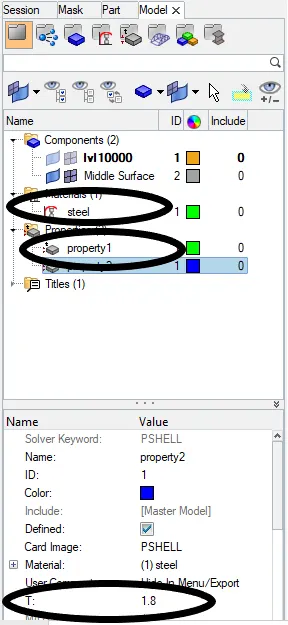
* Right click the mouse ,create a material of steel and a property by same processes
* Assign the thickness value in entity editor as show below .
* The thickness measured are 1.8mm
* The below encircled region shows that created material,property and thickness assigned .
* Conclusion : The given model can be performed with given mesh creteria ,extraction can be done . the file are attached below