Assignment 1
AIM:
To extract the midsurface for the given component and mesh it with given quality criteria.
METHODOLOGY:
- Importing the model.
- Cleaning the imported geometry.
- Extracting the midsurface for the geometry.
- Meshing the surfaces with given quality criteria.
NOTE:
For all the models procedure is same.
PROCEDURE:
- Import the model from the folder.
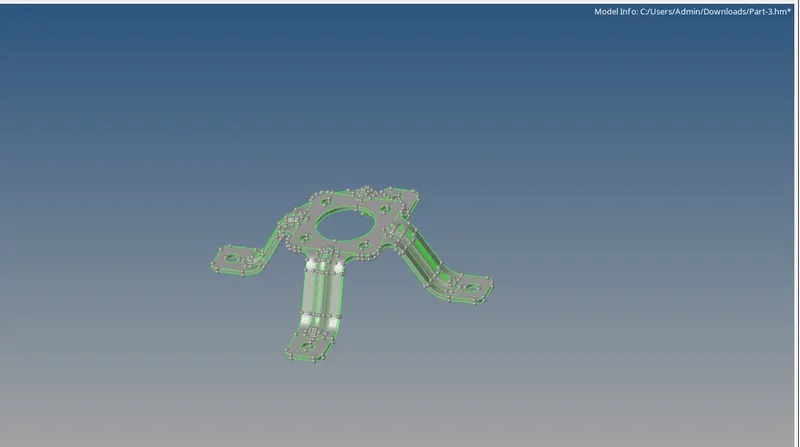
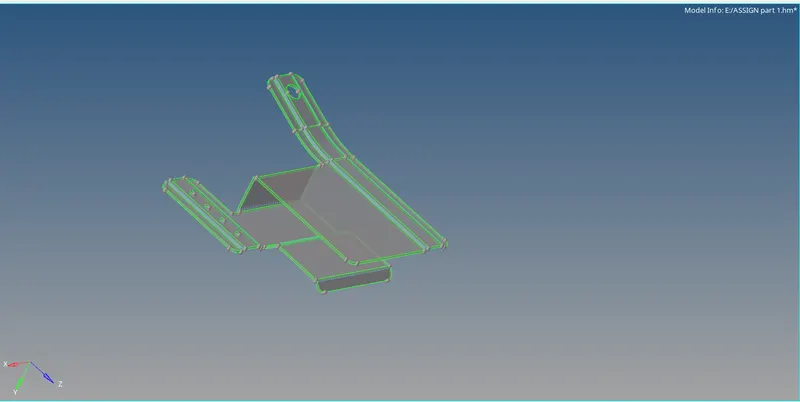
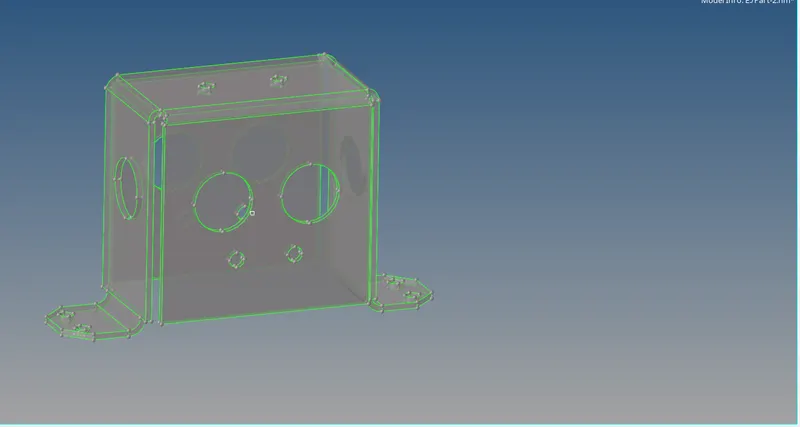
Figures-1,2,3 (Importing the models)
- Set the user as ‘RADIOSS’ and select okay.
- Cleaning the geometry with appropriate tools.
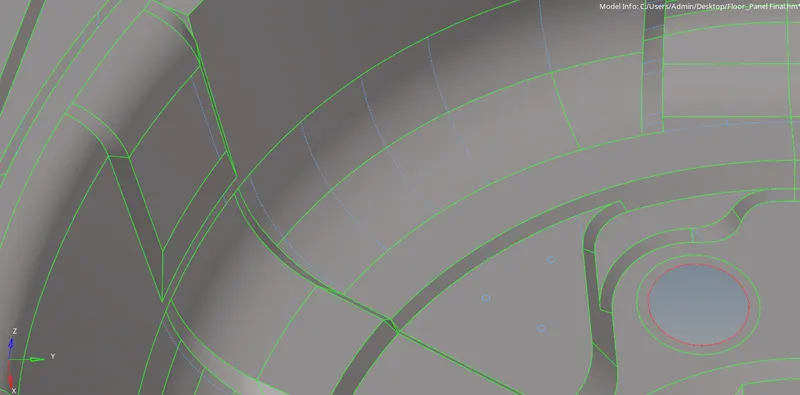
Figure-4(Cleaning the models)

Figure-5(Cleaning tools)
- Go to geom panel, select ‘midsurface’.
- Select the surfaces and click on extract.
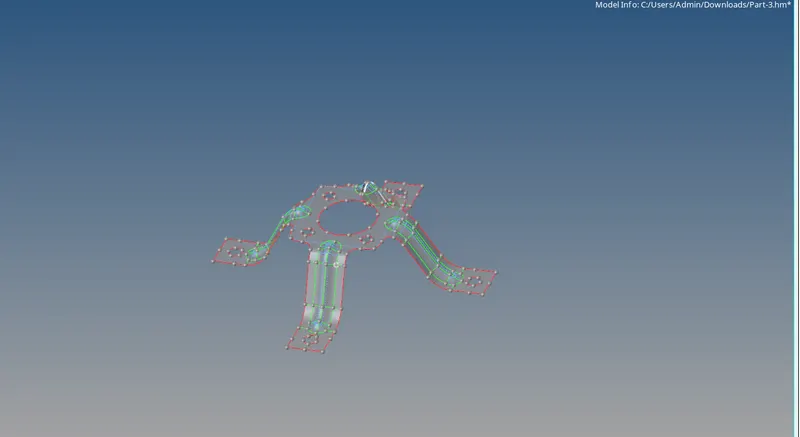
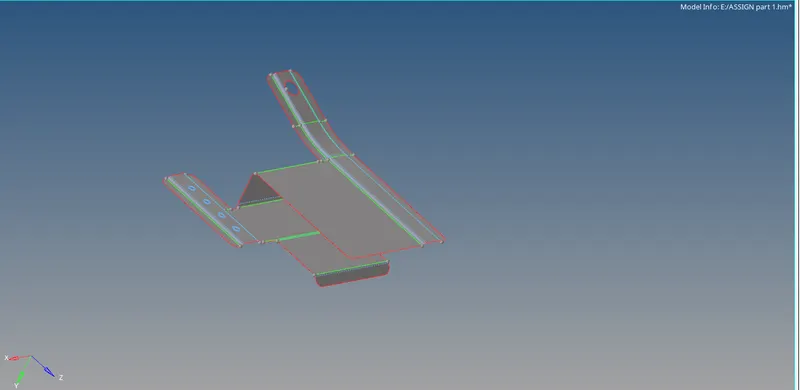
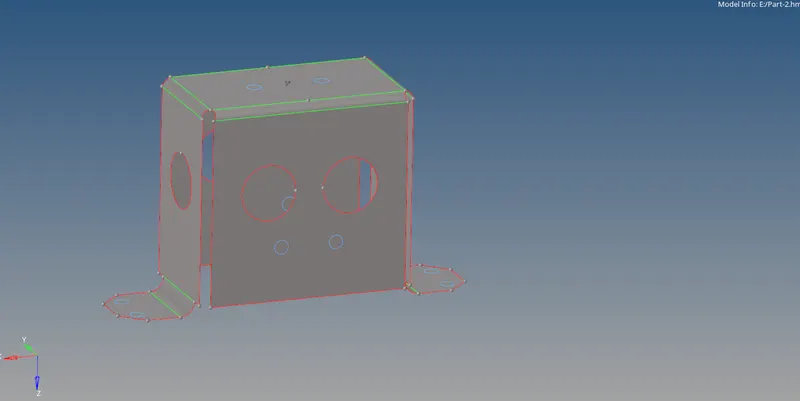
Figures-6,7,8(Extracating the midsurfaces)
- Hide the parent geometry and edit the midsurface if any.
- Spilt the model into small parts to mesh it.
- Set the quality criteria in quality editor panel and click ‘apply’.
- Change the view to by element quality mode.
- Mesh each segregated parts to obtain a good mesh flow.
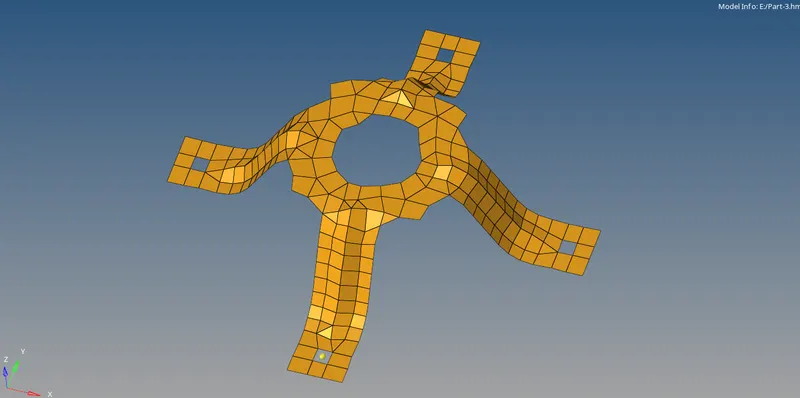
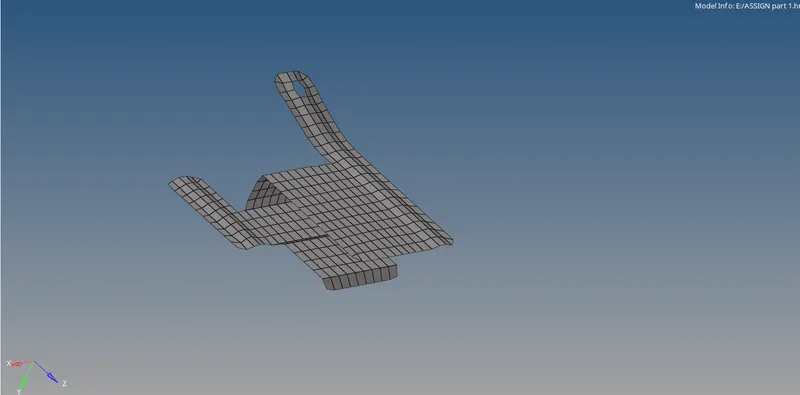
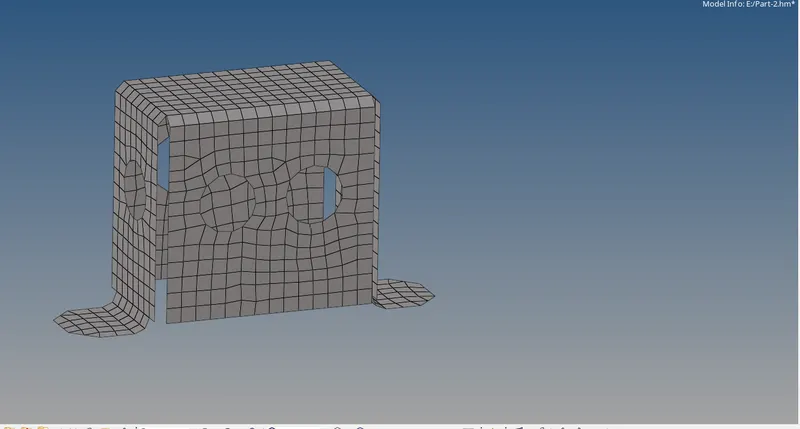
Figures- 9,10,11( Meshed surfaces)
- Finds the errors and solve it with different options like
- Drag tria elements
- Element clean up
- Element Optimize etc
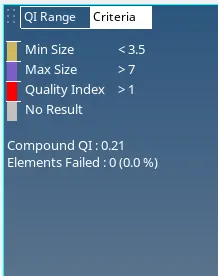
FIgure-13(Zero element failed)
Assign the thickness:
- Enable the parent geometry.
- Measure the distance at different locations and note down the values.
- Create a new property card in tool bar.
- Set the thickness value.
- Right click on component card and select ‘assign’.
- Select the property & material, and click on ‘apply’ and ‘ok’.
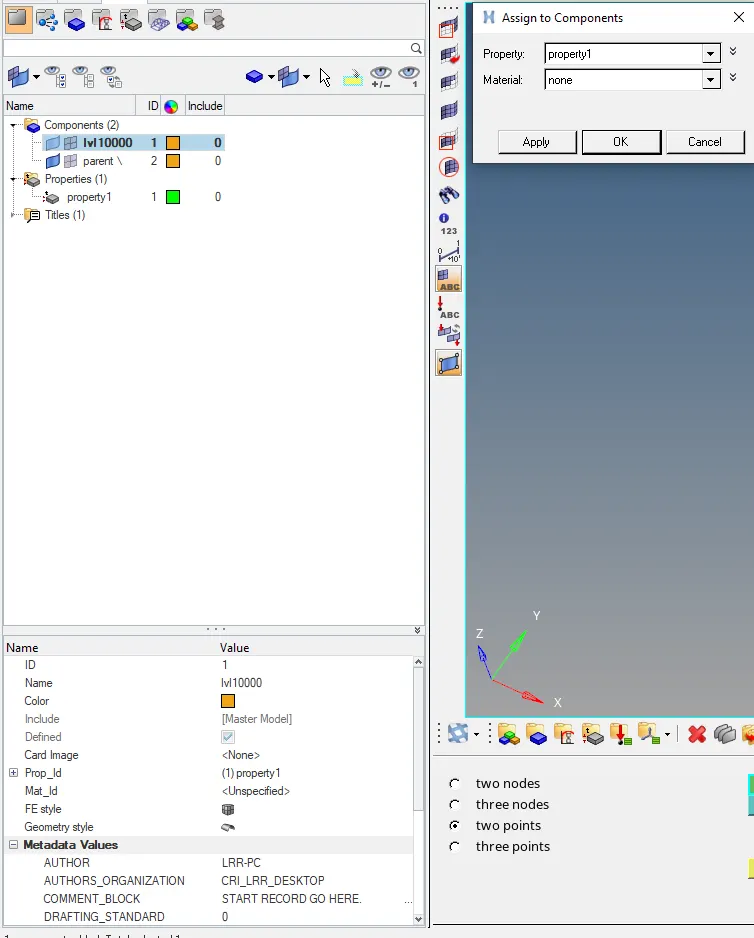
Figure-15(Assigning thickness)
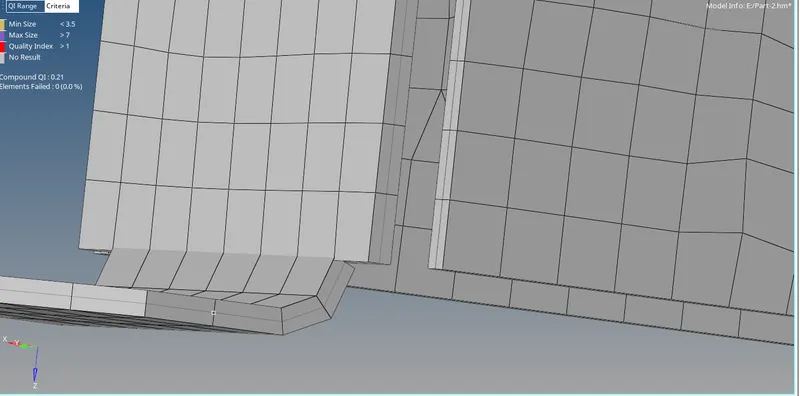
Figure-16(After assigning thickness)
RESULT:
The midsurfaces are extracted for the given models and meshed the model with quality criteria.
Thickness is also to each component.
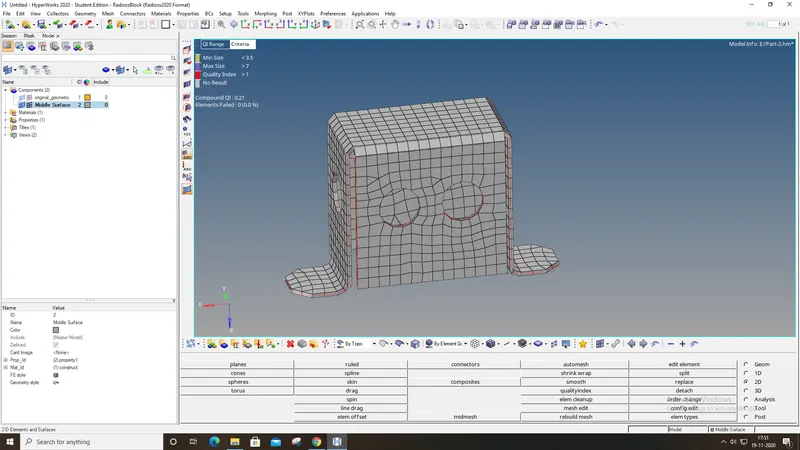
Figure-17( final model with thicknes)