3D Creation of Celing, Roof, Architectural plan, Structural plan, Sectional view, Elevation view and Camera specific view for a house plan using REVIT
1) Based on the project saved from Week 3, proceed from the First Floor Level. Model a Ceiling from the architecture tab above the walls at the first-floor level
ANS:
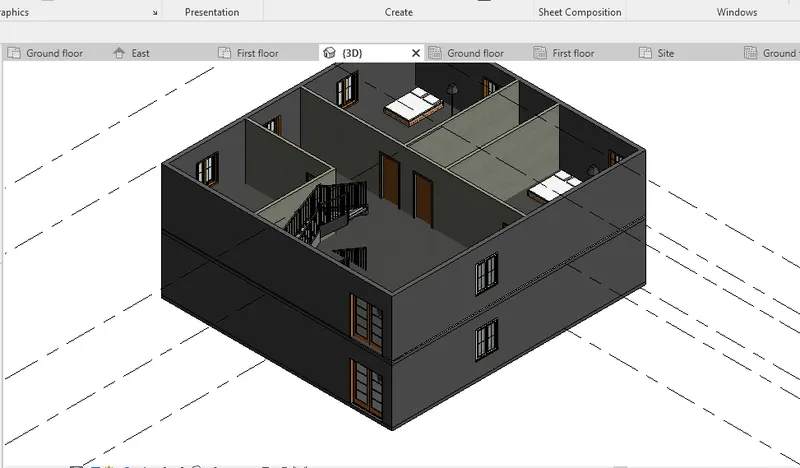
1. First we have to open the previous file from the revit.
2.Then from the first floor plan go to architecture tab and select ceiling.
3.Then select the sketch ceiling ans select the internal side of the walls.
4.Then click tick ok for ceiling .
5.To cross check the ceiling go to 3D view and check.
2) Model a roof above the ceiling by selecting the footprints of the ceiling. Using the adjustment toolbars appearing on-screen adjust the roof slope to 10 degrees
ANS:
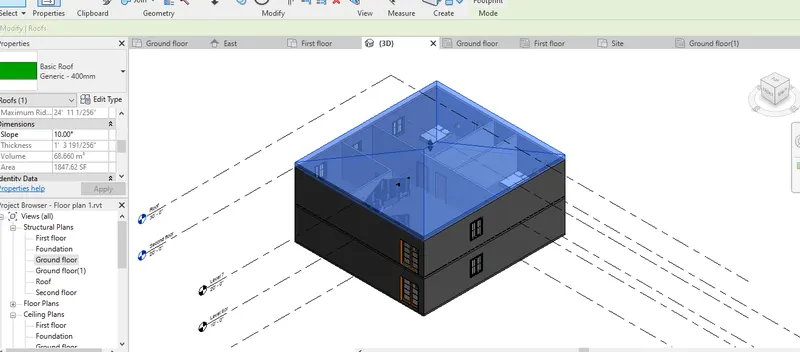
1.Then from the same revit file used in qs 1.
2.Go to architectural tab and select Roof option.
3.Then select the walls that roof have to cover.
4.Then click tick ok for roof .
5.Then Roof will appear.
6.Then to set the roof slope to 10 degrees from slope in property browser.
3) Using the file saved from weeks 2 to 4, create plan views for ground floor level and first-floor level including all the walls, floors, and components. Separate them to
architecture and structural plans
a. Architecture plan must have walls, floors, and all the components placed within the building
b. Structure plan must have details of only walls, floors, and columns
ANS:
a)Architecture plan must have walls, floors, and all the components placed within the building
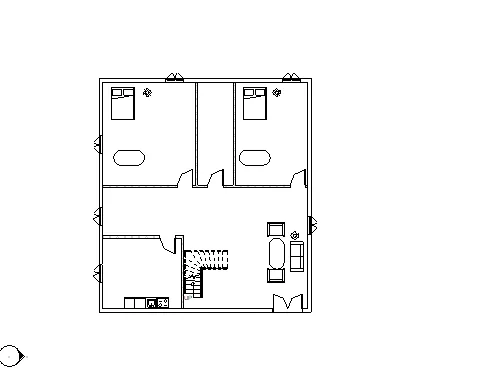
1. From the view tab Select the floor plan option then the architectural plan will appear.
2.The Architectural plan consists of walls, internal equipments.
b)Structure plan must have details of only walls, floors, and columns
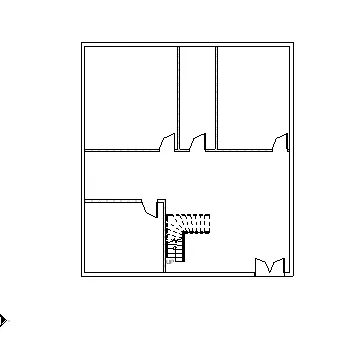
1. From the view tab Select the Structural plan option then the Structural plan will appear.
2.The Structural plan consists of walls, stairs, columns, beams.
4) Using annotate toolbar add dimensions to all the walls and floors with reference to the longitudinal and transverse grids created in the project file
a. The architecture plan dimensions include details on where the components are placed within the buildings with relation to grids. Overall dimensions are sufficient for architecture plans
b. The Structure plan dimensions must include details on the position of all the walls and interior walls with reference to grids. Locate all the framing components of the building with reference to a fixed point using Structural plans
ANS:
a)The architecture plan dimensions include details on where the components are placed within the buildings with relation to grids. Overall dimensions are sufficient for architecture plans.
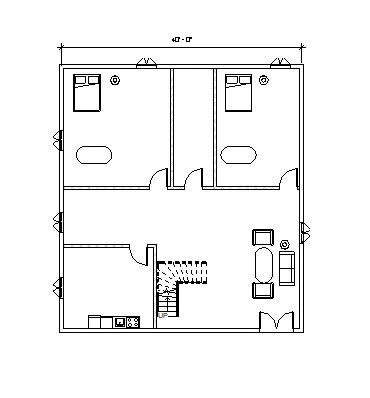
b) The Structure plan dimensions must include details on the position of all the walls and interior walls with reference to grids. Locate all the framing components of the building with reference to a fixed point using Structural plans
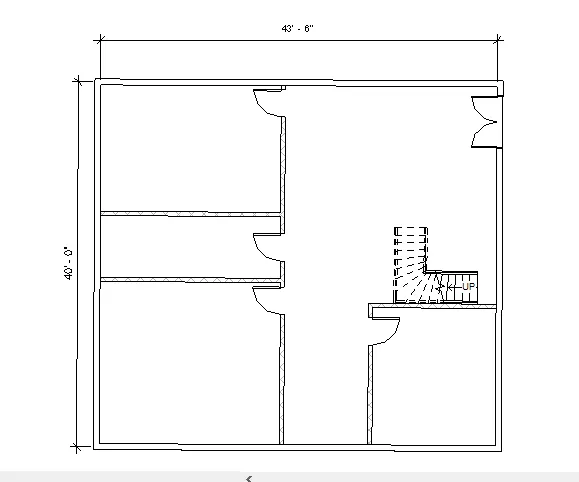
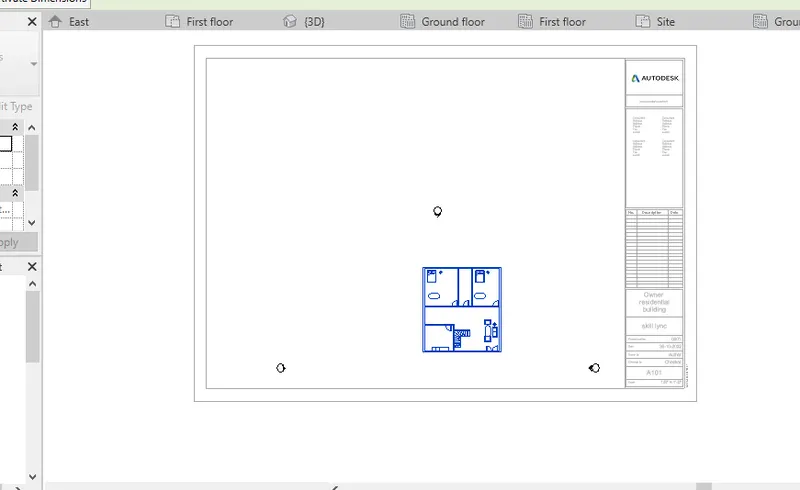
5) Create a sheet template from the view tab and adjust the parameters on the sheet to add appropriate views
ANS:
1.From the view tab select the sheet tab .
2.Then adjust the parameters and details on the sheet.
3.Then add any view of the drawing.
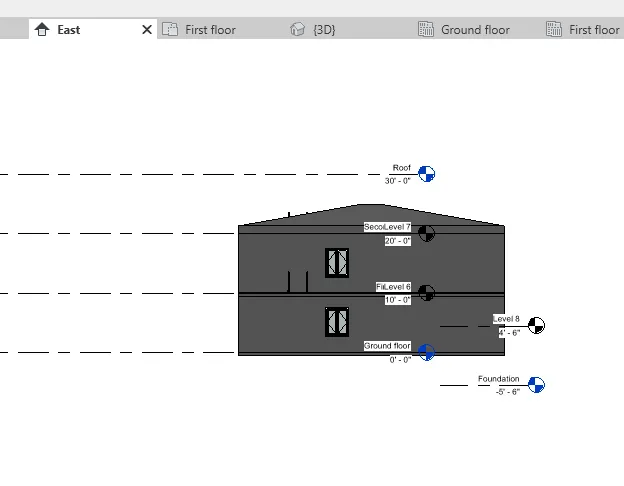
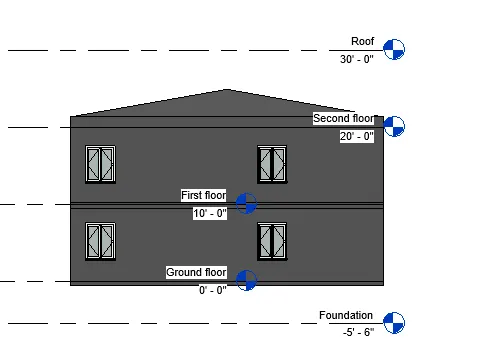
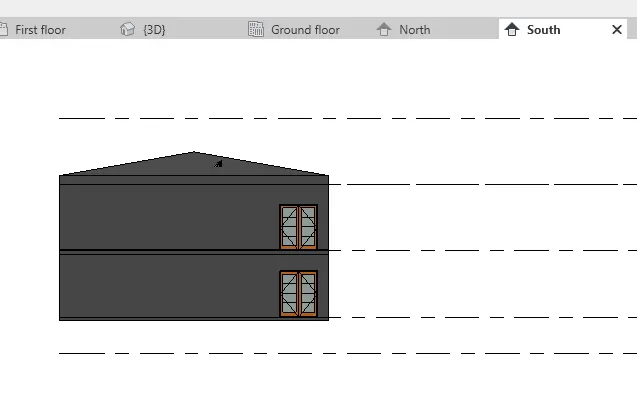
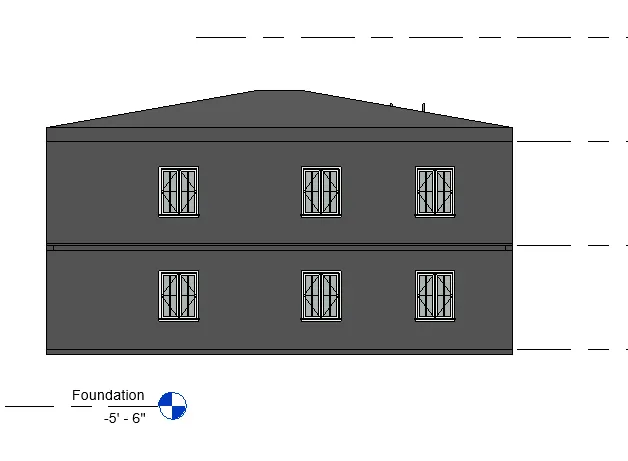
6) Using the elevation tab create the elevation views, looking at your building from East, North, South, and West
ANS:
1.The elevations are already in the property browser.
2.If not from the top there is a option of elevation.
3.Select and view the elevations EAST,NORTH,WESt and SOUTH.
EAST
NORTH
SOUTH
WEST
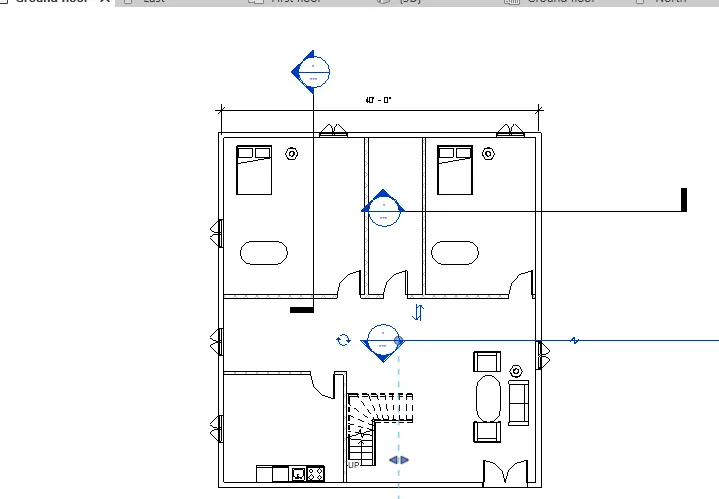
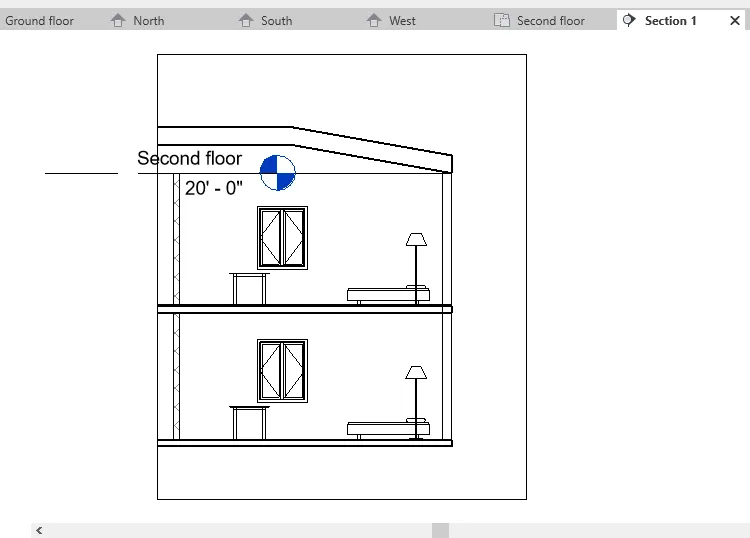
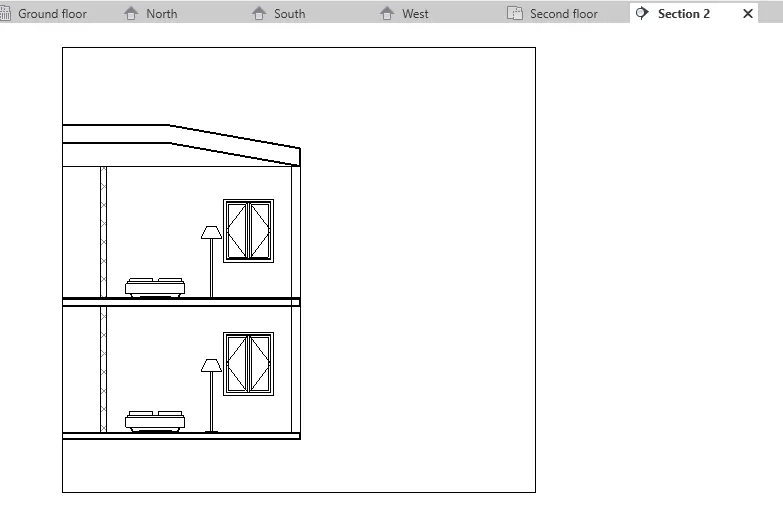
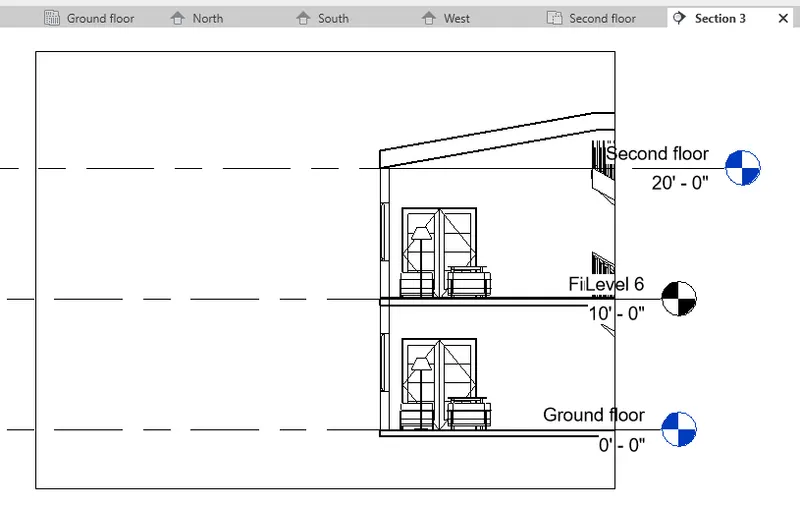
7) Produce section cut through each room either cutting across longitudinally or in a transverse direction
ANS:
1.In view tab there is a icon of sections.
2.Then by selecting section command we can view the different sections.
SECTION -1
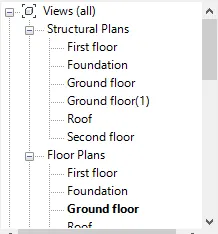
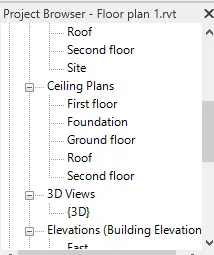
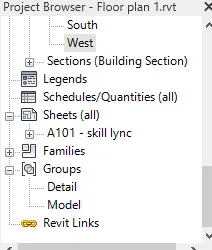
8) Classify the views, Plan Views, Section Views, and Elevation views to either Design or Documentation category using Properties browser
ANS:
1.From the property browser we can see the views, Plan Views, Section Views, and Elevation views.
9) Using the sheet template produced create multiple sheets as follows
ANS:
1.From the view tab select the sheet tool.
2.Then set the parameters ans show the required views from view ports.
a. A 101- Ground Floor Architecture Plan
b. A 102- First Floor Architecture Plan
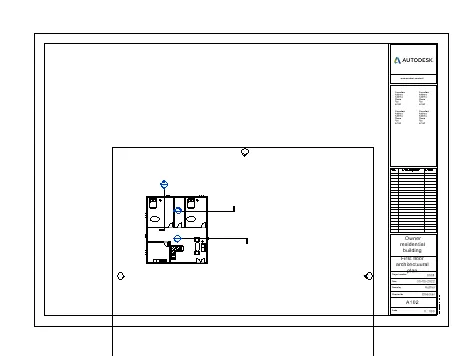
c. A 103- Roof Plan
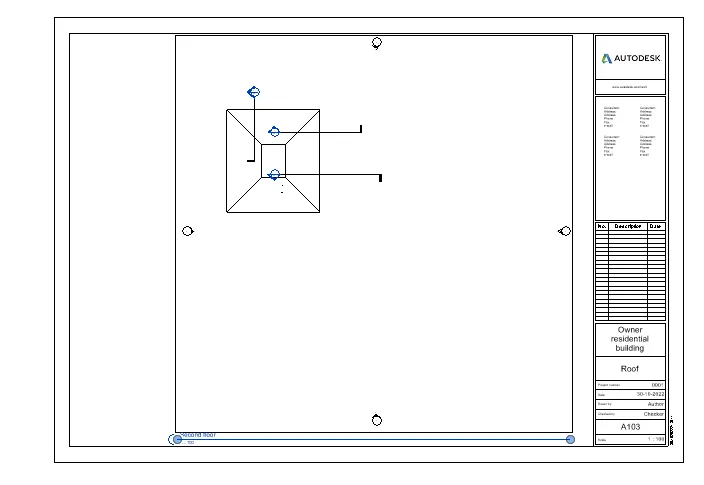
d. S 101- Ground Floor Structural Plan
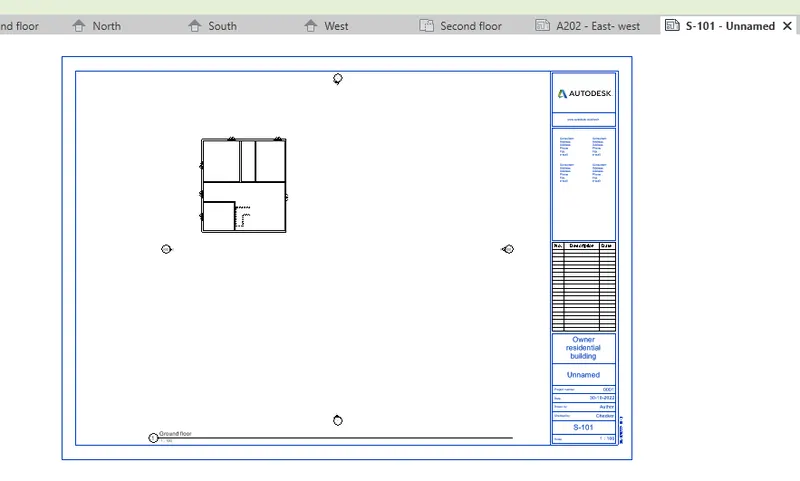
e. S 102- First Floor Structural Plan
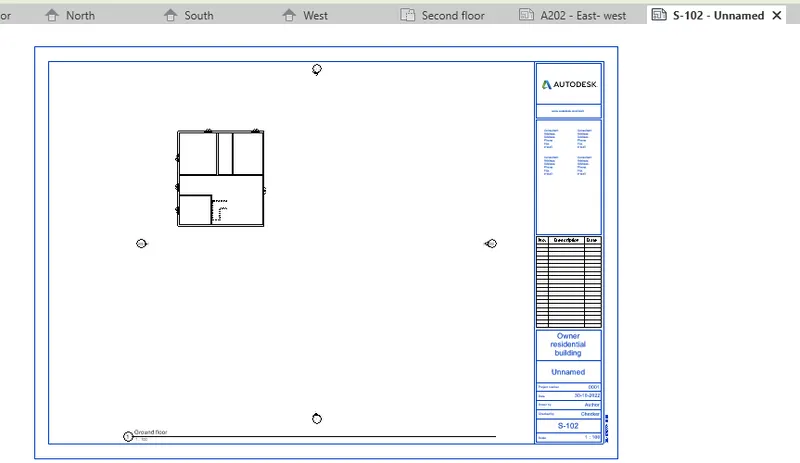
f. S 103- Roof Framing Plan
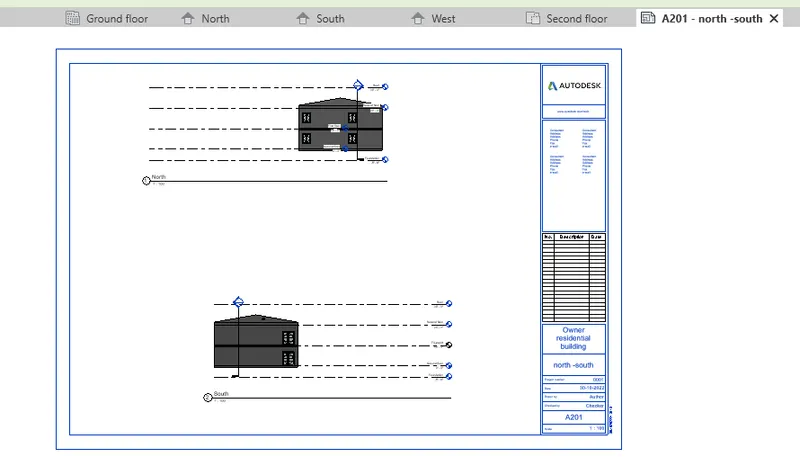
g. A-201- North-South Elevations
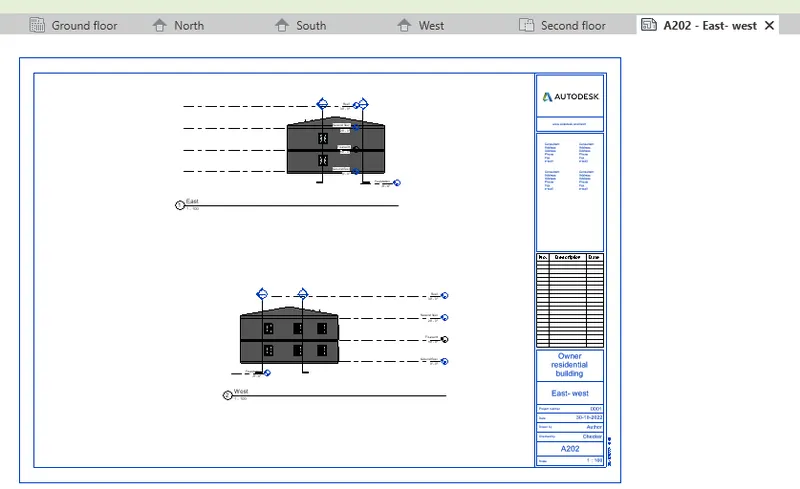
h. A-202- East-West Elevations
Add additional sheets based on the sections created in your Revit file
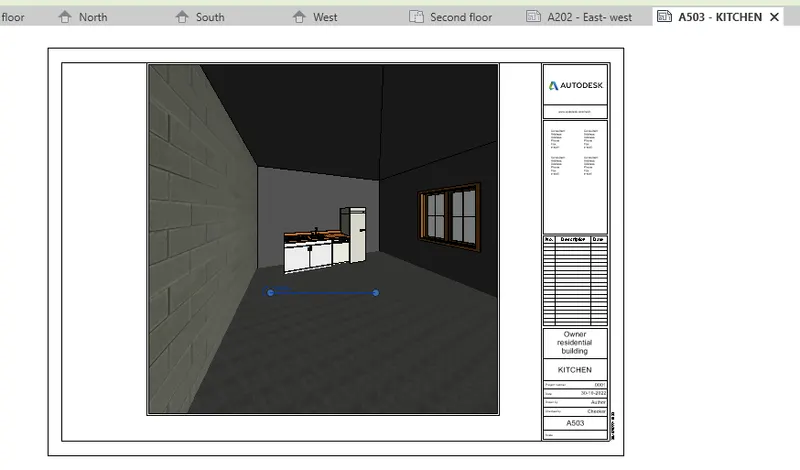
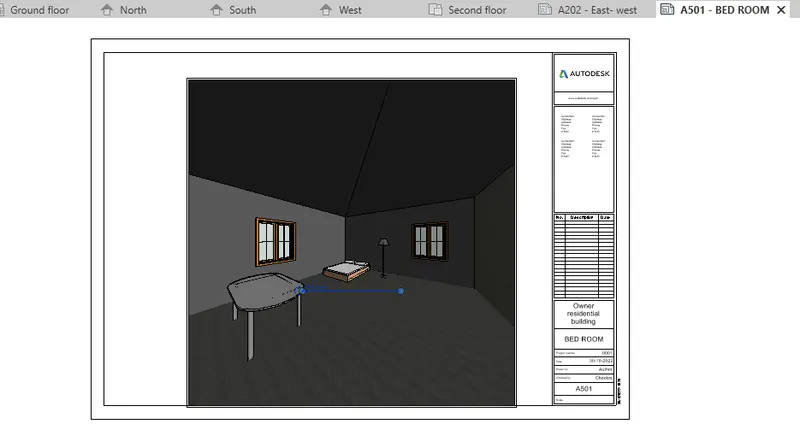
10) Create a camera-specific view or a 3D view in each room ( living, dining, bedroom). Based on the views create a new set of sheets starting A-501 (you can add as many sheets after, 502, 503.. n)to place the 3D view images. Produce the sheets as a part of project drafting.
ANS:
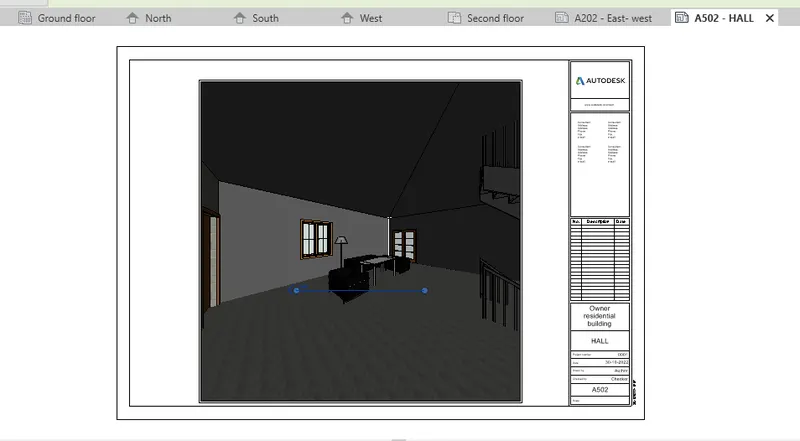
1.From The view tab there is a icon called 3D in that we have the camera tool.
2.Using that tool we can see the view of different Rooms in 3D.
3.Then Select the sheet command open the sheets and show the 3D views of different rooms.
A-501: BEDROOM
A-502: HALL
A-503: KITCHEN