Octave Code for Creating GIF Animation Files: A Step-by-Step Tutorial
Octave Code is one of the most popular open-source problem solvers in the mechanical industry. While it lacks the convenience, efficiency, and premium features like the WriteVideo Functionality in MATLAB, Octave Code is still a fully functional and open-sourced tool that any engineer can use.
 Navin Baskar·9 Aug 2023·5 min read
Octave Code for Creating GIF Animation Files: A Step-by-Step Tutorial
Octave Code is one of the most popular open-source problem solvers in the mechanical industry. While it lacks the convenience, efficiency, and premium features like the WriteVideo Functionality in MATLAB, Octave Code is still a fully functional and open-sourced tool that any engineer can use.
While creating animations in Octave might seem slow and complex, it is actually one of the simpler functions of the tool. In this tutorial, we have simplified the process of simulating problems and animating them into GIF files solely using code.
Simulating the Problem
In general, simulating a problem and creating an animation demands the following code structure:
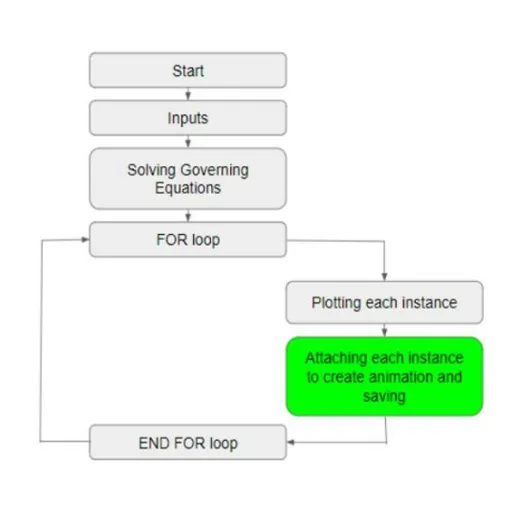
Any simulation begins with specifying the inputs. These inputs are then used to solve the Governing Equations. The governing equations are solved numerically, i.e., the final solution is achieved in a series of marching steps. To view how the solution changes with each marching step, a for loop is used, and at each instance, a new plot is generated and saved to create an animation.
Once this is done, we need to save the plot image at each instance(at each marching step) and animate them in the GIF format.
Animating the Plot using the code
The animation can be processed using a simple code of just 3 lines.
CODE:

Let’s split the code line by line and understand it.
- Line 1: printf('Creating GIF- Progress... %d/%d\n', i, length(t_span));
It is important to keep track of the progress since Octave isn’t very efficient, and the process could take time. This line of code helps us keep track of the progress of the code so that we have a rough idea of the completion time.
Let’s further break this line down into separate functions:
printf - This function is used to print a particular string in the command window. The string we want to print is ‘Creating GIF- Progress... %d/%d\n’.
%d - This is a format specifier. This tells the printf command that a number (integer) should come in this place. The number is mentioned later.
\n - This character creates a new line every time it gets executed. We don’t want to print the progress all in one line.
i - This is the loop variable. The value of this variable is incremented by 1 at each new for-loop iteration.
t_span - This is the marching-step array. A new plot is obtained for each value of t_span, and we need to stitch these into an animation.
Length () - This function returns the total number of elements inside an array.
- Line 2: img = print ('-RGBImage');
We need to create an image object before starting to write it into a GIF file. This statement helps us achieve that. It fetches the current plot image and stores it inside the mentioned variable.
On breaking line 2 into its separate functions, we get:
print() -. The “print” command saves the most recent plot that has been generated. Here, we don't need to save the image physically. Instead, we store the image inside the variable ‘img’. In general, Octave supports four different kinds of images, grayscale images, RGB images, binary images, and indexed images. Here, we’re using the RGB format.
-RGBImage - This option returns the plot image in the RGB format. The image is represented by a matrix M by N by 3 where each of the 3-vectors corresponds to the red, green, and blue intensities of each pixel.
- Line 3: imwrite(img, 'animation.gif', 'DelayTime', .005, 'Compression', 'bzip', 'WriteMode', 'Append');
This statement creates an animation file and keeps attaching the current plot image at each iteration. It also specifies the display time for each image frame inside the gif file and also asks octave to compress each image before appending it into the gif file.
On breaking line 3 into its separate functions, we get:
imwrite() - This function is used to write images in various file formats.
img - The image to be written into the gif file is stored inside img.
animation.gif - This is the name of the output gif file. From the name itself Octave can figure out that the output is going to be a gif file.
DelayTime - This property is used to specify the delay between each frame (image) i.e., at what speed the gif should be displayed. It controls for how long a frame is displayed until it moves to the next one. The value for the property should be in seconds. Here we have provided the delay as 0.005 seconds.
Compression - The raw images obtained using the print function are large in size. So we need to compress to bring each image into a minimum size as it's attached to the gif file. This property is used to accomplish that. The type of compression is mentioned as the value for this property. Here, we’re using the ‘bzip’ compression.
WriteMode - specifies if img should be appended to the file (if it exists) or if a new file should be created for it (possibly overwriting an existing file). The value should be the string "Overwrite" (default), or "Append". Here, we use “Append” because we want to attach images one by one into a gif file.
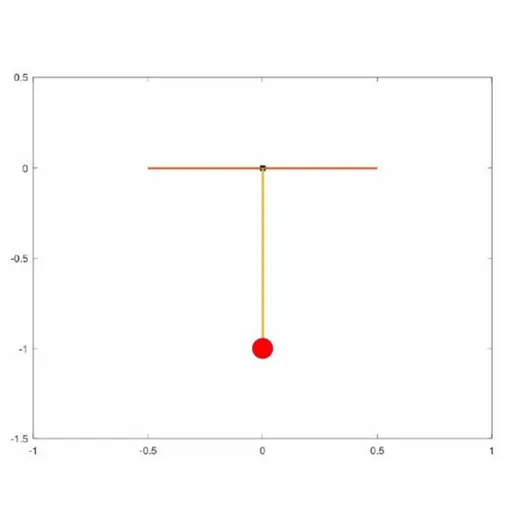
Finally, on executing the code, each new image corresponding to a new for loop iteration is attached and created into an animation in the gif format. The resulting gif animation looks like as shown below;
Octave Code: A true champion of its domain!
Octave Code is a simple, powerful, open-source tool that any Mechanical Engineer must have in their arsenal. While the multiple lines of code and the slow process might seem daunting for someone starting anew, ample practice and clarity about the code will enable the complete utilization of this open-sourced tool. Octave Code is a proven tool for the Design and Analysis of Mechanical Systems— any mechanical engineer aspiring to get into the discipline must have a grasp on this tool.
But is this the domain for you?
Are you someone interested in Mechanical Systems Design & Analysis? Or are you looking to find out the best domain for your skill-set?