SLDD: The Key to Reusable Simulink Models
Simulink Data Dictionary is a signal & data maintaining repository where the signals & calibration data maintained in the form of m-script or loaded into the base workspace can be brought together under a single repository.
 Navin Baskar·11 Jul 2023·2 min read
SLDD: The Key to Reusable Simulink Models
Simulink Data Dictionary is a signal & data maintaining repository where the signals & calibration data maintained in the form of m-script or loaded into the base workspace can be brought together under a single repository.
Unlike other database repositories where the data in it cannot be written or modified, in SLDD, data can be directly modified & edited.
The dictionary stores design data, which define parameters and signals, and includes data that define the behavior of the model. The dictionary does not store simulation data, which are inputs or outputs of model simulation that enter and exit Inport and Outport blocks.
A Simulink data dictionary permanently stores model data, including MATLAB variables, data objects, and data types.
Steps to create SLDD and add dictionary objects :
1) In the Simulink Editor, go to the Modeling tab.
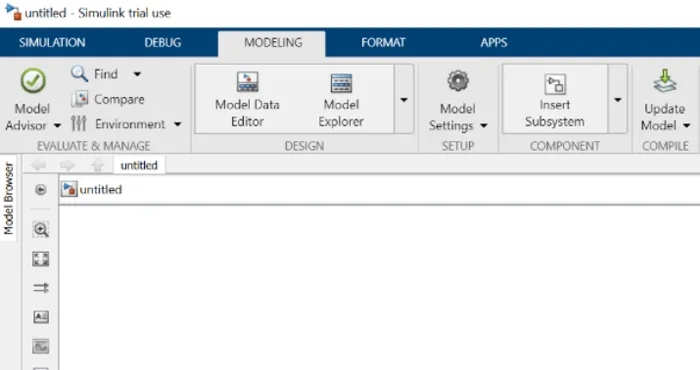
2) Click Model Settings to open the Model Properties.
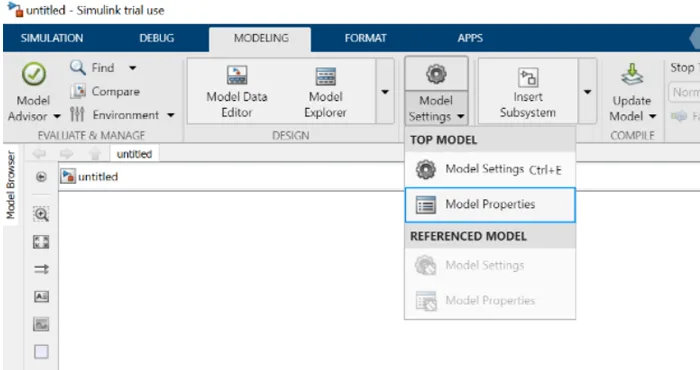
3.In Model properties, choose External Data and click on New to create a new dictionary. Then Apply -> OK.
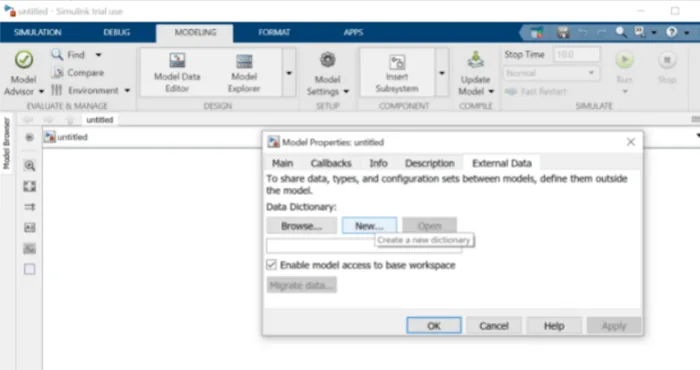
4. Now save the SLDD with your preferred name.
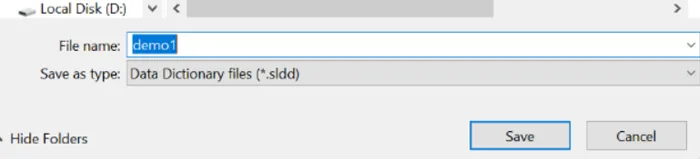
5. Click on Apply -> OK.
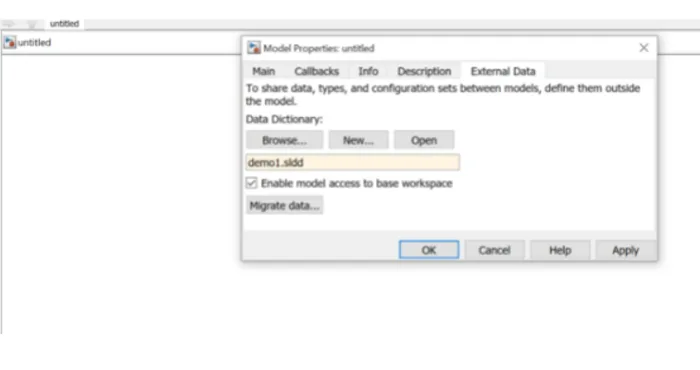
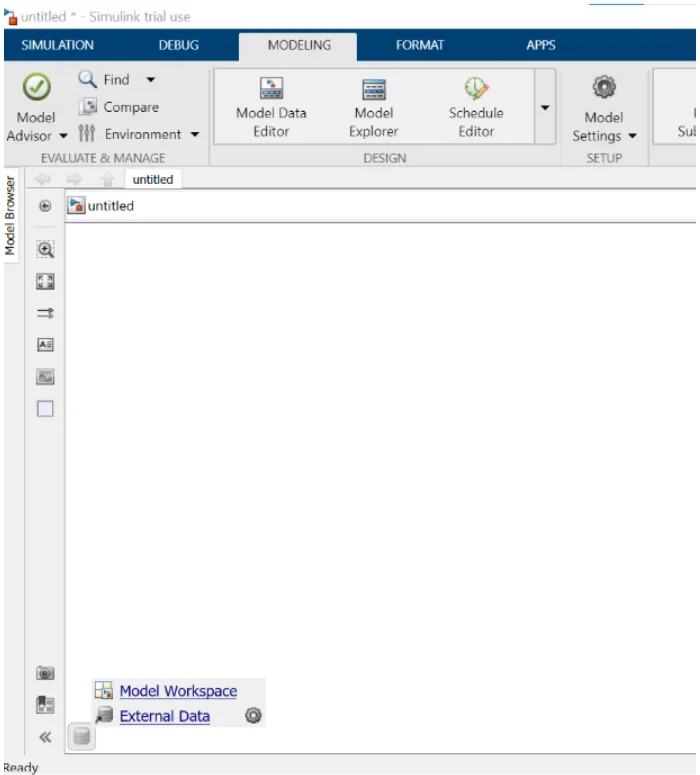
6. Click on the icon at the leftmost bottom of the Simulink screen and click on External Data.
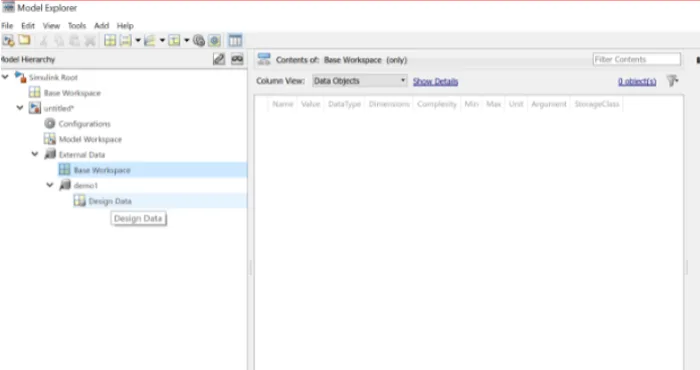
7. Click on Design Data, and you can find a Base workspace.
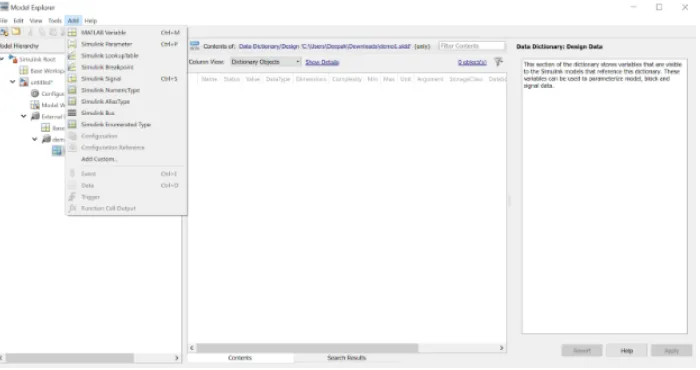
8. To add Parameters, signals, and variables, click on Add and choose.
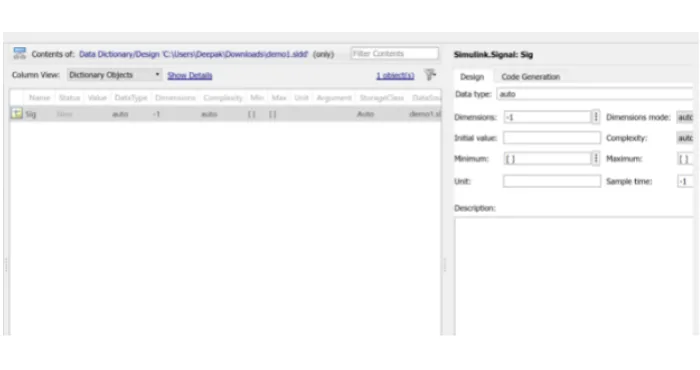
9. For example, here, a simulink signal is chosen.
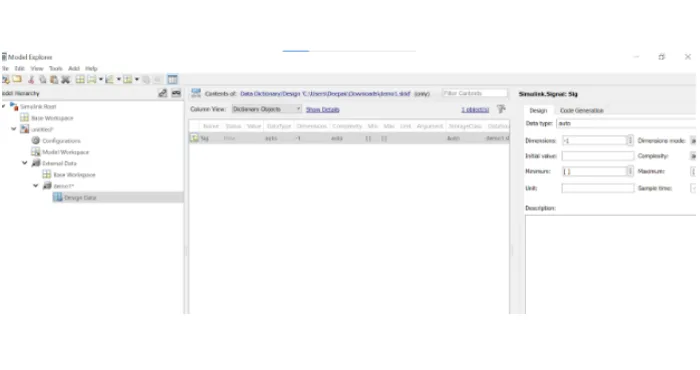
10. The data type , dimensions , min , max value, unit , sample time of the simulink signal can be edited in the Design tab towards the right side of the window.
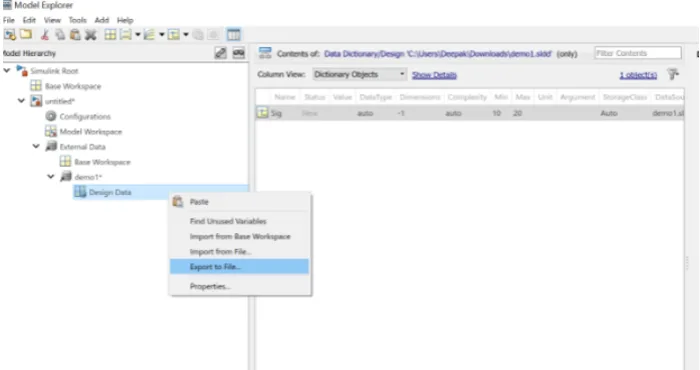
11. In the Model Hierarchy pane, right-click the Design Data section of the dictionary and select Import from File. Then browse to and select the MAT-file or MATLAB file that contains the data to import.
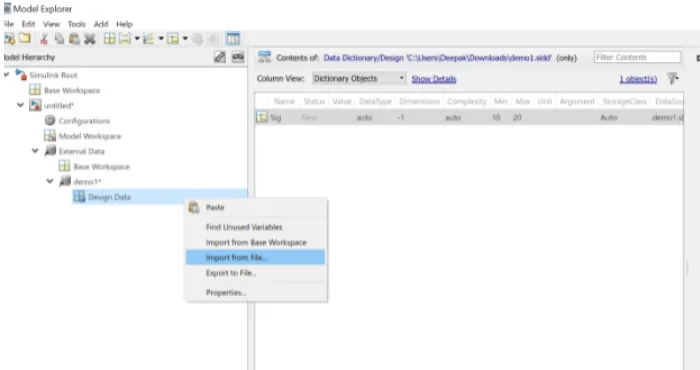
12. In the Model Hierarchy pane, expand the dictionary node and select Design Data > Export to File. Then save the design data to a MAT-file or MATLAB script.