How to Avoid Cut Extrude Disasters in Your Superstructures
Cut extrude is a powerful tool in CAD software, but it can also be a source of problems. If not used correctly, cut extrude can cause serious issues in superstructures.
 Navin Baskar·10 Jul 2023·1 min read
How to Avoid Cut Extrude Disasters in Your Superstructures
ISSUE= Cut Extrude Issue In Superstructures.
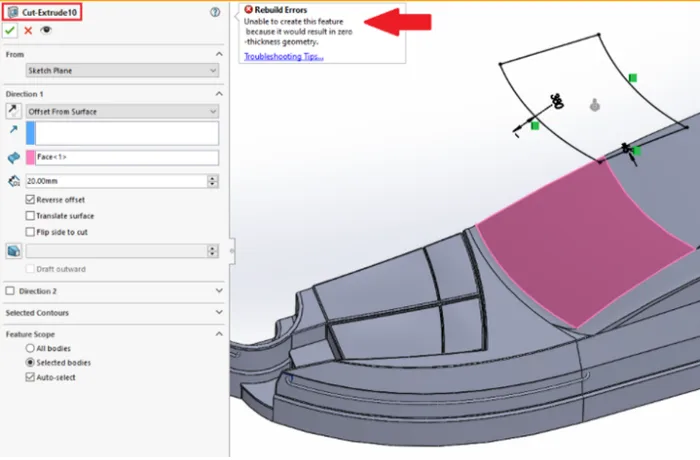
Reason= This is happening because of any one of the following reasons,
- The sketch has some issues because of the converted entity. (or)
- Translate surface checkbox under the direction-1 below reverse offset may not be selected.
Solution=1
- First we will edit the sketch because it may have some issues due to the converted entity.
- After opening the respected sketch, the edge which I have marked in the below picture is creating some issues, i.E. Causing the cut to extrude with some rebuild errors.
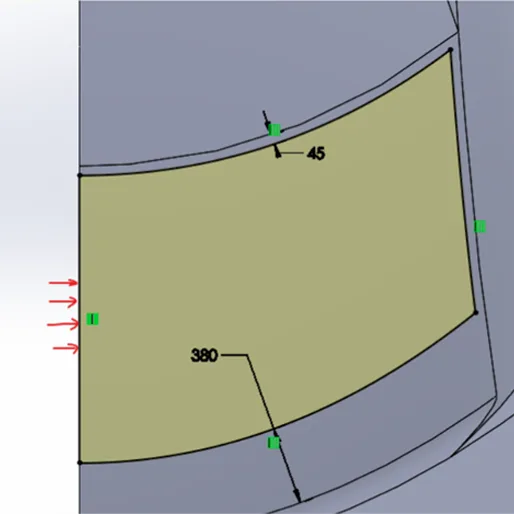
Delete the edge and extend the offset, as shown in the picture below.
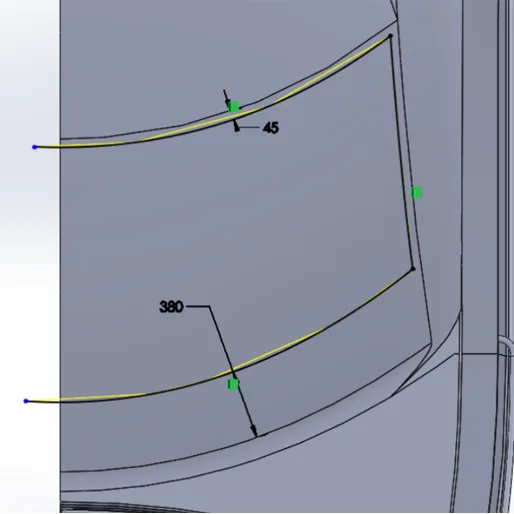
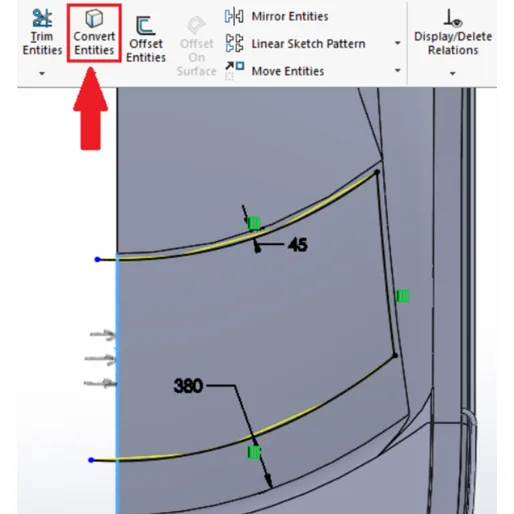
Now we are going to use the converted entity feature on the edge, which we have selected to create a closed sketch and make it usable.
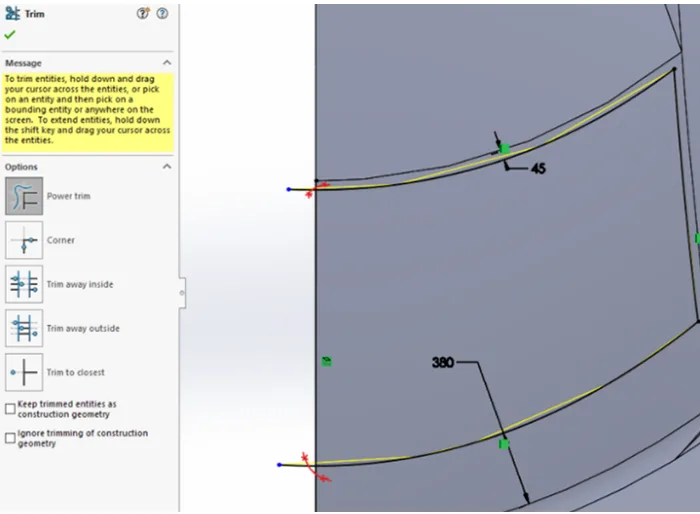
Now use the trim option and trim off the extra portions. To get a proper sketch without any extensions.
In most cases, the cut extrudes will work after doing the modification. If it is not working means you can go for the second solution.
Solution=2
- After creating the sketch, we will perform the cut extrude inside the cut extrude. We need to enable some options.
- Under the cut extrude, we need to make sure that reverse offset and translate surface checkboxes are turned on.
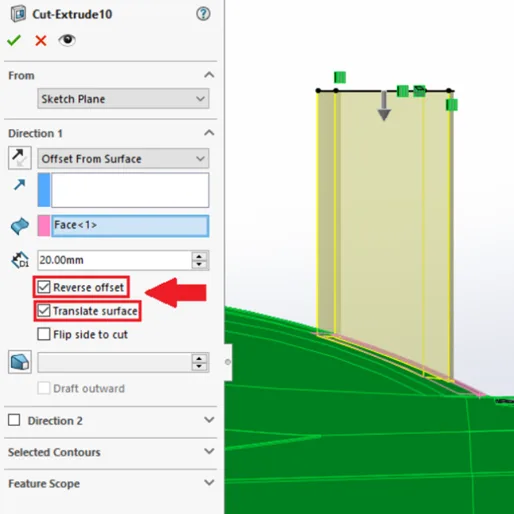
You might also get the cut extrude result after performing this solution step also. Now after performing these two solutions, you will be able to get the expected cut extrude results.
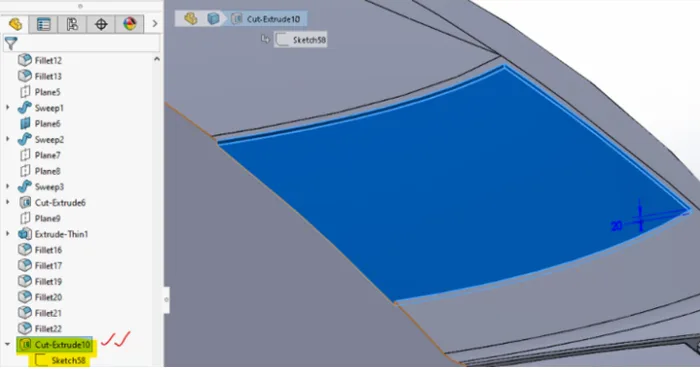
Great!! The cut-extrude is created without any issues.