Wiring harness design in CATIA V5 - 3D modeling Week 7 Challenge
WIRING HARNESS DESIGN IN CATIA V5 – 3D MODELLING WEEK 7 CHALLENGE
AIM:
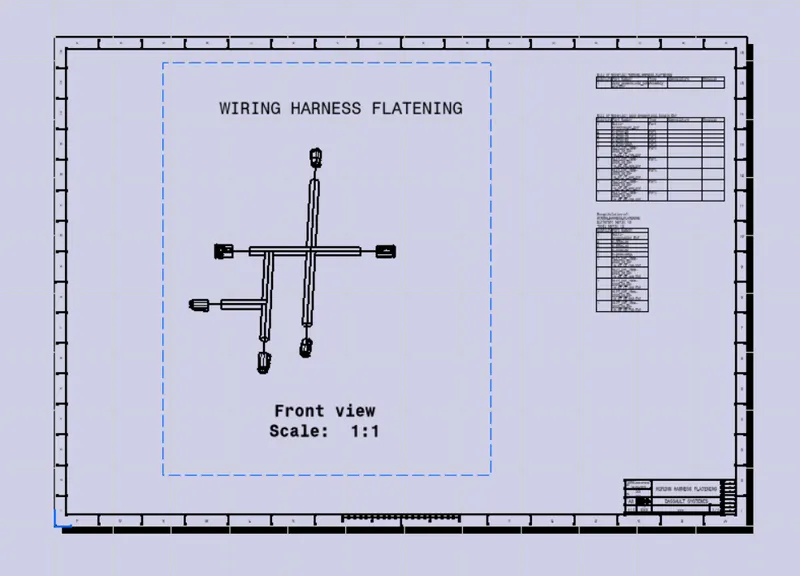
To Flatten the harness assembly completed in “week 4 challenge” then place it in the flattened view on drawing sheet also Ensure bundles with protective coverings has different visuals on drawing view.
GIVEN MODEL:
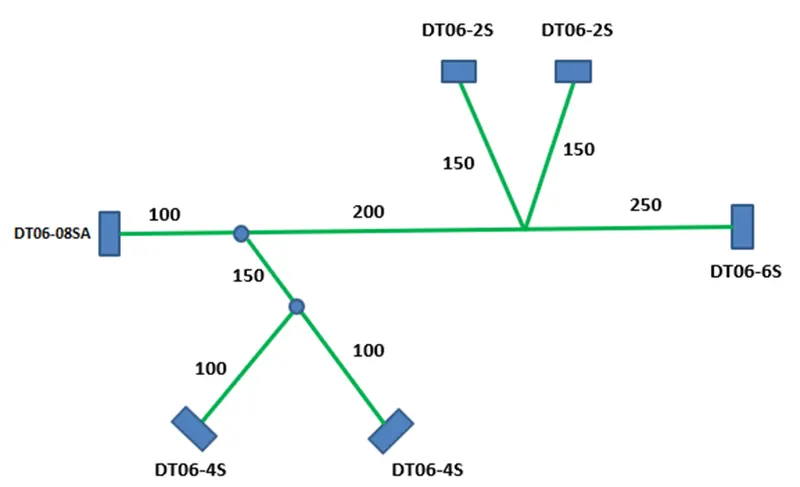
WIRING HARNESS MODEL:
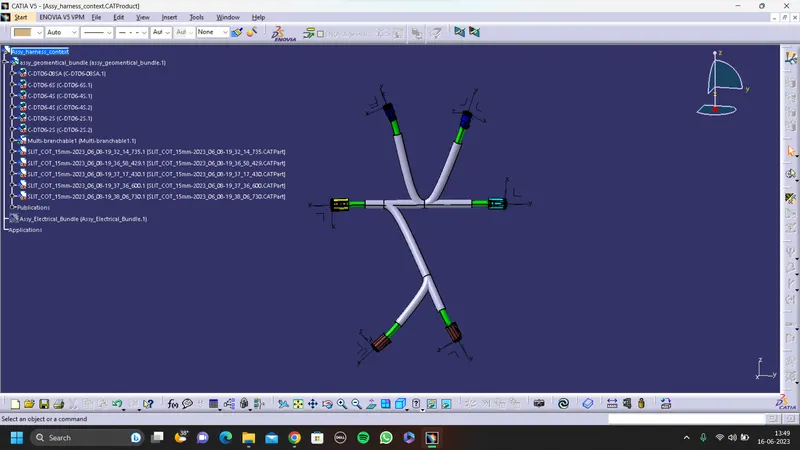
FLATTENING THE WIRING HARNESS:
STARTUP AND PARAMETER SETUP:
Initially open the New Product file in CATIA then open the Electrical Harness Flattening by following steps as shown below.
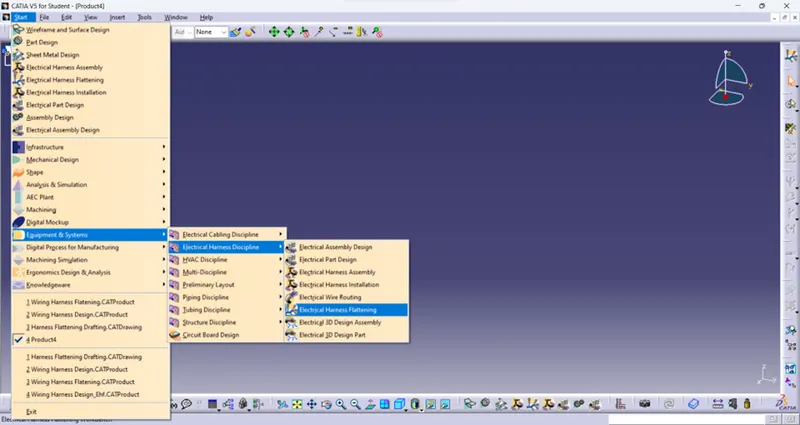
After open the Flattening setup then click the Harness Flattening Parameter as shown below.
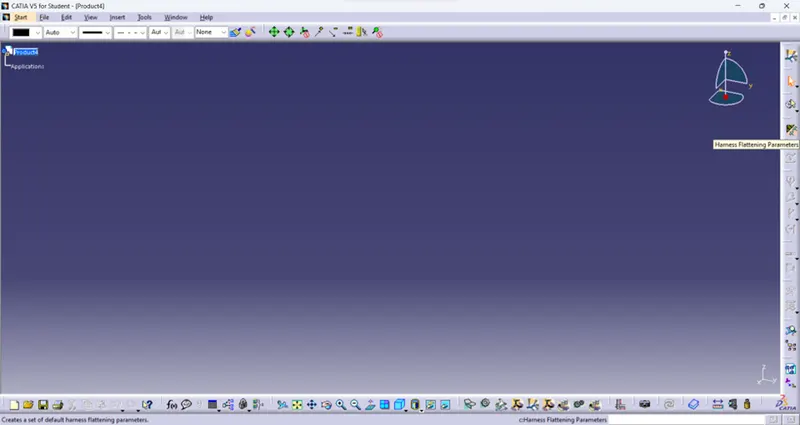
Required parameter for visuals in the drawing sheet are entered in the Setup box which is shown as below.
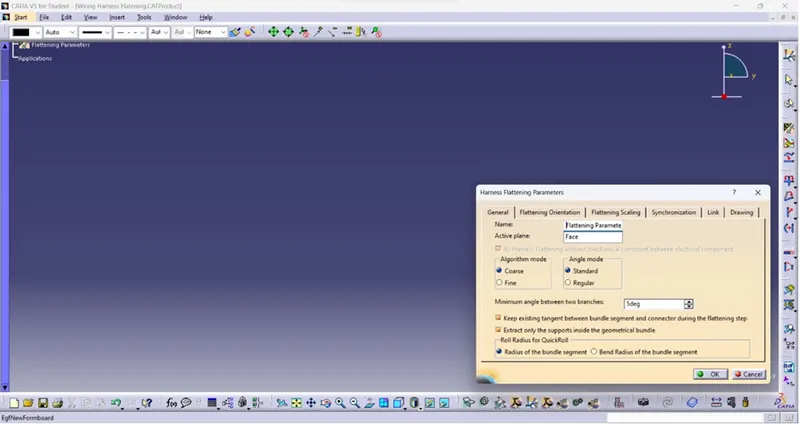
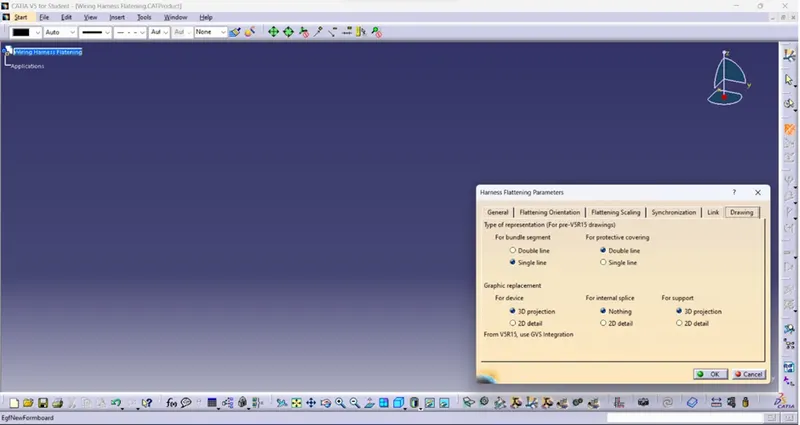
After parameter setup the next step is insert the part model it is done by click the Extract icon which is shown below then open the part model which is to be flattened then click the Part name.
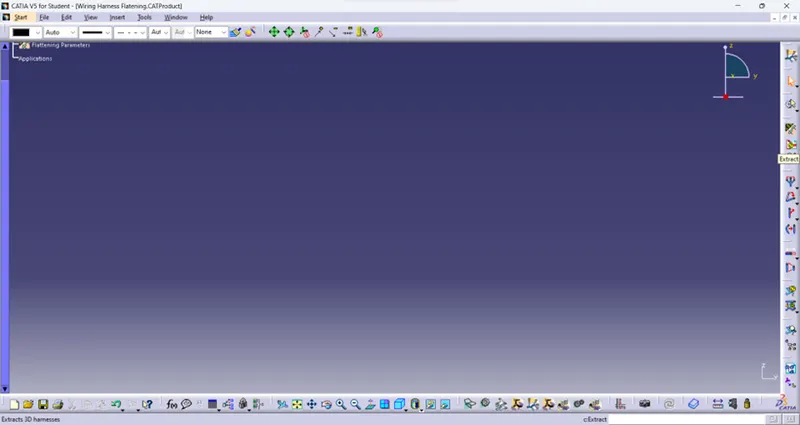
Then the part is extracted into the Flattening setup which is shown below.
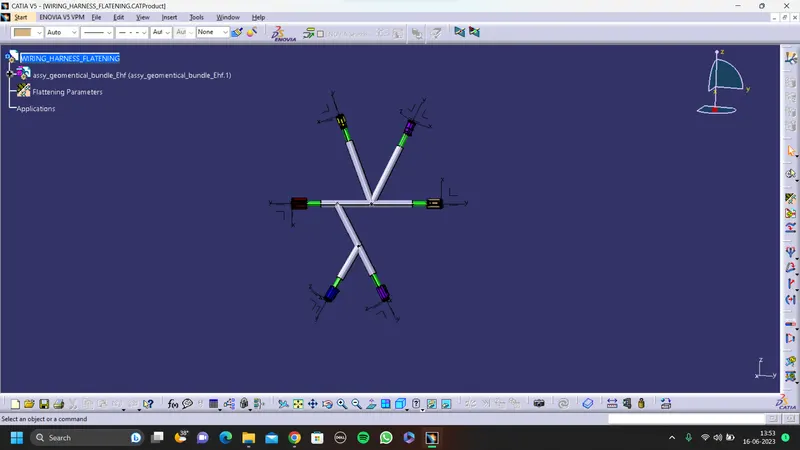
FLATTENING COMMANDS:
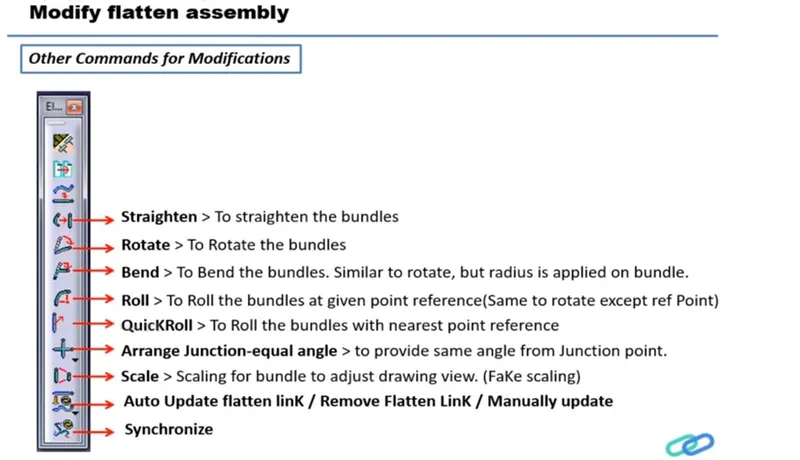
In Flattening there are some commands available for modify the part and their uses is shown below.
FLATTENING THE PART:
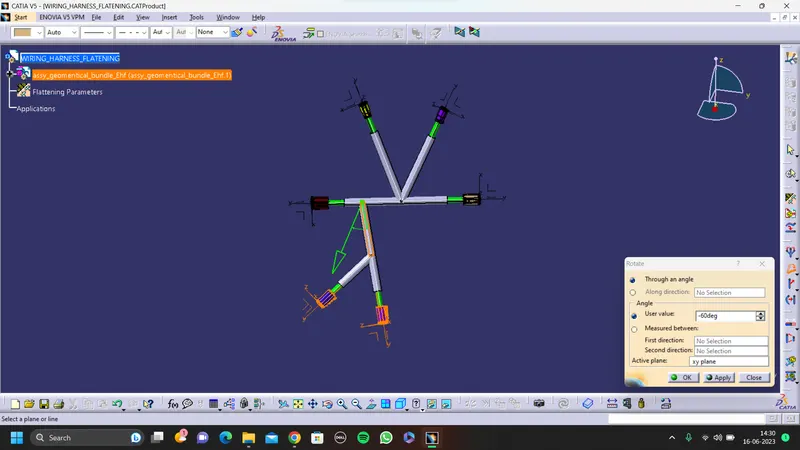
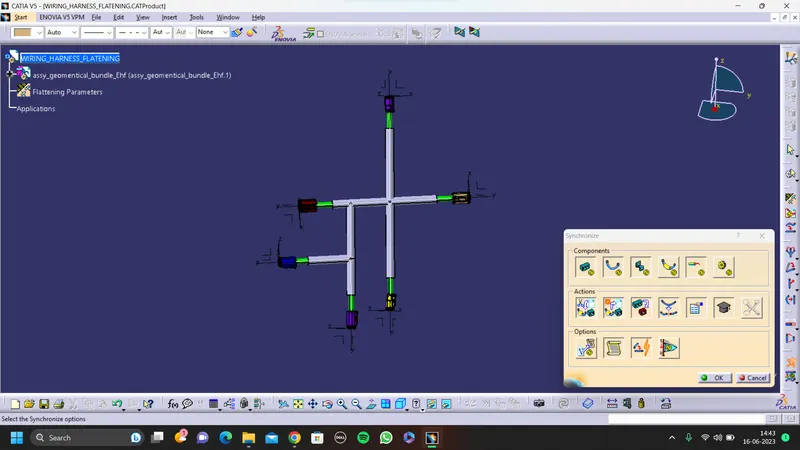
In this model Rotate, Straighten and Synchronize command is used which is shown below.
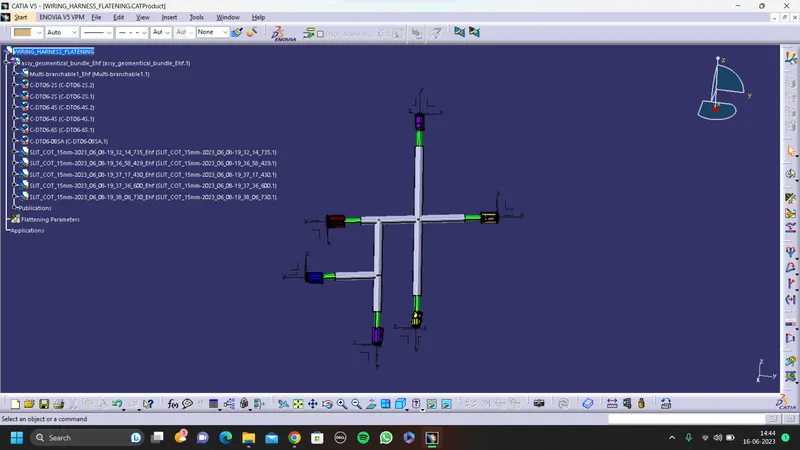
The final Flattened wiring Harness is shown below.
DRAFTING:
Open the new file as drawing and select the required sheet size then drawing sheet is opened which is shown below.
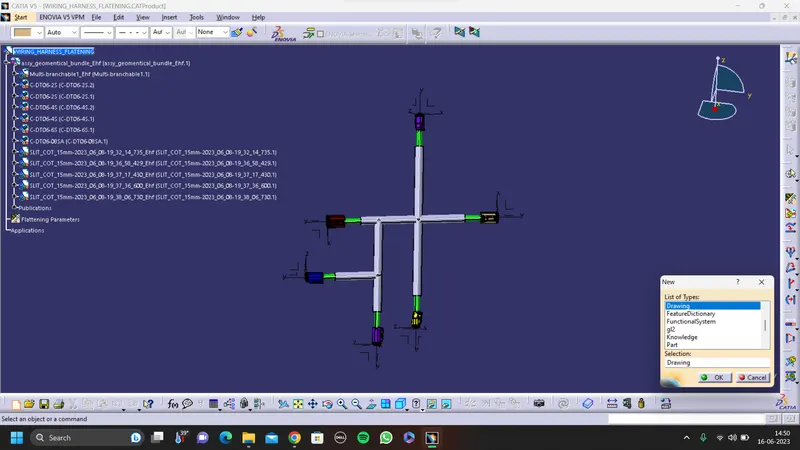
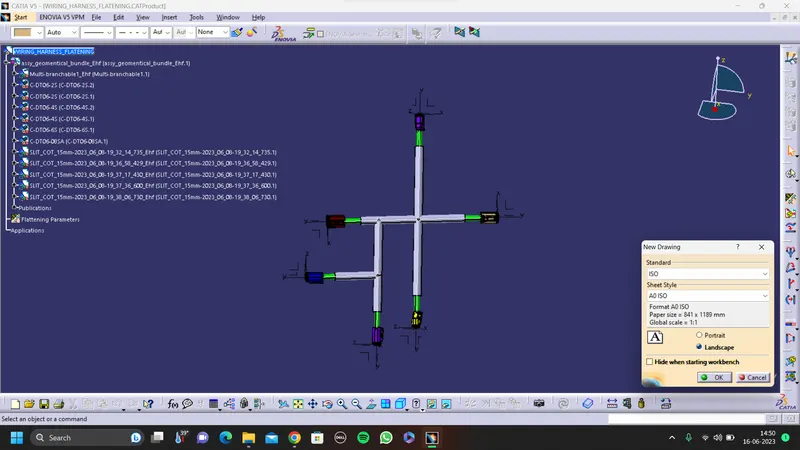
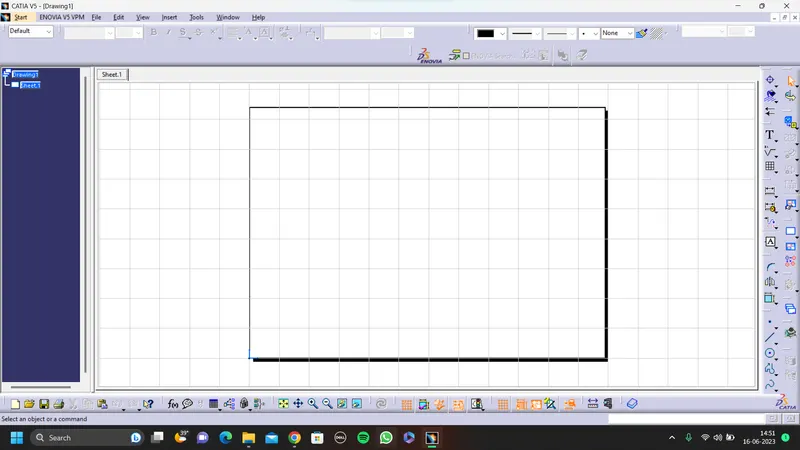
Create a Drawing File for the flattened harness product.
- First, we need to make sure that in the flatten parameter settings bundles and protective coverings have different graphical representation which are,
Bundle Segments – Single line representation
Protective coverings – Double line representation.
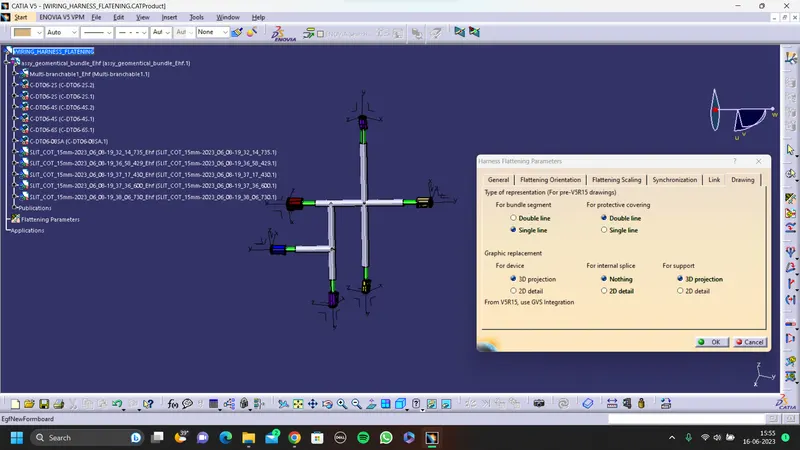
- Create a new drawing file in the drafting workbench
- Modify the drawing sheet with required parameters.
- Insert the flattened harness product into the drawing sheet using view option and selecting the front view command.
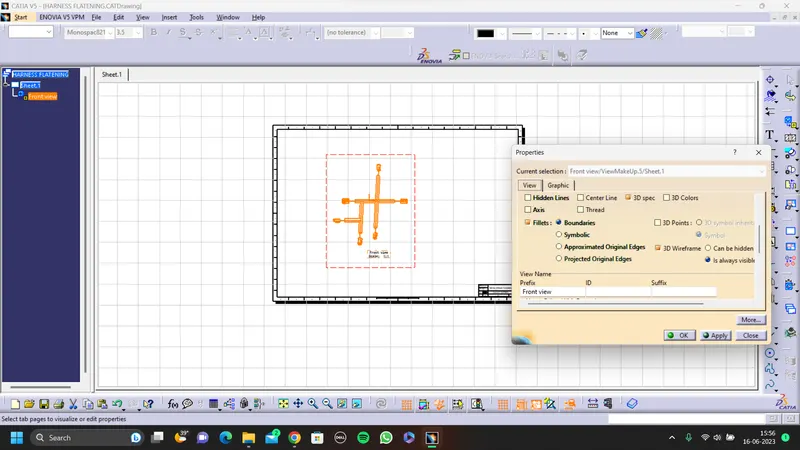
- We can see the drawing representation for the wiring harness bundle is not visible in the drawing sheet. Here, we need to change some settings in sheet properties.
- In sheet>front view properties, go to the views and dress-up area, activate the 3D wireframe and change it into always visible and click OK.
FINAL DRAWING:
CONCLUSION:
Thus, the Wiring harness Flattening in the mentioned part and also the drafting which the flattened view on drawing sheet is done. Bundles and protective coverings have different visuals in drawing sheet are also done.