Wiring harness design in CATIA V5 - 3D modeling Week 5 & 6 Challenge
AIM-
- to create bundle harness A & B according to layouts given.
- check bundle continuity
- check bundle warning
- add annotation to all connectors as given in layout
- generate cat part of harness assembly and covert it in igs format
PROCEDURE-
- download cad files
- give point and axis for connector in part design workbench
- define connectors electrically in electrical part design workbench using point and axis created in part design workbench
- assemble the connectors in seperate harness assembly work bench according to layout
- create bundles in each harness according to layout using harness installation work bench
- check bundle continuity using full complete search for bundle segment using search option
- give annotation for each assembly according to layout
- bring both assembly to one assembly and bring connector 5 & 6 together like connected
- create the cad part from the assembly for the wire harness using generate cat part option in tool option
THEORY-
first download the cad files and give points and axis in part design work bench accordingly to define it electrically .then define it electrically in electrical part design work bench that it is connector.assemble the connectors in mechanical assembly workbench for each harness according to layout .give annotation for each connector according to layout in each harness assembly.then in electrical harness installation workbench; create bundles according to layout for each harness.
while creating bundle; check bundle warning is happening or not. we can check bundle waring by checking any yellow warning sign like this logo ⚠ show up in any branches in multibranchable.if it show up in any branches; it will show up in multi branchables too.usually these warning happens in bending radius.we should avoid these bundle warning by any mean while creating bundle.
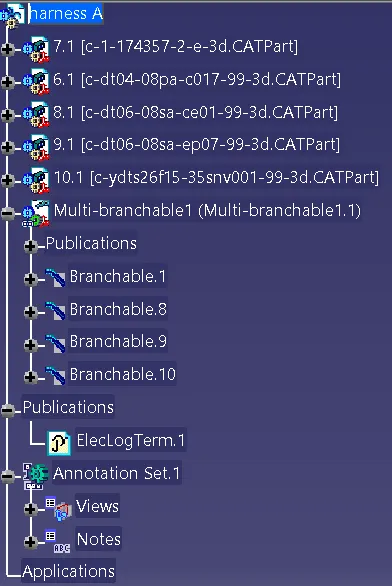
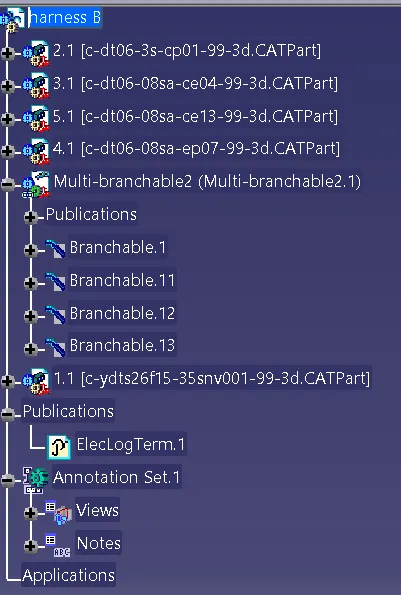
the above snap shows there is no warnig sign in any branches so as in multi branchable for both harness A & B.so no bundle warning is there.
then check bundle continuity.for that click edit then click search from it.then in advanced option; give electrical in workbench,bundle segment in type and full connected in attributes.search and give true for showing full connected bundle.the fully connected bundle will showup.
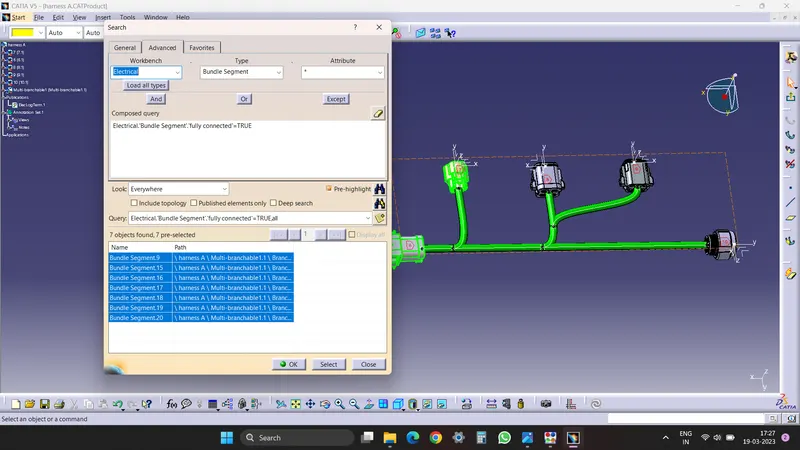
above image is wire continuity check up done for harness A
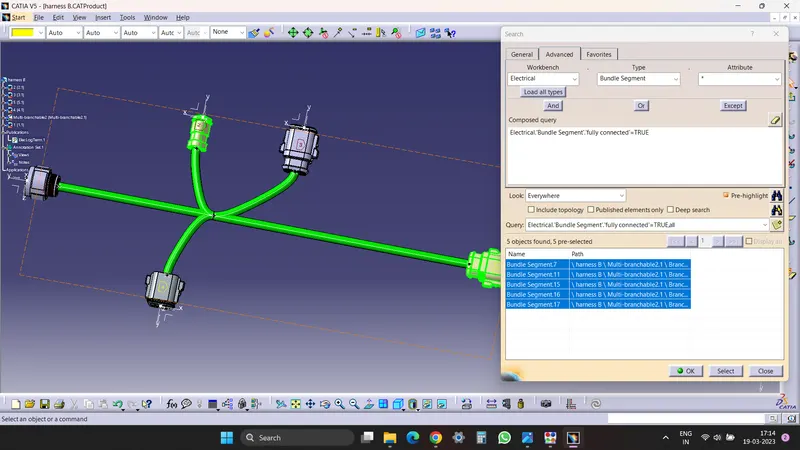
above image is bundle continuity check up done for harness B
bring each harness (harness A&B) into one product file and connect connector 5 & 6 for harness A&B with using snap tool.because if we connect these two connector electrically in electrical assembly workbench;the constrain will stored in assembly file where harness A&B is placed.so we keep like attached without constrain.
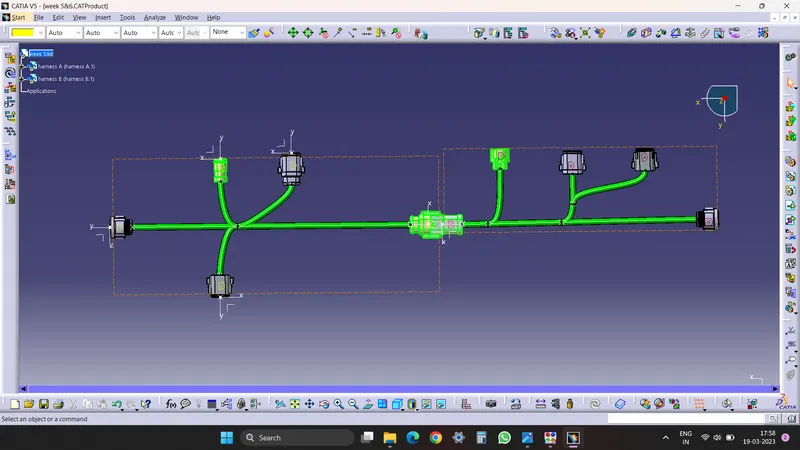
this is our final harness done by using harness A & B in one product file.we can see connector 5 & 6 are placed just like connected without giving constrain to connect both harness.
at final cat part of harness assembly will be generated by using generate catpart from product file using generate cat part from product option in tool option.
RESULT-
the wire harness for harness assembly like in layout is created.wire continuity and bundle warning are checked.annotations are given for each connector.each harness assembly is brought to one product assembly and connector 5&6 is placed like connected without giving any constrain.cat part file is created from the product file for wire harness assembly.