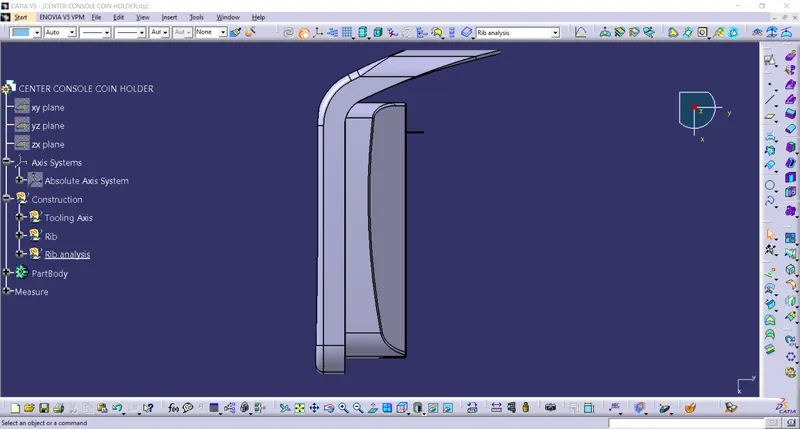
Week 9 - Attachment Feature Creation - Challenge 1
Drafting - Introduction :
Drafting is giving a taper to the face of the mould part. Drafting is required in the mould part to remove them from the mould flask without affecting the walls of the core and cavity. Drafting eliminates the problem of sticking mould to the walls of the core and cavity.
Draft analysis is made prior to eliminate the problem of sticking to walls. Draft analysis shows various faces which can cause the problem of sticking. With the draft analysis done we can proceed to design the components with the necessary draft. We use 3 degrees as a standard draft angle.
Tooling axis :
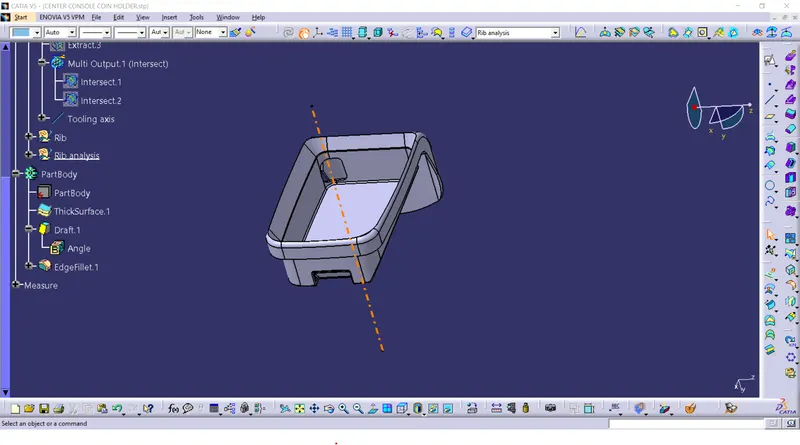
Tooling axis is the reference axis with which the mould is open. We provide a draft angle to our part with respect to this axis only.
Tooling axis creation :
- Design consideration check :
We must first check the given class A surface for any opening in between the surface. This can be done using few commands. We can boundary creation tool to check if there are any open internal boundaries and close the surface to further our design. We can also use the join surface command and check if all the surfaces are joined. If not joined properly the command prompts an error window. we can know the design consideration by these techniques.
- Visualisation Method :
In certain cases, we can find the tooling axis by simply looking at the class A surface. In the above case, for fan cover, since the part has a frustum part we can assume the axis normal to the top surface passing through the centre point of the surface as the tooling axis.
The preference of choosing the tooling axis would be the line normal to a large flat face or through any hole element in the part.
- Analysis of various directions :
In the analysis, we create different intersection lines and find the best direction of the tooling axis. For instance, we check the mould plate movement direction by observing the surface carefully in each direction. In the above case, if we look in the direction of x as the tooling axis, there is a hindrance of the surface which don't allow us to create the axis in that direction. By observation, we find that the z-axis will hold good for the tooling axis.
- Bisection Method to create the tooling axis :
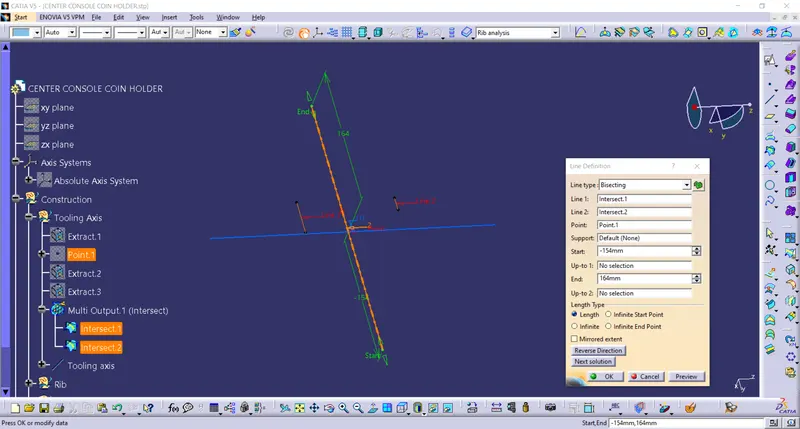
The bisection method is generally used to find the tooling axis for the part design. This method enables us to create bisection lines and find the centre line, if in case the tooling axis is provided in that line, the draft with reference to that tooling axis would be perfect. The steps to create the tooling axis are as follows.
- Find the hole in the Class A surface. Apply boundary creation command for the hole. Create a point in the centre of that created boundary.
- Create a plane to create new sketches with "parallel through point" enabled. Select the XZ plane as the reference plane and the point create with the boundary option as point reference.
- Perform intersection option with the plane just created and by selecting the class A surface. This will create the intersection lines along the surface.
- Now create a line with the created sketch as a reference. the lines created are those surfaces that we think might create the problem of sticking.
- Now create a new line with the "Bisection" option enabled. Choose the lines created as the reference. A new line will be created along the Z direction in our case.
- Follow the above steps to create one more line with the YZ plane as a reference. We might note that both the created line in two planes with the bisection method merge together. This is because of the frustum shape of our surface.
- We create the tooling axis line with these two lines created with the bisection option enabled and by choosing these two lines as reference lines.
- In this surface, we created the tooling direction in Y-axis in the sketches workbench
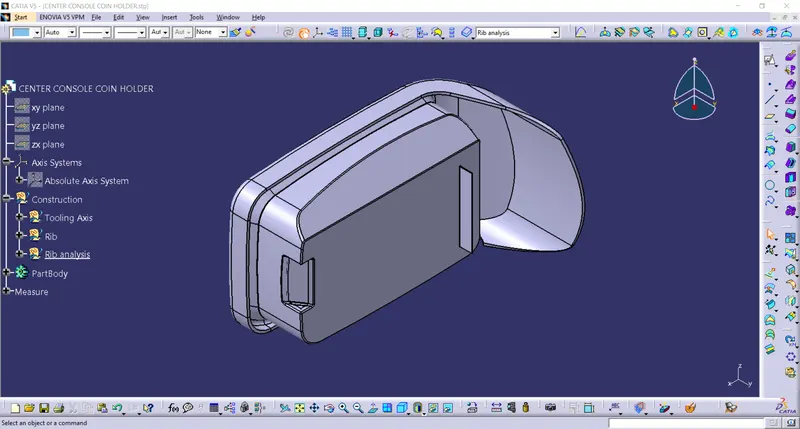
The above procedure is to be followed for the circular surfaces like frustum parts. In our case, The coin holder has a flat base surface. The normal direction to this surface can be chosen for the tooling axis. The procedure to create the tooling axis for our case is as follows,
- Select the base surface from the Class A surface and extract it.
- create a point on this surface. In point, definition gives over the surface as the first reference and select the extracted surface. In the dimension text box give 0 as the value. This, by default, will create a point in the centre of the surface.
- Since the class A surface has no tapered walls, it is better to provide the tooling axis in the normal direction to the extracted surface.
- Create a line with the point as the first reference and the extracted surface as the second reference.
- The created line is our Tooling axis.
Rib creation :
A rib is provided to the plastic to strengthen the part and to avoid the Warpage of the components. We follow certain design procedures to design the rib in our component. The design criteria followed to create the rib for our design is
- Draft of rib - 0.5 degrees per side minimum
- Thickness of rib - 40% of the thickness of the component ( The thickness in our case is 1 mm)
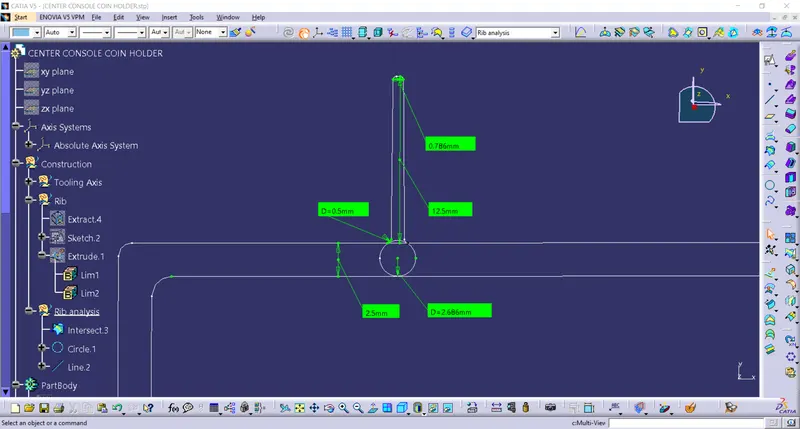
- Height of rib - less or equal to 5 times the thickness of the component (The height is 12.5 mm in our case)
- Minimum thickness at the tip - 0.75mm ( 0.786 mm in our case)
- Fillet radii - 0.25 mm maximum
Rib Root thickness Analysis :
There are few plastic defects while creating the plastic components. Few of them are shrinkage, warpage, burn marks, sink marks, short shots, etc...Few of these defects can be overcome by proper rib design. Giving proper Rib root thickness will eliminate the few defects. The Ribs thickness causes sink marks on the other sides where the ribs are created. This is because there is a sudden change of direction of the flow of molten plastic. Given proper Rib root thickness will eliminate this problem to the maximum extent. The rib root thickness can be found using a tri-tangent circle touching the Round fillets of the bottom side and the other side of the plastic component or the Class A surface. In our case, it is found to be 2.686 mm. This falls under our design criteria. So we can proceed to finalize our rib design.
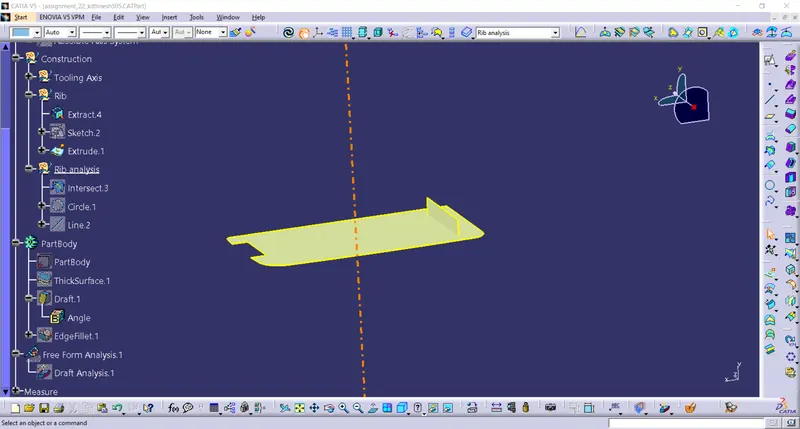
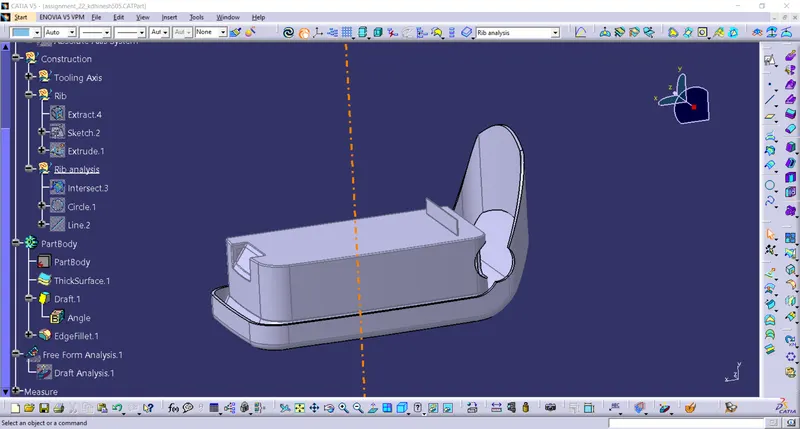
Draft analysis :
The steps to create a draft analysis are as follows,
- Change the view mode. Select the "material" radio button in the change view mode option.
- Choose Feature Draft Analysis under Insert --> Analysis --> Feature draft analysis.
- The draft analysis window will open.
- Choose Quick analysis mode or full analysis mode as per requirements.
- Create the draft direction by clicking created compass option under the direction tab. Clicking the option will enable a compass created at the place of the default compass. Drag the compass to the tooling axis and place it over the tooling axis.
- We can reverse the direction of the draft with the reverse direction option. Once the direction is chosen click the lock direction option.
- Now moving the cursor displays a red cross near the cursor. Place the cursor over the surface to begin the analysis.
Once the analysis is done, the results will be displayed in various colours over the surface. If the simple mode is chosen it displays three variant of colours that enables us to see whether the drafts within over design consideration. We can also alter the value to show the changes in draft angle in the draft analysis window.
Choose analysis under the running point option in the Display tab of the draft analysis and place the cursor over the surface to display the angle at that point. The angle displayed are with reference to the draft direction.
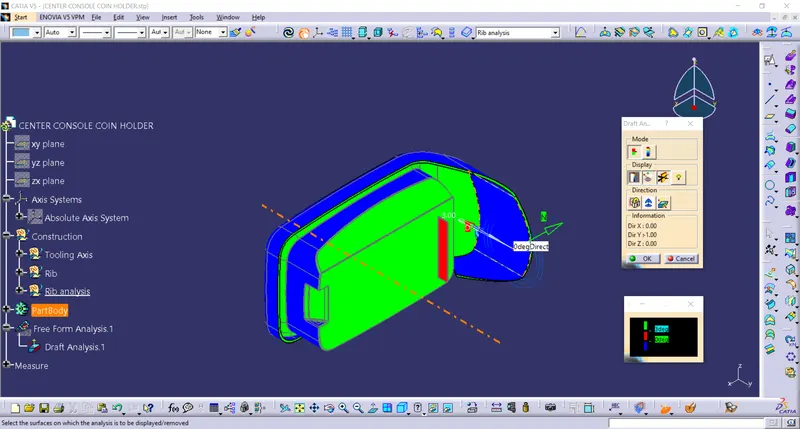
We can see clearly that Drafting failed in our case. It is because the Walls of the Class A surface given are parallel to the Tooling axis. We are not allowed to modify to class A surface. Hence we have to work on it as it is.
Views:
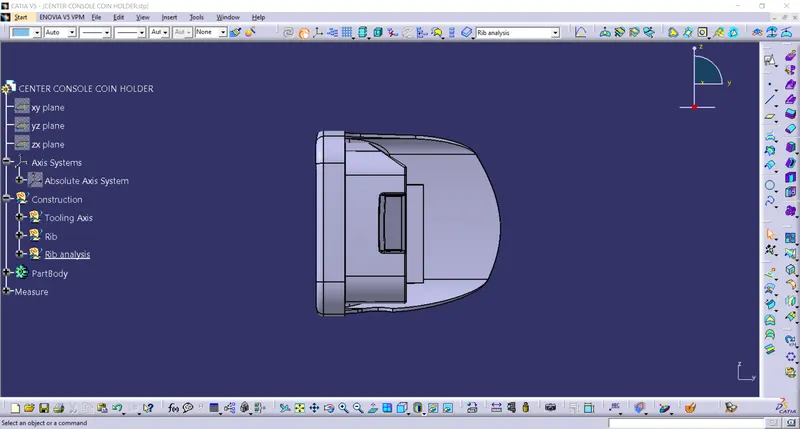
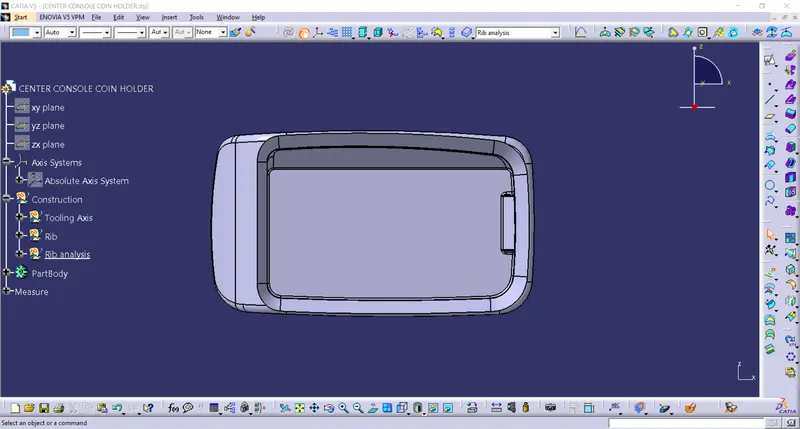
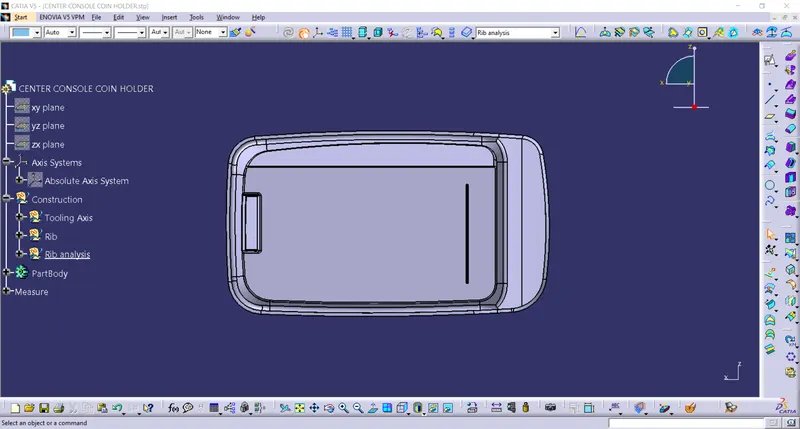
The different views are as follows,