Week_8_Plastic Model_1
WEEK 8 CHALLENGE USING HYPERMESH
Aim
Prepare the given hood model for post-processing analysis, steps involved are,
- Perform geometry cleanup
- Extract mid-surface
- Mesh the component with given element quality criteria.
Procedure
1) First import the geometry using import geometry option and select the .STP file.
2) Fender model is imported as shown in figure below.
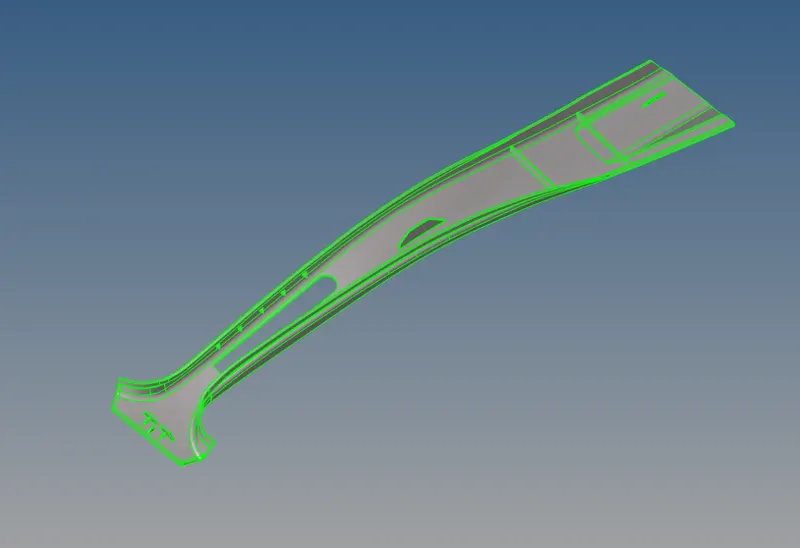
3) First we need to delete the solid body, go to Delete -> select solids ->left click on the selection and choose all -> delete entity
4) Geometry Cleanup
First step for any Geometrical error checkup is to perform a visual inspection of the model, In order to check the geometrical errors ,
switch Geometry visualization type to By Topo.
switch on Display fixed points inorder to see the ponts on the surfaces.
In the next step we need to check for free edges and start filling missing surfaces
There are several options to fix the missing surfaces first option is to,
a) Geometry -> Quick edit -> Filler surfaces, and select the free edge
(b) go to Geometry -> Surfaces -> Ruled surfaces, select the first and second line lists and click create.
c ) Geometry -> Edge edit -> Replace, select the edge to be moved and edge to be retained also set the cleanup tolerance value and click replace.
5) Extraction of Mid-surfaces
In order to extract mid-surfaces go to, Geometry -> Mid-surface -> select the extraction option as "skin offset".
then go to Auto mid-surface extraction and click on extract to generate mid-surface.
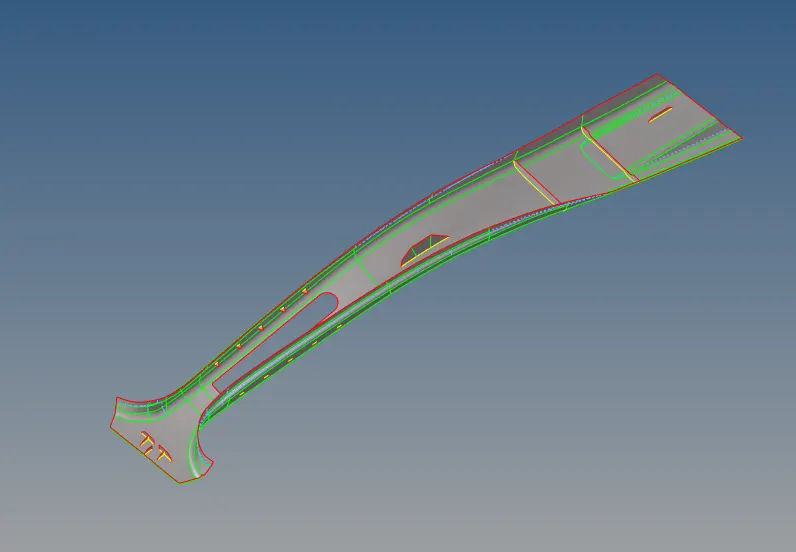
6) Meshing the component with given element quality criteria
a) First we need to enter the element quality criteria, go to Preferences -> Criteria file settings and enter the values.
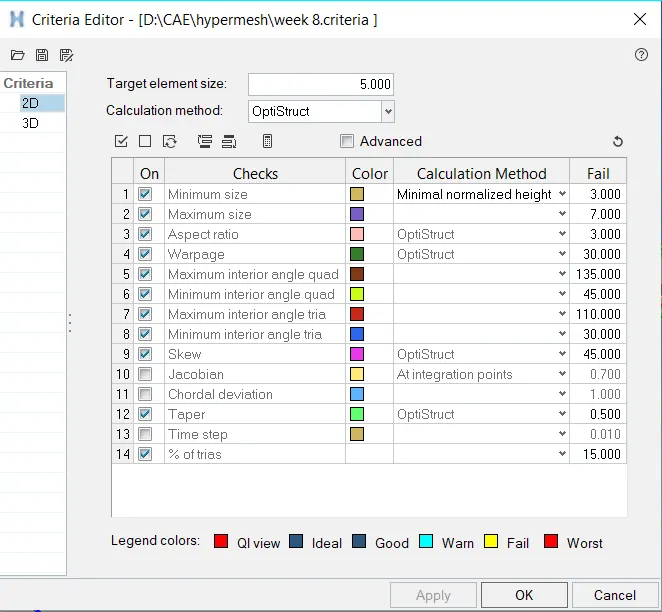
b) now we need to creates cuts on the surface and mesh them one by one in order to get a good mesh flow and to get a checks on trias
to creates cuts, go to Geometry -> quick edit -> split surface nodes/ split surface lines
c ) To create a mesh, go to 2D -> automesh -> select the surface and choose the element size and type of elements -> mesh.
we can change the elemennt density by increasing or decreasing the number of nodes, left mouse click to increse and right mouse click to decrese.
d ) similarly mesh all the surfaces of every component and in order to check for quality go to, 2D -> quality index. and failed elements will be highlighted.
In order to clear the quality of failed elements got to 2D -> quality index -> cleanup tools,
you can use drag tria element tool to drag and combine opposite tria element ,also we can use swap edge tool to swap tria from free edges
also use smooth option to clear the quality. similarly we can create mesh on every mid-surface extracted.
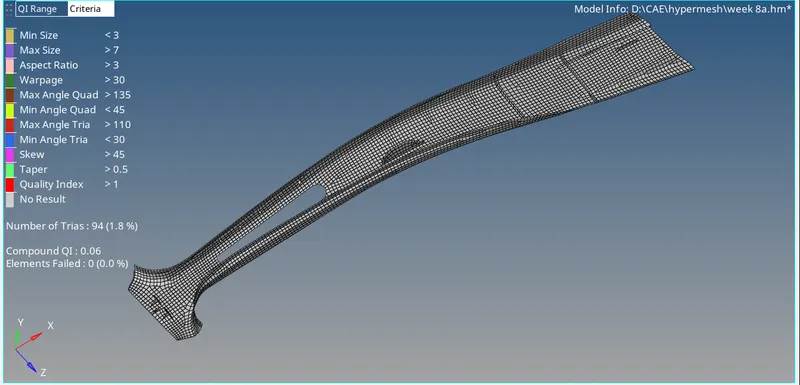
Final mesh model:
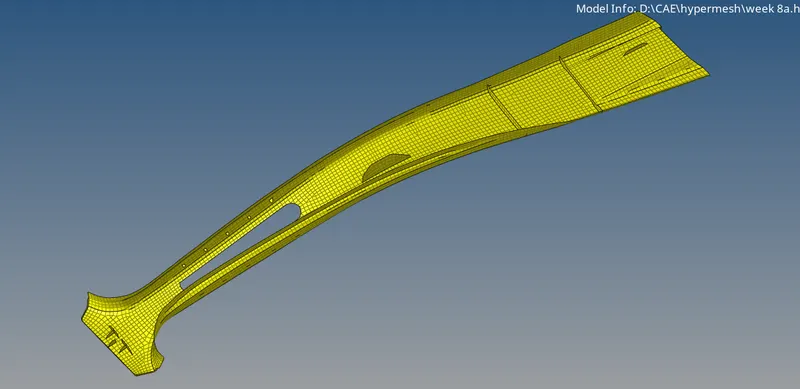
Conclusion:
Performed geometry cleanup and extracted mid-surface of given compoenent and meshed the component with given element quality criteria.