FE modelling of Crank Housing and Axle Assembly using HyperMesh
AIM : To deploy 3D tetra mesh on all the given CAD models, each with a different method.
OBJECTIVE :
- To perform geometric cleanup on the given CAD model of Housing. Establish 2D tria mesh on the surface. After that, deploy 3D tetra mesh with the help of the 2D tria elements.
- To use the Quick Tetra method of 3D meshing using the utitlity tab, to perform volume meshing over the given CAD model of Crank Housing.
- To use the Volume tetra method of 3D meshing to deploy the volume mesh over the given CAD model.
PROCEDURE :
(I) Model 1 - (Housing) :
- The CAD geometry is imported in Hypermesh. The Radioss user profile is selected.
- Since it is a .stp file, the import option is changed to STEP.
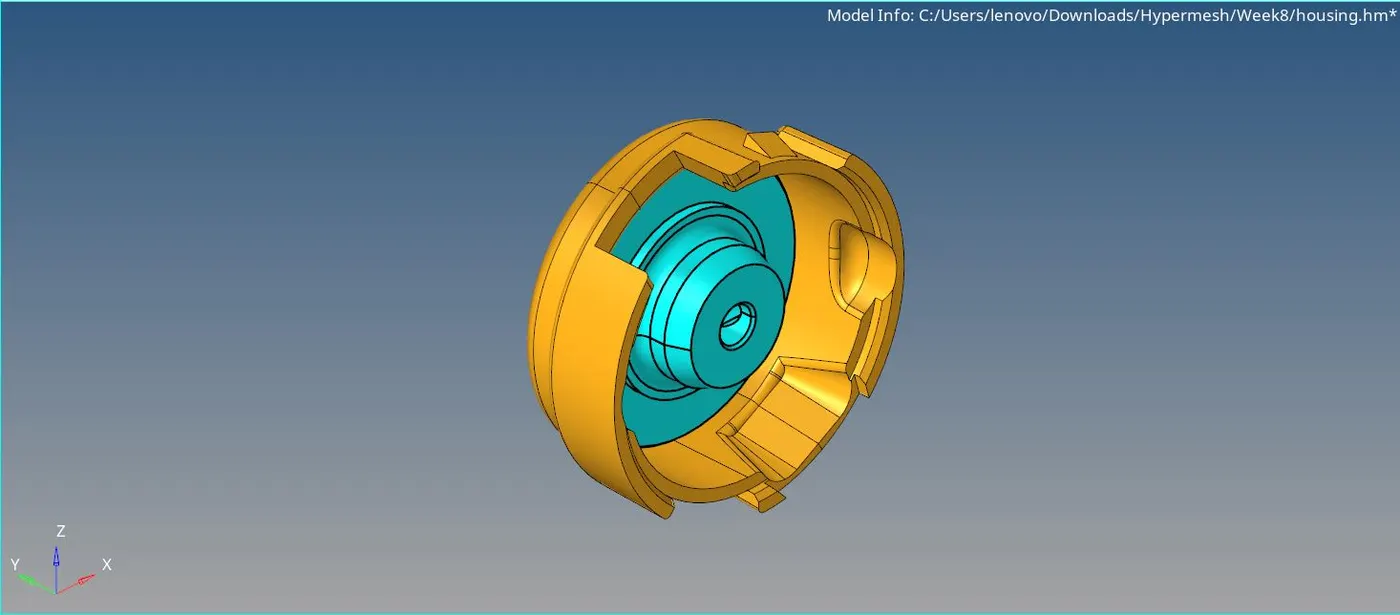
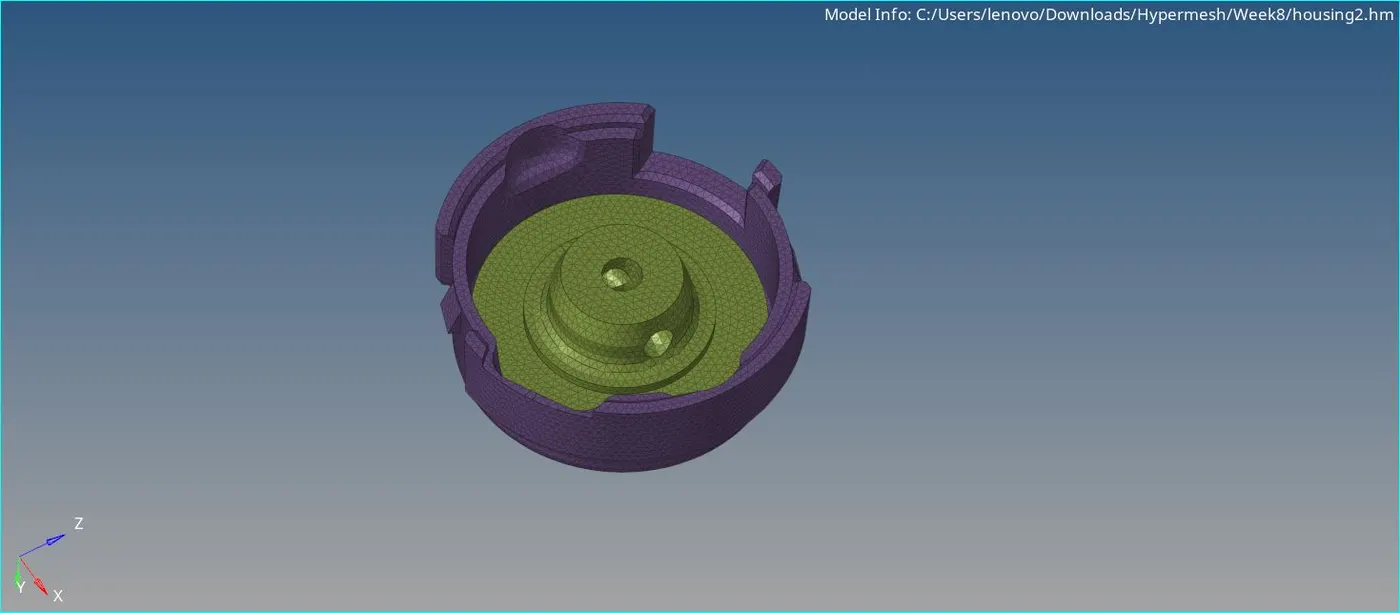
- The model consists of 2 components - the Hub and the Cover.
- We are going to perform 3D meshing on the model by first creating a 2D surfacce tria mesh over it and thereby filling the inside volume with 3D tetra elements with the help of the inititally created 2D tria elements.
- Since there is no need of the solids in this method, the solids can be deleted.
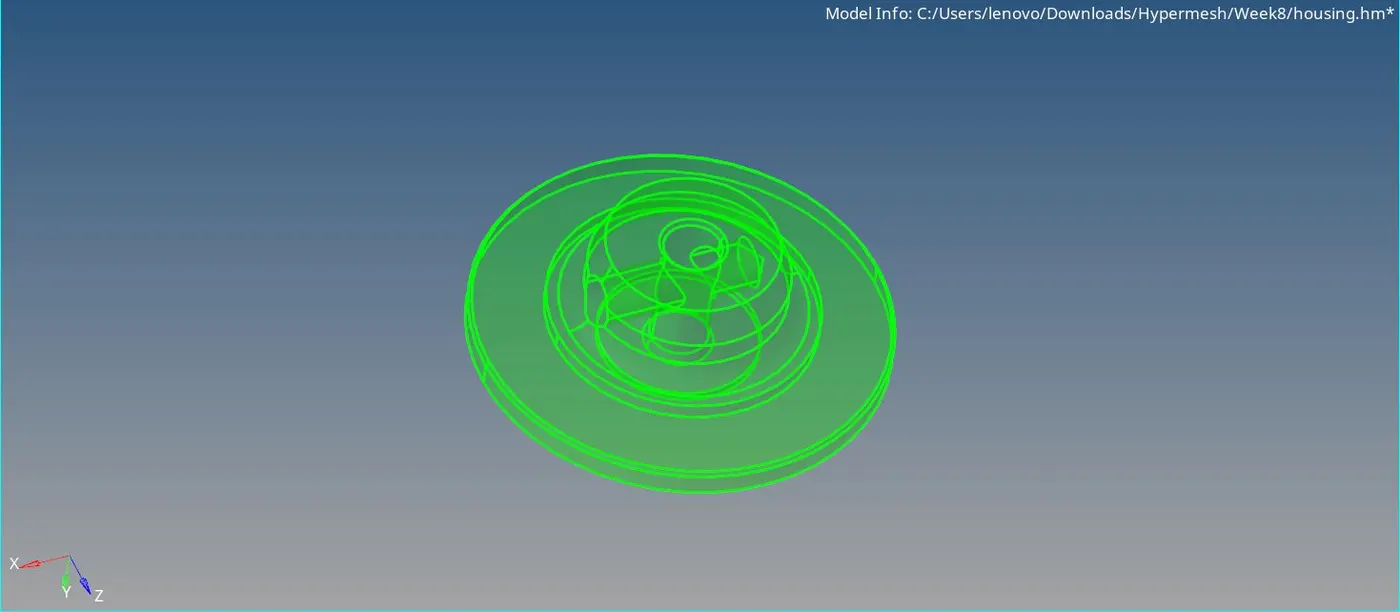
- Before deploying the shell mesh, the CAD is checked for any geometrical irregularities. If found any, these are to be removed otherwise these will affect the mesh.
- If any surface is missing, we have to create the surface at that place manually with the help of different options present in the surfaces tab.
- Tiny fillets that have size less than the minimum length criteria of the mesh are removed. This is done with the help of surf fillets command in the Geom - defeature tab.
If these are modelled without defeaturing, the mesh elements in this zone will definitely fail for minimum length quality criteria.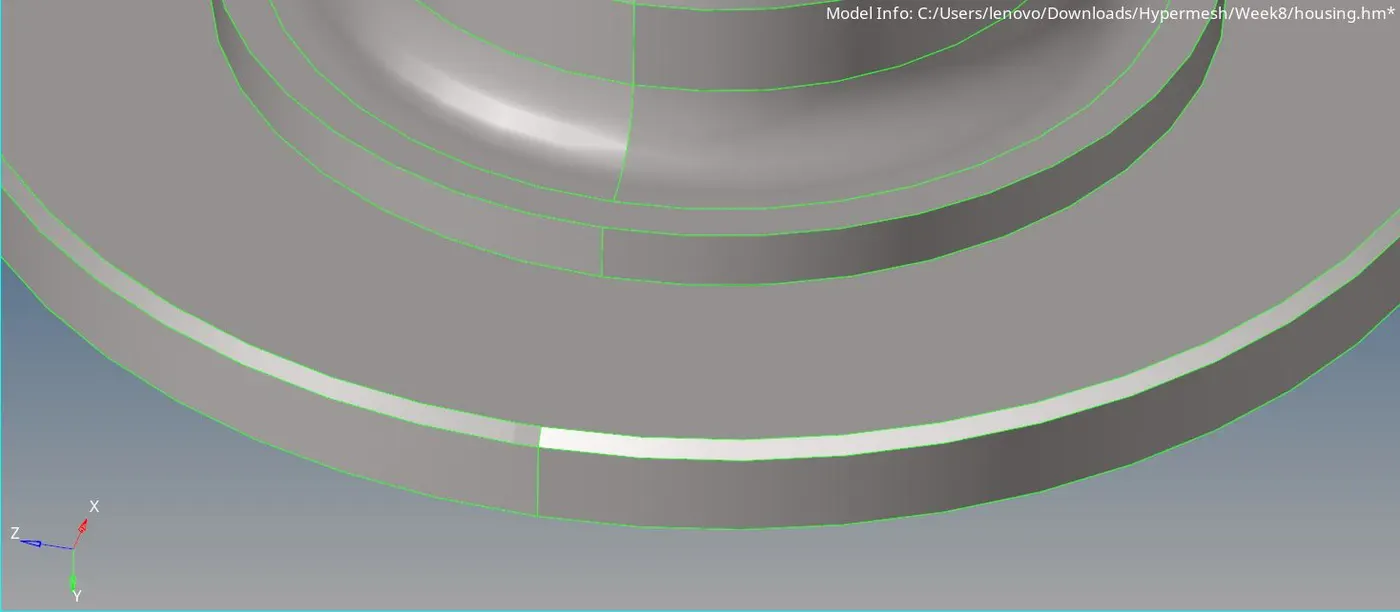
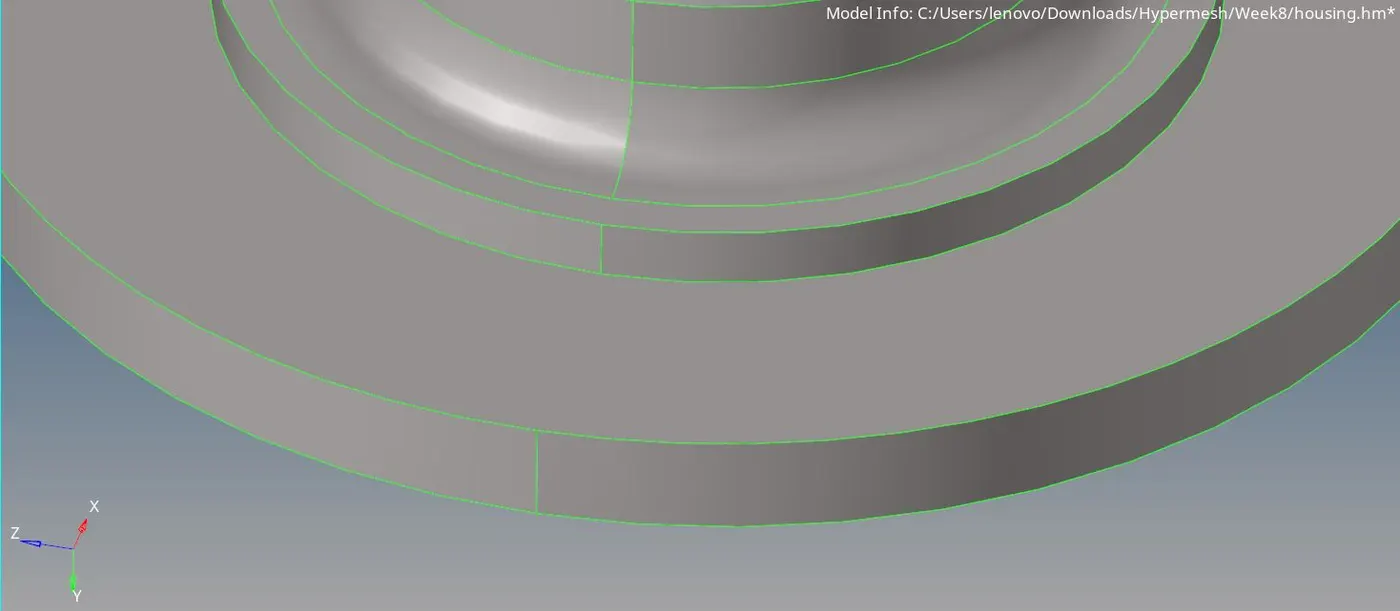
- Also, unnecessary close edges are removed either.
This can be done 2 ways, either by suppressing one of the closed edges, or by creating a midline and then performing cuts on the surface with this line by using the trim with lines command in the surface edit tab.
The rest of the edges are suppressed with the help of toggle command.
If all the edges are removed, Hypermesh will not capture the necessary features in the region and it will be considered as a flat surface.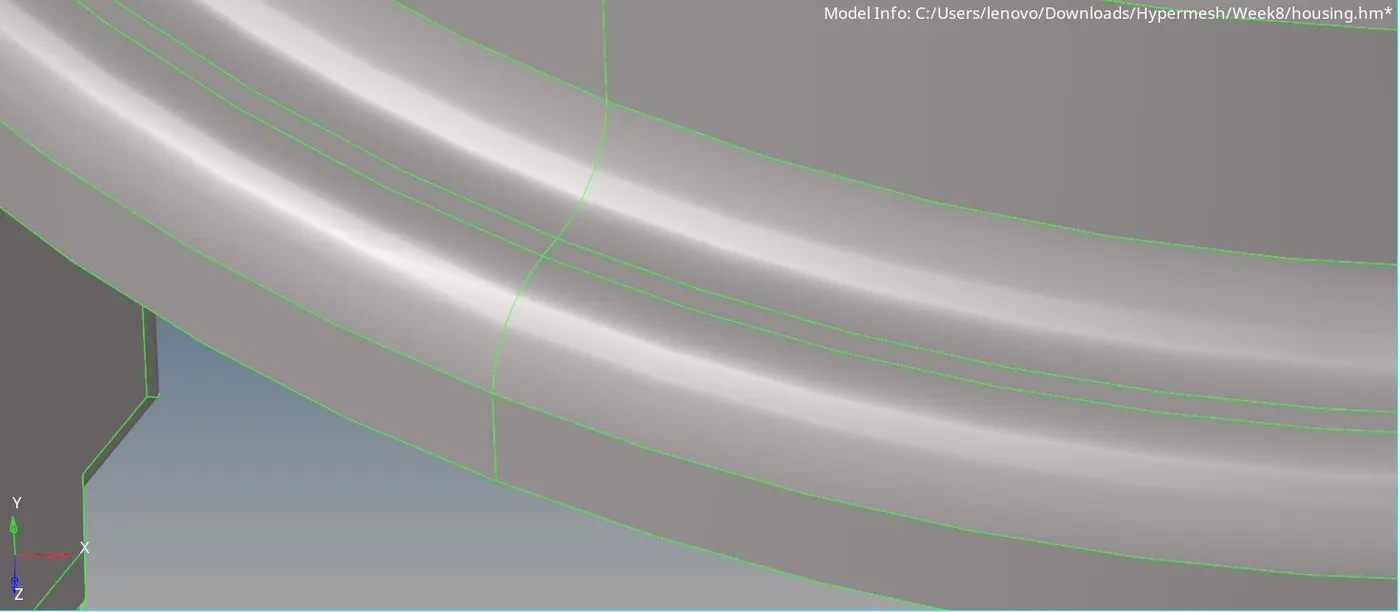
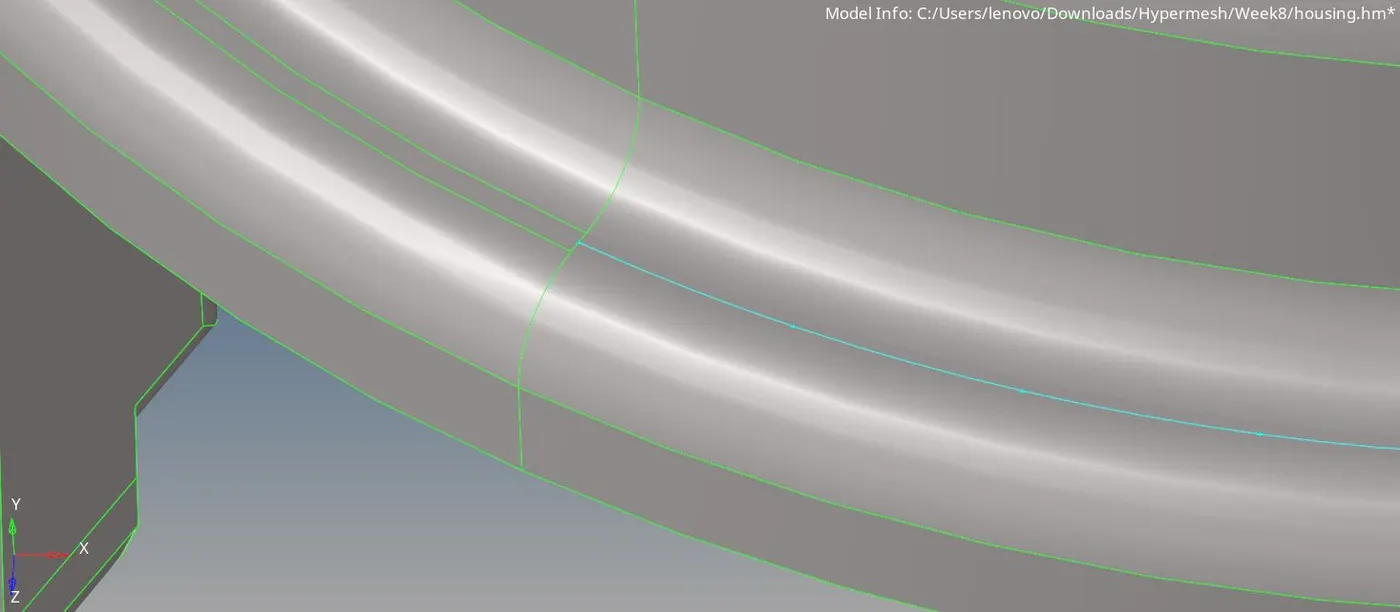
- Now the model is ready to be meshed with 2D tria elements.
- For meshing, the following quality criteria is considered.
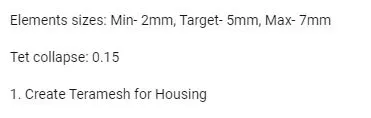
- Here, the mesh is deployed with the help of 2D - automesh panel.
The element size is changed to 5 mm as required. Also, the mesh type chosen is tria.
All the other parameters are kept as default.
By selecting all the displayed faces, the 2D tria mesh is deployed.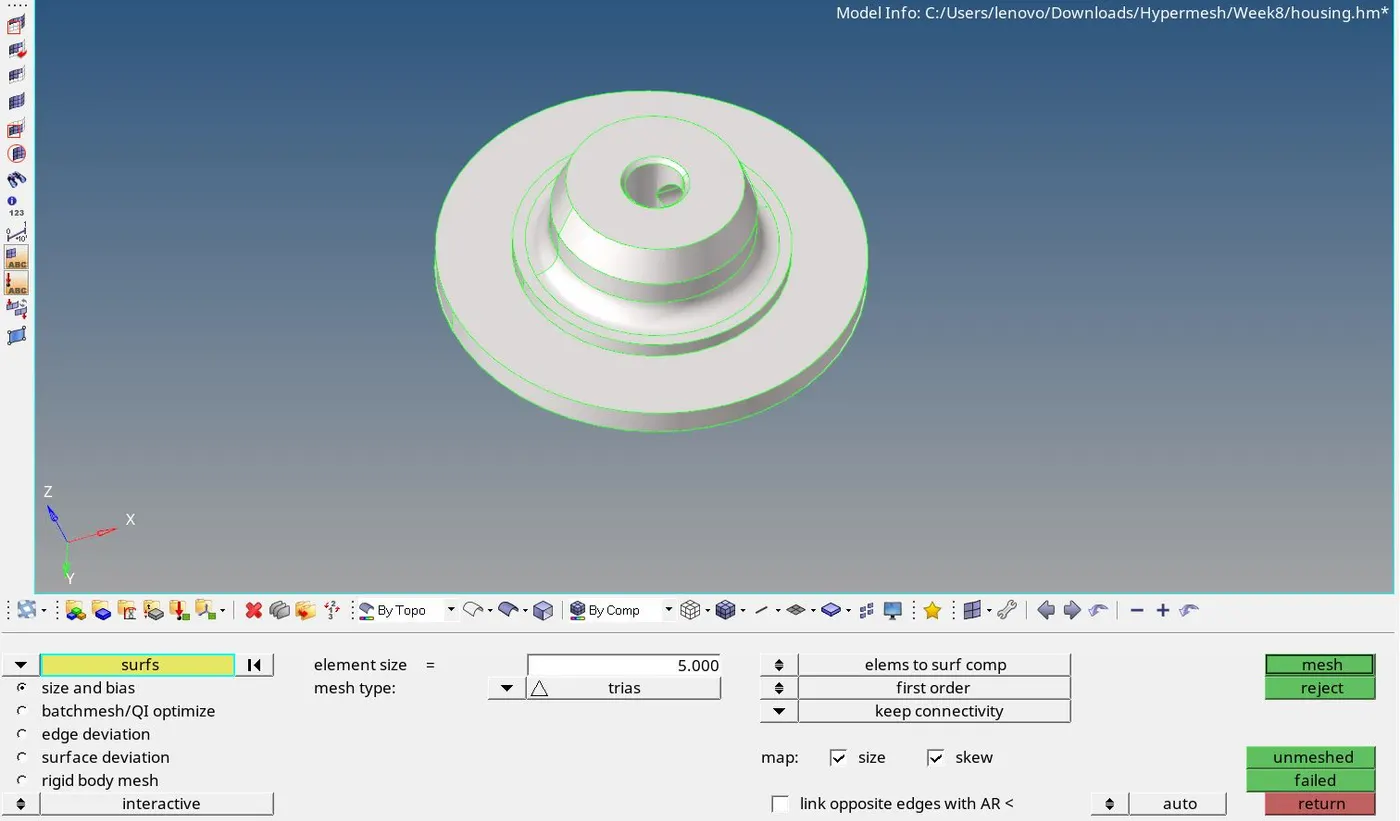
- If any element is failing for minimum or maximum length criterias, such elements are to be necessarily dealt with.
For this, we can use different cleanup tools inside the qualityindex.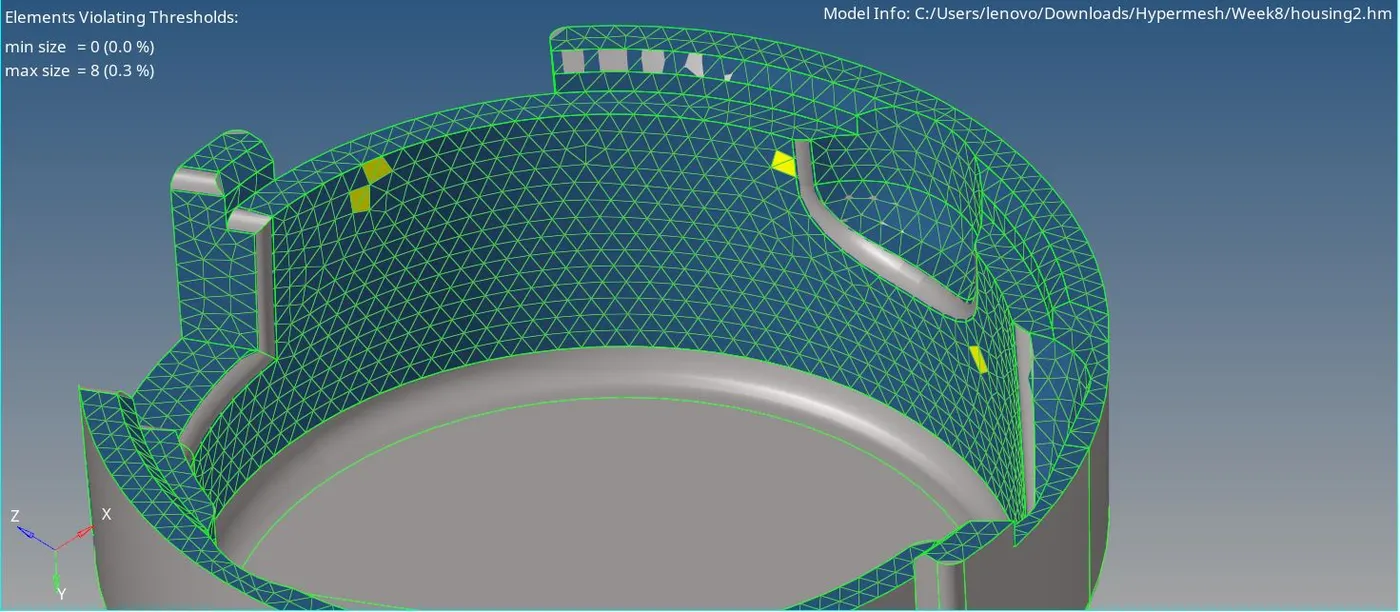
While performing cleanup for the mesh quality, we need to make sure that no quad element is created inside the mesh. - Once the entire mesh is created, the elements are checked for any improper connectivities. THis is done by using the equivalence command in the Tool - edges tab.
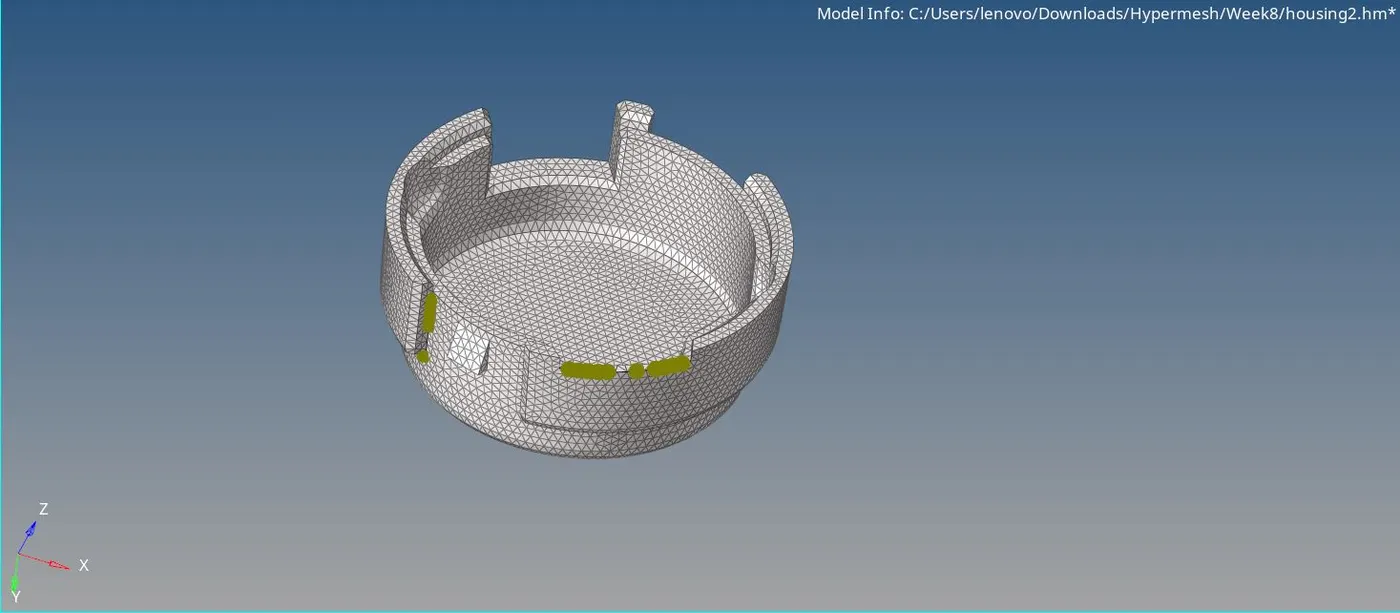
Such connectivity issues drastically affect the analysis results. - Similarly, if there are any duplicate elements present, those are removed.
- Finally, a proper mesh with a good flow is achieved.
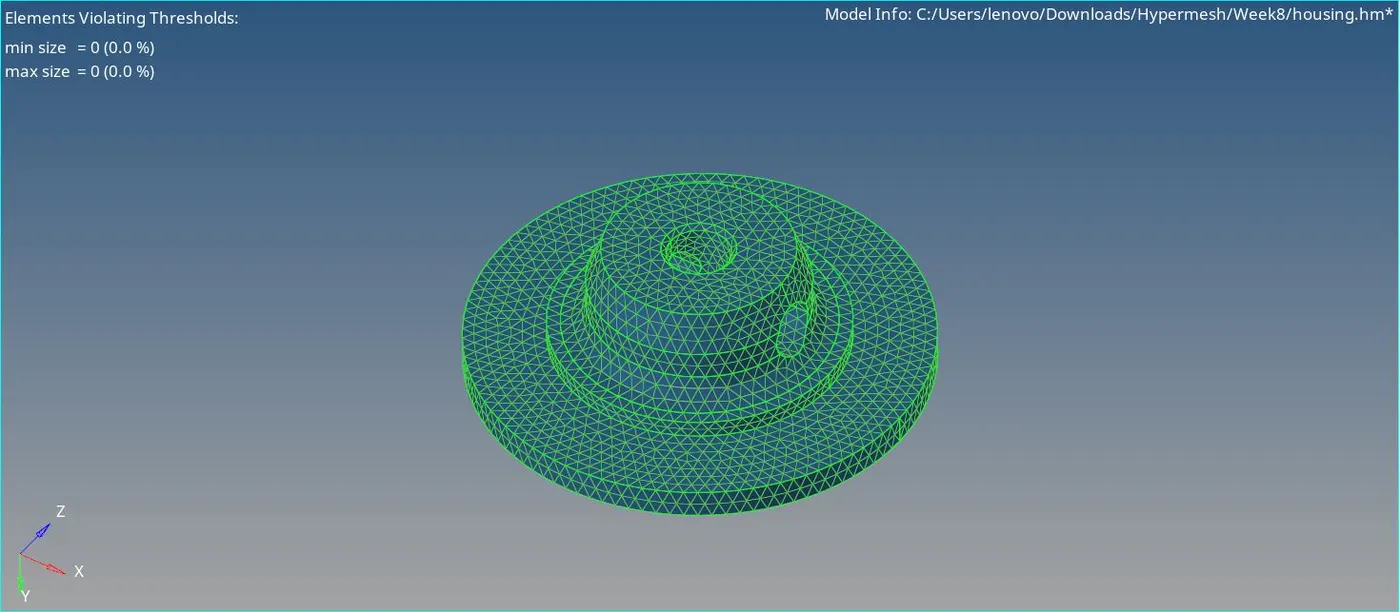
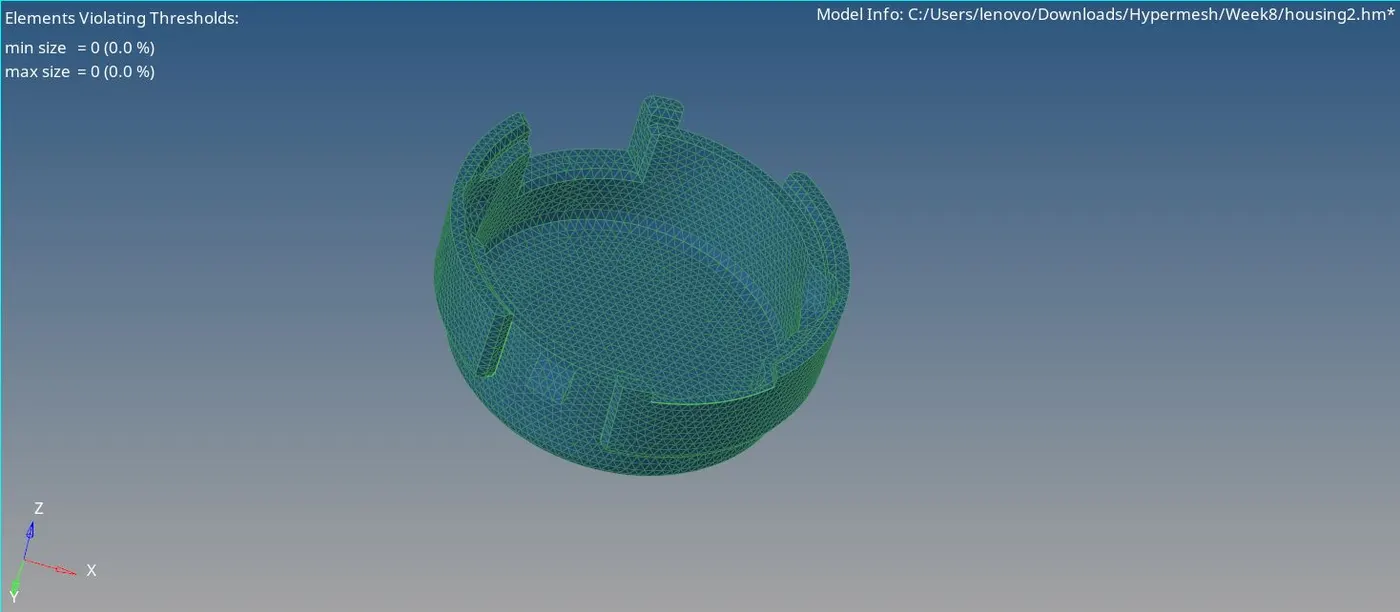
- Now, we can fill the inside volume with 3D tetra elements.
This is done with the help of 3D - tetramesh panel. - Before deploying the 3D mesh, the Tetramesh parameters are changed as shown below.

Since, the tet collapse is an essential quality criteria in the 3D tetra mesh, the tet collapse value has to be necessarily changed to the required criteria. - Now, by accessing the Tetra mesh panel and by selecting all the 2D tria elements, the 3D tetra mesh is created.
To properly visualise the 3D elements, the create per-volume comps option is chosen. - By masking few of the elements, the 3D mesh can be seen.
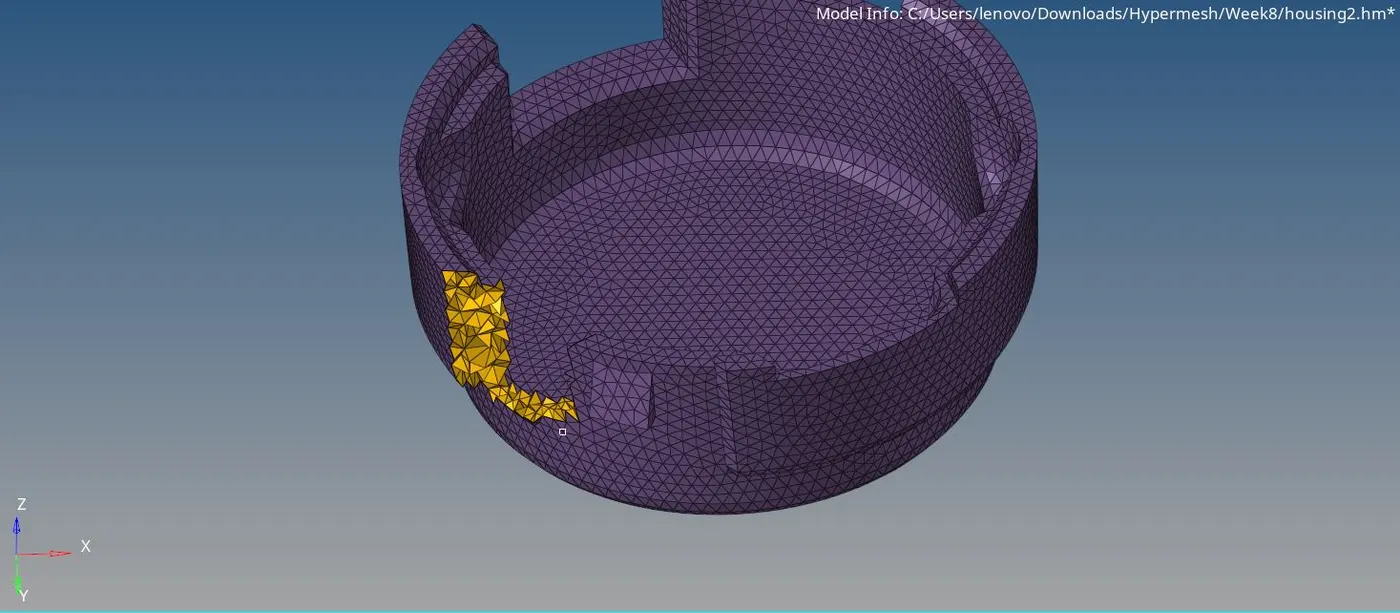
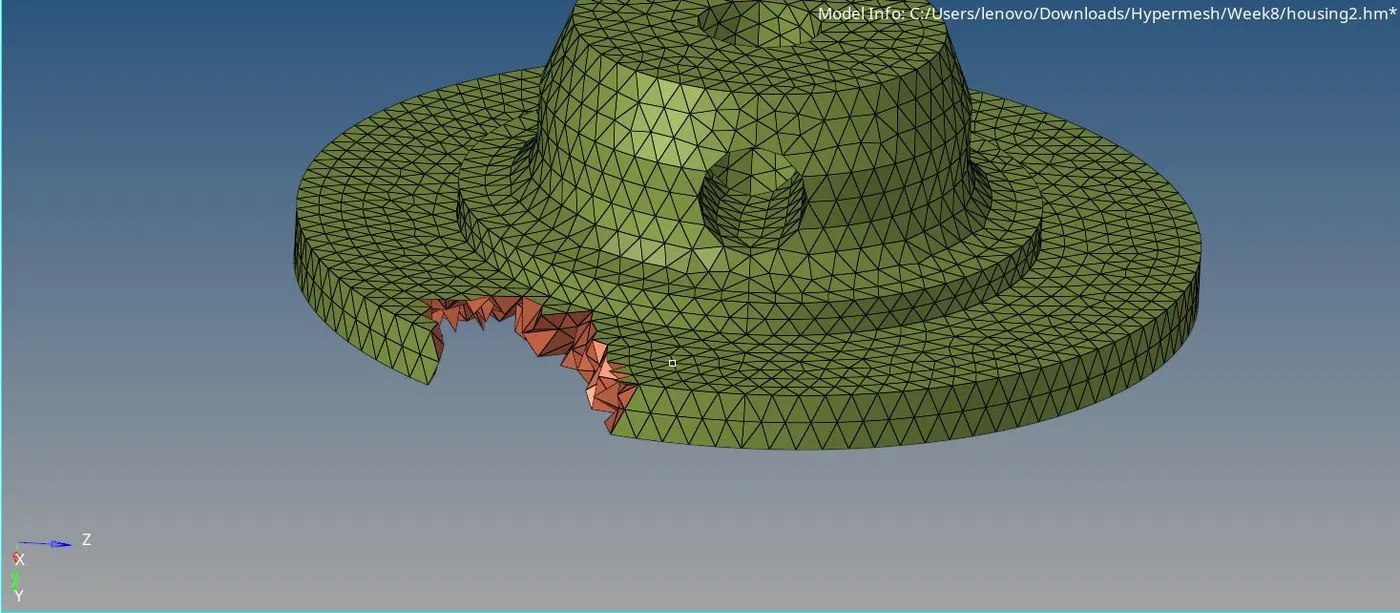
- To check the failed tet collapse elements, the Tool - check elems option is used.
- By clicking on the tet - collapse option, Hypermesh will show the number of failed tet collapse elements in the status bar.
Here, no element is failing for tet collapse.
- If any failed element is found, that particular element has to be cleared for the quality, either by manually adjusting the height of the elements or by remeshing the element along with few of the adjacent elements by using the Tetra remesh option.
- This completes the entire meshing process of the model.
(II) Model 2 - Crank Housing :
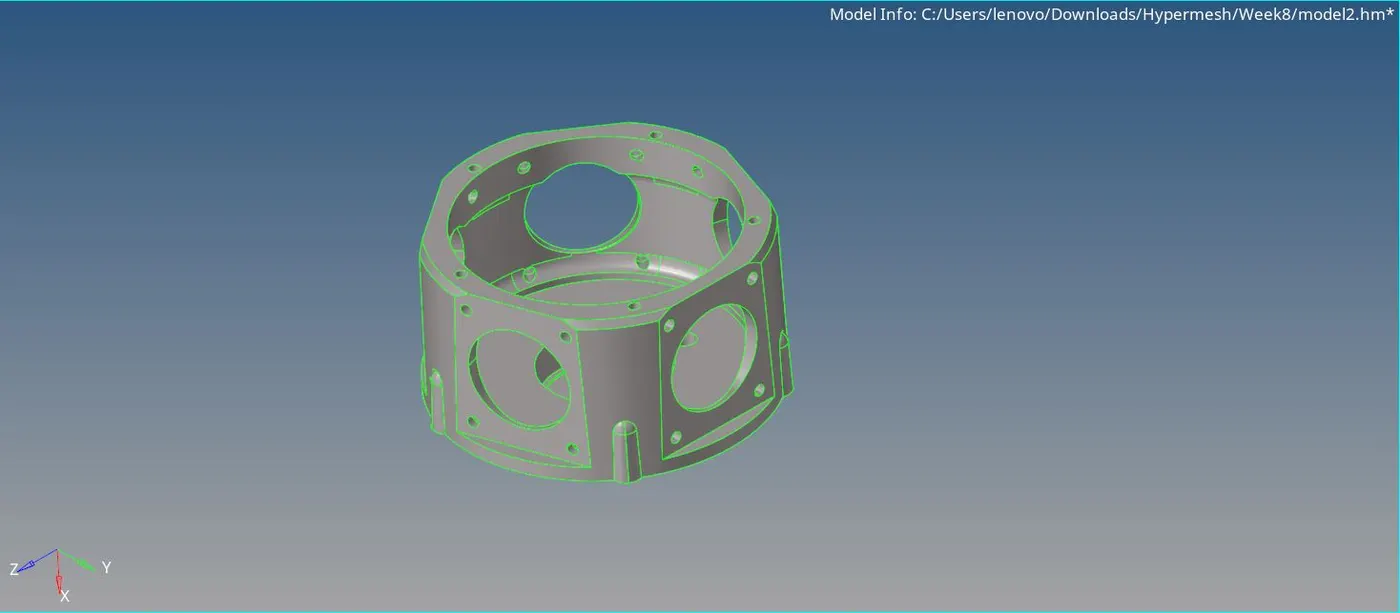
- Shown below is the imported CAD model of the Crank Housing.
- Here, the direct method of Quick Tetra is used for the 3D meshing of the component.
- In this method, the prefed algorithm of Hypermesh performs geometry cleanup upto some extent, on its own. After that, performs the 2D shell meshing of the component and eventually creates a 3D tetra mesh in the bounded volume.
- Since, this process is based upon the prefed algorithm of Hypermesh, this method is not very accurate.
- Howewer, this method is very fast as not much manual interation is needed.
- Following are some of the undesired results we get from this method -
1) The geometry cleanup is not upto the mark. Hypermesh may fail to properly capture essential feature such as fillets, holes, etc.
2) Due to this improper geometry, the surface mesh may get affected. Many elements may fail for the minimum and maximum lenght criterias.
3) The mesh flow is not very good as well.
4) There's a possibility of presence of many failed 3D elements as per the Tet Collapse quality criteria. These have to be manually dealt with. - The Quick Tetra option is present inside the Utility panel of Hypermesh. To access it, one need to go to View - Browsers - Hypermesh - Utility. Shown below is the window of the Utility panel.
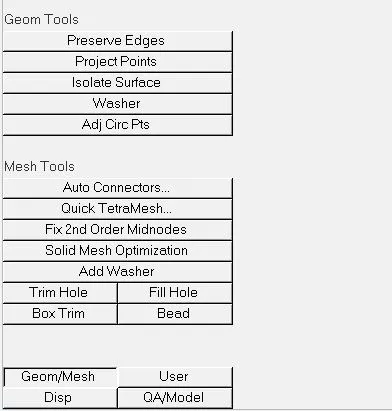
- By clicking on the Quick Tetramesh button, the Quick Tetra tab can be accessed.
Here, all the mesh related parameters such as mesh size, minimum edge size, minimum element size, etc are provided.
The mesh size is kept as 6 mm as required. Mesh type is changed to Trias only.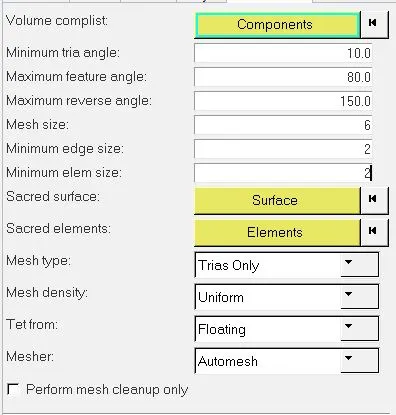
- Shown below is the meshed model of the Crank Housing.
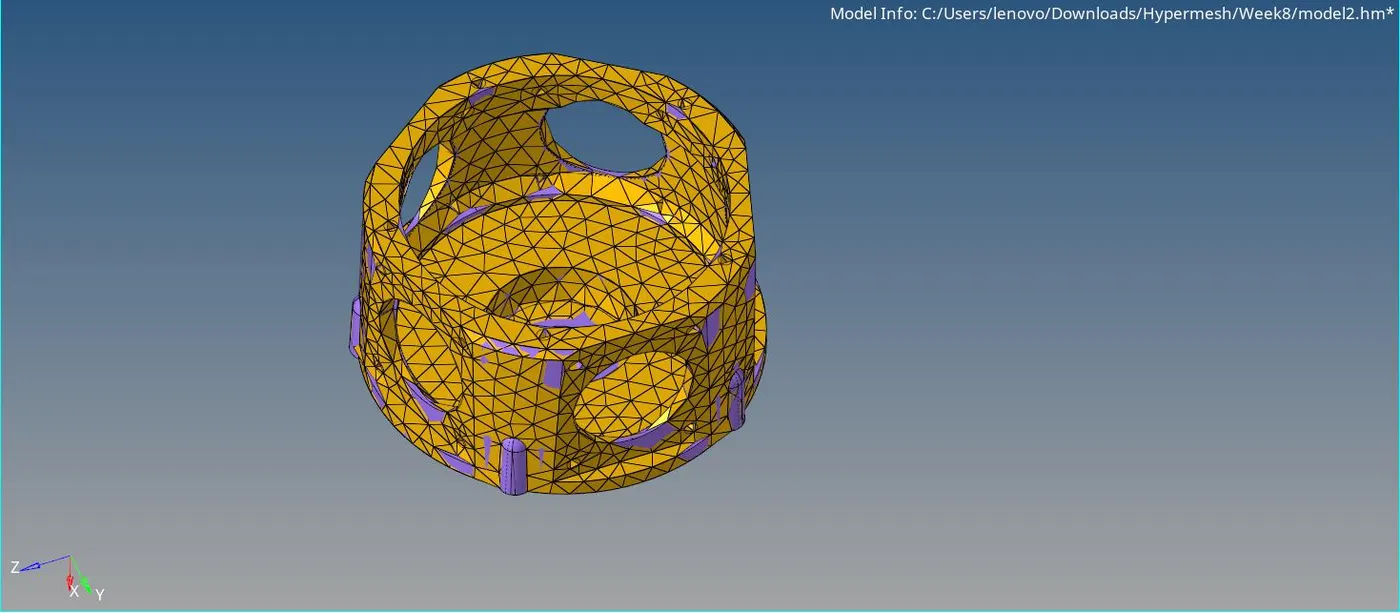
- It is quite evident from the above picture that the feature capturing is poor. Also, the mesh flow is very bad.
- Here, too. The failed Tet collapse elements are cleared by accessing the Tool - Check elems tab.
- 58 Tet collapse elements were present inside the mesh.
To access these failed elements, save failed option is used and after that, these elements are retrieved using the mask option. Now by clicking the reverse buttion, all the failed elements can be clearly visualized.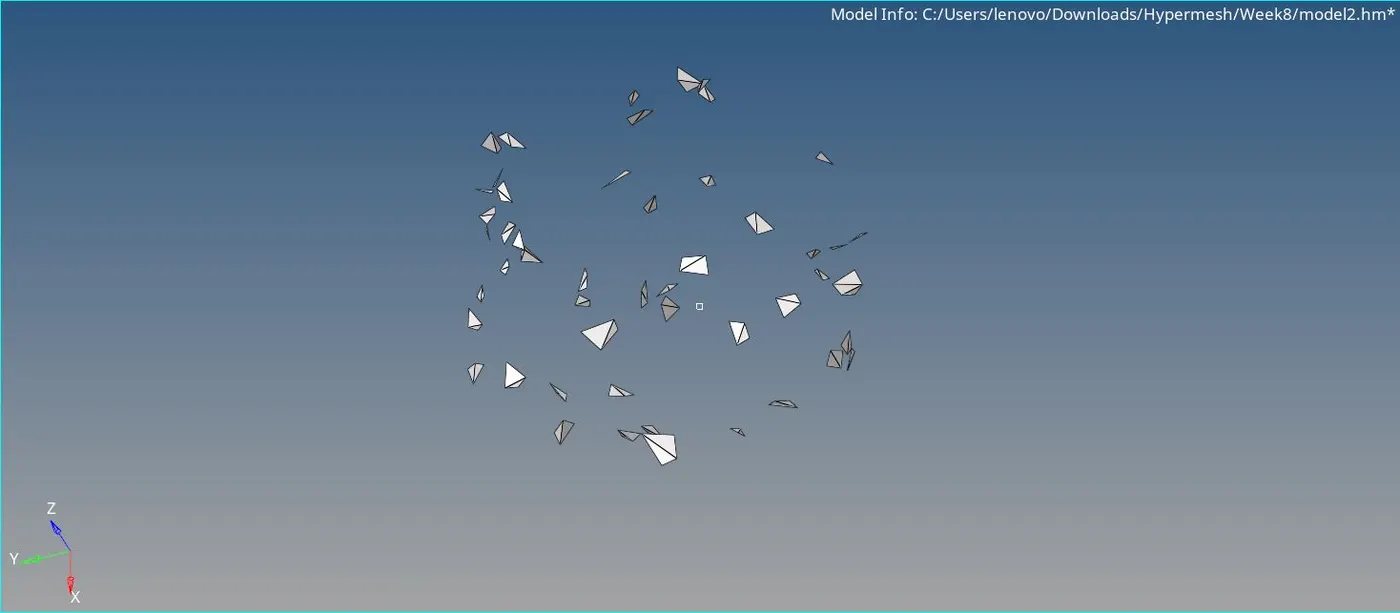
- By performing Tetra remesh on these as well as the adjacent elements, Hypermesh will automatically try to fix most of these elements as per its algorithm.
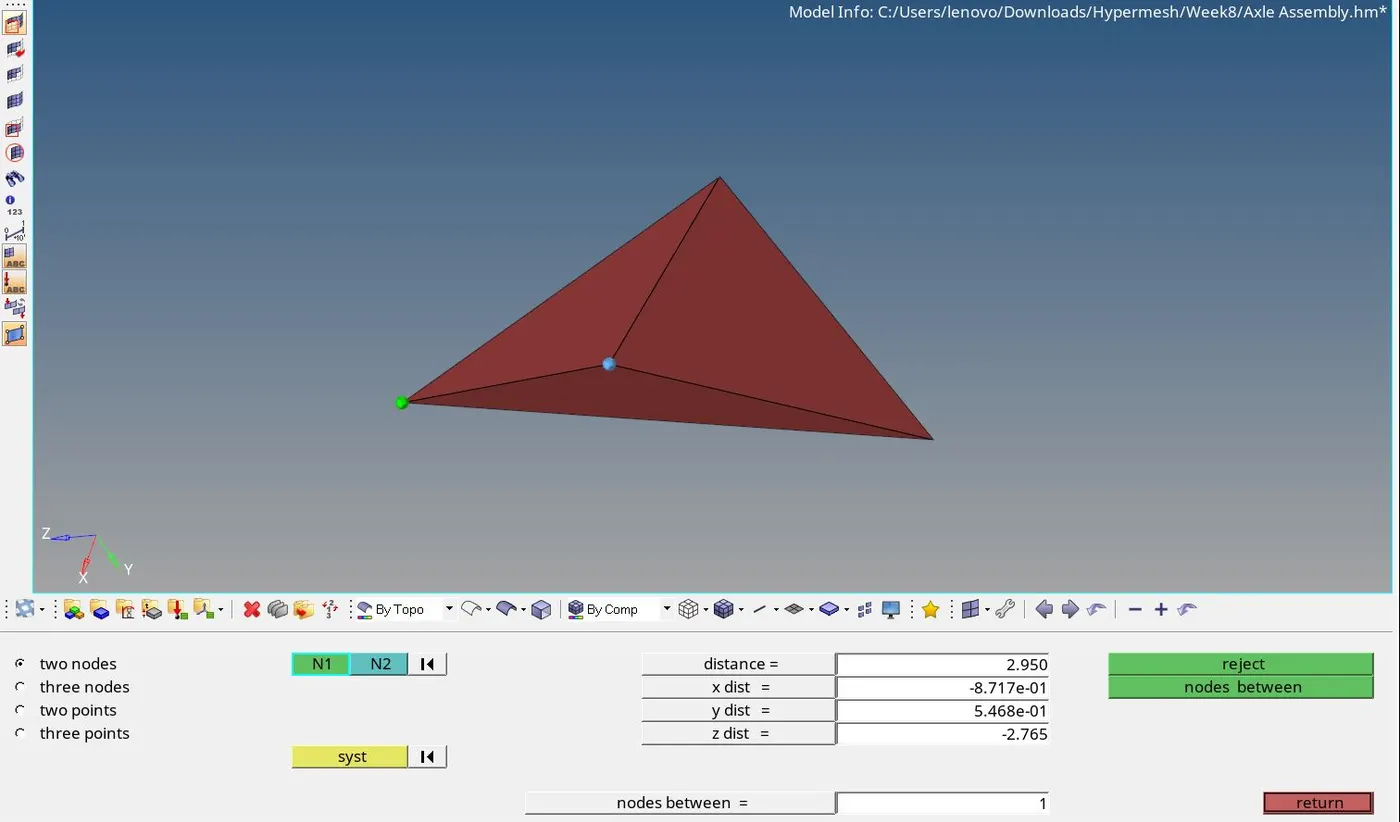
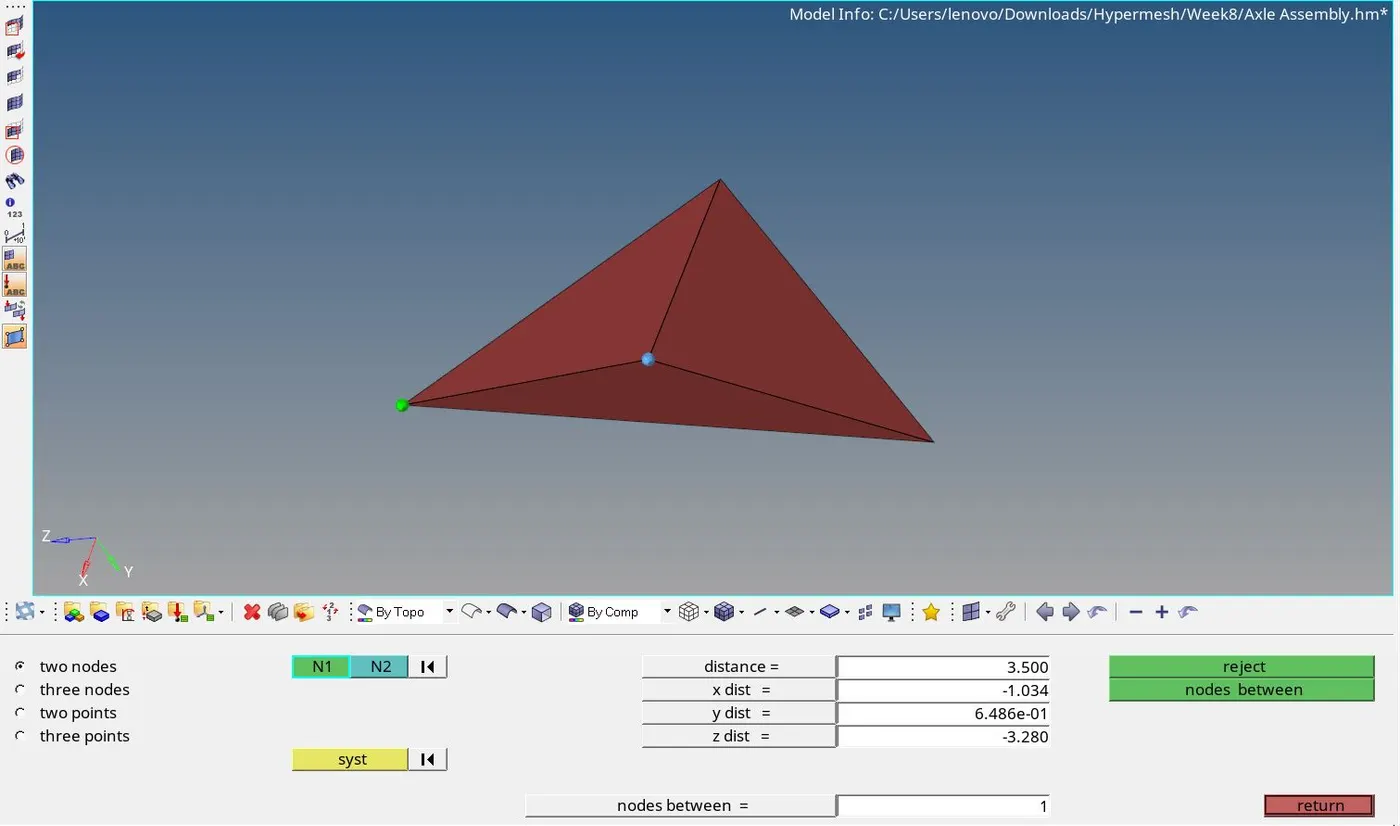
The remaining elements are to be fixed manually. - In the manual method of fixing Tet collapse, the shortest height of the element is adjusted such that the element passes the Tet collapse quality criteria.
To adjust the shortest height, any of the edge length can be changed using the distance command.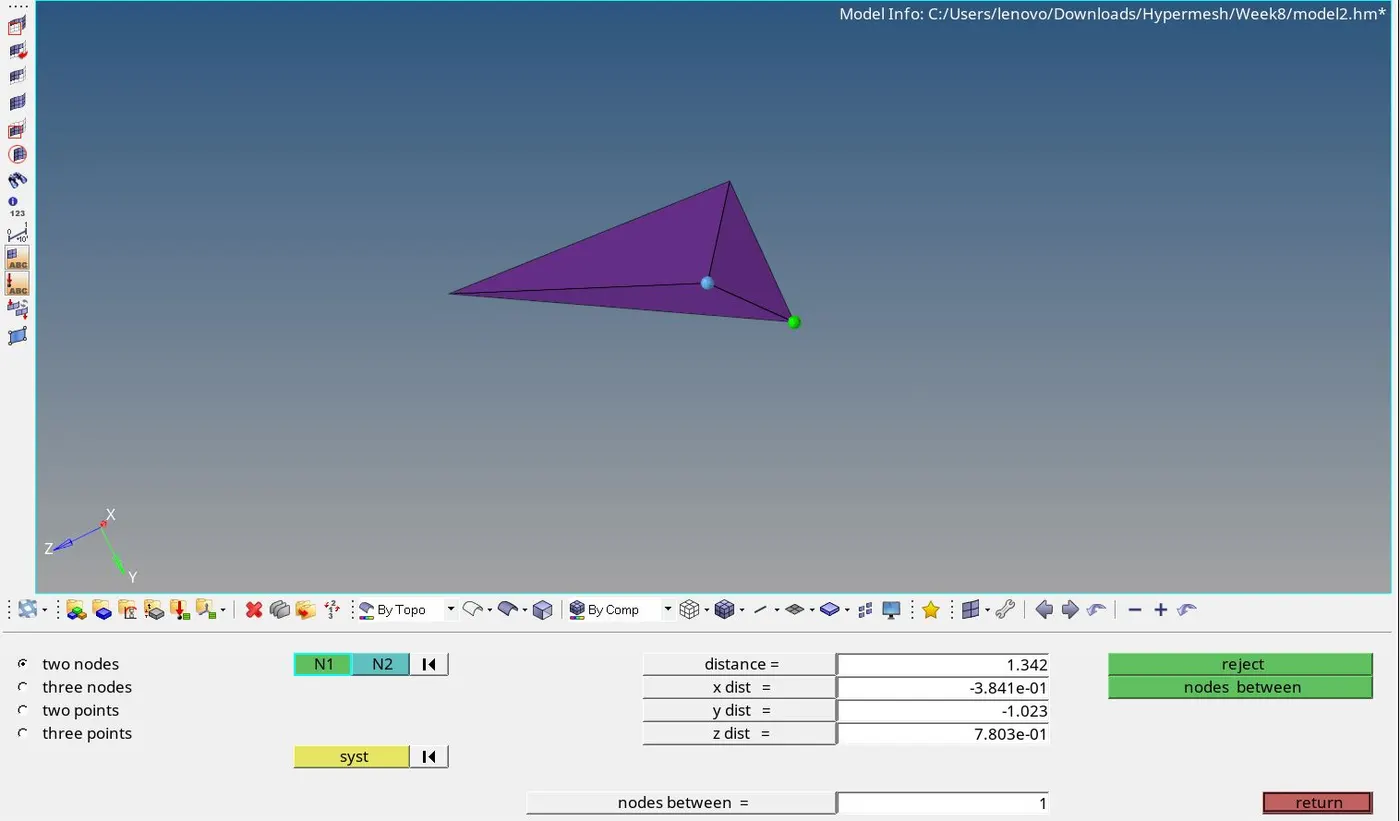
- Once all the failed elements are fixed, the meshing process gets completed.
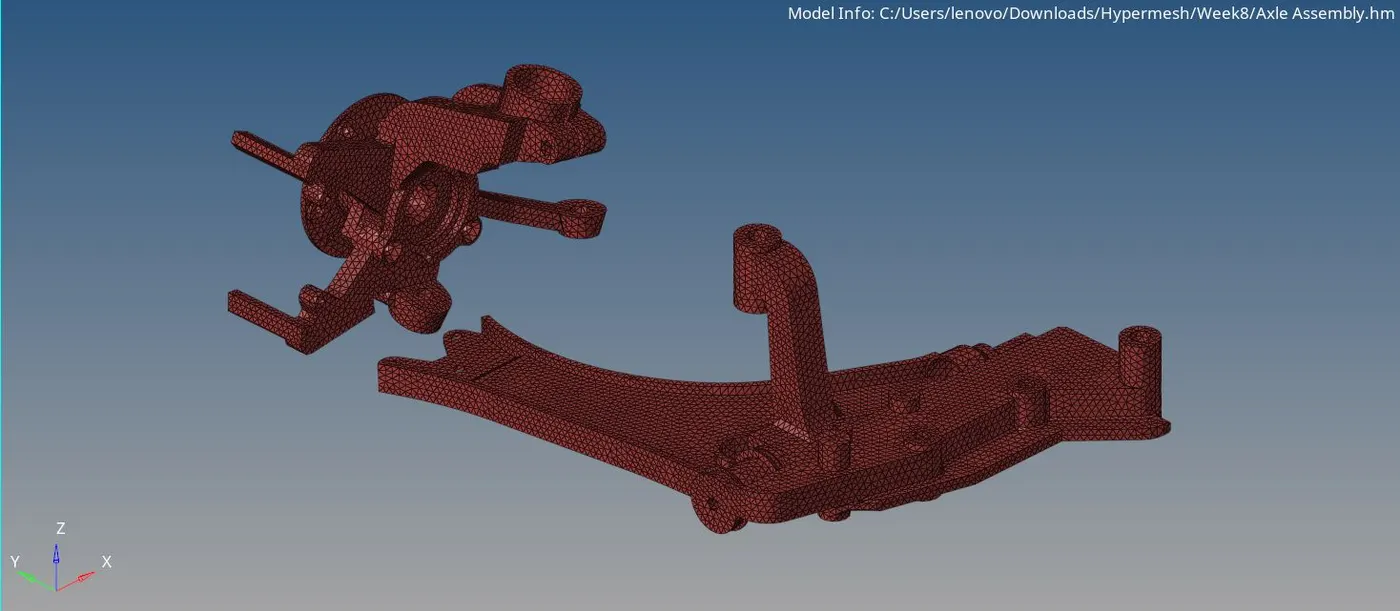
(III) Model 3 - Axle assembly :
- To import the CAD geometry (.igs file), the file type is changed to IGES.
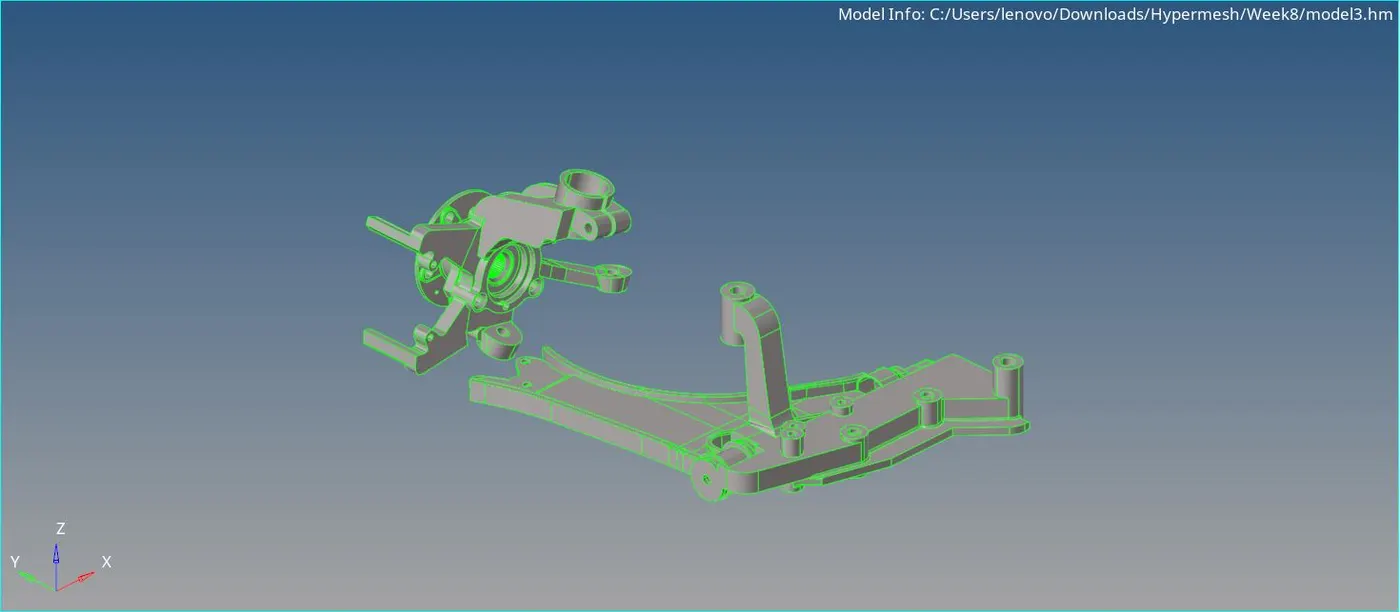
- Here, the meshing is to be done using the Volume Tetra method.
- However, the provided CAD consists of only surfaces. For Volume Tetra mesh, we require solids.
Accordingly, solids can be created using the Geom - Solids - Bounding surfaces command. - To ensure proper connectivity between the elements of adjacent parts, these adjacent parts are transformed into a single solid.
This is done by deleting the common surfaces and then stitching the remaining faces afterwards.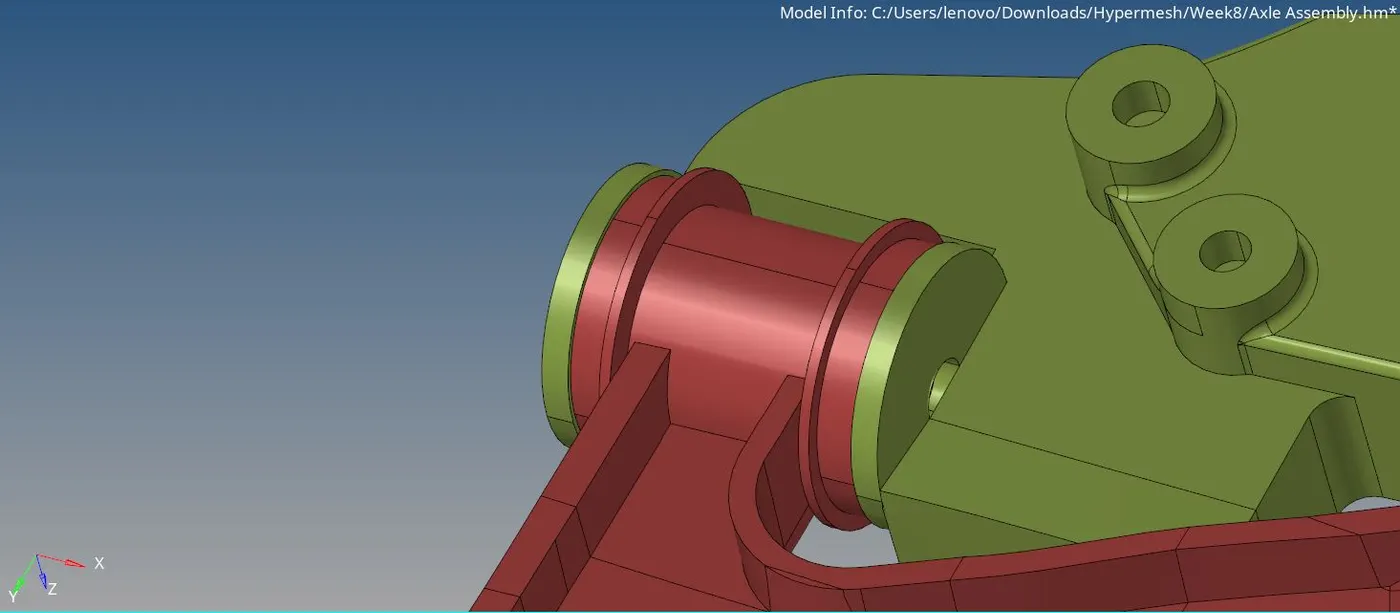
- The unnecessary close edges are suppressed using the toggle command as these may cause elements on the periphery to fail.
- The teeth are very small in size. The tetra elements in this region are far likely to fail for tet collapse. So these teeth are defeatured and modelled as a flat surface.
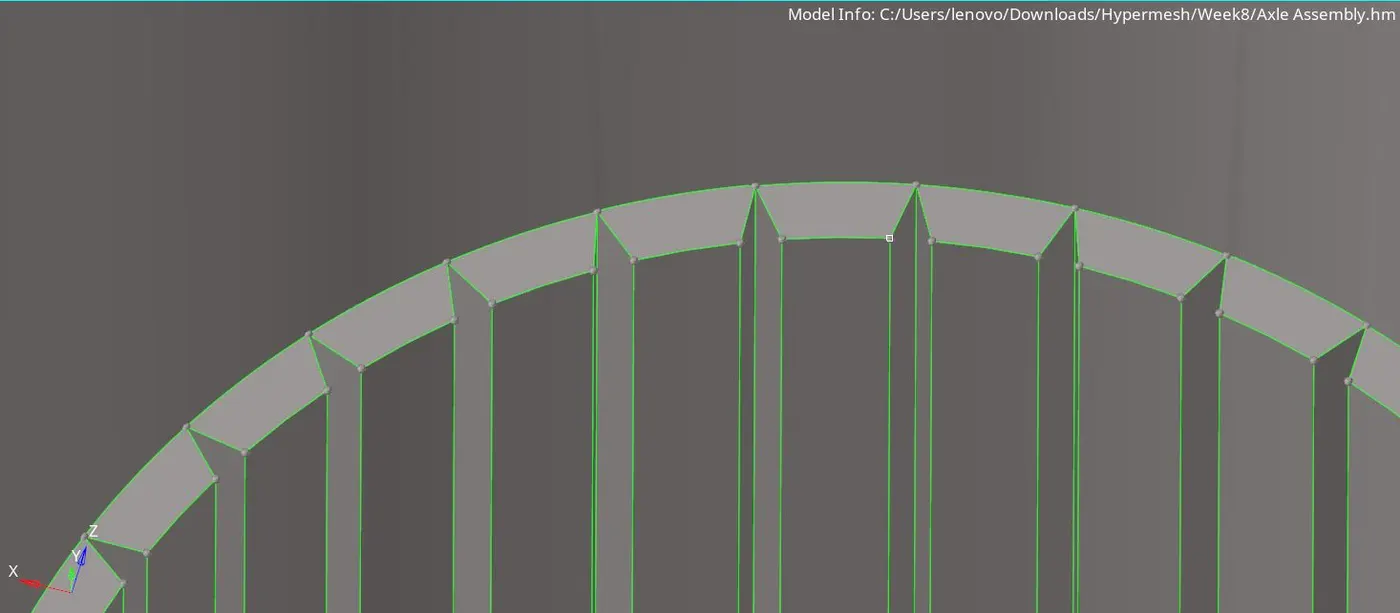
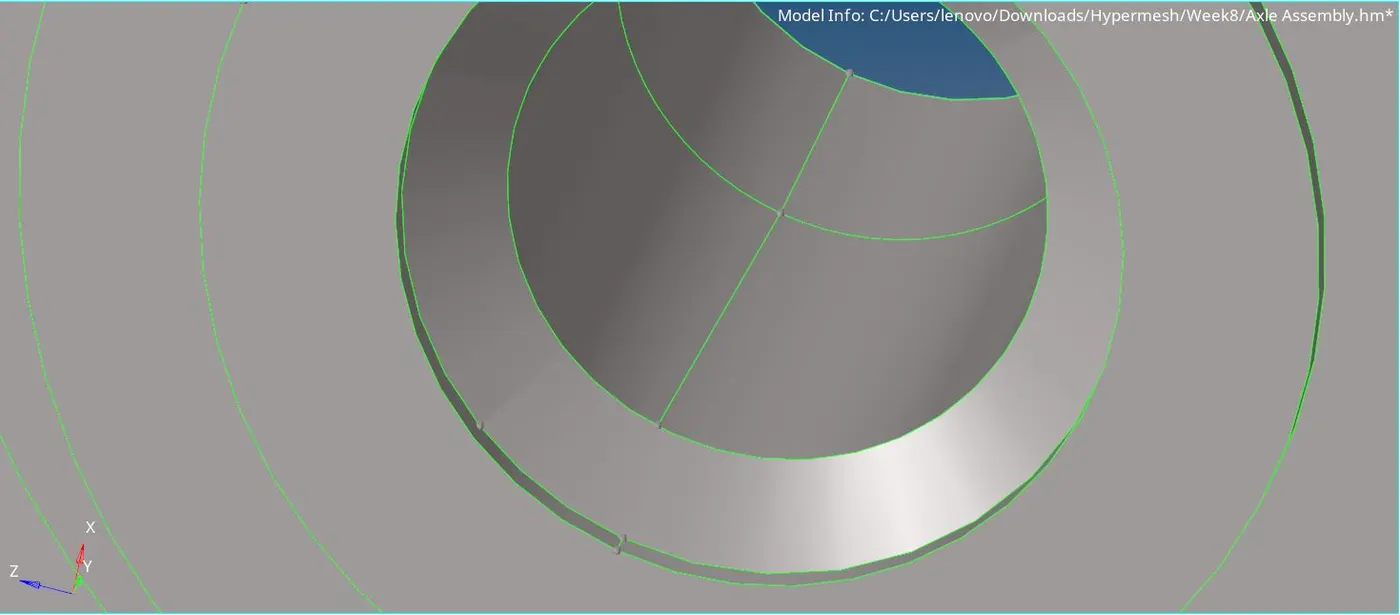
- Now a single solid is created out of the two adjacent components, using the above mentioned command.
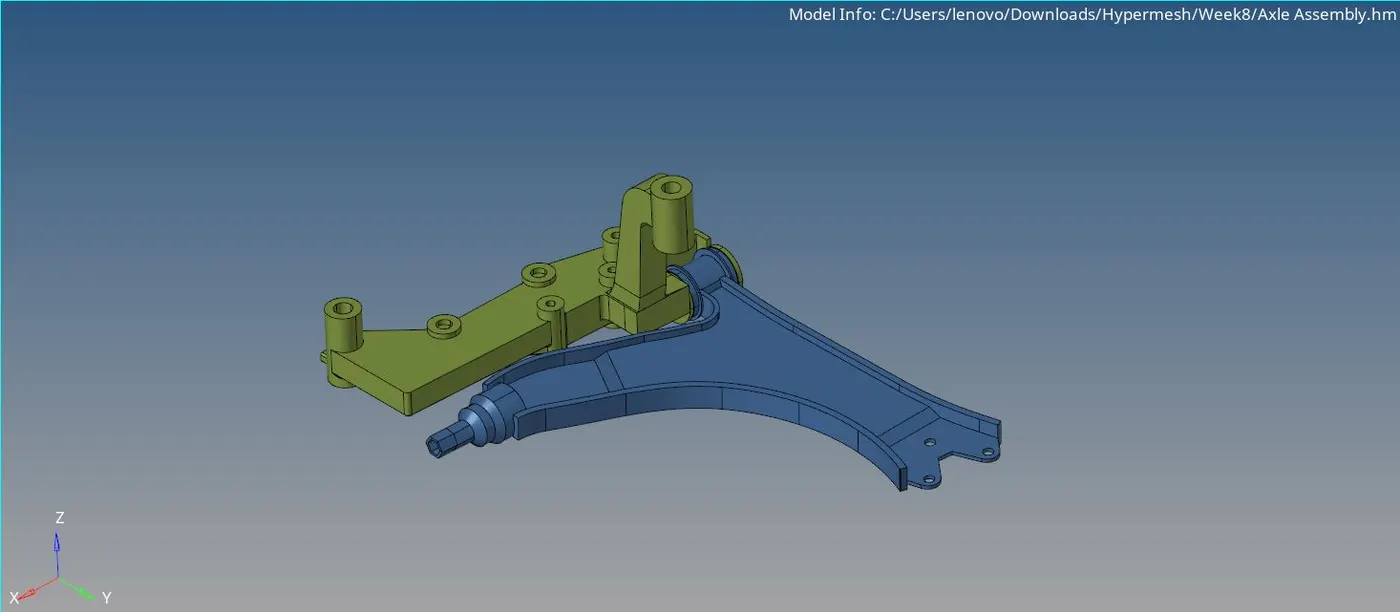
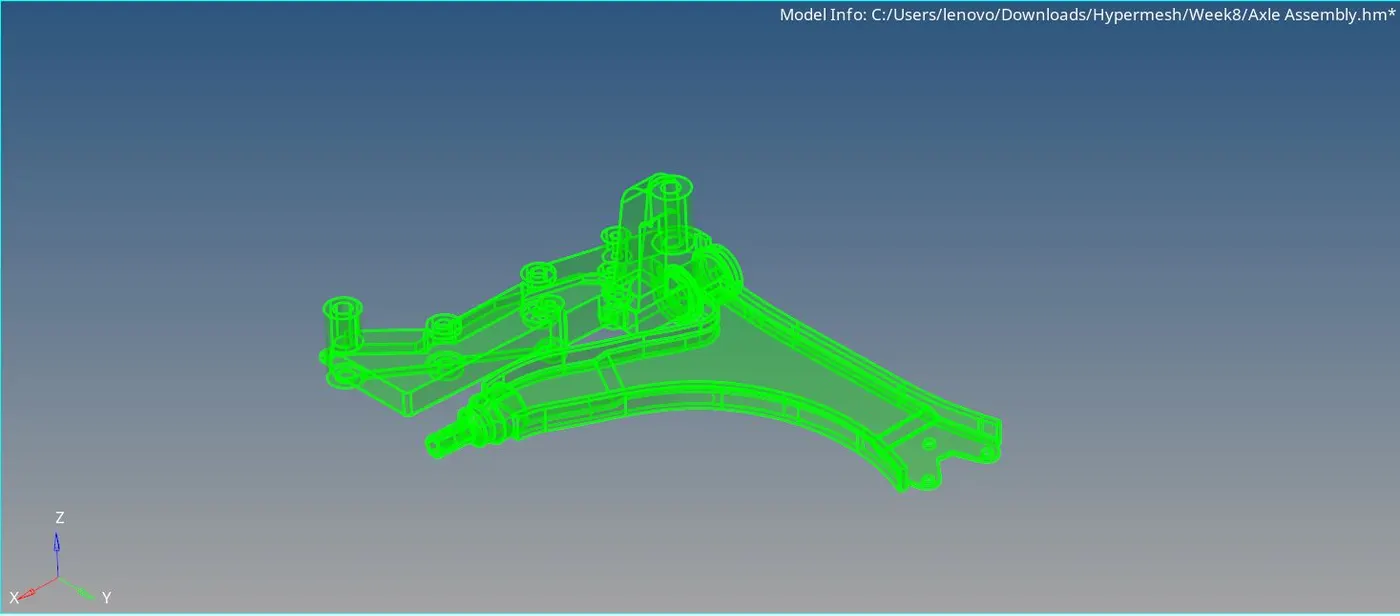
- Now, with this solid, the 3D tetra mesh can be deployed by using the Volume tetra command inside the 3D - Tetramesh tab.
Here, as required, the mesh size is given as 6 mm.
The chosen 2D mesh type is trias and 3D type is tetras.
The rest of the parameters are left with their defaults values.
In the Tetramesh parameters, the Element Quality Target is set to 0.15.
Here, the use proximity and use curvature options correspond to Hypermesh automatically creating small elements in the sharp feature regions of the model in order to facilitate better feature capturing.
However, there's a high chance that the elements at such region to fail under Tet collapse criteria.
Here, both the options are left unticked.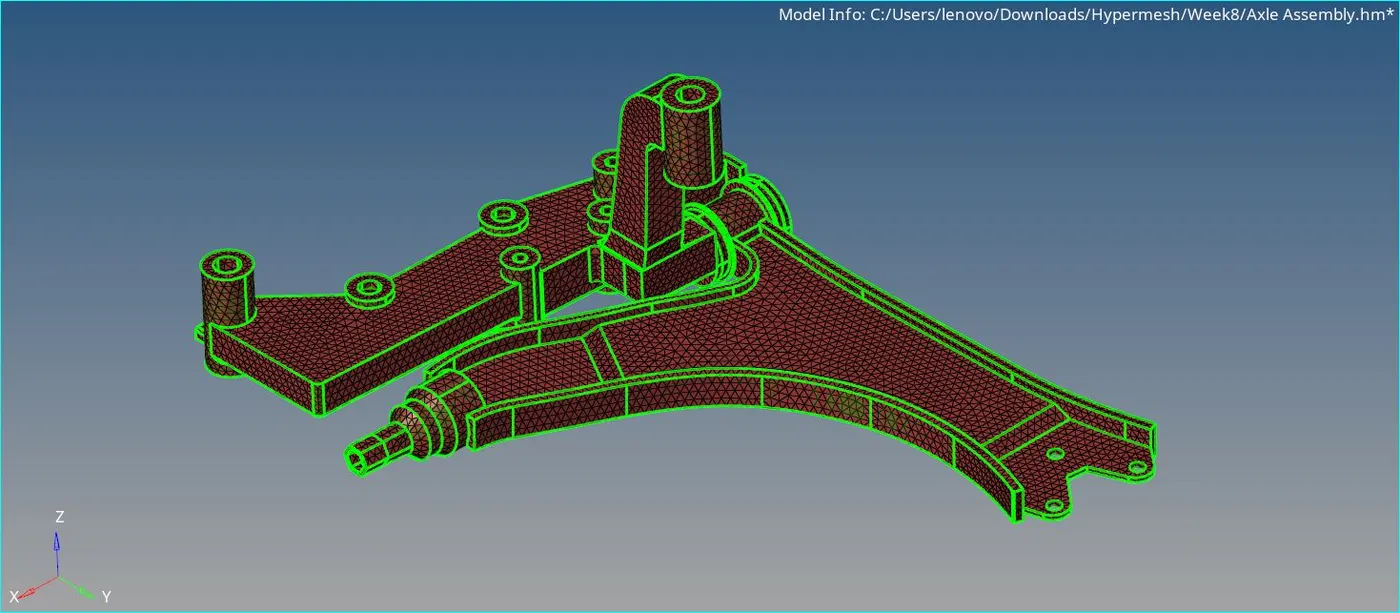
- By masking few elements, the volume tetra elements can be clearly visualised.
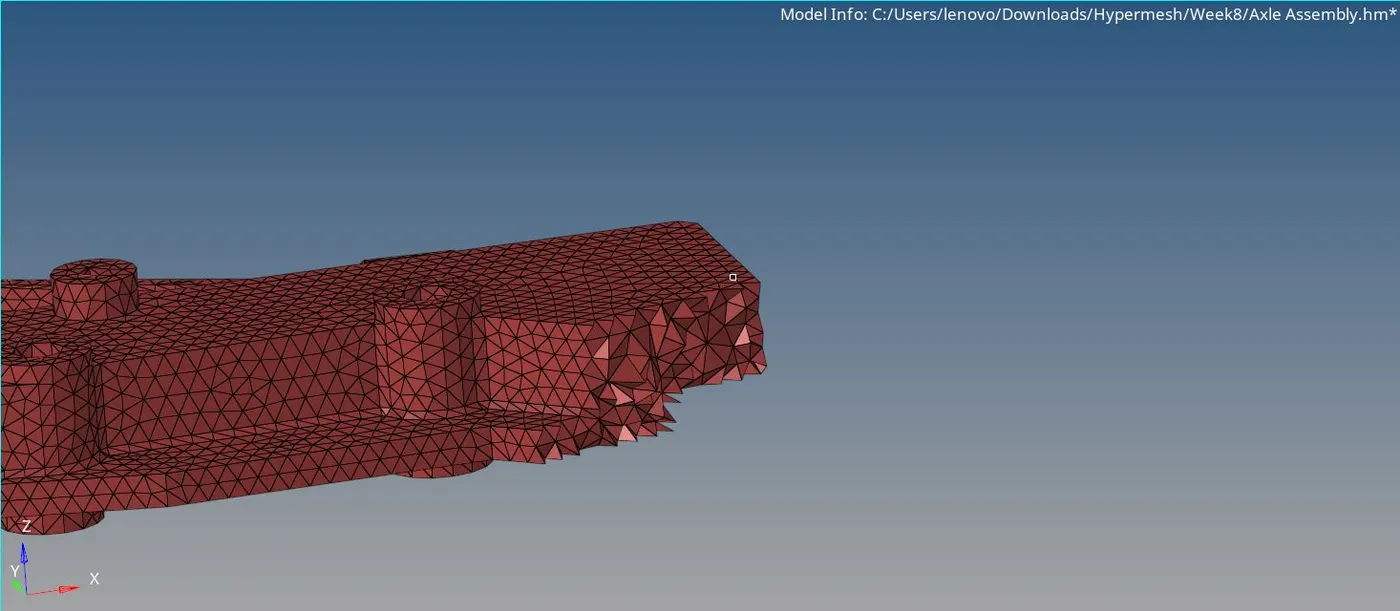
Note : One thing to notice here is, there is no 2D shell mesh created on the surface of the model. This is one of the differences between Volume Tetra method and the other two methods. - Now, the failed Tet collapse elements are fixed in the same way as done in the above two methods.
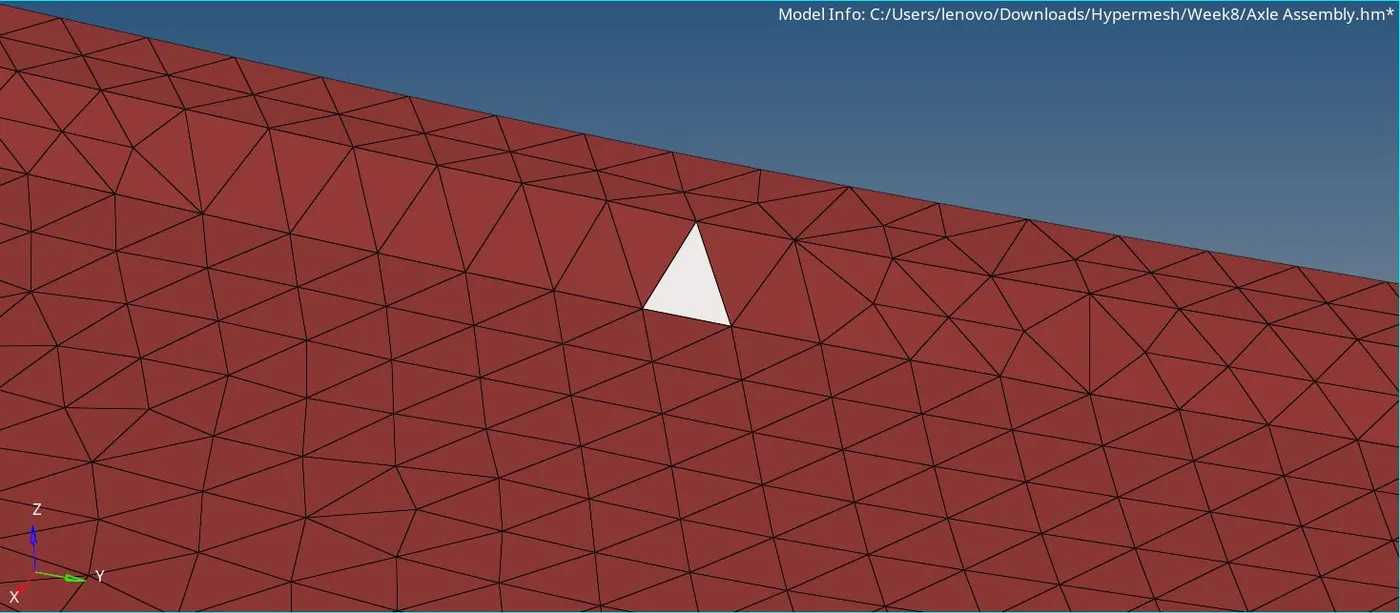
- Once performing Tetra remesh, the remaining failed elements are fixed manually by adjusting the smallest edge length, thereby changing the element height.
- Finally, after fixing all the failed elements, the meshing is completed.
CONCLUSION : Succesfully deployed 3D mesh over the 3 avaliable CAD models. Each model was meshed with different method.
Also, learnt quite a lot of important and interesting things -
- What is 3D or Volume meshing and how does it differ from the 2D meshing.
- What are the different types of 3D meshes.
- What are the different methods of deploying 3D Tetra mesh.
- What is Tet collapse and how to deal with the elements failed under Tet collapse quality criteria.
Among the three methods, the first one, (i.e. deploying Tetra mesh after manually creating a 2D shell mesh) is the most accurate and gives out very less amount of Tet collapse failures. However, the time required is considerably more for this method as well.
The Quick Tetra mesh method is very rapid. However, the mesh quality is very poor in terms of surface capturing and Tet collapse failures.