Week 8-3D Tetra Meshing Challenge
AIM
To create a Tetramesh for 3 different components with the given quality criteria.
PROCEDURE
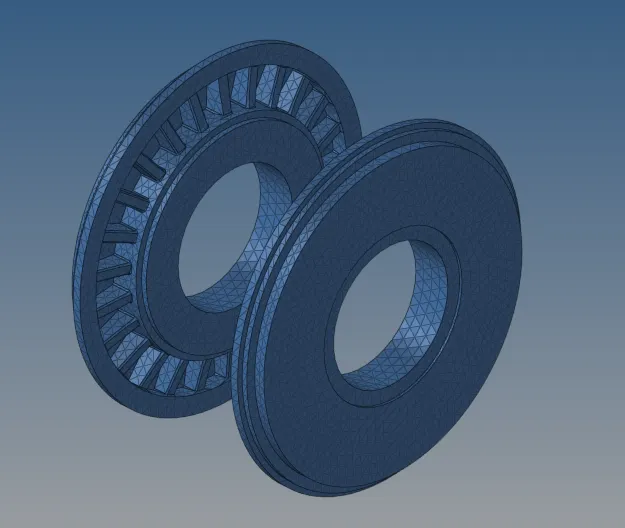
1.HOUSING
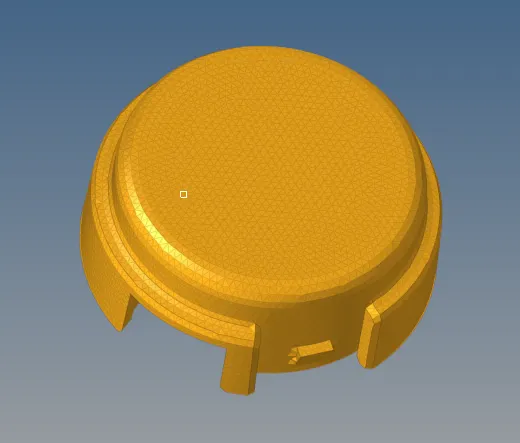
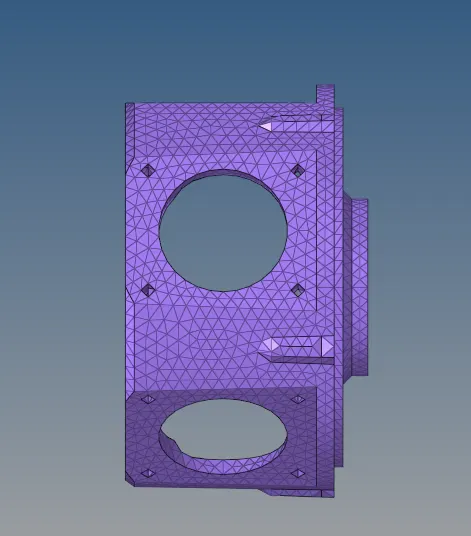
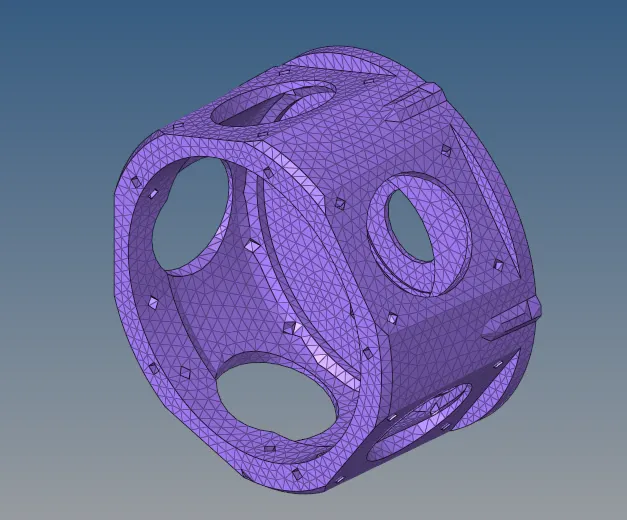
- The given component is imported as .stp file format and the component is viewed by topo mode.
- The given component is checked for the uniformity in its thickness all over the geometry using
distance option. - First mesh the component by 2D automesh(Element size-5mm,Mesh type-Tria).
- The given qualiity criteria are given as input in the check elements option in the tools
section.On meshing the components are meshed with quads and trias and the mesh is made proper
by following various processes Min-2mm,Max-7mm. - After the quality check 2D element is converted into 3D tetra mesh.For that using the Tetramesh option in the 3D panel
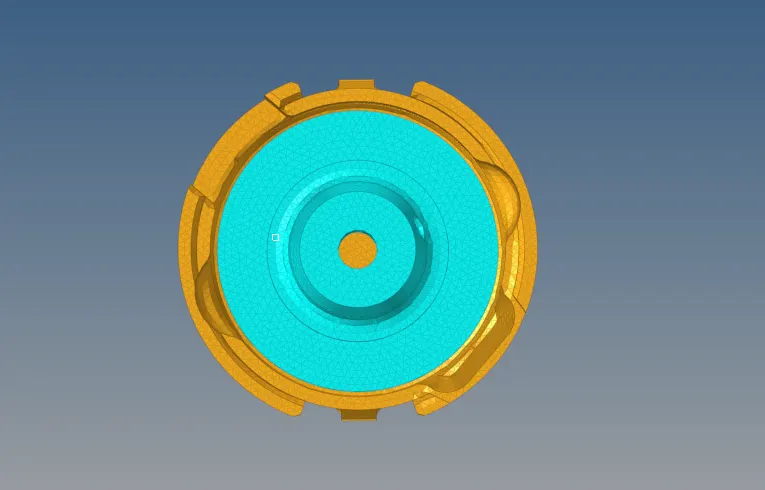
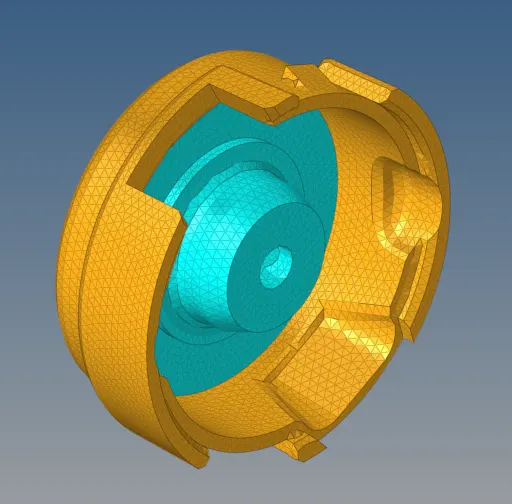
- In that select all elements in the tetramesh option and then mesh 3D TETRA MESH is formed.
- Mask some element and conform wheather the 2D elements are converted to 3D element.
- And check quality criteria for 3d mesh Tet Collapse: 0.15.
- The failed elements are then saved using the save failed option and are retrieved, masked and
reversed using the mask option to display only the failed elements. - Then the adjacent elements to the failed elements are unmasked using the unmask adjacent and the
optimizing process is carried out by Tetra remesh option. - If error is sown after using tetra remesh.Then replace 2nodes by using Replace option in 3D panel or Increase the distance of 2 nodes by using Distance option in geomentry panel.
- By using these method clear all error in the component.
- Finally the complete component is meshed and saved in .hm file format successfully.
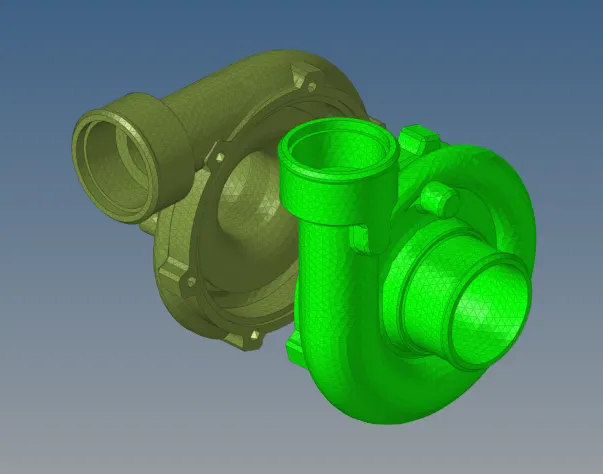
2.SECOND COMPONENT
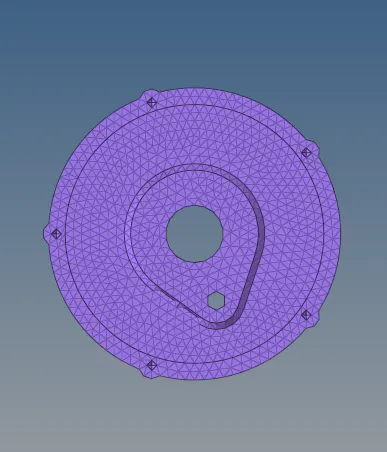
- Given component is import as model formate by using import solver desk.
- By using topo check the component is solid or surface.
- Mesh the component by using volume tetramesh in the 3D panel Target Element size: 3 Units.Enclose volume-suface,2D type-trias,3D type-tetras,element order-first.

- And change the tetramesh parameters for given qality criteria Tet Collapse: 0.15.
- After meshing the component check the mesh arrangements if there is any irregularity inmeshing then delete all the element.
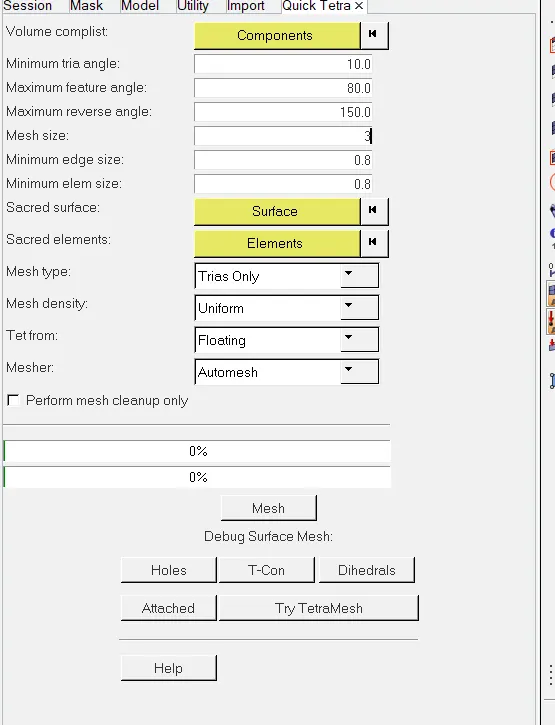
- And mesh using quick tetramesh option in view-browsers-hypermesh-utility-geom/mesh in that select the component change the required quality criteria and then mesh.
- And check quality criteria for 3d mesh Tet Collapse: 0.15.
- The failed elements are then saved using the save failed option and are retrieved, masked and
reversed using the mask option to display only the failed elements. - Then the adjacent elements to the failed elements are unmasked using the unmask adjacent and the
optimizing process is carried out by Tetra remesh option. - If error is sown after using tetra remesh.Then replace 2nodes by using Replace option in 3D panel or Increase the distance of 2 nodes by using Distance option in geomentry panel.
- By using these method clear all error in the component.
- Finally the complete component is meshed and saved in .hm file format successfully.
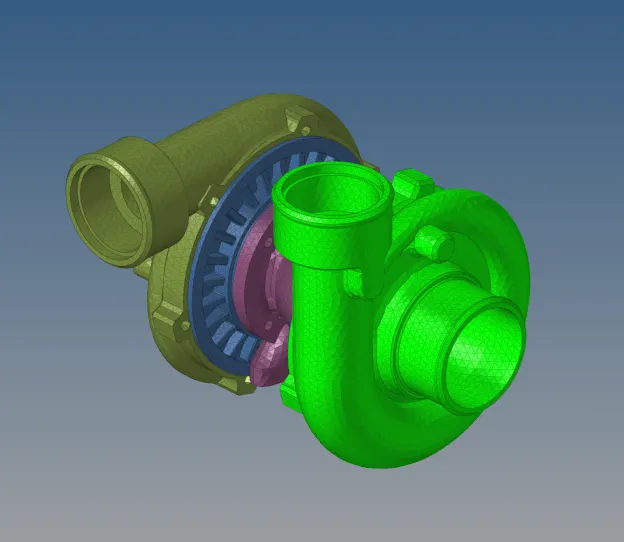
3.THIRD COMPONENT
- Given component is import as model formate by using import solver desk.
- By using topo check the component is solid or surface.
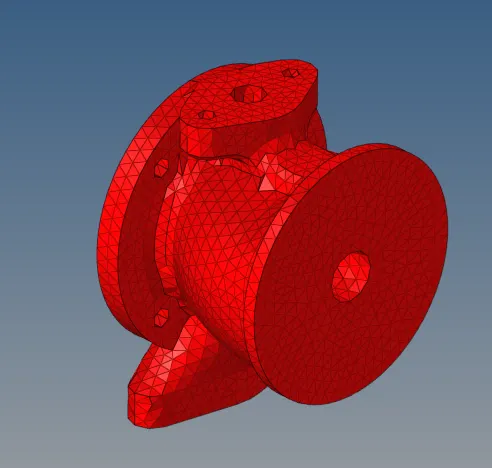
- In that 4 different components are present mesh one by one by mask all other component.
- Mesh the component by using volume tetramesh in the 3D panel Target Element size: 4 Units.Enclose volume-suface,2D type-trias,3D type-tetras,element order-first.
- And change the tetramesh parameters for given qality criteria Tet Collapse: 0.15.
- After meshing the component check the mesh arrangements if there is any irregularity inmeshing then delete all the element.
- And mesh using quick tetramesh option in view-browsers-hypermesh-utility-geom/mesh in that select the component change the required quality criteria and then mesh.
- And check quality criteria for 3d mesh Tet Collapse: 0.15.
- The failed elements are then saved using the save failed option and are retrieved, masked and
reversed using the mask option to display only the failed elements. - Then the adjacent elements to the failed elements are unmasked using the unmask adjacent and the
optimizing process is carried out by Tetra remesh option. - If error is sown after using tetra remesh.Then replace 2nodes by using Replace option in 3D panel or Increase the distance of 2 nodes by using Distance option in geomentry panel.
- By using these method clear all error in the component.
- BY same step is done for all other component.
- Finally the complete component is meshed and saved in .hm file format successfully.
CONCLUSION
Thus the given components are sucessfully mesh by using 3D Tetramesh under the given quality criteria.