Week 8-3D Tetra Meshing Challenge
Aim :-
Create Tetra mesh for given housing model with the following quality criteria.
Quality Criteria :-
Min Length :- 2 Units
Target :- 5 Units
Max Length :- 7 Units
Tet Collapse :- 0.15
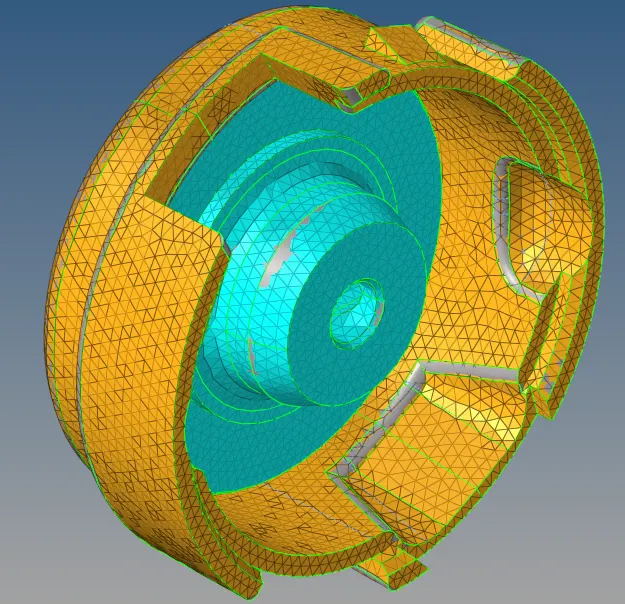
1. Model 1 :- Mesh Generation Method = 2D to 3D conversion.
- Import .stp file.
- Geometry Clean-up.
- 2D mesh generation.
- 3D/Tetra mesh conversion.
- Quality clearance.
Procedure :-
1. Import the given .stp file using Import->Geometry->.stp->Import.
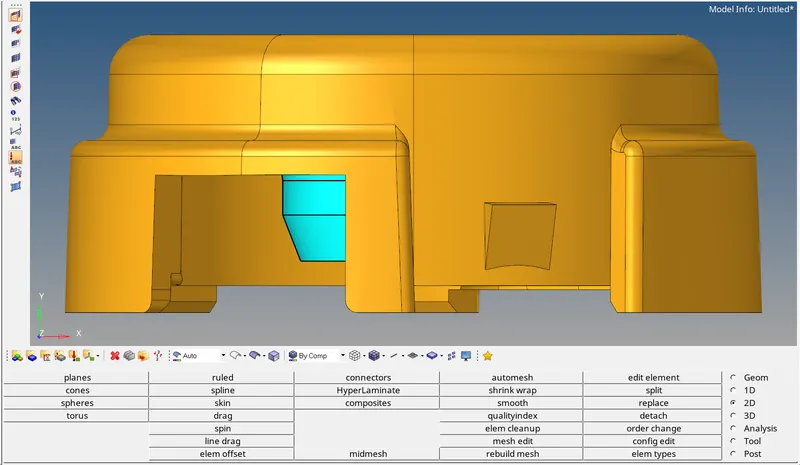
Fig 1 :- Import CAD Model
2. Delete solids in the midel using F2->solids->displayed->delete.
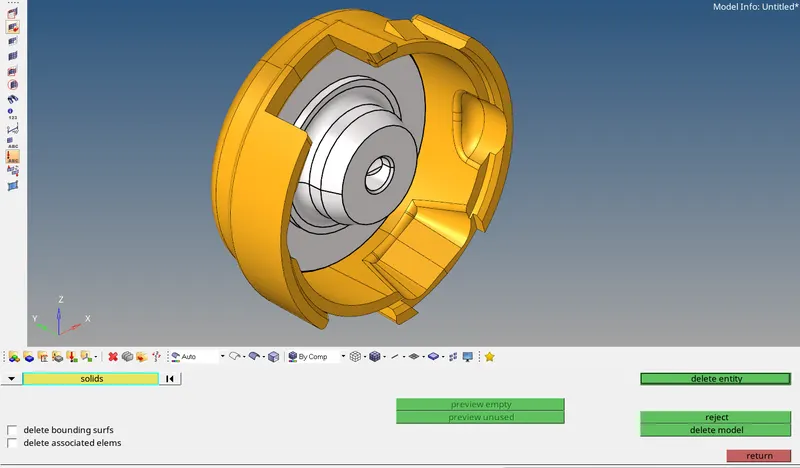
Fig 2 :- Delete Solids from the model
3. Clean-up the geometry by defeaturing and removing the unwanted lines using Geometry->Quick Edit->Toggle/Rerplace.
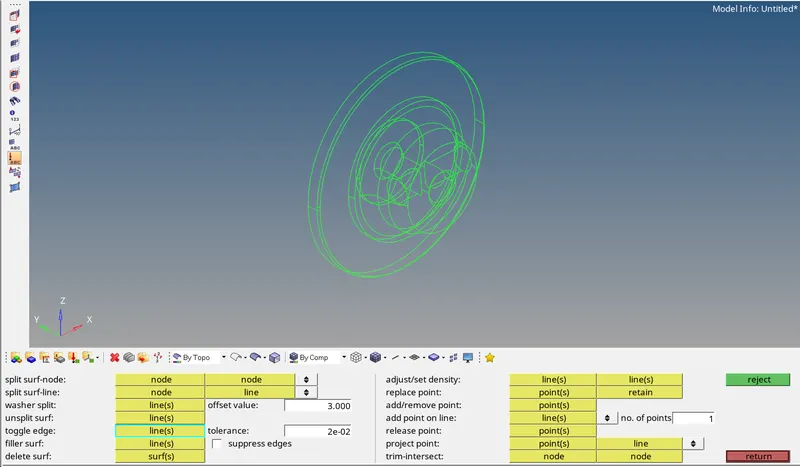
Fig 3 :- Geometry Clean-Up
4. Create 2D meshing on the clean CAD model using 2D->Automesh->Select Surface->Mesh Type=Trias->Mesh.
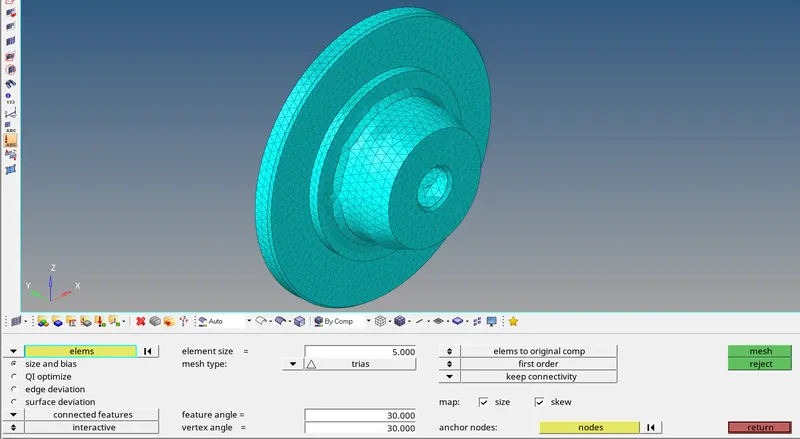
Fig 4 :- 2D Meshing on the component
5. In order to convert 2D mesh to 3D mesh use 3D->Tetramesh->Tetra mesh-> Select Elements->Mesh.
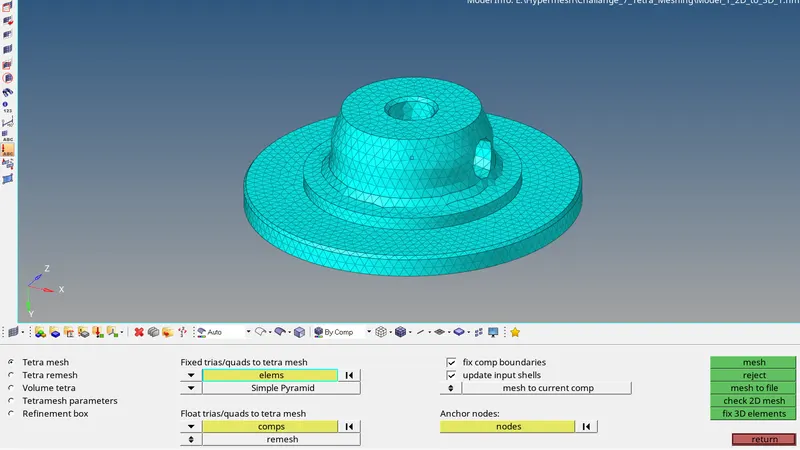
Fig 5.1 :- 3D meshing conversion
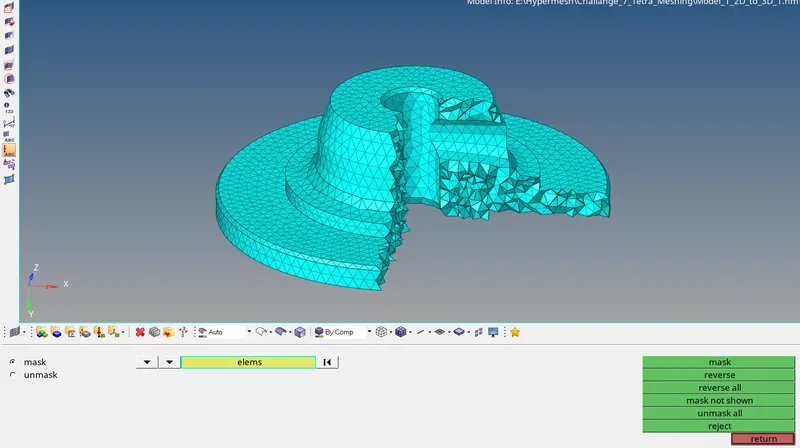
Fig 5.2 :- 3D mesh masking
6. Once the 3D meshing is completed, check for quality for Tet collapse = 0.15
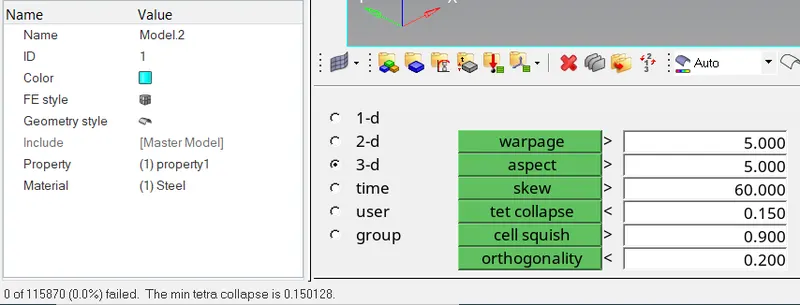
Fig 6 :- Quality Criteria
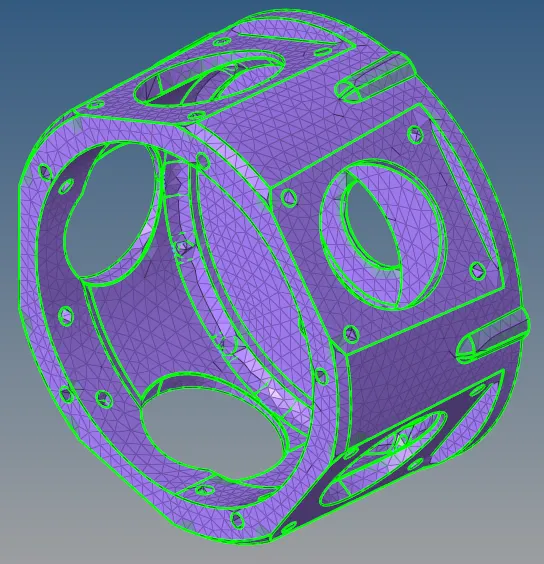
2. Model 2 :- Mesh Generation Method = Quick Tetra Mesh.
- Import .stp file.
- Quick Tetra Mesh.
- Quality Clearance.
Procedure :-
1. Import the given .iges file to hypermesh.
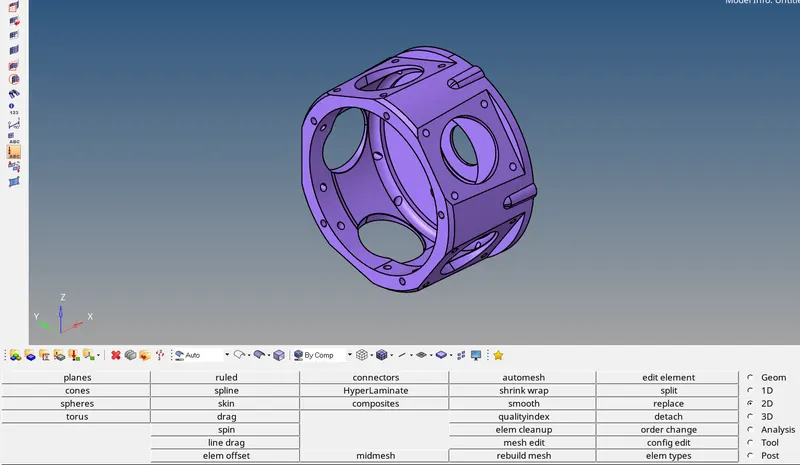
Fig 1 :- Import CAD Model
2. Tetra meshing for the given compomnent is carried out by Quick Tetra Meshing method using View->Browsers->Utility->Geom/Mesh->Quick Tetra Mesh.
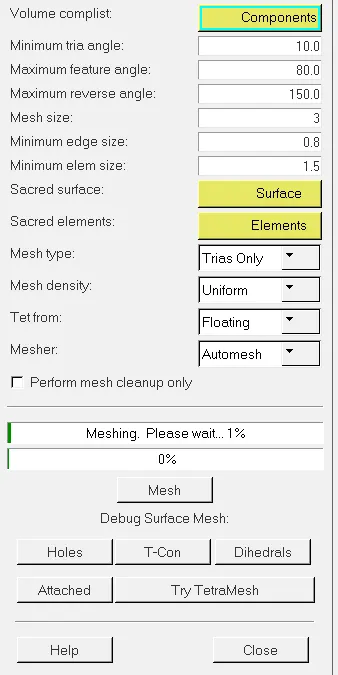
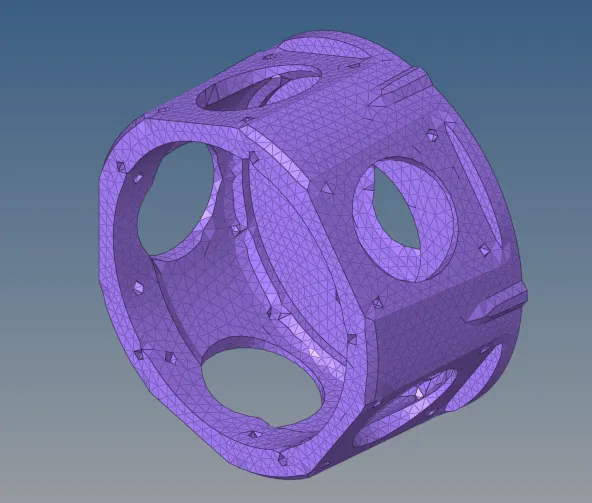
Fig 2.1 :- Quick Tetra Meshing Fig 2.2 :- Quick Tetra Mesh Result
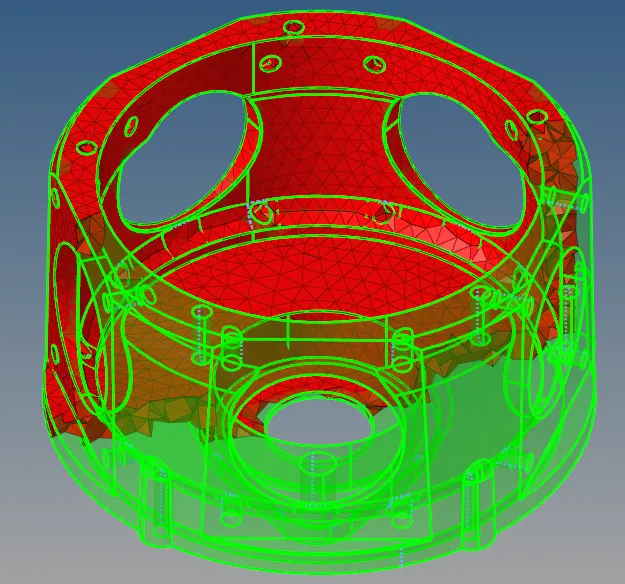
Fig 2.3 :- Volume Mesh masking
3. Once the volume mesh is generated, check for tet collapse using Tool->Element Check->3D->Element Check->Tet Collapse. If the elements are failing for quality, remesh the elements using Tetra Remesh.
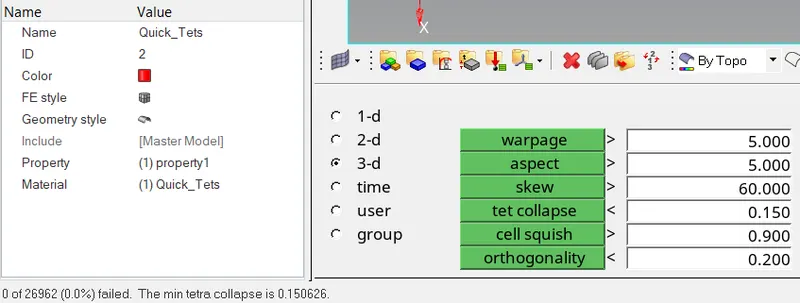
Fig 3 :- Quality Clearing
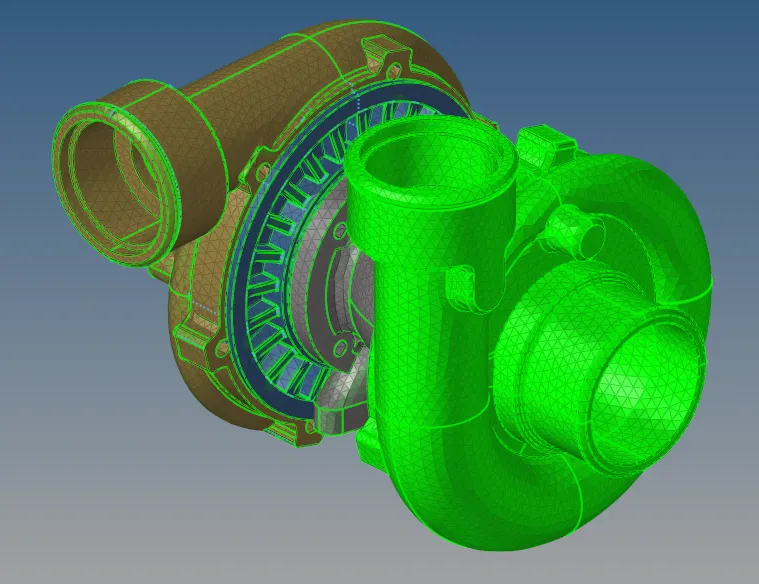
Model 3 :- Mesh Generation Method = Volume Tetra Mesh.
- Import .stp file.
- Geometry Clean-up.
- Volume Tetra meshing.
- Quality clearance.
Procedure :-
1. Import the .iges file to hypermesh.
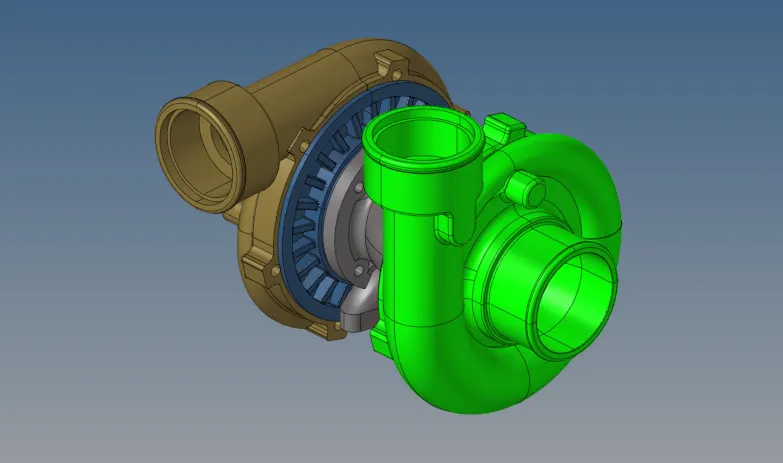
Fig 1 :- Import the CAD Model
2. Perform Geometry clean-up and defeaturing using Geometry->Defeature->Surface Fillet->Select Surface->Find->Remove.
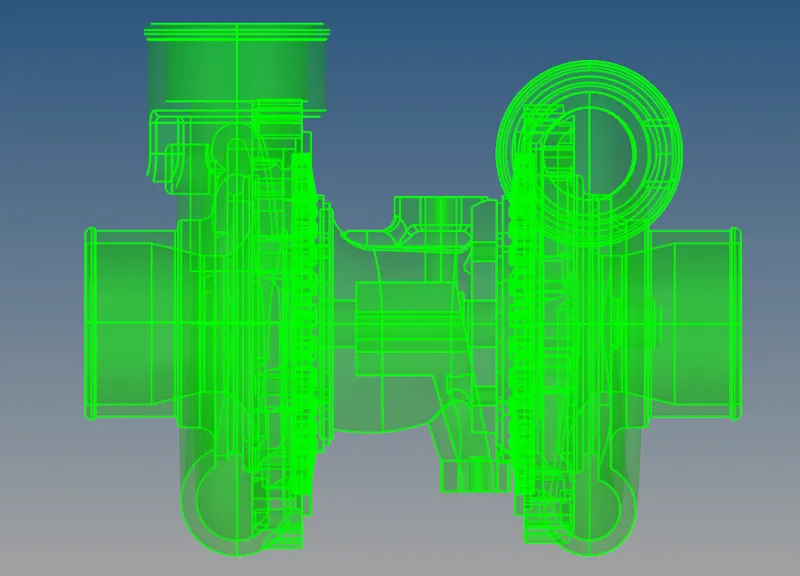
Fig 2.1 :- Geometry Clean-up
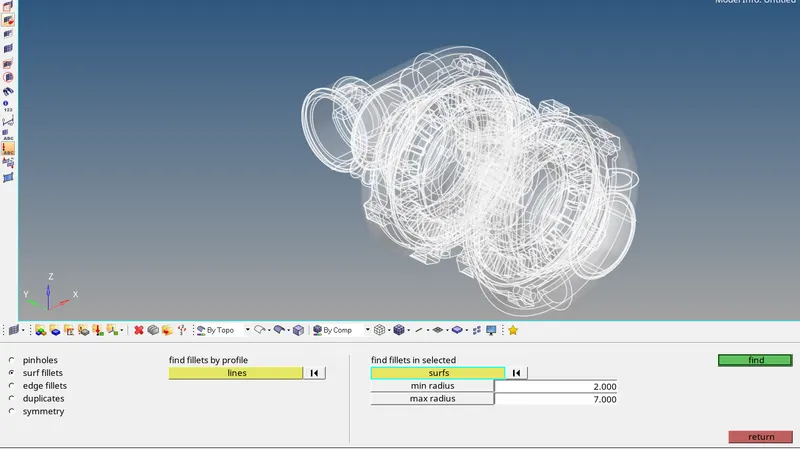
Fig 2.2 :- Defeaturing
3. Perform Tetra Meshing using 3D->tetra mesh->volume tetra->select solids->displayed->mesh.
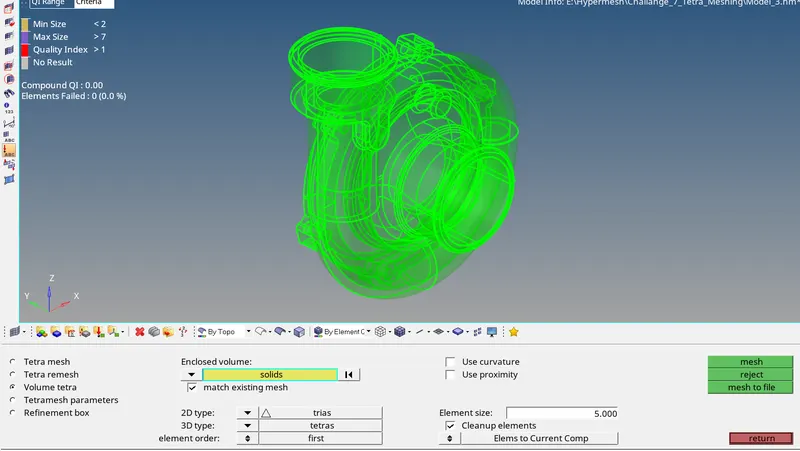
Fig 3.1 :- Volume tetra meshing
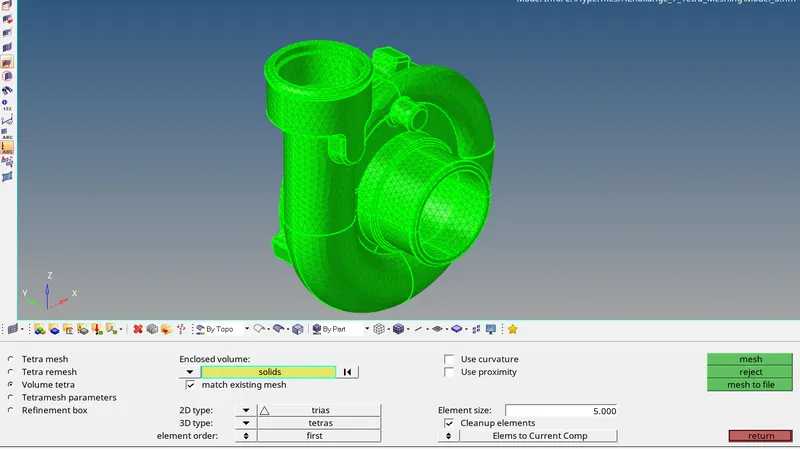
Fig 3.2 :- Volume tetra mesh Creation
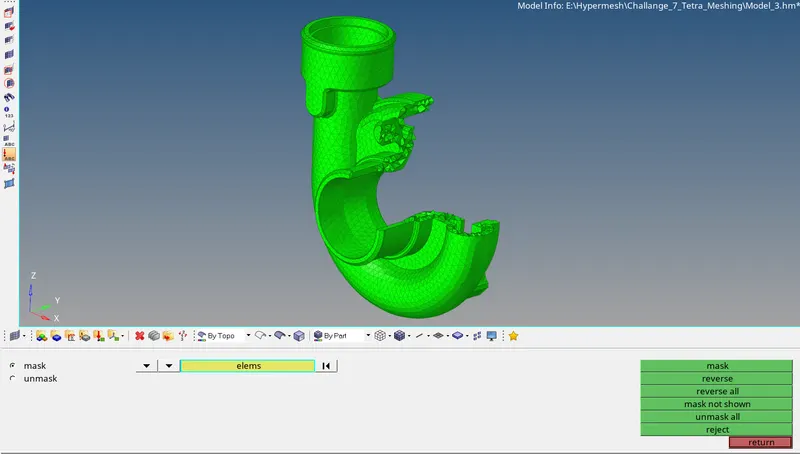
Fig 3.3 :- 3D Mesh Masking
4. Similarly perform meshing for all the sub components.
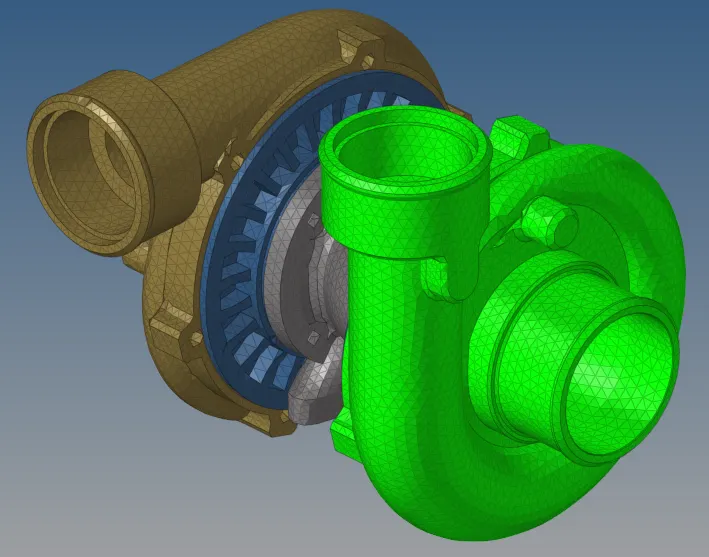
Fig 4 :- Volume Tetra Meshing for whole assembly
5. Once the volume mesh is generated, check for tet collapse using Tool->Element Check->3D->Element Check->Tet Collapse. If the elements are failing for quality, remesh the elements using Tetra Remesh.
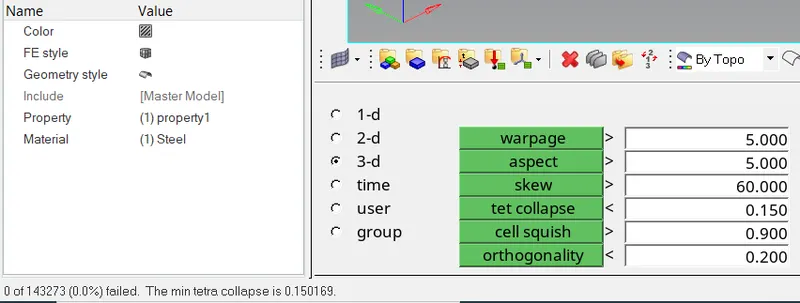
Fig 5 :- Quality Clearing
Final Outcome :-
Model 1 :-
Model 2 :-
Model 3 :-
Result :-
The given 3 models are meshed with 3D tetra mesh using 3 different methods with the given quality criteria.