Week- 6 - Solid meshing
Solid Meshing
Aim: For the given Rear view mirror component, check for the geometrical errors and mesh the Surfaces with the given 2D element Quality criteria given.
Procedure:
- Check for the geometry errors
- Set the quality criteria and target length
- Use 2D mesh for meshing
- Create Volume mesh
1. Geometry Check
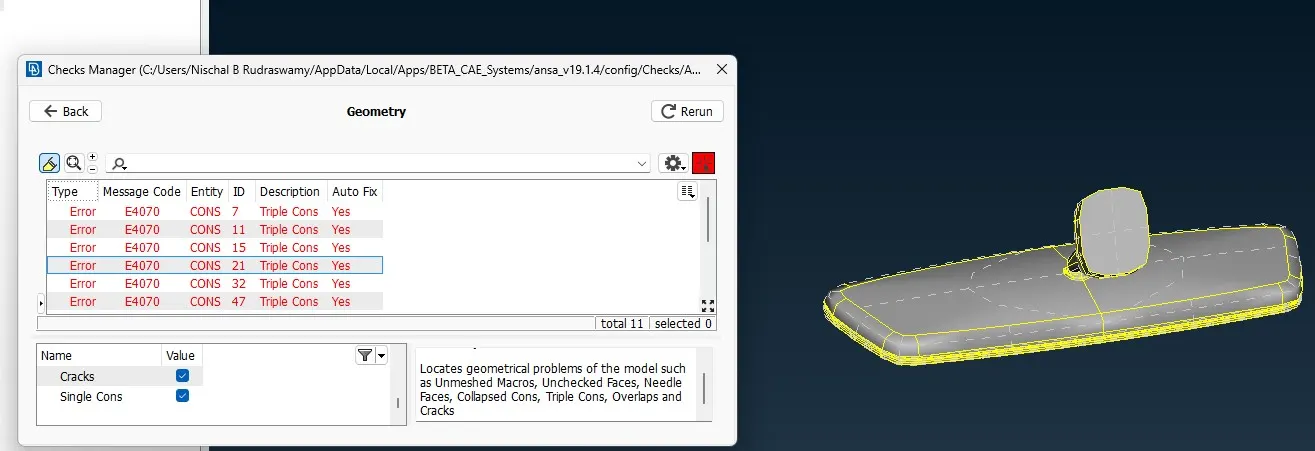
Import the IGS/STP file of the model into the ANSA. Check for the Geometry – Check Manager > Geometry. Use TOPO > Faces > topo to fix the cons by box selecting the entire visible geometry. Run the geometry check again and Auto fix the remaining geometry issues.
2. Set the quality criteria and target length
By selecting the min. length and max. length and setting the given length criteria. Set the target length in mesh parameters. Utilities > Mesh parameters > Target Length.
3. 2D Meshing
Now for the tetra mesh for the given hollow solid, 2D meshing with tria and ortho tria elements is given. Selecting the surface of the model (Macros), using spot mesh we can select the kind of element the mesh that is intended to have. Creating mesh with Ortho Tria elements on the curved surfaces and normal tria elemnets on the flat surfaces will give a good mesh with surface of the model intact without distortions.
- Corrections if there are distortions – using the Shell Mesh > Reconstruct; Increasing or decreasing the number of nodes on the CONS to get the proper mesh without distortions – Hot points > Num =/-; Using the usual elements to correct the mesh i.e. Split, Join, Swap; Smoothening the mesh after the corrections Shell Mesh > Smooth.
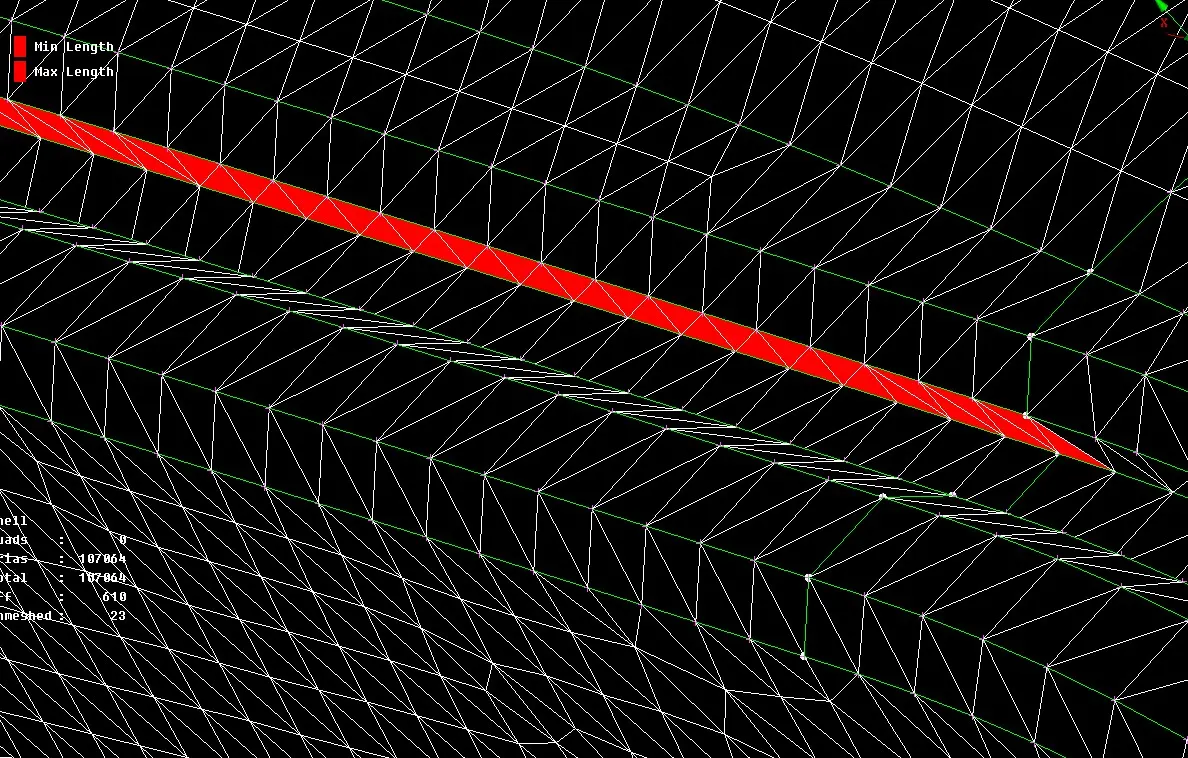
After meshing the entire geometry with 2D elements, we can check for the deviations in the quality criteria that is set, mainly the min. and the max. length criteria.
4. Creating Volume Mesh
The volume mesh here we are going to generate is Tetra Mesh according to the challenge given. Tetra Mesh is generally considered as unstructured mesh. To create the Volume mesh :
- We have Define the volume of the geometry, or else ANSA will not be able to find the volume to mesh. V MESH > Volumes > Define – By manually selecting the volume to be defined.
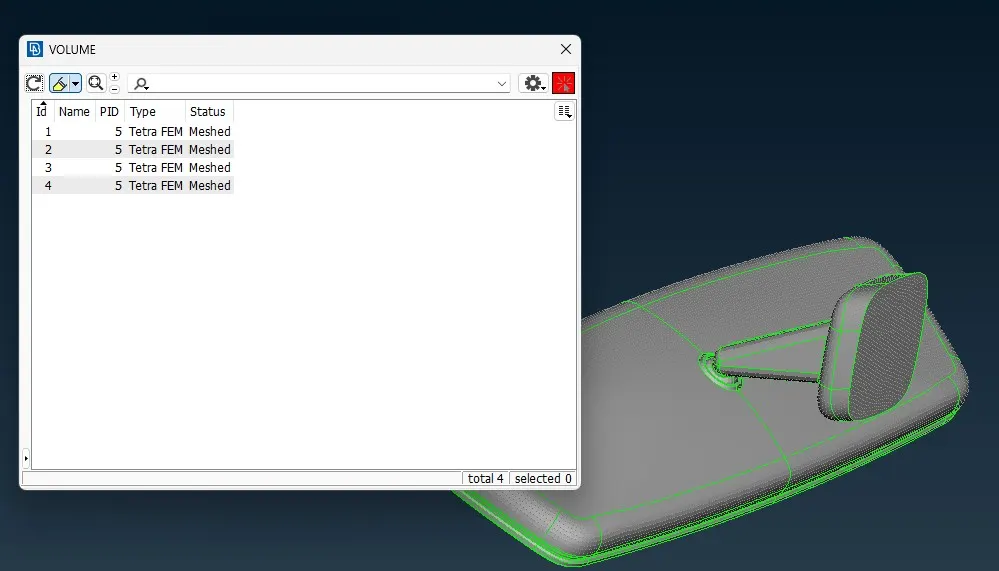
- Along with PSHELL property, PSOLID property will be created in the Property list of ANSA.
- If the PSHELL elements are multiple, then defining the volume separately for each PSOLID element is important.
- After the defining the Volume, we can double click on the PSOLID property to assign the Volume to the Model.
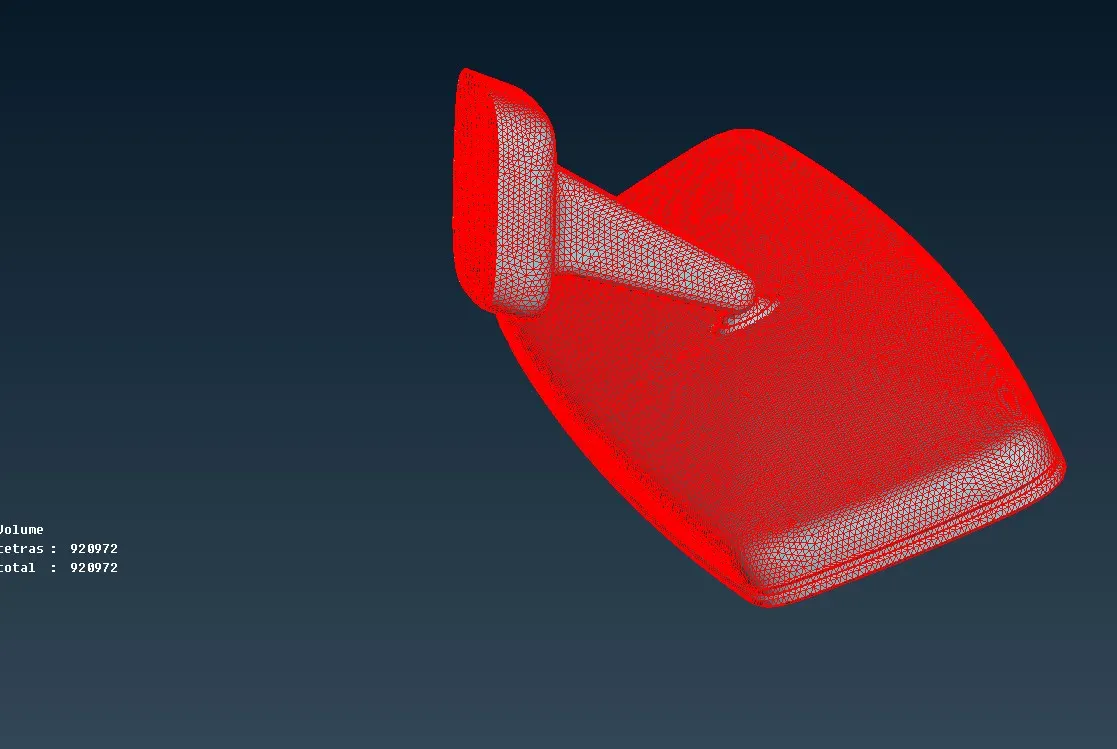
- Go to V MESH > Unstructured Mesh > tetra rigid/ tetra FEM. Select the volume, the mesh will be generated.
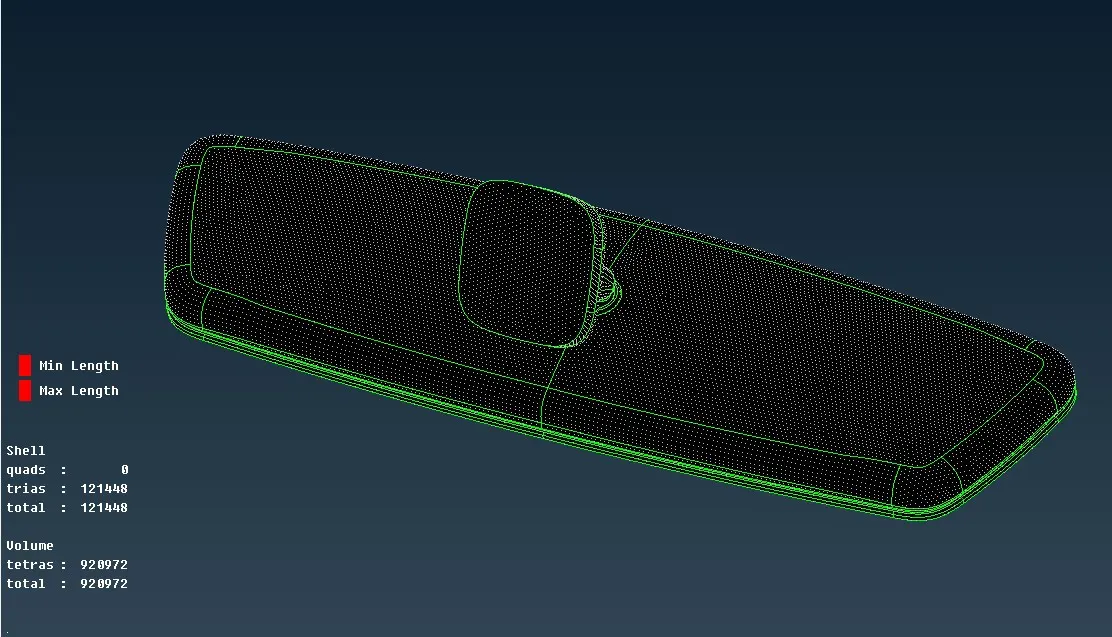
To see the solid mesh generated on can toggle with bound icon in the drawing styles menu.
The link to the Files is uploaded in Notepad